
There are times when WooCommerce store owners need to add a custom note on checkout. This can be done by adding some custom code to your site. Read on below to learn how to add a custom note on WooCommerce checkout.
What Situations Would I Need to add a Custom Note on Checkout?
There are several situations when you’ll want to add a custom note on checkout such as:
- If you are having checkout problems and you want to inform your customers of a workaround to the problem
- If you want to let your customers know about a coupon code that they can use on checkout
- If you want to remind your customers about an ongoing promotion so they can add more items to the cart
Adding the Custom Note on WooCommerce Checkout
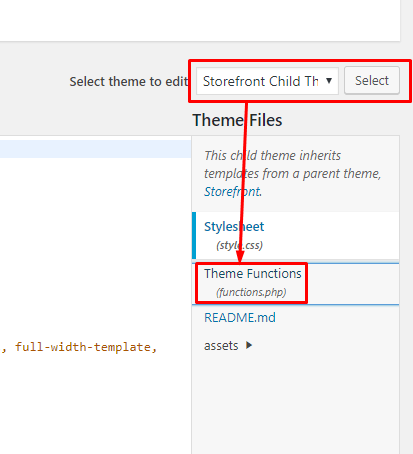
To add the custom note on WooCommerce checkout. You will need to edit your child theme’s functions.php file.
A word of caution before proceeding. The functions.php file is a sensitive file and editing it can cause your site to do down and even lock you out from the WordPress Dashboard. We recommend letting your developer do this. You can also edit the file using an FTP client so you can easily revert any changes in case you mess something up. If you have no developer and need help getting this done, you can contact the Wooassist team to help you out.
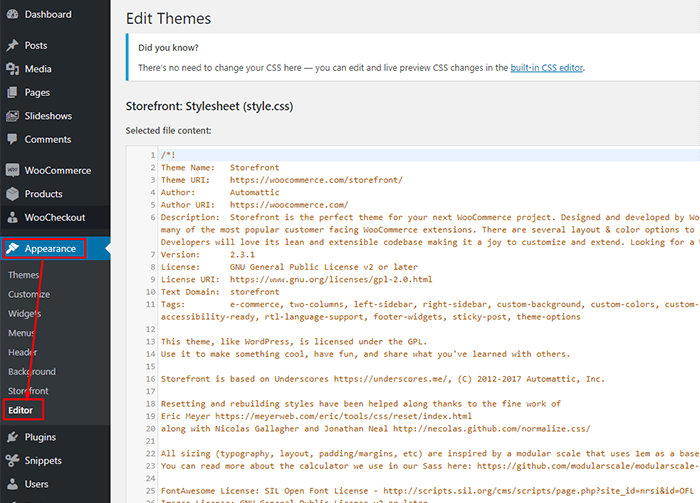
To get started, click on Appearance > Editor.
Next, choose the active theme. Make sure you are using a child theme. Click “Select”. If you are using Storefront theme and don’t have a child theme, check out this guide.
Find the “functions.php” and click to open it.
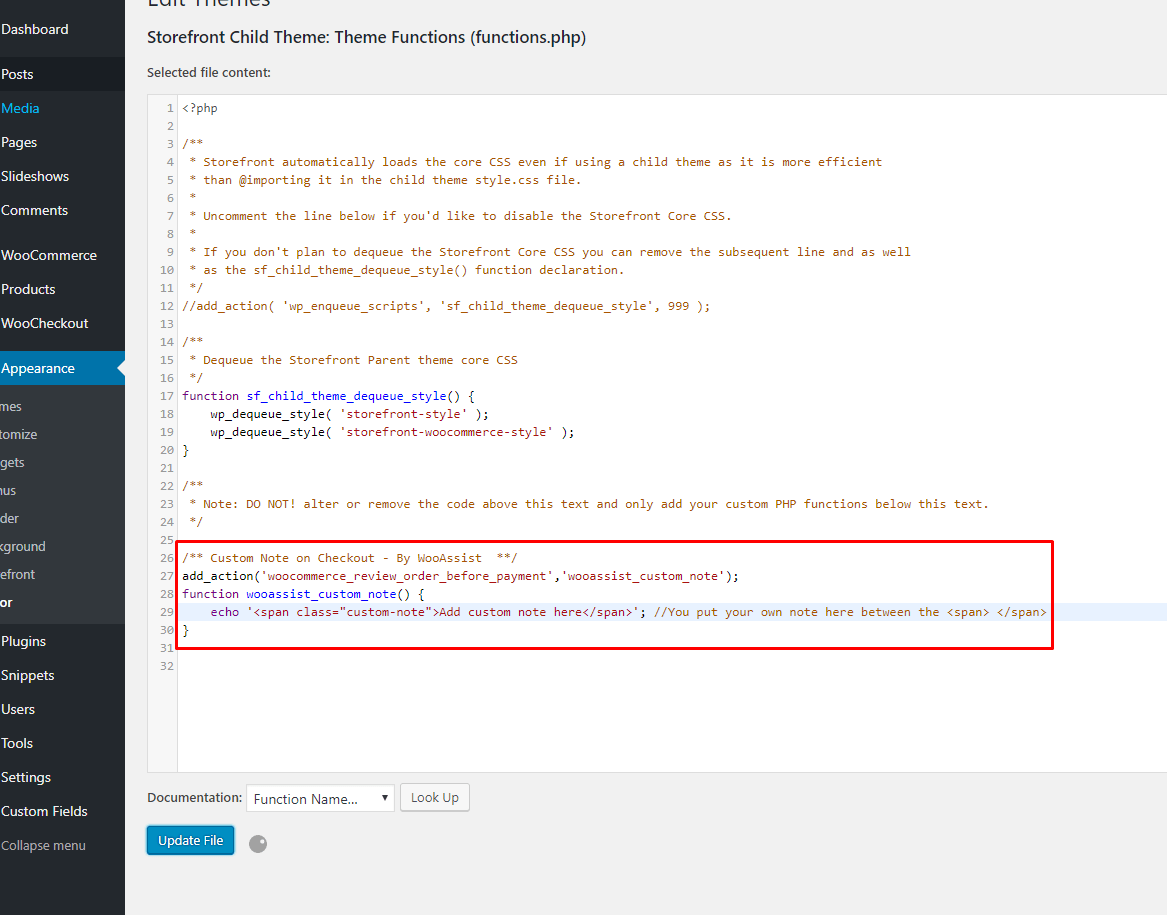
Copy the code below and paste it on the bottom part of the file as shown in the image. Edit the “Add custom note here” text with the custom text that you want to add.
/** Custom Note on Checkout - By WooAssist  **/

add_action('woocommerce_review_order_before_payment','wooassist_custom_note');

function wooassist_custom_note() {

echo 'Add custom note here'; //You put your own note here between the

}
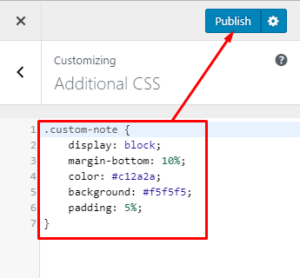
That’s a done deal but you may want add some styling to your custom note it will look professional. Add this CSS code by clicking the Customize link on your WordPress admin bar. Then click on Additional CSS.
You can then copy and paste the CSS code below and hit publish to save.
.custom-note {

display: block;

margin-bottom: 10%;

color: #c12a2a;

background: #f5f5f5;

padding: 5%;

}
Note that you may need to tweak the values in the code depending on your theme.
You can now see the styled custom note section on your WooCommerce store’s checkout.
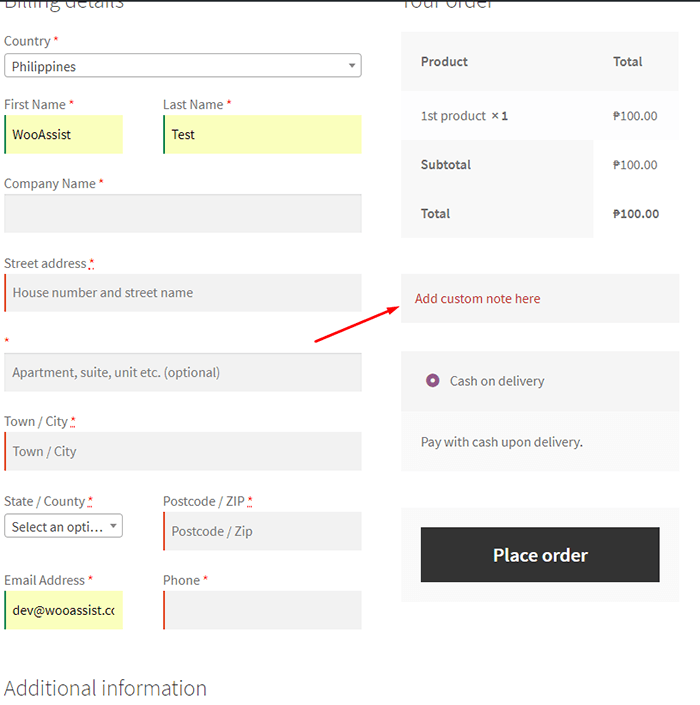
Did that work for you? If you have any questions, let us know in the comments.


