Wooassist

Assistance for Your Woocommerce Store

  • How it Works
  • Pricing
  • Services
    • Site Maintenance
    • AI SEO and Content Marketing
  • Blog
    • How-To Articles
    • Code Snippets
    • SEO For E-Commerce
    • Theme and Plugin Reviews
    • Wooassist News
    • WordPress/WooCommerce News
    • Interviews
  • About Us
  • Contact
You are here: Home / Archives for How-To Articles

How to Move Your Offline Business Online with WooCommerce

May 5, 2020 By John 4 Comments

Nowadays, having an online presence is essential for any business. Moving your offline business online is a smart decision. With WooCommerce, you can easily set up an online store, manage products, and connect with customers worldwide. In this guide, we’ll walk you through the steps to transition your brick-and-mortar business to a successful ecommerce store using WooCommerce.

Move Your Offline Business Online

Creating an e-commerce store is not that difficult. Most of the tools you need are available for free. In this article, we’ll teach you how you can create an e-commerce store using WordPress and WooCommerce while keeping in line with e-commerce best practices.

What You’ll Need to Create an E-commerce Store

You will need the following to get started on your e-commerce store

  • a domain name – this will be the identity of your e-commerce store
  • a hosting provider – this will be the server where your e-commerce store is hosted
  • WordPress (free to download)
  • WooCommerce (free to download)
  • a responsive WordPress theme that is compatible with WooCommerce. We recommend Storefront theme which is also free.

How to Choose Your Domain Name for Your E-commerce Store

Here are some tips for choosing an ideal domain name for your e-commerce store.

  • Keep your domain name short and simple.
  • Avoid using numbers and hyphens.
  • Choose a .com domain.
  • Make sure your domain name identifies with your brand.

There are many places where you can buy a domain such as GoDaddy or NameCheap. Some hosting providers may also offer free domains so consider that when you buy a domain name.

How to Choose a Hosting Service for Your E-commerce Store

For hosting, we can recommend either Siteground or WPEngine. We’ve reviewed several hosting providers and these came out on top. These two companies both provide excellent WordPress hosting with excellent support.

How to Choose a Theme for Your E-commerce Store

You can think of a theme as the ‘skin’ of your e-commerce store. Some important elements to look for in a theme is that it must be responsive and fast. A responsive theme adapts to different screen size so your website is easy to use even on mobile devices. This is important because Google has been prioritizing websites that are easy to use on a mobile device.

A good theme should also be fast. This means it must have little to no bloat. If you’ve been searching for WordPress themes online, you have most likely come across several themes that have drag and drop editing tools. They might have some other nifty features such as changings colors, fonts and other styles. For the average user that has little to no coding knowledge, these themes may appear like a godsend. But here’s the caveat, these kinds of themes will come with a lot of bloated code that will add a few seconds to your page load speed. In the current e-commerce sphere, having a fast website is essential if you want to get customers. A slow website can and will:

  • cause visitors to leave your site. This is known as bounce rate.
  • provide bad user experience.
  • cause SEO rankings to drop.
  • result in loss of traffic
  • reduce revenue

We recommend Storefront theme because it is responsive and fast. More important is it was made by the same developers that created WooCommerce. Storefront was created specifically to work with WooCommerce so compatibility is guaranteed. It is compatible with many WooCommerce plugins if you want to extend the functionality of WooCommerce.

Next Steps

If you have decided on and purchased a domain name and hosting, then it’s time to get started on setting up your e-commerce store. We will be using WordPress and WooCommerce because they are the easiest to learn. There is still a learning curve so you’ll still need to put in some time to learn the platform.

Install WordPress

Log in to your hosting account’s cPanel, User Area or User Portal. Depending on your hosting account, the method of installing WordPress might be different. It is best to consult with your hosting provider’s documentation.

Most hosting providers would have cPanel. If you have cPanel, find the WordPress installation shortcut and just follow the on-screen instructions.
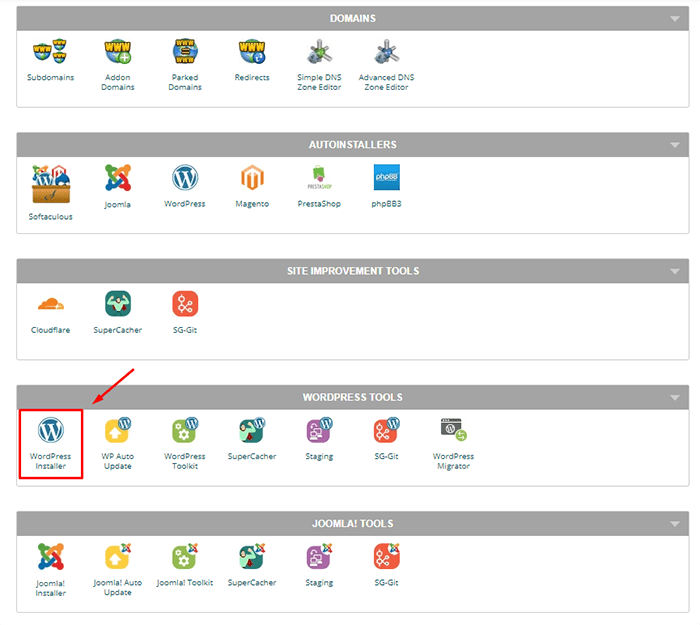
install wordpress

You will be asked to create a name for your WordPress site’s database, so just use an appropriate name. You will also be asked to create a database username and password. Keep this safe. For the next step, the installation will ask you to fill in some more details about your website such as your site title. You can change these later if you ever need to. You will be asked to create a user account. This will be your main login for your WordPress Dashboard. Don’t use ‘admin’ as your username and use a strong password. Run the installation for WordPress.

When the installation finishes, you should now be able to log in to your WordPress Dashboard using a temporary URL. You can access your website on your domain name after you’ve pointed the DNS to your WordPress installation and when the domain has propagated.

Point Your Domain to Your WordPress Installation

First, you’ll need to find your host’s nameservers. You can consult your hosting provider’s documentation or your hosting provider’s support. Then head over to your domain registrar and change the nameservers on your domain to your hosting provider’s domain.

After that, you’ll just have to wait for the DNS to propagate which may take up to 24 hours. You’ll know the DNS has propagated if you can access your new site when you open your domain on a browser. From here, you just need to append your domain with ‘/wp-admin’ to log in.

Turn on Maintenance Mode

At this point, your site is not ready to go live so we recommend putting your site on maintenance mode. This will block non-logged-in users from accessing your website. Instead, they will be taken a temporary maintenance page. To enable maintenance mode, you will need to install a plugin. Log in to your WordPress Dashboard, click on Plugins and then click on Add New. In the keyword field, search for “Coming Soon Page, Under Construction & Maintenance Mode by SeedProd”. Click on Install and Activate.
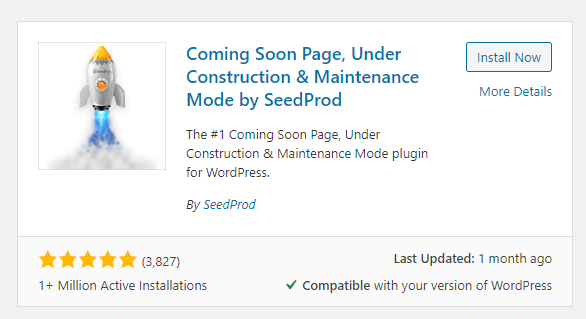
enable maintenance mode

After that, click tick “Enable Coming Soon Mode” or “Enable Maintenance Mode” then click on Save Changes. Note that you can edit the content of the page in the “Page Settings” options. When you are ready to go live, you can turn off maintenance mode.

Install WooCommerce

The next step to do is to install WooCommerce. WooCommerce is the e-commerce platform that Automattic created for WordPress.

Go to Plugins and click on Add New. Search for WooCommerce and Install then Activate. When that’s done, you can head over to WooCommerce > Settings and tweak it depending on your needs.
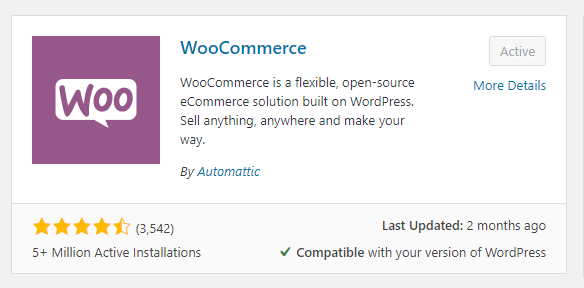
install woocommerce

Install Your Theme

If you followed our advice, you’d be using Storefront theme. Regardless of what theme you chose, the installation process is the same. Download the theme files to your computer. On your WordPress Dashboard, click on Appearance > Themes. Click on Add New. Then click on Upload Theme. Choose the theme file you downloaded and click on Install Now. Activate your new theme when it finishes. From here, you’ll want to go to Appearance > Customize and then go to Theme Settings. Tweak the settings based on your needs.

install wordpress theme

And with that, you already have an e-commerce store but the work doesn’t stop here. Here’s a rough list of tasks that you still need to do before you can launch your e-commerce store.

There’s More Work to be Done

Whatever you need to do from here will depend on your specific needs. Here’s a list of the tasks and resources that can help you finish and optimize your e-commerce store. If you need any help with any of these tasks or some other customizations, you can drop us an email and the Wooassist team can help out.

learn wordpress and woocommerce
  • Finish Setting up Your Products
  • Use HTTPS
  • Set up Your Payment Gateways
  • Set up Your Product Shipping
  • Optimize Your Images
  • Optimize Your E-commerce Store’s Site Speed
  • Optimize Your E-commerce Store for SEO
  • Create a Blog – Creating a blog is not necessary but having one can help you improve your SEO and help you generate leads.
  • Set up Google Analytics and Google Search Console
  • Update Your WooCommerce Store Regularly
  • Optimize for Conversion Rate
  • Make Your WooCommerce Store GDPR Compliant
  • Improve WordPress Security

Should you have any other questions, you can also let us know in the comments section.

Filed Under: How-To Articles

How to Use WooCommerce Coupons to Drive Sales; Includes Advanced Custom Enhancements

December 9, 2024 By John Leave a Comment

WooCommerce is a powerful e-commerce platform that empowers businesses to create customizable online stores with ease. One of its most effective features for boosting sales and enhancing customer loyalty is the coupon system. Learning how to use WooCommerce coupons to drive sales can be advantageous to your business. It can also help increase traffic and build a loyal customer base.

What are the Benefits of Using WooCommerce Coupons?

WooCommerce coupons are promotional codes that customers can apply at checkout to receive discounts on their purchases. These discounts can take various forms, including percentage discounts, fixed-amount reductions, free shipping, and more. By strategically creating and using these coupons, you can achieve several key goals:

  • Drive Traffic: Attract new customers and encourage repeat visits.
  • Increase Sales: Motivate customers to make purchases or spend more.
  • Enhance Customer Loyalty: Reward loyal customers and increase their lifetime value.

Creating WooCommerce Coupons

How to Use WooCommerce Coupons to Drive Sales

To create coupons for your WooCommerce store, you can follow the steps below:

  1. Log in to Your WordPress Admin Area.
  2. Go to Marketing > Coupons.
  3. Click on Add Coupon to start creating your new coupon. You will be directed to a page where you can configure various settings for your coupon.
  4. Provide a name and an optional brief description of the coupon’s purpose. This is for your reference and will not be visible to customers.
  5. Enter a unique code that customers will use to redeem the coupon. This code should be easy to remember and relevant to the promotion.
  6. In the Coupon Data section, you’ll find several tabs where you can set detailed rules and restrictions, Once you’ve set these up, click on Publish and your coupon will be ready for use on your store.
  7. Important: Make sure you test your coupons so you know you’ve set them up correctly and do exactly what you want them to do.

Using WooCommerce Coupons Effectively

Promote Your Coupons

To maximize the impact of your coupons, you should promote them. Here are a few ways on how you can promote your coupons.

  • Email Marketing: Send personalized emails to your subscriber list with coupon codes and details.
  • Social Media: Share coupon codes on your social media platforms to reach a broader audience.
  • Website Banners: Display banners or pop-ups on your website to inform visitors about current promotions.
  • Partnerships: Collaborate with influencers or other businesses to distribute your coupon codes.

Monitor Coupon Performance

Track the performance of your coupons to understand their impact and make data-driven decisions:

  • Use WooCommerce Reports: Access built-in reports to analyze coupon usage, sales, and customer behavior.
  • Google Analytics Integration: Integrate with Google Analytics to gain deeper insights into coupon performance and customer interactions.

Adjust Your Strategies

Based on performance data, you can adjust your coupon strategies to optimize results:

  • A/B Testing: Experiment with different coupon types, discount amounts, and promotional strategies to see what works best.
  • Seasonal Campaigns: Create seasonal or holiday-specific coupons to take advantage of peak shopping periods.
  • Loyalty Programs: Implement loyalty programs where customers earn points or rewards that can be redeemed for coupons.

Enhancing Customer Loyalty with Coupons

Enhancing Custom Loyalty

Coupons can be a powerful tool for fostering customer loyalty:

  • Welcome Offers: Give new customers a welcome coupon to encourage their first purchase. Even if you take a net loss on a customer’s first purchase, you can make up for it if they become a customer for life.
  • Birthday Discounts: Send personalized birthday coupons to make customers feel valued.
  • Referral Bonuses: Offer coupons to customers who refer friends or family to your store.

Enhancing WooCommerce Coupons

While WooCommerce offers a robust coupon system out of the box, there are times when you might need more advanced functionalities to meet specific business goals. By adding custom code snippets to your WooCommerce store, you can expand the capabilities of coupons to offer unique promotions, automate discounts, and better target your customer segments.

Below are several ways to enhance WooCommerce coupons with custom code, along with practical use cases for each enhancement.

Important: Before implementing any custom code, always back up your site and test changes in a staging environment. Use a child theme or a custom plugin to add code snippets to prevent them from being overwritten during theme updates.

Restrict Coupons to First-Time Customers

Objective: Encourage new customer acquisition by offering exclusive discounts to first-time buyers.

Use-Case: Offer a “10% off” coupon to customers making their first purchase to incentivize them to complete their initial order.

Implementation

Add the following code snippet to your theme’s functions.php file or a custom plugin:

add_action('woocommerce_coupon_is_valid', 'restrict_coupon_to_first_time_customers', 10, 2);
function restrict_coupon_to_first_time_customers($valid, $coupon) {
    if ($coupon->get_code() === 'NEWCUSTOMER') {
        $user_orders = wc_get_orders(array(
            'customer_id' => get_current_user_id(),
            'limit'       => 1,
        ));

        if (!empty($user_orders)) {
            throw new Exception(__('This coupon is only valid for first-time customers.', 'woocommerce'));
        }
    }
    return $valid;
}

Explanation

  • Coupon Code Check: The code checks if the applied coupon code is NEWCUSTOMER.
  • Order History Verification: It retrieves any existing orders associated with the current user.
  • Validation: If the user has previous orders, an error message is displayed, and the coupon becomes invalid for them.

Automatically Apply a Coupon Based on Cart Value

Objective: Increase the average order value by automatically applying a discount when the cart total exceeds a certain amount.

Use-Case: Offer free shipping or a discount when customers spend over $100 without requiring them to enter a coupon code.

Implementation

Add the following code snippet to your theme’s functions.php file or a custom plugin:

add_action('woocommerce_before_calculate_totals', 'apply_coupon_based_on_cart_total');
function apply_coupon_based_on_cart_total($cart) {
    if (is_admin() || !did_action('wp_loaded') || !is_checkout()) {
        return;
    }

    $coupon_code = 'FREESHIP100'; // Your coupon code
    $threshold = 100; // Threshold amount for applying the coupon

    if ($cart->subtotal >= $threshold && !WC()->cart->has_discount($coupon_code)) {
        WC()->cart->apply_coupon($coupon_code);
    } elseif ($cart->subtotal < $threshold && WC()->cart->has_discount($coupon_code)) {
        WC()->cart->remove_coupon($coupon_code);
    }
}

In addition, the code below will add an alert so you can urge customers to add more products to their cart so they can get the discount.

add_action('woocommerce_before_cart', 'notify_customer_of_threshold');
add_action('woocommerce_before_checkout_form', 'notify_customer_of_threshold');

function notify_customer_of_threshold() {
    $coupon_code = 'FREESHIP100'; // Your coupon code
    $threshold = 100; // Threshold amount for the coupon to apply
    $current_total = WC()->cart->subtotal;

    if ($current_total > 0 && $current_total < $threshold) {
        $amount_needed = $threshold - $current_total;
        wc_print_notice(
            sprintf(
                __('Add %s more to your cart to qualify for free shipping!', 'woocommerce'),
                wc_price($amount_needed)
            ),
            'notice'
        );
    }
}

Restrict Coupon Usage to Specific User Roles

Objective: Offer exclusive promotions to certain customer groups, such as wholesale buyers or VIP members.

Use-Case: Provide a special discount to users with the wholesale_customer role.

Implementation

Add the following code snippet to your theme’s functions.php file or a custom plugin:

add_action('woocommerce_coupon_is_valid', 'restrict_coupon_to_user_roles', 10, 2);
function restrict_coupon_to_user_roles($valid, $coupon) {
    if ($coupon->get_code() === 'WHOLESALE10') {
        $allowed_roles = array('wholesale_customer');
        $current_user  = wp_get_current_user();

        if (!array_intersect($allowed_roles, $current_user->roles)) {
            throw new Exception(__('This coupon is not valid for your account type.', 'woocommerce'));
        }
    }
    return $valid;
}

Explanation

  • Role Verification: Checks if the current user has one of the allowed roles.
  • Error Handling: If not, it throws an exception and invalidates the coupon.

Add a Minimum Product Quantity Requirement

Objective: Encourage bulk purchases by requiring a minimum quantity of items in the cart to use a coupon.

Use-Case: Offer a discount when customers buy 10 or more items.

Implementation:

Restrict Coupon Usage Based on Minimum Product Quantity

Add the following code snippet to your theme’s functions.php file or a custom plugin:

add_action('woocommerce_coupon_is_valid', 'restrict_coupon_to_minimum_quantity', 10, 2);
function restrict_coupon_to_minimum_quantity($valid, $coupon) {
    if ($coupon->get_code() === 'BULKBUY') {
        $required_quantity = 10;
        $cart_quantity     = WC()->cart->get_cart_contents_count();

        if ($cart_quantity < $required_quantity) {
            throw new Exception(sprintf(__('You need to purchase at least %d items to use this coupon.', 'woocommerce'), $required_quantity));
        }
    }
    return $valid;
}


Explanation
  • Function: The restrict_coupon_to_minimum_quantity function validates the coupon by checking if the cart quantity meets the minimum required.
  • Exception Handling: If the cart quantity is less than the required amount, an exception is thrown with a helpful message, preventing the coupon from being applied.
Display an Alert to Customers to Add More Products

Add the following code snippet to your theme’s functions.php file or a custom plugin:

add_action('woocommerce_before_cart', 'notify_customer_of_quantity_threshold');
add_action('woocommerce_before_checkout_form', 'notify_customer_of_quantity_threshold');

function notify_customer_of_quantity_threshold() {
    $coupon_code       = 'BULKBUY';     // Your coupon code
    $required_quantity = 10;            // Minimum quantity required
    $cart_quantity     = WC()->cart->get_cart_contents_count();

    // Check if the coupon is not applied and cart quantity is less than required
    if ($cart_quantity > 0 && $cart_quantity < $required_quantity && !WC()->cart->has_discount($coupon_code)) {
        $quantity_needed = $required_quantity - $cart_quantity;
        wc_print_notice(
            sprintf(
                __('Add %d more item(s) to your cart to qualify for the BULKBUY discount!', 'woocommerce'),
                $quantity_needed
            ),
            'notice'
        );
    }
}

Explanation

  • Function: The notify_customer_of_quantity_threshold function displays a notice on the cart and checkout pages when the cart quantity is below the required minimum.
  • Conditions:
    • Checks if the cart is not empty.
    • Verifies that the cart quantity is less than the required quantity.
    • Ensures the coupon isn’t already applied.
  • Message: Displays how many more items the customer needs to add to qualify for the discount.
Optional: Automatically Apply the Coupon When Quantity Requirement Is Met

Add the following code snippet to your theme’s functions.php file or a custom plugin:

add_action('woocommerce_before_calculate_totals', 'apply_coupon_based_on_quantity');
function apply_coupon_based_on_quantity($cart) {
    if (is_admin() || !did_action('wp_loaded')) {
        return;
    }

    $coupon_code       = 'BULKBUY';     // Your coupon code
    $required_quantity = 10;            // Minimum quantity required
    $cart_quantity     = $cart->get_cart_contents_count();

    if ($cart_quantity >= $required_quantity && !WC()->cart->has_discount($coupon_code)) {
        WC()->cart->apply_coupon($coupon_code);
    } elseif ($cart_quantity < $required_quantity && WC()->cart->has_discount($coupon_code)) {
        WC()->cart->remove_coupon($coupon_code);
    }
}

Explanation

  • Function: The apply_coupon_based_on_quantity function automatically applies or removes the coupon based on the cart quantity.
  • Conditions:
    • Applies the coupon when the cart quantity meets or exceeds the required amount.
    • Removes the coupon if the cart quantity falls below the required amount.

Automatically Apply a Coupon When Specific Products Are in the Cart

Objective: Simplify the user experience by auto-applying coupons when certain products or categories are added to the cart.

Use-Case: During a promotion, automatically apply a discount when customers add products from the “Summer Sale” category to their cart.

Implementation

Add the following code snippet to your theme’s functions.php file or a custom plugin:

add_action('woocommerce_before_calculate_totals', 'apply_coupon_for_specific_categories');
function apply_coupon_for_specific_categories($cart) {
    if (is_admin() || !did_action('wp_loaded')) {
        return;
    }

    $coupon_code       = 'SUMMER20';       // Your coupon code
    $target_categories = array('summer-sale'); // Category slugs
    $apply_coupon      = false;

    foreach ($cart->get_cart() as $cart_item) {
        $product_id = $cart_item['product_id'];
        $terms      = get_the_terms($product_id, 'product_cat');

        if ($terms && !is_wp_error($terms)) {
            foreach ($terms as $term) {
                if (in_array($term->slug, $target_categories)) {
                    $apply_coupon = true;
                    break 2;
                }
            }
        }
    }

    if ($apply_coupon && !WC()->cart->has_discount($coupon_code)) {
        WC()->cart->apply_coupon($coupon_code);
    } elseif (!$apply_coupon && WC()->cart->has_discount($coupon_code)) {
        WC()->cart->remove_coupon($coupon_code);
    }
}

Explanation

  • Category Check: Iterates through cart items to check if any belong to the specified categories.
  • Automatic Application/Removal: Applies or removes the coupon based on whether the condition is met.

Set Coupons to Expire Automatically After Use

Objective: Limit a coupon to a single use per customer and ensure it expires immediately after being used.

Use-Case: Send personalized one-time-use coupons to customers as part of a special promotion.

Implementation:

Add the following code snippet to your theme’s functions.php file or a custom plugin:

add_action('woocommerce_applied_coupon', 'expire_coupon_after_single_use');
function expire_coupon_after_single_use($coupon_code) {
    $coupon = new WC_Coupon($coupon_code);

    if ($coupon->get_usage_limit_per_user() == 1) {
        $coupon->set_date_expires(current_time('mysql'));
        $coupon->save();
    }
}

Explanation:

  • Usage Limit Check: Verifies if the coupon is limited to one use per user.
  • Expiration Setting: Sets the coupon’s expiration date to the current time after it’s applied.

Unlocking the Full Potential of WooCommerce Coupons

By integrating these advanced coupon strategies into your WooCommerce store, you’re not just offering discounts—you’re creating personalized shopping experiences that can significantly boost sales and foster long-term customer loyalty. All these customizations transform your promotional efforts into powerful marketing tools. Remember to back up your site before making any changes and thoroughly test each new feature in a staging environment. As you continue to monitor performance and adapt your strategies, you’ll unlock the full potential of WooCommerce coupons to drive growth and success for your online business.

Filed Under: Code Snippets, How-To Articles

Where to Hire a WooCommerce Developer?

January 19, 2023 By John Leave a Comment

Where to Hire a WooCommerce Developer?

If you own a brick-and-mortar store in this day and age and you don’t have an ecommerce presence, you’re lagging behind. You can easily move your offline business online with WooCommerce. There’s no reason you shouldn’t. If you’re not a technical user, you need to know where to hire a WooCommerce developer.

Creating a simple ecommerce store with WooCommerce is easy and you can do it with very little technical know-how. However, if you want customizations done in your WooCommerce store, you’re going to have to hire a WooCommerce developer to do the customizations for you. 

And if you already have a WooCommerce store, you might sometimes need the help of a WooCommerce developer to fix any problems you might be having on your site. Having a WooCommerce developer at your beck and call can be a lifesaver. In this blog post, we will discuss where you can hire a WooCommerce developer who can help you build the ecommerce store of your dreams.

How to Find a WooCommerce Developer?

Before you hire a WooCommerce developer, there are a few things you should keep in mind. First, you’ll want to make sure that the developer has experience with both WordPress and WooCommerce. You can ask for referrals from other businesses who have used WooCommerce, or check out online portfolios and reviews.

Contact the developer to get a consultation. This will allow you to learn more about their experience and skills, as well as get a sense of their communication style.

It is important to agree on a price and the scope of the job before starting anything. Once you’ve found the right fit, you can rest assured that your WooCommerce project is in good hands.

What to Look for in a WooCommerce Developer?

When looking for a WooCommerce developer, it is important to consider their experience with the platform. A developer should have a good understanding of how WooCommerce works and be able to customize it to meet your specific needs. Notably, since WooCommerce is built on WordPress, they should also be familiar with WordPress.

Another thing to consider when hiring a WooCommerce developer is whether they are able to provide support after the project is completed. Many developers will only provide support for a limited period of time, so it is important to ensure that you are aware of this before hiring someone. It is ideal to find a developer that provides ongoing support for a fee to help maintain your site.

Finally, it is also worth considering the cost of hiring a WooCommerce developer. While there are many cheaper options available, ultimately, you get what you pay for. A cheap developer may not have the same level of experience or expertise as a more expensive one. You should weigh all of these factors before making a decision.

How Much Does it Cost to Hire a WooCommerce Developer?

The cost of hiring a WooCommerce developer can vary depending on the size and scope of your project. If you are looking for a simple website with a few products, you can expect to pay around $500-$1,000. If you need a more complex website with many products and custom features, the cost can range from $2,000-$5,000 or more. Ultimately, the cost of hiring a WooCommerce developer will depend on your specific needs and requirements.

Things to Know Before You Hire a WooCommerce Developer

A WooCommerce developer can help get the job done, but you as a store owner should also do your own research. Get to know the platform. WooCommerce is great out of the box. It has most of the features you’ll need for standard ecommerce store operations. However, if you want customizations like memberships, subscriptions, affiliate programs, booking, dropshipping, product add-ons, and other integrations, this may entail additional costs in the form of plugins or custom development work.

It’s not uncommon for some store owners to make demands of their developers for things that cannot be accomplished from a technical standpoint. Sometimes store owners may request to add what they think are simple features but are actually quite troublesome to implement for even the most experienced WooCommerce developers.

Be sure to discuss your project in detail with the developer so that they can give you an accurate quote. Any new features that are requested on top of the original quotation can be declined so it is important to get this out of the way. Should you want to add anything, that would entail a new quotation as a separate project.

Questions to Ask a Potential WooCommerce Developer

When looking for a WooCommerce developer, here are some important questions you might want to ask.

  1. What experience do you have with WooCommerce?
  2. What themes are you familiar with? Note: We recommend a WooCommerce developer familiar with the Storefront theme which is easily the best theme to use for WooCommerce. 
  3. What WooCommerce plugins are you familiar with? Are you comfortable using WooCommerce Hooks? Note: Knowledge of WooCommerce Hooks is essential for making customizations to WooCommerce.
  4. Have you developed any custom WooCommerce solutions before? If so, can you tell me about them?
  5. How comfortable are you working with code that needs to be compatible with multiple browsers and devices?
  6. Are you familiar with SEO best practices? Note: You may not want to pay for SEO services at this point but it is important to build a site with a good SEO foundation.

Hiring a WooCommerce Developer

Hire Wooassist for Experienced WooCommerce Developers

There are plenty of places where you can hire a WooCommerce developer and you’re already on one. We at Wooassist have been working with WooCommerce store owners for many years. We’ve helped hundreds of WooCommerce store owners get their stores up and running and even helped with many customizations to WooCommerce (including creating custom plugins).

Our WooCommerce developers have extensive experience with WooCommerce. Our developers live and breathe WooCommerce and we do this all at affordable rates on a pay-as-you-go basis. We do not charge any expensive retainer fees. We only bill you for the time spent working on your site.

If you have any questions, feel free to shoot us an email.

Hire from a Jobs Agency

Another option is to use a job agency. This can be a great way to find qualified candidates, as the agency will have a pool of pre-screened workers to choose from. When using a jobs agency, be sure to specify that you’re looking for someone with experience in WooCommerce development. This will help the agency match you with the right candidates. Be prepared to pay a bit more for this service, as the agency will charge a fee for finding and placement.

You can either hire a project-based developer or get a regular in-house developer.

Hire a Freelancer Through Upwork or Similar Gig Sites

For businesses that are seeking to hire a WooCommerce developer on a budget, one option is to post a job on Upwork, Fiverr, or similar gig sites. These sites can put you in touch with thousands of freelancers that can help you get your WooCommerce store set up or fix any problems you are having on your WooCommerce store.

When posting a job on these gig sites, include as much details as possible about the project. The more information you provide, the more likely you are to find a qualified freelancer.

One problem with working with freelancers though is that it can be very difficult to sort through the sea of freelancers bidding on your listing. Even when you’ve found a freelancer that is a fit for you, there is no guarantee for how long they will be available. Sometimes freelancers disappear on a whim and leave your business hanging.

Alternatives to Hiring a WooCommerce Developer

Buy Premium Plugins for the Functionality You Want

If you need a custom solution for WooCommerce and if the feature you want is popular enough, you can usually find plugins that can do it for you. You can look into the wide range of WooCommerce plugins available in the plugins marketplace. Still, it is important to note that despite being a user-friendly solution for ecommerce, there is still a learning curve to WooCommerce and you might sometimes find yourself unsure how to proceed when trying to do stuff on your own. These are times when you’ll need a WooCommerce developer to help you out.

If the feature you want to implement is too specialized, there might not be a plugin for it. In this case, there is not much else you can do apart from hiring a developer or…

Study Up on Programming Languages 

If you want to cut costs, studying up on programming languages used in WordPress and WooCommerce is an option. This is however not a quick solution. It can take years to learn, and even more, to master various programming languages involved in WordPress, namely, PHP, Javascript, HTML and CSS.

Developer Forums

Heading over to developer forums and message boards is also a good option if you want to get some help with customizing WooCommerce. If the feature you want is simple enough, you can probably find some kind soul who might be willing to help free of charge.

Apart from learning how to code on your own, there is really no replacement for a WooCommerce developer.

Different Businesses Have Different Needs

As we come to the end of this article, you should remember that when it comes to finding a WooCommerce developer, there is no one-size-fits-all solution. While some businesses might benefit from hiring an in-house developer, others may find that working with a freelance or agency developer is a better fit for their needs. Ultimately, the best decision for your business will come down to factors like your budget, project scope, and preferences.

Filed Under: How-To Articles

How to Implement WooCommerce Reviews and Ratings: Encouraging Customer Feedback and Building Trust

October 3, 2024 By John Leave a Comment

The competition is fierce. Simply offering great products isn’t enough to guarantee success. This is why reviews and ratings have become essential components of an effective marketing strategy. They serve as social proof. This helps potential buyers make informed decisions and builds trust in your brand. For WooCommerce store owners, leveraging reviews and ratings can boost sales and customer loyalty.

How to Implement WooCommerce Reviews and Ratings

Why Reviews and Ratings Matter for Your WooCommerce Store

Before diving into the technical details, we need to understand why reviews and ratings are so valuable:

Building Social Proof

Building Trust Through Others’ Experiences

Potential customers often look to the experiences of others to guide their own purchasing decisions. This reliance on social proof means that positive reviews can influence new customers to trust your products or services. When shoppers see that others have had satisfactory experiences, they are more likely to feel confident in making a purchase themselves.

The Impact of Negative Reviews

While negative reviews might seem detrimental, they can enhance your credibility. A mix of reviews shows authenticity and allows you to address concerns publicly to demonstrate excellent customer service.

SEO Benefits

Boosting Visibility with Fresh Content

Search engines favor websites that continually update with fresh, relevant content. Customer reviews provide a steady stream of new content without additional effort on your part. This can improve your site’s visibility and ranking on search engine results pages (SERPs).

SEO Benefits of Having Review on WooCommerce

Leveraging Long-Tail Keywords

Reviews often contain natural language and long-tail keywords that potential customers use when searching online. This user-generated content may have some impact on improving your SEO scores.

Increasing Conversion Rates

Turning Browsers into Buyers

Products with reviews tend to have higher conversion rates. Reviews reduce the uncertainty that often accompanies online shopping by providing real-life insights into the product. Customers are more likely to buy products that have been validated by other people. This reassures them of the product’s quality and effectiveness.

The Power of Star Ratings

Even a simple star rating can make a significant difference. Products with higher average ratings tend to outperform those without, as they catch the eye and communicate product quality to the potential customer.

Improved Customer Engagement

Fostering a Community

Encouraging reviews transforms your store from a mere transaction platform into a community. When customers share their opinions, they become active participants in your brand’s story. This engagement can foster a sense of belonging and increase customer loyalty.

Reviews Improve Customer Engagement

Feedback Loop for Improvement

Engaging with reviewers by responding to their comments — whether positive or negative — shows that you value their input. This two-way communication can enhance customer satisfaction and encourage repeat business.

Product Improvement

Gaining Valuable Insights

Reviews are a treasure trove of information about how your products perform in the real world. Customers may highlight features they love or issues they’ve encountered. This feedback is valuable for improving your product/service.

Driving Innovation

By paying attention to common themes in reviews, you can make informed decisions about product enhancements or new product development. This allows you to stay on top of market trends and customer needs.

Gain a Competitive Advantage

Standing Out in a Crowded Market

In niches where products are similar, reviews can be the differentiating factor that sets your store apart from the competition. A higher volume of positive reviews can shift customer preference in your favor over competitors.

Building a Reputation

A strong portfolio of reviews contributes to a reputable brand image. Over time, this reputation can become one of your most valuable assets that help attract new organic customers.

Setting Up Reviews and Ratings in WooCommerce

Setting Up Reviews

WooCommerce makes it easy to enable and manage customer reviews and ratings. Here’s how to set it up:

Step 1: Enable Reviews

  • In your WordPress dashboard, go to WooCommerce > Settings > Products.
  • Check the box labeled “Enable product reviews”. This will allow customers to leave reviews on your product pages.
  • You can also enable “Ratings are required to leave a review” and “Show ‘Verified Owner’ label on customer reviews”. The first option ensures that reviews include star ratings, and the second adds credibility by showing which reviews are from verified purchasers.

Step 2: Customize the Review Settings

WooCommerce allows for some customization for displaying reviews.

  • Sort Order: You can choose to display the most recent reviews first, which is often preferred as it shows up-to-date feedback.
  • Moderation: Consider enabling moderation if you want to approve reviews before they go live. This can help prevent spam or inappropriate content from being posted.
  • Email Notifications: Set up email notifications to alert you whenever a new review is posted. This allows you to respond promptly and manage customer interactions effectively.

Step 3: Displaying Reviews on Product Pages

Reviews are typically displayed on the product pages under the product description. Ensure that the review section is easily accessible and visually appealing. Some themes and plugins offer additional customization options, such as displaying review summaries or star ratings on category pages.

Encouraging Customers to Leave Reviews

Implementing reviews is only half the battle. You also need to encourage customers to leave feedback. Here are some strategies that you can implement.

Post-Purchase Emails

Send an automated follow-up email after a customer receives their order, politely requesting them to leave a review. Including a direct link to the review form can make the process easier.

Incentivize Reviews

Offer small incentives, such as discounts or loyalty points, in exchange for reviews. Make sure that it is clear that incentives do not mean that they mean to give a positive review. Honest reviews are preferred even if they are negative.

Simplify the Review Process

The easier it is for customers to leave a review, the more likely they are to do it. Keep the review form simple and user-friendly. Avoid asking too many questions or requiring extensive details.

Respond to Reviews

good customer service

Engage with your customers by responding to their reviews, whether positive or negative. Thank them for their feedback and address any concerns they raise. This interaction shows that you value their opinions and are committed to improving their experience.

Highlight Reviews

Showcase positive reviews on your homepage, product pages, or marketing materials. This not only gives visibility to happy customers but also encourages others to share their experiences.

Leveraging WooCommerce Review Plugins

While the built-in WooCommerce review system is robust, several plugins can enhance its functionality:

  • WooCommerce Product Reviews Pro: This plugin allows customers to add photos, videos, and more detailed ratings to their reviews. It also enables reviews to be filtered by rating, which can help potential buyers find relevant feedback.
  • YITH WooCommerce Advanced Reviews: YITH’s plugin adds features like review summaries, voting on reviews, and the ability to mark reviews as helpful or unhelpful.
  • Customer Reviews for WooCommerce: This plugin enhances the review process by sending automatic review reminders, allowing for review verification, and displaying rich snippets in Google search results.

These plugins can offer additional customization and functionality, helping you get the most out of your review system.

Managing Negative Reviews

Negative reviews are inevitable, but they can be handled effectively. You can make negative reviews have a positive impact on your store.

  • Respond Promptly: Acknowledge the customer’s concerns and offer a solution. A polite and helpful response can mitigate the impact of a negative review and even turn an unhappy customer into a loyal one.
  • Learn from Feedback: Use negative reviews as a learning tool. If multiple customers are pointing out the same issue, it may be worth investigating and addressing the problem at the core.
  • Encourage Balanced Reviews: While it’s natural to want only positive reviews, a mix of reviews (both positive and negative) can make your store appear more authentic. Potential customers are often skeptical of a product with only glowing reviews.

Customer Review are One of the Keys to a Successful WooCOmmerce Store

Implementing and optimizing WooCommerce reviews and ratings is not just about adding a feature to your store; it’s about building trust, engaging with customers, and driving sales. By following the steps outlined above and encouraging customer feedback, you can create a dynamic and trustworthy shopping experience that benefits both your business and your customers.

With the right strategy, WooCommerce reviews and ratings can become a powerful tool in your eCommerce arsenal. It can help you build a loyal customer base and kickstart your success.

Filed Under: How-To Articles

What to Do When Your WooCommerce Store’s Theme is Abandoned or Outdated?

October 19, 2018 By John Leave a Comment

What to Do When Your WooCommerce Store’s Theme is Abandoned or Outdated

We’ve had a few clients who have used themes that were abandoned by the theme developers. In some cases, the store owners come to us with problems regarding their theme and then we find out that the theme has not been updated in over a year. And when a theme has not been updated in a long time, it is inevitable that features will break.

Features Will Break

Sometimes it may just be small formatting issues. While formatting issues are usually easy to fix, this is just a band aid to a big problem. When running an outdated theme, the ideal solution is to address the root of the problem. Update the theme or change to a different theme that is constantly receiving updates.

Sometimes, an outdated theme can break some more important features when it has deprecated codes. These deprecated codes are no longer supported in current versions of WordPress or WooCommerce. Also, new features introduced in WordPress and WooCommerce may not work on your outdated theme. Unless you do something about it, things will just keep breaking. When a core feature of WooCommerce breaks as a result of an outdated theme, your online store will be put out of commission.

Dangers of Running an Outdated Theme

An outdated WordPress theme is not secure

Aside from breaking your site in the absence of updates, running an outdated theme is a major security issue. You are leaving your WooCommerce store vulnerable to many exploits. Some WordPress security tweaks might help keep your site secure. However, when your theme is not receiving updates, these security tweaks won’t help.

The Solution

The only solution to an outdated theme is to replace it with a new theme that is constantly receiving updates.

One thing to consider though is if you have spent hundreds of hours of work on your current theme. In this case, it might be worth hiring someone that will update your theme. If you are going to have someone updating your theme, make sure that that someone also addressed the latest known security vulnerabilities. Also, consider the costs of maintaining an outdated theme. Would it be more cost-effective in the long run if you changed your theme now?

How to Choose a New Theme

When you’ve decided that you want to go with a new theme, there are a few things to consider when choosing one.

Choose a Theme that is Responsive

A responsive theme is a theme that adjusts to different screen sizes. A theme must look good on both a mobile device and a desktop computer. Since Google now considers mobile devices in its search engine rankings, it is imperative to choose a theme that is responsive. Under no circumstances should you use a theme that is not responsive.

Choose a responsive theme

Choose a Theme that is Light

Another option to consider is choosing a theme that is not bloated by unnecessary features. It is definitely handy when a theme can let you change fonts, colors and your page layout in just a few clicks. However, this means that the theme is bloated with code that will slow down your site. What used to be one line of CSS code to change the color of your navigation menu can be hundreds of lines of code built into your theme. Themes made by Themeforest are notorious for this. And while it does make the life of a non-technical WooCommerce entrepreneur a lot easier, you have to ask yourself. Do you really want to add that much bloat to your site when site speed is such an important factor for both SEO and user experience?

Choose a Theme that was Developed by Trusted Developers

There are hundreds if not thousands of themes to choose from. But how do you know which ones are good? One way to look at a theme is to consider the developers who made the theme. We can recommend using Storefront theme since it is made by the same developers that created WooCommerce. You can be guaranteed that Storefront theme will work with WooCommerce with no issues.

The Genesis framework is also a good option. Note that Genesis is a theme framework and you will need to install a child theme when you use it.

Costs of Changing to a New Theme

Cost of Changing to a New ThemeEven if you choose to use a free theme such as Storefront, changing to a new theme will still cost you. If you are able to change your theme on your own, it won’t cost you anything financially but you’ll still be spending a lot of time on it. Hire people to do the grunt work. Don’t spend dozens of hours trying to work on tweaks to your theme when a developer can do it in an hour or two. If you don’t have access to a developer, you can contact the Wooassist team. We can help you change your theme.

What to Do Before Changing Your Theme?

Before changing your theme, it is best practice to create a development or staging site and test your new theme installation there. Several hosting providers such as WPEngine and Siteground have built in tools that let you easily create a staging site in just a few clicks. You can also create a development site manually.

Also, create backups. Before doing any development work on your WooCommerce store, it is important to create a backup. In the event that you break your site, you always have a working backup that you can restore.

What to Do Before You Go Live with Your New Theme?

When you’ve installed your new theme and you’ve done all of the tweaks that you want, it is important to do some user testing. Testing your site is a necessary step before moving any major changes to the live site. Check out this blog posts for a list of things that you need to check before your site goes live. On top of the list, make sure to check that any custom features that you have added to your site are working.

Do you require any help with changing an outdated theme? Drop us an email and we might be able to help.

Filed Under: How-To Articles Tagged With: Genesis, mobile friendly, responsive design, Storefront, WooCommerce

  • 1
  • 2
  • 3
  • …
  • 24
  • Next Page »
Let us support your online store so you can manage your business

Get started today

Get 2 Hours of FREE SUPPORT

We are so confident that you will love our services that we will give you your first 4 hours at a 50% discount

That’s 4 hours for only $75

BUY NOW

Free eBook

5 Things Every Online Store Can Fix On Their Website In The Next Week To Increase Sales

Quick Links

  • How it Works
  • Pricing
  • Blog
  • Contact
  • About Wooassist
  • My Account
  • Checkout
  • Privacy Policy
  • Cookie Policy
  • Terms and Conditions

Wooassist

Australia:
59 Luke St.
Hemmant QLD 4174

Philippines:
San Miguel St.
Poblacion, Iligan City 9200

Connect


Copyright © 2026 · Wooassist

Yours FREE!

5 Things Every Online Store Can Fix On Their Website In The Next Week To Increase Sales