Wooassist

Assistance for Your Woocommerce Store

  • How it Works
  • Pricing
  • Services
    • Site Maintenance
    • AI SEO and Content Marketing
  • Blog
    • How-To Articles
    • Code Snippets
    • SEO For E-Commerce
    • Theme and Plugin Reviews
    • Wooassist News
    • WordPress/WooCommerce News
    • Interviews
  • About Us
  • Contact
You are here: Home / Archives for content marketing

How to Fix Your Website Structure

April 13, 2021 By John Leave a Comment

how to fix your website structure

Have you ever considered looking at your WooCommerce store’s site structure? Probably not. After all, it doesn’t look like an urgent issue that warrants a lot of immediate attention. However, if your WooCommerce site suffers from poor structure, you could actually be hurting your SEO rankings. Odds are you are also making it difficult for your customers to navigate your site. In fact, depending on how bad your site structure is, it could be causing your customers a lot of frustration. You should make it a top priority to learn how to fix your website structure.

Why Should You Fix Your Site Structure?

If you know your site structure has problems, then do not delay. Address it right away so you can reap the benefits of following best SEO practices. If you are serious about getting on page of Google’s search results page, then you should not skimp on fixing your site structure. Not to mention, a good site structure will make it easier for your customers to navigate your site. This leads to good user experience which can increase your sales by as much as 30%.

What Does Good Site Structure Look Like?

Good site structure should look like a proper flow chart. The home page should have a link to all stand-alone pages this includes the about page, contact page, privacy policy page, pricing page, portfolio page, my account page, blog page, shop page and any other important pages.

Blog posts should make full use of blog categories and blog tags, if necessary. The same goes for products. Make full use of product categories and blog tags. Your blog categories and product categories should never have the same name as they will cannibalize each other. They will compete with each other for SEO rankings. Also, categories and tags should not be the same.

What You Should Do to Fix Site Structure?

Do a Content Audit

Before you go about fixing your WooCommerce store’s structure, it is important to understand your content. You can do a content audit to better understand your content assets and determine how to optimize your website’s structure. After doing a content audit and getting a clear picture of your content assets, the next step is to identify site structure problems.

Identify Site Structure Problems

Check and Fix Your Navigation Menu

Check all your navigation menus. From a user perspective, do they make sense? Do you use dropdown menus? More important menu items should go to your main navigation menu. Less important links to pages like Privacy Policy, Cookie Policy, Terms and Conditions should go to your secondary or footer menu. Having a privacy policy and cookie policy page is essential if you want to comply with GDPR regulations which you should.

You can even have people try using your site and ask them feedback about your site’s navigation.

What Should Be on Your Main Navigation

Your main navigation should contain your most important pages or all pages you want your visitors to have easy access to. We recommend your Shop Page, Blog Page, About Page, Contact Page, or depending on your business, a portfolio or pricing page.

Find 404 Errors

Isn’t annoying when you go a certain website, you click a link and then land at a 404 error page?

Google has been putting more attention on good user experience and having 404 errors on your website is not good user experience. Fixing 404 errors should be included in your website maintenance tasks. You can find 404 errors by using this Broken Link Checker tool. Once you determine which links lead to a 404 error, remove that link or point it to the appropriate page.

Redirect 404 Errors

In some cases, your broken links could be because of a change in your website’s URL structure. In this case, you might want to redirect all your all URLs to the new URLs. Make sure you use a 301 redirect. You can use the Redirection plugin to set up your redirects. For SEO purposes, it is important to set up a 301 redirect to tell search engines that the old page has been permanently moved to a new address.

Update or Remove Outdated Content

It is important for SEO to have fresh content so you should be updating your content regularly. In some cases, you might find that some of your old content may no longer be relevant so you can either update or delete that page. If you have updated content, you should redirect the deleted page to the updated content.

Make the Most of Your Internal Links

Proper internal linking creates a smooth flow between all your site’s pages. When you’re writing a blog post and you mention another blog post that is related to your current post, link to it. When you mention a specific page on your site, link to it. When you mention a specific product, link to it. Google appreciates good internal links.

Learn How to Properly Use Posts and Pages

Think of categories as a file cabinet where you place files that belong together so everything remains organized. So if a user is interested in a specific kind of product or blog post, the user can find them all in one place. Tags, on the other hand, are used differently. You can think of tags as the index section of a book. Properly tagging your posts and products makes it easier for users to find posts or products that mention a specific keyword or topic.

Should You Revise Your Categories?

If you found out that you’ve been using your categories all wrong and want to revise it to make it clearer, you should do it sooner rather than later. Making sure your category structure is optimum will go a long way in helping your SEO. Just make sure you properly redirect everything to the new URL.

Changing the Permalink Structure

By default, WordPress sets your permalink structure to something that is not optimal. It is ideal to have a custom structure or a post name structure. It should be one of the first things you should change when you create a new WordPress site. So if you didn’t do it before and now have hundreds of posts and pages, then changing your site structure could become a major issue.
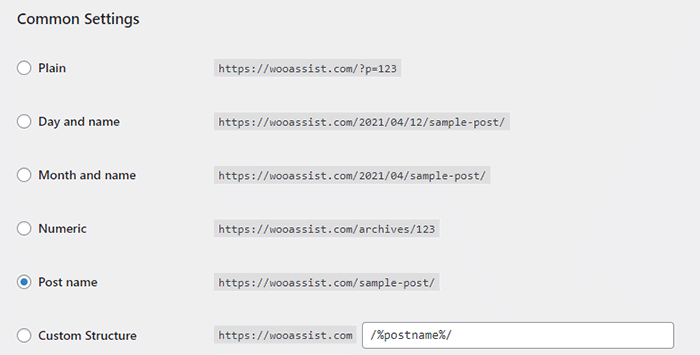
When you change your site structure, you will lose many external links pointing to your site and that’s a big SEO disaster. You have to make sure you make proper 301 redirects to the new URLs.

It might be a lot of work but you will soon reap better SEO rankings. If you already have good content, the benefits of optimizing your permalink structure could be significant. This means you should not skip doing this.

Resubmit Your Site Map

When you finish all your site structure optimizations, you should resubmit your sitemap to major search engines. That would be Bing and Google. Resubmitting your sitemaps ensure that search engines index the changes in your site structure.

Have you checked your site structure lately? What problems did you find?

Filed Under: How-To Articles Tagged With: 404 error, best practices, content marketing, navigation, SEO strategy, woocommerce seo, WordPress SEO, XML sitemap

How to Write Easy-to-Read Content for Your WooCommerce Store’s Blog

June 1, 2016 By John Leave a Comment

how to write easy-to-read content

It’s important to come up with a strong headline and back it up with great copy. But if readers find your content hard to read, they could leave your site. To avoid this, you should optimize your content for ease of reading. Use of simple words along with visual aids such as images, charts, graphs, videos, and proper heading structure should help you achieve this.

In this article, we’ll show you some tips on how to write easy-to-read content. We will also recommend a few tools that can help you write simple content.

Why Should Content Be Easy to Read?

A web usability study showed that 79% of web users are ‘scanners’, not readers. This means a typical user will scan the article, picking out individual words and sentences. If the scan deems the page as not very useful, the user won’t bother reading it and promptly skip to the next search result. Users can afford to be picky because of the abundance of good content on the web. With an estimated 3 million new blog posts every day, there’s a lot of competition.

Published content is meant to be read. For this to happen, you need to satisfy the user’s needs in the first 10 seconds as they scan your post. The web user clicked that link to your article because its headline promises an answer to the web user’s question or it has piqued his interest. With content optimized for ease of reading, the user will find more value in reading your content in its entirety.

Maintaining a blog on your WooCommerce store with great, easy-to-read content is an effective way to build traffic and convert visitors to customers. In fact, a survey showed that 57% of companies with a blog acquire customers from their blog.

How to Write Easy-to-Read Content?write-blog-laptop

Forget about complex sentences, long paragraphs, and difficult words. Keep the message clear. Avoid confusing your readers by trying to sound good. Here’s a list of the things that you can do to ensure your content is easy to read.

  • Break up your post with subheadings. Subheadings make the structure of your content clearer and easier to dissect. This is invaluable when writing long articles. Scanners will naturally be guided to the important points that they are searching for.
  • Introduce more white space. Adding just enough white space in between paragraphs makes content easier to read. Without line breaks, your article will look like a big block of content that is unreadable.
  • Use bulleted and/or numbered lists. Bullet lists are best used when enumerating. Numbered lists, on the other hand, are best used when mentioning steps that need to follow a certain order.
  • Structure your paragraphs in the inverted pyramid style. This means you include the most important information at the start of the article and the least important information at the end. This is the structure of most news reports. However, this kind of structure does not work for all audiences so take this with a grain of salt.
  • Avoid long paragraphs. If possible, a paragraph should be made up of 3-4 sentences at most and only deal with one idea. Neil Patel actually uses one-sentence paragraphs throughout his blog and it makes his content easier to read.
  • Avoid passive voice. Using passive voice is not necessarily wrong but it weakens the clarity of your writing.
  • Avoid using adverbs. Adverbs are unnecessary and most of the time is just overly descriptive to the point that it is insulting to the readers. For example, one can say “scream loudly” when in fact screaming is done loudly.
  • A complex topic can be broken into a series of posts. While long articles are good in their own right, short articles are easier to read. If you are looking to write a 2000-word article, you can consider writing a series of short articles instead. This can also help you gain a loyal following on your blog as the readers look forward to the next part of the series.
  • Add relevant links where needed. When you reference something, it is important to link to it. If your reader wants to learn more about that topic, they can simply click on the link. Linking to your sources also adds to your site’s credibility. Not to mention it can be an opportunity to reach out and network with other people in your niche.
  • Use images and other visual content. Images make your post less boring. Choose relevant images and make use of charts and graph as needed. Charts and graphs are especially useful when you are presenting data.
  • Use deep captions. These are captions that are two to three sentences long. Along with the image itself, deep captions can catch your reader’s interest, enough for them to read on.
  • Proofread before publishing. It is important to get a new set of eyes to review your content before publishing. Proofreading your own content is okay but a fresh set of eyes can spot errors that you may miss.

Tools to Help You Write Easy to Read Content

Here are some online tools that read easy-to-read content.

Hemingway Editor

Hemingwayapp

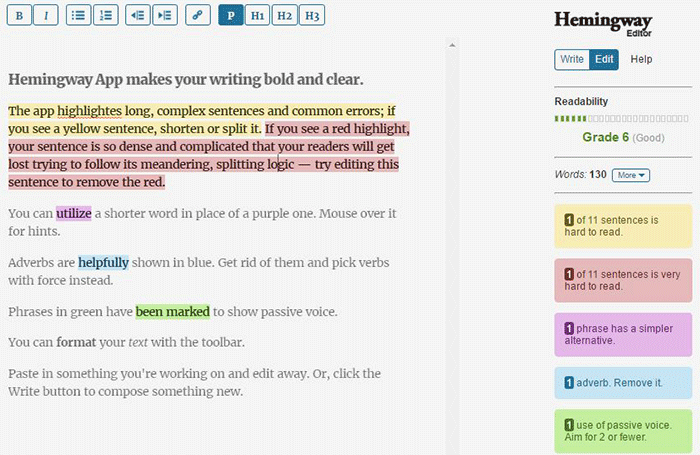
Hemingway Editor checks if your content is easy to read by identifying hard-to-read sentences. In ‘Edit’ mode, you can make changes and see real-time Hemingway feedback to the right of the editor. Adverbs, use of passive voice, difficult words/phrases and hard to read sentences are highlighted so you can fix them on the fly.

This style checker includes a readability grade level based on the Automated Readability Index. Readability is the ease with which your reader can understand your writing. A good target is 7 to 8, but don’t go over tenth-grade level.

Grammarly

Grammarly

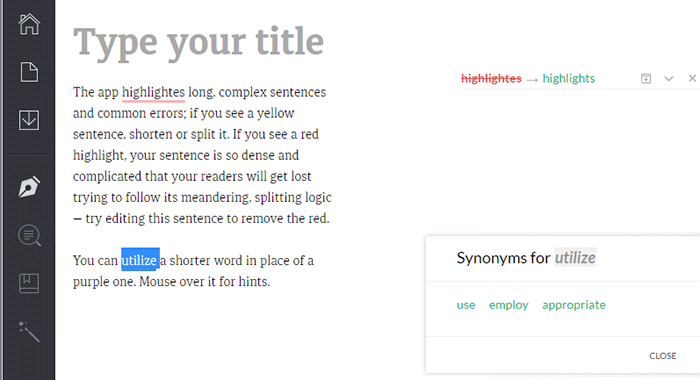
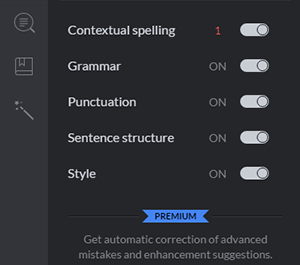
Grammarly_Menu_Grammarly offers free contextual spellchecker, grammar, punctation, sentence structure and style checks. With a premium account you also get plagiarism checks, vocabulary enhancement and professional proofreading.

If you choose to install its Chrome extension, you can use this to edit content in Gmail, WordPress, pretty much anywhere you write on the web.

After the Deadline

After-the-Deadline

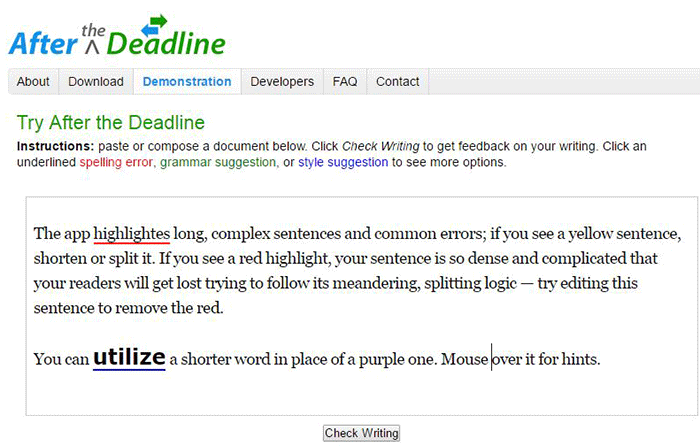
You can use the After the Deadline (AtD) Demo page to check your content online. After you click ‘Check Writing’, click each underlined word to see the suggestion to select or just ignore.

You can also download AtD and use it as a WordPress plugin and extensions to web browsers. This is free for personal use, and they have free server software for commercial needs.

Expresso

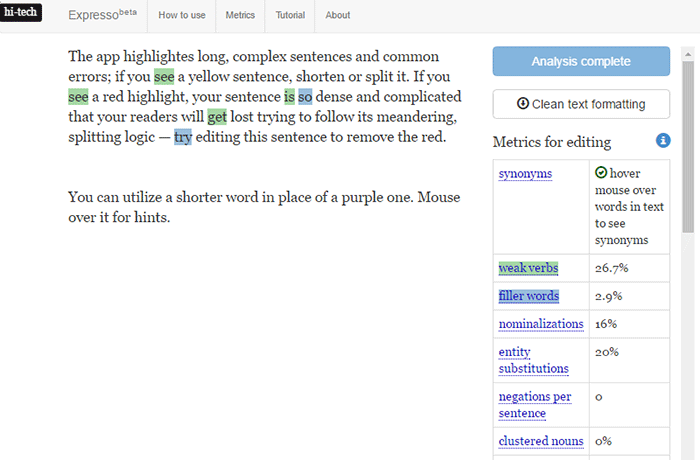
Expresso

Expresso can help you analyze and edit content by helping you choose simpler words and identifying weak verbs, filler words, etc. An extensive list of general and editing metrics are found to the right of the editor. Click on one to highlight the associated words. Note that this is still in its beta phase.

Conclusion

Always aim for great content that is easy to read. This will keep readers on your site for longer periods. If you apply the above tips and make use of the online tools, you’re well on your way to writing easy-to-read content. You can even use these tools to optimize your current content and product copy. Soon enough you will see the payoffs in longer session times and probably an increase in conversion.

We hope the tools and formatting techniques here can help you create easy-to-read content. Do you have any other tips to share for writing easy-to-read content? Maybe you know of some other tools that can help. Let us know in the comments.

Filed Under: How-To Articles Tagged With: admin, best practices, blog, content marketing, how-to, marketing strategy, SEO strategy

How to Set Up WordPress SEO by Yoast for WooCommerce

March 26, 2015 By John Leave a Comment

How to Set Up WordPress SEO by Yoast

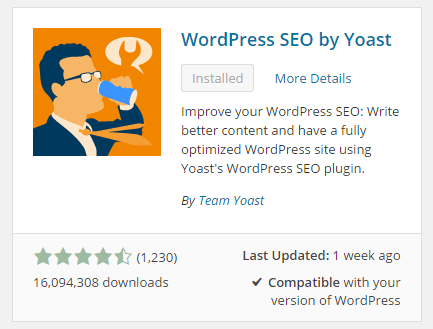
The WordPress SEO plugin by Yoast with over 16 million downloads is easily one of the best plugins that you need to have on your website. Whether it’s a personal blog, an e-commerce store, or a company website, you should have this plugin. In fact, many WordPress developers have WordPress SEO by Yoast in their list of plugins to install each time they create a new website. Many of you may already know a bit (or a lot) about SEO and that’s okay. That just means you’ll make better use of this plugin. And for those that don’t know much about SEO, don’t worry. The plugin is user friendly. I’ll walk you through all the functionalities so you’ll know how to set up WordPress SEO by Yoast for WooCommerce.

Installing WordPress SEO by Yoast for WooCommerce

To install the plugin, head over to the plugin developer’s website. Once there, download the plugin and upload it at the plugin page of your WordPress Dashboard.

You can search for the plugin on the plugin repository by going to your WordPress Dashboard. Click on “Plugins” and then “Add New”. From there just use the search bar to search for the WordPress SEO plugin and click on “Install Now”.

SEO Plugin Especially for WooCommerce

For WooCommercestore owners, getting the premium Yoast WooCommerce SEO plugin is a worthwhile buy. When used with the WordPress SEO plugin, you can better optimize your WooCommerce store. It enhances the existing Open Graph and Twitter Card enhancements in the WordPress SEO plugin. It will also optimize your sitemap for an ecommerce store setup, among other things. For a guide on how to set this up, check out this post.

Optimizing Product Pages for SEO for WooCommerce

The single most important function of the WordPress SEO plugin by Yoast is its ability to help you optimize your blog posts and pages for SEO. That includes WooCommerce products. WooCommerce products work just like posts/pages so it is the same procedure. So when I say page or post, the same applies to WooCommerce products.

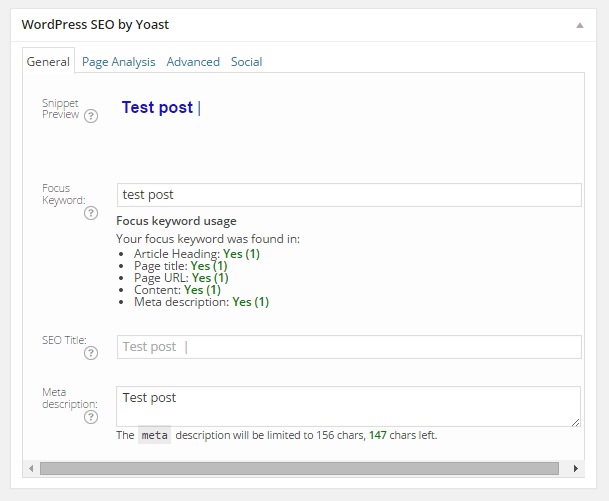
Optimizing posts/pages is easy enough. You can do it right after you finish creating the post/page in WordPress. When you’re on the post or page, just scroll down and there will be a section named “WordPress SEO by Yoast”. On the General tab, you’ll see a Snippet Preview. This is how your post/page will show up on the Google search results page. And the fun part is that you can edit how your post will show up. First off, you set a focus keyword. This should be the keyword that you want your blog post or page to rank for. What you should be aiming for is to have this focus keyword in:

  • the title of your article
  • in the body of the content especially in the first paragraph
  • and the meta description which you can set in the field where it says meta description

If you got that all right, you should be seeing all green below the focus keyword that you set.

post-optimization

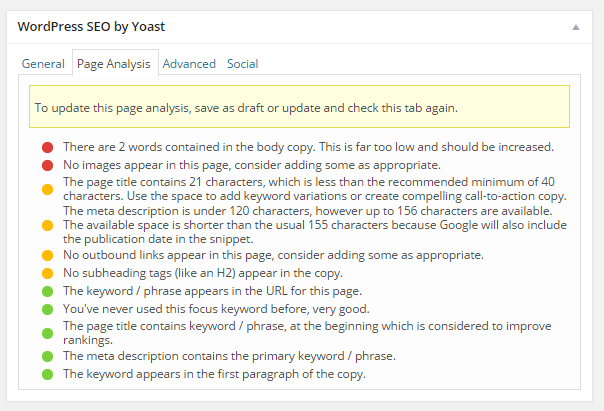
You can also click on the Page Analysis tab to get more information and other suggestions to improve your post/page. You don’t have to follow all the suggestions. But following everything will help increase the quality of your post/page.

page-analysis

You can tweak a bunch of other settings under the Advanced tab so feel free to change them as you see fit. You can even change how your post would appear when it gets shared on social media under the Social tab.

Optimizing WooCommerce Product Categories for SEO

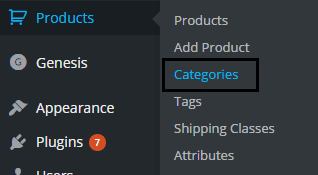
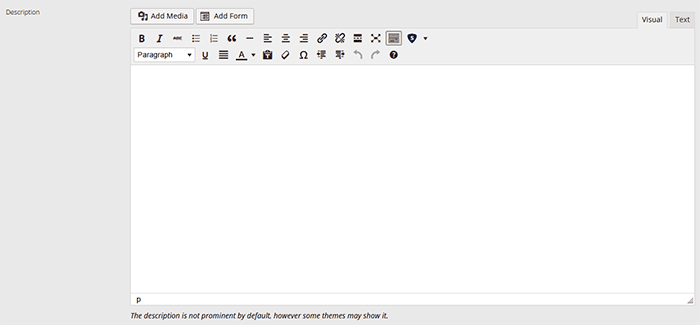
woocommerce-product-categoriesSimilarly, you can also optimize WooCommerce product categories for SEO. Just go to “Products” and click on “Categories” Edit the category that you want to optimize. When you scroll down to the bottom of the “Edit Category” page, you’ll see a section called Yoast SEO Settings. Fill in the SEO Title and SEO Description fields and click on Update.
optimizing-product-categories

Unlike when optimizing product pages, you don’t get to set a focus keyword. However, you can still target a keyword by including the keyword in the SEO Title and SEO Description fields. You should also put it in the Category Description field above the Yoast SEO Settings section.

Note that not all themes are able to display product category description on the category page but if your theme supports this function, the text that you put will appear on your product category page.

product-description

Verifying Your Website with Search Console

Verifying your website with different Google Search Console tools is important if you want your site crawled. It will have your website crawled by spiders. I don’t mean actual spiders. I mean search engine spiders that index websites on different search engines. Verifying with different webmaster tools can be a complex process but this is made easy with the WordPress SEO plugin.

Linking with Social Media Profiles

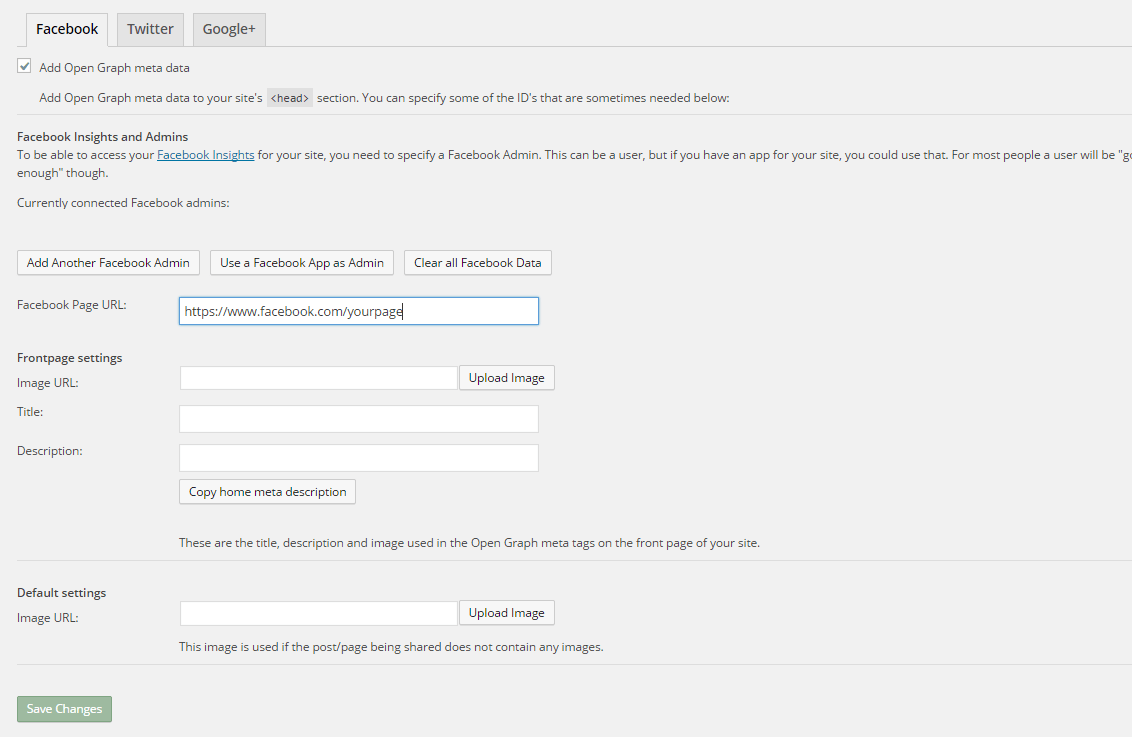
You can connect your website with your social media pages with the WordPress SEO plugin. You can do this by going to “SEO” and then clicking on “Social”. Here there are three tabs: Facebook, Twitter and Google+.

How to Connect Facebook

Linking Facebook to your site allows you access to Facebook Insights. If you already have a Facebook page, you just need to get the URL of your Facebook page. Copy the URL and then paste it where it says “Facebook Page URL”. You can then set the administrators for your page by clicking on Add Facebook Admin. If you are an advanced user, you can tweak a bunch of other settings. When you’re done, just click on “Save Changes”.

facebook

How to Set Up Twitter Cards

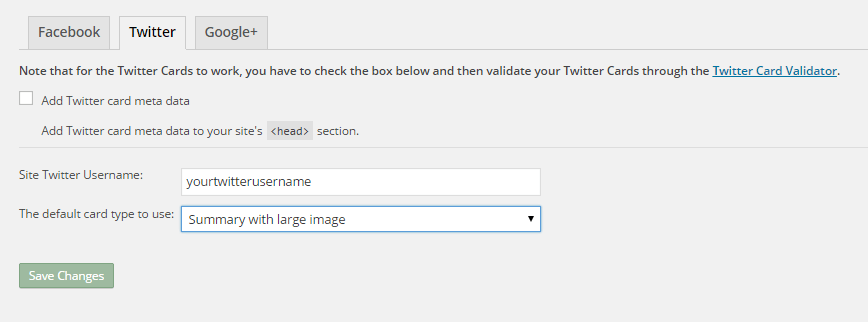
Do you use Twitter? Have you ever seen links in Twitter that show a snippet of the page that it links to? That’s called a Twitter card and you can enable that on your website using WordPress SEO. The usual thing is that enabling Twitter cards would call for you to add some lines of code to your header. But WordPress SEO eliminates the need for that.

twitter

How do you do this? On the Social section of the plugin, click on Twitter. Fill in your Twitter username on the appropriate field. Specify the kind of Twitter card that you want to have then click on “Save Changes”. You’re not done yet. You still need to confirm your Twitter card. Head over to this link. Specify the URL and click on “Preview Card”. After that, click on “Request Approval” and fill out the form. Finally, click on another “Request Approval”.

Soon, you’ll be able to see Twitter cards on your Twitter links.

The premium YoastWooCommerce SEO plugin will further help you optimize your Twitter Cards if you have that.

How to Connect Google+

To connect your website with Google+ means setting your Google+ profile as the publisher of your content with the “rel=publisher” markup. “Rel=publisher” is an authorship markup which connects websites to Google+ pages (not personal profiles).

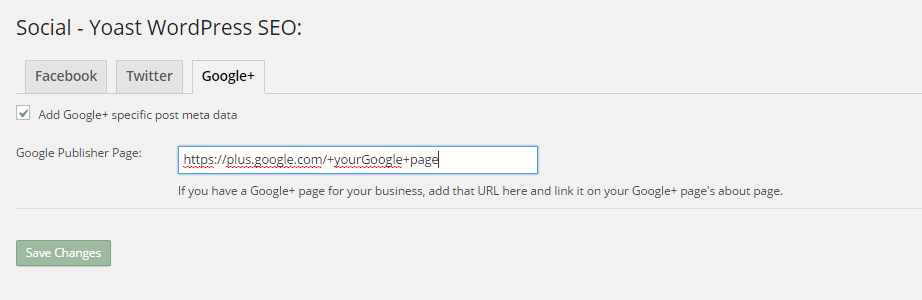
To connect your Google+ company page, head over to the “Social” section of the plugin and click on Google+. Fill out the field with the URL of your company page on Google+ and click on “Save Changes”.

google+

You might have heard of “rel=author” which links the content to the Google+ profile of the author. When implemented in the proper way, “rel=author” should show a snippet of the content with a photo of the author in the SERPs page. If you’re a writer and you’re hyped by that, I’d hate to burst your bubble but “rel=author” is no longer supported by Google. You can read more about it here.

Improving Sharing on Pinterest

Pinterest is another social media platform that’s worth mentioning. It has great potential for e-commerce stores. Why? Because Pinterest is image-based. The YoastWooCommerce SEO plugin makes sharing on Pinterest more worthwhile. After setting Twitter products and Schema Open Graph additions, your pins on Pinterest will start to show in a different way. In most cases, WooCommerce product will show up like posts. But with the plugin configured, your products will show up as “products”. They will show product related information such as price and variations.

Implementing Sitemaps with WordPress SEO

In a nutshell, sitemaps communicate with search engines to let the latter know when there are changes to the website. There are a lot of plugins that lets you create a sitemap. If you are already using the WordPress SEO plugin, just use the built-in sitemap module. Looking for another plugin just add an extra load to your server.

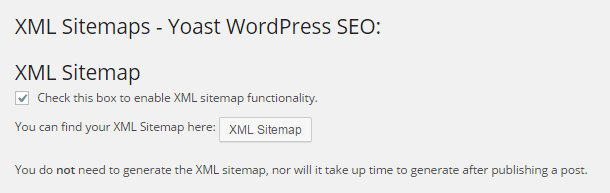
sitemaps

To get your sitemap, go to the plugin’s “XML Sitemaps” tab and then tick on the first box to enable sitemaps and click on “Save Changes”. There are a bunch of settings that you can tweak. You can have a look at them and change them as you please. They are pretty much self-explanatory.

You also might want to get the WooCommerce SEO plugin, which was mentioned above a couple of times. This removes some unnecessary bits from your sitemap in automatic fashion.

Check out our post on how to create a sitemap for your WooCommerce store to learn about sitemaps and other means of creating it.

Permalink Settings

Permalink settings all have to do with your URLs. I would not recommend changing any of the settings here but you are free to check them out and change them as you please.

Enabling Breadcrumbs with WordPress SEO

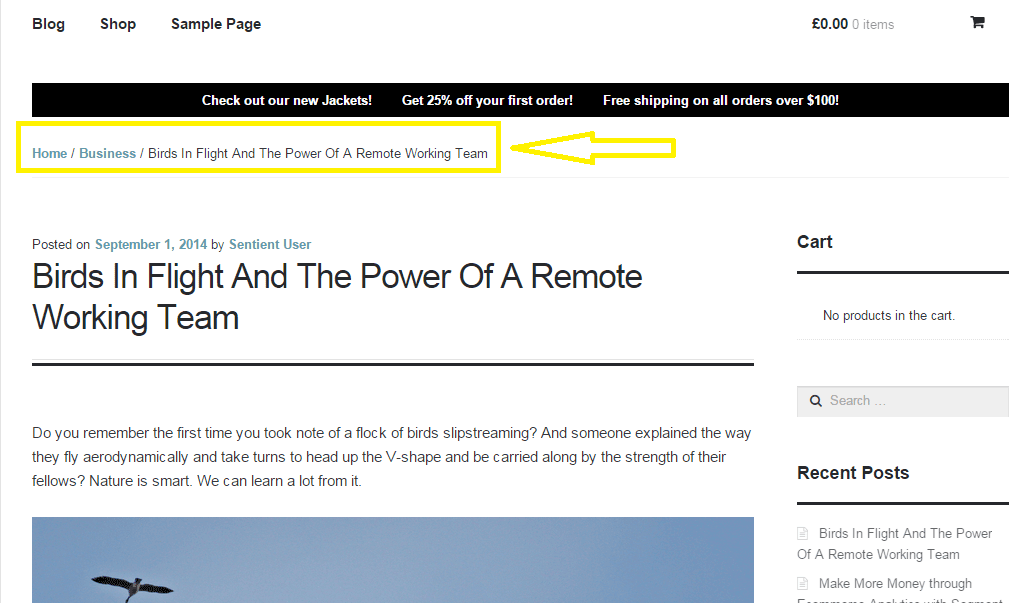
Breadcrumbs, when enabled, helps users identify where they are on your website. It also helps search engines determine your website’s structure. See the image below.  Where the yellow arrow is pointing at, that’s the breadcrumbs.

Enabling breadcrumbs on your website is simpler than snapping your fingers. Just go to SEO and then click on Internal Links. You should see a box that says “Enable Breadcrumbs”. So just tick that box and save. There are a few settings that you can tweak so just change them up as you need.

breadcrumbs

Did we miss anything? Or do you have any questions about the WordPress SEO plugin? Let us know in the comments.

Filed Under: How-To Articles, SEO For E-Commerce Tagged With: blog, breadcrumbs, content marketing, Google Webmaster Tools, Google+, how-to, navigation, optimizations, plugins, SEO tools, social media, Twitter, WooCommerce, WordPress, WordPress SEO, XML sitemap, Yoast

Create Product Descriptions for Your Woocommerce Store

January 29, 2015 By John Leave a Comment

product-description

Product descriptions exist for one specific purpose – to sell.

Imagine a potential customer browsing through your ‘Products’ page. She finds the perfect pair of shoes and decides to purchase it. She clicks on the image only to find a poor product description, with no material details, instructions for sizing, etc.

She then hesitates and moves on to another website. That’s a lost sale right there, and the next buyer will go through the exact same thing. How many more customers will you lose?

Make it effective.

The goal is to make a visitor click all the way to check out form. To do this, your product descriptions should be effective and dynamic to engage customers. They have to know how your product or service can change their lives. And, they won’t be able to – unless they read the description.

An effective product description is one that goes beyond simply informing potential buyers about the product. It needs to convince them to buy it. Visitors of your website should feel the need to buy your products and/or use your services.

Make it unique.

Creating original content for your product descriptions is also a must. Don’t just copy and paste from the manufacturer’s brochures or website. Otherwise, you’ll have similar descriptions with hundreds of other websites – and this will affect your site’s ranking. What’s more, Google may penalize your website for this.

Tell a story with your descriptions. Make it about the customer and how your product can help him. Also, be careful about your voice.

Don’t make it sound boring, or as if you are lecturing in the course of telling your story. Try and be personal with your voice and make it seem like you’re talking to a friend. Learn more about the voice you need to use.

Make it sell.

In the competitive e-commerce landscape, good product descriptions can give you an edge. You can even learn how to write your own. There is no need to be fancy about it. In fact, a simple approach is the best, as shown here.

You need to find the time to write them even though you’re busy with other aspects of growing your business. This useful resource can help you learn the secrets of creating product descriptions to help you find success.

So there you go. Tell the world about your products. Use stories and read about the resources mentioned above to guarantee that you are going to get results. However, if you feel that you are not up to it and need to put your focus elsewhere, our Wooassist team can help.

At the very least send your supplier’s descriptions to Wooassist and we will re-word them to make them unique.

Filed Under: How-To Articles Tagged With: admin, content marketing, copy writing, duplicate content, how-to, product management, WooCommerce products

8 Ways to Create Blog Content for Your WooCommerce Store

January 15, 2020 By John Leave a Comment

create blog content for your woocommerce store

Why You Should Have a Blog?

If you do not have a blog on your WooCommerce store, you should consider creating one. Having a blog is a good way to generate leads, get more traffic and build you brand. It can also become a good channel for providing good customer service. WordPress was created initially as a blogging platform so you should take advantage of it’s powerful blogging features – create blog content for your WooCommerce store.

Things to Consider Before Writing Your Content

Before you dive in and start creating blog posts, there are a few things that you should consider such as creating a content marketing plan. Even if you already have a blog, it is still a good idea to do this if you haven’t done it the first time. A content marketing plan can help you align your content with your goals.

Content Marketing Plan

A good content marketing plan has two important parts: (1) defining your goal and (2) defining your audience. For defining your goal, ask yourself what you want to achieve using the content that you create.

For defining your audience, you can create one or more customer personas. You can be as specific as you want and you can even give your customer persona a name. Everyone involved in your content marketing should be familiar with your customer persona.

Hubspot has a great post on how you can create your own content marketing plan.

content marketing for woocommerce

How to Come Up With Content Ideas

Now that you have a plan, you need to get ideas on what content to create.

1. Check What Your Competitors are Writing About

A good first strategy is to spy on your competitors. Find out what content they are writing about and improve on what they have.

2. Tutorials, Guides, and How-To Articles

You can create tutorials, guides and how-to articles on topics relevant to your niche or products. For these kinds of articles, it is important that the content helps address or fix a problem that your audience is having.

3. User Generated Content: Interviews, Guest Blogs

This one doesn’t require as much effort. You can reach out to influencers and other notable personalities in your industry and ask if they are willing to do an interview. Do remember that your interview must also be interesting to your audience. If it doesn’t resonate with your audience, it is not likely that your interview post will help achieve your goal. You can even coax influencers to write an article for you.

4. Internal Documents

Sometimes your internal documents can make for good content. If you have specific processes in place and you have an internal document that details this, you can convert this into in a blog post. You can just leave out the parts that cannot be revealed to the public. Do an audit of the resources you have to determine what documents you can use.

5. Reviews

If you use products in your niche, you can do a review post. You can position yourself as an expert in your niche when you do your review. You can even compare several products that do the same thing as a means to help your audience decide which product is a better fit for their needs.

review post

6. Listicles

The internet is abound with listicles. Heck, this post is a listicle. A listicle comes from the root words “list” and “article”. From there, you can deduce that it is an article that contains a list. Many people like to read listicles because they are clear and direct. The reader clicks a listicle because he/she is interested to know what the article lists. You know you click on listicles every now and then and that is a testament to how effective listicles are.

7. Company Events or Other Company News

If you have any upcoming or recently-concluded company events, you can write about it on your WooCommerce store’s blog. It’d give your audience a chance to connect with you. You can also leverage this as a networking opportunity.

You can also write about any news in your company that your audience might be interested in such as having a new member on your team, a move to a new office, or opening a new branch.

8. Research Work, Do a Survey and Discuss the Results

This one requires a bit more effort. Doing your own research or hosting a survey and then publishing the result on your blog can make for some good original content. If you take the extra mile on your research work, you can even leverage it as a link building opportunity. Imagine linking your study from a high-authority site like Wikipedia or some researcher catching wind of your study netting you a link from a high-authority “.edu” site. Google loves those.

9. Cornerstone Content

Cornerstone content should be the core articles on your blog. It should be detailed and well-researched. Cornerstone content should tell your readers everything they need to know about a certain topic in 2,000 words or more. Cornerstone content is great for SEO. Make sure you link it to different articles across your blog. Several links to external reputable sources will also help. Use keywords relevant to your niche but never over-optimize.

Depending on your niche, there will be other opportunities for creating great content that resonate with your customer persona. It is up to you to figure out what that kind of content will work for you.

If you have other ideas for creating great content for your WooCommerce store, let us know in the comments.

Filed Under: How-To Articles Tagged With: content marketing, customer persona, SEO strategy, woocommerce seo

  • 1
  • 2
  • Next Page »
Let us support your online store so you can manage your business

Get started today

Get 2 Hours of FREE SUPPORT

We are so confident that you will love our services that we will give you your first 4 hours at a 50% discount

That’s 4 hours for only $75

BUY NOW

Free eBook

5 Things Every Online Store Can Fix On Their Website In The Next Week To Increase Sales

Quick Links

  • How it Works
  • Pricing
  • Blog
  • Contact
  • About Wooassist
  • My Account
  • Checkout
  • Privacy Policy
  • Cookie Policy
  • Terms and Conditions

Wooassist

Australia:
59 Luke St.
Hemmant QLD 4174

Philippines:
San Miguel St.
Poblacion, Iligan City 9200

Connect


Copyright © 2026 · Wooassist

Yours FREE!

5 Things Every Online Store Can Fix On Their Website In The Next Week To Increase Sales