Wooassist

Assistance for Your Woocommerce Store

  • How it Works
  • Pricing
  • Services
    • Site Maintenance
    • AI SEO and Content Marketing
  • Blog
    • How-To Articles
    • Code Snippets
    • SEO For E-Commerce
    • Theme and Plugin Reviews
    • Wooassist News
    • WordPress/WooCommerce News
    • Interviews
  • About Us
  • Contact
You are here: Home / Archives for responsive design

What to Do When Your WooCommerce Store’s Theme is Abandoned or Outdated?

October 19, 2018 By John Leave a Comment

What to Do When Your WooCommerce Store’s Theme is Abandoned or Outdated

We’ve had a few clients who have used themes that were abandoned by the theme developers. In some cases, the store owners come to us with problems regarding their theme and then we find out that the theme has not been updated in over a year. And when a theme has not been updated in a long time, it is inevitable that features will break.

Features Will Break

Sometimes it may just be small formatting issues. While formatting issues are usually easy to fix, this is just a band aid to a big problem. When running an outdated theme, the ideal solution is to address the root of the problem. Update the theme or change to a different theme that is constantly receiving updates.

Sometimes, an outdated theme can break some more important features when it has deprecated codes. These deprecated codes are no longer supported in current versions of WordPress or WooCommerce. Also, new features introduced in WordPress and WooCommerce may not work on your outdated theme. Unless you do something about it, things will just keep breaking. When a core feature of WooCommerce breaks as a result of an outdated theme, your online store will be put out of commission.

Dangers of Running an Outdated Theme

An outdated WordPress theme is not secure

Aside from breaking your site in the absence of updates, running an outdated theme is a major security issue. You are leaving your WooCommerce store vulnerable to many exploits. Some WordPress security tweaks might help keep your site secure. However, when your theme is not receiving updates, these security tweaks won’t help.

The Solution

The only solution to an outdated theme is to replace it with a new theme that is constantly receiving updates.

One thing to consider though is if you have spent hundreds of hours of work on your current theme. In this case, it might be worth hiring someone that will update your theme. If you are going to have someone updating your theme, make sure that that someone also addressed the latest known security vulnerabilities. Also, consider the costs of maintaining an outdated theme. Would it be more cost-effective in the long run if you changed your theme now?

How to Choose a New Theme

When you’ve decided that you want to go with a new theme, there are a few things to consider when choosing one.

Choose a Theme that is Responsive

A responsive theme is a theme that adjusts to different screen sizes. A theme must look good on both a mobile device and a desktop computer. Since Google now considers mobile devices in its search engine rankings, it is imperative to choose a theme that is responsive. Under no circumstances should you use a theme that is not responsive.

Choose a responsive theme

Choose a Theme that is Light

Another option to consider is choosing a theme that is not bloated by unnecessary features. It is definitely handy when a theme can let you change fonts, colors and your page layout in just a few clicks. However, this means that the theme is bloated with code that will slow down your site. What used to be one line of CSS code to change the color of your navigation menu can be hundreds of lines of code built into your theme. Themes made by Themeforest are notorious for this. And while it does make the life of a non-technical WooCommerce entrepreneur a lot easier, you have to ask yourself. Do you really want to add that much bloat to your site when site speed is such an important factor for both SEO and user experience?

Choose a Theme that was Developed by Trusted Developers

There are hundreds if not thousands of themes to choose from. But how do you know which ones are good? One way to look at a theme is to consider the developers who made the theme. We can recommend using Storefront theme since it is made by the same developers that created WooCommerce. You can be guaranteed that Storefront theme will work with WooCommerce with no issues.

The Genesis framework is also a good option. Note that Genesis is a theme framework and you will need to install a child theme when you use it.

Costs of Changing to a New Theme

Cost of Changing to a New ThemeEven if you choose to use a free theme such as Storefront, changing to a new theme will still cost you. If you are able to change your theme on your own, it won’t cost you anything financially but you’ll still be spending a lot of time on it. Hire people to do the grunt work. Don’t spend dozens of hours trying to work on tweaks to your theme when a developer can do it in an hour or two. If you don’t have access to a developer, you can contact the Wooassist team. We can help you change your theme.

What to Do Before Changing Your Theme?

Before changing your theme, it is best practice to create a development or staging site and test your new theme installation there. Several hosting providers such as WPEngine and Siteground have built in tools that let you easily create a staging site in just a few clicks. You can also create a development site manually.

Also, create backups. Before doing any development work on your WooCommerce store, it is important to create a backup. In the event that you break your site, you always have a working backup that you can restore.

What to Do Before You Go Live with Your New Theme?

When you’ve installed your new theme and you’ve done all of the tweaks that you want, it is important to do some user testing. Testing your site is a necessary step before moving any major changes to the live site. Check out this blog posts for a list of things that you need to check before your site goes live. On top of the list, make sure to check that any custom features that you have added to your site are working.

Do you require any help with changing an outdated theme? Drop us an email and we might be able to help.
Filed Under: How-To Articles Tagged With: Genesis, mobile friendly, responsive design, Storefront, WooCommerce

Choosing a Theme for WooCommerce – What to Consider?

October 23, 2015 By John Leave a Comment

There are thousands of free and premium WordPress themes. You might need some help in choosing a theme for WooCommerce. But how exactly do you pick one that’s right for your Woocommerce store?

This article explains what to look for to fit the design requirements of your store and also the functionality requirements and to make sure your new theme will play nicely with Woocommerce.

Different themes have different layout styles. Knowing what you want or need will make looking for a theme easier. Right sidebar, left sidebar, full-width, or maybe parallax? Are you going to be using image sliders? Also, it is important that the theme that you choose supports WooCommerce integration.

Once you know what you need, it might be a good idea to talk it over with your web developer. He might already know of a theme that will suit your purpose.

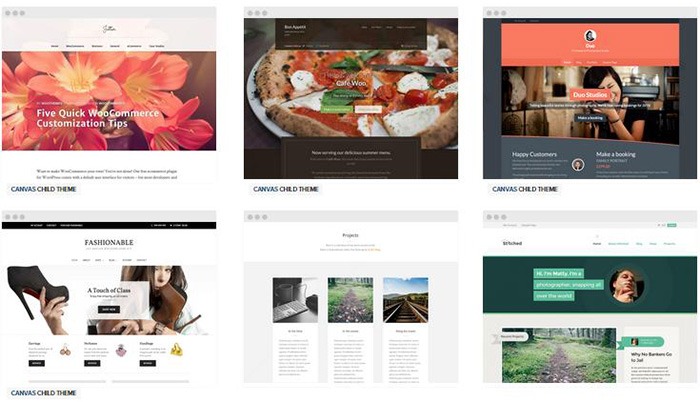
woocommerce-themes

Here are some criteria for choosing your theme:

Aesthetic Needs

Of course, you shouldn’t focus on the look alone. But, you also need to make sure that the theme matches the look and feel you want. You may be able to customize colors, but major changes on the design are best left to pros. As you choose a theme, it should meet at least 80% of your layout, visual, and content needs.

Stay away from poorly coded themes as this could spell problems for your website down the track when updates are needed.

Many themes also offer a lot of other functionalities that allow users to easily edit the look of their site. However, such themes could add unnecessary bloat to your website. This unnecessary bloat could put strain on your page load times and cost you sales.

Be cautious of Themeforest themes as they are notorious for this. Instead of using a theme with many customizable options, you’ll be better off editing the CSS of the child theme to get your desired look.

We recommend Genesis themes and Storefront.

WordPress Updates

Most themes should support the latest version of WordPress. Still, you should verify before making your purchase. Some older themes that are no longer being updated may not support the most recent updates to WordPress. It’s important to keep up with WordPress updates for functionality and security purposes.

WooCommerce Compatibility

Your theme should be able to integrate with WooCommerce.

WooThemes recommends doing a quick check. Take a look at the theme’s demo and view the source code. You can do this by right-clicking on the page and clicking on “View Page Source”. Look for the WooCommerce version meta tag. Search for the words: WooCommerce Version

The closer it is to the current release of WooCommerce, the better. If it is nowhere near, look elsewhere for a better theme.

Also, go with a theme that has less custom WooCommerce templates. This is because having a lot of WooCommerce templates customized will be a pain to update.

The theme should not have a lot of unnecessary customizations which can be done through a plugin.

Multiple Layouts

Review the theme description and demo to ensure that the theme supports the layout you want to create.  Look for the theme’s documentation and review it to know if the theme can accomplish what you need.

storefront

Don’t just assume that the theme you chose will accommodate one or two sidebars, full width pages, or columns within content.

Theme Navigation

How many menus do you plan on having? Some site owners need secondary menu for categories. Check if the navigation bar can accommodate all your primary menu options. If you hired a web developer, discuss your content sitemap and navigation requirements first before buying your new theme.

Call-to-Actions

As an e-commerce website, you want your visitors to do something and eventually buy your product.

call-to-actions

Make sure your theme can support your list of visitor to-do items. A cohesive design, with built-in options for call-to-actions is recommended.

SEO Friendly

WordPress is SEO friendly by default, but not all its themes are. To achieve an ideal SEO ranking, it’s important for search engines to digest your content. In this case, quality code and solid design architecture are required. Here’s a do’s and don’ts guide from Yoast to make your theme SEO friendly.

Level of support

Theme support is usually available by phone, email, video tutorial, instruction manuals, forums, etc.

support

However, some developers don’t have much time to provide support or answer forum questions that often. For beginners, make sure your theme offers lots of support features.

Reviews and Feedback

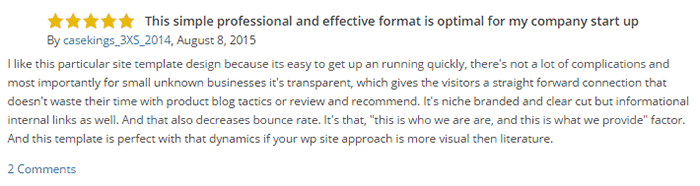
If there are available reviews, read through them thoroughly to point out any theme pros and cons.

reviews

Take note of trends, plugin conflicts, and complaints. It may not have a 100% satisfaction rating but a strong rating may be present. Look at both positive and negative feedbacks. Take negative feedbacks with a grain of salt.

Fixed vs Responsive

Most WordPress themes are now designed to be responsive. This means that your website adapts to fit the screen size of the device where it’s viewed. If a potential client is browsing your site, he’ll find it easy to navigate. Not all themes are responsive and since Google has started penalizing non-mobile responsive sites, a responsive design is the only way to go. There is no reason you should be creating a non-responsive site. Check out our post on Google’s Mobile-Friendly Update.

Do you have any more tips when choosing a theme for a WooCommerce site? Let us know in the comments.

Filed Under: How-To Articles, Theme and Plugin Reviews Tagged With: child theme, colors, Genesis, how-to, mobile friendly, responsive design, Storefront, WooCommerce, woothemes, WordPress, WordPress updates

How to Check if a Theme is Suitable for WooCommerce

April 15, 2016 By John 1 Comment

How to Check if a Theme is Suitable for WooCommerceSome website owners might think that a good theme just needs to look good. Well, that’s not wrong but it’s also not entirely correct. You need to know how to check if a theme is a good theme for your WooCommerce store. Here’s a checklist to help you decide if a WordPress theme is good for your WooCommerce Store.

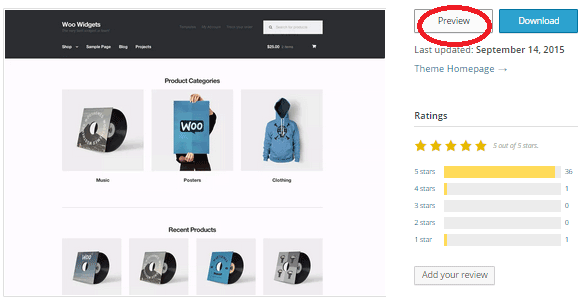
Theme Ratings and Reviews

Product ratings and reviews are solid indicators of quality. These reviews come from WordPress users who have actually used the theme themselves. Note that even good themes can get a few bad reviews so take them with a grain of salt. However, if the number of bad reviews is unusually high, then it is something to be wary of.

Update Frequency and Support

computer-thinking-manUpdate frequency is a good sign of a solid WordPress theme. It shows that the developers are continuously making it better by addressing bugs and other security threats. Similarly, check if the developer is active in public forums. This is a good sign that you will get answers if you are ever met a problem.


Demo Site

Having a demo site is not optional anymore. The demo site is not just where you see how the theme looks like. It is a place where you can perform some crucial tests on it. If your theme doesn’t have a demo site, it could just be outdated or at worst it’s hiding malicious stuff.

Responsiveness

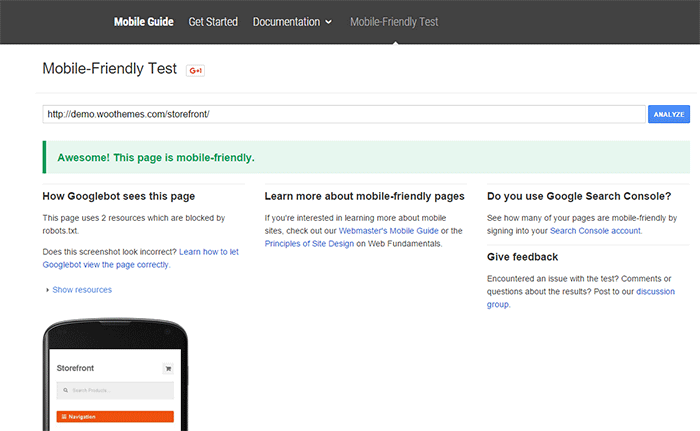
Make sure your theme is responsive. That means it adjusts to fit different screen sizes of mobile devices. More and more traffic is now being generated from mobile devices so a theme that looks good on a mobile device will help make your WooCommerce site more competitive. In fact Google favors websites that work well across all devices. The easiest way to check for mobile responsiveness is Google’s mobile friendly test. Grab the URL of the demo site of your theme and paste it in there to check if the theme is mobile friendly.

Google-mobile-friendly-test

Site Speed and Theme Bloat

You have only a few seconds to capture the attention of your e-commerce site’s visitors. Having a slow site doesn’t help. Even if your site looks good, none of that will matter if it is slow. Google hates slow websites and these slow websites are being penalized in rankings.

Themes become slow when they are loaded with unnecessary features. Be careful when the theme offers a lot of functionality that normally shouldn’t be in a theme like the ability to create sliders or change fonts, colors, and other add-ons like shortcodes, additional widgets, and content builders. The add-ons will make it hard for you to switch themes in the future. You may think you are getting good value for your money but its effects on site speed will only hurt your WooCommerce site and your SEO rankings.

Do note that other factors also affect site speed. You can read more about it in this blog post.
browsers

Cross Browser Compatibility

Your users will be using different browsers. You may not see any errors on your side but there might be something broken when someone else uses a different browser to view your site. Make sure your website looks the same across different browsers.

SEO-Friendly Markup

HTML isn’t so strict on errors so it will render your content as long as it isn’t something fatal. But when it comes to SEO the HTML markup is crucial. Proper HTML markup will help boost your SEO. You can easily check if your theme HTML code is valid using Markup Validation Service by W3C. Pop the theme demo site’s URL to check for errors in the HTML markup.

Plugin Readiness

A good well-coded theme is lightweight and can support a wide range of popular plugins. For your e-commerce site, you need to make sure that your theme supports WooCommerce. You will often see this in the list of theme features. During development, make sure not to bloat your site with unnecessary plugins. Install only plugins that you need and will actually use.

Page Templates

Another good indication of a good quality theme is the availability of page templates. These templates are fetched when a certain query is performed. Make sure your theme has it all.

  • home.php: the homepage template
  • single.php: the template for single posts
  • page.php: the template for pages
  • category.php: the template for category indexes
  • author.php: the template used when someone queries on the author
  • date.php: the template used when someone searches for posts on a certain date
  • archive.php: this template is used when either category.php, author.php ordate.php isn’t there
  • search.php: used when someone searches on your blog
  • 404.php: the template used when WordPress can’t find the URL on your site

Design

design-cursor-iconSimplicity is the epitome of great design. Select a proper theme that matches the nature of your e-commerce store and will appeal to your target market. If you are planning for a content rich website, go for a more formal look with good typography for enhanced readability. If you are selling products for kids, you can be more playful with the design. Spend some time researching for a theme that addresses your needs. Consider the aspects mentioned above and decide if this is the theme for you.
Theme Developers

Here’s a bonus. A good indication of a quality theme is the reputation of the developers who made the theme. Perform a background check on the people behind the theme. Are they helpful in the WordPress community? Do they have a good reputation? Do they respond in forums regarding questions on their creations? If you answered yes to all of these, then you’re dealing with a good developer/s and odds are their themes are great.

Our Recommended Themes

Storefront

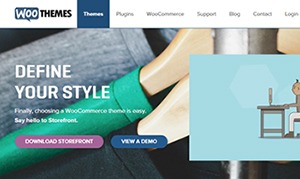
storefront_define-your-styleStorefront is an intuitive, lightweight, and flexible theme offering deep integration with WooCommerce. The main goal in developing Storefront is to provide a rock-solid foundation for your WooCommerce store, avoiding extra bloat and unnecessary features. It is built by the same people behind WooCommerce so the standards are as high as WooCommerce itself. To learn more about Storefront, you can check out our review.

Genesis Themes

Genesis-FrameworkThe Genesis framework is known for its core code and is considered one of if not the best WordPress framework available. It is very flexible because of how well the core code is built. Anything can be customized around the core code using child themes. It is SEO optimized and compatible with WooCommerce.

Was this post helpful in choosing a theme for your WooCommerce store? Do you have any other tips that you’d like to share? Let us know in the comments.

Filed Under: How-To Articles, Theme and Plugin Reviews Tagged With: design tweaks, how-to, responsive design, site speed optimization, Storefront, Wooassist, WooCommerce

How to Increase Mobile Conversion Rates for Your WooCommerce Store

January 21, 2020 By John Leave a Comment

Over the last few years, optimizing for mobile devices has become increasingly more important. More and more users browse the internet using their phone. According to Statista, 52.2 percent of web traffic comes from mobile phones and it has only been increasing from the previous years. As a WooCommerce store owner, you must optimize your website for conversion on these smaller screen sizes. Learn how to increase mobile conversion rates for your WooCommerce store by following the tips below.

How to Increase Mobile Conversion Rates for Your WooCommerce Store

How to Optimize Your WooCommerce Store for Mobile Devices

Use a Responsive Theme

All modern themes are now built to be responsive. A responsive theme adjusts to various screen sizes. You can check with your theme developer if your theme is responsive. You can also do a quick test by going to your WooCommerce store and then try scaling down the size of your browser. If you see the elements on your website move to adjust to the smaller window, then you are using a responsive theme. If you find that your theme is not responsive, don’t worry. You can switch to a responsive theme. We can recommend Storefront and the Genesis framework.

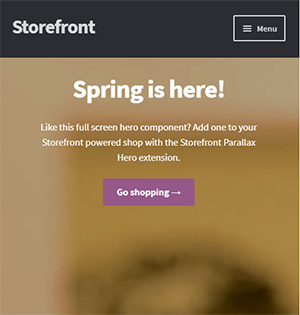
Storefront was made by the same developers that developed WooCommerce. It is built specifically for WooCommerce so you can expect full compatibility with WooCommerce and official WooCommerce plugins.

Genesis, on the other hand, is a framework. You need to use a Genesis child theme with the Genesis framework. Genesis is well-maintained, responsive and compatible with WooCommerce. 

User Test Your Mobile Site

Open your WooCommerce store on your smartphone and do some user testing. Perform actions that you expect your customers to do on your WooCommerce store. Important elements to test are:

  • making a purchase
  • subscribing to your newsletter
  • sending a message using your contact form
  • filling out the checkout fields
  • updating your shopping cart
  • commenting on blog posts
  • tapping on call-to-action buttons

There may be more that you need to test that is specific to your website. Take note of any difficulties that you encounter and get them fixed. Should you need help fixing any issues, the Wooassist team can help.

Use White Space and Large Fonts

Don’t skimp on using white space on your mobile site. Use it to your advantage. Since mobile devices have small screens, it makes it hard for the user to navigate or read your site if the elements are too close together. Also, make sure your site is easy to read by increasing font size.

Optimize Your Checkout Page

Your checkout page is one of the most important pages on your website. Limit your checkout form fields to only the necessary details. Remove any distractions to completing checkout. Make sure that the form fields are tall enough that they are easy to tap and fill out. Make the checkout button large enough so it is easy to tap. Don’t make the checkout process a burden to your customers.

Remove AutoPlay Videos and Pop-ups

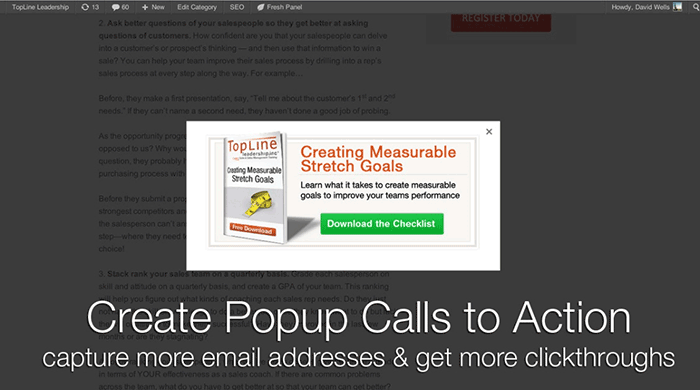
Pop-ups and autoplay videos are annoying for desktop sites. Even more so on a mobile site. Don’t burden your customers with extra data charges from autoplay media. In some cases, these elements may be necessary. But if they don’t help you increase your sales, consider removing them. Instead, focus on making your customers click on your call-to-action buttons.

Improve Your Site Speed

Site speed has become very important as it is now a ranking factor for SEO. On the mobile platform, site speed is critical with mobile data speeds being slower than a wired internet connection. If your mobile site takes too long to load, the user will just leave. There are a lot of tools at your disposal to determine how you can improve your site speed. Google PageSpeed Insights even shows recommendations specific to your mobile site. Other tools that we can recommend are GTmetrix and Pingdom Website Speed Test. 

Optimize Your Images

This is related to site speed but deserves its own section. Many WooCommerce store owners neglect optimizing images and just upload willy nilly. If you upload large images without optimizing them, your mobile conversion rates would take a hit. You can use a plugin to optimize the images you’ve already uploaded. However, if you’ve uploaded images that have dimensions bigger than the image placeholders, they will need to be manually optimized. If you’ve been doing this for years, then you’ve got a big task ahead of you. To manually optimize images, you can follow the instructions in this blog post.

Optimize Your Site Navigation on Mobile

Poor navigation can make or break a mobile website. Make sure that your mobile website is easy to navigate otherwise your customers will leave your site out of frustration. Use a hamburger menu. If you are using a responsive theme, the hamburger menu should be built in. If not, you can custom code your mobile menu or use a plugin.

Offer Multiple Payment Gateways

It is important to offer the payment gateway that your customers prefer. On the mobile platform especially, depending on your location, mobile wallets are a thing. If you can tap into that market, you can improve your conversion rate. For iPhone users, there’s Apple Pay which you can enable on WooCommerce.

Just follow all the tips above to increase your mobile site’s conversion rates. If you have any tips that you can add or any questions at all, let us know in the comments.

Filed Under: How-To Articles Tagged With: checkout, checkout form, conversion optimization, image optimization, mobile friendly, navigation, responsive design, site speed optimization, woocommerce checkout

How to Make a Sticky Header in Storefront Theme

February 5, 2016 By John 65 Comments

REVISED 03/04/2020 : Updated stickyheader.js path file

One popular trend in web design today is making the logo and the navigation bar to stick to the top. There are many names for this type of layout. Sticky, floating or persistent headers, and floating navigation are all the same thing.

Developers can “stick” their navigation at the top using simple CSS code. This helps visitors to click on other pages from the navigation menu while scrolling. Here’s how:

Preparation

Before anything else, you should install a child theme on your site. Additionally, you can install customization plugins such as My Custom Functions and Simple Custom CSS. We recommend using these plugins if you are not comfortable working with code as errors can break your site.

sticky-header-1
The test site looks like this at the start of this tutorial. In this case, the logo is centered. If you want to learn how to center the logo in Storefront theme, you can check out this post. The search bar and secondary menu was also removed.

Adding the CSS

To make this header layout stick to the top, just paste the CSS code below at the bottom of your style.css file.

#masthead {
		position: fixed;
		top: 0;
		width: 100%;
}

One obvious design pitfall here is that the large default header of Storefront is too big. It gets in the way of the page contents and is too distracting. To solve that, we need to make our header layout smaller first.

We aim to end up with this layout.

sticky-header-2

To achieve this, we need to do some CSS positioning. The positioning values of the elements depend on the size of your elements. If you have a different sized logo, play around with the height value in the CSS code to move it around. Here is a good article to get familiar with CSS positioning techniques. The code below will position and resize the header elements. It also applies the “position: fixed; top:0;” to the masthead. Paste this to your style.css file.

@media screen and (min-width: 768px) {
  	/*resizing the logo image */
	#masthead .custom-logo-link img {
		width: auto;
		height: 40px;
	}
  
	/*positioning the main-navigation */
	#masthead .main-navigation {
		text-align: right;
		position: fixed;
		top: 0;
		right: 300px;
		padding: 0;
		width: auto;
	}
  	
	
	/*positioning the logo*/
	#masthead .custom-logo-link {
		position: fixed;
		top: 0;
		margin: 0;
		padding: 0;
	}
    /*adjusting default margins and paddings*/
    #masthead .site-header-cart .cart-contents{
        padding:1em 0;
    }
    #masthead .main-navigation ul.menu>li>a, .main-navigation ul.nav-menu>li>a {
        padding: 1em 1em;
    }
    #masthead .site-branding{
        margin-bottom: 1em;
    }
	
	/*positioning the cart-menu */
	#masthead .site-header-cart {
		width: 14% !important;
		position: fixed !important;
		top: 0;
		right: 12%;
		padding: 0;
	}
	
	/*applying the position fixed on the masterhead */
	#masthead{
		position: fixed;
		top: 0;
		width: 100%;
	}
    /*removing the site search*/
    #masthead .site-search{
        display:none;
    }

Note that as the page scrolls down, the header stays on top. We have achieved the basic sticky header layout that is not intrusive to the content. It is concise and doesn’t get in the way of the rest of the page.

If you are happy with this, it’s okay to stop here. If you want to take it up to another level, a very common variation of the sticky header is the shrinking header. The shrinking header allows a default full header view when you are at the top of the page. When you start scrolling, the header automatically resizes itself to get out of the way. If you want more coding challenge, read on.

The Shrinking Header

First is to create a js file in your theme’s /assets/js/ folder.

Copy and paste the code below and save it as “stickyheader.js” to the js folder of your theme.

(function($){
	$(document).ready(function () {
		$(window).scroll(function() {
			  if ($(this).scrollTop() > 100){  
				jQuery('#masthead').addClass('sticky');
			  }
			  else{
				jQuery('#masthead').removeClass("sticky");
			  }
        		});
	});	
})(jQuery);

The code basically says it will add the “sticky” class to the header when you’ve scrolled 100px from the top. Else, it will remove it.

Adding the jQuery file to WordPress

Next step is to tell WordPress to include the JS file you just created. Copy and paste the code below to the My Custom Function plugin.

$path = get_stylesheet_directory_uri() .'/assets/js/';
if (!is_admin()) wp_enqueue_script('stickyheader', $path.'stickyheader.js', array('jquery'));

jquery My Customs Function plugin

After this, your JS file will load together with the other js files within your theme. Every time you scroll down, your script will now add the class “sticky” to your header. At this stage, you will not see anything happen yet. This is because we haven’t styled our sticky class yet.

The CSS Code

To style the sticky class, copy this code to your style.css file. Same as before, this is just CSS positioning and resizing. The only difference this time is we attached the “sticky” class on the selectors.

@media screen and (min-width: 768px) {
  	/*resizing the logo image */
	#masthead.sticky .custom-logo-link img {
		width: auto;
		height: 40px;
	}
  
	/*positioning the main-navigation */
	#masthead.sticky .main-navigation {
		text-align: right;
		position: fixed;
		top: 0;
		right: 300px;
		padding: 0;
		width: auto;
	}
  	
	
	/*positioning the logo*/
	#masthead.sticky .custom-logo-link {
		position: fixed;
		top: 0;
		margin: 0;
		padding: 0;
	}
    /*adjusting default margins and paddings*/
    #masthead.sticky .site-header-cart .cart-contents{
        padding:1em 0;
    }
    #masthead.sticky .main-navigation ul.menu>li>a, .main-navigation ul.nav-menu>li>a {
        padding: 1em 1em;
    }
    #masthead.sticky .site-branding{
        margin-bottom: 1em;
    }
	
	/*positioning the cart-menu */
	#masthead.sticky .site-header-cart {
		width: 14% !important;
		position: fixed !important;
		top: 0;
		right: 12%;
		padding: 0;
	}
	
	/*applying the position fixed on the masterhead */
	#masthead.sticky{
		position: fixed;
		top: 0;
		width: 100%;
	}
    /*removing the site search*/
    #masthead.sticky .site-search{
        display:none;
    }
	
} 

The jQuery script above inserts the sticky class to the master head. We just need to implement the CSS positioning as we did before using the sticky class selector.

For example, our selectors will now be “#masthead.sticky”. We just insert “.sticky” to our selectors so it will only be implemented when we scroll down.

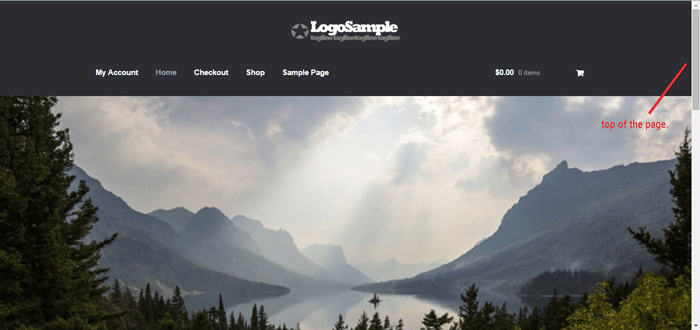
When everything is done, we will be able to see the full header on top of our page.

sticky-header-3

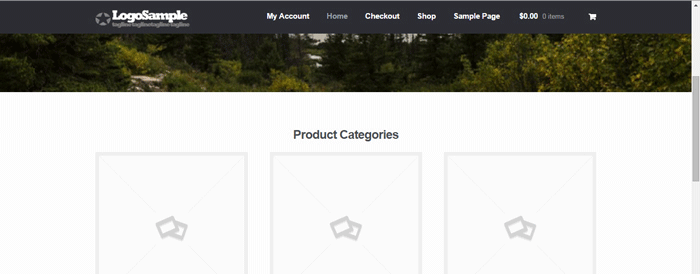
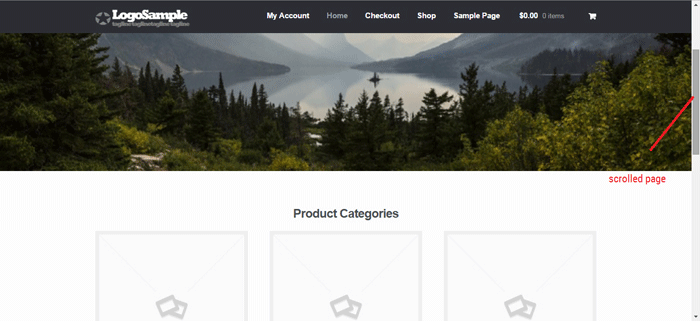
When scrolling down, the compact header replaces the full sticky header.

sticky-header-4

We hope you found this tutorial helpful. If you have any questions or if this didn’t work for you, drop a comment in the comments section and we’ll see what we can do.

Filed Under: Code Snippets, How-To Articles Tagged With: code snippet, design tweaks, navigation, responsive design, Storefront

  • 1
  • 2
  • Next Page »
Let us support your online store so you can manage your business

Get started today

Get 2 Hours of FREE SUPPORT

We are so confident that you will love our services that we will give you your first 4 hours at a 50% discount

That’s 4 hours for only $75

BUY NOW

Free eBook

5 Things Every Online Store Can Fix On Their Website In The Next Week To Increase Sales

Quick Links

  • How it Works
  • Pricing
  • Blog
  • Contact
  • About Wooassist
  • My Account
  • Checkout
  • Privacy Policy
  • Cookie Policy
  • Terms and Conditions

Wooassist

Australia:
59 Luke St.
Hemmant QLD 4174

Philippines:
San Miguel St.
Poblacion, Iligan City 9200

Connect


Copyright © 2026 · Wooassist

Yours FREE!

5 Things Every Online Store Can Fix On Their Website In The Next Week To Increase Sales