Wooassist

Assistance for Your Woocommerce Store

  • How it Works
  • Pricing
  • Services
    • Site Maintenance
    • AI SEO and Content Marketing
  • Blog
    • How-To Articles
    • Code Snippets
    • SEO For E-Commerce
    • Theme and Plugin Reviews
    • Wooassist News
    • WordPress/WooCommerce News
    • Interviews
  • About Us
  • Contact
You are here: Home / Archives for design tweaks

How to Optimize Email Opt-in Forms for Increased Conversions in WooCommerce

May 17, 2016 By John Leave a Comment

how to optimize email opt-in formsAs part of your sales funnel, your goal probably is to convert site visitors into subscribers and later on, into paying customers. Email marketing is still one of the best means to connect with your potential customers after they’ve left your site. As you get visitors in your WooCommerce store, you’ll want to get their emails. To do this, you need to learn how to optimize email opt-in forms.

In this post, we’ll show you what you should put in an opt-in form and how to position it strategically on your e-commerce store. We’ll also introduce you to some popular WordPress plugins to easily add opt-in forms on your site.

Where can You Add Opt-in Forms?

It is useful to add opt-in forms in different sections and pages on your e-commerce store.

Landing page

Using a landing page (or a squeeze page) is the traditional method of collecting leads. Because your goal is to get people to sign up to your mailing list, every element of the landing page should support that desired action. Don’t add a side-bar because it will just distract the users from the real goal. Remove links that will take the site visitor away from the landing page before they even fill out and submit the opt-in form.

Feature Box

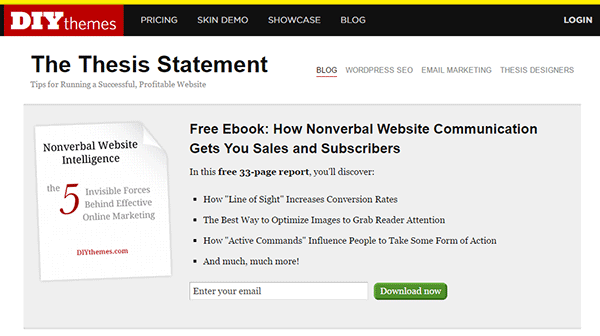
A feature box is a full-width email opt-in box usually added on top of your homepage. Some do not use a feature box because of two things: it takes up the most valuable space on your homepage, and it seems pushy to immediately ask for an email address. To validate the feature box’s location and avoid getting negative attention from site visitors, make sure that what you’re offering is definitely useful in exchange for their email address.

As an example, the use of a feature box on DIYthemes’ blog resulted in a 51.7% increase in its daily blog subscription.feature-box_DIYthemes
Pop-up Window

Because of its nature of ‘popping-up’ and interrupting the user while browsing the site, many visitors don’t like pop-ups. Nevertheless, a pop-up window is still one of the most effective lead generation tools. A lightbox works the same way as a pop-up window, but the rest of the site is darkened to make the form stand out.

Note that the timing should be perfect to avoid hindering good user experience. Once seen, you have only 1-2 seconds to grab the user’s attention and pique their interest before they close the window. Here are some examples of high converting pop-up email forms.

Opt-In Forms in Other Pages

options-2Apart from the feature box in the homepage, you can insert more opt-in forms in other pages (About page and Splash page) and in other page sections (top of sidebar, sticky top bar and below the footer).

The About Us page is usually one of the most visited pages in any website, so it’s a good idea to make the most of that traffic.

In a Kissmetrics review, using a splash page might be a better idea than a pop-up on the homepage. A pop-up is frowned upon because it interrupts the user while browsing the site. A splash page appears as a preliminary message. As such, it is better perceived.

Sidebar Opt-In Form

A sidebar opt-in form is the most common email list building method mainly because it is built in to most website templates. Keep your opt-in form to the top of your sidebar though, to maximize results.

Sticky Top Bar

Because a sticky top bar remains visible on top of the page even as you scroll down, visitors have plenty of time and opportunity to notice the message and eventually subscribe.

Components of an Opt-In Form

Once you’ve determined where you want your opt-in forms, the next step is to create them. To increase your chances of getting sign-ups, your opt-in form should have the right timing, design, form fields and copy.

Timing

15-seconds_traffic-stoplightIn using a pop-up window, you need to properly time it. You can set a time delay before showing the pop-up. If it’s too early, you’ll annoy site visitors even before they’ve taken a look of your site and what you have to offer. A 15-second delay is enough time for visitors to look around your site and not be too bothered with a pop-up. Note that this does not necessarily apply to your target audience. It’s best to conduct your own tests.

You can also show pop-ups as visitors reach the bottom of your content or as they exit your site.

Design

To effectively connect with your visitors as they quickly scan your opt-in form, you need to add visual elements that enhance your messaging. Humanize your opt-in form with a photo. Inject credibility with a testimonial or statistic. If your opt-in form is not a pop-up, make sure it will get noticed but at the same match your site’s theme.

Form Fields

More people sign up when less form data is requested. Note that you just need the email address of your site visitors for email marketing purposes. Usually just a name and email in the form will suffice. You can even make the name optional.

Concise Copy

Make your opt-in form copy as concise as possible. It’s important to present a clear purpose when asking for personal information. Spell out what your site visitors will get in return. You can also assure them that you won’t sell their addresses to a third party or spam them. BeemDigital showed an 83.75% increase in sign-ups when they added value and relevance to their opt-in form.
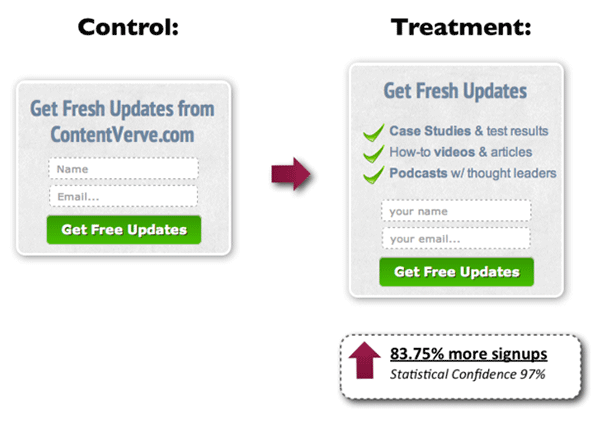
concise-copy_Contentverve
Image Credit: http://contentverve.com/how-to-write-high-converting-signup-form-copy/

Another effective tactic is to offer a lead magnet, like a free e-book, product trial, discount, or even free shipping. On a side note, you can set up the incentive in such a way that your new subscribers won’t unsubscribe immediately. If you’re offering a free e-book, break it up in parts and offer them in a series of emails. Entice them to want to wait for what’s coming next.

Recommended Opt-In Form Plugins for Your WooCommerce Store

In choosing your opt-in plugin, consider what features you need and choose a plugin that provides just that and nothing more. Anything more is just extra bloat on your site. Below we list some of opt-in form plugins that we can recommend.

OptinMonster
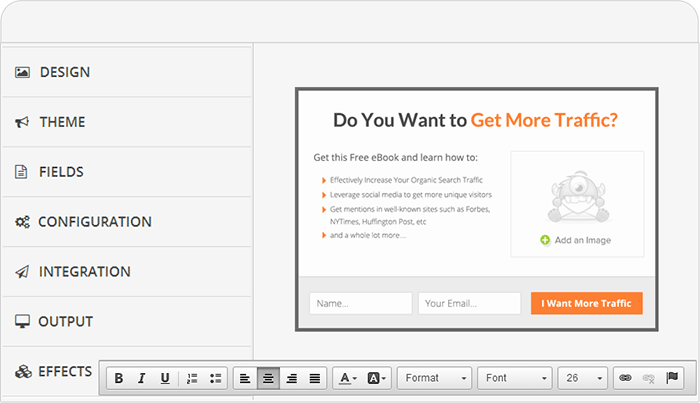
optinmonsterOptinMonster is a paid pop-up plugin that offers a wide range of functionality. It comes with an easy-to-use form builder that allows you to create various types of opt-in forms including WordPress popup forms, floating header and footer bars, slide-ins also known as scroll triggered boxes, sidebar forms, after post forms, in-line forms, mobile-specific forms, and welcome gates. Other features are exit-intent technology, page-level targeting, behavior automation and A/B testing, and a 2-step opt-in process.

PopupAlly
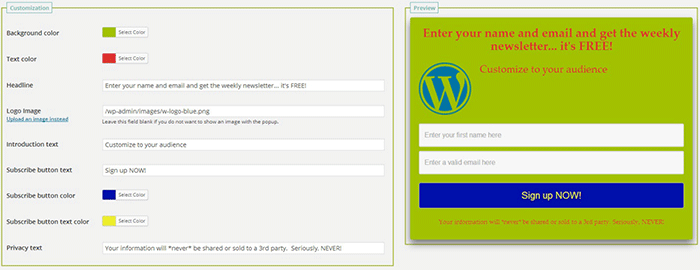
popupallyPopupAlly’s free version allows you to create advanced popup signup forms even if you don’t know how to code. You can also embed opt-in forms at the bottom of your posts, set a few seconds’ delay or have the pop-up appear as the users leave your site.

Its premium version, PopupAlly Pro, has an optimized interface and extra features. This includes more customizable templates, more opt-in options (horizontal, sidebar, below-the-post, etc) and allows for any web fonts to be used. Click-based and scroll activation timing features and one-on-one email support are available only with the premium version.

Hello Bar
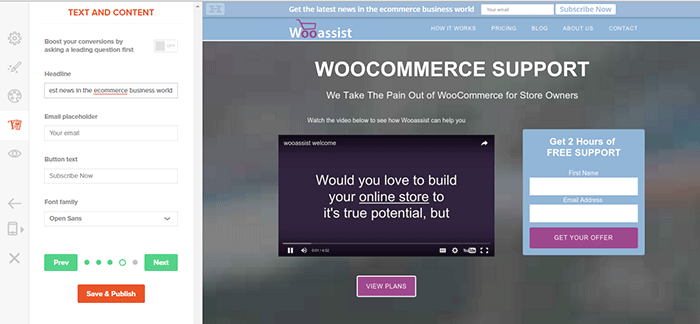
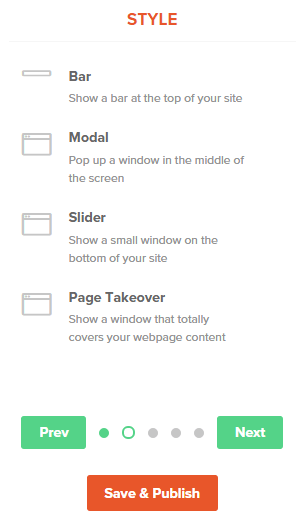
hellobar_wooassist pagehellobar_style menuHello Bar is a free plugin that allows you to copy and paste a code snippet from HelloBar.com straight to your WordPress admin interface. Above is the HelloBar interface from the website. You can choose from several goals like grow your email list, promote your social pages, promote an offer, or add a contact form. You can choose from several styles of opt-in forms and even change the colors to match your website’s colors. To set up HelloBar, just visit the site to configure. The interface is very straight forward so you should have the design in minutes. To apply this to your site, just install the free plugin that is generated specifically for your website. This plugin will only work for the site that you registered it for. You can just create a new one for another site.

This plugin also comes with A/B testing so you can easily optimize for increased conversion.

Ninja Forms
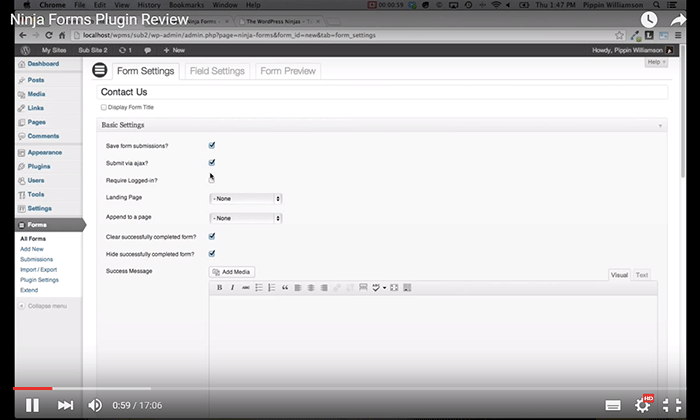
ninjaformsNinja Forms is a plugin built with developers in mind. Included are hundreds of functions, action hooks, and filters that developers can use to create their own custom functionality. Customize field options and forms with its extensive settings. Add a Ninja Form to your e-commerce site easily with a widget, shortcode, template function, or append it automatically to any content. Upgraded bundles include automatic updates, add-ons and sites per add-on, and email support with faster response time.

Which Opt-in Forms Leads to More Conversions?

arm-wrestling-2There is no single correct answer to this question. Different websites vary in terms of design and market. This article could help point you in the right direction, but there are a lot of things you need to figure out for yourself. Get to know your customers by creating a customer persona. When you are able to identify your customers, you’ll know how to market to them. From there, you can create a sales funnel that works for you. Use heat maps like CrazyEgg to find out where your visitors click. Constant A/B split testing will help you determine what variation converts better.

Conclusion

Opt-in forms should be placed strategically throughout your website. Optimize them so they are easily visible. Make them stand out. These forms should offer value and relevance to encourage users to subscribe. Enhance copy with visual elements and keep form fields to a minimum. If you decide to use pop-ups, you need to time them correctly so as not to be intrusive. Make sure you’re getting the most of your opt-in plugin’s features without sacrificing site performance. When your opt-in forms are set up, you need to conduct your own split testing to optimize for maximum conversion.

Hope this article helped you out. Do you have any strategies you’d like to share for increasing opt-in form conversion? Do you want to add something that we might have missed? Let us know in the comments section.

Filed Under: How-To Articles, Theme and Plugin Reviews Tagged With: best practices, conversion optimization, design tweaks, how-to, marketing strategy, plugins, PopupAlly, website development, WordPress

How to Integrate WooCommerce into a Non-WooThemes Theme

March 2, 2015 By John Leave a Comment

how to integrate WooCommerce into a non-WooThemes theme

WooCommerce (WC) and themes from WooThemes go hand in hand when building an e-commerce website. But what if you wanted to use a theme not from WooThemes? There may be some compatibility issues but it could still work. To solve these problems, we’ll need to set it up in such a way that your non-WooCommerce or custom theme supports Woocommerce and make the integration flawless.

WooCommerce provides two methods to do this. Either we use hooks or make use of their catch-all woocommerce_content() function. The second method is the easier of the two so we’ll only talk about the second method of the catch-all woocommerce_content() function in this post.

To start, know that it’s divided into 5 simple steps which we’ll outline below:

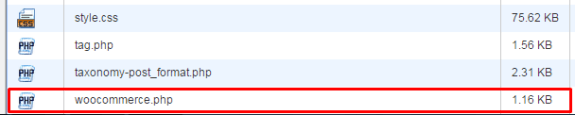
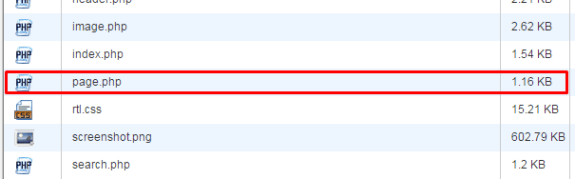
STEP 1: Duplicate your page.php file and rename it as woocommerce.php

For this, you’ll need to access your website files using an FTP program or cPanel file manager. Find your page.php file which is usually located in wp-content/themes/[YOURTHEME]/page.php.

copying page-php
creating woocommerce.php

All themes should have this file so make a copy of yours then rename it to woocommerce.php. Basically, you’re creating a file called woocommerce.php where the content is the same as page.php.

If you’re using a child theme, you’ll need to copy the page.php of the parent theme and place woocommerce.php on the child theme so that you don’t have to worry about it being overwritten when the theme is updated.

STEP 2: Edit woocommerce.php and locate the loop

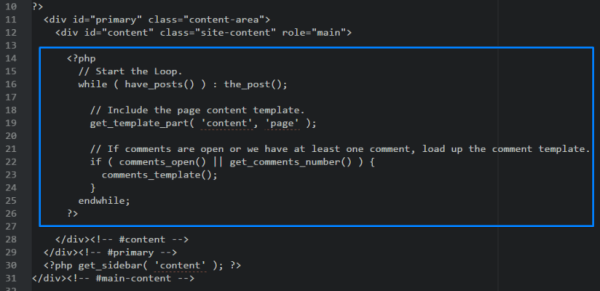
After creating the file woocommerce.php, you then need to edit it with the editor of your choice. When it’s opened, browse through and look for code that looks like the one below:

the loop

It usually starts with

<?php if ( have_posts() ) :

and ends with

<?php endif; ?>

but in our case it ends with

endwhile; ?>

so it’s not always the same. This bit is called the loop and you need to determine where it starts and where it ends.

STEP 3: Replace the loop with <?php woocommerce_content(); ?>

Now, after finding the loop, replace it with:

<?php woocommerce_content(); ?>

That lengthy bit of code will be replaced by just this one line. And that’s entirely the point – nothing to be alarmed of. And when you’ve done that, it should look like the one below:

woocommerce-content

Now, save it.

STEP 4: Declare support for WooCommerce

Next, we’ll do something about the notice message that looks like the one below.

woocommerce does not support notice

To do this, we’ll need to add:

add_theme_support( 'woocommerce' );

to our functions.php. If you’re using a child theme, you’ll need to find the functions.php file that is inside the child theme folder. Once you’ve found the correct functions.php, place the code exactly at the end. Now, save. And that’s it. That notice should be gone now.

STEP 5: Bask in your success

And that’s how to integrate WooCommerce with a non-Woothemes Theme. For the unavoidable instances that you need to make use of a non-WooCommerce or custom theme, you need to follow the steps above.

Do you have any other suggestions? Feel free to comment below.

Filed Under: How-To Articles Tagged With: code snippet, design tweaks, e-commerce, how-to, WooCommerce, woothemes

How to Check if a Theme is Suitable for WooCommerce

April 15, 2016 By John 1 Comment

How to Check if a Theme is Suitable for WooCommerceSome website owners might think that a good theme just needs to look good. Well, that’s not wrong but it’s also not entirely correct. You need to know how to check if a theme is a good theme for your WooCommerce store. Here’s a checklist to help you decide if a WordPress theme is good for your WooCommerce Store.

Theme Ratings and Reviews

Product ratings and reviews are solid indicators of quality. These reviews come from WordPress users who have actually used the theme themselves. Note that even good themes can get a few bad reviews so take them with a grain of salt. However, if the number of bad reviews is unusually high, then it is something to be wary of.

Update Frequency and Support

computer-thinking-manUpdate frequency is a good sign of a solid WordPress theme. It shows that the developers are continuously making it better by addressing bugs and other security threats. Similarly, check if the developer is active in public forums. This is a good sign that you will get answers if you are ever met a problem.


Demo Site

Having a demo site is not optional anymore. The demo site is not just where you see how the theme looks like. It is a place where you can perform some crucial tests on it. If your theme doesn’t have a demo site, it could just be outdated or at worst it’s hiding malicious stuff.

Responsiveness

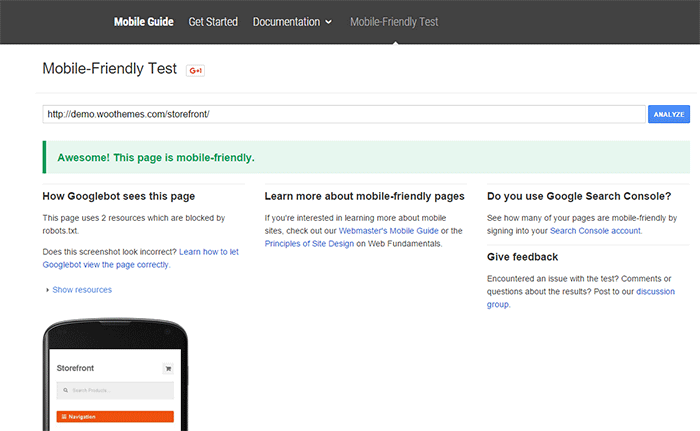
Make sure your theme is responsive. That means it adjusts to fit different screen sizes of mobile devices. More and more traffic is now being generated from mobile devices so a theme that looks good on a mobile device will help make your WooCommerce site more competitive. In fact Google favors websites that work well across all devices. The easiest way to check for mobile responsiveness is Google’s mobile friendly test. Grab the URL of the demo site of your theme and paste it in there to check if the theme is mobile friendly.

Google-mobile-friendly-test

Site Speed and Theme Bloat

You have only a few seconds to capture the attention of your e-commerce site’s visitors. Having a slow site doesn’t help. Even if your site looks good, none of that will matter if it is slow. Google hates slow websites and these slow websites are being penalized in rankings.

Themes become slow when they are loaded with unnecessary features. Be careful when the theme offers a lot of functionality that normally shouldn’t be in a theme like the ability to create sliders or change fonts, colors, and other add-ons like shortcodes, additional widgets, and content builders. The add-ons will make it hard for you to switch themes in the future. You may think you are getting good value for your money but its effects on site speed will only hurt your WooCommerce site and your SEO rankings.

Do note that other factors also affect site speed. You can read more about it in this blog post.
browsers

Cross Browser Compatibility

Your users will be using different browsers. You may not see any errors on your side but there might be something broken when someone else uses a different browser to view your site. Make sure your website looks the same across different browsers.

SEO-Friendly Markup

HTML isn’t so strict on errors so it will render your content as long as it isn’t something fatal. But when it comes to SEO the HTML markup is crucial. Proper HTML markup will help boost your SEO. You can easily check if your theme HTML code is valid using Markup Validation Service by W3C. Pop the theme demo site’s URL to check for errors in the HTML markup.

Plugin Readiness

A good well-coded theme is lightweight and can support a wide range of popular plugins. For your e-commerce site, you need to make sure that your theme supports WooCommerce. You will often see this in the list of theme features. During development, make sure not to bloat your site with unnecessary plugins. Install only plugins that you need and will actually use.

Page Templates

Another good indication of a good quality theme is the availability of page templates. These templates are fetched when a certain query is performed. Make sure your theme has it all.

  • home.php: the homepage template
  • single.php: the template for single posts
  • page.php: the template for pages
  • category.php: the template for category indexes
  • author.php: the template used when someone queries on the author
  • date.php: the template used when someone searches for posts on a certain date
  • archive.php: this template is used when either category.php, author.php ordate.php isn’t there
  • search.php: used when someone searches on your blog
  • 404.php: the template used when WordPress can’t find the URL on your site

Design

design-cursor-iconSimplicity is the epitome of great design. Select a proper theme that matches the nature of your e-commerce store and will appeal to your target market. If you are planning for a content rich website, go for a more formal look with good typography for enhanced readability. If you are selling products for kids, you can be more playful with the design. Spend some time researching for a theme that addresses your needs. Consider the aspects mentioned above and decide if this is the theme for you.
Theme Developers

Here’s a bonus. A good indication of a quality theme is the reputation of the developers who made the theme. Perform a background check on the people behind the theme. Are they helpful in the WordPress community? Do they have a good reputation? Do they respond in forums regarding questions on their creations? If you answered yes to all of these, then you’re dealing with a good developer/s and odds are their themes are great.

Our Recommended Themes

Storefront

storefront_define-your-styleStorefront is an intuitive, lightweight, and flexible theme offering deep integration with WooCommerce. The main goal in developing Storefront is to provide a rock-solid foundation for your WooCommerce store, avoiding extra bloat and unnecessary features. It is built by the same people behind WooCommerce so the standards are as high as WooCommerce itself. To learn more about Storefront, you can check out our review.

Genesis Themes

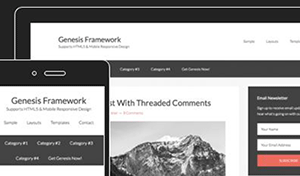
Genesis-FrameworkThe Genesis framework is known for its core code and is considered one of if not the best WordPress framework available. It is very flexible because of how well the core code is built. Anything can be customized around the core code using child themes. It is SEO optimized and compatible with WooCommerce.

Was this post helpful in choosing a theme for your WooCommerce store? Do you have any other tips that you’d like to share? Let us know in the comments.

Filed Under: How-To Articles, Theme and Plugin Reviews Tagged With: design tweaks, how-to, responsive design, site speed optimization, Storefront, Wooassist, WooCommerce

How to Create a Custom 404 Error Page for Your WooCommerce Store

February 25, 2016 By John Leave a Comment

What is a 404 Error

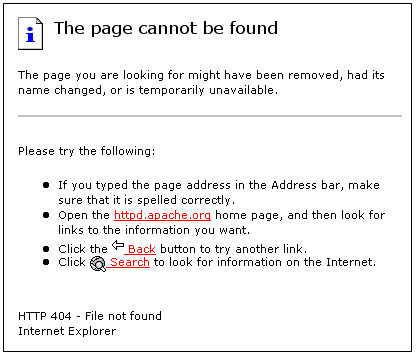
A 404 Error is an error message displayed when an accessed page is not found in the server that you want to access. It is a standard response when an entered address does not match a data from a server.

This happens when you rename, move, or delete a page. This message also appears when the URL is incomplete, mistyped or misspelled. You can change the way your WooCommerce store responds to this error by redirecting or just letting your visitors arrive at a custom 404 Error page.

Creating a Custom 404 Error Page

default-404-error-page_screenshot-pngYou can actually just leave it and most websites would just send out a typical text response. So why create a custom 404 error page for your Woocommerce store? A lot of people are highly visual.


Web design is a huge factor in discerning a company’s credibility. Zabisco found out that 40% will respond to visual information better than plain text. This alludes to the importance of creating a visually-appealing custom 404 error page.

Custom content will not only boost your branding but will make customers have a more positive view of your company. Custom content is one of the many reasons that make a customer feel positive about your website.

Statistics/Case Studies on 404 Error Pages

From a search engine ranking standpoint, 404 error pages will not hurt your ranking per se. It only matters when an important link in your site returns a 404 error. This important link could be your “about” page or “contact” page. Your rankings could suffer since these important pages are actually ranking factors.

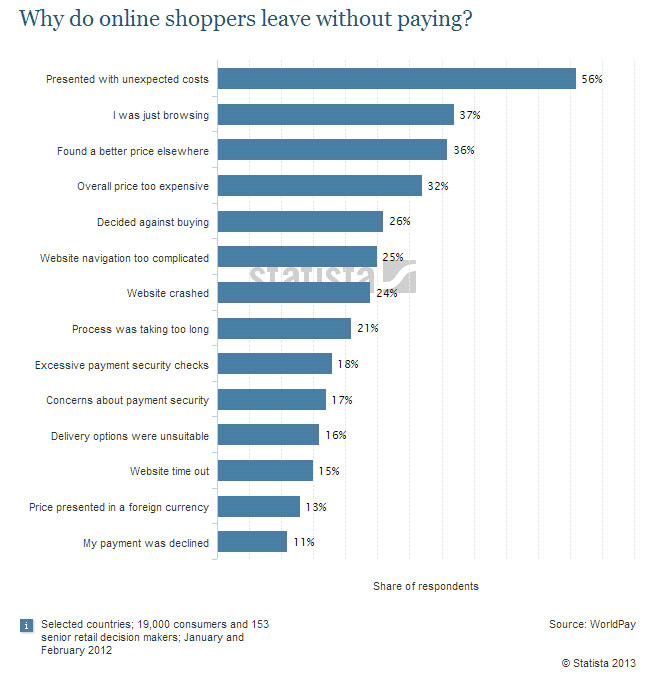
Any other 404 error could also frustrate your visitors and just leave your website. Shopify surveyed why online retailers are losing 67.45% of their sales. They discovered that some of the most common mentioned issues are website problems.

Shopify-survey-why-online-shoppers-leave_screenshot-png

A 404 error also affects a website’s bounce rate. A bounce happens when a visitor comes to your website, does not click on any other page and leaves. Search engines like Google use bounce rate as ranking factor.

A high bounce rate raises several red flags for your WooCommerce store. It may imply poor user experience and your website may be deemed irrelevant to your market.

Elements of a Custom 404 Error Pagelabyrinth

Now before you go and make any changes, keep in mind that each theme is different. There are different ways on how you can create a custom 404 Error page. Here are some important things that you need to consider.

Use Simple Language

A regular site visitor will not understand a typical technical 404 message. Use simple human language to inform your site visitor of what went wrong. You can even use language translations or location specific pages. The goal is to deliver a clear message.

How You Can Help

Apologizing and offering a helpful suggestion should be the main theme. The aim is to change the negative experience from 404 pages into a positive one. You can do this by:

touch-screen_touchscreen

  • Adding a search box
  • Showing your menu navigation
  • Adding a contact, subscription or ticket submission form
  • Adding a sitemap, category lists or key links
  • Linking popular posts or social media accounts
  • Giving out coupons, discounts, or other offers

Time spent in your site should not end in your 404 page. These elements are also engagement and conversion boosters. Your customers stay happy and you get a positive rep.

Examples of Good 404 Error Pages

A lot of huge brands out there appeal to human emotions in their marketing strategy. This is because customers are not buying products, they buy the experience. 404 Error pages in the past are just simple text warnings. Websites now use humor or a bit of personality to communicate their brand to the customers. You can use graphics, animations, or even videos. Here’s some inspiration to get you started.

Popscreen

Popscreen showcases a clean and bright but simple and straightforward 404. You can see a link to the home page and popular videos as well as search bar.

404-error-page_Popscreen_screenshot

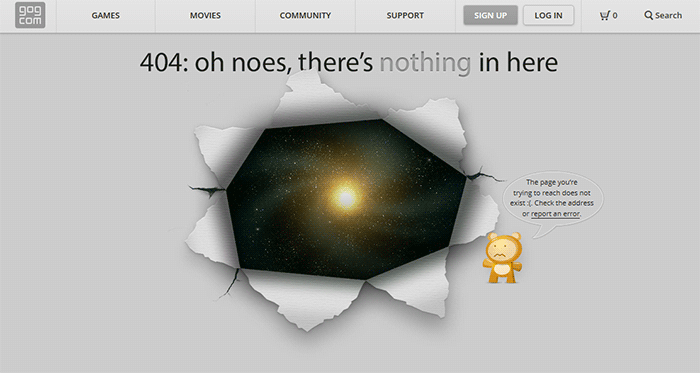
GOG

GOG displays a unique design to say that you lost your way. The 404 error page retains the navigation and footer menu so it is easy for users to navigate. Users can also report the error.

404-error-page_GOG_screenshot

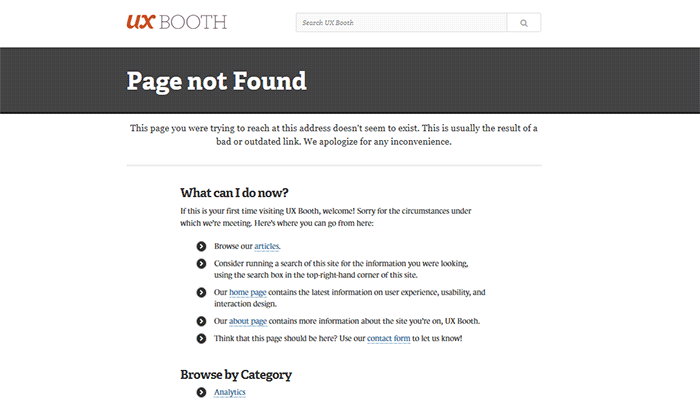
UX Booth

The UX Booth 404 error page uses simple, concise and direct language and an immediate apology. The page suggests popular links on the website as well as the list of categories. It also retains the footer links and the search bar.

404-error-page_UX-Booth_screenshot

Average Joes Blog

Average Joes Blog is a good example of category-rich 404 error page. In fact, the 404 error page is a replica of the home page.

404-error-page_Average-Joes-Blog_screenshot

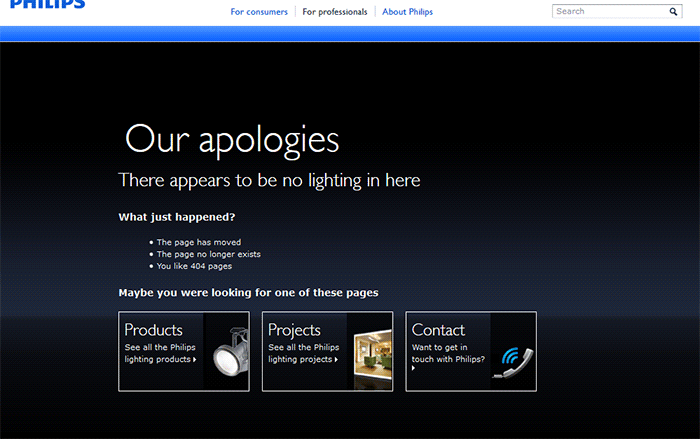
Philips

Philips goes creative and witty with its 404 error page. It mentions the absence of lighting then explains what happened and suggests popular links.

404-error-page_Philips_screenshot

Email Center UK

The Email Center UK website uses humor. Since you are at an error page, it means someone messed up and you get to choose who to fire for the fiasco. Below all that is a simple link to the home page.

404-error-page_Email-Center-UK_screenshot

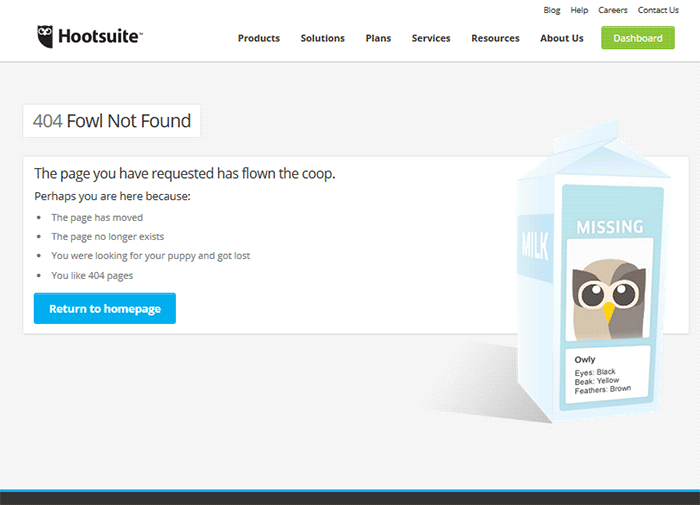
Hootsuite

The Hootsuite 404 error page lists down possible reasons for the error. They used ‘fowl” language to keep the identity of the brand/mascot.

404-error-page_Hootsuite_screenshot

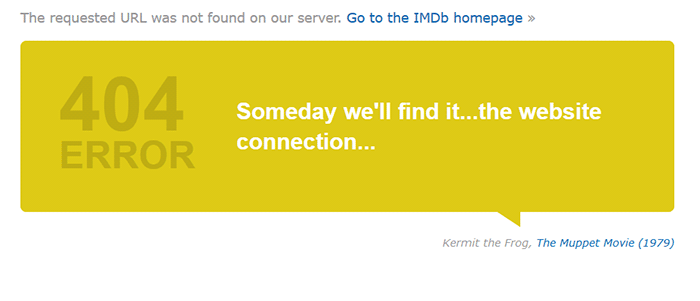
IMDB

The IMDB 404 error page uses a simple layout with a clever idea. Every visit to a 404 error displays a random movie quote. Movie buffs will definitely find this entertaining. A convenient link to the home page is also positioned at the top.

404-error-page_IMDB_screenshot

404-error-page_IMDB2_screenshot

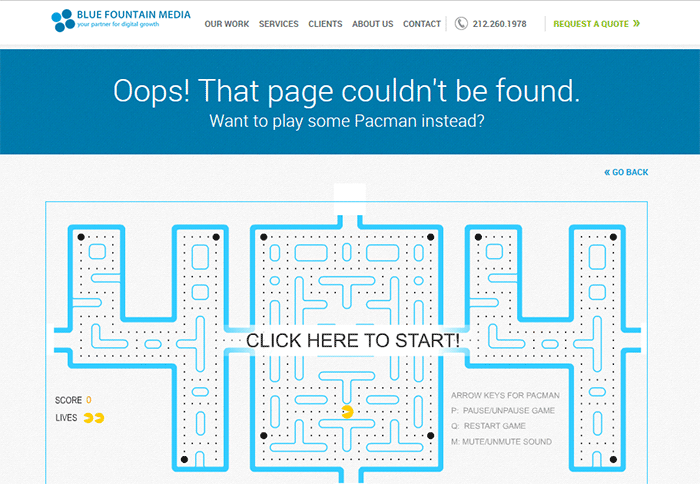
Blue Fountain Media

Blue Fountain Media makes a 404 page that you will look forward to – an actual PAC-MAN game. They retained their main navigation and a “Go Back” link that takes you to the last visited working page.

404-error-page_Blue-Fountain-Media_screenshot

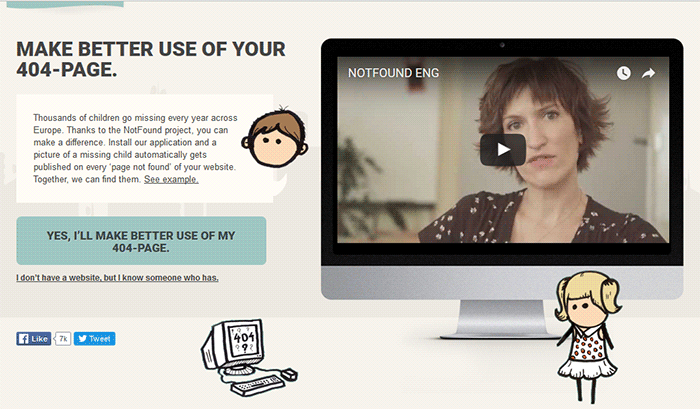
Not Found Org

NotFound.org actually uses its 404 error page to achieve a goal. It is an app that you can install in your website. It lets you customize your 404 page to help their cause – find thousands of children that go missing every year.

404-error-page_Not-Found-Org_screenshot

Creating a Custom 404 Error Page

Now that you have some inspiration, it’s time to create your own. You can check out WordPress’ basic guide here if you are able to code, if not you can check out the plugins below.

Since WooCommerce is installed on the WordPress platform, you can use the power of WordPress plugins to create awesome About Us pages.

Custom 404 Pro

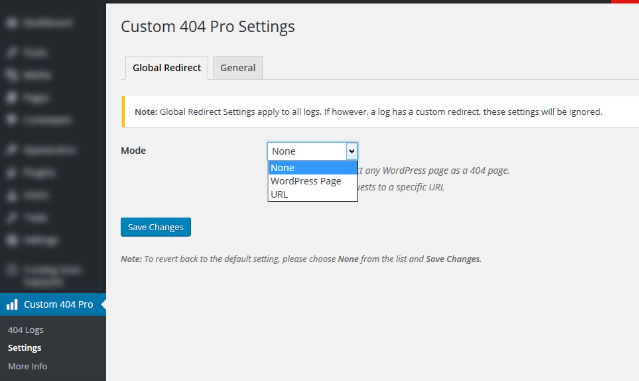
The Custom 404 Pro plugin lets you override the default 404 page with any page of your choice. To set your custom 404 error page:

  1. Install and activate the Custom 404 Pro plugin.
  2. Create a new page that you want to use as your 404 error page.
  3. Click on Custom 404 Pro on your WordPress Dashboard and then click on Settings.
  4. Set the page or URL that you want to use as your 404 error page and then click on Save Changes.

Create-custom-404-error-page_Plugin_Custom-404-Pro-Settings

404page

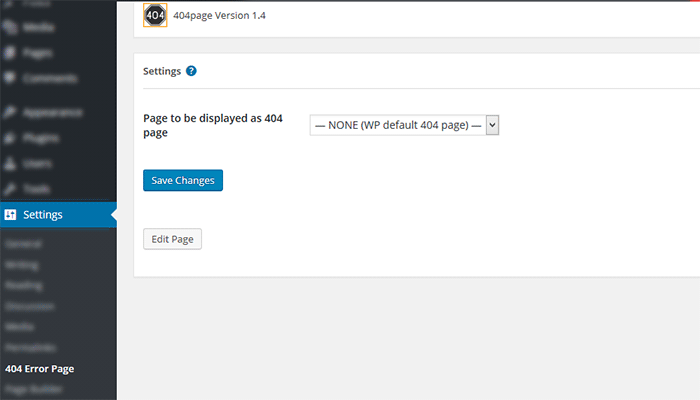
404page is another easy plugin to use to create custom 404 error pages. To create a custom 404 error page using the 404page plugin:

  1. Install and activate the plugin.
  2. Create a new page that you want to use as your 404 page.
  3. Click on Settings and then choose the page that you want to use as your 404 error page.
  4. Click on Save Changes.

Plugin_404page_Create-custom-404-error-page

Test Your 404 Error Page

To test if your new 404 error page is working, just pop any non-existent URL in your domain on your browser. If your new 404 error page does not appear, check if your website is set to redirect to your new 404 error page.

Create-custom-404-error-page_Plugin_404page

Conclusion

404 Error Pages can be annoying but you can use them to your advantage. Customize them to boost engagement and conversion. Align your new 404 error page with your brand image and website goals. It will do wonders for your WooCommerce store and your brand. Do you have any other suggestions for creating a good 404 error page?

Filed Under: Code Snippets, How-To Articles Tagged With: best practices, design tweaks, navigation, plugins, redirection, WordPress

Design Tweaks on WooCommerce

January 29, 2015 By John Leave a Comment

SnapCrab_2015-06-26_15-14-47_No-0000

Your online business using WooCommerce is all set. Each important element is in place and accounted for. Your website is done. You get regular traffic. You got your marketing strategies in place. You have a blog and you are active in social media. You think you’ve got it all covered, but then a few things start to bug you.

Optimize Web Design

You realize the design needs few tweaks and you come up with a few ideas that should be able to increase sales. What you have to do right now is optimize your design for better conversion rates. This is called conversion rate optimization.

A few design tweaks on your website will help increase your conversion rates. It may involve adjusting or repositioning some visual and design elements. Color, images, cues and their placement on your landing or checkout pages, are all part of optimizing your web design – see here design tweaks.

Keep Your Design Simple

Your website needs to look good, but not necessarily flashy. Simplicity in your design can go a long way towards increasing conversions.

It is understandable that you’d like to fill your pages with a lot of useful features and elements. However, it could also be a hindrance. Visitors would usually turn away from complicated designs. Keep it simple and understandable.

Design Tweaks

In changing the colors on your website, take the context into consideration. Make use of call-to-actions (CTA), and place them in a favourable manner to make your visitors take action. The design of your website should encourage visitors to want to browse more. Essentially, they should immediately see what they’re looking for.

Use the right amount of white space. It can definitely put emphasis on where it is needed. It is a simple and effective way of making sure that important elements of your site are easy to locate. This post enumerates user interface tweaks can you make, to improve your conversion rates.

Know Your Audience

An important part of adjusting your site’s design is learning about your potential customers. Understand who they are what their personalities are like. That way, you could adjust your design elements to fit in with them.

SnapCrab_2015-06-26_15-15-17_No-0000

You can read more about customer personas in these articles:

New MailChimp User Persona Research

Web Design Tips that Increase Conversions

Having a clear idea of your current users can help you better empathize with them. Combining these tips will not only get people to visit your site, but also encourage visitors to take the next step.

A few design tweaks on your WooCommerce store can set you up for better conversions which will in turn lead to better sales for your business.

Filed Under: How-To Articles Tagged With: call-to-action, colors, conversion optimization, CSS, customer persona, design tweaks, how-to, optimizations, WooCommerce

  • 1
  • 2
  • 3
  • …
  • 6
  • Next Page »
Let us support your online store so you can manage your business

Get started today

Get 2 Hours of FREE SUPPORT

We are so confident that you will love our services that we will give you your first 4 hours at a 50% discount

That’s 4 hours for only $75

BUY NOW

Free eBook

5 Things Every Online Store Can Fix On Their Website In The Next Week To Increase Sales

Quick Links

  • How it Works
  • Pricing
  • Blog
  • Contact
  • About Wooassist
  • My Account
  • Checkout
  • Privacy Policy
  • Cookie Policy
  • Terms and Conditions

Wooassist

Australia:
59 Luke St.
Hemmant QLD 4174

Philippines:
San Miguel St.
Poblacion, Iligan City 9200

Connect


Copyright © 2026 · Wooassist

Yours FREE!

5 Things Every Online Store Can Fix On Their Website In The Next Week To Increase Sales