Wooassist

Assistance for Your Woocommerce Store

  • How it Works
  • Pricing
  • Services
    • Site Maintenance
    • AI SEO and Content Marketing
  • Blog
    • How-To Articles
    • Code Snippets
    • SEO For E-Commerce
    • Theme and Plugin Reviews
    • Wooassist News
    • WordPress/WooCommerce News
    • Interviews
  • About Us
  • Contact
You are here: Home / Archives for woothemes

How to Speed Up Your WooCommerce Store

August 3, 2015 By John 3 Comments

SnapCrab_2015-07-03_10-57-18_No-0000

Aside from the products or services you offer, there’s another crucial factor that may affect your conversion rate. We’re talking about your site speed. Any delay is enough reason to make your customers leave. This converts to lost revenue, which can hurt your bottom-line. How can you prevent or change this? This article will serve as an in-depth guide to and will teach you how to speed up your WooCommerce store.

In this article, you’ll learn about the following:

  • Why invest in site speed optimization?
  • What hardware and software you need?
  • Improving Site Speed by Caching and Minifying
  • Speed Up Site by Optimizing Images for Web
  • Using a CDN to Increase Site Speed
  • Cleaning Your Database to Speed Up Site
  • More Ways on How to Speed Up Your WooCommerce store

Why Invest in Site Speed Optimization?

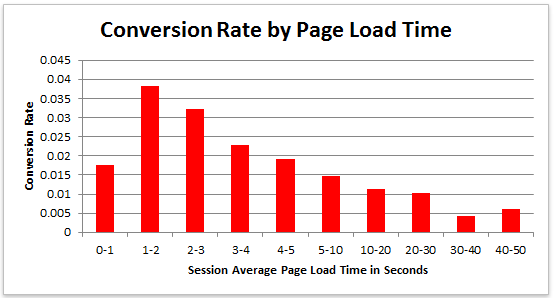
Studies reveal revealed that 47% of visitors expect a page to load in under 2 seconds. Around 40% of these will abandon a web page if it takes more than 3 seconds to load. Meanwhile, 52% claim that quick page loads are important for their loyalty to a site.
conversion-rate-by-page-load-time

What do these findings tell you, a site owner?

It just shows that site speed is very important. Those two seconds are crucial to capture your visitor’s attention, convince them to hang around, and increase your chance for conversion. Microsoft Bing also conducted a research about server delays and the effect they bring on user behavior.

server-delays-experiment

According to the results, a 2-second longer delay in page responsiveness reduced user satisfaction by 3.8%. They navigated 4.4% fewer pages, with a 4.3% lesser e-commerce revenue per user. Every second matters online.

Here’s the thing: visitors – your potential customers – can’t really tell the difference if a page is ‘just’ slow, or isn’t working at all. Thus, a slow website is quite the same as not having one. Most users won’t stare at the screen and wait. They move on to the next website and never come back.

site-visitors

Google announced that it has included site speed in its ranking algorithm. If your site speed is slow, it can affect SEO by having reduced rankings. They even launched a new web-based tool, which analyzes the performance of web pages.

With these information, we now know that site speed not only sells, but also leads to customer satisfaction and increased conversion.

If your site speed is slow, it’s time to fix that. Read on.

What Hardware And Software You Need?

The foundation you set up for your e-commerce site has a lot to do with its speed. If it’s the root of the problem, quick fixes won’t help. But, what makes a good foundation, and how can you set up a website that runs at lightning speed?

Web Hosting Provider.

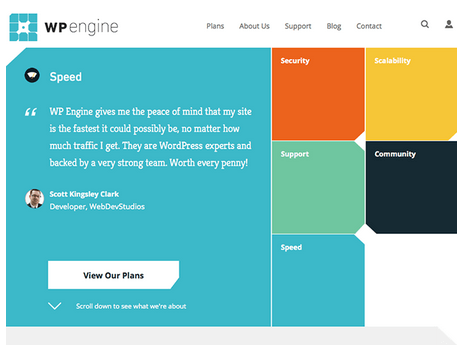
What’s your current hosting package? For an e-commerce site, you shouldn’t go with the cheapest. They may have limited RAM, processing power, and disk space which won’t benefit your site at all.
wp-engine

Wooassist recommends:
Wpengine and Siteground

Please note that we are affiliates of these hosts but we have only chosen them based on our years of experience dealing with hosting services for our clients’ and our own sites. And we can say that these two are among the best. If you were to sign up to either of them, we’d be grateful if you did so by clicking either of the links above.

WordPress Themes

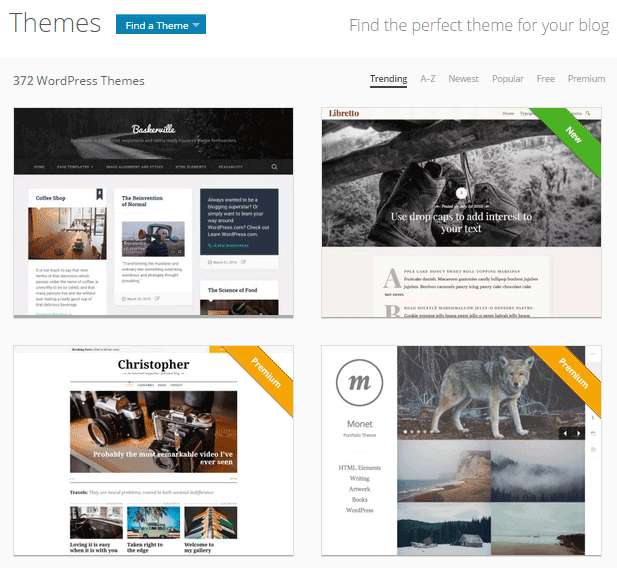
Not all WordPress themes are created equal, and not all are extremely fast and well-coded. In choosing a theme, checking the demo speed is a must. Tools such as Pingdom will give you an idea of how well-coded it is.
wp-themes

Wooassist recommends:
Storefront by Woothemes or Any HTML5 theme at Studio Press

Content Delivery Network

CDN is a system of distributed servers that accelerate the delivery of web content, and rich media to internet-connected devices. Since your bandwidth is spread across many different servers, the load on a single server is reduced.

Wooassist recommends:
Wpengine comes with CDN included or Cloudflare

Improving Site Speed by Caching and Minifying
caching-and-minification

Let’s start with the most popular, and probably, the easiest thing: Caching.

What is Caching?

Caching is storing your dynamic content in the server as static content. Serving static content is faster as opposed to dynamic content, which means longer page load times. It’s a fundamental technique of reducing database load and speeding up WordPress websites.

There are two types of Caching:

  • Client-Side
  • Server-Side

Let’s move on to Minification.

When developers make code, they make code with a lot of white space. This practice makes the code easier to read and understand for humans. However, computers don’t need that white space. It just makes reading the code take longer.

Minification is removing all that white space and optimizing the code. This makes it easier for machines to make parsing the webpage faster.

How to Implement Caching and Minification?

It may sound all too complicated, but don’t worry. It is really very simple. All you need is one plugin to do both, and it has all the caching and minification solutions you need.

W3 Total Cache

It’s the second most popular plugin with almost 4 million downloads and a 4.5 star rating. W3 Total Cache is more suitable for high traffic websites running from a VPS or a better hosting environment.

How to Set up Caching with W3 Total Cache?

  1. Before installing W3 Total Cache, uninstall other caching plugins like WP Super Cache
  2. Go to your WordPress admin panel and click on Plugins > Add New
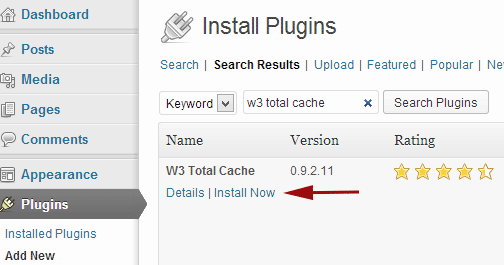
w3-total-cache

  1. Search for “W3 Total Cache”
  2. Click on the ‘Install Now’ button and then activate
  3. Click on Performance on your WordPress dashboard and go to General Settings
  4. The first option that you see on this page is Page Cache.
  5. Check the ‘Enable’ box
  6. Click on ‘Save all settings’

By having this enabled, you will significantly decrease your load time.

How to Set up Minification with W3 Total Cache?
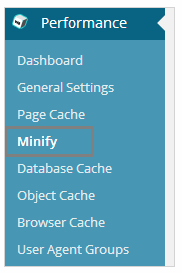
  1. minifyGo to your WordPress dashboard and click on Performance
  2. Look for ‘Minify’ under the Performance menu
  3. Tick “Enable” for HTML & XML, JS, and CSS.
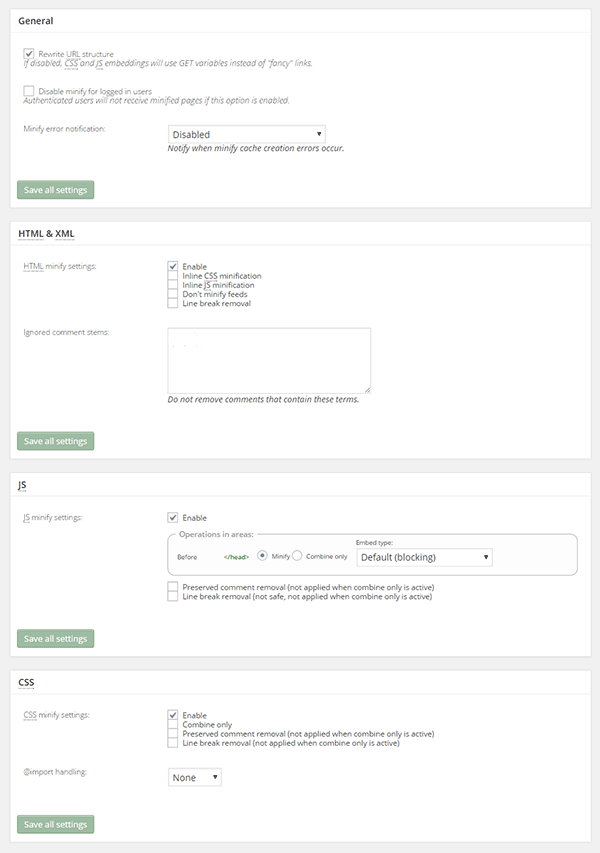
minify-2

  1. Click on ‘Save all settings’

The goal of minification is to make the source code “smaller” in order to improve your site’s performance. Get a more detailed information on each of the settings offered in Minification here.

Speed Up Site by Optimizing Images for Web

Your customers won’t wait around for that picture to load.

customers

Another technique to improve your online store’s performance is optimizing images on your website. High-resolution images may look great, but when you’re loading a 2MB image, it’s going to do more harm than good.

Aim for an image size of less than 100KB, but if you can go smaller without compromising quality, then better. It’s a rule of thumb to not let the images look bad or pixelated.

Striking a balance between a good looking image, and an acceptable image size, shouldn’t be a complex task.

Here are a few ways on how to optimize images for the web:

Using Photoshop

Before you upload your next product photo, logo, or banner image to your store, check the image size first.
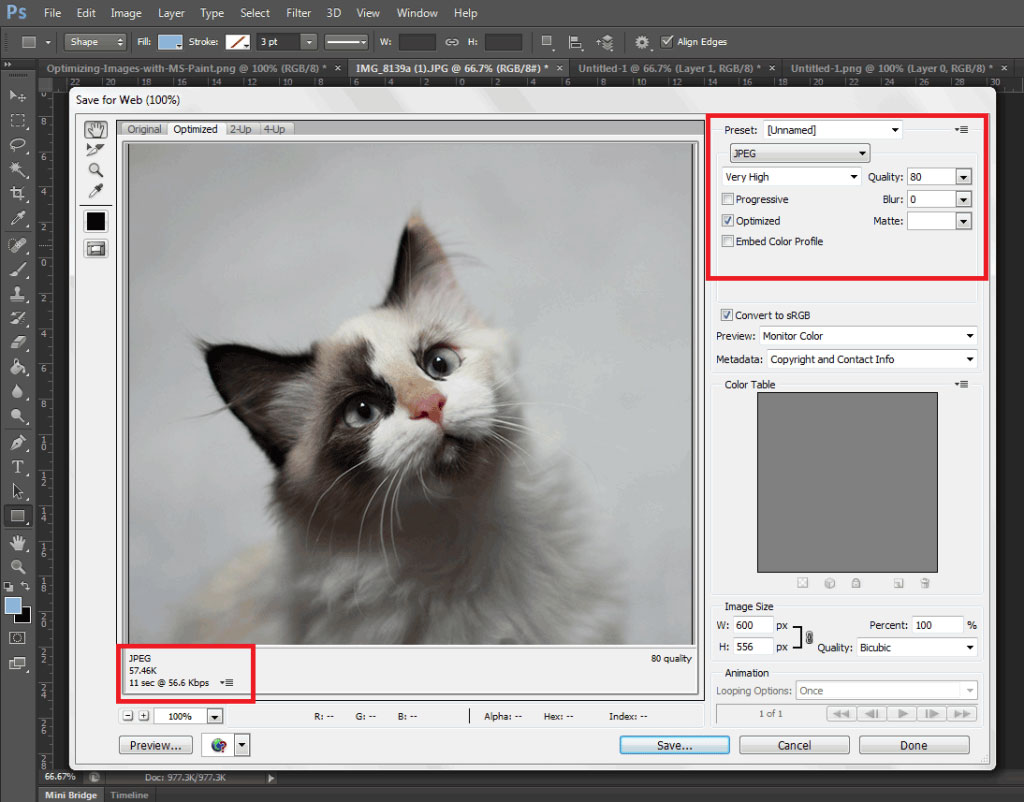
optimizing-images-in-Photoshop

Open the image in Photoshop and view it at a 100%.

If the exact size is too large to be displayed on a computer monitor, you need to edit the size of the image. You don’t have to be a Photoshop wizard. Just open the image on Photoshop, and resize or crop your image to the appropriate size. Apart from that, you also need to consider its format and compression.

If you have a style, preset image sizes that you should be using. Click on File and Save for Web (Ctrl + Shift + Alt + S). The smaller the size the faster the image loads on the page.

Using WordPress Plugins

What if you don’t have Photoshop? And, you don’t have the time to optimize every image you add to your e-commerce store? You can always rely on some WordPress Plugins.
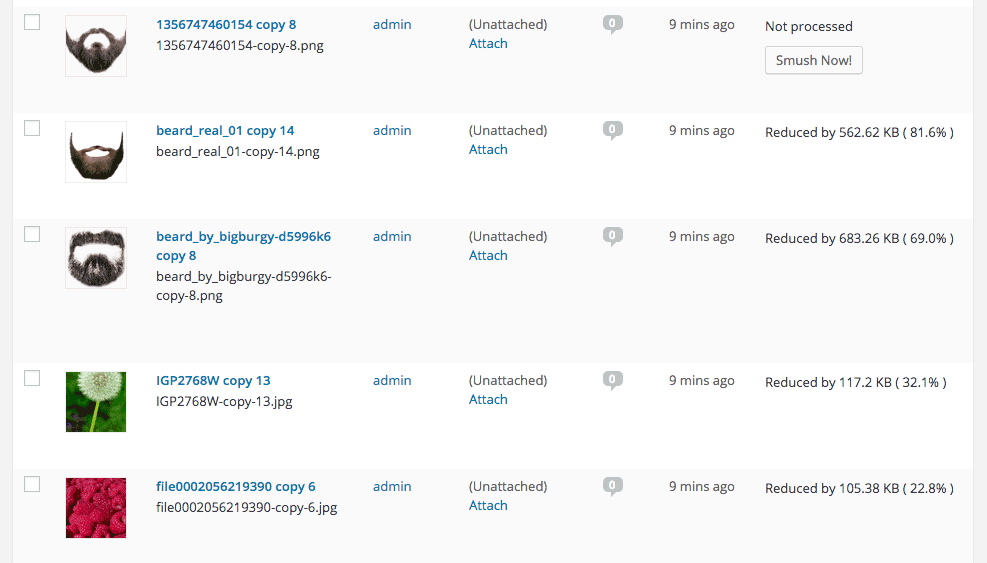
WP-Smush

Take WP Smush, for example. It’s popular for stripping hidden, bulky information from your images, reducing the file size without losing quality. You just need to upload your images, as you normally would, and the plugin will do its work behind the scenes.

The free version of the plugin cannot optimize images larger than 1M. You need to upgrade to WP Smush Pro to optimize images up to 8 MB.

Using a CDN to Increase Site Speed

CDN

So far, we’ve talked about optimizing images, caching, and minification. Now, it’s time to explore the concept of using a Content Delivery Network or CDN, and how it can help increase your site speed.

What is a CDN?

As mentioned earlier, CDN is a network of servers located at different locations around the world. It functions to cache the content of your website, so it can be delivered faster to your visitors based on their location.

Let’s say you’re server is based in Australia. Visitors far away from your geographic location will have a hard time connecting to your website. This would result in delayed responses.

With a Content Delivery Network, browsers will have a nearby server that they can connect to. This will deliver your content much faster. CDNs will mostly benefit the websites that cater to a global audience.

Because there are many options available, choosing the right CDN for your website can be tricky. It depends entirely on your needs, and the popularity of your site. Large-scale enterprise sites usually use popular CDN companies Akamai and Level3.

Setting Up CloudFlare CDN through CPanel

When it comes to small website owners, one of the more popular CDN solutions is CloudFlare. They offer a basic free plan that includes fast site performance, board security protection, and powerful stats about your visitors.

If you’re not sure if your hosting is a partner, you can check this list from CloudFlare.

According to CloudFlare, on average, a website using the CDN will load twice as fast, use 60 percent less bandwidth, have 65 percent fewer requests, and is more secure.

If your website is hosted on a CloudFlare hosting partner, you can easily use the tool available on CPanel.

  1. Go to CPanel’s ‘Site Improvement Tools’

cloudflare

  1. Click on the CloudFlare icon
  2. Tick ‘Activate Free’ for the free version or ‘Activate PLUS’ for the paid version
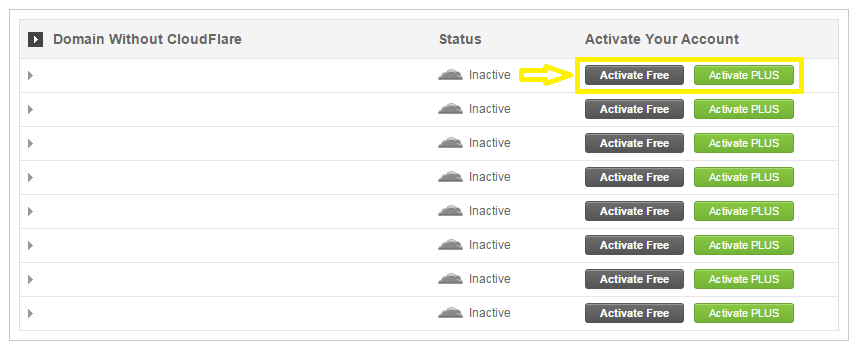
cloudflare-in-cpanel

  1. Enter your email to create an account with CloudFlare
  2. Once activated, click ‘Manage’ to tweak certain settings
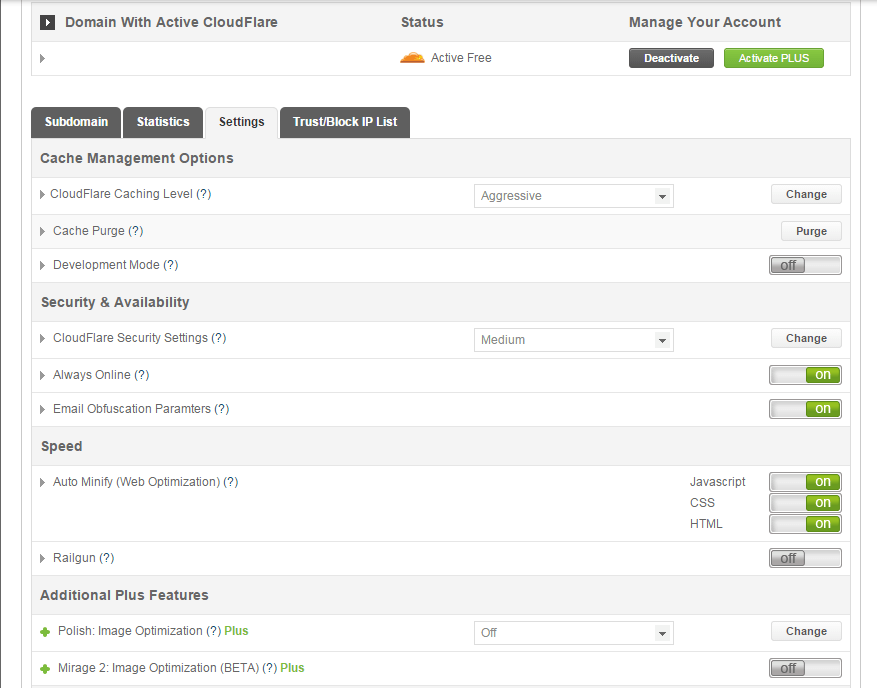
cloudflare-settings

And that’s it. Your CloudFlare CDN is all set and the performance of your website should be improving soon.

Setting Up CloudFlare Manually

Here’s what you need to do too set up CloudFlare manually:

  1. Sign up for an account
  2. Add your website on “Select a website” page for scanning
  3. A list of all found DNS records will be shown
  4. Set any subdomains that you would like to pass through CloudFlare
  5. Click on “I’ve added all missing records, continue” once you’re ready.
  6. Choose a plan, free or paid (SSLs won’t work with the free version)

You also need to edit the name server to the new one provided by CloudFlare. You can do this by going to CPanel, and clicking on Domain Manager. Then, go back to CloudFlare settings and click on “I’ve updated my name servers, continue”.

Note: It may take up to 24 hours for the name servers to be completely active.

With a CDN in place, your site should be running a lot faster. This improves the overall user experience and even boost your conversion rates.

Cleaning Your Database to Speed Up Your Site

cleaning-your-database

It’s a strategy that’s rarely discussed. Nevertheless, it can speed up your site just as well as the other methods. It’s maintaining and cleaning your database.

You might think that database is just one of the requirements for a WordPress install. It is, however, more than just that. If you keep your database clean and optimized, it can shave a few seconds of loading speed.

Remember, one or two seconds saved could mean the difference between a bounce and a conversion.

What’s In Your Database?

A database is just like your computer’s hard drive. It’s where all your data is stored. It contains important information such as: posts, pages, your WooCommerce products, comments and product reviews, users and customer information, URLs, etc.

For those who have been using WordPress for a while, doing regular clean ups allow you to reduce your database size. This can lead to quicker, and smaller backup files.

What’s there to clean?

cleaning-your-database-2

Over continued use of WordPress, your database accumulates many spam comments, copies of post revisions, trashed comments, remnants from plugins you are no longer using, themes, and more. When that becomes too large and bloated then website performance will suffer.

Backup Your Website First!

Before you start any database cleaning, it’s very important to create a backup of your website. If your database gets erased or corrupted, you stand to lose everything you have written. There are a couple of plugins in WordPress that can help you do this.

Your hosting provider will most likely have a backup of your website too. Here’s more detailed information on backing up your database in WordPress.

Cleaning Your Database

You may clean up your website database manually, or use these awesome plugins:
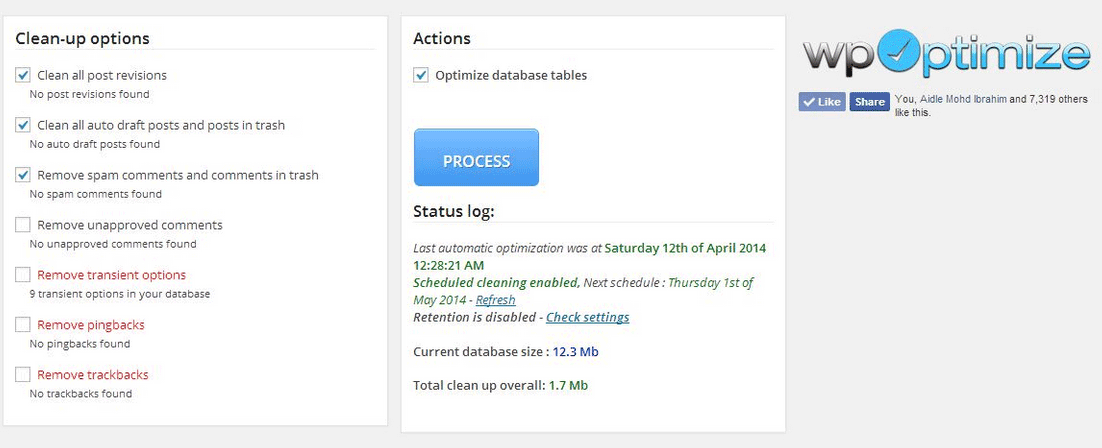
  1. WP-Optimize

wp-optimize

One of the most popular and easiest plugins for cleaning your database. It allows you to schedule a regular database cleanup which can be pretty handy. However, WP-Optimize plugin uses direct delete SQL queries which can leave orphaned data left behind.

  1. WP-Sweep

This plugin allows you to clean up unused, orphaned and duplicated data in your WordPress. It can also show you a report of how much clutter you can clean. WP-Sweep uses proper WordPress delete functions.
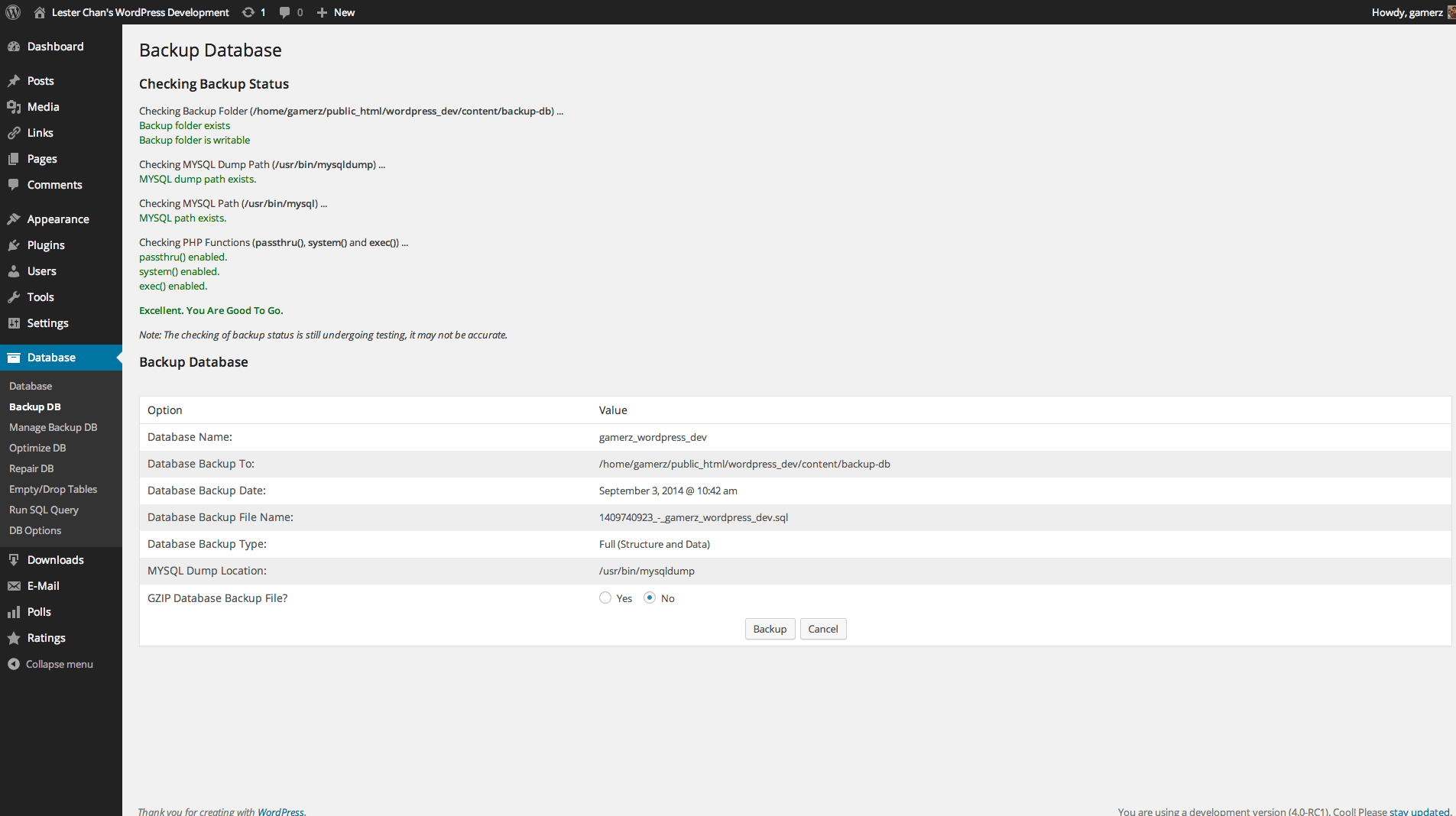
  1. WP-DBManager

wp-dbmanager

Geared for more advanced users, setting up WP-DBManager can be tricky if you’re not familiar with database elements. It offers more customizable options and features, but it cannot clear bloat.

If you want to use WP-DBManager for its features, look for other means to clear database bloat.

More Ways on How to Speed Up Your WooCommerce Store
woocommerce

Once you’ve set up a solid foundation for your e-commerce site, it’s time to do some fine-tuning. That is, if you’re still having speed issues with your WooCommerce website. Here are more useful tips to help you to solve this matter.

1. Upgrade your hosting account

As soon as you can afford it, do upgrade your hosting account. It would be better to use a good hosting publisher rather than shared hosting. Not only it can improve your site speed, but also prevent down time during high traffic periods.

2. Test your current speed

Checking the current performance of the website gives you a benchmark to compare against after you make the changes. There are various tools to help you check your loading speed:

  • Yahoo! Y slow
  • Google Page Speed
  • Pingdom is the quickest and easiest one

pingdom

3. Use minimum number of WordPress plugins

Using too many plugins in a website can slow your website speed, particularly if you’re using social-sharing plugins. It will help to identify plugins that are slowing you down.

P3 (Plugin Performance Profiler) is a well-known diagnostic plugin that shows which plugins are slowing down your site. It creates a profile of your WordPress site’s plugins’ performance by measuring their impact on your site’s load time.
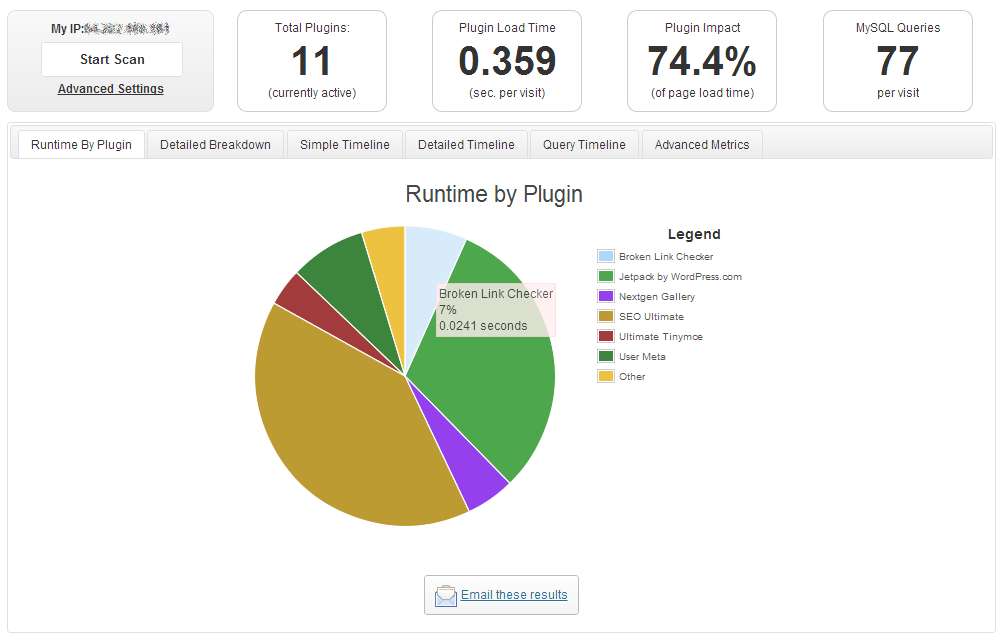
p3

Once you’ve identified them, you can make an informed decision about whether to keep them, replace them or remove them entirely.

4. Compress your website

Gzip is the most popular, and effective compression method that reduces the response size by about 70%.

Compressing files on your computer as a ZIP file can reduce its total size, which makes it both easier and faster to send to someone. Gzip works the same way, but with your Web page files.

After installation, Gzip automatically compresses your website’s files as ZIP files. This can save bandwidth, and speed up page-loading times. When a user visits your site, their browser will automatically unzip the files and show their contents.

Some plugins will add Gzip to your website in a few simple clicks. For those who want to install it manually, it’s actually very simple.

    1. Open your .htaccess file, which is found in the root directory on your server
    2. Add the following code
AddOutputFilterByType DEFLATE text/plain
AddOutputFilterByType DEFLATE text/html
AddOutputFilterByType DEFLATE text/xml
AddOutputFilterByType DEFLATE text/css
AddOutputFilterByType DEFLATE application/xml
AddOutputFilterByType DEFLATE application/xhtml+xml
AddOutputFilterByType DEFLATE application/rss+xml
AddOutputFilterByType DEFLATE application/javascript
AddOutputFilterByType DEFLATE application/x-javascript
  1. Test whether it’s working by going to Check Gzip Compression

5. Optimize your homepage

Your homepage is a crucial part of your site because visitors land there the most. There are a few easy ways to ensure that your homepage loads quickly.

  • Show excerpts instead of full posts
  • Reduce the number of posts to 5 or 7
  • Remove unnecessary sharing widgets
  • Remove inactive plugins and widgets that you don’t need

A clean and focused homepage design will help your page not only look good, but load quicker as well.

6. CSS on Top and JavaScript at the Bottom

It’s widely recommended to link your style sheets as close to the top of the page. The reason is that browsers won’t render a page before rendering the CSS file.

Meanwhile, JavaScript should be as close to the bottom of the footer. Doing so can prevent browsers from parsing anything until it has fully loaded.

With just this simple fix, page-loading speed will improve, since files are forced to be downloaded in the optimal order.

7. Disable content hot linking and leeching

When other sites direct link to the images on your site, it can make your server load increasingly high. This adds up as more and more people “scrape” your posts.

Conclusion:

Just How Important is Site Speed?

importance-of-site-speed

Consumers take advantage of online shopping because of the convenience it offers. Most people can’t stand waiting in lines. And, they especially get frustrated when it’s taking longer than expected.

Now, going back to your website, users won’t wait for your site to load. If it takes too long, they’ll definitely find another online store.

Another thing to keep in mind is that Google wants the best experience for their users, giving site speed utmost importance. They even reward sites that have clean codes and download quickly.

Page speed is now one of 200 or so signals Google uses to determine rank. More importantly, do it for your existing and potential customers. The faster a page loads, the more satisfied they will be.
Filed Under: How-To Articles Tagged With: best practices, caching, CDN, CloudFlare, conversion optimization, CPanel, Genesis, how-to, minification, optimizations, photoshop, SEO tools, site speed optimization, Siteground, Storefront, W3 Total Cache, website maintenance, WooCommerce, woothemes, WordPress, WPengine

Storefront Theme Review

January 1, 2016 By John Leave a Comment

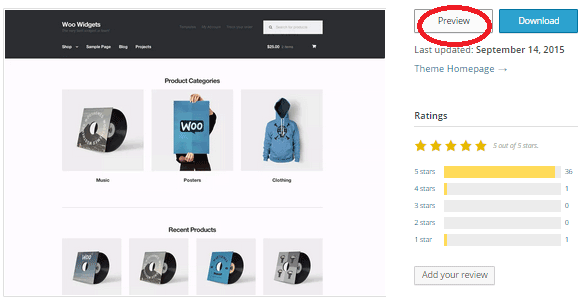
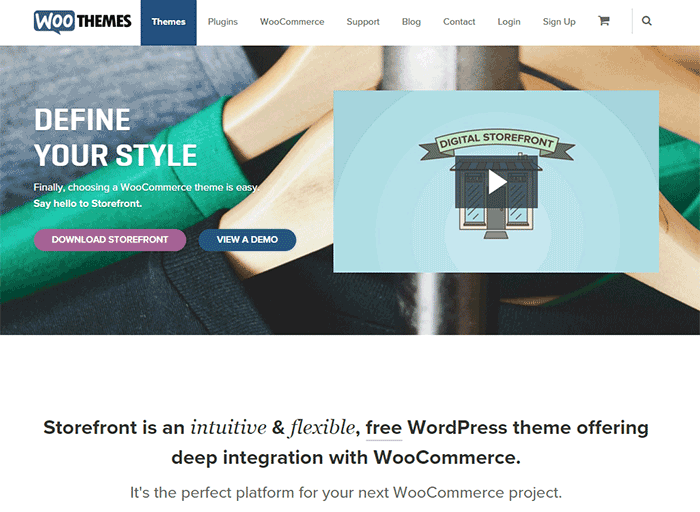
Storefront is the official WooCommerce theme built to the same high standards as WooCommerce itself. Best of all? It’s free!

storefront

A Storefront theme review is due. Here’s what’s included in this article:
  • Storefront Theme Overview
  • Storefront Key Features
  • What Makes Storefront Great
  • WooCommerce Integration
  • Storefront Setup
  • Arrival of Storefront 1.5
  • Storefront WooCommerce Styling
  • Popular Storefront Extensions
  • Choosing A Theme

Why WooCommerce?

WooCommerce is still the most popular e-commerce platform.
This open source e-commerce plugin for WordPress was launched in 2011 and is aimed at small-to-medium online merchants already comfortable with a WordPress set up.

There are a lot of free and premium themes to choose from, one of the most popular is – Storefront.

Storefront Theme Overview

Storefront is described as an intuitive, lightweight, and flexible theme offering deep integration with WooCommerce. It has several layout and color options to personalize your shop, multiple widget regions, a responsive design, and much more.

The main goal in developing Storefront is to provide a rock-solid foundation for your WooCommerce store without extra bloat or features.

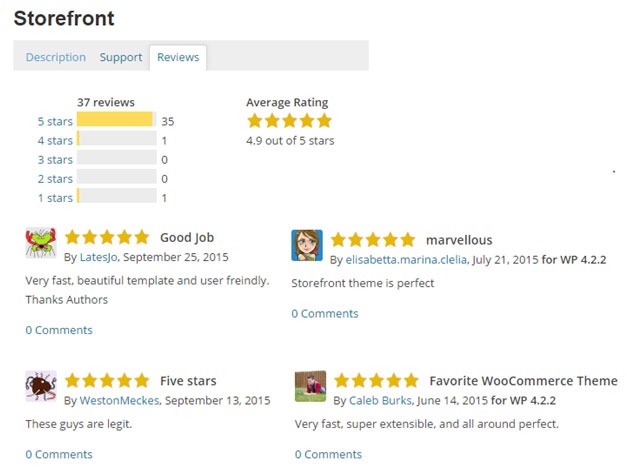
It comes to no surprise that it reaches up to 3,000 downloads per day:

Integration:

Storefront theme is built and maintained by the same team that developed WooCommerce. This is why the integration between WooCommerce, its extensions, and Storefront is water-tight.

No Conflicts:

For e-commerce sites, uptime is of utmost importance. With the new Storefront, there will be no conflicts between theme and plugin during major WooCommerce updates.

storefront-reviews

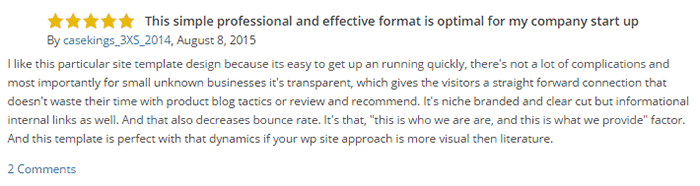
Here’s a glimpse of some of its great reviews:

Solid Foundation:

Based on the popular Underscores starter theme, Storefront features a responsive layout, and schema markup for enhanced SEO performance.

Clean and Simple:

storefront-clean-simple-design

Storefront allows you to customize your store to match your brand by providing a clean and simple design.

Storefront Key Features

Most store owners want their e-commerce theme design to be simple and flexible. Storefront can offer exactly that.

Here are some of the key included features:

WooCommerce Integration

storefront-woocommerce-integration

Storefront features an unrivalled deep integration with WooCommerce. Of course, having been developed by WooCommerce authors, this integration is compliant with the latest WooCommerce developments and standards.

Lightweight and Robust Core

Storefront-Lightweight-and-Robust-Core

Storefront is based on Automattic’s popular underscores starter theme. Its codebase is under constant review ensure it is kept nice and clean to provide as little disruption and conflicts as possible..

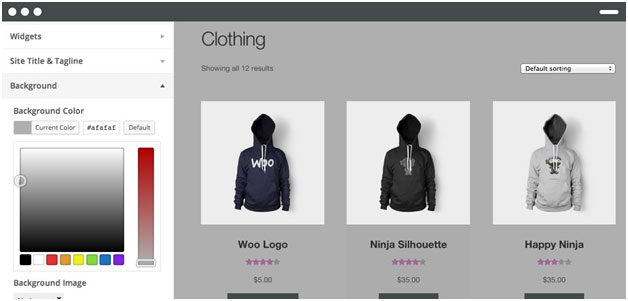
Design Customization

storefront-design-and-customization

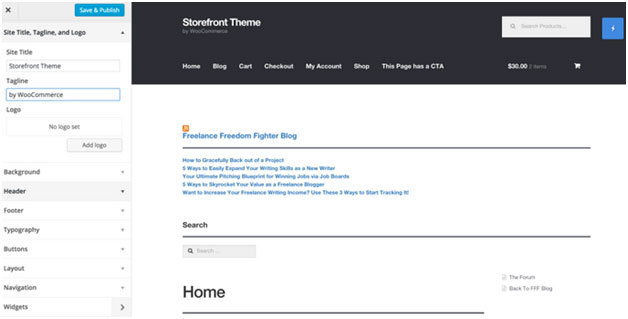
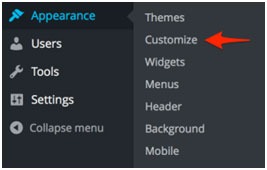
Every store owner would want to create a look and feel that matches their business. There are several display settings in Storefront that let you customize the design of your page to meet your requirements. Settings are all accessible in the WordPress Customizer.

What Makes Storefront Great

what-makes-store-front-great

The Storefront philosophy is to do one thing well and provide a solid foundation for your online store. Although the theme appears to be plain, it’s meant to be a starting place that includes deep WooCommerce integration.

Keep in mind that simple is usually more profitable. Unless you are spending a few grand on a professional designer then the fancy design you try and add yourself will most likely distract the user and lose sales.

No Shortcodes and Page Builders

Shortcodes in WordPress are little bits of code that allow you to do various things with little effort. You only get what you need with Storefront, which means you won’t encounter any superfluous shortcodes and page builders.

The Storefront team believes that not including these features allows you to add them via whichever plugin you prefer. Even if you switch themes later on, all of those features will remain. According to the release announcement, Storefront was built with data portability in mind. This means that users will be able to switch themes without losing their content.

Appropriate Sliders

Whether you should use slider is a highly debated topic. While other WordPress themes bundle sliders, Storefront lets you choose the appropriate plugin for your slider needs if you decide you do want one. It is also compatible with the WooSlider plugin.

WordPress offers many slider plugins to add them to your home page, landing pages, posts, or anywhere you want.

storefront-slider

Schema Markup

Schema markup is code that you put on your website to help the search engines return more informative results for users. The content on your website gets indexed and returned in search results. Storefront has valid schema markup for improved SEO performance.

Display Options

storefront-display-option

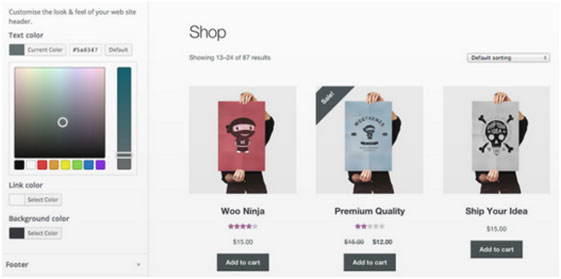
In addition to attractive products, the design of your shop is equally crucial. It’s important to make a good first impression with the help of professional design. With Storefront, you can change the look and feel of your store in a few clicks, and see your tweaks in real-time.

Responsive

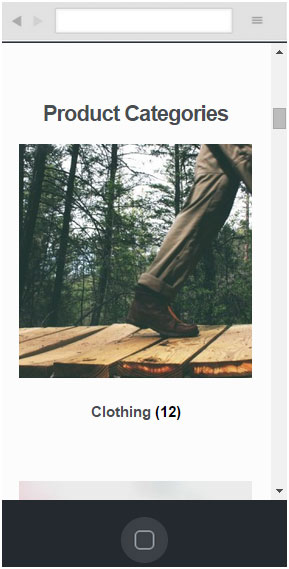
If your site can’t be viewed effectively on mobile devices, you could be losing almost 50% of your customers.

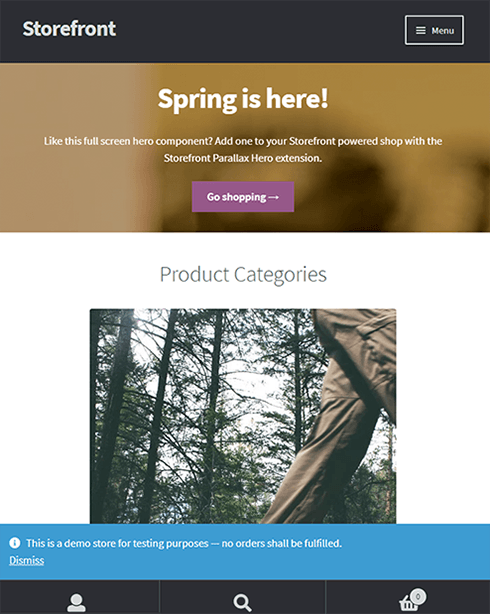
Storefront on mobile device:

storefront-on-mobile

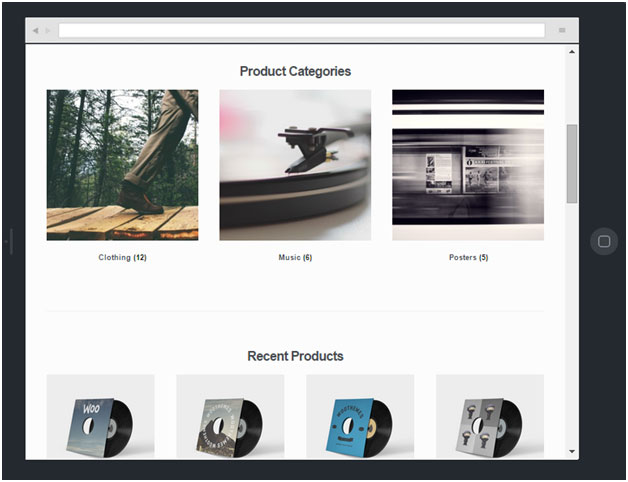
Storefront on tablet:

storefront-on-tablet

Non-responsive sites are now considered second-class businesses by Google. Storefront will adapt and display beautifully whether you view your store on a laptop, desktop computer, or handheld device.

Localized and Accessible

Storefront is fully localized and ready for your translations. It also adheres to the strict wordpress.org accessibility guidelines. That is why your store will be accessible to the widest audience possible.

Custom Homepage Template

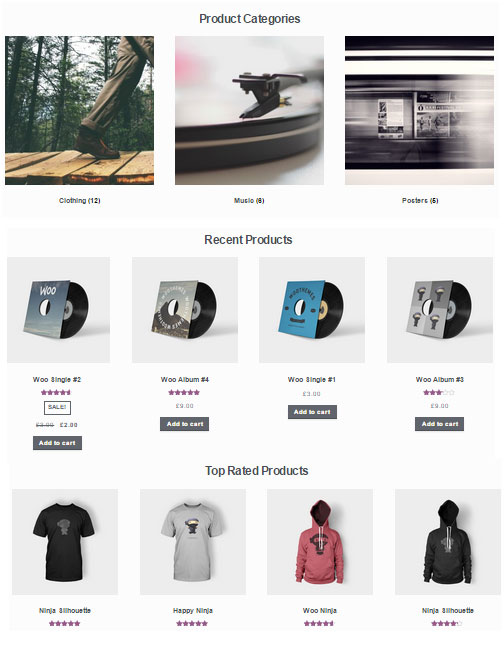
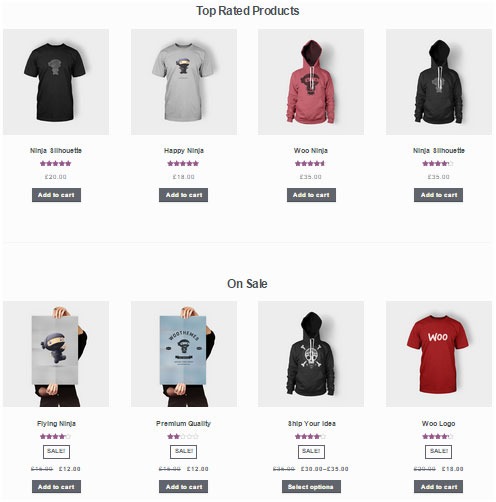
The homepage template in Storefront has been tested for user experience and conversion. It displays product categories, recent, featured, on sale & top-rated products.

storefront-custom-homepage-template

It’s a great start for most small businesses to immerse the visitor in your products, while providing enough flexibility to promote the products that will make you the most profit.

WooCommerce Integration

It includes deep integration for WooCommerce and it’s most popular extensions. This means everything will look nice straight away and you won’t have to hire a professional developer or designer to make things fit in.

Some of the more popular extensions supported are:

WooCommerce Bookings

storefront-woocommerce-bookings

This extension is perfect for those wanting to offer services, appointments, or rentals. It allows you to sell your time or date based bookings, adding a new product type to your WooCommerce site.

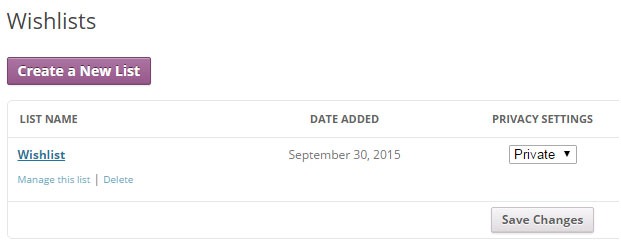
WooCommerce Wishlists

storefront-wishlist

From birthdays to weddings, and everything in between, this extension allows guests and customers to create and add products to an unlimited number of Wishlists.

WooCommerce Brands

storefront-brands

This extension for WooCommerce allows you to create brands for your shop; each brand can be named, described and assigned an image.

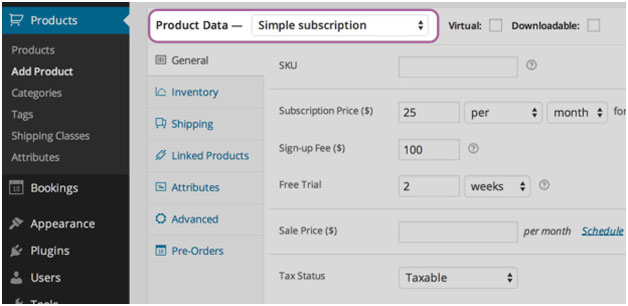
WooCommerce Subscriptions

storefront-subscriptions

WooCommerce Subscriptions is an extension that allows you to introduce a variety of subscriptions for physical or virtual products and services. Create product of the month clubs, weekly service subscriptions, or even yearly software billing packages.

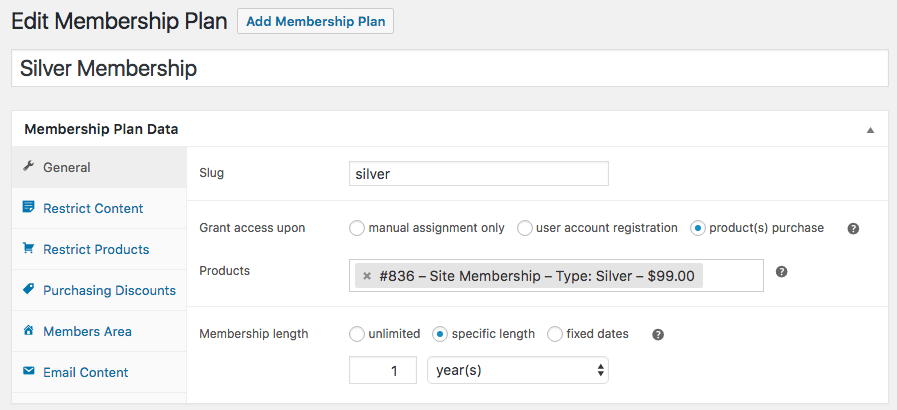
WooCommerce Memberships

WooCommerce Memberships

WooCommerce Memberships allows you to create a membership system that is tied completely to your WooCommerce Store. It is fully compatible with Storefront theme. You can restrict content to certain memberships classes. You can also turn your store into a membership club by restricting purchases to members. Among other useful features, you can even give members special discounts.

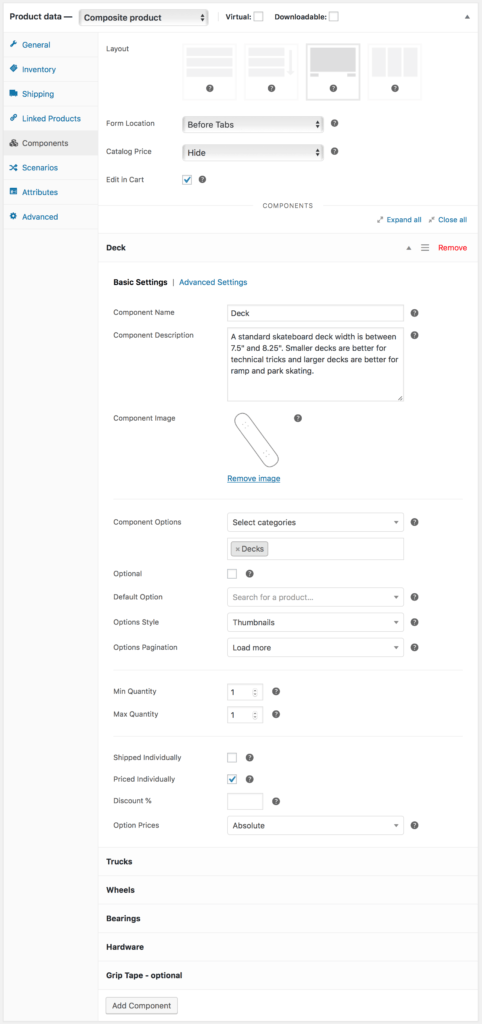
Composite Products

Composite Products allows you to create customizable products for your WooCommerce store. It is now fully compatible with Storefront theme. You can allow your customers to customize certain parts of their order.

WooCommerce Composite Products

Storefront Setup

Almost all of the Storefront setup can be done via the theme Customizer.

storefront-setup

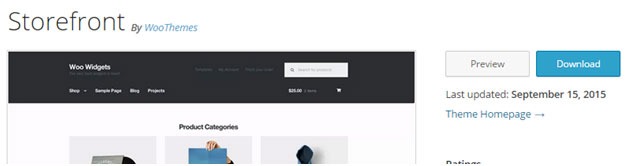
The easiest way to install Storefront is through the WordPress dashboard.

  1. Navigate to Appearance > Themes > Add New
  2. Hover over the Storefront screenshot and click the ‘Install’ button to install the theme.
  3. Activate Storefront as you would any other WordPress theme.

To install Storefront manually:

storefront-manual-install
  1. Download the latest version here.
  2. Upload the extracted folder to the /wp-content/themes/ directory on your server via FTP
  3. Activate Storefront from the Appearance > Themes screen in your dashboard

Read more on how to install and use themes here.

Menus

Storefront has two menu locations, Primary and Secondary. If you do not assign a Menu to the primary navigation, it will display each of your pages. On the other hand, the secondary navigation will display nothing.

storefront-menus

After activating Storefront for the first time, you won’t see anything in the secondary navigation. Here’s your guide to creating and assigning menus to theme locations.

Page Templates

Storefront comes with just two page templates.

Full Width

storefront-fullwidth

This is just a standard page template without a sidebar, allowing the content to span the full width of your site.

Homepage

storefront-homepage

The homepage template allows you to display a multitude of products and product categories.

Here’s a Woothemes guide on installing and configuring Storefront.

Arrival of Storefront 1.5

After the success of Storefront comes the newly improved Storefront 1.5, which achieves another coveted tag on wordpress.org. Its primary feature? A support for right-to-left languages in Storefront. The traditional RTL support standard overloads an additional stylesheet on top of the primary one.

storefront-version1-5

With Storefront 1.5, if you install WordPress in a right-to-left language, the theme will automatically recognize it. It will then load a different set of stylesheets tailored to that language. This makes Storefront a stronger global theme solution for WooCommerce.

You can also expect the following improvements:

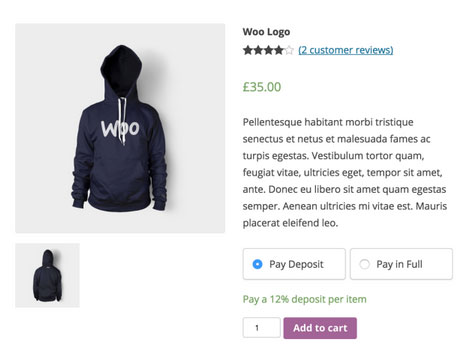
Integration with More Extensions

storefront-integration-extentsion

Storefront 1.5 has increased the number of customer-facing extensions it integrates with to 11. It offers added support for WooCommerce Deposits and Product Bundles.

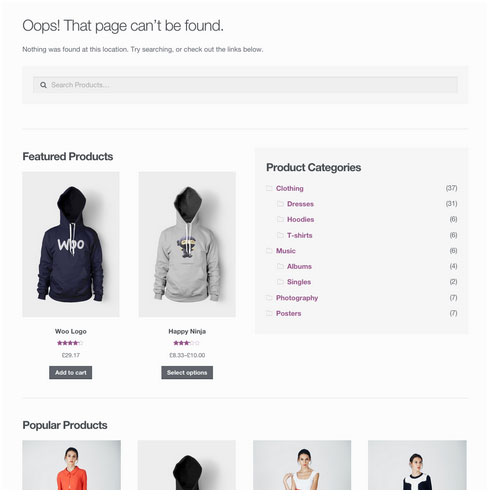
Revamped 404 Page

storefront-revamped-404

Storefront 1.5 is now made to be more useful to folks browsing a shop. The new 404 page now includes a product search box, links to product categories, featured products and popular products.

Featured Images

The previous version of Storefront didn’t cater to adding featured images to pages. Now, once you add a featured image to a page, it will appear on the frontend directly above the page title.

Scrolling Header Cart

storefront-header-cart

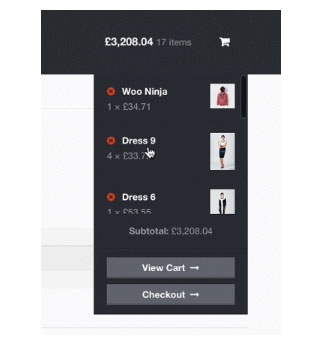
Considered a handy feature, the header cart lets visitors access their cart total, and the number of items it contains. It also reveals the carts contents upon hover. Using Storefront 1.5, the cart dropdown now has a set height that scroll as more items are added.

You can check out their awesome video about Storefront here.

Storefront WooCommerce Styling

A lot of themes we see, from Themeforest especially, do not style WooCommerce according to the best practice standards set by the Woocommerce authors.

The most common problem is overriding templates.  This causes the cost to update WordPress, Woocommerce and the theme itself to sky rocket down the track. You won’t have this problem with Storefront.

Shop Pages

storefront-shop-pages

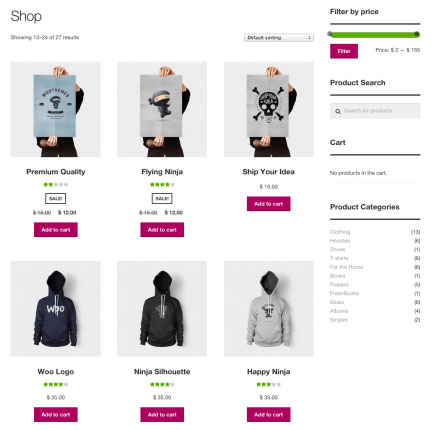
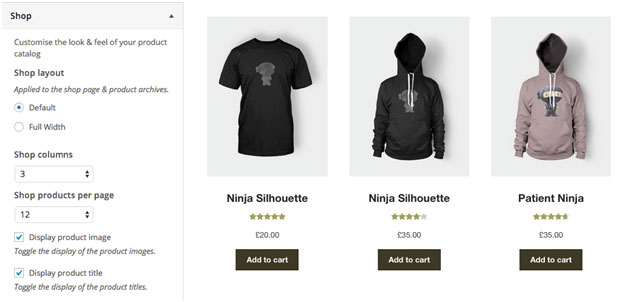
When it comes to shop pages, you can style for all product details and WooCommerce widgets, such as the price filter. The number of products per page is also automatically adjusted to 12.

Single Product Page

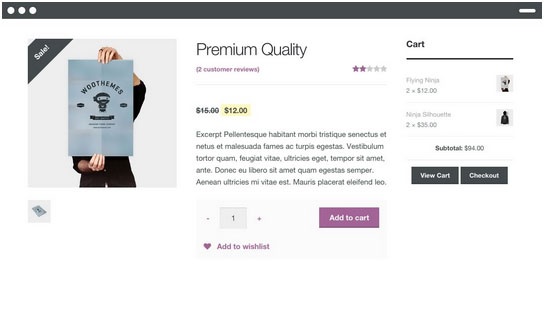
storefront-single-product

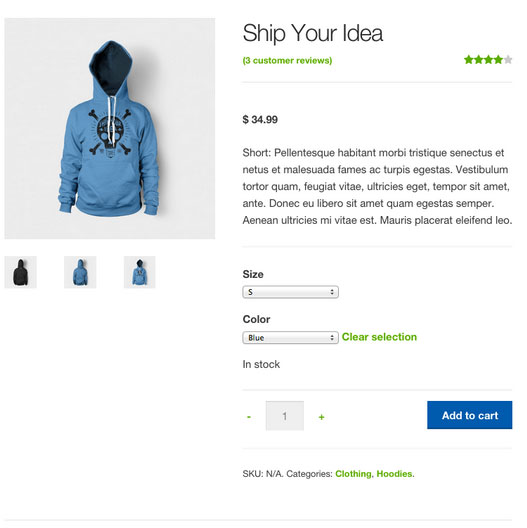
Single product pages include appropriate WooCommerce styling as well. The product tabs are presented in a vertical layout, and the number of related products is adjusted to three.

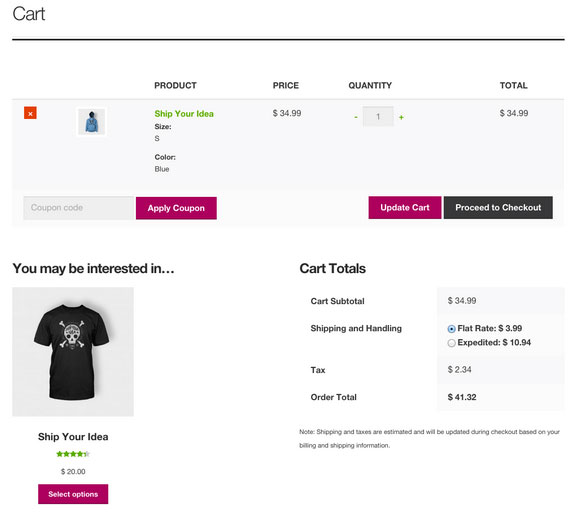
Cart and Checkout Page

storefront-cart-checkout

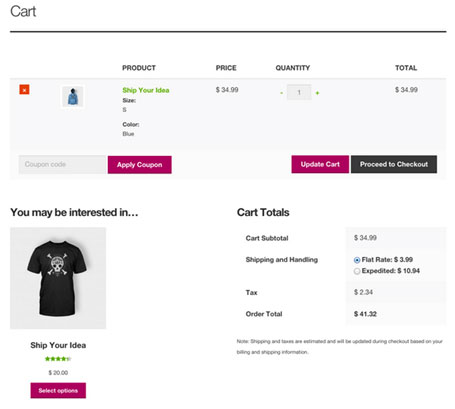
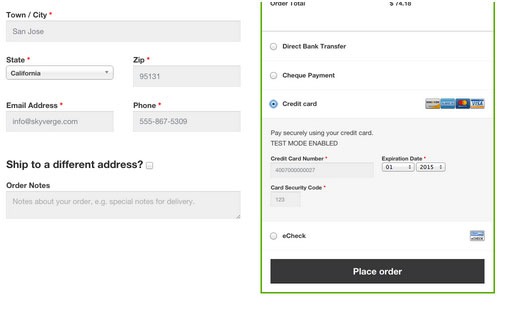
The checkout template features a two-column layout, with customer details on the left, and order details on the right. The ‘Place Order’ button is also always in view, making it easy to complete orders for customers.

storefront-place-order

And Now, It’s Storefront 2.5

Improved Mobile Design

From Storefront 2.0 and up, the theme now offers an improved mobile design for better mobile experience. The header section has been redesigned so that the content appears further up. This ensures that your visitors see more of the content on your WooCommerce store right away.

Storefront 2.0 Mobile View

New typography

Storefront 2.0 and up introduces a new font. Default font for WooCommerce has been changed from Helvetica to Source Sans. The font change provides users “greater depth and cohesion”. Some other small changes have been made to the design to fit the new font.

Introducing “Best Selling” Products

The theme also now offers a “best selling” products section on the home page. This is separate from product categories, recent products, featured products, top rated products and on sale products. Also, “Recent Products” has been renamed to “New In” and “Featured Products” have been changed to “We Recommend”.

Improved Appearance for Better Overall User Experience

Some other small changes have been put in place for better user experience. These include changes to styles, tables and embeds. The developers have also integrated with WordPress 4.5’s custom logo functionality. Adding a logo to your WooCommerce store is now made easier. Now there’s no need to install a plugin just to add your logo.

Popular Storefront Extensions

While Storefront provides a lot for free, there are some premium \add-ons that can add functionality or styling options to the theme.

Storefront WooCommerce Customiser

storefront-customizer

Without any custom code you can change or adjust labels and number of products displayed in homepage sections, which product details are shown on shop pages, and more.

It also lets you remove the product search and cart from the header.

Storefront Designer

storefront-designer

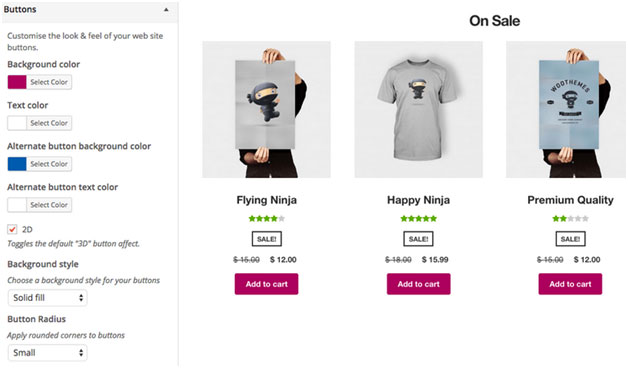
The Storefront Designer plugin adds the ability to change header layouts and make the header remain at the top of the page on scroll (sticky header). It also allows you to adjust button layouts and styles, and change some typography options.

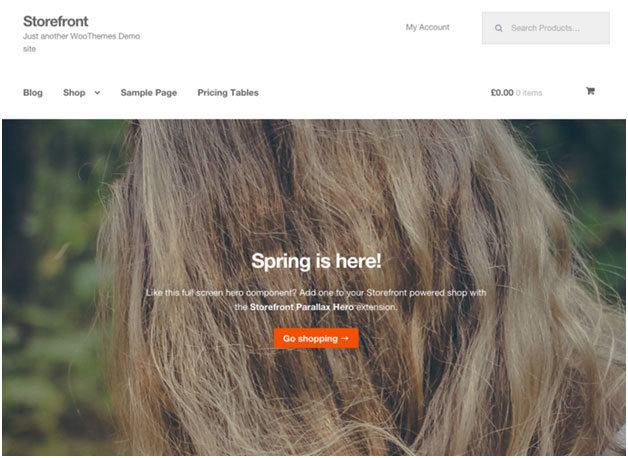
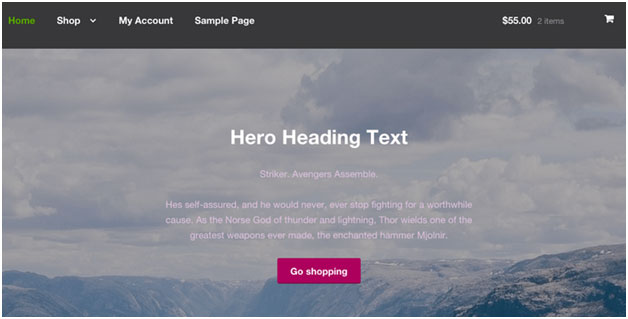
Storefront Parallax Hero

storefront-paralax-hero

This plugin can be used to display a message and call to action over the top of an image on your homepage. It has a parallax effect, which means as the user scrolls the text and button appear to move over the image.

Child Themes

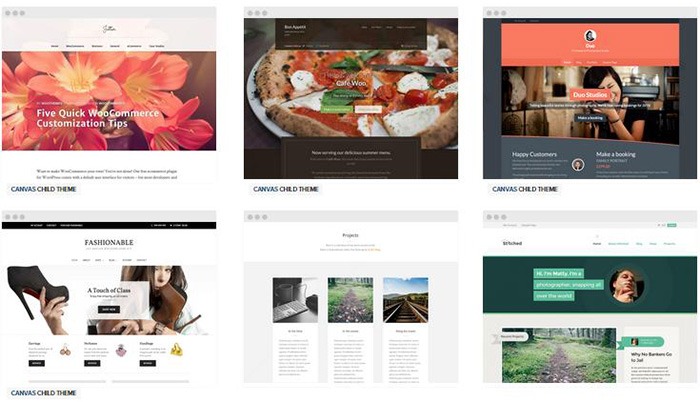
What is a child theme? According to the WordPress Codex:

A child theme is a theme that inherits the functionality and styling of another theme, called the parent theme. Child themes are the recommended way of modifying an existing theme.

In the case of Storefront, Storefront is the parent theme. You can check out the available child themes here.

Importance of a Child Theme – Easy and Safe Updates

When using a child theme, you will not lose any custom code or any custom styles that you have added to the child theme whenever you update the parent theme. Many website owners have learned the hard way losing custom code they have added to their themes after updating it. If you have a child theme, your custom updates are safe whenever a new version of the parent theme is available. We still recommend creating website backups every time you update your theme though.

Storefront: The Final Analysis

Simple, clear, and customizable, the Storefront theme for WordPress has everything to help you achieve success in e-commerce. For a free theme, the design is simple and no-nonsense and WooCommerce integration is unmatched by any other theme.

It may be too plain for some and if you are one of those, just ask yourself. Is it your personal taste and desire for it to look pretty, or is it a decision based on your user experience and the ultimate profitability of your site? In our experience, often the simpler the site the better is the user experience and the more profitable the website.

However, if you can’t find a Storefront child theme that resonates with you and don’t want the cost of a professional designer you might want to take a look at http://www.studiopress.com. They are the only other theme author we recommend if you don’t want to have troubles down the track when it comes to updates and customizations. It will take a bit more time to integrate with WooCommerce, but they have some lovely designs.

Filed Under: Theme and Plugin Reviews Tagged With: 404 error, checkout form, child theme, e-commerce, mobile friendly, plugins, shopping cart, Storefront, WooCommerce, woothemes

How to Integrate WooCommerce into a Non-WooThemes Theme

March 2, 2015 By John Leave a Comment

how to integrate WooCommerce into a non-WooThemes theme

WooCommerce (WC) and themes from WooThemes go hand in hand when building an e-commerce website. But what if you wanted to use a theme not from WooThemes? There may be some compatibility issues but it could still work. To solve these problems, we’ll need to set it up in such a way that your non-WooCommerce or custom theme supports Woocommerce and make the integration flawless.

WooCommerce provides two methods to do this. Either we use hooks or make use of their catch-all woocommerce_content() function. The second method is the easier of the two so we’ll only talk about the second method of the catch-all woocommerce_content() function in this post.

To start, know that it’s divided into 5 simple steps which we’ll outline below:

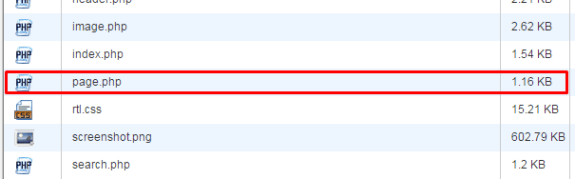
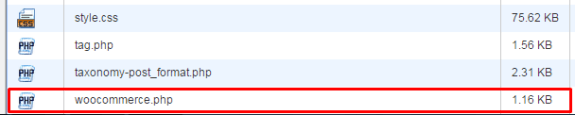
STEP 1: Duplicate your page.php file and rename it as woocommerce.php

For this, you’ll need to access your website files using an FTP program or cPanel file manager. Find your page.php file which is usually located in wp-content/themes/[YOURTHEME]/page.php.

copying page-php
creating woocommerce.php

All themes should have this file so make a copy of yours then rename it to woocommerce.php. Basically, you’re creating a file called woocommerce.php where the content is the same as page.php.

If you’re using a child theme, you’ll need to copy the page.php of the parent theme and place woocommerce.php on the child theme so that you don’t have to worry about it being overwritten when the theme is updated.

STEP 2: Edit woocommerce.php and locate the loop

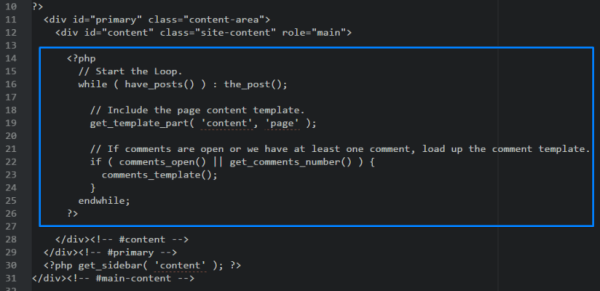
After creating the file woocommerce.php, you then need to edit it with the editor of your choice. When it’s opened, browse through and look for code that looks like the one below:

the loop

It usually starts with

<?php if ( have_posts() ) :

and ends with

<?php endif; ?>

but in our case it ends with

endwhile; ?>

so it’s not always the same. This bit is called the loop and you need to determine where it starts and where it ends.

STEP 3: Replace the loop with <?php woocommerce_content(); ?>

Now, after finding the loop, replace it with:

<?php woocommerce_content(); ?>

That lengthy bit of code will be replaced by just this one line. And that’s entirely the point – nothing to be alarmed of. And when you’ve done that, it should look like the one below:

woocommerce-content

Now, save it.

STEP 4: Declare support for WooCommerce

Next, we’ll do something about the notice message that looks like the one below.

woocommerce does not support notice

To do this, we’ll need to add:

add_theme_support( 'woocommerce' );

to our functions.php. If you’re using a child theme, you’ll need to find the functions.php file that is inside the child theme folder. Once you’ve found the correct functions.php, place the code exactly at the end. Now, save. And that’s it. That notice should be gone now.

STEP 5: Bask in your success

And that’s how to integrate WooCommerce with a non-Woothemes Theme. For the unavoidable instances that you need to make use of a non-WooCommerce or custom theme, you need to follow the steps above.

Do you have any other suggestions? Feel free to comment below.

Filed Under: How-To Articles Tagged With: code snippet, design tweaks, e-commerce, how-to, WooCommerce, woothemes

Choosing a Theme for WooCommerce – What to Consider?

October 23, 2015 By John Leave a Comment

There are thousands of free and premium WordPress themes. You might need some help in choosing a theme for WooCommerce. But how exactly do you pick one that’s right for your Woocommerce store?

This article explains what to look for to fit the design requirements of your store and also the functionality requirements and to make sure your new theme will play nicely with Woocommerce.

Different themes have different layout styles. Knowing what you want or need will make looking for a theme easier. Right sidebar, left sidebar, full-width, or maybe parallax? Are you going to be using image sliders? Also, it is important that the theme that you choose supports WooCommerce integration.

Once you know what you need, it might be a good idea to talk it over with your web developer. He might already know of a theme that will suit your purpose.

woocommerce-themes

Here are some criteria for choosing your theme:

Aesthetic Needs

Of course, you shouldn’t focus on the look alone. But, you also need to make sure that the theme matches the look and feel you want. You may be able to customize colors, but major changes on the design are best left to pros. As you choose a theme, it should meet at least 80% of your layout, visual, and content needs.

Stay away from poorly coded themes as this could spell problems for your website down the track when updates are needed.

Many themes also offer a lot of other functionalities that allow users to easily edit the look of their site. However, such themes could add unnecessary bloat to your website. This unnecessary bloat could put strain on your page load times and cost you sales.

Be cautious of Themeforest themes as they are notorious for this. Instead of using a theme with many customizable options, you’ll be better off editing the CSS of the child theme to get your desired look.

We recommend Genesis themes and Storefront.

WordPress Updates

Most themes should support the latest version of WordPress. Still, you should verify before making your purchase. Some older themes that are no longer being updated may not support the most recent updates to WordPress. It’s important to keep up with WordPress updates for functionality and security purposes.

WooCommerce Compatibility

Your theme should be able to integrate with WooCommerce.

WooThemes recommends doing a quick check. Take a look at the theme’s demo and view the source code. You can do this by right-clicking on the page and clicking on “View Page Source”. Look for the WooCommerce version meta tag. Search for the words: WooCommerce Version

The closer it is to the current release of WooCommerce, the better. If it is nowhere near, look elsewhere for a better theme.

Also, go with a theme that has less custom WooCommerce templates. This is because having a lot of WooCommerce templates customized will be a pain to update.

The theme should not have a lot of unnecessary customizations which can be done through a plugin.

Multiple Layouts

Review the theme description and demo to ensure that the theme supports the layout you want to create.  Look for the theme’s documentation and review it to know if the theme can accomplish what you need.

storefront

Don’t just assume that the theme you chose will accommodate one or two sidebars, full width pages, or columns within content.

Theme Navigation

How many menus do you plan on having? Some site owners need secondary menu for categories. Check if the navigation bar can accommodate all your primary menu options. If you hired a web developer, discuss your content sitemap and navigation requirements first before buying your new theme.

Call-to-Actions

As an e-commerce website, you want your visitors to do something and eventually buy your product.

call-to-actions

Make sure your theme can support your list of visitor to-do items. A cohesive design, with built-in options for call-to-actions is recommended.

SEO Friendly

WordPress is SEO friendly by default, but not all its themes are. To achieve an ideal SEO ranking, it’s important for search engines to digest your content. In this case, quality code and solid design architecture are required. Here’s a do’s and don’ts guide from Yoast to make your theme SEO friendly.

Level of support

Theme support is usually available by phone, email, video tutorial, instruction manuals, forums, etc.

support

However, some developers don’t have much time to provide support or answer forum questions that often. For beginners, make sure your theme offers lots of support features.

Reviews and Feedback

If there are available reviews, read through them thoroughly to point out any theme pros and cons.

reviews

Take note of trends, plugin conflicts, and complaints. It may not have a 100% satisfaction rating but a strong rating may be present. Look at both positive and negative feedbacks. Take negative feedbacks with a grain of salt.

Fixed vs Responsive

Most WordPress themes are now designed to be responsive. This means that your website adapts to fit the screen size of the device where it’s viewed. If a potential client is browsing your site, he’ll find it easy to navigate. Not all themes are responsive and since Google has started penalizing non-mobile responsive sites, a responsive design is the only way to go. There is no reason you should be creating a non-responsive site. Check out our post on Google’s Mobile-Friendly Update.

Do you have any more tips when choosing a theme for a WooCommerce site? Let us know in the comments.

Filed Under: How-To Articles, Theme and Plugin Reviews Tagged With: child theme, colors, Genesis, how-to, mobile friendly, responsive design, Storefront, WooCommerce, woothemes, WordPress, WordPress updates

Connect Your WordPress.com Account to Continue Using WooCommerce Services

February 13, 2017 By John Leave a Comment

Since Automattic, the company behind WordPress and WordPress.com has acquired WooCommerce, it was only a matter of time before the two were integrated.

WooCommerce now requires a WordPress account for managing purchases, tickets and other subscriptions. You need to connect Your WordPress.com account to continue using WooCommerce services.

Before, users had to access two accounts to use the services of one company. Integrating WordPress.com into WooCommerce solves that problem for some users.

If you have purchased and are using premium plugins from WooCommerce, you will need to log in with a WordPress.com account to manage your subscriptions. If you don’t have a WordPress.com account, you can sign up by following this link.

Once you have a WordPress.com account, you can head over to https://woocommerce.com and click on “Sign in with WordPress.com”.

Connect Your WordPress.com Account to Continue Using WooCommerce Services

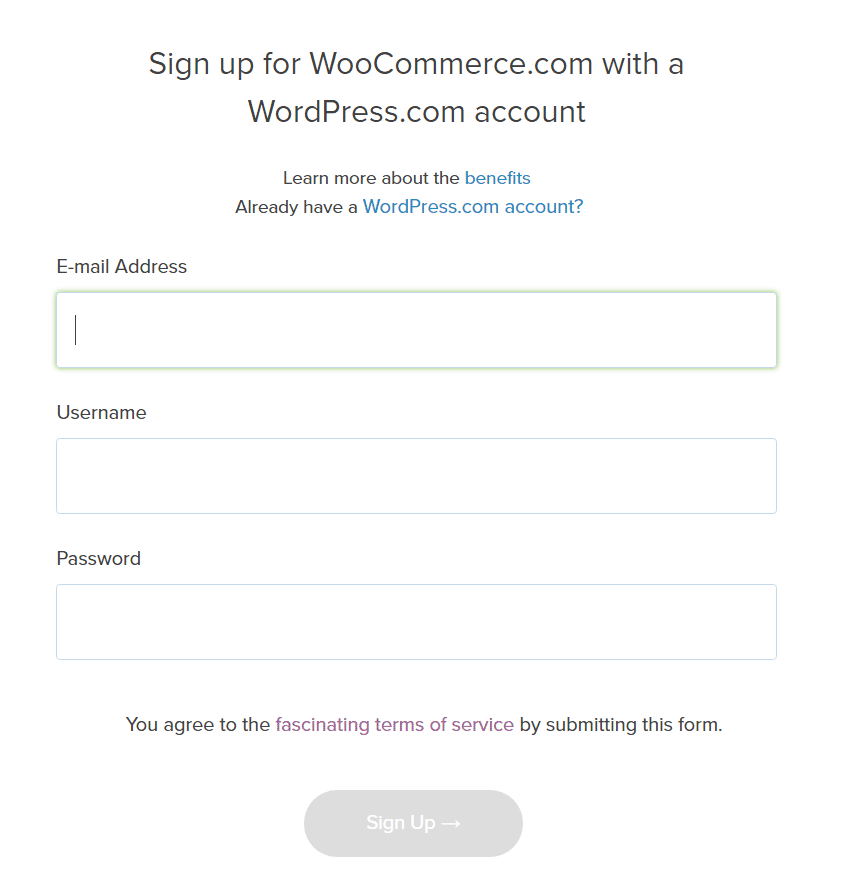
After that, click on the “Already have a WordPress.com account?” link, then proceed to the next step.

sign-up-with-woocommerce-with-wordpress

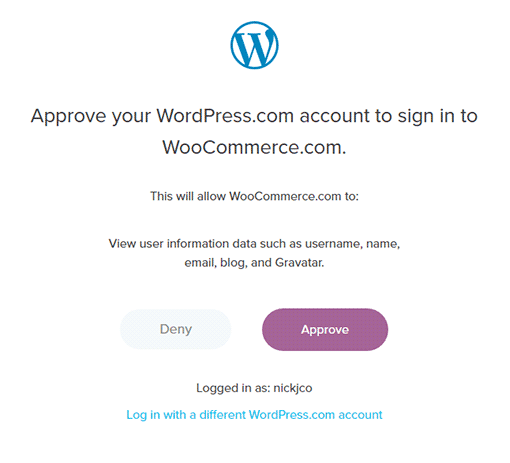
After logging in to Woocommerce.com via WordPress.com, you will need to click “Approve” to link your WordPress.com account to WooCommerce.

approve-wordpress.com-account

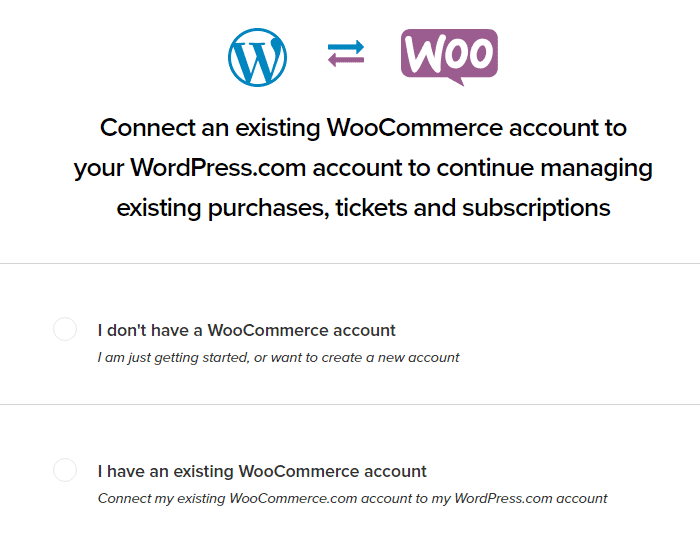
Next, you will need to connect an existing account or create a new one. Click on the “I have an existing WooCommerce account” if you have one and click on “Continue”.

connect-woocommerce-account-to-wordpres

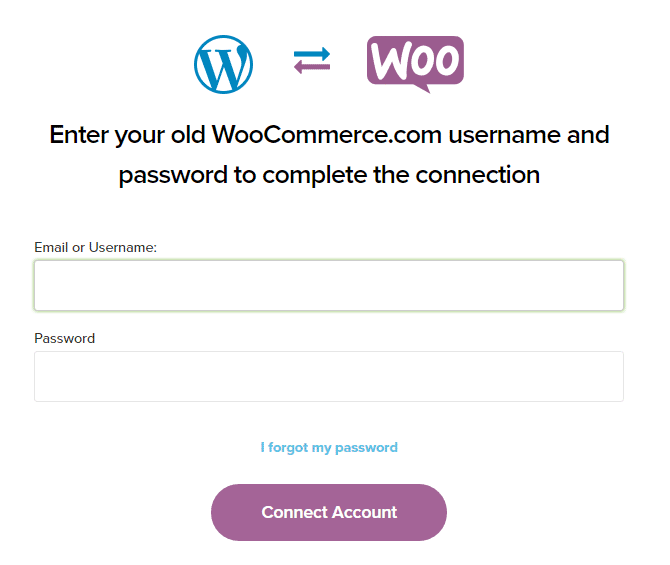
Here, you will to enter your old Woothemes.com/WooCommerce.com account.

After entering details, just click “Connect Account”.

connect-woocommerce-and-wordpress

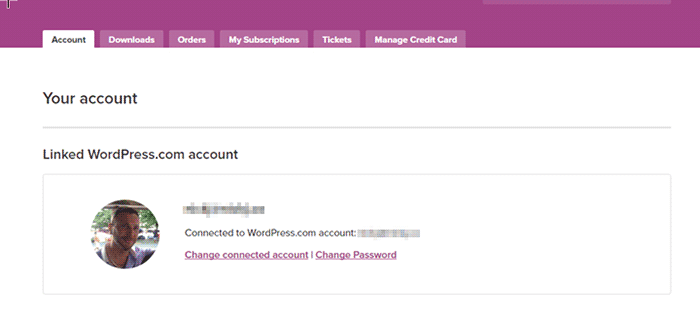
After connecting the account, you’ll then be redirected back to your account dashboard. From here on, you only need to login with your WordPress.com account to access WooCommerce services.

linked-wordpress.com-account

Were you able to successfully connect your WordPress.com and WooCommerce accounts? If you are having problems connecting your account, you can contact the Wooassist team to assist you.

Filed Under: How-To Articles, Wooassist News Tagged With: WooCommerce, woothemes, WordPress

  • 1
  • 2
  • 3
  • Next Page »
Let us support your online store so you can manage your business

Get started today

Get 2 Hours of FREE SUPPORT

We are so confident that you will love our services that we will give you your first 4 hours at a 50% discount

That’s 4 hours for only $75

BUY NOW

Free eBook

5 Things Every Online Store Can Fix On Their Website In The Next Week To Increase Sales

Quick Links

  • How it Works
  • Pricing
  • Blog
  • Contact
  • About Wooassist
  • My Account
  • Checkout
  • Privacy Policy
  • Cookie Policy
  • Terms and Conditions

Wooassist

Australia:
59 Luke St.
Hemmant QLD 4174

Philippines:
San Miguel St.
Poblacion, Iligan City 9200

Connect


Copyright © 2026 · Wooassist

Yours FREE!

5 Things Every Online Store Can Fix On Their Website In The Next Week To Increase Sales