Wooassist

Assistance for Your Woocommerce Store

  • How it Works
  • Pricing
  • Services
    • Site Maintenance
    • AI SEO and Content Marketing
  • Blog
    • How-To Articles
    • Code Snippets
    • SEO For E-Commerce
    • Theme and Plugin Reviews
    • Wooassist News
    • WordPress/WooCommerce News
    • Interviews
  • About Us
  • Contact
You are here: Home / Archives for WooCommerce products

Create Product Descriptions for Your Woocommerce Store

January 29, 2015 By John Leave a Comment

product-description

Product descriptions exist for one specific purpose – to sell.

Imagine a potential customer browsing through your ‘Products’ page. She finds the perfect pair of shoes and decides to purchase it. She clicks on the image only to find a poor product description, with no material details, instructions for sizing, etc.

She then hesitates and moves on to another website. That’s a lost sale right there, and the next buyer will go through the exact same thing. How many more customers will you lose?

Make it effective.

The goal is to make a visitor click all the way to check out form. To do this, your product descriptions should be effective and dynamic to engage customers. They have to know how your product or service can change their lives. And, they won’t be able to – unless they read the description.

An effective product description is one that goes beyond simply informing potential buyers about the product. It needs to convince them to buy it. Visitors of your website should feel the need to buy your products and/or use your services.

Make it unique.

Creating original content for your product descriptions is also a must. Don’t just copy and paste from the manufacturer’s brochures or website. Otherwise, you’ll have similar descriptions with hundreds of other websites – and this will affect your site’s ranking. What’s more, Google may penalize your website for this.

Tell a story with your descriptions. Make it about the customer and how your product can help him. Also, be careful about your voice.

Don’t make it sound boring, or as if you are lecturing in the course of telling your story. Try and be personal with your voice and make it seem like you’re talking to a friend. Learn more about the voice you need to use.

Make it sell.

In the competitive e-commerce landscape, good product descriptions can give you an edge. You can even learn how to write your own. There is no need to be fancy about it. In fact, a simple approach is the best, as shown here.

You need to find the time to write them even though you’re busy with other aspects of growing your business. This useful resource can help you learn the secrets of creating product descriptions to help you find success.

So there you go. Tell the world about your products. Use stories and read about the resources mentioned above to guarantee that you are going to get results. However, if you feel that you are not up to it and need to put your focus elsewhere, our Wooassist team can help.

At the very least send your supplier’s descriptions to Wooassist and we will re-word them to make them unique.


Filed Under: How-To Articles Tagged With: admin, content marketing, copy writing, duplicate content, how-to, product management, WooCommerce products

13 Routine Maintenance Tasks that You Should Do on WordPress and WooCommerce

April 2, 2018 By John Leave a Comment

Routine Maintenance Tasks for WordPress

Maintaining a WooCommerce store is a lot of work. There are a lot of routine maintenance tasks for WordPress and WooCommerce that need to be done on a regular basis. In this post, we list down the most important tasks that you should do on your WooCommerce store.

1. Create Regular Website Backups

Create Regular Website BackupsCreating regular site backups is critical. It is your first fallback in case something breaks on your site. While you can make backups manually, it is important to make regular automated backups. Check with your hosting provider if they create regular backups of your database as well as a complete backup of your site. You can also install a backup plugin such as Updraft Plus or BackWPup and set it up to make regular automated backups for you. We still recommend creating manual backups before doing major work on your WooCommerce store though.

2. Update WordPress, WooCommerce, Themes and Plugins

Updating all elements of your WooCommerce store should be done on a regular basis. Do this weekly if you have the time. If not, monthly updates are good enough. Updates include updating WordPress Core, themes, WooCommerce and all other installed plugins. Remember to backup up your site before proceeding with updates since updates could cause your website to break. If you have a development site, it would be best to test the updates first on this staging environment. Then, do some user testing to make sure that there are no errors. After that, you can proceed to update your live site. When that’s done, you will need to do another round of testing. Some important elements to test include checkout, add to cart, contact form emails, opt-in forms and other customizations that were done on the site.

3. Update WooCommerce Template Files

After updating WooCommerce, you will sometimes get an error notifying you of outdated WooCommerce template files. This just means that your theme has not updated to include the latest WooCommerce template files. In some cases, this could cause some formatting issues on your store. If there are no errors on your store, you can simply wait for your theme to release an update that includes the most recent template files. Or you can also fix this manually by following the steps in this documentation from WooCommerce.

4. Change User Passwords

It is important to use strong passwords. However, it is just as important to change passwords on a regular basis. There are times when security breaches can go undetected for a long time. Changing your password regularly blocks out these security breaches that you might not realize are there. You should change your password for WordPress admin, FTP, database and cPanel. And a pro-tip, never use “admin” as your username. This is the first username that hackers try out when brute forcing into websites.

5. Optimize Your Product Images

We’ve always emphasized the importance of optimizing images for your WooCommerce store to keep your site running fast. If you have uploaded any product image that is more than 100KB in size, it might be a good idea to replace that image with an optimized product image. To learn more, you can check out our blog post on how to optimize images.

6. Approve and Respond to Product Reviews

Moderate Product ReviewsIf you are not asking your customers for product reviews then you might want to reconsider. Most people who buy online look for product reviews before they decide to purchase something. One study found that 85.57% of users read reviews before they purchase. And if you are asking your customers for product reviews, then you will need to approve reviews on a regular basis. A word of advice, do not remove negative reviews of your products. Instead, make it an avenue where you can show good customer service. Respond to the negative review. Offer a replacement for a defective product or offer a refund. People reading reviews will want to see some negative reviews to get a well-rounded picture of your product. When moderating reviews, you only need to remove the spam reviews.

7. Approve and Respond to Blog Comments

If you have a blog that is made to drive customer engagement, then your blog will most likely attract comments. Same with product reviews; don’t delete the negative comments. Rather, address them positively. Remove any spam comments as this will negatively impact the user experience of your blog. If you are using Akismet: Anti Spam plugin, this will block out most spam comments. However, some spam comments can still get through and you will need to manage them manually.

8. Test Your Contact Forms and Email Opt-in Forms

Every now and then, you will need to make sure that your contact forms and email opt-in forms are working. Just fill in your forms and send. If you receive it in your email, then you’re all good. But if you don’t, there’s something wrong and you need to do something about it. Have your developer look into it.

9. Optimize Your Database

Over time, your database accumulates a lot of gunk and you need to clean it to make sure your website runs fast. Before you go about this task, make sure you create a backup. You can choose to clean your database manually if you are comfortable and familiar with working on your database. Otherwise, you can use a plugin to do the optimizations for you. Notable plugins include WP-DBManager and WP-Optimize. You can check out our guide on how to clean your database.

10. Test Your WooCommerce Store’s Speed

If you have not yet made optimizations to your WooCommerce store’s speed, you should consider doing it now. Site speed has become increasingly important for WooCommerce store owners. Google now considers site speed as a ranking factor for SEO. Also, if you have a slow site, this will negatively impact the customer’s experience on your site. It is easy for your customers to buy instead from your competitors. You can test your site speed on Google’s Page Speed test and Google will provide you with recommendations on how you can improve your site’s speed. Other notable tools that you can use to test your site are Pingdom Website Speed Test and GTmetrix.

11. Scan Your Site for Malware

One way to keep on top of your website’s security is to regularly test your site for any malware. If you are connected to Google Search Console, it will let you know if malware is detected on your site. If your site has been found to have any form of malware, Google Chrome will actually alert your visitors that your site is dangerous. This can have devastating effects on your traffic and conversion rate. No one will want to enter their payment information on a site that has malware. In extreme cases, Google may block your site from appearing in the Google search results page. You want to prevent this from happening. It would be best to invest on your site’s security by installing a security plugin such as Sucuri Security and WordFence. Even if you have those plugins installed, it is still a good idea to a manual scan. You can scan your website at Sucuri’s Website Malware and Security Scanner, or at SiteGuarding. If any manual scans detect anything malicious, you can contact your developer to fix the issue. You should get it fixed before Google applies any penalties. Wooassist also offers a security hardening service to improve the security of your site so you can prevent this from happening.

12. Fix Broken Links

Broken links are bad for user experience so check your site regularly for any broken links. You can use W3C Link Checker or any other similar tool to check for broken links. Once you’ve found the broken links on your site, you can start fixing them. You can either remove the links or points the links to a new relevant URL.

13. Test Your Checkout Process

Last but definitely not the least; you should regularly test your checkout process. If you suddenly experience loss of sales, it’s a good idea to test your checkout. There might be an error that prevents your customers from checking out. Testing also gives you a feel of what your customers go through so you can optimize your checkout. Once you’ve determined that your checkout has problems, you can check out our post on how to fix the most common checkout problems in WooCommerce.

Final Notes

By doing these tasks on a regular basis, you can keep yourself on top of any issues that may occur on your WooCommerce store. If you find yourself overwhelmed by the all these, you can hire someone else to do it. You can also contact us and our team will be glad to assist with any of these tasks.

Are there any other routine maintenance tasks for WordPress and WooCommerce you think should be done on a regular basis? Do you have any suggestions? Let us know in the comments.

Filed Under: How-To Articles Tagged With: blog, contact form, conversion optimization, image optimization, plugins, security, site speed optimization, website maintenance, WooCommerce, WooCommerce products, WordPress, WordPress SEO, WordPress updates

How to Optimize WooCommerce Products for SEO

May 31, 2018 By John 1 Comment

You’ve set up your WooCommerce store but you’re not getting any traffic. You wonder what you’re doing wrong. Have you optimized your product pages for SEO? If not, that could be one of the reasons why you’re not getting any traffic. In this article, we’ll teach you how to optimize your WooCommerce products for SEO.

Why Optimize for SEO?

You can do all the link-building you want but if the pages that you want to rank for are not properly optimized for SEO, then you’ll have a hard getting ranked on top of Google.

Still, traffic is just a metric and what really matters is your conversion rate. Even if you are getting thousands in traffic but they are not converting, you still have a problem. On the other hand, you can’t convert anyone if you are not getting any traffic at all. Essentially, SEO and conversion optimization go hand-in-hand.

You have to optimize for SEO to make sure you are attracting the right people to your WooCommerce store.

Steps on How to Optimize WooCommerce Products for SEO

Identify What Keywords to Optimize For

Normally, it will be difficult to rank for regular keywords. For example, if you are selling digital cameras, it will be difficult to compete with Wikipedia or Amazon unless your WooCommerce store is already an authority on digital cameras. So optimizing for the keyword “digital cameras” won’t work for you. This is where long-tail keywords come in.

What is a Long-Tail keyword?

Compared to a regular keyword, long tail keywords are longer and more specific. Instead of optimizing for “digital camera”, you can optimize for specific camera models or for specific features of digital cameras. Optimize for anything unique about the product that you are selling. A few examples of long-tail keywords can be “digital camera for underwater photography”, “digital cameras for beginners”, or “sports action digital camera”.

Do Your Keyword Research

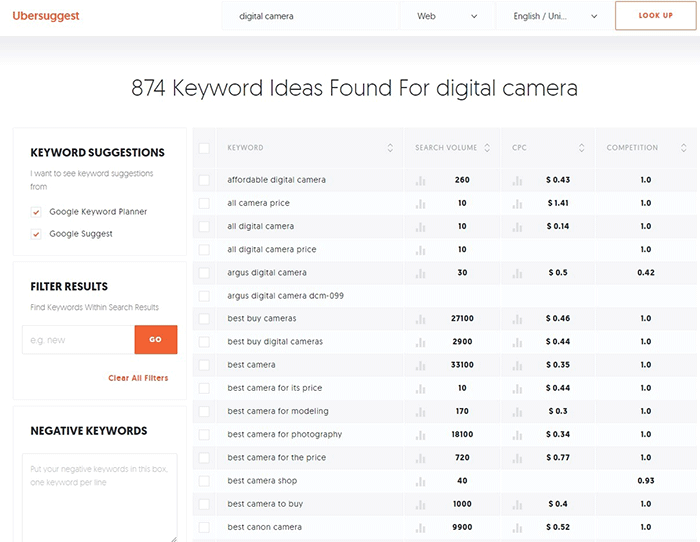
Don’t start optimizing until you do your keyword research. You can use whatever keyword research tool you have at your disposal. We can also recommend Ubersuggest. Just pop in a basic keyword and you can get a list of long-tail keywords that you can optimize for along with some valuable search data. You can even filter the keyword ideas and remove negative keywords. You can also export the keywords into a handy CSV file.

Ubersuggest Keyword Research

Add the Long-Tail Keyword to Your Product Page

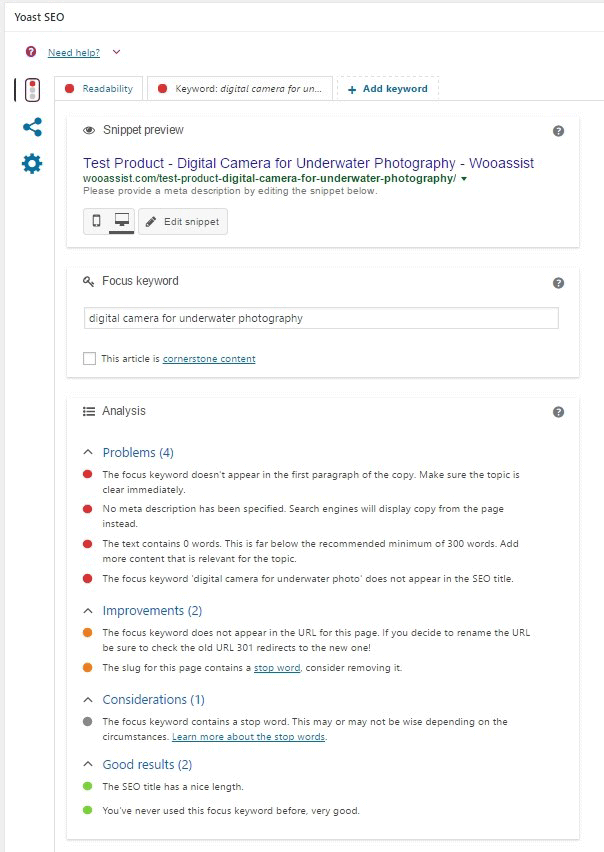
To help with optimizing your WooCommerce Products for SEO, you can use the WordPress SEO plugin by Yoast. The plugin provides detailed information on how you can optimize your products for SEO. It also has a boatload of other features that will help boost your SEO. Just install the plugin and you’ll gain access to the SEO optimizations block on your WooCommerce product editor.

When optimizing products for SEO, input the long-tail keyword that you wish to target on the “Focus Keyword” field. After doing this, you can see the analysis section below will show you recommendations on how you can improve your product’s SEO score.

How to Optimize WooCommerce Products for SEO

Generally, you will need to add your focus keywords to:

  1. The article title
  2. The first paragraph of the article
  3. One of the heading tags
  4. On the body of the article
  5. In one of the image alt tags
  6. In the URL/slug

You don’t need to force yourself to do every little thing that the Yoast SEO section recommends. Just use it a rough guide since it does recommend the currently known best practices.

Improving Content Readability

Google now also considers content readability as an SEO ranking factor. So it is important to ensure that your product descriptions are easy to read. In some cases, you may have to use some technical terms when writing your product descriptions and that’s totally fine. Depending on your products, that may actually be best practice. Still, it’s a good idea to check the readability of your content.

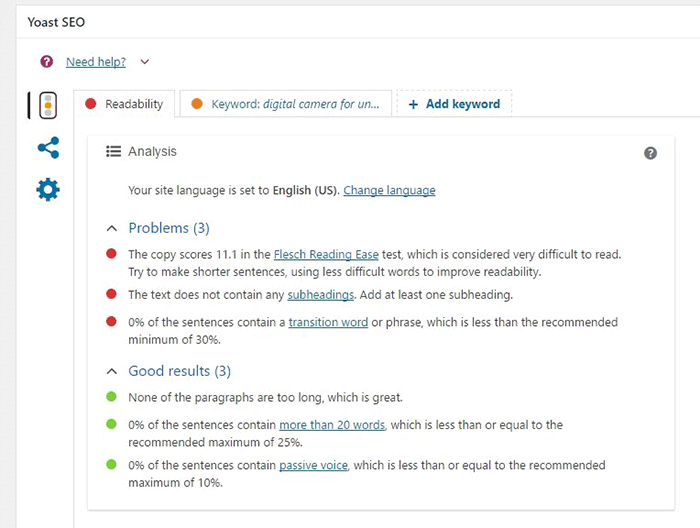
The Yoast SEO section also gives recommendations on Readability. Just click on the readability tab and you’ll see the problems that need to be addressed.

WooCommerce Products Optimize for Readability

When creating your product descriptions, you can also use Hemingwayapp to optimize its readability. You can also use this tool when writing blog posts.

Now that you know how to optimize your content for SEO, people who are interested in your products are now more likely to find your products. If you need help with SEO optimizations, the Wooassist Team can help. We’ll start off by doing an SEO audit of your site so we can determine what needs to be addressed and move forward from there.

Optimizing your WooCommerce store does not end with product optimizations. There are other optimizations that need to be done to ensure you are maximizing your conversion rates.

Filed Under: How-To Articles, SEO For E-Commerce Tagged With: keyword research, optimizations, seo, SEO strategy, SEO tools, WooCommerce, WooCommerce products, woocommerce seo, WordPress SEO, Yoast

Why Use Storefront Theme on Your WooCommerce Store

August 26, 2016 By John Leave a Comment

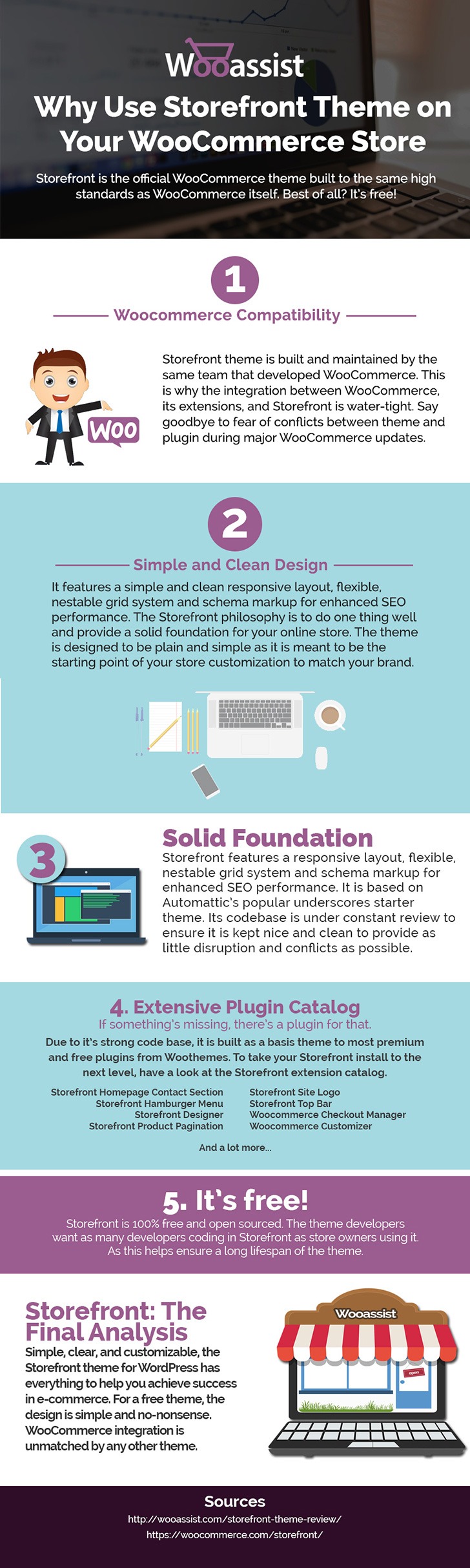
Storefront is the ideal platform for your WooCommerce store, providing a rock-solid foundation without the extra bloat or features. Developed by WooThemes, it reaches up to 3,000 downloads daily. But why use Storefront Theme on your WooCommerce Store? Find out in this infographic.

Why Use Storefront Theme on Your WooCommerce Store

To share this infographic on your site, just use the embed code below.

Filed Under: Theme and Plugin Reviews Tagged With: e-commerce, Storefront, website development, website maintenance, WooCommerce, WooCommerce products, woothemes, WordPress

The Wooassist Blueprint: What Goes on in the Wooassist Backend

July 22, 2016 By John Leave a Comment

We’ve created our fair share of WordPress sites and provided support for other WooCommerce store owners since 2014. At the same time, we maintain and improve Wooassist.com. But what goes on in the Wooassist backend? Here we’ll provide a sneak peek of what goes on behind the scenes.

Publishing Platform

wordpress-logo

WordPress is one of the best Content Management System (CMS) with over 60 million websites powered, Woasssist included. It is free and open-source, with thousands of available plugins and themes to change and extend the look and functionality of your site.

Hosting Provider

WPEngine-logo-white

WPEngine provides one of the best WordPress hosting services on the web. Our hosting plan with WPEngine comes with caching, backup features and Content Delivery Network (CDN) provided by their partner MaxCDN. They use Ever Cache for speed and massive scalability. They also have one of the best support compared to other hosting providers.

WordPress Themes

Genesis Framework

logo-Genesis-Framework

Genesis Framework is a powerful foundation for building websites in WordPress. It is compatible with WooCommerce and anything can be customized around its core code using child themes. It is also SEO optimized.

 Parallax Pro

logo-Parallax-Pro-white

We use Parallax Pro theme on top of the Genesis framework. Notice how the Wooassist homepage content has a vertical design for easy visual eye movement and flow. As you scroll down the page, you will see that the content is divided into sections. The theme is also mobile responsive.

Installed Plugins

It is best practice to deactivate and delete any unused plugins on your site to minimize site bloat. Just stick to what features you need and the plugin that offers just that.

WooCommerce

WooCommerce

Since Wooassist provides WooCommerce support, it makes sense that we use WooCommerce.

Built with developers in mind, WooCommerce is extendable, adaptable and open source. It works with the core features of WordPress and is one of the most widely used ecommerce plugins. It’s free and allows for maximum flexibility and customization. You can even expand its features with a growing collection of more than 300 extensions.

WooCommerce Customizer

WooCommerce-Customizer

WooCommerce Customizer is a free plugin that adds an extra settings page for WooCommerce. This helps you make quick changes which otherwise would require writing some custom PHP functions. Basically, you can optimize the look of your WooCommerce store for optimum conversion, without writing any code.

Genesis Connect for WooCommerce

Genesis-Connect-for-WooCommerce

When WooCommerce is installed on a site using the Genesis platform, you may find some product pages do not display properly. Genesis Connect for WooCommerce fixes this by replacing WooCommerce’s built-in shop templates with its own Genesis-ready versions. These templates are single-product.php, archive-product.php and taxonomy.php.

WooCommerce Google Analytics Integration

WooCommerce-Google-Analytics-Integration

WooThemes created WooCommerce Google Analytics Integration plugin and is a must to integrate analytics in WooCommerce versions 2.1 and up. This plugin inserts tracking codes into your store pages.

WP-Optimize

WP-Optimize

We use WP-Optimize to clean and keep our database down to a reasonable size. The plugin helps clean up your WordPress database by removing old revisions of posts and stale/trashed comments. It also allows for optimization of your WordPress core tables.

WordPress Related Posts

WordPress-Related-Posts

WordPress Related Posts automatically adds thumbnails at the footer of your content. This helps readers find other relevant posts in our blog for further reading.

WooCommerce Paypal Pro

WooCommerce-PayPal-Pro

We use WooCommerce Paypal Pro as our payment gateway. Our clients can pay with their credits cards. A Paypal account is not necessary.

WooCommerce Checkout Manager

WooCommerce-Checkout-Manager

We use WooCommerce Checkout Manager to customize the fields on our checkout page. This allows for faster and easier checkout.

Akismet

Akismet

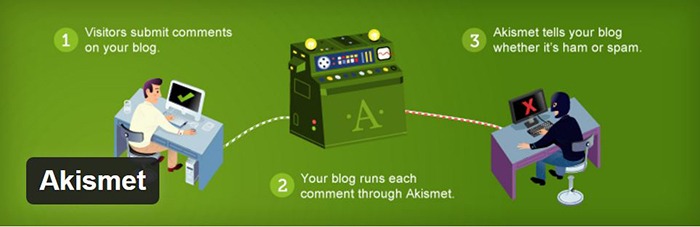
We trust Akismet to safeguard our site against spam comments. This product by Automattic comes bundled with WordPress installations. You just need to sign up at their website and get your API key to activate it. Akismet automatically checks incoming comments and moves ‘spam-like’ comments to the Spam folder.

PopupAlly

PopupAlly

We use PopupAlly to show time-delayed and exit intent popups for our free e-book offer and newsletter subscription, respectively. The plugin makes it easy to customize popup forms even for novice users.

Yoast SEO

Yoast-SEO

We use Yoast SEO to optimize our blog post and pages for SEO. It is a powerful plugin that helps to give any site an SEO boost. This plugin can also help optimize product pages and product categories in WooCommerce.

Visual Form Builder

Visual-Form-Builder

We use Visual Form Builder to create forms such as our contact form and custom package form. Visual Form Builder is easy to set up and use even for novice users.

Responsive Pricing Table

Responsive-Pricing-Table

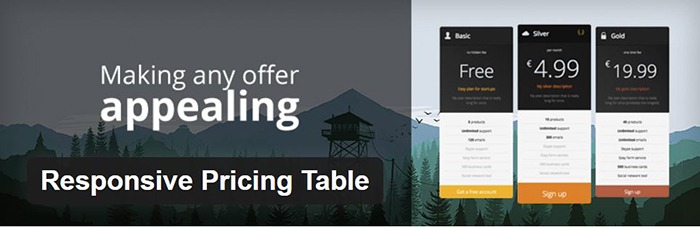
We use Responsive Pricing Table plugin to add a ‘Pricing Tables’ tab in the WordPress admin panel . This allows for creating pricing tables without coding. You can add features of up to 5 plans and display the price table anywhere with a shortcode.

Redirection

Redirection

Redirection is a free plugin that makes managing our 301 redirects easier. It also helps us keep tabs on any 404 errors. We use this mainly when changing slugs of blogs post when optimizing for SEO.

Filed Under: Theme and Plugin Reviews, Wooassist News Tagged With: Genesis, navigation, optimizations, plugins, PopupAlly, redirection, website development, Wooassist, WooCommerce, WooCommerce products, woothemes, WordPress, WPengine, Yoast

  • 1
  • 2
  • Next Page »
Let us support your online store so you can manage your business

Get started today

Get 2 Hours of FREE SUPPORT

We are so confident that you will love our services that we will give you your first 4 hours at a 50% discount

That’s 4 hours for only $75

BUY NOW

Free eBook

5 Things Every Online Store Can Fix On Their Website In The Next Week To Increase Sales

Quick Links

  • How it Works
  • Pricing
  • Blog
  • Contact
  • About Wooassist
  • My Account
  • Checkout
  • Privacy Policy
  • Cookie Policy
  • Terms and Conditions

Wooassist

Australia:
59 Luke St.
Hemmant QLD 4174

Philippines:
San Miguel St.
Poblacion, Iligan City 9200

Connect


Copyright © 2026 · Wooassist

Yours FREE!

5 Things Every Online Store Can Fix On Their Website In The Next Week To Increase Sales