Wooassist

Assistance for Your Woocommerce Store

  • How it Works
  • Pricing
  • Services
    • Site Maintenance
    • AI SEO and Content Marketing
  • Blog
    • How-To Articles
    • Code Snippets
    • SEO For E-Commerce
    • Theme and Plugin Reviews
    • Wooassist News
    • WordPress/WooCommerce News
    • Interviews
  • About Us
  • Contact
You are here: Home / Archives for website maintenance

How to Speed Up Your WooCommerce Store

August 3, 2015 By John 3 Comments

SnapCrab_2015-07-03_10-57-18_No-0000

Aside from the products or services you offer, there’s another crucial factor that may affect your conversion rate. We’re talking about your site speed. Any delay is enough reason to make your customers leave. This converts to lost revenue, which can hurt your bottom-line. How can you prevent or change this? This article will serve as an in-depth guide to and will teach you how to speed up your WooCommerce store.

In this article, you’ll learn about the following:

  • Why invest in site speed optimization?
  • What hardware and software you need?
  • Improving Site Speed by Caching and Minifying
  • Speed Up Site by Optimizing Images for Web
  • Using a CDN to Increase Site Speed
  • Cleaning Your Database to Speed Up Site
  • More Ways on How to Speed Up Your WooCommerce store

Why Invest in Site Speed Optimization?

Studies reveal revealed that 47% of visitors expect a page to load in under 2 seconds. Around 40% of these will abandon a web page if it takes more than 3 seconds to load. Meanwhile, 52% claim that quick page loads are important for their loyalty to a site.
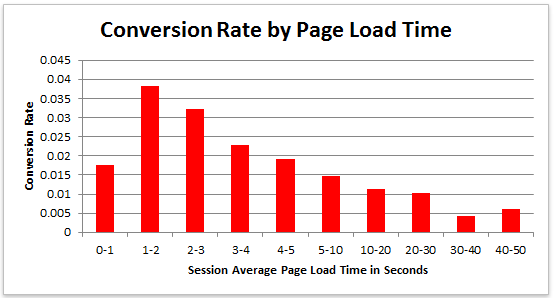
conversion-rate-by-page-load-time

What do these findings tell you, a site owner?

It just shows that site speed is very important. Those two seconds are crucial to capture your visitor’s attention, convince them to hang around, and increase your chance for conversion. Microsoft Bing also conducted a research about server delays and the effect they bring on user behavior.

server-delays-experiment

According to the results, a 2-second longer delay in page responsiveness reduced user satisfaction by 3.8%. They navigated 4.4% fewer pages, with a 4.3% lesser e-commerce revenue per user. Every second matters online.

Here’s the thing: visitors – your potential customers – can’t really tell the difference if a page is ‘just’ slow, or isn’t working at all. Thus, a slow website is quite the same as not having one. Most users won’t stare at the screen and wait. They move on to the next website and never come back.

site-visitors

Google announced that it has included site speed in its ranking algorithm. If your site speed is slow, it can affect SEO by having reduced rankings. They even launched a new web-based tool, which analyzes the performance of web pages.

With these information, we now know that site speed not only sells, but also leads to customer satisfaction and increased conversion.

If your site speed is slow, it’s time to fix that. Read on.

What Hardware And Software You Need?

The foundation you set up for your e-commerce site has a lot to do with its speed. If it’s the root of the problem, quick fixes won’t help. But, what makes a good foundation, and how can you set up a website that runs at lightning speed?

Web Hosting Provider.

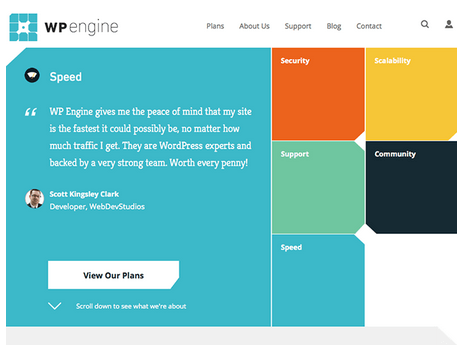
What’s your current hosting package? For an e-commerce site, you shouldn’t go with the cheapest. They may have limited RAM, processing power, and disk space which won’t benefit your site at all.
wp-engine

Wooassist recommends:
Wpengine and Siteground

Please note that we are affiliates of these hosts but we have only chosen them based on our years of experience dealing with hosting services for our clients’ and our own sites. And we can say that these two are among the best. If you were to sign up to either of them, we’d be grateful if you did so by clicking either of the links above.

WordPress Themes

Not all WordPress themes are created equal, and not all are extremely fast and well-coded. In choosing a theme, checking the demo speed is a must. Tools such as Pingdom will give you an idea of how well-coded it is.
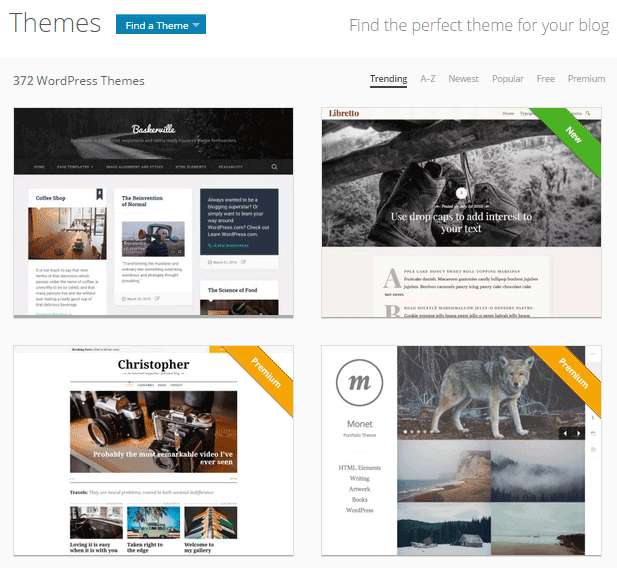
wp-themes

Wooassist recommends:
Storefront by Woothemes or Any HTML5 theme at Studio Press

Content Delivery Network

CDN is a system of distributed servers that accelerate the delivery of web content, and rich media to internet-connected devices. Since your bandwidth is spread across many different servers, the load on a single server is reduced.

Wooassist recommends:
Wpengine comes with CDN included or Cloudflare

Improving Site Speed by Caching and Minifying

caching-and-minification

Let’s start with the most popular, and probably, the easiest thing: Caching.

What is Caching?

Caching is storing your dynamic content in the server as static content. Serving static content is faster as opposed to dynamic content, which means longer page load times. It’s a fundamental technique of reducing database load and speeding up WordPress websites.

There are two types of Caching:

  • Client-Side
  • Server-Side

Let’s move on to Minification.

When developers make code, they make code with a lot of white space. This practice makes the code easier to read and understand for humans. However, computers don’t need that white space. It just makes reading the code take longer.

Minification is removing all that white space and optimizing the code. This makes it easier for machines to make parsing the webpage faster.

How to Implement Caching and Minification?

It may sound all too complicated, but don’t worry. It is really very simple. All you need is one plugin to do both, and it has all the caching and minification solutions you need.

W3 Total Cache

It’s the second most popular plugin with almost 4 million downloads and a 4.5 star rating. W3 Total Cache is more suitable for high traffic websites running from a VPS or a better hosting environment.

How to Set up Caching with W3 Total Cache?

  1. Before installing W3 Total Cache, uninstall other caching plugins like WP Super Cache
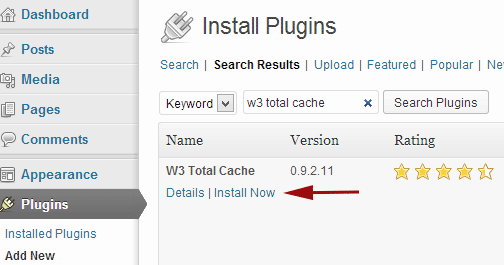
  2. Go to your WordPress admin panel and click on Plugins > Add New
w3-total-cache

  1. Search for “W3 Total Cache”
  2. Click on the ‘Install Now’ button and then activate
  3. Click on Performance on your WordPress dashboard and go to General Settings
  4. The first option that you see on this page is Page Cache.
  5. Check the ‘Enable’ box
  6. Click on ‘Save all settings’

By having this enabled, you will significantly decrease your load time.

How to Set up Minification with W3 Total Cache?
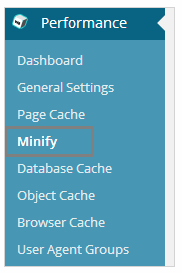
  1. minifyGo to your WordPress dashboard and click on Performance
  2. Look for ‘Minify’ under the Performance menu
  3. Tick “Enable” for HTML & XML, JS, and CSS.
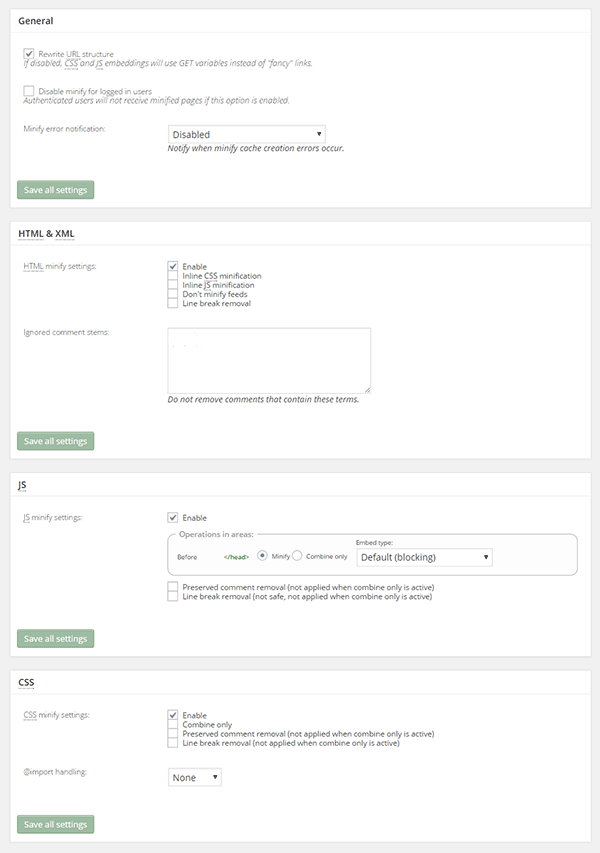
minify-2

  1. Click on ‘Save all settings’

The goal of minification is to make the source code “smaller” in order to improve your site’s performance. Get a more detailed information on each of the settings offered in Minification here.

Speed Up Site by Optimizing Images for Web

Your customers won’t wait around for that picture to load.

customers

Another technique to improve your online store’s performance is optimizing images on your website. High-resolution images may look great, but when you’re loading a 2MB image, it’s going to do more harm than good.

Aim for an image size of less than 100KB, but if you can go smaller without compromising quality, then better. It’s a rule of thumb to not let the images look bad or pixelated.

Striking a balance between a good looking image, and an acceptable image size, shouldn’t be a complex task.

Here are a few ways on how to optimize images for the web:

Using Photoshop

Before you upload your next product photo, logo, or banner image to your store, check the image size first.
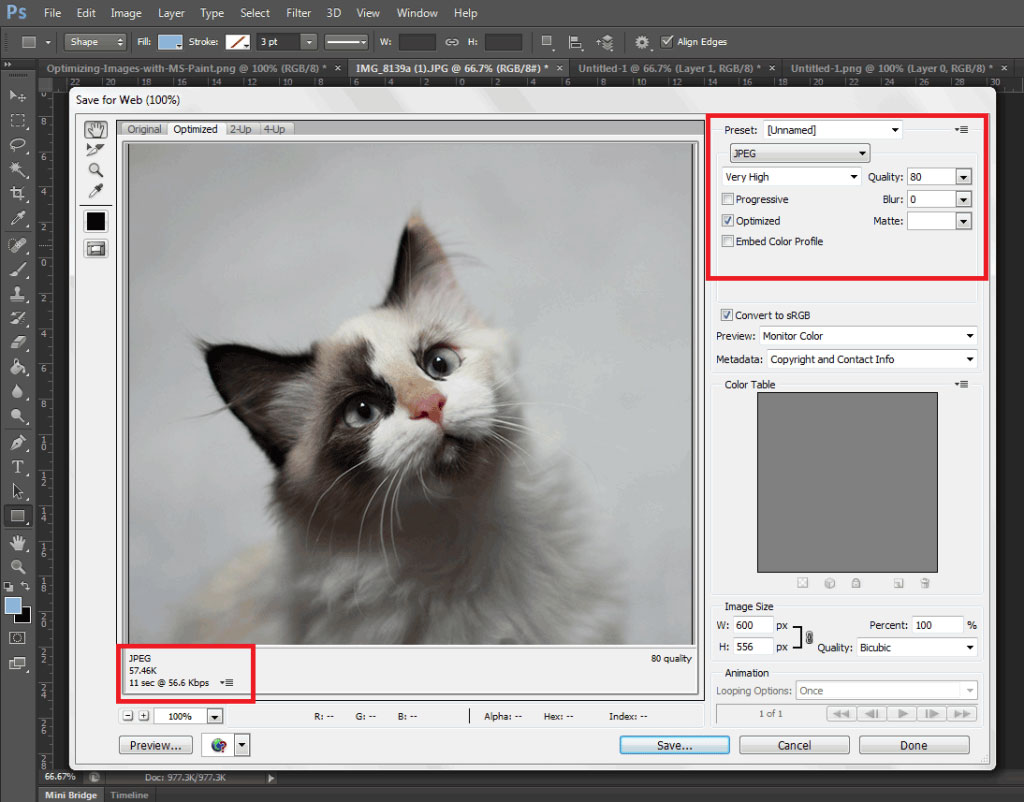
optimizing-images-in-Photoshop

Open the image in Photoshop and view it at a 100%.

If the exact size is too large to be displayed on a computer monitor, you need to edit the size of the image. You don’t have to be a Photoshop wizard. Just open the image on Photoshop, and resize or crop your image to the appropriate size. Apart from that, you also need to consider its format and compression.

If you have a style, preset image sizes that you should be using. Click on File and Save for Web (Ctrl + Shift + Alt + S). The smaller the size the faster the image loads on the page.

Using WordPress Plugins

What if you don’t have Photoshop? And, you don’t have the time to optimize every image you add to your e-commerce store? You can always rely on some WordPress Plugins.
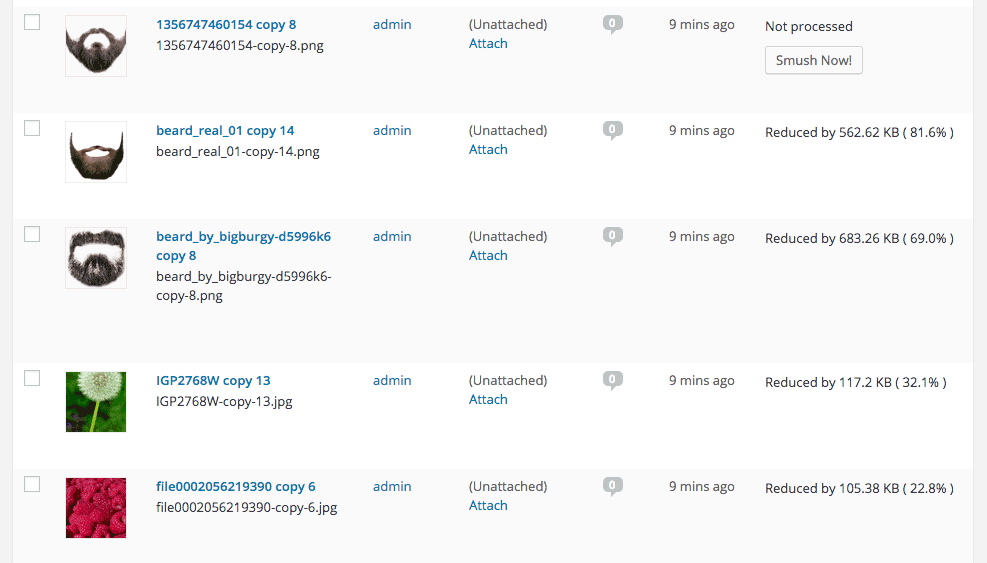
WP-Smush

Take WP Smush, for example. It’s popular for stripping hidden, bulky information from your images, reducing the file size without losing quality. You just need to upload your images, as you normally would, and the plugin will do its work behind the scenes.

The free version of the plugin cannot optimize images larger than 1M. You need to upgrade to WP Smush Pro to optimize images up to 8 MB.

Using a CDN to Increase Site Speed
CDN

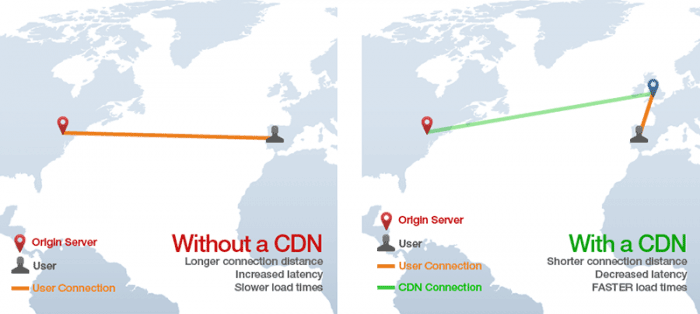
So far, we’ve talked about optimizing images, caching, and minification. Now, it’s time to explore the concept of using a Content Delivery Network or CDN, and how it can help increase your site speed.

What is a CDN?

As mentioned earlier, CDN is a network of servers located at different locations around the world. It functions to cache the content of your website, so it can be delivered faster to your visitors based on their location.

Let’s say you’re server is based in Australia. Visitors far away from your geographic location will have a hard time connecting to your website. This would result in delayed responses.

With a Content Delivery Network, browsers will have a nearby server that they can connect to. This will deliver your content much faster. CDNs will mostly benefit the websites that cater to a global audience.

Because there are many options available, choosing the right CDN for your website can be tricky. It depends entirely on your needs, and the popularity of your site. Large-scale enterprise sites usually use popular CDN companies Akamai and Level3.

Setting Up CloudFlare CDN through CPanel

When it comes to small website owners, one of the more popular CDN solutions is CloudFlare. They offer a basic free plan that includes fast site performance, board security protection, and powerful stats about your visitors.

If you’re not sure if your hosting is a partner, you can check this list from CloudFlare.

According to CloudFlare, on average, a website using the CDN will load twice as fast, use 60 percent less bandwidth, have 65 percent fewer requests, and is more secure.

If your website is hosted on a CloudFlare hosting partner, you can easily use the tool available on CPanel.

  1. Go to CPanel’s ‘Site Improvement Tools’

cloudflare

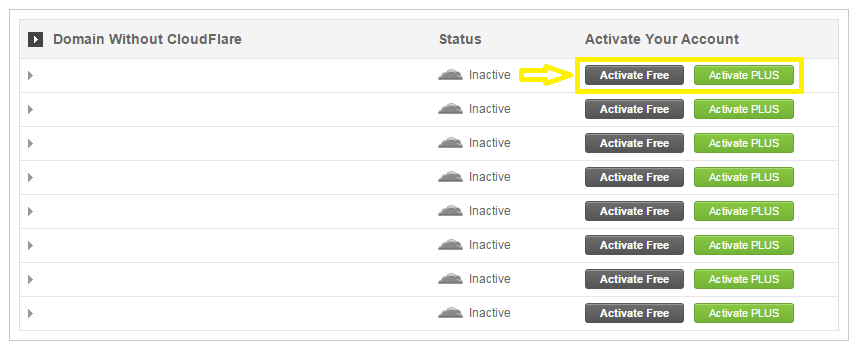
  1. Click on the CloudFlare icon
  2. Tick ‘Activate Free’ for the free version or ‘Activate PLUS’ for the paid version
cloudflare-in-cpanel

  1. Enter your email to create an account with CloudFlare
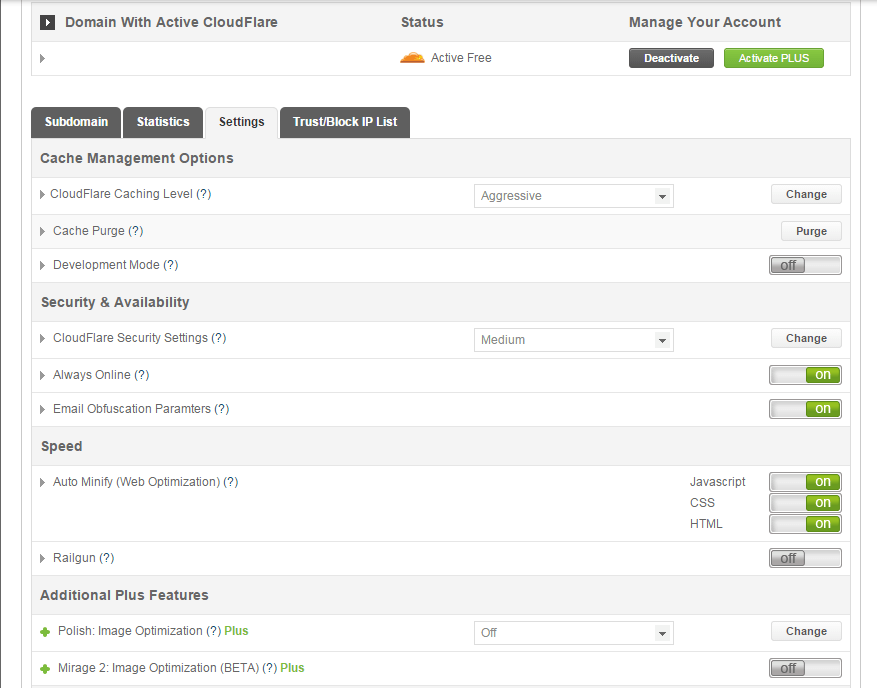
  2. Once activated, click ‘Manage’ to tweak certain settings
cloudflare-settings

And that’s it. Your CloudFlare CDN is all set and the performance of your website should be improving soon.

Setting Up CloudFlare Manually

Here’s what you need to do too set up CloudFlare manually:

  1. Sign up for an account
  2. Add your website on “Select a website” page for scanning
  3. A list of all found DNS records will be shown
  4. Set any subdomains that you would like to pass through CloudFlare
  5. Click on “I’ve added all missing records, continue” once you’re ready.
  6. Choose a plan, free or paid (SSLs won’t work with the free version)

You also need to edit the name server to the new one provided by CloudFlare. You can do this by going to CPanel, and clicking on Domain Manager. Then, go back to CloudFlare settings and click on “I’ve updated my name servers, continue”.

Note: It may take up to 24 hours for the name servers to be completely active.

With a CDN in place, your site should be running a lot faster. This improves the overall user experience and even boost your conversion rates.

Cleaning Your Database to Speed Up Your Site

cleaning-your-database

It’s a strategy that’s rarely discussed. Nevertheless, it can speed up your site just as well as the other methods. It’s maintaining and cleaning your database.

You might think that database is just one of the requirements for a WordPress install. It is, however, more than just that. If you keep your database clean and optimized, it can shave a few seconds of loading speed.

Remember, one or two seconds saved could mean the difference between a bounce and a conversion.

What’s In Your Database?

A database is just like your computer’s hard drive. It’s where all your data is stored. It contains important information such as: posts, pages, your WooCommerce products, comments and product reviews, users and customer information, URLs, etc.

For those who have been using WordPress for a while, doing regular clean ups allow you to reduce your database size. This can lead to quicker, and smaller backup files.

What’s there to clean?

cleaning-your-database-2

Over continued use of WordPress, your database accumulates many spam comments, copies of post revisions, trashed comments, remnants from plugins you are no longer using, themes, and more. When that becomes too large and bloated then website performance will suffer.

Backup Your Website First!

Before you start any database cleaning, it’s very important to create a backup of your website. If your database gets erased or corrupted, you stand to lose everything you have written. There are a couple of plugins in WordPress that can help you do this.

Your hosting provider will most likely have a backup of your website too. Here’s more detailed information on backing up your database in WordPress.

Cleaning Your Database

You may clean up your website database manually, or use these awesome plugins:
  1. WP-Optimize

wp-optimize

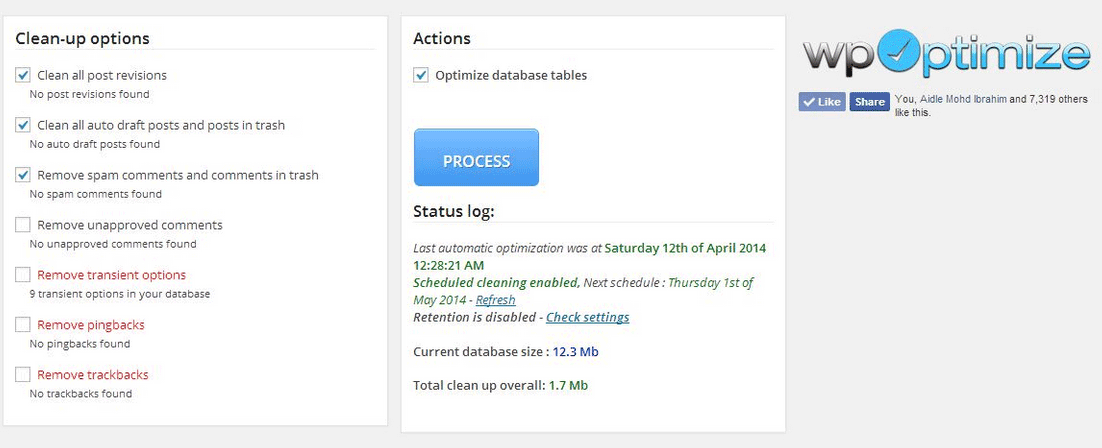
One of the most popular and easiest plugins for cleaning your database. It allows you to schedule a regular database cleanup which can be pretty handy. However, WP-Optimize plugin uses direct delete SQL queries which can leave orphaned data left behind.

  1. WP-Sweep

This plugin allows you to clean up unused, orphaned and duplicated data in your WordPress. It can also show you a report of how much clutter you can clean. WP-Sweep uses proper WordPress delete functions.
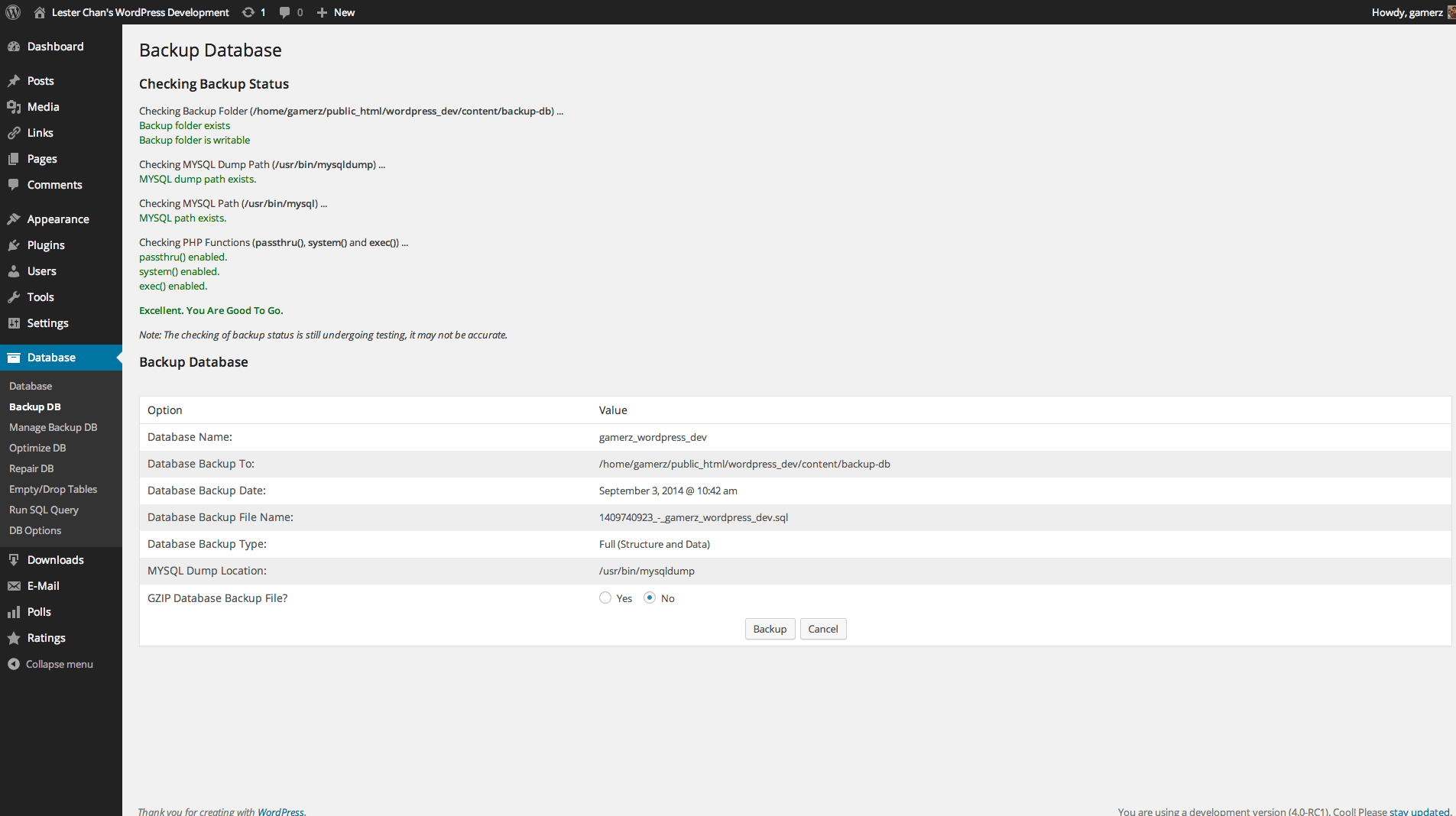
  1. WP-DBManager

wp-dbmanager

Geared for more advanced users, setting up WP-DBManager can be tricky if you’re not familiar with database elements. It offers more customizable options and features, but it cannot clear bloat.

If you want to use WP-DBManager for its features, look for other means to clear database bloat.

More Ways on How to Speed Up Your WooCommerce Store
woocommerce

Once you’ve set up a solid foundation for your e-commerce site, it’s time to do some fine-tuning. That is, if you’re still having speed issues with your WooCommerce website. Here are more useful tips to help you to solve this matter.

1. Upgrade your hosting account

As soon as you can afford it, do upgrade your hosting account. It would be better to use a good hosting publisher rather than shared hosting. Not only it can improve your site speed, but also prevent down time during high traffic periods.

2. Test your current speed

Checking the current performance of the website gives you a benchmark to compare against after you make the changes. There are various tools to help you check your loading speed:

  • Yahoo! Y slow
  • Google Page Speed
  • Pingdom is the quickest and easiest one

pingdom

3. Use minimum number of WordPress plugins

Using too many plugins in a website can slow your website speed, particularly if you’re using social-sharing plugins. It will help to identify plugins that are slowing you down.

P3 (Plugin Performance Profiler) is a well-known diagnostic plugin that shows which plugins are slowing down your site. It creates a profile of your WordPress site’s plugins’ performance by measuring their impact on your site’s load time.
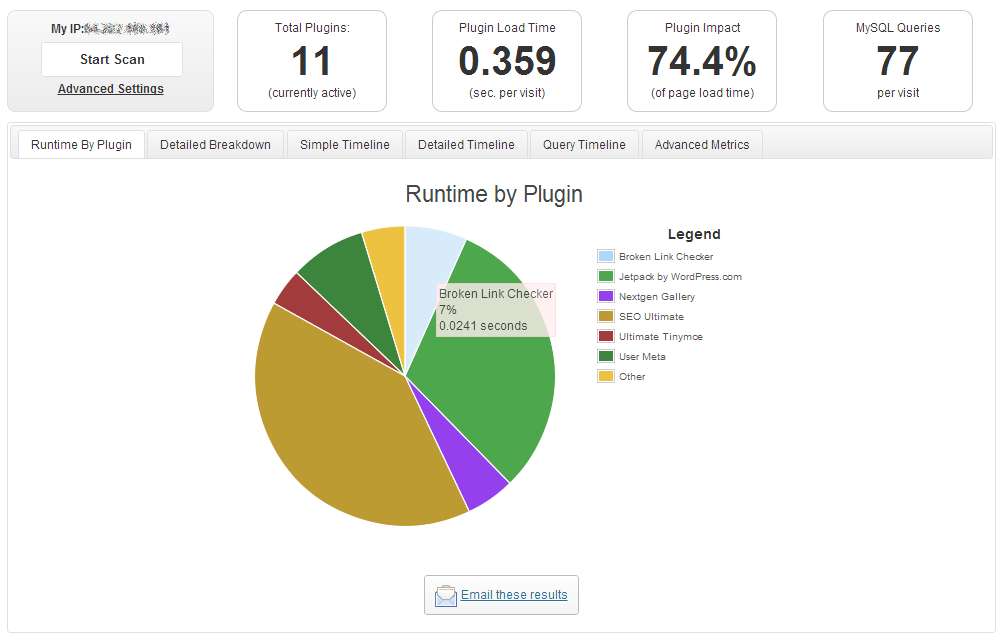
p3

Once you’ve identified them, you can make an informed decision about whether to keep them, replace them or remove them entirely.

4. Compress your website

Gzip is the most popular, and effective compression method that reduces the response size by about 70%.

Compressing files on your computer as a ZIP file can reduce its total size, which makes it both easier and faster to send to someone. Gzip works the same way, but with your Web page files.

After installation, Gzip automatically compresses your website’s files as ZIP files. This can save bandwidth, and speed up page-loading times. When a user visits your site, their browser will automatically unzip the files and show their contents.

Some plugins will add Gzip to your website in a few simple clicks. For those who want to install it manually, it’s actually very simple.

    1. Open your .htaccess file, which is found in the root directory on your server
    2. Add the following code
AddOutputFilterByType DEFLATE text/plain
AddOutputFilterByType DEFLATE text/html
AddOutputFilterByType DEFLATE text/xml
AddOutputFilterByType DEFLATE text/css
AddOutputFilterByType DEFLATE application/xml
AddOutputFilterByType DEFLATE application/xhtml+xml
AddOutputFilterByType DEFLATE application/rss+xml
AddOutputFilterByType DEFLATE application/javascript
AddOutputFilterByType DEFLATE application/x-javascript
  1. Test whether it’s working by going to Check Gzip Compression

5. Optimize your homepage

Your homepage is a crucial part of your site because visitors land there the most. There are a few easy ways to ensure that your homepage loads quickly.

  • Show excerpts instead of full posts
  • Reduce the number of posts to 5 or 7
  • Remove unnecessary sharing widgets
  • Remove inactive plugins and widgets that you don’t need

A clean and focused homepage design will help your page not only look good, but load quicker as well.

6. CSS on Top and JavaScript at the Bottom

It’s widely recommended to link your style sheets as close to the top of the page. The reason is that browsers won’t render a page before rendering the CSS file.

Meanwhile, JavaScript should be as close to the bottom of the footer. Doing so can prevent browsers from parsing anything until it has fully loaded.

With just this simple fix, page-loading speed will improve, since files are forced to be downloaded in the optimal order.

7. Disable content hot linking and leeching

When other sites direct link to the images on your site, it can make your server load increasingly high. This adds up as more and more people “scrape” your posts.

Conclusion:

Just How Important is Site Speed?

importance-of-site-speed

Consumers take advantage of online shopping because of the convenience it offers. Most people can’t stand waiting in lines. And, they especially get frustrated when it’s taking longer than expected.

Now, going back to your website, users won’t wait for your site to load. If it takes too long, they’ll definitely find another online store.

Another thing to keep in mind is that Google wants the best experience for their users, giving site speed utmost importance. They even reward sites that have clean codes and download quickly.

Page speed is now one of 200 or so signals Google uses to determine rank. More importantly, do it for your existing and potential customers. The faster a page loads, the more satisfied they will be.

Filed Under: How-To Articles Tagged With: best practices, caching, CDN, CloudFlare, conversion optimization, CPanel, Genesis, how-to, minification, optimizations, photoshop, SEO tools, site speed optimization, Siteground, Storefront, W3 Total Cache, website maintenance, WooCommerce, woothemes, WordPress, WPengine

Work “ON” Your Business Rather Than “IN” Your Business to Save Time and Increase Revenue for Your E-Commerce Store

May 16, 2016 By John Leave a Comment

work on your business rather than in your businessAs a business owner, you may struggle with having to wear so many different hats and working many hours.

An online business brings with it even more challenges, as you need to develop, secure and maintain your website. These are time-consuming and counter-productive if you do them yourself.

In this article, I’ll show you what steps you can take to effectively work on your business and what are the benefits of outsourcing your tasks.

What Does It Mean to Work “ON” Your Business Rather Than “IN” Your Business?

This popular entrepreneurial mindset has two points: you want a profitable business that produces consistent results, and you won’t need to do the day-to-day activities yourself. Basically, working “in” your business means doing those routine activities that keep the business going every day. On the other hand, working “on” your business means you prioritize developing your business and building customer relationships. Working on your business also means creating a systems-dependent business and delegating work.

Create Business Results that are Systems-Dependent, Not People-Dependent

process-diagramThe system you create becomes the tool everyone uses to get the job done in a way it needs to get done. Working on your business means you need to test and develop these systems to make sure they produce your desired result. When you have an efficient system in place, you’re mostly assured of the quality of work, and that business continues even if the people come and go. Training new staff becomes that much easier.

You may need to personally create these systems on your own. It is important that you document it. For Wooassist, we use DokuWiki to document our processes. You can find your own platform that you are comfortable with. Once the system is in place, it’ll be easier to delegate the task to someone else.

Delegate Work

It’s important that you build a team that you trust. These people will do the day-to-day activities of your business, following the systems you’ve approved or set. Delegation will only be effective if you trust the team to do the job for you. Because you trust these people, you can focus more on being the business owner and developing strategies to sustain and even grow your business.

Outsource Technical Tasks to Save Your Time

networkEven if you love working in your business, chances are there isn’t enough time to get everything done on your own. This is especially true as your business continues to grow. Hire reliable, technology-savvy staff and those with technical skills that match your needs. Doing so will help you better manage your time so you can focus on managing and growing your business.

You Can Be Assured that Experts Will Do a Good Job

You don’t necessarily need to be The Expert on each role in your company. You may only do a mediocre job at a technical task but a skilled professional can save you time by doing a great job on a role where he’s already an expert. You won’t need to spend too much time learning nor trying to do the job yourself. That’s the developer’s job. For an e-commerce store owner in need of a web developer, outsourcing is the way to go if hiring full time isn’t ideal.

You Have More Time for Leisure/Travel

Nanette Miller, founder of The Training Doctor LLC, outsources 40 hours of work weekly for non-revenue-generating tasks. This includes administrative work, website maintenance and social media posts. Outsourcing allowed her to focus on growing her business and keep a manageable work schedule that allows her to have a personal life. She gets to take about 12 weeks of well-deserved vacation per year. Just imagine the places you can visit with that much free time.

You Have More Time to Spend with Family and Friends

When you outsource, you free yourself of the daily worries of running your business. You have a better hold of your work schedule and productivity. After work, you have time to relax and be with your family. You can even go out and spend time with your friends.

WooCommerce Happiness Engineer Dustin Hartzler strictly adheres to his work schedule and wraps up work by 4:30pm. The rest of the evening is spent with his family and on non-computer activities.

Work on Things that Require Your Skills as a Business Owner

puzzle-business-componentsWith routine and technical tasks delegated to staff, you can devote more time in managing and developing your business. This means you can focus on exploring ways to innovate on what your business needs to grow. For an online business, here are some functions a business owner can prioritize:

Planning and Strategy

You should have more time to revisit your business roadmap and make changes as needed. Conduct market research to identify current trends that could help you sell your products. Check your competition and find ways to attract more customers. Devote time on continuous learning. You get to leverage on other people’s expertise, but the decision is still yours to make.

Marketing and Sales

You may feel comfortable handling your own SEO and advertising. This is because you’ve conducted market research and you know who your target customers are. When you have clearly defined your customer personas and know how to use them, you’re well on your way to maximizing your marketing efforts. You can also allot time to learn more online marketing strategies and apply them to your business.

Customer Experience

You build customer relationships. You make sure their needs are met, particularly as they navigate through your website. You may also opt to personally address customer queries. You may need help on this though, depending on your business’ size and nature.

Conclusion

stop-wasting-your-time_300x248While it’s understandable to be very busy at work, especially in the early stages of your business, you also need to know when and how to effectively delegate. Prioritize your core functions as a business owner and focus on growing your business. Set up systems and tools to maintain consistent, quality results for routine activities. Outsource technical and other non-income-generating functions. These actions will help you better achieve a work-life balance. Spend more time with your family and friends and go on much-needed vacations.


Was this post helpful? Do you have anything you’d like to add or share? Let us know in the comments.

Filed Under: How-To Articles Tagged With: admin, best practices, how-to, marketing strategy, outsourcing, website maintenance, Wooassist

How to Counter Brute Force Attacks on WordPress

January 15, 2016 By John Leave a Comment

Counter Brute Force

WordPress is one of the most popular Content Management System (CMS) available. Its popularity is the reason why it is highly targeted by attackers. A secure website is a must if you’re operating an online business so you can protect your business and your customers.

In this article, you will learn:

  • What is a brute force attack?
  • How to know if someone is brute forcing into your site
  • How to counter brute force attacks on WordPress
  • What to do when someone succeeds at brute forcing into your website

WordPress does not currently have any built-in feature to stop brute force attacks so you are responsible in preventing them on your own website.

What is a Brute Force Attack?

Brute Force Fist

Brute force attack or brute forcing is one of the leading causes of website compromises and is similar to a trial and error method. The objective of the attacker is to gain access to the server level of your site by using various username and password combinations repeatedly until it succeeds. Not only that, it can also be utilized to find hidden pages and content in a web application.

Brute Force Attack is, simply put, an attack to the weakest link in a website’s security. Sucuri, a security company focusing on spotting and repairing compromised websites, reports at least 770,000 brute force attacks every hour. Your website is vulnerable to this type of hacking if you require user authentication or login access.

There are endless catastrophic possible events that could happen once an attacker gains access to your site. The access will be exploited and accounts can be locked out, malware or viruses can be injected, important financial transactions can be compromised or blocked, or data can be changed or stolen. All the hard work you have invested in your business could go down the drain in an instant and hurt your virtual presence.

Brute Force Attack Methods

WordPress LoginBrute forcing can be done in different systematic ways. It can be done manually or with automated tools. This can be done in a matter of minutes or years depending on the complexity of your authentication data and process. In most cases, it is done by automated tools that use bots to crawl the web and look for weak preset conditions and weak targets. For WordPress, the common targets are the /wp-admin extensions, /wp-login.php and the XML-RPC.

Brute Force Attacks can be used positively if the goal is to test a website’s security but unfortunately, most of the time, it is used by hackers to crack encrypted data for their own advantage. There is a growing number and improving array of automated tools that can be used for brute force attacks. They are simple to use that even a teenager can use them. These tools determine the length of usernames or passwords and try different possible combinations to gain access. The following are commonly used methods:

Dictionary Attack

The common targets here are administrator accounts. In this method, the attacker will use a database or ‘dictionary’ containing millions of words that are commonly used as a login password. Each one will be tried for authentication. The attacker will succeed once the password is accepted as correct.

These attacks can lock out one account or more and gather more information from the site depending on the error responses. This is actually resource- and time- consuming but this can be done quickly with better computing power. It does not decrypt information. It only cycles through a list of words until it becomes successful.

Hybrid Brute Force Attack

This is similar to the dictionary attack but the attacker may use permutations of words from a password dictionary, your real or site user name, website and company name. It uses a smarter set of rules, such as adding numbers and doubling up some characters or words, to intelligently guess passwords. An attack can occur and succeed quicker if more information is available to the attacker.

Reverse Brute Force Attack

This is less common but your website is vulnerable to this if your site users use weak passwords. In this method, the attacker will try to use one password and try to match it against many user names.

How Do You Know if Someone is Brute Forcing into Your Site?

brute-force-maskThe tough reality is Brute Force attacks can be the same as DDoS (Distributed Denial of Service) or DoS (Denial of Service) attacks. You can differentiate them by the intent. DDoS/DoS is after disruption of service while Brute Forcing is after gaining access. DDoS/DoS however can be a byproduct of Brute Forcing as the access attempts can overload your servers. Some attacks are easy to detect but some are harder to detect because they use different open proxy servers.

Careful observation and monitoring is necessary to detect Brute Force Attacks. Be on the lookout for irregularities and malicious activities in your site. To help you out, these are the most common ones experienced by victims of brute forcing:

  • Numerous failed logins coming from the same IP address
  • Multiple usernames used to login from the same IP address
  • Continuous login for one username from various IP addresses
  • Logins with suspicious usernames and passwords
  • Overloaded server memory that results from excessive bandwidth consumption from a single use
  • Performance problems
  • Weird links
  • Notice from the webserver of attacks and an unusually large amount of data being used in a short period of time
  • Website redirects to a different page or website
  • Unwanted popups and ads are all over their site
  • Malware or virus
  • Spam emails or comments
  • Help desk flooded by complaints of locked out accounts.

How to Avoid Brute Force Attacks

A Brute Force Attack can be minimized, if not avoided, as long as you follow these steps.

Keep Everything Updated

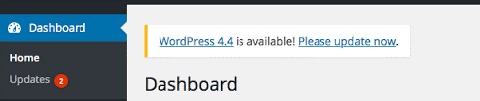
WordPress themes and other plugins update their version to keep them safe from vulnerabilities and to fix bugs. Updating can be tedious but this will help protect your site from known exploits. Just make sure that you keep a backup before doing updates. Be on the lookout for updates in your WordPress Dashboard for the following:

  • WordPress Version
  • WordPress Theme
  • WordPress Plugins

dashboard-update-message

Use Strong Passwords and Change Them Regularly

The best way to protect your site is to use strong passwords and avoid keeping the same password for a long time. If your site allows numerous login accounts, it is best to make sure that all your users follow these basic rules in making strong passwords:

  • Keep your passwords long. Use a minimum of 8 characters.
  • Keep it complex. Do not use dictionary words.
  • Keep it mixed. Use a combination of numbers, upper- and lower-case alphabets and non-alphanumeric characters.
  • Check if your password is a common password.

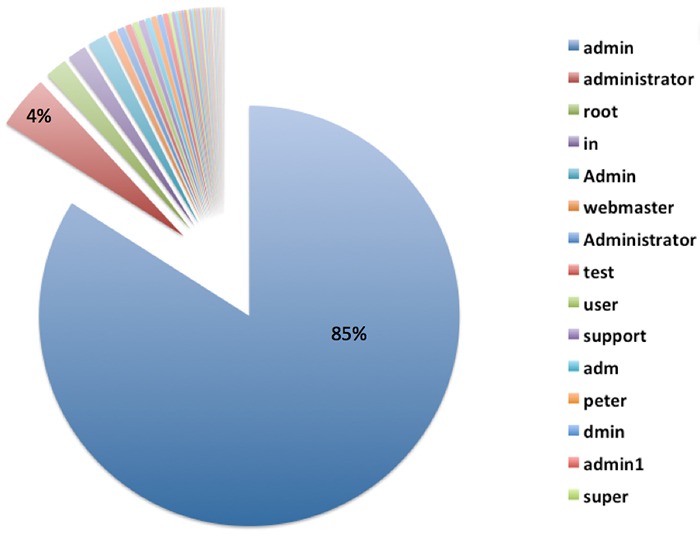
Avoid Common Usernames

sucuri-common-usernames-1
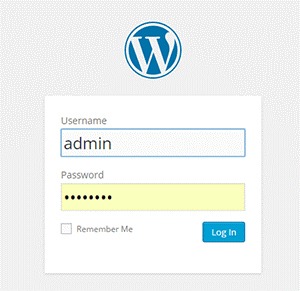
“admin” is the most used username for Brute Force attacks. Image Source: https://blog.sucuri.net/2014/03/understanding-denial-of-service-and-brute-force-attacks-wordpress-joomla-drupal-vbulletin.html

This is very important especially for administrator accounts. Do not use the default username ‘admin’ or any similar usernames containing the same word. Doing so will significantly increase the likelihood of your site being attacked by malicious users.

Use Two-Way Authentication for Administrator Accounts

For extra security, you can activate two-way authentication in your Cpanel or use a plugin such as miniOrange’s Two-Factor Authentication (Google Authenticator). The con to this, however, is you would need to have your phone with you all the time and your log-in process would take more effort and time from you.

Set Administrator Logins to Certain IP Addresses

If you have the privilege of getting a static IP address, this is a great added security option. You can actually block all sign in attempts from all other IP addresses by editing your .htaccess file. However, this can be a problem if your network uses dynamic IP addresses that can change over time.

Design Your Site to Not Use Predictable and Data Exposing Behavior for Failed Login Attempts.

If you are tech savvy, this is one option that you can do by changing the error messages that your website shows. For example, an error message that shows ‘bad username or password’ will make the attacker try the next information in their list. Adding progressive delays every failed attempt can also help improve your website’s security. You can also prompt your users to answer a captcha or a secret question after failed attempts. Be wary of using captcha though as it can negatively affect your websites user experience.

Secure Your Site with Tools and Plugins

There are many available tools and plugins that you can use. Some are free and some come with a price. Here are some tools, plugins and features that you should consider to significantly improve your website’s security. They can help you counter brute force attacks on your WordPress site. Before adding a plugin, you need to check if it’s compatible with your theme, other plugins, and WordPress version first. Some of the tools mentioned below may overlap with other ones in the list.

Security Scanner

There are so many security scanner plugins available for WordPress and most of them also include various tools that improve your website’s security. Top plugins that you can check out are:

  • Wordfence Security
  • VaultPress
  • iThemes Security
  • All In One WP Security & Firewall
  • Sucuri Security
  • Theme Authenticity Checker

Login attempt limit, blocks, and delay

There are plugins that can limit the rate of login attempts and block IP addresses temporarily to protect your site from brute force attacks such as WP Limit Login Attempts. You can also be on the lookout by tracking IP, usernames, passwords and adding idle timeout in your login with Login Security Solution.

Hide Login Page and Data

Attackers would normally target your /wp-login.php or /wp-admin. To hide your login page, you can use WPS Hide Login plugin.

Strong Passwords

brute-force-login

WordPress already generates a strong password for new users but if you are not a new user, you might want to create a very strong password by using a mix of upper case and lower case letters, numbers and symbols.

One way of creating a strong password that is easy to remember is to think of a sentence. For example: “The quick brown fox jumped over the lazy dog.” Take the first letter of every word and you will get “TQBFJOTLD”. Convert some letters to numbers or symbols and you can get “7Q3FJ0T1D” and then vary the remaining letters to upper case and lower case. Your strong password could be “7q3Fj0T1d”. Whenever you want to type your password, just recall the sentence that you used to generate your password.

Cloud/Proxy Services

You can use the aid of cloud or proxy services to help mitigate attacks all over the web as these block the IPs before they even reach your server. Cloudflare and Sucuri CloudProxy are notable services to check out.

What if Someone Already Got into My Site?

Brute Force Unlocked

Don’t Do Anything Rash

The worst mistake you can do is to delete things without backing up data first or cause further problems by troubleshooting. If your site has been compromised, the best option is to seek professional help.

Keep Calm and Regain Control of Your Site

Keep Calm and Chill

Take a step back and calm yourself down. You can still recover from this miserable event. Try to regain admin access of your site. If your password was changed, you can simply get access again by using the ‘forgot password’ option. If this has failed, get in touch with your hosting provider.

Change All Your Backend Passwords

This is an important step that you should do when you regain access to your hacked website. Make sure that you use a strong password so you can avoid further damage being done to your website.

Identify the Damage Done

Once you’ve gotten access to your site, scan your website with online malware scanners like Sucuri’s or with Google’s Safe Browsing. You can do the latter by typing this in your url: google.com/safebrowsing/diagnostic?site=yoursiteaddresshere.com

Check with Your Hosting Company

Some hosting services provide technical support for issues like this. Getting professional help is still recommended.

Restore from Backup

If you keep regular backups, you can restore your most recent backup just make sure the backup that you chose was from before your site was compromised.

Check and Change User Permissions

Checking user permissions, especially if there are many accounts that can access administrator settings, should be done to further prevent other users’ access while you’re cleaning up.

Close Hacker Backdoors

Secure your wp-config.php file and close all the backdoors that the hacker may have left. You will need professional help for this.

Change Your Passwords Again

Yes, again. The hacker may have gotten wind of your new password through a malware so change your password again when you are done cleaning up.

Have Your Site and IP Address Whitelisted

Once you have finished cleaning your site up, find out where you have been blacklisted. You may still be marked as spam by some online services like Unmask Parasites.

Summary

Your e-commerce website being compromised is one of the worst experiences an entrepreneur can go through. So planning ahead and hardening your websites security should never be taken lightly. The adage “An ounce of prevention is better than a pound of cure” rings true. If you did the hardening methods we have shown in this article, give yourself a pat on the back. If you are here because your website was compromised, get professional help as soon as possible.

Filed Under: How-To Articles Tagged With: brute force, CloudFlare, how-to, redirection, security, sucuri, website maintenance, WordPress

How to Create a Child Theme for Storefront

February 26, 2016 By John 2 Comments

how-to-create-a-child-theme-for-storefront

Optimizing your website usually means making changes to your theme. These changes can range from simple to complex. It’s easy to make changes on your website but the problem is that you will lose all your changes when you update your theme.

There are ways to update your theme without losing your customizations and the best way is to use a child theme. In this post, we will teach you how you can use a child theme to make the website development process easier.

We’ll teach you how to create a child theme for Storefront theme. Storefront is the official theme for WooCommerce. It’s a good parent theme to work on as it’s built with the same high standards as WooCommerce. It is entirely free and 100% compatible with WooCommerce.

What is a Child Theme

A child theme is not a full theme. It only inherits all the code, styling and functionality of the main or parent theme. Changes made in a child theme do not affect the parent theme. This allows users to tweak a theme without having to worry about losing the customizations when updating the theme. Using a child theme is best practice for altering an existing theme.

A parent theme is the default of all your WordPress themes. It contains the templates, design and functionality needed to run your website on WordPress. Note that parent themes are different from theme frameworks. A parent theme is a complete theme that you can use right away while a theme framework like Genesis is a developmental template.

Why You Should Use a Child Theme

There are thousands of themes out there that you can use for your WordPress installation. The problem is they all look generic and may not exactly fit your website needs. Modifying the theme with CSS is recommended. Here are some reasons why you should use a child theme:

Speed Up Site Development

Child themes allow you to quickly add or modify specific functions or template files. It allows you to significantly speed up site development as you would not need to write a lot of code from scratch. You’ll get a great deal of flexibility especially from powerful theme frameworks like Genesis.

Preserve Theme Changes

Themes get updates from time to time. These updates are important as these address security exploits that come to light. Updating your theme will wipe all the changes you made to the base theme. However, if you use a child theme, you can preserve any changes you make to the child theme when you update the base theme.

Safe Fallback

Creating or editing a theme entails a lot of work. However, when you make customizations on a child theme, you have your parent theme’s codes and functionality as fallback in case you mess up something. The child theme will only change a specific function or style when you want it to.

Secure Your Site

WPBeginner found out that 83% of hacked WordPress sites are not upgraded properly. The safest way to update your theme is by using a child theme.

When to Use Child Themes

If you are in any way customizing your theme, then you should be using a child theme. Using a child theme is best practice.

If you are not familiar with CSS and PHP, creating your own child theme can be a challenge. You would also need to learn about the functionalities of your parent theme.

Robust frameworks can be more challenging as they have their own filters and hooks.

How to Create a Child Theme

Setting up a child theme for any WordPress theme is easy but you need to pick a good parent theme. Not all themes can be good parent themes. We recommend Storefront or the Genesis framework.

A good parent theme is a solid foundation for your site. You will be building your child theme over it so it has to be flexible and coded properly.

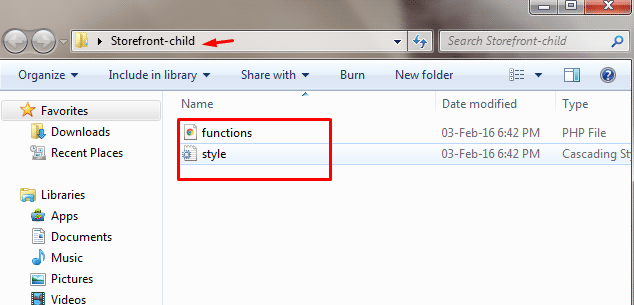
You can use plugins to generate a child theme or you can do it manually. You just need three things to start: child theme directory, style.css file and functions.php file.

Child Theme Folder

This folder will serve as the container for your stylesheet and function files. It is ideal to use the name of your parent theme as folder name and append it with “-child”. In this case, we named our directory “Storefront-child”. Make sure that your child theme’s directory name has no spaces to avoid possible errors. For the meantime, you can create this folder in your computer.

child-theme-folder

Child Theme Stylesheet

This is a basic style.css file. You need to set this stylesheet to inherit the styles from your parent theme. To do that, insert the stylesheet header below and replace them with relevant details. Note that customizations done here will override parent theme styles.

/*
 Theme Name:   Storefront Child
 Theme URI:    http://sitename.com/storefront/
 Description:  Storefront Child Theme
 Author:       Nick J
 Author URI:   http://sitename.com
 Template:     storefront /*this is case sensitive*/
 Version:      1.0.0
 License:      GNU General Public License v2 or later
 License URI:  http://www.gnu.org/licenses/gpl-2.0.html
 Tags:         light, dark, full-width, responsive-layout, accessibility-ready
 Text Domain:  storefront-child
*/
/*Theme customisations start here*/

We won’t teach you how to use CSS. It is impossible to cover that in one article. You can learn CSS here or have a developer do the CSS tweaks on your website.

Child Theme Function

Previous methods suggest that you use “@import” in your stylesheet to load your child theme. This is no longer considered best practice. You just need to “enqueue” your parent theme’s stylesheet in your child theme’s functions.php file. To do this, you can use “wp_enqueue_scripts action” and use “wp_enqueue_style()”.

The stylesheet for your child theme is usually loaded automatically. If not, you will need to enqueue it as well. You also need to make sure that the child stylesheet gets priority. You can use the code below instead. This code sets ‘parent-style’ as a dependency so your child-theme stylesheet loads after it.

<?php
function theme_enqueue_styles() {
$parent_style = 'parent-style';
wp_enqueue_style( $parent_style, get_template_directory_uri() . '/style.css' ); wp_enqueue_style( 'child-style', get_stylesheet_directory_uri() . '/style.css', array( $parent_style ) ); } add_action( 'wp_enqueue_scripts', 'theme_enqueue_styles' );
?>

Activation

To add a child theme to your WordPress themes, you need to create a .zip file of your child theme folder. You can use 7-zip or Winrar to do this. Make sure that you have your style.css and functions.php inside your child theme folder.

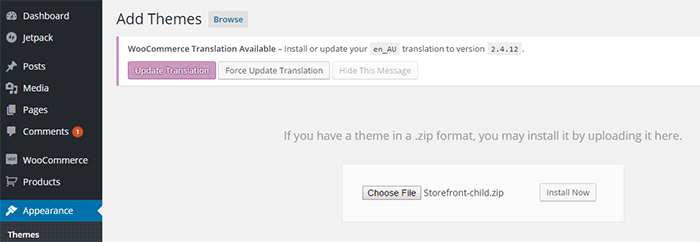
It is best to take note and keep records of other plugin settings before you activate your child theme. Once you’re done, you can upload this in your WordPress via Appearance > Add Themes.

child-theme-activation-storefront

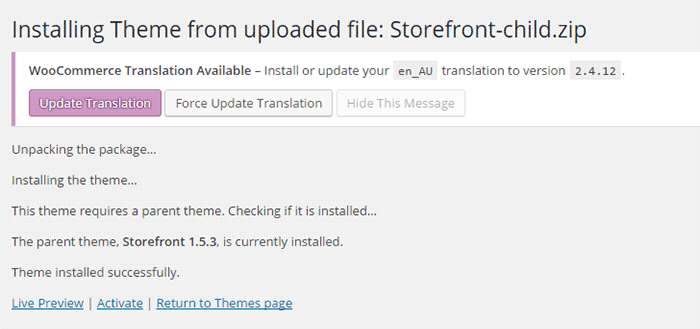
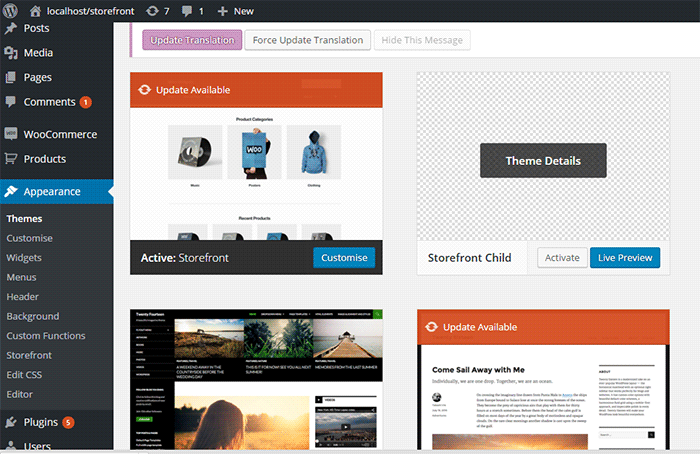
WordPress will install your child theme just like any other theme. Once installed, you need to activate this by clicking on ‘Activate’.

child-theme-activation-storefront-2

You can also choose to activate your child theme later when you go to Appearance > Themes.

child-theme-activation-storefront-appearance-themes

Once installed or activated, you can apply any edits to functions.php and to the stylesheet directly on the child theme files

Popular Child Themes for Storefront

If creating your own child theme is proving to be a bit too difficult for you, you can always purchase one.

There are a handful of child themes for Storefront right now. Note that you should install Storefront base theme first before installing these child themes.

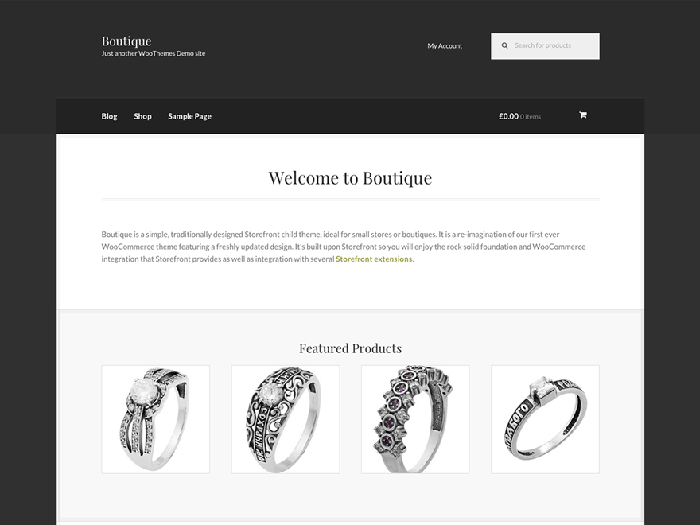
Boutique

boutique_popular-child-themes-for-storefront

Boutique is simple and easy to customize. You can start selling after you create your color theme, add your logo and content.

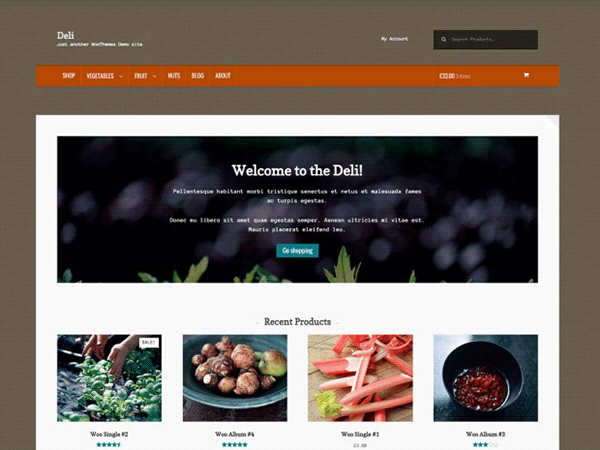
Deli

deli_popular-child-themes-for-storefront

If you want to add more personality to your store, you can use Deli. This child theme is great for small businesses. It has color schemes and textures that are inspired by nature.

Conclusion

Having a child theme is best practice when doing development work on your WooCommerce site. More importantly, using a child theme allows you to freely update your theme without losing any customizations you made on the child theme. A good and solid foundation is important for child themes. Hope this article has been helpful. Do you have any questions about child themes or anything you’d like to add? Let us know in the comments.

Filed Under: Code Snippets, How-To Articles Tagged With: best practices, child theme, code snippet, CSS, design tweaks, how-to, optimizations, Storefront, website development, website maintenance, WooCommerce, WordPress

How to Fix Checkout Problems in WooCommerce

June 6, 2016 By John 84 Comments

how to fix checkout problems in WooCommerce

One of the biggest problems a WooCommerce store owner can encounter is when the checkout fails. There are a lot of different types of issues that could happen during checkout, but these can be fixed easily if you can identify what is causing the problem. However, finding out the cause is not always easy for the average user. In this post, we will teach you how to fix the common checkout problems in WooCommerce.

The information in this post may or may not help with the specific problem that you are experiencing with your checkout. You may have a similar problem but the source could be different, hence the solutions mentioned here may not work for everyone. It is best to have a developer adept in both WordPress and WooCommerce make the suggested fixes for you. We also recommend that you create a staging/development site and do your debugging there rather than on the live site.

Most Common WooCommerce Checkout Issues

Here at Wooassist, a lot of new clients come to us with problems on their checkout. Having issues on the checkout page can be daunting as it can be difficult to figure out the cause. The checkout page is crucial because it is the last page of the “user shopping experience”. A simple error that could be fixed in a few minutes can hurt your business if it is not addressed swiftly. You could end up losing business opportunities and customers. To fix the problem, we need to figure out what the error is first.

Below are some common issues we encounter that you could be experiencing right now on your WooCommerce store.

Checkout Page Isn’t Available and is Just Redirecting Back to an Empty Cart

cart-is-currently-empty

While there are many reasons why checkout would redirect to an empty cart, it’s usually because your hosting is not totally compatible with WooCommerce.

The issue is most common with stores that enabled “force https on checkout”. In this case, the issue could be caused by a PHP security module called Suhosin. WooCommerce already has an official fix posted for this.

Simply paste the code below in your server’s PHP settings.

suhosin.session.cryptdocroot = Off

Review Order Section is Stuck on Loading

review-order-session-stuck-on-loading

When a customer enters their shipping/billing information, this triggers a script to reload the review order data. When there is an error in the script, it will just get stuck without an error shown that would’ve helped you understand what’s happening.

This usually happens when the returned data is not what WooCommerce expects. This is caused by either a plugin or template conflict. To fix this, you will need to check compatibility with all plugins installed and update any outdated WooCommerce templates.

Payment Option is Not Working

Some popular payments options are PayPal, Stripe, Authorize.net and eWay. These are the services that you’ve installed in your store to handle the payment process between you and your customers. This is the page where users enter their credit card information and hit the “place order” button.

Here are some scenarios where the payment option does not work:

Payment option is not available on checkout

You are sure that you have completely configured your payment option but it’s not showing up on the checkout page. This usually happens with stores that don’t have an SSL certificate installed and the payment option requires one. You can learn more about SSL in this post.

Authentication error pops up

When an authentication error pops up, this means there is something wrong between the connection of your store and your payment option service provider. To fix this, check that the credentials you entered in the payment option’s settings are correct.

Unknown error pops up

Checkout-unknown-error

Unknown error popping up could mean that a PHP script in WooCommerce isn’t working properly. There are many things that could cause this. It may be due to a plugin conflict, or your hosting doesn’t support the custom AJAX endpoints utilized by WooCommerce. To fix this you will need to check each plugin installed. Try disabling the plugins one at a time and see if that fixes your problem.

Nothing happens after clicking “Place order” button

If nothing happens when you click the place order button, then most likely there is a JavaScript conflict in the checkout page. The best way to fix this is to check your browser’s console to see which scripts are in conflict. You’ll want a developer to do this for you though.

Did any of these help solve your checkout page problem? If you have any other problems with checkout on your WooCommerce store, you can hit the comments or contact us and we’ll see what we can do for you.

Filed Under: How-To Articles Tagged With: best practices, checkout form, code snippet, how-to, security, website maintenance, WooCommerce

  • 1
  • 2
  • 3
  • 4
  • Next Page »
Let us support your online store so you can manage your business

Get started today

Get 2 Hours of FREE SUPPORT

We are so confident that you will love our services that we will give you your first 4 hours at a 50% discount

That’s 4 hours for only $75

BUY NOW

Free eBook

5 Things Every Online Store Can Fix On Their Website In The Next Week To Increase Sales

Quick Links

  • How it Works
  • Pricing
  • Blog
  • Contact
  • About Wooassist
  • My Account
  • Checkout
  • Privacy Policy
  • Cookie Policy
  • Terms and Conditions

Wooassist

Australia:
59 Luke St.
Hemmant QLD 4174

Philippines:
San Miguel St.
Poblacion, Iligan City 9200

Connect


Copyright © 2026 · Wooassist

Yours FREE!

5 Things Every Online Store Can Fix On Their Website In The Next Week To Increase Sales