Wooassist

Assistance for Your Woocommerce Store

  • How it Works
  • Pricing
  • Services
    • Site Maintenance
    • AI SEO and Content Marketing
  • Blog
    • How-To Articles
    • Code Snippets
    • SEO For E-Commerce
    • Theme and Plugin Reviews
    • Wooassist News
    • WordPress/WooCommerce News
    • Interviews
  • About Us
  • Contact
You are here: Home / Archives for Theme and Plugin Reviews

WooCommerce vs Magento: Which One Is Best For You?

July 22, 2015 By John 3 Comments

WooCommerce vs Magento

Last time, we compared WooCommerce with Shopify. Now, it’s WooCommerce Vs Magento. Here we will look at their strengths and weaknesses as e-commerce platforms. This will help you find out which is the better fit for your business.

Are you considering moving form Magento to Woocommerce? We have done this for a number of businesses and it can be a daunting task.

The functionality does not cross over exactly and it can become complex web of options and decisions. We offer a service to help with this here.

As of June 22, 2015, stats from Builtwith reveal that WooCommerce is now the most popular e-commerce platform. There has been an increase of 247,245 sites just this quarter. Records show there are around 937,743 live websites using WooCommerce.
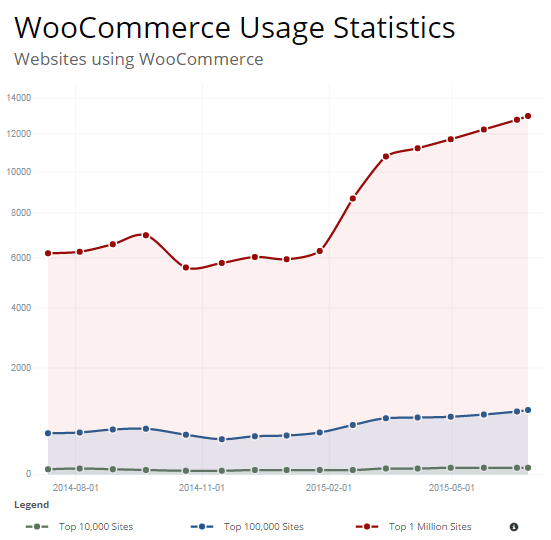
woocommerce-usage-statistics

Meanwhile, Magento still remains the high-performance, scalable e-commerce solution for large businesses. More than 240,000 merchants worldwide put their trust in this software. Data shows 427,571 websites are using it.

If you are torn between the two, then you’ve come to the right place.

When it comes to choosing the right e-commerce platform for your business, there are a number of things to consider. We’ll go right ahead and explore the factors one by one.

The Face-Off: WooCommerce vs. Magento

face-off

WooCommerce:

This open source e-commerce plugin for WordPress was launched in 2011. It was aimed at small-to-medium online merchants already comfortable with a WordPress set up. To date, there has been a total of 8,432,130 WooCommerce downloads. It quickly became famous for being free in nature and its simplicity to install.

Leading brands that trust WooCommerce include:

woocommerce-brands

Magento:

The platform is now owned by eBay, a global leader in e-commerce. It provides two distinct versions – Community Edition and Enterprise Edition. Since its launch in 2008, there has been more than 500,000+ downloads. One can find more than 2000 various extensions for additional functionalities.

Leading brands that trust Magento include:

magento-brands

ROUND 1: ‘Getting Started’ Comparison

Platform: Both WooCommerce and Magento’s Community Edition are open-source e-commerce platforms. That means both platforms are available for free. Bigger businesses can upgrade to Magento’s Enterprise edition, for a subscription fee. WooCommerce is totally free, but it has fewer features compared to Magento’s Community Edition.
woocommerce

Pricing:

For development costs, Magento may be priced a bit higher. This is because you’ll need to find a capable developer to help build out the site. However, it gives you a better initial suite of features. WooCommerce is entirely free to download and install, but you’ll probably need to buy some of its extension. For instance, its full range of payment options.

Hosting:

WooCommerce is an extension of WordPress therefore, there are very few server requirements. There should be no issue, as long as your server supports MySQL or PHP. As for Magento, there is a slightly longer list of server requirements. It may also require some technical knowledge before one can set it up properly.
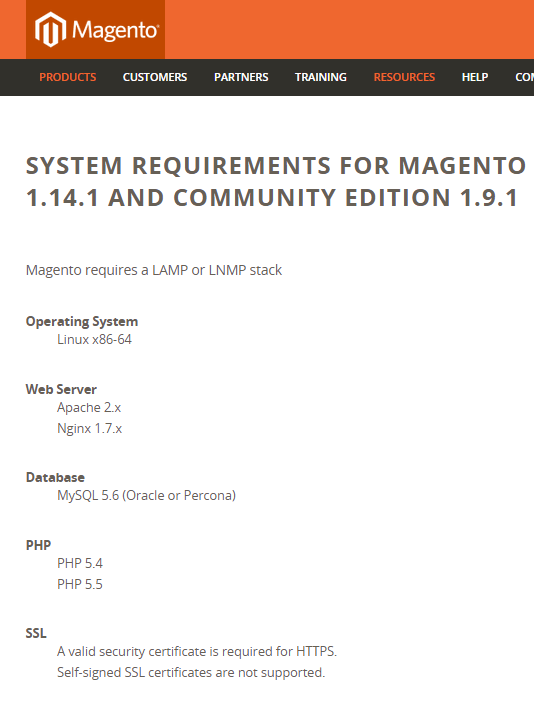
magento

Installation:

The WooCommerce plugin is developer and designer friendly. It is easy to customize and change. It has a thorough help section, and video tutorials for beginners to help you get up and running. Magento comes with a full installation wizard, and a comprehensive help section. Videos and tutorials are available from the support community as well.

Round Conclusion:

Because WooCommerce is easier to use, the platform is ideal for less sophisticated users. Magento may be a more flexible solution for sophisticated clients selling online at an enterprise level. However, it’s a bit tougher to understand.

ROUND 2: Plugins and Themes
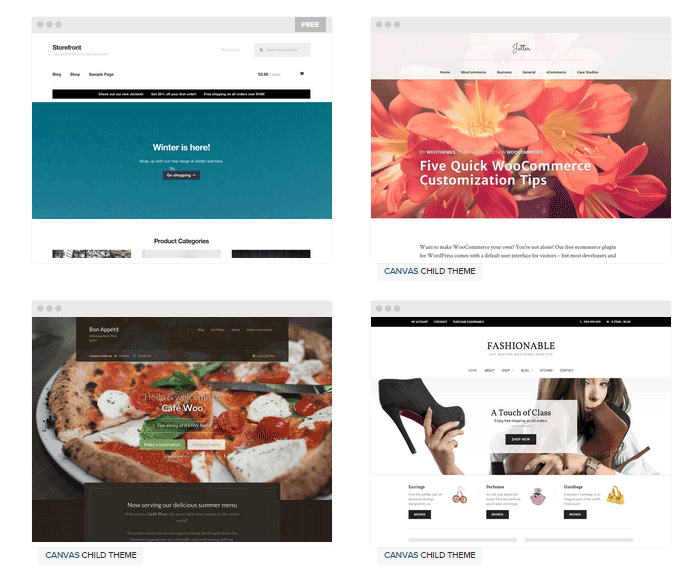
woocommerce-themes

Plugins: WooCommerce has a slight edge over Magento because it can take advantage of WordPress plugins. Nevertheless, a lot of community extensions are available for Magento, which can be easily integrated to suffice business requirements.

Themes:

For both platforms, there are a lot of free and premium themes to choose from. Magento themes offer flexibility, functionality, and can be easily extended and modernized. But, you’ll need a professional webmaster to install, set up and update even the easiest Magento theme.
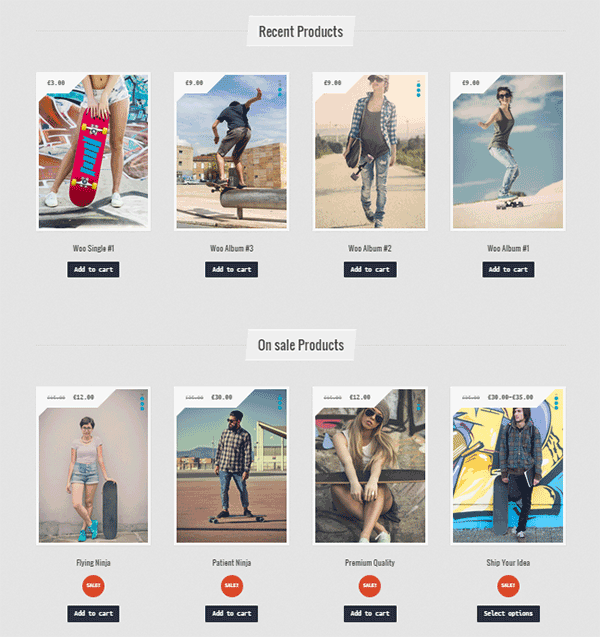
magento-themes

There are more WooCommerce themes to choose from compared to Magento choices. They’re also incredibly easy to install and upgrade. The only downside is they can conflict with other WP plugins. So, compatibility should be checked with WooCommerce before installing of any new plugin. This article can tell you more about the theme pros and cons of both platforms.

Customization:

Just because it’s free, doesn’t make WooCommerce a rigid platform. In fact, there’s a lot of room to customize and tweak your online store to a level of uniqueness. You can change pre-set CSS styles and color, tweak the code and experiment with the special features which each theme offers.
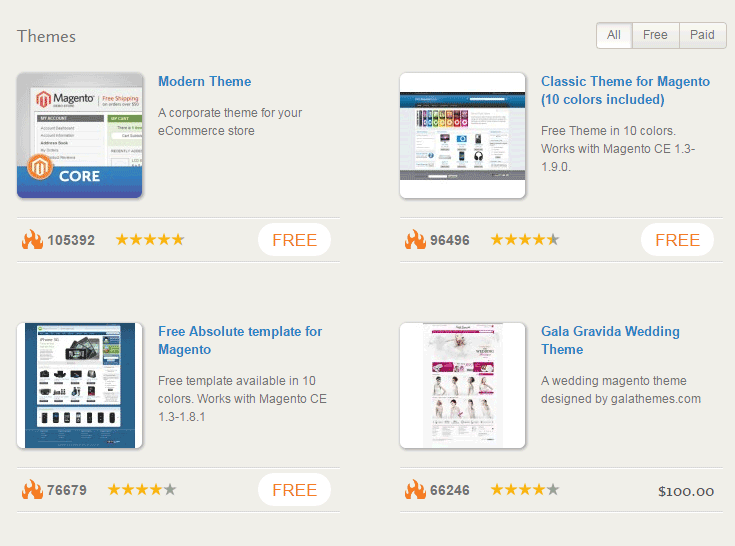
themes

With Magento, you also have the option to customize the theme as much or as little as you’d like. Your theme is designed to utilize all of Magento’s excellent built-in features that you should be taking advantage of.

Round Conclusion:

Magento can give you a bit more when it comes to extensions, but WooCommerce tends to be preferred because it relies on plugins for extra functionality. They basically have the same theme features. But, if you choose WordPress for your projects, then go for WooCommerce themes.

ROUND 3: Product Volume and Variations

Volume:

There is no real consensus on how many products you should have, for a WooCommerce store to be manageable. There are many WooCommerce stores out there that have thousands of products and manage just fine. According to MarketPress, 57% of WooCommerce store owners have more than 100 products, 40% has more than 250 products and 11% has up to 1,000 products.
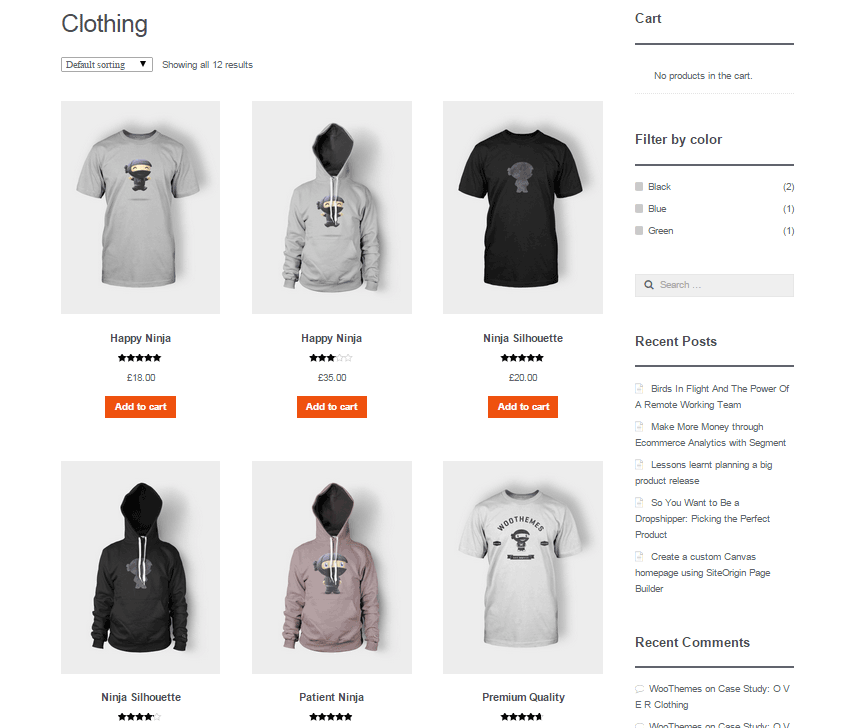
store-volume

Magento will support an unlimited number of products. But as your catalog grows, you may start running into resource limitations that’ll require hosting upgrades, etc. When running a large catalog, product, URL rewrite, and inventory indexing are the major issues.

Variations:

Many WooCommerce users believe that WooCommerce only support up to 50 product variations per product, but this isn’t true. It can only create 50 variations at a time if you choose to automatically create the different product variations. After that you can again create another batch of 50.
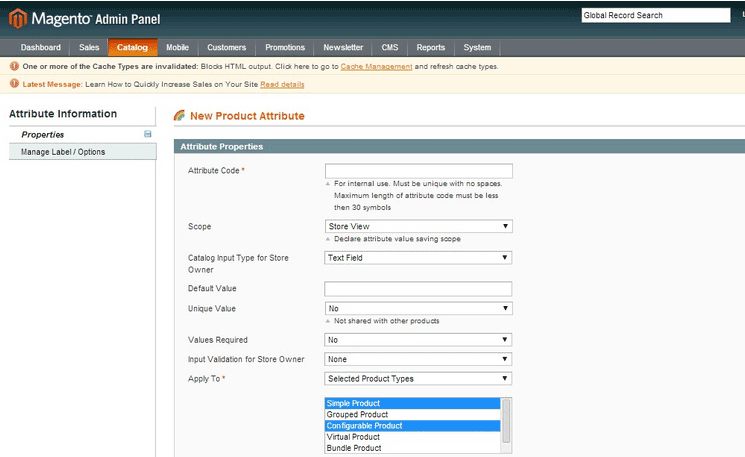
magento-2

Magento supports multi-variant products, which they call configurable products. The platform treats a configurable product as a collection of simple products, and each variation has its own SKU and inventory listing. Here are steps to adding configurable products in Magento.

Multi-Store:

Multi-store is native to Magento. Let’s say you want to sell computer parts online, and your spouse wants to sell kitchen tools. It is unlikely that you would sell both of these product lines in a single store. With Magento, you can do both by setting up separate websites, wherein each can have its own domain name.
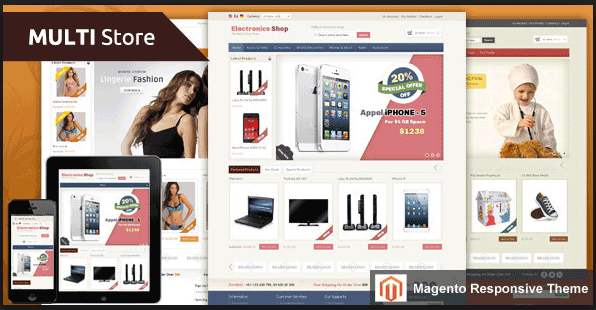
magento-multi-store

It’s possible to run WordPress as a multisite installation, and for each site, you can install plugins. Doing so allows you to control all three stores from one WP admin. However, WooCommerce doesn’t support this feature and cannot run multiple stores.

Round Conclusion:

As earlier mentioned, Magento is the better choice if you have a lot of products or products variation. Magento’s multi-store option is something to consider. While WooCommerce can handle an unlimited number of products, it becomes a lot difficult to manage if you have too many.

ROUND 4: Features and Ecommerce Trickery

Product Relations:

Magento features upsells, cross sells, and related products, which can all lead to more sales. You’re also able to add discount codes, and use an advanced filter to navigate your products. You can view them all on the same account.
magento-products

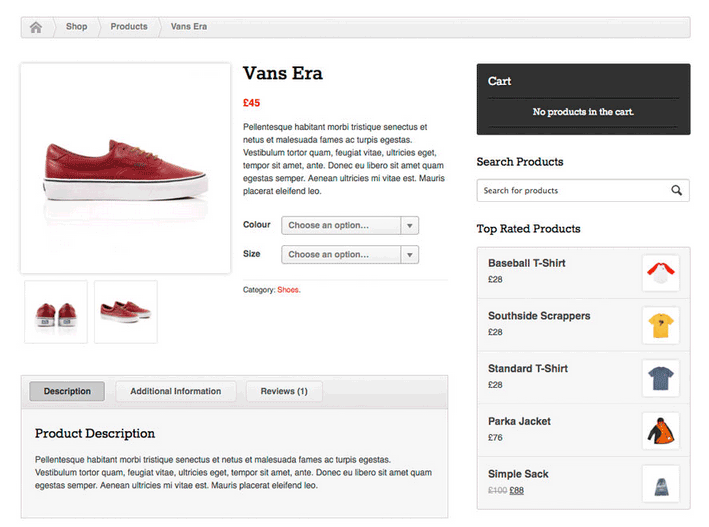
It’s simpler with WooCommerce. You can rate products and showcase best sellers, or sale items through the available widgets. Anything more complex than these features will require an add-on. The navigation is sophisticated, but not as much as Magento’s.

Integration:

WooCommerce integrates seamlessly into WordPress. It gives site owners the ability to set up and publish blog posts, as well as create content with its easy-to-use CMS. You can take advantage of the almost limitless plugins available to make your site do practically anything.

As for Magento, its CMS is nowhere near as well developed as WordPress. That is why creating a custom menu structure is more challenging compared to WP’s drag and drop user interface. To even establish a blog in Magento, an extension is required.

Navigation:

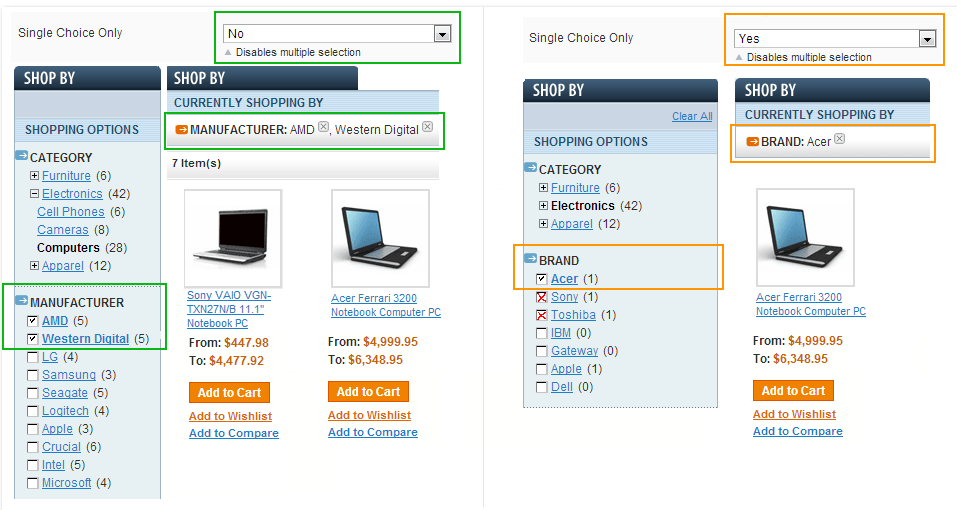
Making the navigation path simple and obvious for potential customers can decrease your bounce rate. Magento stores allow customers to filter product listings on the criteria they prefer, which includes price range, color, brand, size etc. This advanced navigation gives them a more efficient shopping experience.
magento-navigation

Just like Magento, WooCommerce also has layered navigation, but it only allows selecting a single attribute for filtering. With its custom navigation, however, you can easily mix and match categories and pages. You can arrange the menu items via their drag and drop interface.

Analytics:

WooCommerce has a built-in analytics system. It can show you data, such as total sales, sales by date, average order totals, individual customer statistics and much more. It neatly presents the figures via graphs, without the user ever having to leave their admin panel.
woocommerce-analytics

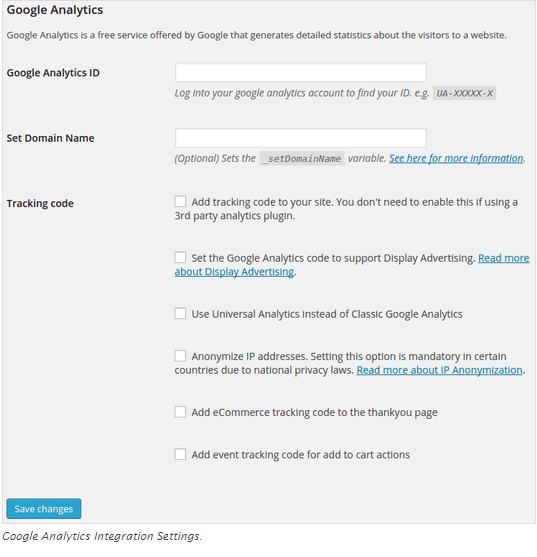
Although Magento doesn’t have their built-in analytics system, they provide a section to implement Google Analytics. Site owners can configure the free Google service to monitor their web sites’ traffic and conversion ratio. It can list and report the customers that make purchases and what they buy. You can follow these steps.

ROUND 5: SEO and Technical Support

SEO:

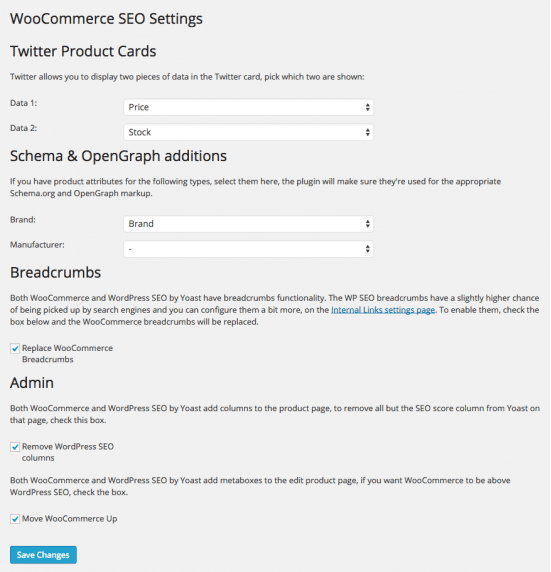
WooCommerce runs on WordPress, a renowned content creation platform. It’s one of the most reliable options when it comes to search engine optimization. Blog is organized, making it easy for admins to add and edit body content, as well as meta information. Here’s more information on WooCommerce SEO.
woocommerce-settings

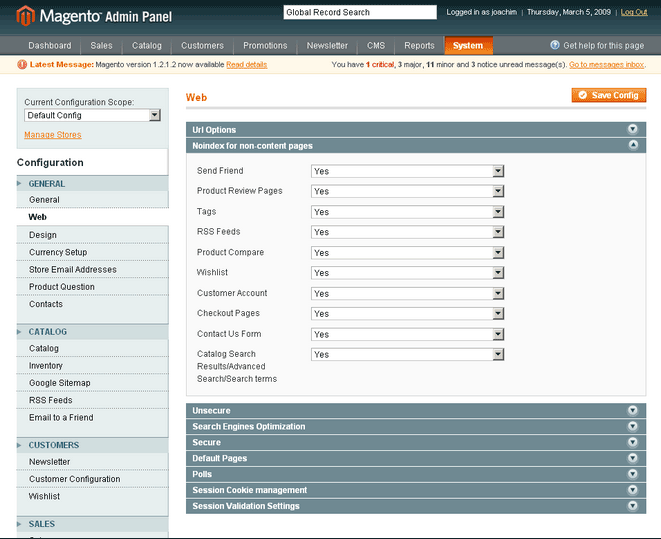
Magento is also one of the most search engine friendly e-commerce platforms. Admins can implement a bevy of SEO techniques within Magento to enhance store ranking. You don’t need to do much to improve the on-page SEO. The main thing to do is to enable the URL rewriting.
magento-configuration

Support:

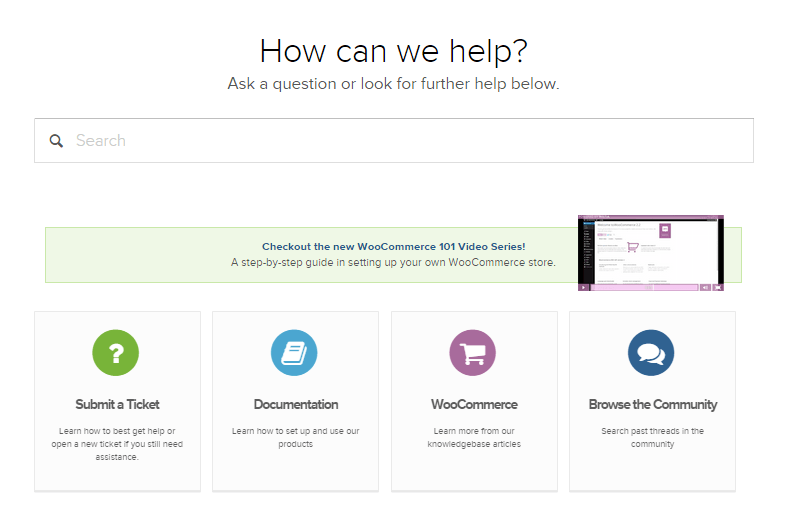
Because WooCommerce is a free platform, strict support is only provided for paid products. Most of the time, users are left to figure it out themselves. However, there are people on forums who are happy to lend a hand. And, there are companies like Wooassist, which provide a dedicated assistance with WooCommerce configuration, installation, and general use.
how-we-can-help

Although Magento’s team of support is available 24/7 around the globe, they provide resources to merchants based on the product you’re running. They offer assistance for installations and downloads, configurations, bug issues, and troubleshooting. Support for their community edition is provided through online forums as well.

Round Conclusion:

Both WooCommerce and Magento are SEO-friendly platforms. But, the well-supported and self-hosted WooCommerce can offer a wider range of free or low cost add-ons. If you aren’t technically-skilled, go for WooCommerce. Even without a strict customer care, the fact that it’s easier to use allows store owners to run it with minimal effort.

ROUND 6: Marketing Promotions and Tools
marketing-and-promotion

Landing page:

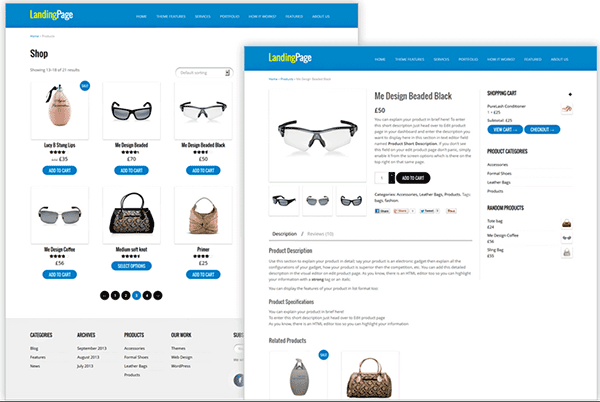
Building landing pages with WooCommerce can power numerous purchase options. Its reporting interface lets you know exactly how many sales occurred and when. You can also accept payments directly on site using any payment gateway, and can tie third-party shipping APIs to provide real time shipping rates.

There are many landing-page extensions in Magento, which can let you create multiple landing registration pages for your marketing campaigns. Similarly, it offers an affiliate tracking code to analyze the number of customers brought by each page. You can set payment configurations and shipping options for international users.

Newsletter:

WooCommerce is offering a flexible MailChimp integration for free. Admins can automatically subscribe customers to a designated MailChimp list.  It can help them stay up to date on their purchases. You can also opt for paid versions.

newsletter-configuration
Magento has its own newsletter plugin, which can help you inform customers about new promotions and discounts. The Magento Newsletter functionality allows store owners to send newsletters to clients who are subscribed to them. They also started to support MailChimp.

Round Conclusion:

WooCommerce core is bundled with numerous marketing features. It offers a simplified coupon system and improved support for discounting products to help you run sales and promotions. Marketing tools offered by Magento are neither expensive nor difficult to integrate as well.

In terms of marketing, it’s not a question of which one is better because both can be very powerful in their own rights. It is more a question of which one is right for your company.

Summary of Features and Drawbacks
woo

WooCommerce Features:

  • WooCommerce is entirely free to download and install, and there are very few server requirements.
  • Storefront design is clean and simple, but highly customizable. There are hundreds of themes available, and plenty of add-ons to optimize your site.
  • The reporting tool allows you to analyze incoming sales and reviews, stock levels and general store performance.
  • There are a variety of payment gateway extensions available. WooCommerce supports PayPal accepting credit cards and PayPal account payments.
  • Responsive design options, so your store will look good on a laptop, tablet or smartphone.
  • There is no real consensus on how many products and categories you should have.
  • Very SEO-friendly, with excellent blogging capabilities, to help you rank highly in Google searches.

WooCommerce Drawbacks:

  • Limited high-end features to support very large stores.
  • Some paid extensions are required, so the costs could quickly add up to be able to build a great store.
  • No free customer care, except for community forums.

magento-1

Magento Features:

  • Themes offer flexibility, functionality, and can be easily extended and modernized. You can customize the theme as much or as little as you’d like.
  • Magento will support an unlimited number of products and multi-variant products
  • Magento stores allow customers to filter product listings on the criteria they prefer, which includes price range, color, brand, size etc.
  • Huge community of users that offer help and support.
  • Very powerful system, so perfect for larger ecommerce stores. Scalable, so it can handle however many products you need to sell.
  • Offers multi-store feature to set up separate websites, wherein each can have its own domain name.
  • Multi-currency support, and mobile friendly with strong SEO functionality.

Magento Drawbacks:

  • Steep learning curve for those newbies. Could take a long time to learn how to use the system.
  • Add-ons are much more expensive than those available on the other platforms.
  • Its powerful system requires a dedicated server, which can be quite expensive.
  • Only offers free customer support to Enterprise version and Premium Enterprise version.
  • You might need to hire a professional who is able to code.

Are you considering moving form Magento to Woocommerce. We have done this for a number of businesses and it can be a daunting task.

The functionality does not cross over exactly and it can become complex web of options and decisions. We offer a service to help with this here

How to Choose an E-commerce Platform?
choose-platform

There are a number of things to consider when choosing the right e-commerce platform for your business. Before moving on to the final round, learning these factors will allow you to invest into an e-commerce platform that is right for your business.

Stock Size:

Consider the size of your stock, or the volume of products you’re planning to sell. If it’s just a couple of products, don’t go for a complicated platform. Make sure you’re paying the smallest amount of money for the services that you require.

Design options:

How would you like your online store to look? Most shoppers rely on site aesthetics to decide whether to trust a site. Your e-commerce platform should allow you to control and customize your online store.

Catalog:

If you’re planning on selling a diverse line of products, check the platform’s catalog features. Is it flexible enough for your presentation requirements? Be sure that it can present all of your products in the best possible way.

Payment Method:

PayPal is the easiest and popular payment processor, and not all platforms for e-commerce support third party these types of payment methods. Better check your platform-candidate regarding the payment methods they favor.

Payment Plan:

Select the platform that best suits your budget. Both WooCommerce and Magento offer free versions, but you’ll might need some extra features and extensions, for updates and maintenance. Look for opportunities to pay monthly amounts.

FINAL ROUND: Which One is Right for You?

e-commerce

Professional Requirements:  WooCommerce is extremely easy to use and can be handled even by the novice users. Magento, on the other hand, requires professional skills and some background knowledge on web development.
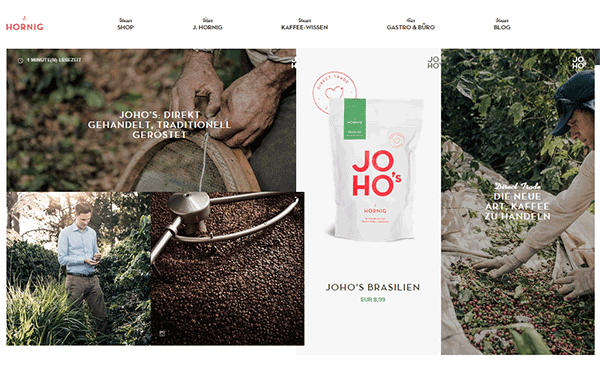
Magento Site
Magento Site

Setup and Customization: Setting up a website through Magento may demand adequate effort from the developer. Customization can also be time-consuming. When it comes to WooCommerce, you have WordPress as your structural and functional framework. Because WP’s admin panel is self-guided, a customized website can be launched in just a short period.

Flexibility and Functionality:

WordPress supports a large pool of themes and plugins, which can be applied to WooCommerce. Users are provided with flexibility both in design and performance. Compared to WP, Magento supports a smaller number of templates and extensions.
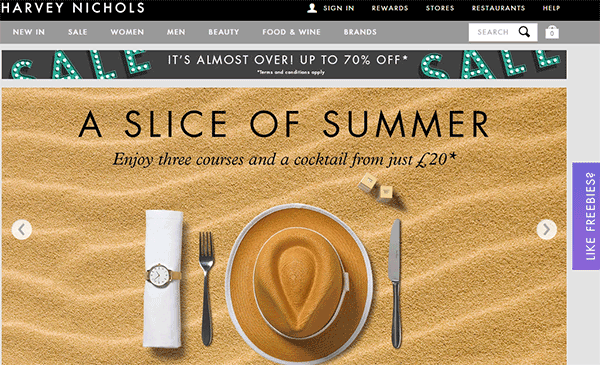
WooCommerce Site
WooCommerce Site

Premium vs. Free:

The base for WooCommerce – WordPress – is totally free to download and use or modify. Magento’s Community Edition is also free, but the Enterprise version is offered as premium. Magento extensions are also very costly. Meanwhile, premium WP templates are less expensive and easily affordable.

You’d think WooCommerce is a clear winner here, but it also has its limitations. It all depends on what your business can sustain.

Concluding Remarks:

Small and medium enterprises (SMEs) will most likely find more value from WooCommerce since it is easier to set up and use. Larger scale businesses can find more value in Magento as they are more likely able to justify the higher development costs.
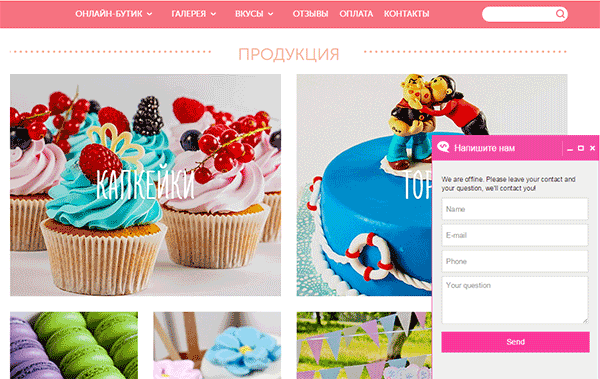
Magento Site
Magento Site

SMEs will find good value in Magento because it offers more features out of the box. Inversely, larger businesses can also still find good value in WooCommerce being a user-friendly platform.
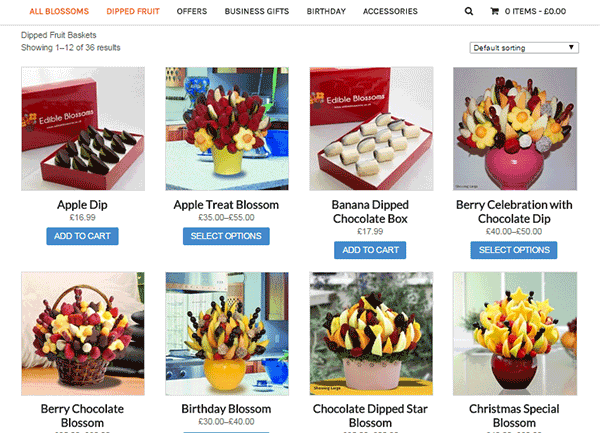
WooCommerce Site
WooCommerce Site

For larger companies selling a wide range of products, and businesses that have plans of expanding, Magento may be the best choice. For smaller stores looking for a simpler, initial user experience, WooCommerce will give you a great start.
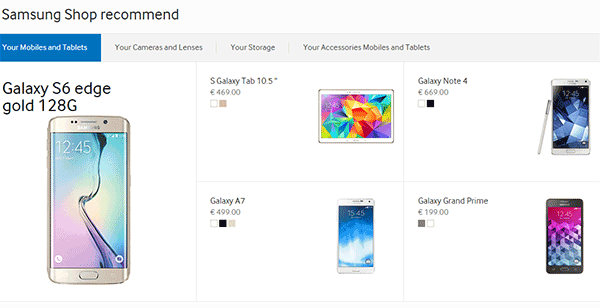
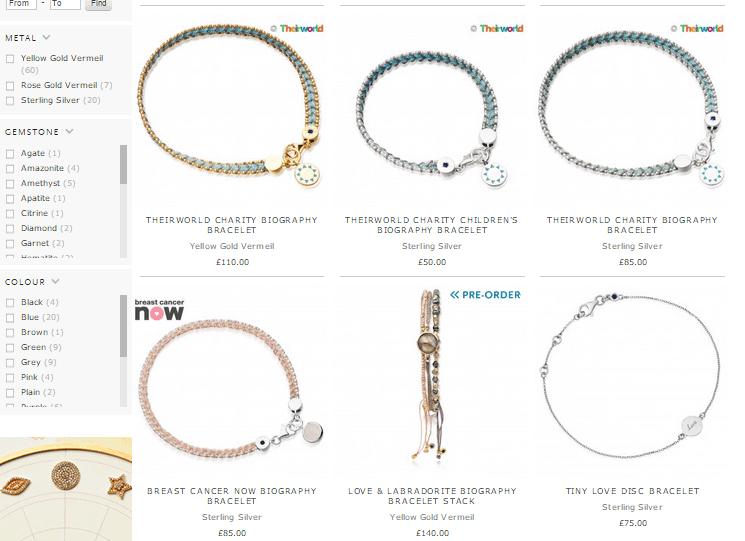
Magento Site
Magento Site

To summarize, we list down below the possible reasons you should favor one platform over the other.

When to Choose WooCommerce?

  • If you have a limited development budget
  • If you are comfortable and familiar with the WordPress platform
  • If you have less than 1000 products and product variations.
  • If you want a platform that is easier to use
  • If you only have one e-commerce store

When to Choose Magento?

  • If you have a big development budget
  • If you want more functionality out of the box.
  • If you have more than 1000 products/product variations
  • If you are more of a technical user
  • If you want to manage more than one site on one backend.

Are you considering moving form Magento to Woocommerce. We have done this for a number of businesses and it can be a daunting task.

The functionality does not cross over exactly and it can become complex web of options and decisions. We offer a service to help with this here

Filed Under: Theme and Plugin Reviews Tagged With: e-commerce, Magento, WooCommerce

How to Optimize Email Opt-in Forms for Increased Conversions in WooCommerce

May 17, 2016 By John Leave a Comment

how to optimize email opt-in formsAs part of your sales funnel, your goal probably is to convert site visitors into subscribers and later on, into paying customers. Email marketing is still one of the best means to connect with your potential customers after they’ve left your site. As you get visitors in your WooCommerce store, you’ll want to get their emails. To do this, you need to learn how to optimize email opt-in forms.

In this post, we’ll show you what you should put in an opt-in form and how to position it strategically on your e-commerce store. We’ll also introduce you to some popular WordPress plugins to easily add opt-in forms on your site.

Where can You Add Opt-in Forms?

It is useful to add opt-in forms in different sections and pages on your e-commerce store.

Landing page

Using a landing page (or a squeeze page) is the traditional method of collecting leads. Because your goal is to get people to sign up to your mailing list, every element of the landing page should support that desired action. Don’t add a side-bar because it will just distract the users from the real goal. Remove links that will take the site visitor away from the landing page before they even fill out and submit the opt-in form.

Feature Box

A feature box is a full-width email opt-in box usually added on top of your homepage. Some do not use a feature box because of two things: it takes up the most valuable space on your homepage, and it seems pushy to immediately ask for an email address. To validate the feature box’s location and avoid getting negative attention from site visitors, make sure that what you’re offering is definitely useful in exchange for their email address.

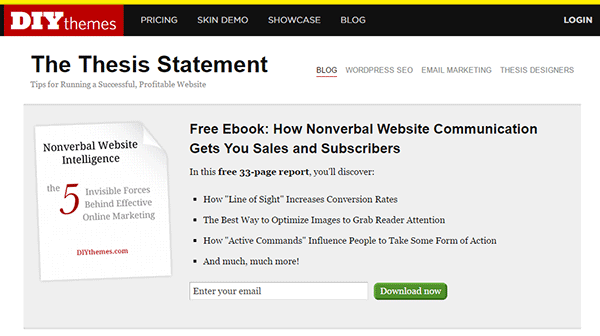
As an example, the use of a feature box on DIYthemes’ blog resulted in a 51.7% increase in its daily blog subscription.feature-box_DIYthemes

Pop-up Window

Because of its nature of ‘popping-up’ and interrupting the user while browsing the site, many visitors don’t like pop-ups. Nevertheless, a pop-up window is still one of the most effective lead generation tools. A lightbox works the same way as a pop-up window, but the rest of the site is darkened to make the form stand out.

Note that the timing should be perfect to avoid hindering good user experience. Once seen, you have only 1-2 seconds to grab the user’s attention and pique their interest before they close the window. Here are some examples of high converting pop-up email forms.

Opt-In Forms in Other Pages

options-2Apart from the feature box in the homepage, you can insert more opt-in forms in other pages (About page and Splash page) and in other page sections (top of sidebar, sticky top bar and below the footer).

The About Us page is usually one of the most visited pages in any website, so it’s a good idea to make the most of that traffic.

In a Kissmetrics review, using a splash page might be a better idea than a pop-up on the homepage. A pop-up is frowned upon because it interrupts the user while browsing the site. A splash page appears as a preliminary message. As such, it is better perceived.

Sidebar Opt-In Form

A sidebar opt-in form is the most common email list building method mainly because it is built in to most website templates. Keep your opt-in form to the top of your sidebar though, to maximize results.

Sticky Top Bar

Because a sticky top bar remains visible on top of the page even as you scroll down, visitors have plenty of time and opportunity to notice the message and eventually subscribe.

Components of an Opt-In Form

Once you’ve determined where you want your opt-in forms, the next step is to create them. To increase your chances of getting sign-ups, your opt-in form should have the right timing, design, form fields and copy.

Timing

15-seconds_traffic-stoplightIn using a pop-up window, you need to properly time it. You can set a time delay before showing the pop-up. If it’s too early, you’ll annoy site visitors even before they’ve taken a look of your site and what you have to offer. A 15-second delay is enough time for visitors to look around your site and not be too bothered with a pop-up. Note that this does not necessarily apply to your target audience. It’s best to conduct your own tests.
You can also show pop-ups as visitors reach the bottom of your content or as they exit your site.

Design

To effectively connect with your visitors as they quickly scan your opt-in form, you need to add visual elements that enhance your messaging. Humanize your opt-in form with a photo. Inject credibility with a testimonial or statistic. If your opt-in form is not a pop-up, make sure it will get noticed but at the same match your site’s theme.

Form Fields

More people sign up when less form data is requested. Note that you just need the email address of your site visitors for email marketing purposes. Usually just a name and email in the form will suffice. You can even make the name optional.

Concise Copy

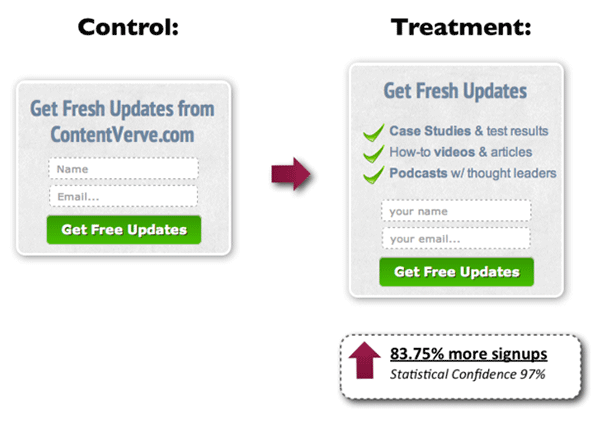
Make your opt-in form copy as concise as possible. It’s important to present a clear purpose when asking for personal information. Spell out what your site visitors will get in return. You can also assure them that you won’t sell their addresses to a third party or spam them. BeemDigital showed an 83.75% increase in sign-ups when they added value and relevance to their opt-in form.

concise-copy_Contentverve
Image Credit: http://contentverve.com/how-to-write-high-converting-signup-form-copy/

Another effective tactic is to offer a lead magnet, like a free e-book, product trial, discount, or even free shipping. On a side note, you can set up the incentive in such a way that your new subscribers won’t unsubscribe immediately. If you’re offering a free e-book, break it up in parts and offer them in a series of emails. Entice them to want to wait for what’s coming next.

Recommended Opt-In Form Plugins for Your WooCommerce Store

In choosing your opt-in plugin, consider what features you need and choose a plugin that provides just that and nothing more. Anything more is just extra bloat on your site. Below we list some of opt-in form plugins that we can recommend.

OptinMonster

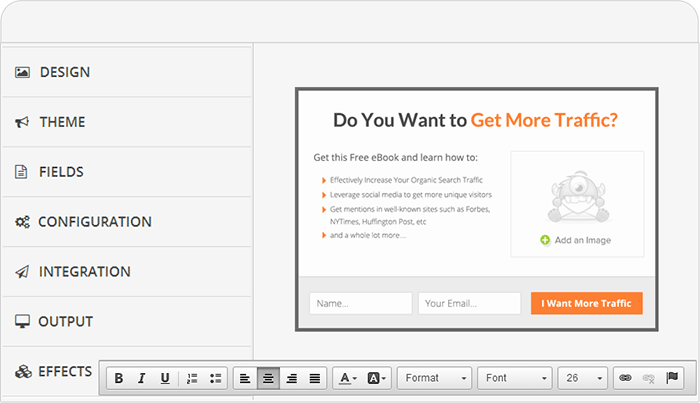
optinmonsterOptinMonster is a paid pop-up plugin that offers a wide range of functionality. It comes with an easy-to-use form builder that allows you to create various types of opt-in forms including WordPress popup forms, floating header and footer bars, slide-ins also known as scroll triggered boxes, sidebar forms, after post forms, in-line forms, mobile-specific forms, and welcome gates. Other features are exit-intent technology, page-level targeting, behavior automation and A/B testing, and a 2-step opt-in process.

PopupAlly

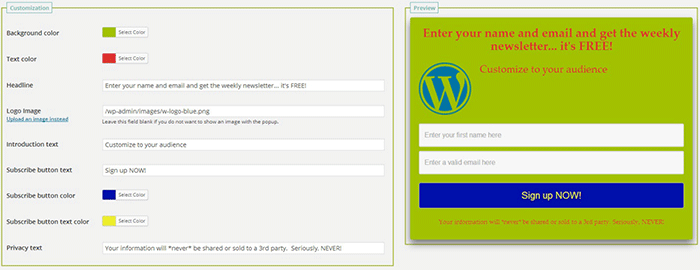
popupallyPopupAlly’s free version allows you to create advanced popup signup forms even if you don’t know how to code. You can also embed opt-in forms at the bottom of your posts, set a few seconds’ delay or have the pop-up appear as the users leave your site.

Its premium version, PopupAlly Pro, has an optimized interface and extra features. This includes more customizable templates, more opt-in options (horizontal, sidebar, below-the-post, etc) and allows for any web fonts to be used. Click-based and scroll activation timing features and one-on-one email support are available only with the premium version.

Hello Bar

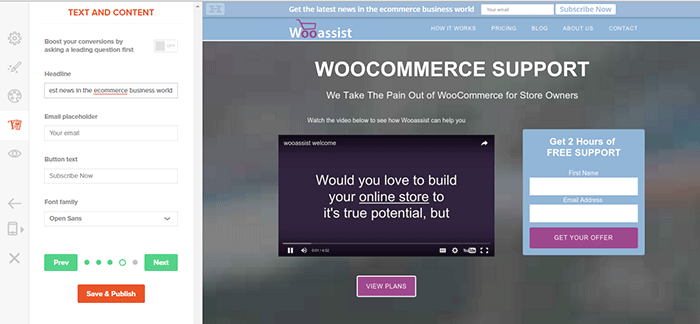
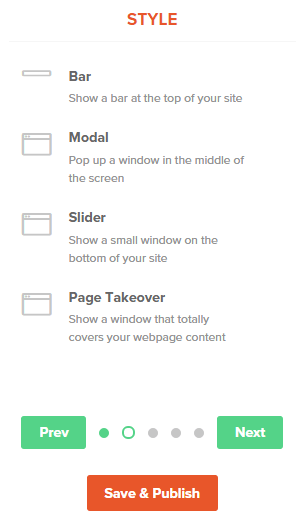
hellobar_wooassist pagehellobar_style menuHello Bar is a free plugin that allows you to copy and paste a code snippet from HelloBar.com straight to your WordPress admin interface. Above is the HelloBar interface from the website. You can choose from several goals like grow your email list, promote your social pages, promote an offer, or add a contact form. You can choose from several styles of opt-in forms and even change the colors to match your website’s colors. To set up HelloBar, just visit the site to configure. The interface is very straight forward so you should have the design in minutes. To apply this to your site, just install the free plugin that is generated specifically for your website. This plugin will only work for the site that you registered it for. You can just create a new one for another site.

This plugin also comes with A/B testing so you can easily optimize for increased conversion.

Ninja Forms

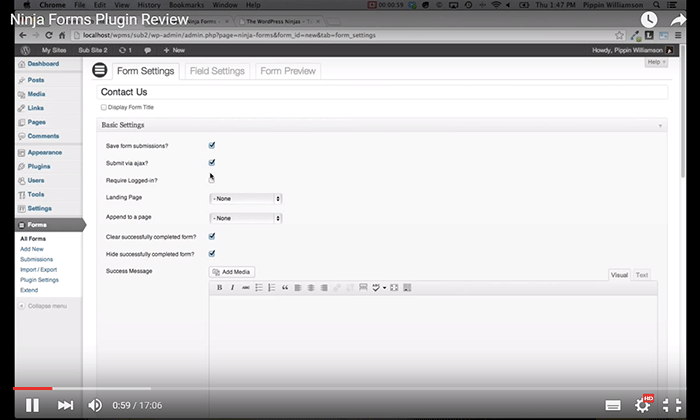
ninjaformsNinja Forms is a plugin built with developers in mind. Included are hundreds of functions, action hooks, and filters that developers can use to create their own custom functionality. Customize field options and forms with its extensive settings. Add a Ninja Form to your e-commerce site easily with a widget, shortcode, template function, or append it automatically to any content. Upgraded bundles include automatic updates, add-ons and sites per add-on, and email support with faster response time.

Which Opt-in Forms Leads to More Conversions?

arm-wrestling-2There is no single correct answer to this question. Different websites vary in terms of design and market. This article could help point you in the right direction, but there are a lot of things you need to figure out for yourself. Get to know your customers by creating a customer persona. When you are able to identify your customers, you’ll know how to market to them. From there, you can create a sales funnel that works for you. Use heat maps like CrazyEgg to find out where your visitors click. Constant A/B split testing will help you determine what variation converts better.
Conclusion

Opt-in forms should be placed strategically throughout your website. Optimize them so they are easily visible. Make them stand out. These forms should offer value and relevance to encourage users to subscribe. Enhance copy with visual elements and keep form fields to a minimum. If you decide to use pop-ups, you need to time them correctly so as not to be intrusive. Make sure you’re getting the most of your opt-in plugin’s features without sacrificing site performance. When your opt-in forms are set up, you need to conduct your own split testing to optimize for maximum conversion.

Hope this article helped you out. Do you have any strategies you’d like to share for increasing opt-in form conversion? Do you want to add something that we might have missed? Let us know in the comments section.

Filed Under: How-To Articles, Theme and Plugin Reviews Tagged With: best practices, conversion optimization, design tweaks, how-to, marketing strategy, plugins, PopupAlly, website development, WordPress

Storefront Theme Review

January 1, 2016 By John Leave a Comment

Storefront is the official WooCommerce theme built to the same high standards as WooCommerce itself. Best of all? It’s free!

storefront

A Storefront theme review is due. Here’s what’s included in this article:

  • Storefront Theme Overview
  • Storefront Key Features
  • What Makes Storefront Great
  • WooCommerce Integration
  • Storefront Setup
  • Arrival of Storefront 1.5
  • Storefront WooCommerce Styling
  • Popular Storefront Extensions
  • Choosing A Theme

Why WooCommerce?

WooCommerce is still the most popular e-commerce platform.

This open source e-commerce plugin for WordPress was launched in 2011 and is aimed at small-to-medium online merchants already comfortable with a WordPress set up.

There are a lot of free and premium themes to choose from, one of the most popular is – Storefront.

Storefront Theme Overview

Storefront is described as an intuitive, lightweight, and flexible theme offering deep integration with WooCommerce. It has several layout and color options to personalize your shop, multiple widget regions, a responsive design, and much more.

The main goal in developing Storefront is to provide a rock-solid foundation for your WooCommerce store without extra bloat or features.

It comes to no surprise that it reaches up to 3,000 downloads per day:

Integration:

Storefront theme is built and maintained by the same team that developed WooCommerce. This is why the integration between WooCommerce, its extensions, and Storefront is water-tight.

No Conflicts:

For e-commerce sites, uptime is of utmost importance. With the new Storefront, there will be no conflicts between theme and plugin during major WooCommerce updates.

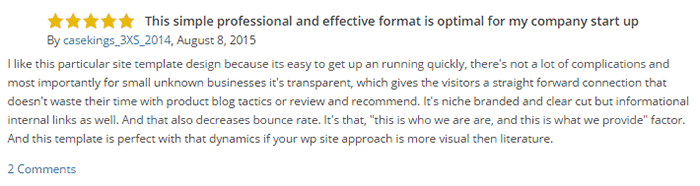
storefront-reviews

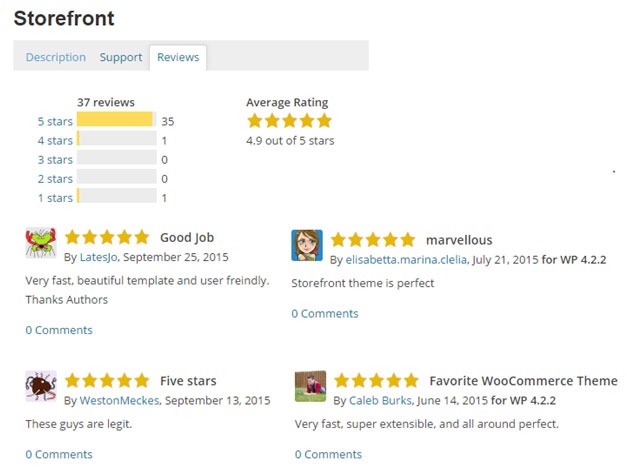
Here’s a glimpse of some of its great reviews:

Solid Foundation:

Based on the popular Underscores starter theme, Storefront features a responsive layout, and schema markup for enhanced SEO performance.

Clean and Simple:

storefront-clean-simple-design

Storefront allows you to customize your store to match your brand by providing a clean and simple design.

Storefront Key Features

Most store owners want their e-commerce theme design to be simple and flexible. Storefront can offer exactly that.

Here are some of the key included features:

WooCommerce Integration

storefront-woocommerce-integration

Storefront features an unrivalled deep integration with WooCommerce. Of course, having been developed by WooCommerce authors, this integration is compliant with the latest WooCommerce developments and standards.

Lightweight and Robust Core

Storefront-Lightweight-and-Robust-Core

Storefront is based on Automattic’s popular underscores starter theme. Its codebase is under constant review ensure it is kept nice and clean to provide as little disruption and conflicts as possible..

Design Customization

storefront-design-and-customization

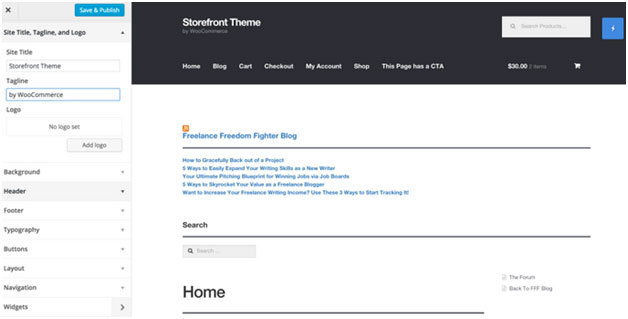
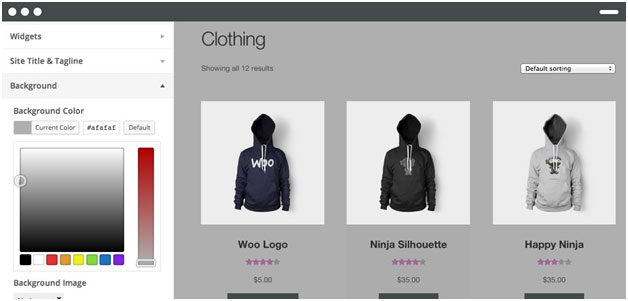
Every store owner would want to create a look and feel that matches their business. There are several display settings in Storefront that let you customize the design of your page to meet your requirements. Settings are all accessible in the WordPress Customizer.

What Makes Storefront Great

what-makes-store-front-great

The Storefront philosophy is to do one thing well and provide a solid foundation for your online store. Although the theme appears to be plain, it’s meant to be a starting place that includes deep WooCommerce integration.

Keep in mind that simple is usually more profitable. Unless you are spending a few grand on a professional designer then the fancy design you try and add yourself will most likely distract the user and lose sales.

No Shortcodes and Page Builders

Shortcodes in WordPress are little bits of code that allow you to do various things with little effort. You only get what you need with Storefront, which means you won’t encounter any superfluous shortcodes and page builders.

The Storefront team believes that not including these features allows you to add them via whichever plugin you prefer. Even if you switch themes later on, all of those features will remain. According to the release announcement, Storefront was built with data portability in mind. This means that users will be able to switch themes without losing their content.

Appropriate Sliders

Whether you should use slider is a highly debated topic. While other WordPress themes bundle sliders, Storefront lets you choose the appropriate plugin for your slider needs if you decide you do want one. It is also compatible with the WooSlider plugin.

WordPress offers many slider plugins to add them to your home page, landing pages, posts, or anywhere you want.

storefront-slider

Schema Markup

Schema markup is code that you put on your website to help the search engines return more informative results for users. The content on your website gets indexed and returned in search results. Storefront has valid schema markup for improved SEO performance.

Display Options

storefront-display-option

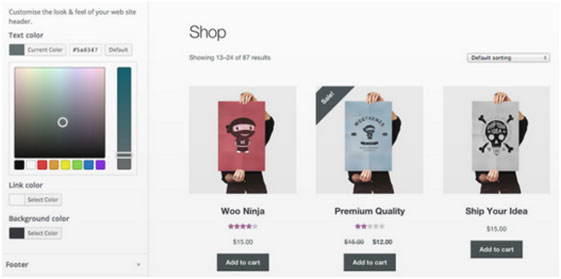
In addition to attractive products, the design of your shop is equally crucial. It’s important to make a good first impression with the help of professional design. With Storefront, you can change the look and feel of your store in a few clicks, and see your tweaks in real-time.

Responsive

If your site can’t be viewed effectively on mobile devices, you could be losing almost 50% of your customers.

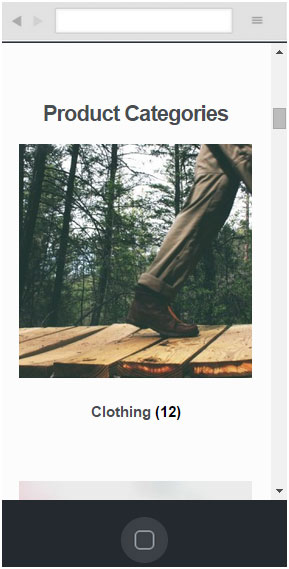
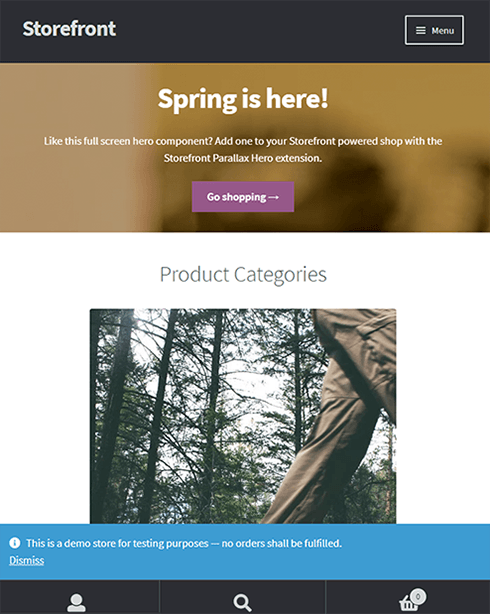
Storefront on mobile device:

storefront-on-mobile

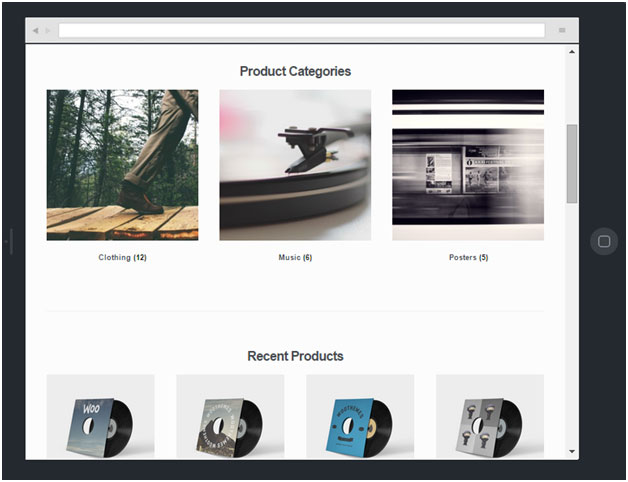
Storefront on tablet:

storefront-on-tablet

Non-responsive sites are now considered second-class businesses by Google. Storefront will adapt and display beautifully whether you view your store on a laptop, desktop computer, or handheld device.

Localized and Accessible

Storefront is fully localized and ready for your translations. It also adheres to the strict wordpress.org accessibility guidelines. That is why your store will be accessible to the widest audience possible.

Custom Homepage Template

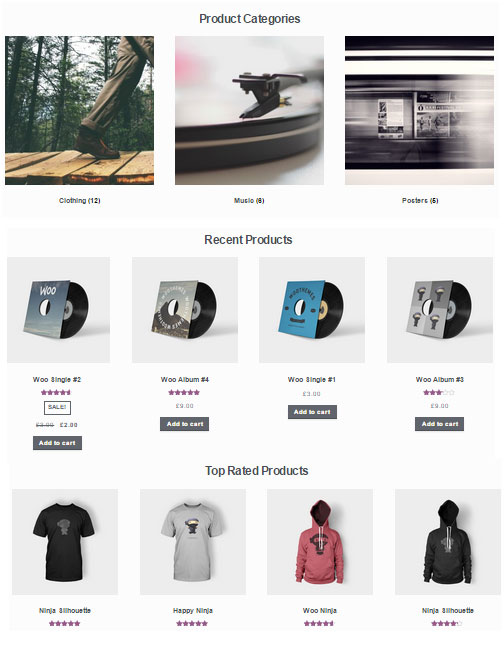
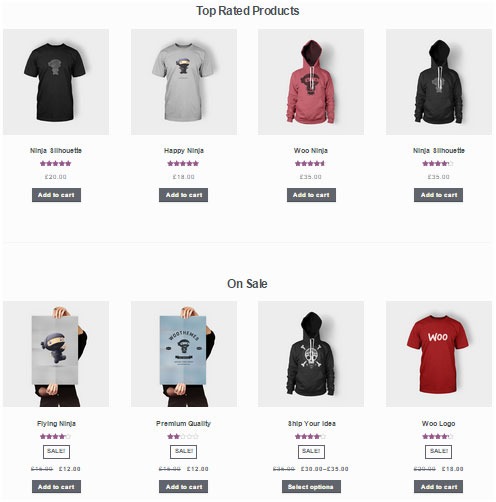
The homepage template in Storefront has been tested for user experience and conversion. It displays product categories, recent, featured, on sale & top-rated products.

storefront-custom-homepage-template

It’s a great start for most small businesses to immerse the visitor in your products, while providing enough flexibility to promote the products that will make you the most profit.

WooCommerce Integration

It includes deep integration for WooCommerce and it’s most popular extensions. This means everything will look nice straight away and you won’t have to hire a professional developer or designer to make things fit in.

Some of the more popular extensions supported are:

WooCommerce Bookings

storefront-woocommerce-bookings

This extension is perfect for those wanting to offer services, appointments, or rentals. It allows you to sell your time or date based bookings, adding a new product type to your WooCommerce site.

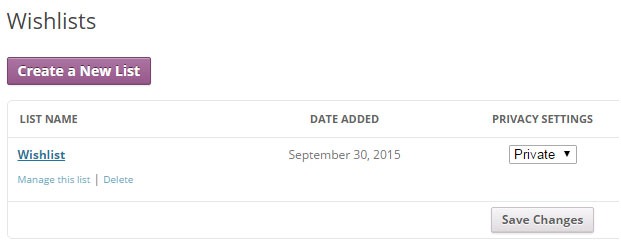
WooCommerce Wishlists

storefront-wishlist

From birthdays to weddings, and everything in between, this extension allows guests and customers to create and add products to an unlimited number of Wishlists.

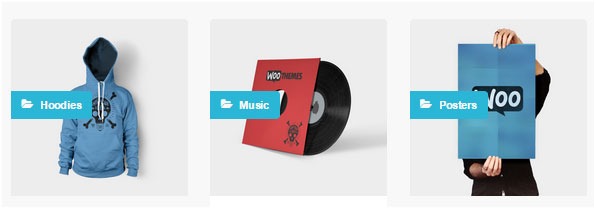
WooCommerce Brands

storefront-brands

This extension for WooCommerce allows you to create brands for your shop; each brand can be named, described and assigned an image.

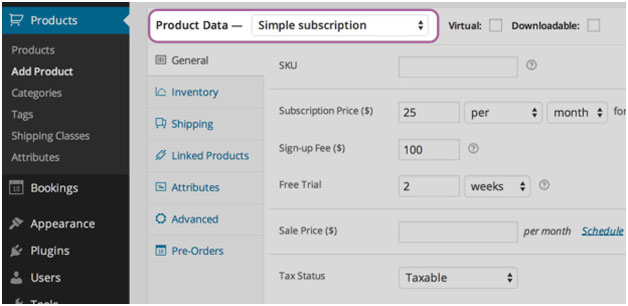
WooCommerce Subscriptions

storefront-subscriptions

WooCommerce Subscriptions is an extension that allows you to introduce a variety of subscriptions for physical or virtual products and services. Create product of the month clubs, weekly service subscriptions, or even yearly software billing packages.

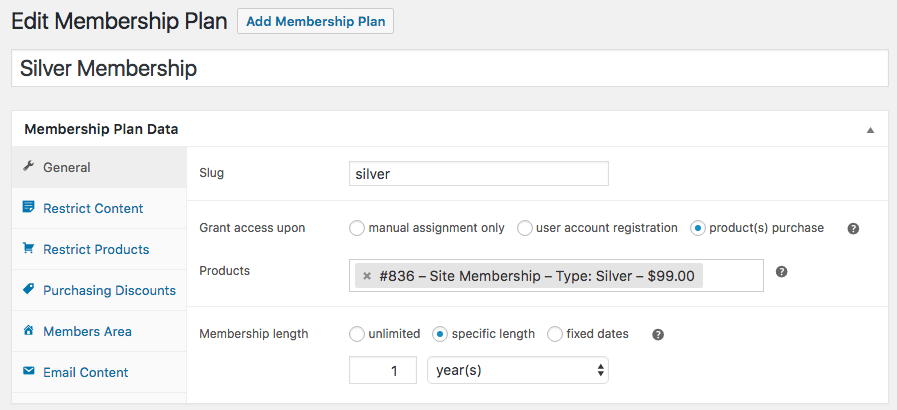
WooCommerce Memberships

WooCommerce Memberships

WooCommerce Memberships allows you to create a membership system that is tied completely to your WooCommerce Store. It is fully compatible with Storefront theme. You can restrict content to certain memberships classes. You can also turn your store into a membership club by restricting purchases to members. Among other useful features, you can even give members special discounts.

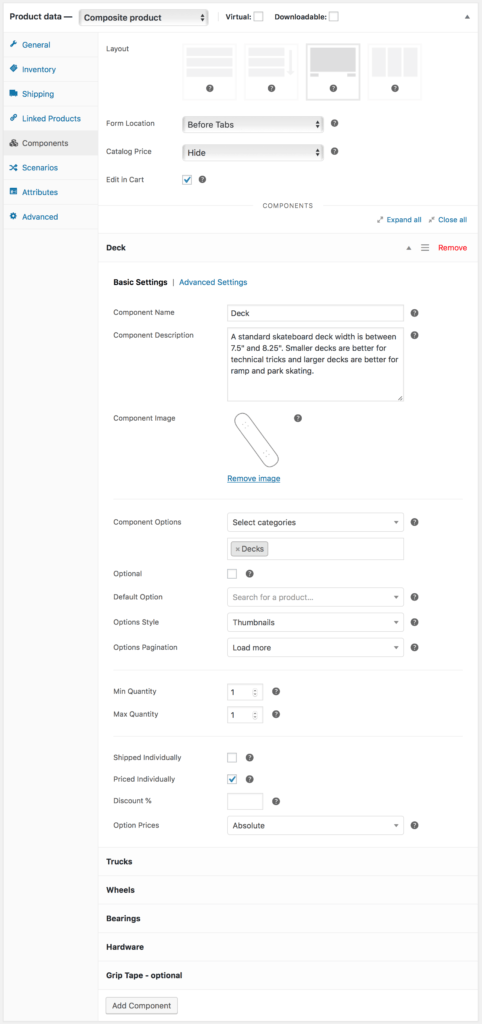
Composite Products

Composite Products allows you to create customizable products for your WooCommerce store. It is now fully compatible with Storefront theme. You can allow your customers to customize certain parts of their order.

WooCommerce Composite Products

Storefront Setup

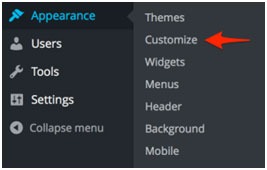
Almost all of the Storefront setup can be done via the theme Customizer.

storefront-setup

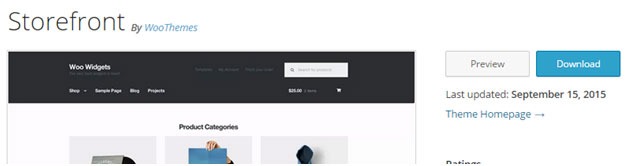
The easiest way to install Storefront is through the WordPress dashboard.

  1. Navigate to Appearance > Themes > Add New
  2. Hover over the Storefront screenshot and click the ‘Install’ button to install the theme.
  3. Activate Storefront as you would any other WordPress theme.

To install Storefront manually:

storefront-manual-install
  1. Download the latest version here.
  2. Upload the extracted folder to the /wp-content/themes/ directory on your server via FTP
  3. Activate Storefront from the Appearance > Themes screen in your dashboard

Read more on how to install and use themes here.

Menus

Storefront has two menu locations, Primary and Secondary. If you do not assign a Menu to the primary navigation, it will display each of your pages. On the other hand, the secondary navigation will display nothing.

storefront-menus

After activating Storefront for the first time, you won’t see anything in the secondary navigation. Here’s your guide to creating and assigning menus to theme locations.

Page Templates

Storefront comes with just two page templates.

Full Width

storefront-fullwidth

This is just a standard page template without a sidebar, allowing the content to span the full width of your site.

Homepage

storefront-homepage

The homepage template allows you to display a multitude of products and product categories.

Here’s a Woothemes guide on installing and configuring Storefront.

Arrival of Storefront 1.5

After the success of Storefront comes the newly improved Storefront 1.5, which achieves another coveted tag on wordpress.org. Its primary feature? A support for right-to-left languages in Storefront. The traditional RTL support standard overloads an additional stylesheet on top of the primary one.

storefront-version1-5

With Storefront 1.5, if you install WordPress in a right-to-left language, the theme will automatically recognize it. It will then load a different set of stylesheets tailored to that language. This makes Storefront a stronger global theme solution for WooCommerce.

You can also expect the following improvements:

Integration with More Extensions

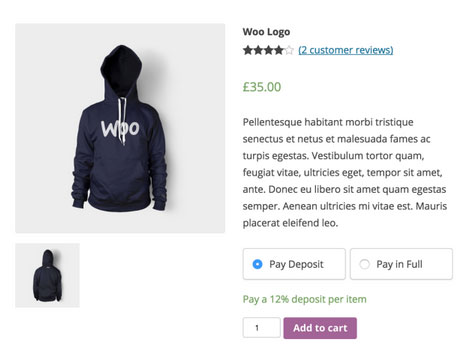
storefront-integration-extentsion

Storefront 1.5 has increased the number of customer-facing extensions it integrates with to 11. It offers added support for WooCommerce Deposits and Product Bundles.

Revamped 404 Page

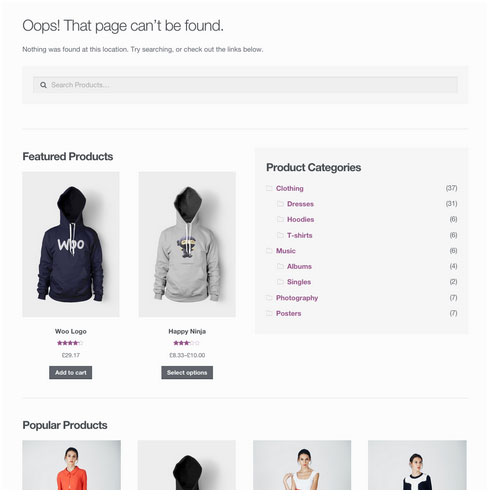
storefront-revamped-404

Storefront 1.5 is now made to be more useful to folks browsing a shop. The new 404 page now includes a product search box, links to product categories, featured products and popular products.

Featured Images

The previous version of Storefront didn’t cater to adding featured images to pages. Now, once you add a featured image to a page, it will appear on the frontend directly above the page title.

Scrolling Header Cart

storefront-header-cart

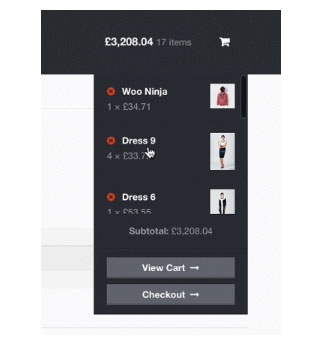
Considered a handy feature, the header cart lets visitors access their cart total, and the number of items it contains. It also reveals the carts contents upon hover. Using Storefront 1.5, the cart dropdown now has a set height that scroll as more items are added.

You can check out their awesome video about Storefront here.

Storefront WooCommerce Styling

A lot of themes we see, from Themeforest especially, do not style WooCommerce according to the best practice standards set by the Woocommerce authors.

The most common problem is overriding templates.  This causes the cost to update WordPress, Woocommerce and the theme itself to sky rocket down the track. You won’t have this problem with Storefront.

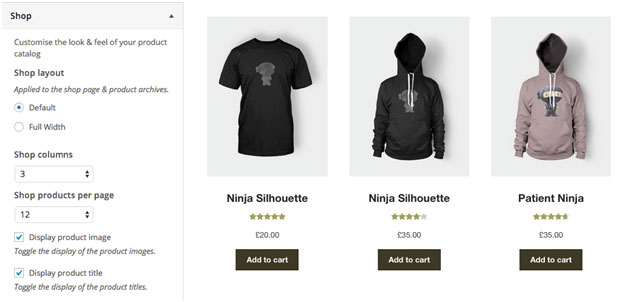
Shop Pages

storefront-shop-pages

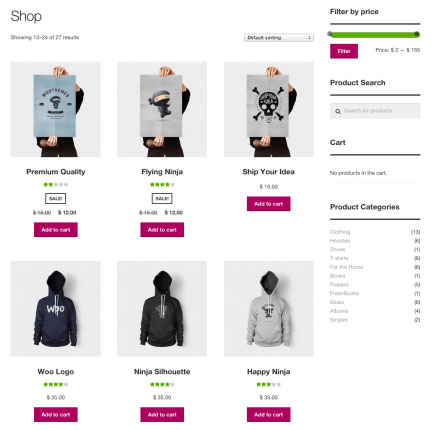
When it comes to shop pages, you can style for all product details and WooCommerce widgets, such as the price filter. The number of products per page is also automatically adjusted to 12.

Single Product Page

storefront-single-product

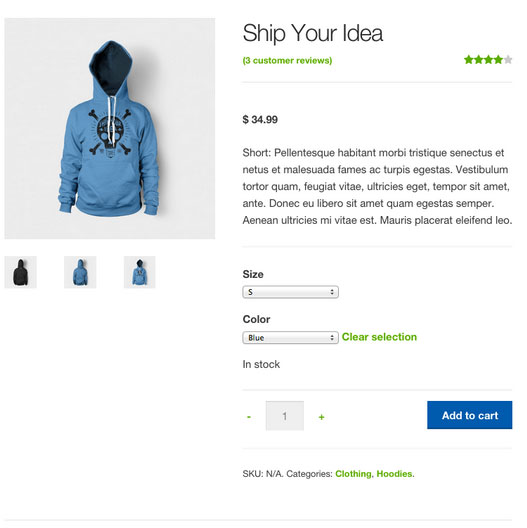
Single product pages include appropriate WooCommerce styling as well. The product tabs are presented in a vertical layout, and the number of related products is adjusted to three.

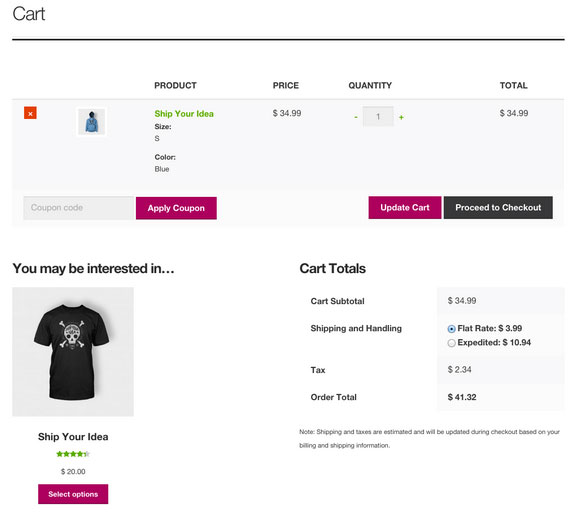
Cart and Checkout Page

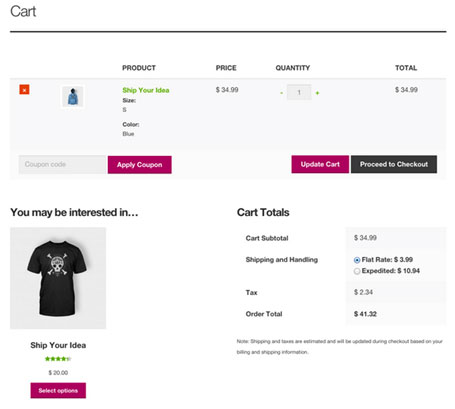
storefront-cart-checkout

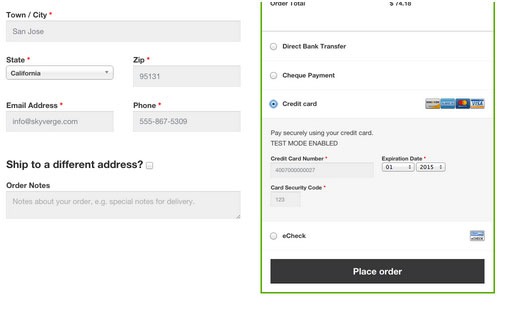
The checkout template features a two-column layout, with customer details on the left, and order details on the right. The ‘Place Order’ button is also always in view, making it easy to complete orders for customers.

storefront-place-order

And Now, It’s Storefront 2.5

Improved Mobile Design

From Storefront 2.0 and up, the theme now offers an improved mobile design for better mobile experience. The header section has been redesigned so that the content appears further up. This ensures that your visitors see more of the content on your WooCommerce store right away.

Storefront 2.0 Mobile View

New typography

Storefront 2.0 and up introduces a new font. Default font for WooCommerce has been changed from Helvetica to Source Sans. The font change provides users “greater depth and cohesion”. Some other small changes have been made to the design to fit the new font.

Introducing “Best Selling” Products

The theme also now offers a “best selling” products section on the home page. This is separate from product categories, recent products, featured products, top rated products and on sale products. Also, “Recent Products” has been renamed to “New In” and “Featured Products” have been changed to “We Recommend”.

Improved Appearance for Better Overall User Experience

Some other small changes have been put in place for better user experience. These include changes to styles, tables and embeds. The developers have also integrated with WordPress 4.5’s custom logo functionality. Adding a logo to your WooCommerce store is now made easier. Now there’s no need to install a plugin just to add your logo.

Popular Storefront Extensions

While Storefront provides a lot for free, there are some premium \add-ons that can add functionality or styling options to the theme.

Storefront WooCommerce Customiser

storefront-customizer

Without any custom code you can change or adjust labels and number of products displayed in homepage sections, which product details are shown on shop pages, and more.

It also lets you remove the product search and cart from the header.

Storefront Designer

storefront-designer

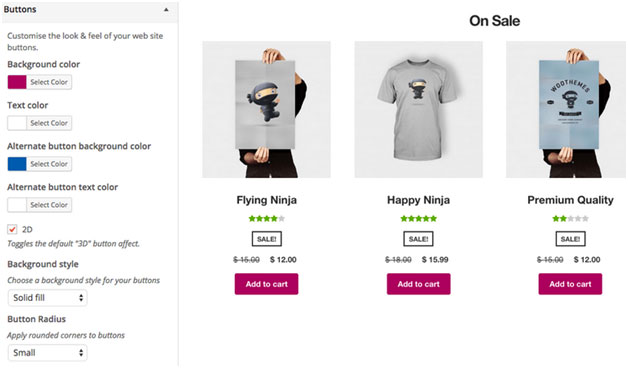
The Storefront Designer plugin adds the ability to change header layouts and make the header remain at the top of the page on scroll (sticky header). It also allows you to adjust button layouts and styles, and change some typography options.

Storefront Parallax Hero

storefront-paralax-hero

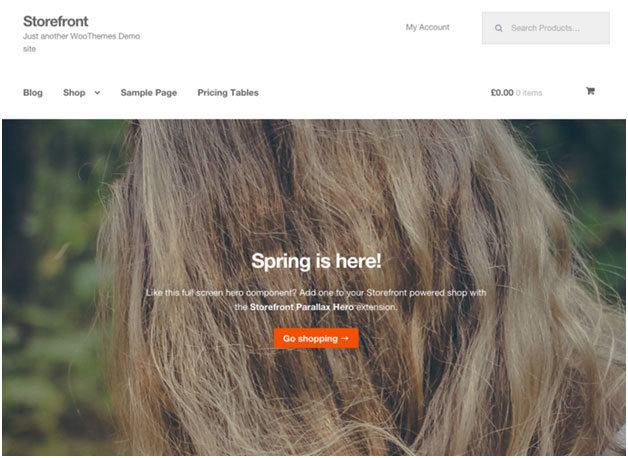
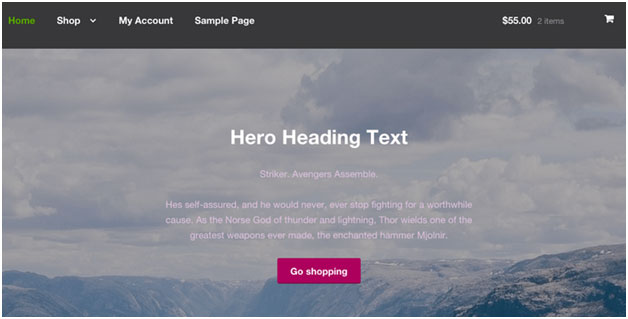
This plugin can be used to display a message and call to action over the top of an image on your homepage. It has a parallax effect, which means as the user scrolls the text and button appear to move over the image.

Child Themes

What is a child theme? According to the WordPress Codex:

A child theme is a theme that inherits the functionality and styling of another theme, called the parent theme. Child themes are the recommended way of modifying an existing theme.

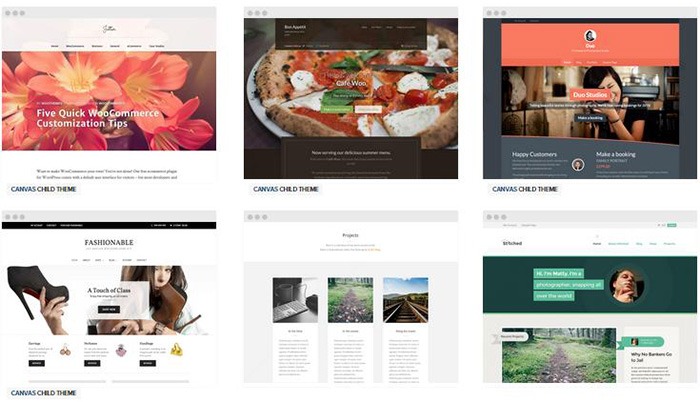
In the case of Storefront, Storefront is the parent theme. You can check out the available child themes here.

Importance of a Child Theme – Easy and Safe Updates

When using a child theme, you will not lose any custom code or any custom styles that you have added to the child theme whenever you update the parent theme. Many website owners have learned the hard way losing custom code they have added to their themes after updating it. If you have a child theme, your custom updates are safe whenever a new version of the parent theme is available. We still recommend creating website backups every time you update your theme though.

Storefront: The Final Analysis

Simple, clear, and customizable, the Storefront theme for WordPress has everything to help you achieve success in e-commerce. For a free theme, the design is simple and no-nonsense and WooCommerce integration is unmatched by any other theme.

It may be too plain for some and if you are one of those, just ask yourself. Is it your personal taste and desire for it to look pretty, or is it a decision based on your user experience and the ultimate profitability of your site? In our experience, often the simpler the site the better is the user experience and the more profitable the website.

However, if you can’t find a Storefront child theme that resonates with you and don’t want the cost of a professional designer you might want to take a look at http://www.studiopress.com. They are the only other theme author we recommend if you don’t want to have troubles down the track when it comes to updates and customizations. It will take a bit more time to integrate with WooCommerce, but they have some lovely designs.

Filed Under: Theme and Plugin Reviews Tagged With: 404 error, checkout form, child theme, e-commerce, mobile friendly, plugins, shopping cart, Storefront, WooCommerce, woothemes

Choosing a Theme for WooCommerce – What to Consider?

October 23, 2015 By John Leave a Comment

There are thousands of free and premium WordPress themes. You might need some help in choosing a theme for WooCommerce. But how exactly do you pick one that’s right for your Woocommerce store?

This article explains what to look for to fit the design requirements of your store and also the functionality requirements and to make sure your new theme will play nicely with Woocommerce.

Different themes have different layout styles. Knowing what you want or need will make looking for a theme easier. Right sidebar, left sidebar, full-width, or maybe parallax? Are you going to be using image sliders? Also, it is important that the theme that you choose supports WooCommerce integration.

Once you know what you need, it might be a good idea to talk it over with your web developer. He might already know of a theme that will suit your purpose.

woocommerce-themes

Here are some criteria for choosing your theme:

Aesthetic Needs

Of course, you shouldn’t focus on the look alone. But, you also need to make sure that the theme matches the look and feel you want. You may be able to customize colors, but major changes on the design are best left to pros. As you choose a theme, it should meet at least 80% of your layout, visual, and content needs.

Stay away from poorly coded themes as this could spell problems for your website down the track when updates are needed.

Many themes also offer a lot of other functionalities that allow users to easily edit the look of their site. However, such themes could add unnecessary bloat to your website. This unnecessary bloat could put strain on your page load times and cost you sales.

Be cautious of Themeforest themes as they are notorious for this. Instead of using a theme with many customizable options, you’ll be better off editing the CSS of the child theme to get your desired look.

We recommend Genesis themes and Storefront.

WordPress Updates

Most themes should support the latest version of WordPress. Still, you should verify before making your purchase. Some older themes that are no longer being updated may not support the most recent updates to WordPress. It’s important to keep up with WordPress updates for functionality and security purposes.

WooCommerce Compatibility

Your theme should be able to integrate with WooCommerce.

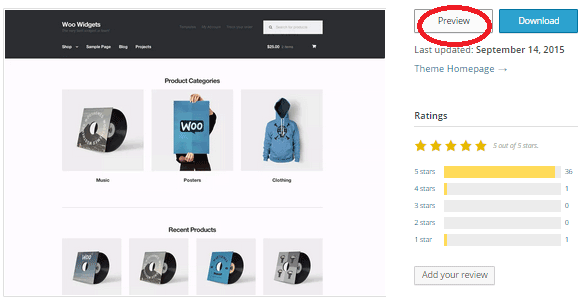
WooThemes recommends doing a quick check. Take a look at the theme’s demo and view the source code. You can do this by right-clicking on the page and clicking on “View Page Source”. Look for the WooCommerce version meta tag. Search for the words: WooCommerce Version

The closer it is to the current release of WooCommerce, the better. If it is nowhere near, look elsewhere for a better theme.

Also, go with a theme that has less custom WooCommerce templates. This is because having a lot of WooCommerce templates customized will be a pain to update.

The theme should not have a lot of unnecessary customizations which can be done through a plugin.

Multiple Layouts

Review the theme description and demo to ensure that the theme supports the layout you want to create.  Look for the theme’s documentation and review it to know if the theme can accomplish what you need.

storefront

Don’t just assume that the theme you chose will accommodate one or two sidebars, full width pages, or columns within content.

Theme Navigation

How many menus do you plan on having? Some site owners need secondary menu for categories. Check if the navigation bar can accommodate all your primary menu options. If you hired a web developer, discuss your content sitemap and navigation requirements first before buying your new theme.

Call-to-Actions

As an e-commerce website, you want your visitors to do something and eventually buy your product.

call-to-actions

Make sure your theme can support your list of visitor to-do items. A cohesive design, with built-in options for call-to-actions is recommended.

SEO Friendly

WordPress is SEO friendly by default, but not all its themes are. To achieve an ideal SEO ranking, it’s important for search engines to digest your content. In this case, quality code and solid design architecture are required. Here’s a do’s and don’ts guide from Yoast to make your theme SEO friendly.

Level of support

Theme support is usually available by phone, email, video tutorial, instruction manuals, forums, etc.

support

However, some developers don’t have much time to provide support or answer forum questions that often. For beginners, make sure your theme offers lots of support features.

Reviews and Feedback

If there are available reviews, read through them thoroughly to point out any theme pros and cons.

reviews

Take note of trends, plugin conflicts, and complaints. It may not have a 100% satisfaction rating but a strong rating may be present. Look at both positive and negative feedbacks. Take negative feedbacks with a grain of salt.

Fixed vs Responsive

Most WordPress themes are now designed to be responsive. This means that your website adapts to fit the screen size of the device where it’s viewed. If a potential client is browsing your site, he’ll find it easy to navigate. Not all themes are responsive and since Google has started penalizing non-mobile responsive sites, a responsive design is the only way to go. There is no reason you should be creating a non-responsive site. Check out our post on Google’s Mobile-Friendly Update.
Do you have any more tips when choosing a theme for a WooCommerce site? Let us know in the comments.
Filed Under: How-To Articles, Theme and Plugin Reviews Tagged With: child theme, colors, Genesis, how-to, mobile friendly, responsive design, Storefront, WooCommerce, woothemes, WordPress, WordPress updates

How to Check if a Theme is Suitable for WooCommerce

April 15, 2016 By John 1 Comment

How to Check if a Theme is Suitable for WooCommerceSome website owners might think that a good theme just needs to look good. Well, that’s not wrong but it’s also not entirely correct. You need to know how to check if a theme is a good theme for your WooCommerce store. Here’s a checklist to help you decide if a WordPress theme is good for your WooCommerce Store.

Theme Ratings and Reviews

Product ratings and reviews are solid indicators of quality. These reviews come from WordPress users who have actually used the theme themselves. Note that even good themes can get a few bad reviews so take them with a grain of salt. However, if the number of bad reviews is unusually high, then it is something to be wary of.

Update Frequency and Support

computer-thinking-manUpdate frequency is a good sign of a solid WordPress theme. It shows that the developers are continuously making it better by addressing bugs and other security threats. Similarly, check if the developer is active in public forums. This is a good sign that you will get answers if you are ever met a problem.

Demo Site

Having a demo site is not optional anymore. The demo site is not just where you see how the theme looks like. It is a place where you can perform some crucial tests on it. If your theme doesn’t have a demo site, it could just be outdated or at worst it’s hiding malicious stuff.
Responsiveness

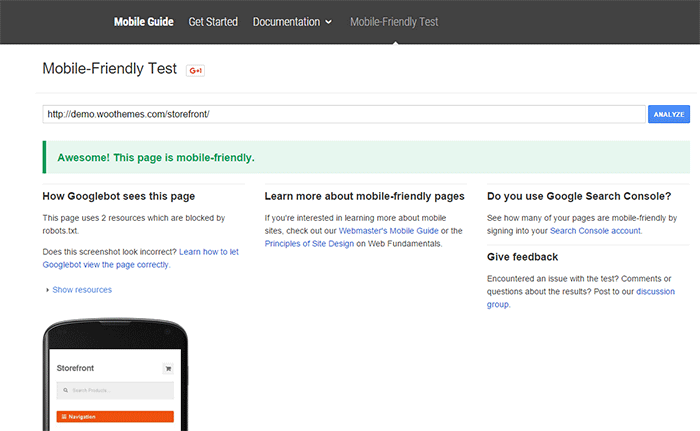
Make sure your theme is responsive. That means it adjusts to fit different screen sizes of mobile devices. More and more traffic is now being generated from mobile devices so a theme that looks good on a mobile device will help make your WooCommerce site more competitive. In fact Google favors websites that work well across all devices. The easiest way to check for mobile responsiveness is Google’s mobile friendly test. Grab the URL of the demo site of your theme and paste it in there to check if the theme is mobile friendly.

Google-mobile-friendly-test

Site Speed and Theme Bloat

You have only a few seconds to capture the attention of your e-commerce site’s visitors. Having a slow site doesn’t help. Even if your site looks good, none of that will matter if it is slow. Google hates slow websites and these slow websites are being penalized in rankings.
Themes become slow when they are loaded with unnecessary features. Be careful when the theme offers a lot of functionality that normally shouldn’t be in a theme like the ability to create sliders or change fonts, colors, and other add-ons like shortcodes, additional widgets, and content builders. The add-ons will make it hard for you to switch themes in the future. You may think you are getting good value for your money but its effects on site speed will only hurt your WooCommerce site and your SEO rankings.
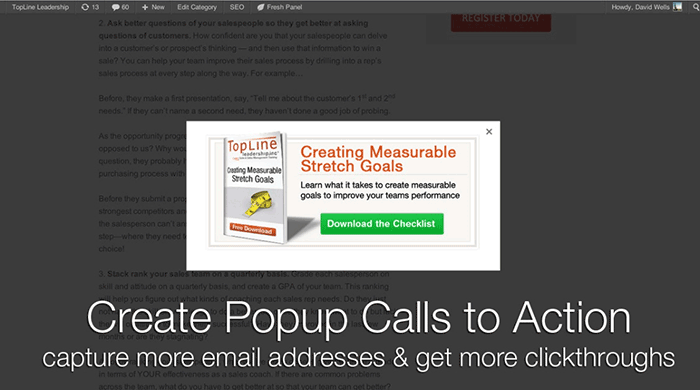
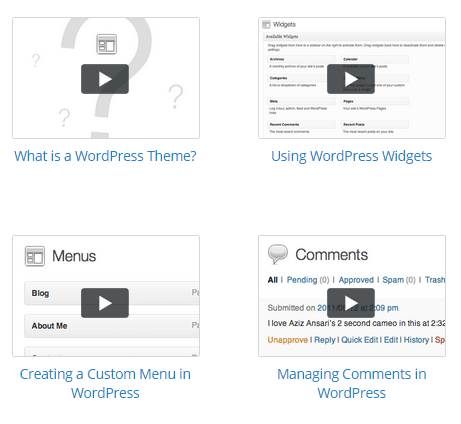
Do note that other factors also affect site speed. You can read more about it in this blog post.
browsers

Cross Browser Compatibility

Your users will be using different browsers. You may not see any errors on your side but there might be something broken when someone else uses a different browser to view your site. Make sure your website looks the same across different browsers.

SEO-Friendly Markup

HTML isn’t so strict on errors so it will render your content as long as it isn’t something fatal. But when it comes to SEO the HTML markup is crucial. Proper HTML markup will help boost your SEO. You can easily check if your theme HTML code is valid using Markup Validation Service by W3C. Pop the theme demo site’s URL to check for errors in the HTML markup.

Plugin Readiness

A good well-coded theme is lightweight and can support a wide range of popular plugins. For your e-commerce site, you need to make sure that your theme supports WooCommerce. You will often see this in the list of theme features. During development, make sure not to bloat your site with unnecessary plugins. Install only plugins that you need and will actually use.

Page Templates

Another good indication of a good quality theme is the availability of page templates. These templates are fetched when a certain query is performed. Make sure your theme has it all.

  • home.php: the homepage template
  • single.php: the template for single posts
  • page.php: the template for pages
  • category.php: the template for category indexes
  • author.php: the template used when someone queries on the author
  • date.php: the template used when someone searches for posts on a certain date
  • archive.php: this template is used when either category.php, author.php ordate.php isn’t there
  • search.php: used when someone searches on your blog
  • 404.php: the template used when WordPress can’t find the URL on your site

Design

design-cursor-iconSimplicity is the epitome of great design. Select a proper theme that matches the nature of your e-commerce store and will appeal to your target market. If you are planning for a content rich website, go for a more formal look with good typography for enhanced readability. If you are selling products for kids, you can be more playful with the design. Spend some time researching for a theme that addresses your needs. Consider the aspects mentioned above and decide if this is the theme for you.
Theme Developers

Here’s a bonus. A good indication of a quality theme is the reputation of the developers who made the theme. Perform a background check on the people behind the theme. Are they helpful in the WordPress community? Do they have a good reputation? Do they respond in forums regarding questions on their creations? If you answered yes to all of these, then you’re dealing with a good developer/s and odds are their themes are great.

Our Recommended Themes

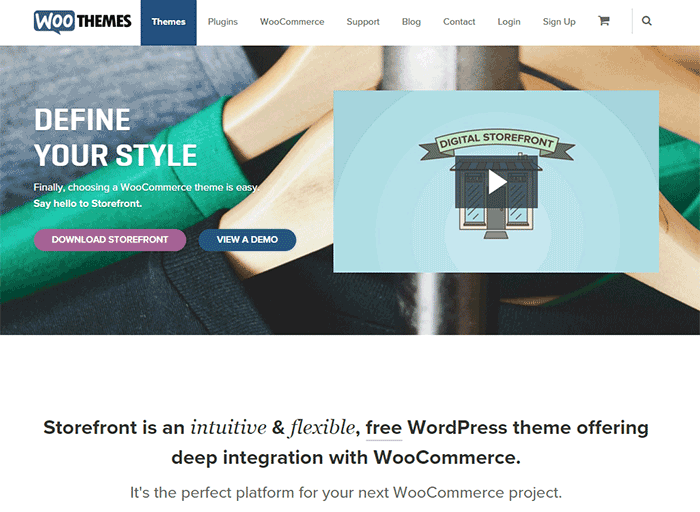
Storefront

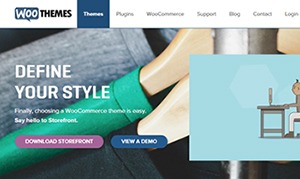
storefront_define-your-styleStorefront is an intuitive, lightweight, and flexible theme offering deep integration with WooCommerce. The main goal in developing Storefront is to provide a rock-solid foundation for your WooCommerce store, avoiding extra bloat and unnecessary features. It is built by the same people behind WooCommerce so the standards are as high as WooCommerce itself. To learn more about Storefront, you can check out our review.

Genesis Themes

Genesis-FrameworkThe Genesis framework is known for its core code and is considered one of if not the best WordPress framework available. It is very flexible because of how well the core code is built. Anything can be customized around the core code using child themes. It is SEO optimized and compatible with WooCommerce.

Was this post helpful in choosing a theme for your WooCommerce store? Do you have any other tips that you’d like to share? Let us know in the comments.

Filed Under: How-To Articles, Theme and Plugin Reviews Tagged With: design tweaks, how-to, responsive design, site speed optimization, Storefront, Wooassist, WooCommerce

  • 1
  • 2
  • 3
  • …
  • 5
  • Next Page »
Let us support your online store so you can manage your business

Get started today

Get 2 Hours of FREE SUPPORT

We are so confident that you will love our services that we will give you your first 4 hours at a 50% discount

That’s 4 hours for only $75

BUY NOW

Free eBook

5 Things Every Online Store Can Fix On Their Website In The Next Week To Increase Sales

Quick Links

  • How it Works
  • Pricing
  • Blog
  • Contact
  • About Wooassist
  • My Account
  • Checkout
  • Privacy Policy
  • Cookie Policy
  • Terms and Conditions

Wooassist

Australia:
59 Luke St.
Hemmant QLD 4174

Philippines:
San Miguel St.
Poblacion, Iligan City 9200

Connect


Copyright © 2026 · Wooassist

Yours FREE!

5 Things Every Online Store Can Fix On Their Website In The Next Week To Increase Sales