To improve our systems approach to doing business, the Wooassist team needed a project management (PM) system that works for us. So we reviewed the PM systems available online. Our goal was not to determine the best PM tool but to identify which PM tool works best for our purpose. What works for us, may not necessarily work for a different organization so we recommend reading into the reviews beyond the scores.
This was originally an internal document but we decided to share it with our readers to help other organizations choose a PM system that works for them.
Outlining Your Needs
There is a good deal of project management systems out there and it’s easy to get lost with all the choices or get stuck with the most popular brands. We will first need to outline our specific needs to narrow down all the choices. For this review, we have used the following criteria to judge these PM systems according to our needs.
- Easy collaboration
- Task management
- Kanban board functionality/Graphical system
- Employee timesheets/Timekeeping functionality
- Pricing
PM systems that did not score high with our criteria were not necessarily terrible. They simply did not allow our organization to function as effectively and efficiently as possible.
Notable Exclusions / Honorable Mentions
Below are some good PM systems that just did not cater to all our needs:
- Asana
- Basecamp
- Trello
- Wrike
- LiquidPlanner
- Producteev
The Chosen Eleven
Even after narrowing down the field, we still came up with 11 contenders. We tested out the free trials for each of these tools and have come up with a concise review for each.
1. Teamwork
- Collaboration: 11/15
- Organization: 11/15
- Features: 12/15
- Pricing: 1/5
- Preference Bonus: 46/50
- Rating: 81/100
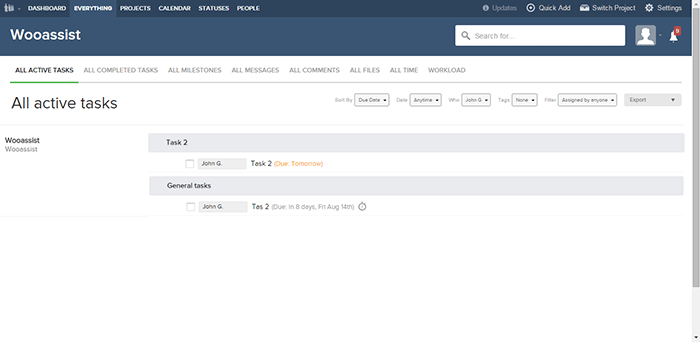
Our first impression was that the main interface was very clean and modern. Teamwork is one of the more well-known project management systems and the standard holds up. While the main interface is clean, under the hood it is packed with a lot of useful features.
If you’re used to another PM system, there will be an initial learning curve as you get used to the functionalities of Teamwork. Employee timekeeping is synced globally so it is a dependable feature as managers can easily view the daily work history of all employees. It also has an “Everything” page where all features are aggregated together so it is easy to track everything.
However, there were also a lot of functionalities that we simply did not need and they just increased the complexity. While the main interface is clean, it is not graphical which would have been user-friendly. There was also no simple prioritization feature for tasks irrespective of the project.
Our conclusion is that Teamwork with a clean interface and a myriad of features is a very good Project Management system. It is more suitable for organizations with higher-value projects and would be a top choice as an initial PM system. It just did not fit our own requirements as we are an organization with small-value projects. Also, the additional features we did not need simply make it more complicated to use.
2. Orangescrum
- Collaboration: 6/15
- Organization: 11/15
- Features: 11/15
- Pricing: 4/5
- Preference Bonus: 46/50
- Rating: 78/100
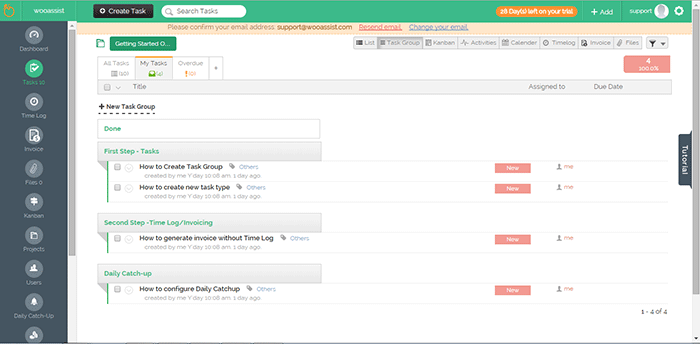
The aspect that first caught our attention was the sketchpad/draft-board design. In viewing tasks in Orangescrum, there are a lot of choices such as “list”, by “task group” and even Kanban.
The Kanban feature was a good inclusion but it seems that it had none of the common features in other Kanbans such as drag-and-drop functionality and customization of the columns. Only 3 columns can be displayed for the Kanban board.
It might be confusing switching between tasks as a task page takes up a whole page but at the same time, this could prove to be more productive as well. A lot of details can be added to each task and that could be a good thing depending on the organization’s needs.
One problem though is that some of the different elements are separate from each other. The time logs for example. It will be difficult for people that need to work on different projects in a day. Each project is a separate entity and there is no way to aggregate tasks on all projects.
There are no notifications on the interface itself so this limits collaboration. Users also can’t be tagged and there is no common posting system.
Our conclusion for Orangescrum is that it has a clean and user-friendly design. However, it gets lower scores in other aspects such as collaboration and lack of supporting features.
3. GetHarvest
- Collaboration: 5/15
- Organization: 12/15
- Features: 7/15
- Pricing: 1/5
- Preference Bonus: 46/50
- Rating: 71/100
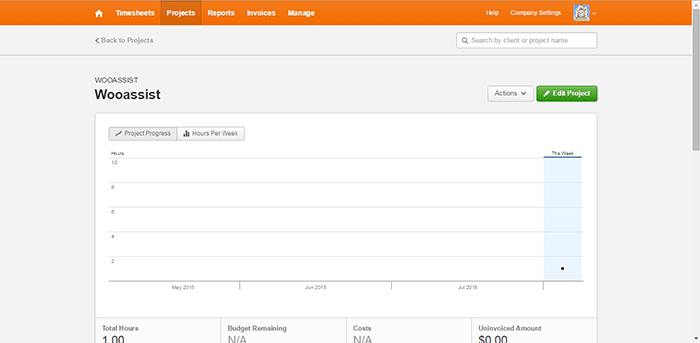
The interface of GetHarvest was one of the cleanest among the PM systems we reviewed. The top navigation bar shows the Timesheets, Projects, Reports, Invoices, and Manage links. These are core features for any PM system without all the fluff.
GetHarvest looked streamlined initially. Upon further assessment, we found that it is essentially a stripped-down Project Management system. It is great for accounting and the default setup is great in that it gives a bird’s eye view of the projects of the organization but it is limited to that. If users require subprojects and task-specific organization, they will need to integrate GetHarvest with other systems such as Asana.
Our conclusion for GetHarvest is that the interface is very clean and minimalistic but out-of-the-box. It simply lacked too many features compared to the other PM systems in this list.
4. Kanbanery
- Collaboration: 12/15
- Organization: 13/15
- Features: 10/15
- Pricing: 2/5
- Preference Bonus: 48/50
- Rating: 85/100
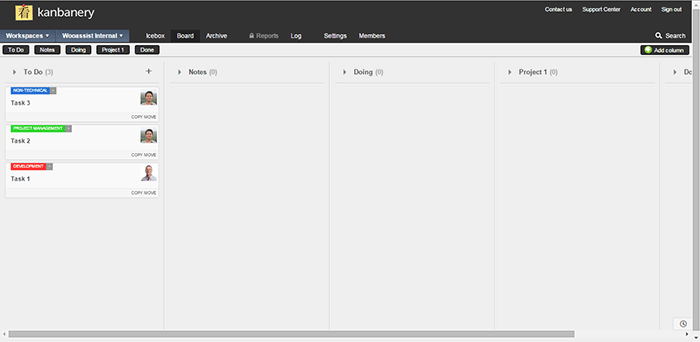
We were actually quite impressed with Kanbanery. Its interface is streamlined and it holds up to its promise of being a Visual Project Management Tool.
The Kanban boards are great and they are really customizable. The customization options are also tucked away quite nicely in that they won’t become cluttered for those that won’t use them. The updates to the boards are also synced in real-time and everyone on the team is informed when there are changes. Moving tasks to different boards is also possible so that’s another plus. It also has an activity stream that acts as a notification area.
One minor gripe is that the pages can be slow to load and changes can also take a while to be set. Although the bigger issue here is with timekeeping. There is no timer, no stopwatch, and no way to log the time at all.
The bottom line for Kanbanery is that it is a very good PM tool that strikes the right balance between a clean exterior and an abundance of settings under the hood, especially for its Kanban board. It also scores well in collaboration but the biggest flaw is the lack of any time-keeping function.
5. Dobambam
- Collaboration: 9/15
- Organization: 7/15
- Features: 12/15
- Pricing: 3/5
- Preference Bonus: 46/50
- Rating: 77/100
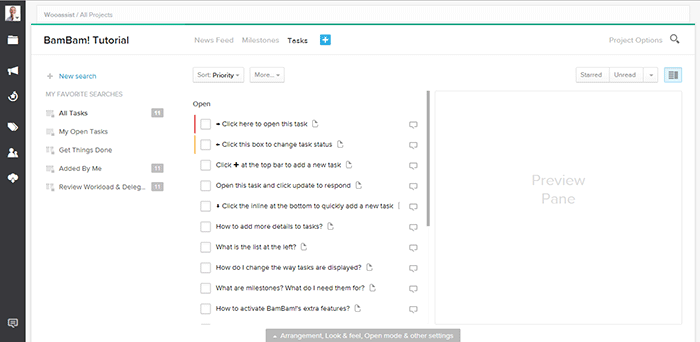
Our first impression of Dobambam was that it looked like a robust system and it felt similar to Asana.
The interface is very customizable. There are a lot of options on the view such as list view or card view. The tasks are very customizable too. It shows a lot of details but might be a bit excessive depending on your specific requirements. It does get confusing with all the available features. Some features you can add to the default functionalities are time-tracking and a wiki.
Our verdict for Dobambam is that it’s a full-featured task management system complete with time-keeping and detailed task views. However, this may also become a disadvantage depending on the organization as it is not as streamlined as other PM systems.
6. TargetProcess3
- Collaboration: 10/15
- Organization: 10/15
- Features: 13/15
- Pricing: 0/5
- Preference Bonus: 46/50
- Rating: 79/100
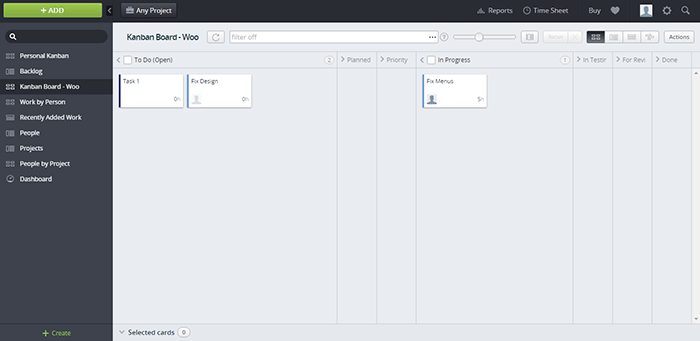
When we signed up for Target Process 3, the first screen that was shown was a choice of workflows: Scrum, Kanban, or a custom one. After choosing, we were presented with an introductory video and a mini-tutorial. These were very informative and did a good job of introducing TP3’s interface. It felt like the TargetProcess organization really cares for its users.
The aspect of the tool that left a strong impression was its overall power. It is extremely customizable and it’s like each user gets a chance to build their own PM system all inside TP3. Whether you prefer lists or a visual view, each user is given the chance to choose along with many other customization options. Another thing we liked is that the boards are all in-sync with each other. This means you can mark a task as in progress on one board and this change is applied across all boards.
The only problem is that with all the power, there’s a very steep learning curve. With all the bells and whistles, it can get confusing for a user. Some users may not even notice that a feature was available or not. In our case, TP3 was a bit over the top.
Our conclusion is that it is a very powerful task management system perfectly suited for software development teams. The customizability is its strongest point but it takes a while to master. This PM tool is best suited for advanced users.
7. ThriveTeam
- Collaboration: 6/15
- Organization: 11/15
- Features: 7/15
- Pricing: 0/5
- Preference Bonus: 46/50
- Rating: 70/100
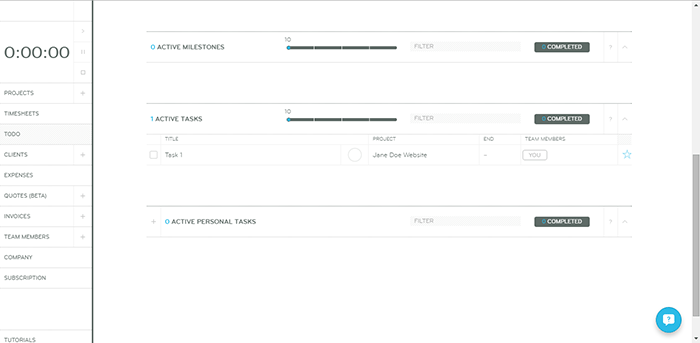
ThriveTeam is the definition of minimalism. Everything is clean and well laid out.
One of its unique functionalities is that there are no Save/Ok/Enter/Submit/etc. buttons. You will just need to write on the input fields and the changes are automatically saved. It could help with efficiency but the functionality is still awkward for people that are used to having the buttons. Sometimes after filling in a field nothing happens and you’re left guessing what to do next. On another note, its timekeeping system seems to be robust.
One thing is for sure, it is not built for task management and collaboration is limited. This system is similar to GetHarvest in some respect but it is also a slightly poorer version. As with GH, its functionalities are limited.
The bottom line for ThriveTeam is that its strength seems to be in Project Management and Accounting. The interface is clean due to a minimalistic design but the functionalities are a bit awkward and limited.
8. LeanKit
- Collaboration: 12/15
- Organization: 13/15
- Features: 10/15
- Pricing: 0/5
- Preference Bonus: 48/50
- Rating: 83/100
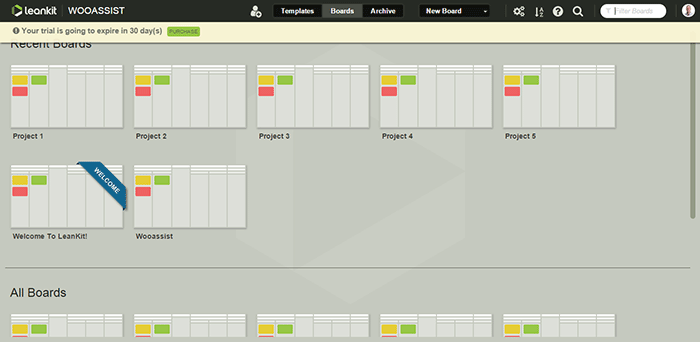
Our first impression of LeanKit is that it is very organized in the board/project level.
The graphical style is a step up from all the other text-type PM systems. Creating boards is easy and straightforward as you only need a title and description. Finding them in your list of boards is easy as well with the help of a search filter. The Kanban boards themselves are highly customizable. However, the board layout editor takes a bit of getting used to.
Another negative aspect is that the email notifications do not provide a preview of the task details. But overall, we were satisfied with its collaboration with real-time updates of changes on the boards. It seems like a complete package but as with Kanbanery, it lacks a time-keeping function which is a big blow to its potential.
Our conclusion for LeanKit is that it is a robust Kanban/Scrum-based project management system. The graphical style makes the setup very clean and organized and it scores great in collaboration and task management. It just lacks any sort of time-keeping functionality that ultimately brings its score down quite a bit.
9. Axosoft
- Collaboration: 10/15
- Organization: 13/15
- Features: 13/15
- Pricing: 0/5
- Preference Bonus: 48/50
- Rating: 84/100
Our first impression of Axosoft is that it is professional, full-featured software (it should be when one considers the price).
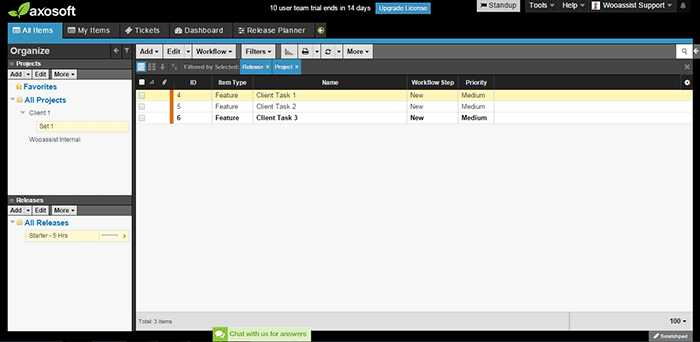
Axosoft also offers its software to be installed locally. It is noticeable even in the browser application that the design is closer to a desktop application. Even though there are a lot of settings, tabs, lists, and other buttons, everything feels very organized and intuitive.
It also offers custom workflows which include Scrum and Kanban. We first thought that it would be better for large companies but it turns out that it can be used by any organization.
One weakness though is that there are no notifications. When a task is assigned, the assignee may not realize that a task has been assigned.
All in all, Axosoft seems to be a very powerful system. It really is an enterprise solution for project management. By default, it is geared more towards organizations that develop software but almost any type of organization can benefit from it. The design is organized and intuitive and overall, it is a well-built piece of software.
10. Hiveflux
- Collaboration: 9/15
- Organization: 9/15
- Features: 12/15
- Pricing: 2/5
- Preference Bonus: 46/50
- Rating: 78/100
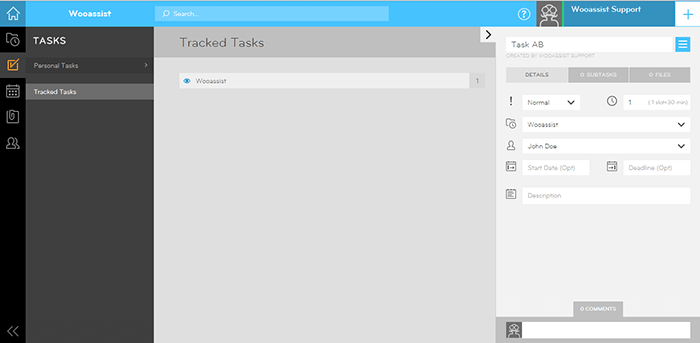
The first thing that came to mind when we accessed Hiveflux is that the design goes for a modern look reminiscent of Window’s Metro UI. It is sleek but we didn’t fall in love at first sight.
It is minimalistic but will take some getting used to. It does have good features, such as the built-in calendar that is perfect for synchronizing company events. It also has a powerful search feature, file uploads, and a time-keeping option for tasks. But collaboration between users felt a bit sluggish due to the lack of notifications even on email.
Our verdict for Hiveflux is that it is a sleek and minimalistic PM system with select but powerful features such as file uploads, time-keeping, and search. However, the minimalism also lends itself to a mediocre user experience. It should be a good choice for some teams but it’s not the one for us.
11. ProjectBubble
- Collaboration: 12/15
- Organization: 12/15
- Features: 12/15
- Pricing: 1/5
- Preference Bonus: 50/50
- Rating: 87/100
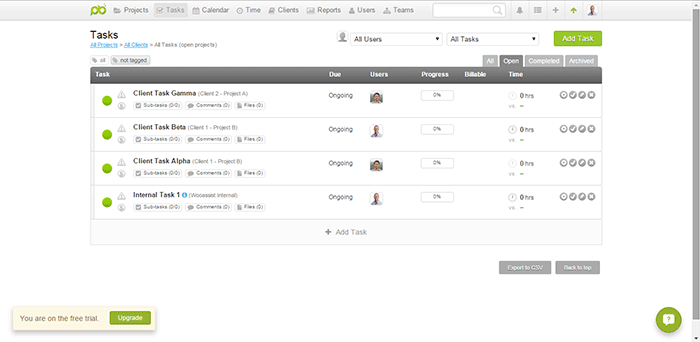
Nothing stood out at first. The design scheme and the setup looked normal. ProjectBubble does have the most important features such as a task management system and employee timesheets. It also has nifty bonus features such as its calendar and helpful reports.
What is special about it is that aside from tasks organized by project, projects are also organized by client. This makes it very useful when a client has multiple projects. Users can also be set up as teams so an entire team can work on a project without getting confused by another team’s projects.
The timesheets feature needs special mention as it is one of the most complete among all the other PM systems in this review.
All in all, ProjectBubble doesn’t sport dazzling game-changing features but it does what it does very well, and it does a lot of stuff. The only weakness would probably be aesthetic but that’s a very small factor. It is definitely not a visual system and it has no kanban. If it gets that feature then it would be perfect.
The bottom line for ProjectBubble is that instead of implementing new game-changing features, it sticks to the basics and does all the fundamental features really well. It scores very well in the most important areas (task management, collaboration, etc.) but its strongest feature is its “complete” timekeeping. The only minor flaw is that the setup is definitely not visual.
Overall Rankings
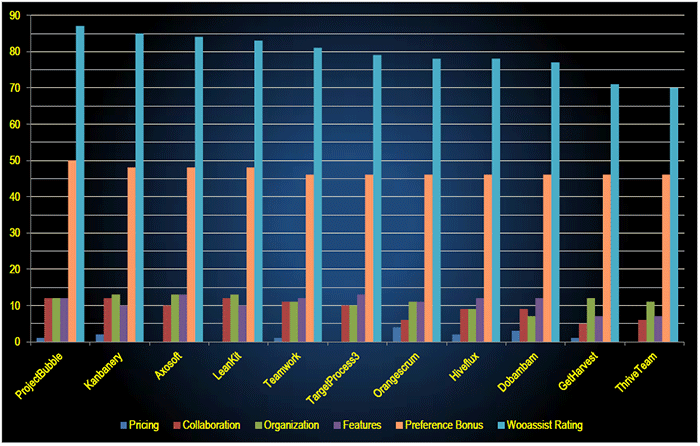
- ProjectBubble (87/100)
- Kanbanery (85/10)
- Axosoft (84/100)
- LeanKit (83/100)
- Teamwork (81/100)
- TargetProcess3 (79/100)
- Orangescrum (78/100)
- Hiveflux (78/100)
- Dobambam (77/100)
- GetHarvest (71/100)
- ThriveTeam (70/100)
Conclusion
Reviewing all of the above affirmed the idea that there is no single best project management system. Each system has its strengths and weaknesses. And these may vary depending on the needs and preferences of the user. Make use of the free trial period to determine which tool is best suited to your organization. For us, we decided to go with a system making use of Asana and Kanbanflow. These tools take care of all our needs for now.
If you’re looking to set up your own project management system, this review should lead you in the right direction. Go ahead and make your own list and test each one.
What about you? What project management system do you use in your organization?
 The right hosting service




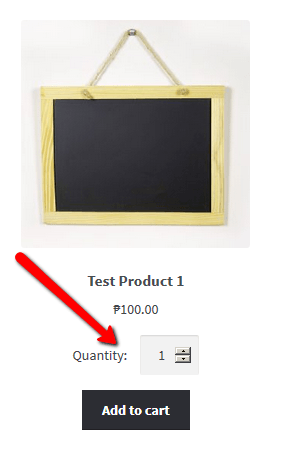 Adding the quantity field to the shop page is a necessity to some stores where buying several pieces and having repeat sales are common. For example, buying canned cat food in bulk is common so if you own a store selling pet food, having the quantity field on the shop page will really help. Many of your customers will be buying again after some time. They can just add the products directly from the shop page since they know what they are buying and no longer need to see the product details.
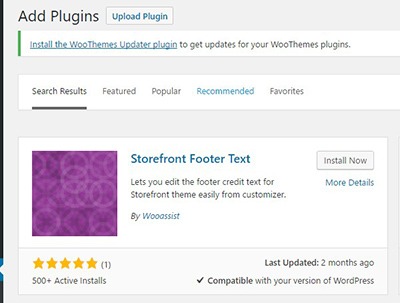 Head over to your WordPress Dashboard and go to plugins

 You install the plugin just like any other plugin.