Wooassist

Assistance for Your Woocommerce Store

  • How it Works
  • Pricing
  • Services
    • Site Maintenance
    • AI SEO and Content Marketing
  • Blog
    • How-To Articles
    • Code Snippets
    • SEO For E-Commerce
    • Theme and Plugin Reviews
    • Wooassist News
    • WordPress/WooCommerce News
    • Interviews
  • About Us
  • Contact
You are here: Home / Archives for task management

The Ultimate Project Management System Review

June 24, 2016 By John 2 Comments

Project Management System Review

To improve our systems approach to doing business, the Wooassist team needed a project management (PM) system that works for us. So we reviewed the PM systems available online. Our goal was not to determine the best PM tool but to identify which PM tool works best for our purpose. What works for us, may not necessarily work for a different organization so we recommend reading into the reviews beyond the scores.

This was originally an internal document but we decided to share it with our readers to help other organizations choose a PM system that works for them.

Outlining Your Needs

There is a good deal of project management systems out there and it’s easy to get lost with all the choices or get stuck with the most popular brands. We will first need to outline our specific needs to narrow down all the choices. For this review, we have used the following criteria to judge these PM systems according to our needs.

  • Easy collaboration
  • Task management
  • Kanban board functionality/Graphical system
  • Employee timesheets/Timekeeping functionality
  • Pricing

PM systems that did not score high with our criteria were not necessarily terrible. They simply did not allow our organization to function as effectively and efficiently as possible.

Notable Exclusions / Honorable Mentions

Below are some good PM systems that just did not cater to all our needs:

  • Asana
  • Basecamp
  • Trello
  • Wrike
  • LiquidPlanner
  • Producteev

The Chosen Eleven

Even after narrowing down the field, we still came up with 11 contenders. We tested out the free trials for each of these tools and have come up with a concise review for each.

1.  Teamwork
Teamwork

  • Collaboration: 11/15
  • Organization: 11/15
  • Features: 12/15
  • Pricing: 1/5
  • Preference Bonus: 46/50
  • Rating: 81/100

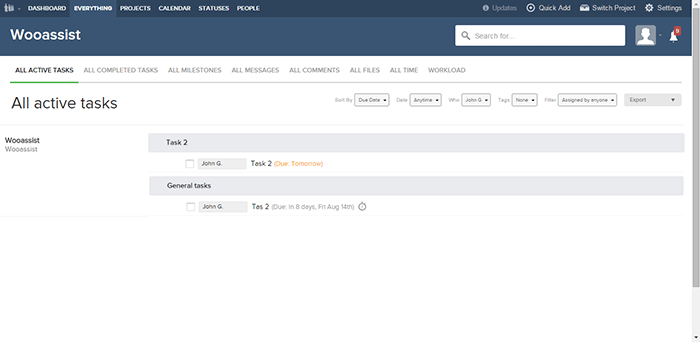
Our first impression was that the main interface was very clean and modern. Teamwork is one of the more well-known project management systems and the standard holds up. While the main interface is clean, under the hood it is packed with a lot of useful features.

If you’re used to another PM system, there will be an initial learning curve as you get used to the functionalities of Teamwork. Employee timekeeping is synced globally so it is a dependable feature as managers can easily view the daily work history of all employees. It also has an “Everything” page where all features are aggregated together so it is easy to track everything.

However, there were also a lot of functionalities that we simply did not need and they just increased the complexity. While the main interface is clean, it is not graphical which would have been user-friendly. There was also no simple prioritization feature for tasks irrespective of the project.

Our conclusion is that Teamwork with a clean interface and a myriad of features is a very good Project Management system. It is more suitable for organizations with higher-value projects and would be a top choice as an initial PM system.  It just did not fit our own requirements as we are an organization with small-value projects. Also, the additional features we did not need simply make it more complicated to use.

2. Orangescrum
Orangescrum

  • Collaboration: 6/15
  • Organization: 11/15
  • Features: 11/15
  • Pricing: 4/5
  • Preference Bonus: 46/50
  • Rating: 78/100

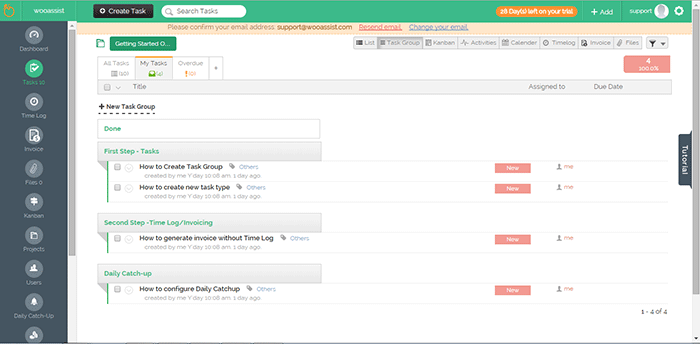
The aspect that first caught our attention was the sketchpad/draft-board design. In viewing tasks in Orangescrum, there are a lot of choices such as “list”, by “task group” and even Kanban.

The Kanban feature was a good inclusion but it seems that it had none of the common features in other Kanbans such as drag-and-drop functionality and customization of the columns. Only 3 columns can be displayed for the Kanban board.

It might be confusing switching between tasks as a task page takes up a whole page but at the same time, this could prove to be more productive as well.  A lot of details can be added to each task and that could be a good thing depending on the organization’s needs.

One problem though is that some of the different elements are separate from each other. The time logs for example. It will be difficult for people that need to work on different projects in a day. Each project is a separate entity and there is no way to aggregate tasks on all projects.

There are no notifications on the interface itself so this limits collaboration. Users also can’t be tagged and there is no common posting system.

Our conclusion for Orangescrum is that it has a clean and user-friendly design. However, it gets lower scores in other aspects such as collaboration and lack of supporting features.

3. GetHarvest
GetHarvest

  • Collaboration: 5/15
  • Organization: 12/15
  • Features: 7/15
  • Pricing: 1/5
  • Preference Bonus: 46/50
  • Rating: 71/100

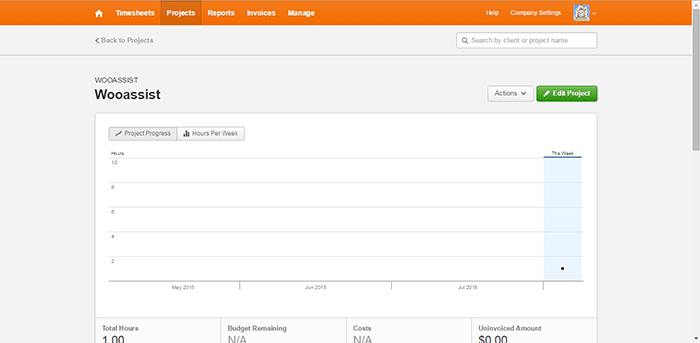
The interface of GetHarvest was one of the cleanest among the PM systems we reviewed. The top navigation bar shows the Timesheets, Projects, Reports, Invoices, and Manage links. These are core features for any PM system without all the fluff.

GetHarvest looked streamlined initially. Upon further assessment, we found that it is essentially a stripped-down Project Management system. It is great for accounting and the default setup is great in that it gives a bird’s eye view of the projects of the organization but it is limited to that. If users require subprojects and task-specific organization, they will need to integrate GetHarvest with other systems such as Asana.

Our conclusion for GetHarvest is that the interface is very clean and minimalistic but out-of-the-box. It simply lacked too many features compared to the other PM systems in this list.

4. Kanbanery
Kanbanery

  • Collaboration: 12/15
  • Organization: 13/15
  • Features: 10/15
  • Pricing: 2/5
  • Preference Bonus: 48/50
  • Rating: 85/100

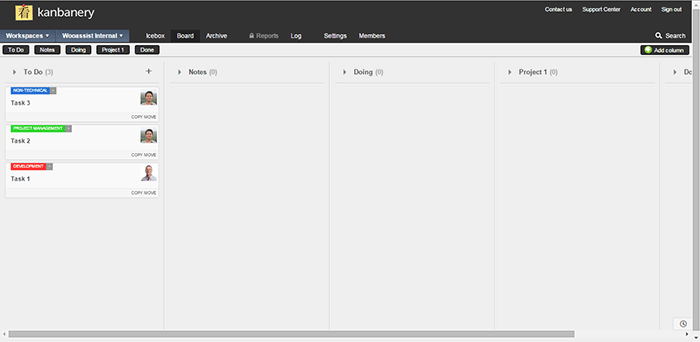
We were actually quite impressed with Kanbanery. Its interface is streamlined and it holds up to its promise of being a Visual Project Management Tool.

The Kanban boards are great and they are really customizable. The customization options are also tucked away quite nicely in that they won’t become cluttered for those that won’t use them. The updates to the boards are also synced in real-time and everyone on the team is informed when there are changes. Moving tasks to different boards is also possible so that’s another plus. It also has an activity stream that acts as a notification area.

One minor gripe is that the pages can be slow to load and changes can also take a while to be set. Although the bigger issue here is with timekeeping. There is no timer, no stopwatch, and no way to log the time at all.

The bottom line for Kanbanery is that it is a very good PM tool that strikes the right balance between a clean exterior and an abundance of settings under the hood, especially for its Kanban board. It also scores well in collaboration but the biggest flaw is the lack of any time-keeping function.

5. Dobambam
Dobambam

  • Collaboration: 9/15
  • Organization: 7/15
  • Features: 12/15
  • Pricing: 3/5
  • Preference Bonus: 46/50
  • Rating: 77/100

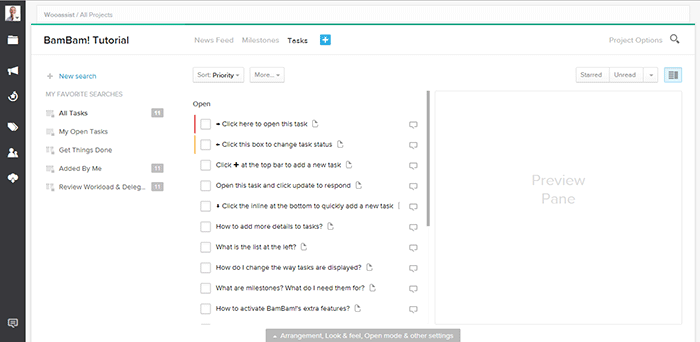
Our first impression of Dobambam was that it looked like a robust system and it felt similar to Asana.

The interface is very customizable. There are a lot of options on the view such as list view or card view. The tasks are very customizable too. It shows a lot of details but might be a bit excessive depending on your specific requirements. It does get confusing with all the available features. Some features you can add to the default functionalities are time-tracking and a wiki.

Our verdict for Dobambam is that it’s a full-featured task management system complete with time-keeping and detailed task views. However, this may also become a disadvantage depending on the organization as it is not as streamlined as other PM systems.

6. TargetProcess3
TargetProcess3

  • Collaboration: 10/15
  • Organization: 10/15
  • Features: 13/15
  • Pricing: 0/5
  • Preference Bonus: 46/50
  • Rating: 79/100

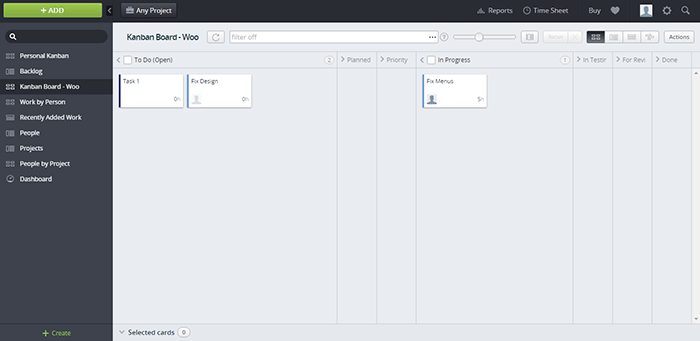
When we signed up for Target Process 3, the first screen that was shown was a choice of workflows: Scrum, Kanban, or a custom one. After choosing, we were presented with an introductory video and a mini-tutorial. These were very informative and did a good job of introducing TP3’s interface. It felt like the TargetProcess organization really cares for its users.

The aspect of the tool that left a strong impression was its overall power. It is extremely customizable and it’s like each user gets a chance to build their own PM system all inside TP3. Whether you prefer lists or a visual view, each user is given the chance to choose along with many other customization options. Another thing we liked is that the boards are all in-sync with each other. This means you can mark a task as in progress on one board and this change is applied across all boards.

The only problem is that with all the power, there’s a very steep learning curve. With all the bells and whistles, it can get confusing for a user. Some users may not even notice that a feature was available or not. In our case, TP3 was a bit over the top.

Our conclusion is that it is a very powerful task management system perfectly suited for software development teams. The customizability is its strongest point but it takes a while to master. This PM tool is best suited for advanced users.

 7. ThriveTeam
ThriveTeam

  • Collaboration: 6/15
  • Organization: 11/15
  • Features: 7/15
  • Pricing: 0/5
  • Preference Bonus: 46/50
  • Rating: 70/100

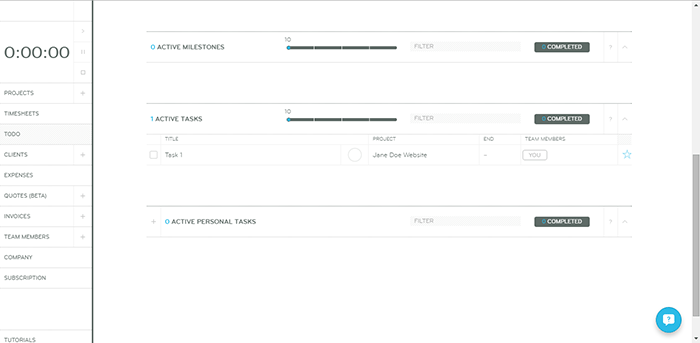
ThriveTeam is the definition of minimalism. Everything is clean and well laid out.

One of its unique functionalities is that there are no Save/Ok/Enter/Submit/etc. buttons. You will just need to write on the input fields and the changes are automatically saved. It could help with efficiency but the functionality is still awkward for people that are used to having the buttons. Sometimes after filling in a field nothing happens and you’re left guessing what to do next. On another note, its timekeeping system seems to be robust.

One thing is for sure, it is not built for task management and collaboration is limited. This system is similar to GetHarvest in some respect but it is also a slightly poorer version. As with GH, its functionalities are limited.

The bottom line for ThriveTeam is that its strength seems to be in Project Management and Accounting. The interface is clean due to a minimalistic design but the functionalities are a bit awkward and limited.

8. LeanKit
LeanKit

  • Collaboration: 12/15
  • Organization: 13/15
  • Features: 10/15
  • Pricing: 0/5
  • Preference Bonus: 48/50
  • Rating: 83/100

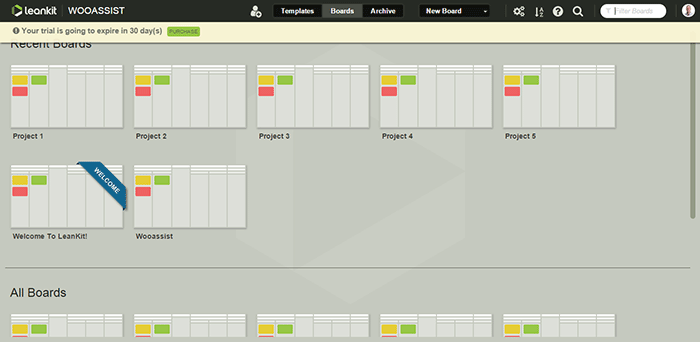
Our first impression of LeanKit is that it is very organized in the board/project level.

The graphical style is a step up from all the other text-type PM systems. Creating boards is easy and straightforward as you only need a title and description. Finding them in your list of boards is easy as well with the help of a search filter. The Kanban boards themselves are highly customizable. However, the board layout editor takes a bit of getting used to.

Another negative aspect is that the email notifications do not provide a preview of the task details. But overall, we were satisfied with its collaboration with real-time updates of changes on the boards. It seems like a complete package but as with Kanbanery, it lacks a time-keeping function which is a big blow to its potential.

Our conclusion for LeanKit is that it is a robust Kanban/Scrum-based project management system. The graphical style makes the setup very clean and organized and it scores great in collaboration and task management. It just lacks any sort of time-keeping functionality that ultimately brings its score down quite a bit.

9. Axosoft
Axosoft

  • Collaboration: 10/15
  • Organization: 13/15
  • Features: 13/15
  • Pricing: 0/5
  • Preference Bonus: 48/50
  • Rating: 84/100

Our first impression of Axosoft is that it is professional, full-featured software (it should be when one considers the price).

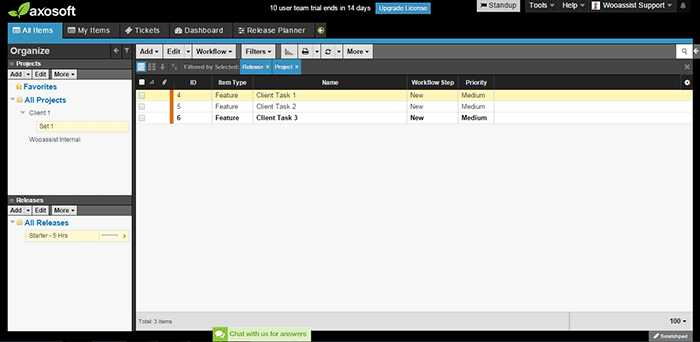
Axosoft also offers its software to be installed locally. It is noticeable even in the browser application that the design is closer to a desktop application. Even though there are a lot of settings, tabs, lists, and other buttons, everything feels very organized and intuitive.

It also offers custom workflows which include Scrum and Kanban. We first thought that it would be better for large companies but it turns out that it can be used by any organization.

One weakness though is that there are no notifications. When a task is assigned, the assignee may not realize that a task has been assigned.

All in all, Axosoft seems to be a very powerful system. It really is an enterprise solution for project management. By default, it is geared more towards organizations that develop software but almost any type of organization can benefit from it. The design is organized and intuitive and overall, it is a well-built piece of software.

10. Hiveflux
Hiveflux

  • Collaboration: 9/15
  • Organization: 9/15
  • Features: 12/15
  • Pricing: 2/5
  • Preference Bonus: 46/50
  • Rating: 78/100

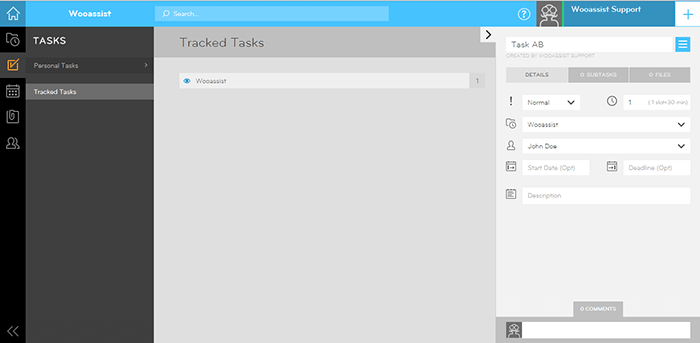
The first thing that came to mind when we accessed Hiveflux is that the design goes for a modern look reminiscent of Window’s Metro UI. It is sleek but we didn’t fall in love at first sight.

It is minimalistic but will take some getting used to. It does have good features, such as the built-in calendar that is perfect for synchronizing company events. It also has a powerful search feature, file uploads, and a time-keeping option for tasks. But collaboration between users felt a bit sluggish due to the lack of notifications even on email.

Our verdict for Hiveflux is that it is a sleek and minimalistic PM system with select but powerful features such as file uploads, time-keeping, and search. However, the minimalism also lends itself to a mediocre user experience. It should be a good choice for some teams but it’s not the one for us.

11. ProjectBubble
ProjectBubble

  • Collaboration: 12/15
  • Organization: 12/15
  • Features: 12/15
  • Pricing: 1/5
  • Preference Bonus: 50/50
  • Rating: 87/100

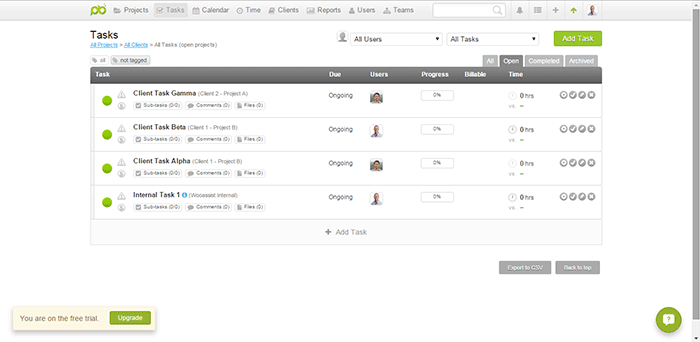
Nothing stood out at first. The design scheme and the setup looked normal. ProjectBubble does have the most important features such as a task management system and employee timesheets. It also has nifty bonus features such as its calendar and helpful reports.

What is special about it is that aside from tasks organized by project, projects are also organized by client. This makes it very useful when a client has multiple projects. Users can also be set up as teams so an entire team can work on a project without getting confused by another team’s projects.

The timesheets feature needs special mention as it is one of the most complete among all the other PM systems in this review.

All in all, ProjectBubble doesn’t sport dazzling game-changing features but it does what it does very well, and it does a lot of stuff. The only weakness would probably be aesthetic but that’s a very small factor. It is definitely not a visual system and it has no kanban. If it gets that feature then it would be perfect.

The bottom line for ProjectBubble is that instead of implementing new game-changing features, it sticks to the basics and does all the fundamental features really well. It scores very well in the most important areas (task management, collaboration, etc.) but its strongest feature is its “complete” timekeeping. The only minor flaw is that the setup is definitely not visual.

 Overall Rankings
PM-Systems-Review_Overall-Rankings

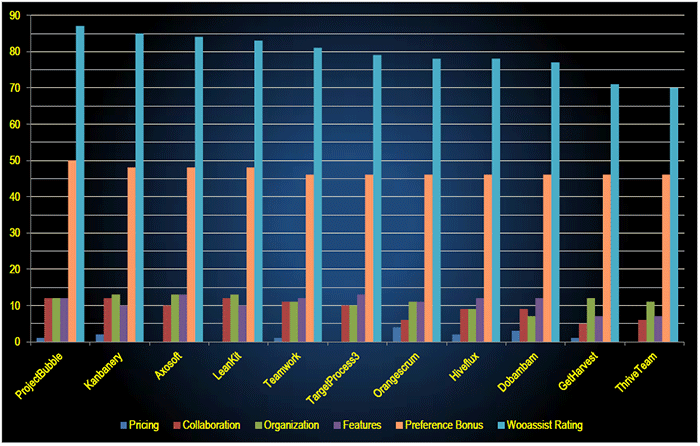
  1. ProjectBubble (87/100)
  2. Kanbanery (85/10)
  3. Axosoft (84/100)
  4. LeanKit (83/100)
  5. Teamwork (81/100)
  6. TargetProcess3 (79/100)
  7. Orangescrum (78/100)
  8. Hiveflux (78/100)
  9. Dobambam (77/100)
  10. GetHarvest (71/100)
  11. ThriveTeam (70/100)

Conclusion

Reviewing all of the above affirmed the idea that there is no single best project management system. Each system has its strengths and weaknesses. And these may vary depending on the needs and preferences of the user. Make use of the free trial period to determine which tool is best suited to your organization. For us, we decided to go with a system making use of Asana and Kanbanflow. These tools take care of all our needs for now.

If you’re looking to set up your own project management system, this review should lead you in the right direction. Go ahead and make your own list and test each one.

What about you? What project management system do you use in your organization?

Filed Under: Theme and Plugin Reviews Tagged With: admin, best practices, project management, task management, Wooassist

“Getting Things Done”: How One Book Changed Our Workflow and Increased Productivity

February 26, 2016 By John Leave a Comment

thinking_business-man_laptop
Is your workflow a mess? Mine used to be until I read that one book. Soon after, I was getting more accomplished with much less effort and stress. David Allen’s Getting Things Done: The Art of Stress Free Productivity was the secret.

For every hire thereafter, part of their on-boarding became reading this book and implementing it into their workflow. Here’s an insight on what some of the team members do to manage their workflow.

Nick J – Director

Getting Things Done has been a game changer for my life. I took the instructions literally and dedicated a weekend going through old files and boxes of “stuff” so I could start with a clean slate. I even bought a label machine as instructed (which I now rarely use).

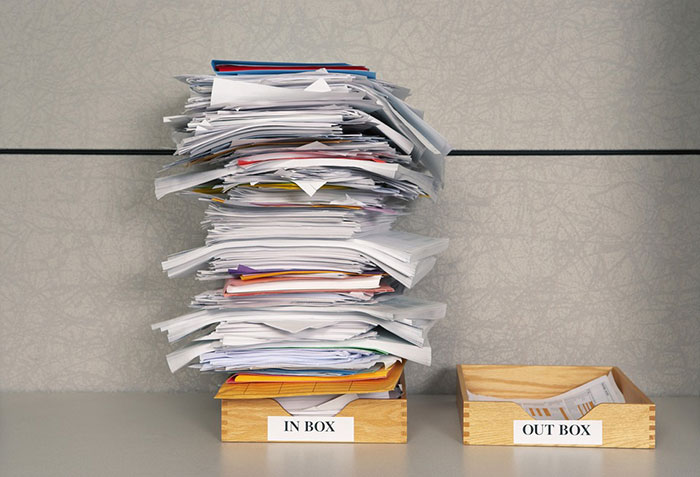
inbox-outbox_filesOnce I had my filing and boxes of “someday maybe” sorted I chose Evernote as my “In” box and everything I need to remember gets added into a notebook called “inbox” as a reminder so it goes to the top. This is very easy to do from my phone or laptop. The following morning, I catalogue all the previous day’s reminders into where they need to go, usually other Evernote notebooks.

This gives me a good idea of what I need to do for my day and catalogues what needs to be done down the track in their respective “buckets”. My mind is a lot freer because I don’t have to worry about remembering 101 things as they are all written down and catalogued. The only downside is now I have become really dependent on this system I don’t remember anything unless it is recorded in my “In bucket”. Oh well, the price of a free mind.

Junix – Lead Developer

After reading “Getting Things Done” by David Allen, I have realized how unorganized I was in handling my tasks. I have learned the 5 stages of managing workflow, which enables me to not forget an important task, which I tend to do sometimes. In Wooassist, most of the tasks assigned to me have an email notification from the project management tool. This allows me to collect the inputs I need to do for a day and coming days. But even so with these emails, I’m still forgetting things as I’m not properly jotting them down to a different platform. I also tend to preview emails, so that I can know the gist of all the things I need to do in a day, but then forget that I had to do that task because it’s not bolded anymore in my inbox. I also find it tedious to “copy and paste” information that is already there in the email.

thumbs-up_smileyI did my research and found a tool called Sortd which was still on a beta test and was invitation based only. Fortunately, I got an invitation link and was able to start using the tool. I love it as I am able to organize my tasks within my email. Even if I preview an email, it will still be bolded in my task list until I mark it completed. Within Gmail, I am now able to separate other emails from important tasks, and can also divide them into different categories easily.

Sortd allows me to create different columns, just like Kanbanflow and Trello. Currently, I have four columns in use: “Priority tasks”, “Today Tasks”, “Delegated Tasks”, and “Scheduled Tasks” respectively. With this four columns, processing tasks have been easier and I’m now doing most of the tasks assigned to me without forgetting anything.

For processing the tasks, I realized that the guide told by the book applies to me. It was stated there that if a task takes more than 2 minutes for me to complete it, I need to delegate it, but I believe for myself and kind of work I do, time is not a perfect barometer for it. Currently I check if the tasks can be delegated based on its difficulty. I like to do tasks that are difficult to do, so the tasks that are easy and moderate are the tasks that I delegate.

I am also making it a habit now to check the tasks that I have marked as complete and also my emails on a weekly basis, just to make sure that I have properly done them and that I haven’t missed a task that needs to be done.

John – Project Manager

How do I get things done? For myself, it stems from having low energy levels that I have designed the systems in my life to make them more efficient. I live and breathe efficiency. I hate books that bury their core actionable concepts in a layer of fluff. Whenever possible, I watch movies and TV shows on average at 1.5X playback speed. And I talk much, much less than normal people because I prefer to be short and concise with my words.

be-smartWithout context, that would mean I am very productive. But in actuality, it’s only to preserve my energy levels for the tasks that matter. In the past, I have done this subconsciously. But upon reading Getting Things Done by David Allen, I have started to take a conscious approach to productivity. I believe it all boils down to self-optimization.
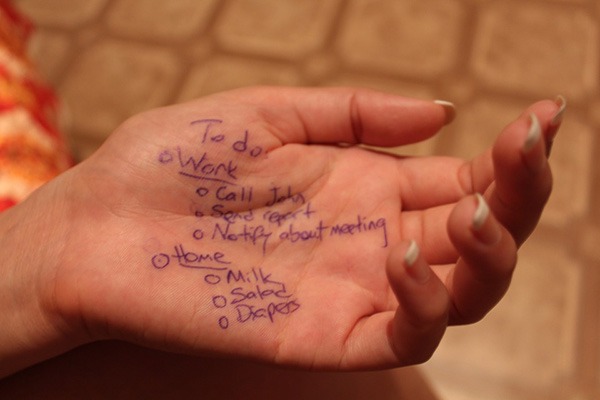
As for myself, the concepts that I believe are most important to the way I get things done are:

  1. Creating or finding a task management system that fits my own needs and personality. The usual digital productivity apps are Asana, Evernote and other similar applications. We do make use of these as all-around solutions for Wooassist. But for the tasks specific to my own role, I am using a custom spreadsheet and Kanbanflow. I’ve tailor-made the spreadsheet to record everything I need to keep track of. And we chose Kanbanflow simply because we have found that it fits our needs best.
  2. Rid yourself of worry and think in terms of actionable steps (what’s the next step, what you can do about it, etc.
    • The usual culprit of being underproductive and burning out is worry. It is a nagging feeling that keeps draining your mental capacity even when you’re not at work. For this, I put my trust on my task management system. And let it serve as my memory so that I don’t have to worry about an unfinished task when I’m not at work.
    • And when mistakes happen, customer-facing roles usually have it bad. That is because clients lash out at the people on the frontlines. I can’t stop mistakes from happening but I do not worry about it too much. Instead, I think of the concrete steps that I can take to create a suitable solution or course of action.
    • Once you are overcome with worry, you become unproductive and stressed out. If fear is the mind-killer, worry is the mind-stopper.
  3. Keep optimizing yourself. This for me is the most important thing that people fail to do. There are tons of productivity techniques out there. E.g. time-blocking, the Pomodoro technique or establishing a routine. For myself, I am constantly A/B testing myself to figure out what works and what doesn’t. There’s no catch-all method, everyone is different and we’ve got to figure out what works for us ourselves.

Rob – Project Manager

Three years ago, Nick recommended reading the book Getting Things Done: The Art of Stress Free Productivity by David Allen. I wasn’t a big book reader so instead I listened to the audiobook.

Over the past three years, I tried to follow the tips in the book. Some stuff didn’t stick but some things I keep doing up until now.

sticky-notes

I start my work day checking emails. I have email alerts set up for Asana, Hipchat and Kanbanflow so everything goes to my email. For any task that can be done around 2 minutes I do it immediately. I also keep a log of all current tasks that I have. I use Sticky Notes for this.

I tried using Evernote before and I still use it from time to time for saving stuff that I might need access to when I’m not on PC. I’m rarely on another machine though so it doesn’t get much use. It has proven really useful the few times I had problems with my PC and had to log in at a net café. I’m not saying Evernote is bad. It’s actually really good but I just like Sticky Notes because it’s more lightweight and it just sits there on the background.

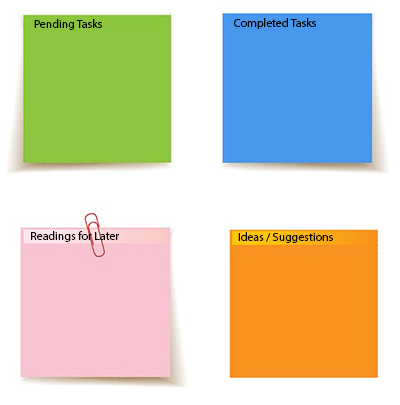
I keep a note of all my pending tasks called “Tasks” and this helps me get prepped for work. From this list, I pick out what I need to do for the day. Every task I complete I move to another note called “Completed Tasks”. This other note helps me prepare my report before I end of shift for the day.

While working, if I stumble upon any useful articles that I want to read later on either for leisure or for work, I put them on a note called “Readings for Later”. And if I come up with good ideas to suggest, I’ll note them down in another note called “Ideas/Suggestions”.

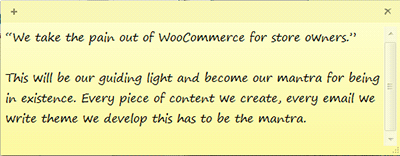
Oh and another thing. I have one note which just mentions the Wooassist mantra:

company-mantra_screenshot

 Joanne – Site Maintenance and Admin

Before reading “Getting Things Done” I found my work life in utter chaos, missed deadlines, increased stress levels, not being able to do the things that I want to do, and not having enough time for my family as much as I want to. Being a mom, a wife, a daughter and an employee is not that easy for me, especially because I work from home.

to-do-List_hand

I’ve tried numerous methods of organizing my daily routines, some actually work for some time, but once my schedule is disrupted for some reason, I crumble. I rush through things eager to do as much as I can in my limited time, playing catch up and formulating new ways to spend half an hour on a task that requires a full hour. And the result, well let’s just say, is less than stellar.

After reading Getting Things Done, I realized that useless cramming makes you unproductive and inefficient. I also recognized that my subconscious effort to juggle all my responsibilities, like doing the laundry or planning a weekend getaway for the kids can affect my work. With this in mind, I came up with a system to make sure that I exert effort on things where I can make a difference and not worry about the things that I can do nothing about.

For work, I have synced my email with Kanbanflow and Asana Board so that all of tasks and reminders will directly go to my email. I also formulated a morning routine that basically consists of morning meditation and coffee. I usually wake up around 4 am just to feel the sense of calmness. I used to think that I’m more productive working late hours but after reading Getting Things Done and evaluating myself, I realized that waking up around 8 or 9, when everyone is busy, affects me and I sort of get frantic and flustered too.

To manage my personal life, finances, and other things, I use a notebook. There I list down my goals for every month, track down my finances, and basically list down other things like groceries, things my son needs for school and so much more. Most of the task I list down there gets delegated though but it’s easier to keep track of things.

Each and every one of us is different and there’s no step by step solution for getting things done. You need to know what works for you and evaluate your values and priorities. If you haven’t read the book yet, I strongly suggest that you do. It can make your life easier.

The Secret to Stress-Free Productivity

relax_no-stress_300There is no concrete formula that would work for everyone. It is up to you to discover what will work best for you. The book Getting Things Done: The Art of Stress Free Productivity by David Allen did wonders for the Wooassist team. Each team member adapted his/her own way of dealing with the workflow based on the book and it worked wonders. We hope this post inspires you to set up your own system and to start being efficient.


If you can get the book, we highly recommend reading it. And when you’re done reading it and you’ve adapted your own stress-free workflow, we hope you can come back to this post, hit the comments and tell us something about it.

Filed Under: Wooassist News Tagged With: admin, best practices, task management, Wooassist

How to Outsource Creating Products for WooCommerce

October 14, 2015 By John Leave a Comment

Outsourcing tasks can make your e-commerce store more profitable. When managing a WooCommerce store, you will need to add new products regularly. Sure you can do it yourself but shouldn’t you be doing more important things? When you outsource creating products for WooCommerce, you save precious time.

outsource-creating-products

Before you outsource creating products for WooCommerce, you have to get your information organized. This ensures that the task will be done properly.

Here are a few things you should prepare before handing over any WooCommerce product creation task.

Documentation

You need to have a “workspace” where can you document all the elements of the products. This can be in project management software like Asana or Basecamp or a Google doc. We at Wooassist have created a spreadsheet template that you can use for handing over product creation tasks to a WooCommerce expert. You can download it here. Just fill it with the information on the products that you want to add to your WooCommerce store.

After you have the same contractor do this for you a few times and they are starting to get comfortable with your product range, they will be able to fill out a lot of this spreadsheet themselves. You will be able to just send them the links to suppliers and competitors sites and save you even more time.

Optimizing Images for Product Pages

When selling online, having good images is crucial, since people need to see what they are buying.  Your contractor should have intermediate image editing skills.

optimizing-images

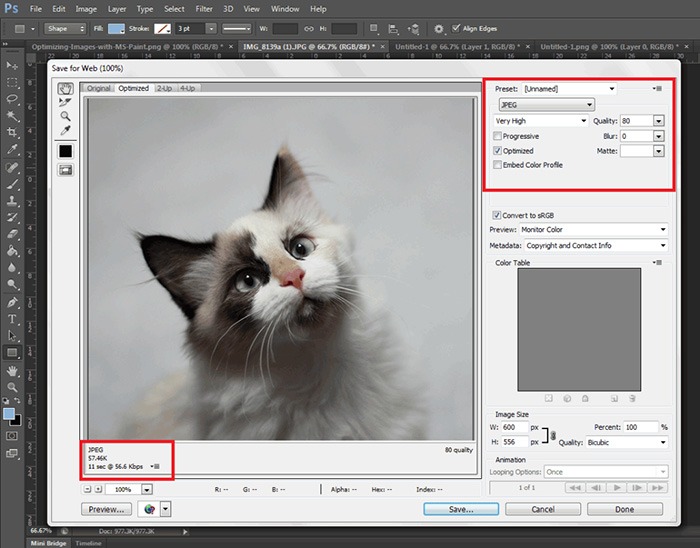
It is best practice have uniform image sizes on your site. When you set product image dimensions in WooCommerce settings, always keep your images to that same resolution and have this written clearly on your product creation documentation. Check out this post to learn more about optimizing images for web.

Writing Persuasive Copy

If you are at all serious about selling your products online, then you should have persuasive copy. We recommend outsourcing a professional copy writer. Putting a great deal of attention to writing persuasive copy for your products will help you convert more. For creating good product descriptions, you can check out our post on how to write persuasive copy.

persuasive-copy

You can give your product creation contractor a go at creating the copy and you might be pleasantly surprised, but more than likely you will need the help of a professional. Once you find a copy writer you are comfortable with, your product creation contractor can manage this specialist saving you time.

Different Types of Woocommerce Products

In WooCommerce, there are different product types: Simple, Grouped and Variable products. If you are not familiar with these product types, you can check out the WooCommerce Documentation for Managing Products.

Simple Products

Simple products include: product name, SKU, inventory, price, sale price (if you are offering a discount), category, product tags if any, long and short product description, and any specific instructions.

simple-product

Upload your images to a file sharing website and be sure to include the download link in the spreadsheet. Before you do that, make sure you use folders and appropriate file names for easy identification. There is a field where you can put the link in the spreadsheet we created. For sharing files, we recommend Dropbox or Google Drive.

Grouped Products

For Grouped Products, it becomes a bit more complex as this involves grouping two or more simple products. However, the information that you need to provide is no different from the information required for simple products.

grouped-products

If you are going to set the simple products as “not viewable individually”, you won’t need to provide images or descriptions for each simple product. You only need to state the product name, price and inventory for the simple products. All the other information should go to the grouped product.

If you are going to make each simple product viewable then it makes sense to outfit each simple product. And that means complete images, complete product descriptions and everything else necessary.

Variable Products

Variable Products deal with different product attributes. When sending information to your WooCommerce product expert, you should include the attributes for the product.

variable-products

For example, if you are selling shoes, you can have several product attributes such as size, color or type (laces or straps). That will result in multiple variations of the product.  You need to provide information for each product variation. In some cases, different product varieties will have different prices. So make sure you include the price for each product variation. If you downloaded the spreadsheet we prepared, you just need to fill in the details.

Recommended Websites to Outsource Work

There are a lot of websites out there that provide freelance services and they have a lot of WooCommerce experts. We can recommend Elance and Upwork, formerly known as Odesk. And of course, we also highly recommend our team of WooCommerce experts at Wooassist. Our expert team from the Philippines can help you out with whatever problems you are having with your WooCommerce store.

Summary

This process takes time to develop. Clear documentation is the key, followed closely by developing a good relationship with a Woocommerce product expert. The better and more familiar your contractor is with your products the easier it will be for you to create the documentation.

It will take you longer to create these processes than to do the task yourself initially, but will save you hundreds of hours in the long run. I have 2 Woocommerce stores that sell physical products and I have not created a product myself for over 3 years. I plan on keeping it that way.

Filed Under: How-To Articles Tagged With: admin, copy writing, how-to, image optimization, outsourcing, task management, WooCommerce, WooCommerce products

Let us support your online store so you can manage your business

Get started today

Get 2 Hours of FREE SUPPORT

We are so confident that you will love our services that we will give you your first 4 hours at a 50% discount

That’s 4 hours for only $75

BUY NOW

Free eBook

5 Things Every Online Store Can Fix On Their Website In The Next Week To Increase Sales

Quick Links

  • How it Works
  • Pricing
  • Blog
  • Contact
  • About Wooassist
  • My Account
  • Checkout
  • Privacy Policy
  • Cookie Policy
  • Terms and Conditions

Wooassist

Australia:
59 Luke St.
Hemmant QLD 4174

Philippines:
San Miguel St.
Poblacion, Iligan City 9200

Connect


Copyright © 2026 · Wooassist

Yours FREE!

5 Things Every Online Store Can Fix On Their Website In The Next Week To Increase Sales