Wooassist

Assistance for Your Woocommerce Store

  • How it Works
  • Pricing
  • Services
    • Site Maintenance
    • AI SEO and Content Marketing
  • Blog
    • How-To Articles
    • Code Snippets
    • SEO For E-Commerce
    • Theme and Plugin Reviews
    • Wooassist News
    • WordPress/WooCommerce News
    • Interviews
  • About Us
  • Contact
You are here: Home / Archives for image optimization

Preparing Product Images for WooCommerce

March 12, 2018 By John Leave a Comment

Preparing product images for WooCommerce can be a tedious task. You can easily snap a picture of your products and just add it to your site. Unfortunately, snap and upload is not the way to go.

A digital image from a camera is usually very large. It can easily reach upwards of 2MB in size. When you put a 2MB image on your product page, your customers would have to wait at least a couple of seconds before they can see the image.

If you have more than one image, it’s going to take even longer. Eventually, someone would just get tired of waiting and head over to a competitor’s website. Not convinced? Check out this post on how loading time affects your bottom line.

How to Prepare Your Images for Web

product

Preparing product images to upload into your WooCommerce store requires an image editing tool, such as Adobe Photoshop. Check out this post from our blog to learn how to use Photoshop to prepare your images for uploading on your website.

If you don’t have Photoshop, there are some alternatives in the form of web tools. You can check out this post on Mashable, which lists down a couple of tools that can help you optimize your images.

Understanding Image File Types

When working with images, understanding image file types is necessary. Certain types of images are best suited to a certain file type. You need to know what that file type is, so your images will look good even if they are scaled down.

Here’s a good article that details the most common image file types including when you should use each file type.

An important note: Using an image editing tool like Photoshop is still the better option since it gives you better control on how you want to optimize your images.

Using Descriptive Files Names

One more thing you need to do before uploading your image to your WooCommerce store is to name them properly. Ideally, you’d want to use a file name that describes your image like “red sling bag”. This would make managing your media library easier. Searching for specific images on your media library would be very difficult if you use default image file names such as IMG0001.jpg.

When you’ve finally uploaded your image file, you should also add an alt tag that will tell search engines what your image is. Using alt tags is best practice for SEO but that doesn’t mean you cram keywords on your alt tags. Your alt tags should describe what your image is.

Now that you have a better idea on how to prepare your images for your e-commerce store, you can improve its page load speed. Eventually, you’ll start to see its effect on your conversion rates.

If you don’t have time to spend on editing product images, the Wooassist team is here to help you out. With our experience, you’ll have your images optimized and look professional in no time.
Filed Under: How-To Articles Tagged With: best practices, how-to, image optimization, photoshop, product management, site speed optimization, WooCommerce

How to Add a Favicon to your WooCommerce Store

February 29, 2016 By John Leave a Comment

What is a Favicon?

Favicons are typically 16×16 square images. Old versions of Internet Explorer refer to the bookmark section as “favorites”. Hence the name “favorites icon” or favicon for short.

What is the Point of Having Favicons?

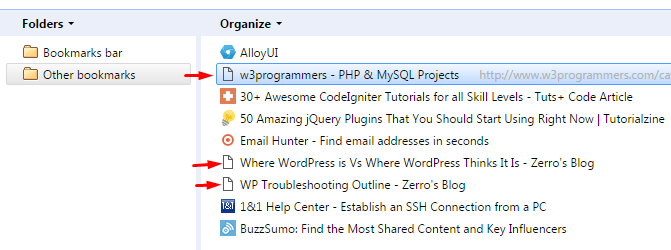
The main purpose of having favicons is to easily distinguish different websites in the bookmarks page. Here is a snapshot of a bookmarks page. Notice that the pages without favicons are hard to distinguish if they belong to the same website or not.

favicons in bookmark manager

Search engines and websites then are not as powerful and strongly connected with links. If you came across a good site, it was usually a good idea to bookmark it. As a result, people often have a long list in their “Favorites page”. The favicon answers the need to tell each website apart in the list at a glance.

Favicons are not limited to bookmarks pages though. It is also used around different parts of the browser like the history page, tabs, and more. Favicons play a huge role in online branding providing easy recognition and association. If you are serious in brand recognition, then you must add a favicon to your site.

Adding a Favicon to Your Woocommerce Store

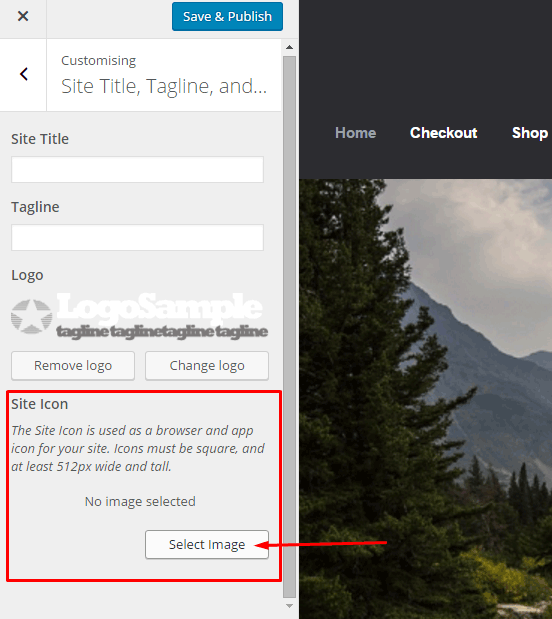
Starting from WordPress 4.3, you can now add your favicon directly using the admin panel. Navigate to Appearance > Customize > Site Title, Tagline, and Logo.

add favicon to your woocommerce - customize wordpress site icon

Simply select a 512×512 image from your media library or you can upload a new one. If you select an image larger than 512×512 or a non-square image, you will receive a prompt to crop your image.

After this, click save and publish. Refresh or restart your browser to see your new favicon.

Note that this is a default feature since WordPress 4.3. If you don’t see this feature in the theme you are using, contact your theme’s support for assistance. Or you can do it the old fashioned way with the steps below.

How to Make a Favicon?

If you have a small logo, that would be good to use for a favicon. Otherwise, you’ll have to create a miniature version of your logo. If you are not comfortable working with graphics, you can contact your graphic designer to help you out.

How to Manually Add a Favicon?

To add a favicon to your WooCommerce store, start by saving the image to one of your site’s folders. You can upload it using FTP or via media library upload. After saving it, take note of the filename and file path. It is best to save your favicon in your website’s root folder or in the images folder of your theme’s folder.

On your Dashboard, navigate to Appearance > Editor. Find your theme’s header.php file. Remember, the best way to edit your theme’s files is via a Child Theme. You can select one from several Storefront child themes to help you customize your WooCommerce store.

Paste the code below in your header.php file just below the other lines starting with “<link rel=”.

<link rel="icon" href="http://www.domain.com/favicon.png" type="image/x-icon" />
<link rel="shortcut icon" href="http://www.domain.com/favicon.ico" type="image/x-icon" />

Replace “http://www.domain.com/favicon.ico” with the file path of your favicon. Save the file and you’re done. You may need to restart your browser to see the new favicon.

I hope we helped you in adding a favicon to your WooCommerce store. If you have any questions and feedback, leave us a comment below. We are always ready to help.

Filed Under: How-To Articles Tagged With: code snippet, design tweaks, e-commerce, how-to, image optimization, photoshop, WooCommerce, WordPress

Improve Website Page Load Speed by Optimizing Images for Web

February 15, 2015 By John Leave a Comment

optimize-images-for-web

Optimizing images on your website whether it’s an e-commerce store, a blog, or both is one of the most important things thing that you can do to improve its performance. And it shouldn’t be a complex task really. Sure, high-res images look great but when you’re loading a 2MB image, it’s going to do more harm than good.

Essentially, you’re going to want to aim for a small image file size without compromising quality. As a rule of thumb, don’t let the images look bad or pixelated just for the sake of being smaller in size. You should strike a balance between a good-looking image and an acceptable image size. Here are a few ways on how to optimize images for the web.

Optimizing Images for Web Using Photoshop

Optimizing images for the web is not at all difficult. If you have Photoshop (or any other image editing software), it’s a very simple process. Open the image on Photoshop and resize or crop your image to the appropriate size.  Remember, when sizing images, the images you plan to use should not have a larger resolution than the image placeholder.

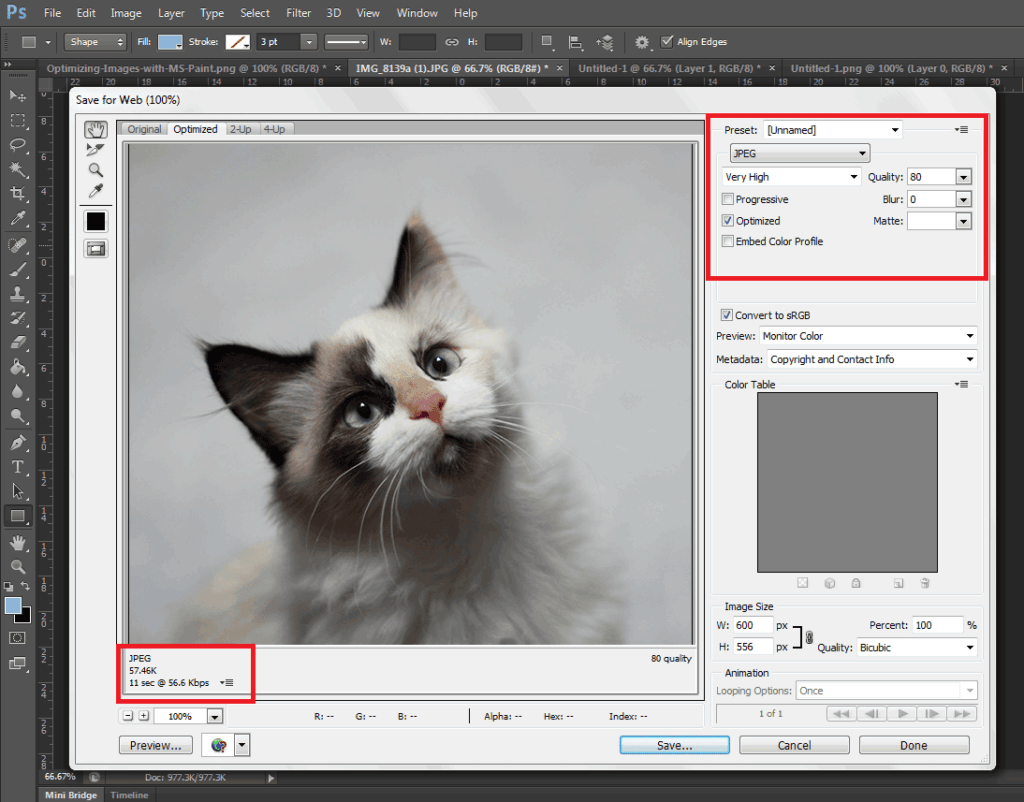
When you have resized your image to the appropriate resolution, click on File and Save for Web (Ctrl + Shift + Alt + S). Here you’ll be able to set the quality of the image while being able to see if the image still looks good. The image should not look pixelated and not have artifacts. In the bottom left section, you can see the file size of the image. You’re going to want to aim for an image that looks good, is not pixelated, and is less than 100kb in size — the smaller the size the faster the image loads on the page. On the upper right-hand section of the “Save for Web” window, you can use available presets or set the quality to your desired quality. Make sure you have the Optimized box is ticked and choose the correct file type. When you achieve a small file size with a good-looking image, click on Save.

Optimizing-Images-with-Photoshop

A Note on Image Types

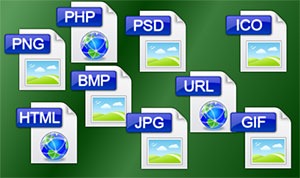
image-file-types

An important thing to note to make images look good even as you scale them down is to set the correct file type. Notably, the JPEG type is used for photos as it supports the most number of colors at 16 million. PNG is the better choice if you’re working with graphics such as logos and icons since it makes use of lossless compression. Lossless compression means that the image can be made smaller without affecting quality. PNG supports thousands of colors as well as transparency. JPEGs don’t support transparency.

GIF images are similar to PNG. It uses lossless compression and supports transparency. It however can only store a measly 256 colors. Using GIF images on web pages is generally not recommended.

Serve Images in WebP Format

We also recommend converting your image files to the modern webp image file format since these are smaller in size and are thus recommended for achieving optimum site performance. Uploading webp files are still not recommended however as there are still devices and browsers that do not support it. There are however plugins and services that allow converting regular image file types to webp and serve these images when it is supported by the user’s device. WP-Optimize is one plugin that provides free webp conversion.

Optimize Images Using WordPress Plugins

We also recommend having an image optimization plugin installed on your WooCommerce store. There are many image optimization plugins to choose from such as EWWW Image Optimizer, reSmush.it, Robin Image Optimizer. Once you set up these plugins, they will optimize your images on upload. Do note, however, that these image optimization plugins will not alter image resolution so it is still recommended to upload images in the correct resolution not exceeding the image placeholder size.

Properly Naming Files

A thing to note when naming files is to name files as they are. Don’t name files after a keyword when it is not appropriate. If you’ve got an image of a child playing the violin, name it something like “child-playing-violin.jpg” and not something like “learn-violin-online.jpg” or “free-violin-course-online.jpg”. If you try to force your SEO keywords on your image file names, your site may be flagged for overoptimization.

Optimize your images to ensure your site performs well. A fast e-commerce website provides a good user experience which translates to better SEO rankings and improved conversion rates.

Filed Under: How-To Articles Tagged With: best practices, conversion optimization, how-to, image optimization, optimizations, page speed, photoshop, plugins, site speed optimization

How to Fix Blurry Product Images in WooCommerce

February 26, 2015 By John 10 Comments

Blurry ain't good
Blurry ain’t good

Sometimes you upload an image in WordPress/WooCommerce and it just doesn’t show up like you intended it. Sometimes they don’t align. Sometimes they don’t fit the placeholder. Sometimes the image just doesn’t show. And sometimes, the image gets blurry. Why the image gets blurry may be caused by one of a few problems. Here we discuss the common causes and how to fix blurry product images in WooCommerce.

You Uploaded a Blurry Image

If you uploaded a blurry image then don’t expect that you’re going to get a good image to show up. Maybe you viewed the image in a small screen so it looks okay but when you view it on a larger screen, you’ll find that it actually is blurry. If this is the case, there is hardly anything that you can do to fix the image. Image editing tools like Adobe Photoshop may be able to help a bit by making the image sharper but don’t be expecting any significant changes. Odds are you’ll have to get a better image.

WooCommerce Recommends Using Large Product Images

thumbnail cropping woocommerce

Before, WooCommerce images need to be a specific size that you set in WooCommerce settings. That is no longer the case. WooCommerce now uses a lighthouse so images pop up big when users click on it. Large images look great and will help sell your products. However, make sure they are properly optimized.

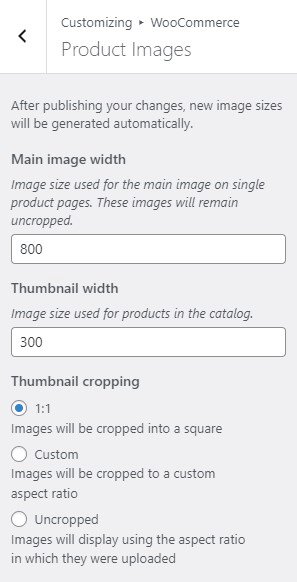
For most themes, WooCommerce recommends uploading an image that is at least 800×800 pixels. Don’t worry about the image being bigger than the placeholder as WooCommerce automatically sizes your images and will only show the full resolution when clicked.

To control thumbnail cropping of your product images, you can go to Appearance > Customize > WooCommerce >Product Images and then select your desired cropping settings.

If the image is not the problem, there might be a problem with how your images are rendered. You can try to regenerate image thumbnails.

How to Regenerate Thumbnails

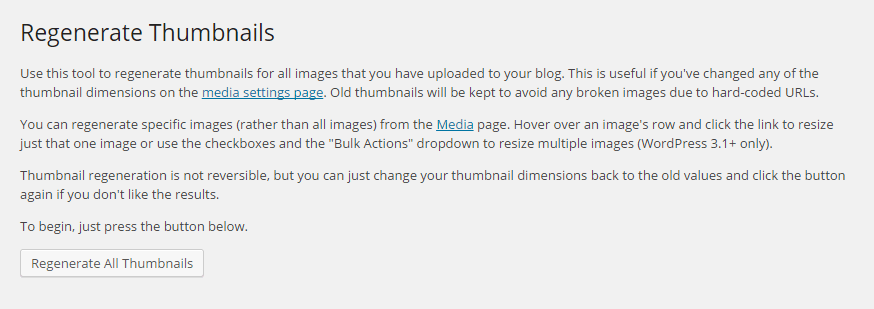
Other than when changing image settings in WordPress and WooCommerce, you may also need to regenerate the image thumbnails on your website if they appear blurry after a redesign or changing to a different theme. The best and easiest way to regenerate image thumbnails is to use the Regenerate Thumbnails plugin. Simply install and activate the plugin and from there, go to “Tools” and “Regen. Thumbnails”. Just click on the button “Regenerate All Thumbnails” and the plugin will fix the blurry images like magic.

regenerate-thumbnails

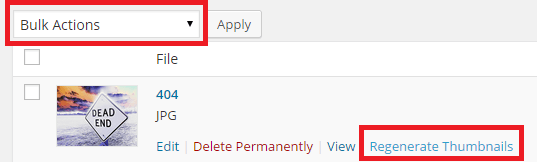
If you want to regenerate thumbnails for specific images instead, you can do this on the Media page on your admin panel. Make sure you are viewing images with List view. Simply hover over the image and the link to regenerate thumbnail should appear. You can also mark all the images you want to regenerate thumbnails and use Regenerate Thumbnails from Bulk Actions and then apply.

regenerate-thumbnails-1

Best Practices on Image Use

There are a lot of things that you can do to avoid blurry images by following best practices. Once you set an image dimension, make sure that the images you upload comply with that requirement. Uploading a bigger image in WooCommerce is okay but make sure the image is optimized so as not to affect your page load speed. You can set how you want image thumbnails to be cropped. If you upload a smaller image, it might look okay on a mobile device but not on a PC or laptop. It is also important to know what image file types to use.

Another best practice for images is to always set an alt text for your image. If the image fails to load, the alt text will show up and the user will at least know what the image is about. Also, name your files properly. Don’t name your files after SEO keywords. If you have an image of a ukulele, give it a descriptive file name and not “buy-cheap-ukulele”.

Filed Under: How-To Articles Tagged With: admin, best practices, conversion optimization, how-to, image optimization, plugins, product management, WooCommerce

How to Increase Mobile Conversion Rates for Your WooCommerce Store

January 21, 2020 By John Leave a Comment

Over the last few years, optimizing for mobile devices has become increasingly more important. More and more users browse the internet using their phone. According to Statista, 52.2 percent of web traffic comes from mobile phones and it has only been increasing from the previous years. As a WooCommerce store owner, you must optimize your website for conversion on these smaller screen sizes. Learn how to increase mobile conversion rates for your WooCommerce store by following the tips below.

How to Increase Mobile Conversion Rates for Your WooCommerce Store

How to Optimize Your WooCommerce Store for Mobile Devices

Use a Responsive Theme

All modern themes are now built to be responsive. A responsive theme adjusts to various screen sizes. You can check with your theme developer if your theme is responsive. You can also do a quick test by going to your WooCommerce store and then try scaling down the size of your browser. If you see the elements on your website move to adjust to the smaller window, then you are using a responsive theme. If you find that your theme is not responsive, don’t worry. You can switch to a responsive theme. We can recommend Storefront and the Genesis framework.

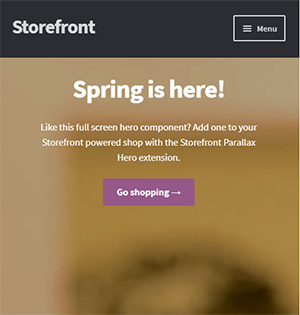
Storefront was made by the same developers that developed WooCommerce. It is built specifically for WooCommerce so you can expect full compatibility with WooCommerce and official WooCommerce plugins.

Genesis, on the other hand, is a framework. You need to use a Genesis child theme with the Genesis framework. Genesis is well-maintained, responsive and compatible with WooCommerce. 

User Test Your Mobile Site

Open your WooCommerce store on your smartphone and do some user testing. Perform actions that you expect your customers to do on your WooCommerce store. Important elements to test are:

  • making a purchase
  • subscribing to your newsletter
  • sending a message using your contact form
  • filling out the checkout fields
  • updating your shopping cart
  • commenting on blog posts
  • tapping on call-to-action buttons

There may be more that you need to test that is specific to your website. Take note of any difficulties that you encounter and get them fixed. Should you need help fixing any issues, the Wooassist team can help.

Use White Space and Large Fonts

Don’t skimp on using white space on your mobile site. Use it to your advantage. Since mobile devices have small screens, it makes it hard for the user to navigate or read your site if the elements are too close together. Also, make sure your site is easy to read by increasing font size.

Optimize Your Checkout Page

Your checkout page is one of the most important pages on your website. Limit your checkout form fields to only the necessary details. Remove any distractions to completing checkout. Make sure that the form fields are tall enough that they are easy to tap and fill out. Make the checkout button large enough so it is easy to tap. Don’t make the checkout process a burden to your customers.

Remove AutoPlay Videos and Pop-ups

Pop-ups and autoplay videos are annoying for desktop sites. Even more so on a mobile site. Don’t burden your customers with extra data charges from autoplay media. In some cases, these elements may be necessary. But if they don’t help you increase your sales, consider removing them. Instead, focus on making your customers click on your call-to-action buttons.

Improve Your Site Speed

Site speed has become very important as it is now a ranking factor for SEO. On the mobile platform, site speed is critical with mobile data speeds being slower than a wired internet connection. If your mobile site takes too long to load, the user will just leave. There are a lot of tools at your disposal to determine how you can improve your site speed. Google PageSpeed Insights even shows recommendations specific to your mobile site. Other tools that we can recommend are GTmetrix and Pingdom Website Speed Test. 

Optimize Your Images

This is related to site speed but deserves its own section. Many WooCommerce store owners neglect optimizing images and just upload willy nilly. If you upload large images without optimizing them, your mobile conversion rates would take a hit. You can use a plugin to optimize the images you’ve already uploaded. However, if you’ve uploaded images that have dimensions bigger than the image placeholders, they will need to be manually optimized. If you’ve been doing this for years, then you’ve got a big task ahead of you. To manually optimize images, you can follow the instructions in this blog post.

Optimize Your Site Navigation on Mobile

Poor navigation can make or break a mobile website. Make sure that your mobile website is easy to navigate otherwise your customers will leave your site out of frustration. Use a hamburger menu. If you are using a responsive theme, the hamburger menu should be built in. If not, you can custom code your mobile menu or use a plugin.

Offer Multiple Payment Gateways

It is important to offer the payment gateway that your customers prefer. On the mobile platform especially, depending on your location, mobile wallets are a thing. If you can tap into that market, you can improve your conversion rate. For iPhone users, there’s Apple Pay which you can enable on WooCommerce.

Just follow all the tips above to increase your mobile site’s conversion rates. If you have any tips that you can add or any questions at all, let us know in the comments.

Filed Under: How-To Articles Tagged With: checkout, checkout form, conversion optimization, image optimization, mobile friendly, navigation, responsive design, site speed optimization, woocommerce checkout

  • 1
  • 2
  • Next Page »
Let us support your online store so you can manage your business

Get started today

Get 2 Hours of FREE SUPPORT

We are so confident that you will love our services that we will give you your first 4 hours at a 50% discount

That’s 4 hours for only $75

BUY NOW

Free eBook

5 Things Every Online Store Can Fix On Their Website In The Next Week To Increase Sales

Quick Links

  • How it Works
  • Pricing
  • Blog
  • Contact
  • About Wooassist
  • My Account
  • Checkout
  • Privacy Policy
  • Cookie Policy
  • Terms and Conditions

Wooassist

Australia:
59 Luke St.
Hemmant QLD 4174

Philippines:
San Miguel St.
Poblacion, Iligan City 9200

Connect


Copyright © 2026 · Wooassist

Yours FREE!

5 Things Every Online Store Can Fix On Their Website In The Next Week To Increase Sales