Wooassist

Assistance for Your Woocommerce Store

  • How it Works
  • Pricing
  • Services
    • Site Maintenance
    • AI SEO and Content Marketing
  • Blog
    • How-To Articles
    • Code Snippets
    • SEO For E-Commerce
    • Theme and Plugin Reviews
    • Wooassist News
    • WordPress/WooCommerce News
    • Interviews
  • About Us
  • Contact
You are here: Home / Archives for checkout

How to Increase Mobile Conversion Rates for Your WooCommerce Store

January 21, 2020 By John Leave a Comment

Over the last few years, optimizing for mobile devices has become increasingly more important. More and more users browse the internet using their phone. According to Statista, 52.2 percent of web traffic comes from mobile phones and it has only been increasing from the previous years. As a WooCommerce store owner, you must optimize your website for conversion on these smaller screen sizes. Learn how to increase mobile conversion rates for your WooCommerce store by following the tips below.

How to Increase Mobile Conversion Rates for Your WooCommerce Store

How to Optimize Your WooCommerce Store for Mobile Devices

Use a Responsive Theme
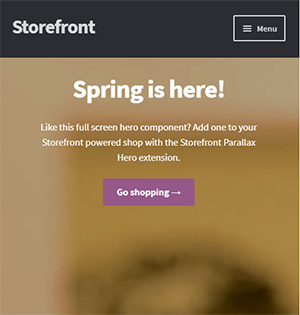
All modern themes are now built to be responsive. A responsive theme adjusts to various screen sizes. You can check with your theme developer if your theme is responsive. You can also do a quick test by going to your WooCommerce store and then try scaling down the size of your browser. If you see the elements on your website move to adjust to the smaller window, then you are using a responsive theme. If you find that your theme is not responsive, don’t worry. You can switch to a responsive theme. We can recommend Storefront and the Genesis framework.

Storefront was made by the same developers that developed WooCommerce. It is built specifically for WooCommerce so you can expect full compatibility with WooCommerce and official WooCommerce plugins.

Genesis, on the other hand, is a framework. You need to use a Genesis child theme with the Genesis framework. Genesis is well-maintained, responsive and compatible with WooCommerce. 

User Test Your Mobile Site

Open your WooCommerce store on your smartphone and do some user testing. Perform actions that you expect your customers to do on your WooCommerce store. Important elements to test are:

  • making a purchase
  • subscribing to your newsletter
  • sending a message using your contact form
  • filling out the checkout fields
  • updating your shopping cart
  • commenting on blog posts
  • tapping on call-to-action buttons

There may be more that you need to test that is specific to your website. Take note of any difficulties that you encounter and get them fixed. Should you need help fixing any issues, the Wooassist team can help.

Use White Space and Large Fonts

Don’t skimp on using white space on your mobile site. Use it to your advantage. Since mobile devices have small screens, it makes it hard for the user to navigate or read your site if the elements are too close together. Also, make sure your site is easy to read by increasing font size.

Optimize Your Checkout Page

Your checkout page is one of the most important pages on your website. Limit your checkout form fields to only the necessary details. Remove any distractions to completing checkout. Make sure that the form fields are tall enough that they are easy to tap and fill out. Make the checkout button large enough so it is easy to tap. Don’t make the checkout process a burden to your customers.

Remove AutoPlay Videos and Pop-ups

Pop-ups and autoplay videos are annoying for desktop sites. Even more so on a mobile site. Don’t burden your customers with extra data charges from autoplay media. In some cases, these elements may be necessary. But if they don’t help you increase your sales, consider removing them. Instead, focus on making your customers click on your call-to-action buttons.

Improve Your Site Speed

Site speed has become very important as it is now a ranking factor for SEO. On the mobile platform, site speed is critical with mobile data speeds being slower than a wired internet connection. If your mobile site takes too long to load, the user will just leave. There are a lot of tools at your disposal to determine how you can improve your site speed. Google PageSpeed Insights even shows recommendations specific to your mobile site. Other tools that we can recommend are GTmetrix and Pingdom Website Speed Test. 

Optimize Your Images

This is related to site speed but deserves its own section. Many WooCommerce store owners neglect optimizing images and just upload willy nilly. If you upload large images without optimizing them, your mobile conversion rates would take a hit. You can use a plugin to optimize the images you’ve already uploaded. However, if you’ve uploaded images that have dimensions bigger than the image placeholders, they will need to be manually optimized. If you’ve been doing this for years, then you’ve got a big task ahead of you. To manually optimize images, you can follow the instructions in this blog post.

Optimize Your Site Navigation on Mobile

Poor navigation can make or break a mobile website. Make sure that your mobile website is easy to navigate otherwise your customers will leave your site out of frustration. Use a hamburger menu. If you are using a responsive theme, the hamburger menu should be built in. If not, you can custom code your mobile menu or use a plugin.

Offer Multiple Payment Gateways

It is important to offer the payment gateway that your customers prefer. On the mobile platform especially, depending on your location, mobile wallets are a thing. If you can tap into that market, you can improve your conversion rate. For iPhone users, there’s Apple Pay which you can enable on WooCommerce.

Just follow all the tips above to increase your mobile site’s conversion rates. If you have any tips that you can add or any questions at all, let us know in the comments.

Filed Under: How-To Articles Tagged With: checkout, checkout form, conversion optimization, image optimization, mobile friendly, navigation, responsive design, site speed optimization, woocommerce checkout

How to Recover Abandoned Carts in WooCommerce?

November 30, 2019 By John Leave a Comment

How to Recover Abandoned Carts in WooCommerce

It’s not uncommon for ecommerce shoppers to abandon carts. You may not know it, but your store might also be suffering from carts being abandoned. This problem can be addressed however. To start, you must determine why your customers abandon their carts.

Why online shoppers abandon carts and what you can do about it?

There are various reasons why online shoppers abandon their carts. We lay out the most common ones and what you can do to address them.

Checkout is Too Complicated

Your customers will nitpick and that is to be expected. When you make your customers jump hoops during checkout, you’re not doing them a favor. Your checkout should be quick and straightforward. If you must add some other stuff that will complicate checkout, consider if you can add it on the thank you page instead. The thank you page is the page where the customer is redirected to after making a successful purchase. If you need help tweaking your thank you page, the Wooassist team can help.

Users Need to Create an Account to Check Out

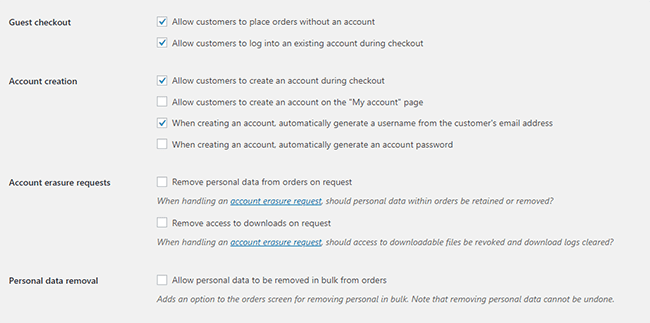
Internet users are already burned out having to create an account for each internet service that they use. Don’t add to that burden. Don’t force your customers to create an account if it’s not necessary. To enable guest checkouts on WooCommerce, go to your WordPress Dashboard, click on WooCommerce > Settings. Under the Account and Privacy tab, enable “Allow customers to place orders without an account”. You can tweak other account related settings here to your liking.

Too Many Checkout Form Fields

The default WooCommerce checkout page is good enough as it is. There is no need to add more fields unless necessary. If you’ve edited your checkout page before to add some unnecessary fields, look into it and consider removing it.

Unexpected Charges

Customers will abandon your checkout when they see the shipping fee. No one will force you to offer free shipping if it will make your business unsustainable. There are however some things that you can do to reduce abandoned carts as a result of shipping and other fees. People now are more accepting of shipping fees. For other fees, be transparent from the get-go. If you charge taxes, handling fees, and other fees, make it clear starting from the product page that you charge these fees. If they are suddenly greeted by these fees on checkout, it will look like unscrupulous practice.

Too Many Clicks to Checkout

Reducing cart abandonment is all about simplifying your product purchase process. Ideally, it should not take more than three clicks for a customer to check out. If it takes four clicks to check out, that is one click too many. Get rid of unnecessary barriers to completing checkout.

Don’t Make it Hard to Contact You

Some of your prospective customers will look for your contact details before they make a purchase. If they added a product to their cart but could not find your contact information or even a contact us page, there is a high likelihood that that user will abandon that cart. To prevent this from happening, make sure you have a contact us page. Even better, if you can add your email or phone number on your WooCommerce store’s header.

Payment Issues

Another common reason for abandoning shopping carts is payment issue. When the customer tries to pay for his/her order and it fails, you can bet that cart will be abandoned. The solution here is simple. Offer more than one mode of payment. Some common payment channels you can use are Paypal, Stripe, Authorize.net, Apple Pay, Amazon Pay, and Square.

Other Things You Can Do to Reduce Cart Abandonment

Show Security Certificates

To be able to sell your products or services online, you’ll need to be able to establish that you are trustworthy. You can show security certificates and security seals on your checkout page to improve your trust rating. Some security seals that you can add to your site as Norton, McAfee and TRUSTe.

Offer Free Shipping

Free shipping can significantly reduce your cart abandonment rates. However, not every business can make a profit when offering free shipping. As an alternative, you can offer free shipping when your customers meets a required minimum order value or quantity. This strategy can also help improve your average order value.

Offer a Money-Back Guarantee

Most consumer laws dictate that you should have a return policy anyway. So there’s no reason not to do it. Making your money-back guarantee known shows your prospective customers that you have faith in the quality of your product or service. Don’t worry about the people that might abuse your money-back guarantee. It hardly ever happens. And if it happens a lot, the problem might be your product.

Improve Your Page Load Speeds

If your site is slow, some of your prospective customers might get frustrated and abandon their carts. Make sure your site is fast.

How to Recover Abandoned Carts

There are many ways to recover abandoned carts. Some of the more common methods are remarketing and abandoned cart emails.

Using Remarketing to Recover Abandoned Carts

There are many platforms that you can use for remarketing. Essentially, remarketing works by saving a cookie on the user’s browser so you can show them your tailored ads. Neil Patel details how you can use remarking on Adwords to recover abandoned carts. Facebook is another platform that you can use for remarketing. SproutSocial details how to use remarketing on Facebook.

Using Abandoned Cart Emails to Recover Abandoned Carts

Abandoned cart emails send your customers a reminder email if they did not complete their purchase. For guest checkouts, this requires that the user must at least have entered his/her email address. This won’t be an issue if you require your customers to register before making a purchase. Do note however that requiring customers to create an account may hurt your conversion rates. There are a lot of abandoned cart email plugins that work for WooCommerce, you just have to find the plugin that works for your needs.

Recover abandoned carts and improve your sales by implementing these strategies. If you have any questions, you can post a comment below. If you need help setting up abandoned cart emails or anything else, you can send us email.

Filed Under: How-To Articles Tagged With: abandoned carts, checkout, checkout form, conversion optimization, email marketing, optimizations, remarketing, security, trust rating, WooCommerce, woocommerce checkout

How to Set Up MailChimp Opt-In Form in WooCommerce Checkout

January 29, 2018 By John Leave a Comment

How to Set Up MailChimp Opt-In Form in WooCommerce Checkout

If your WooCommerce store is not set up to capture your customer’s emails, then you’re missing out on a lot of potential sales. According to data gathered by Campaign Monitor, transactional emails can help you generate up to 6 times more revenue. Your prospective customers are also five times more likely to see the emails you send out compared to when posting it on your Facebook. With increasing competition in Facebook post reach, email marketing is only becoming more lucrative. In this post, we’ll teach you how to set up MailChimp opt-in form in WooCommerce checkout so you can increase your conversion rates.

What Do You Need to Set Up Email Opt-in Forms in WooCommerce Checkout?

To get started with adding email-opt in forms to your WooCommerce store, you need two things. The first one is a MailChimp account. You can sign up to MailChimp for free and continue to use it until you exceed a thousand subscribers. At this point, you will need to purchase a plan. You can sign up for a MailChimp account here.

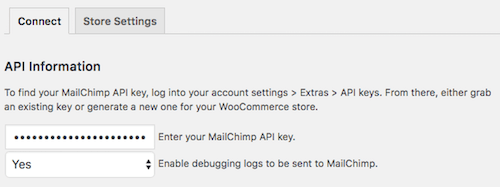
Once you’ve set up a MailChimp account, you will need to generate an API key which you will use to connect MailChimp to your WooCommerce store. To get your API key, log in to your MailChimp account and click on your name on the upper right corner and then click on Account; click on Extras and then on API keys. From here, you can copy the existing API key or create a new one. Save your API key for now. We’ll need this later.

The second thing that you need is the MailChimp for WooCommerce plugin which you can download here. You can also install the plugin from the Plugins page of your WordPress Dashboard. Once you install the plugin, make sure you activate it.

How to Set Up MailChimp for WooCommerce Plugin

After activating the plugin, head over to the Plugins page on your WordPress Dashboard and look for MailChimp for WooCommerce and then click on Settings.

On the Connect Tab, you will need to input your API key. If you followed the steps in the previous section, you should have your API key ready. Just input your API key in the API key field and click on “Save all changes”.

When that’s done, click on Store Setting and set your store information and then click on “Save all changes”.

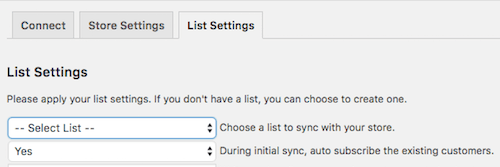
The next step is to set up your subscriber lists. Click on List Settings and choose a list to sync with your WooCommerce store. You can also indicate whether you want to automatically subscribe your existing customers to your list.

If you want to switch to a different list, you will need to remove and reinstall the plugin.

You can also set other setting such as checkbox display options, subscription opt-in message, and the location of the opt-in checkbox form on checkout.

When that’s done, you can sync your list with your MailChimp account.

To view your site details and change other settings, you can log in to your MailChimp account, click on your profile name and click on “Connected Sites”.

Final Notes

Now that your store is set up to sync your customer’s emails to your MailChimp list, you can easily email them special offers and other deals to help boost your sales.

If you have any questions, let us know in the comments.

If you need help setting up the plugin on your WooCommerce store, you can contact us.

Filed Under: How-To Articles Tagged With: checkout, checkout form, conversion optimization, email, email marketing, mailchimp, plugins, WooCommerce

Conversion Rate Optimization for WooCommerce – An Infographic

August 24, 2017 By John Leave a Comment

As a WooCommerce store owner, you want to make your store as profitable as it can be. This is where conversion optimization comes in. We created this easy-to-follow infographic to help you optimize your store’s conversion rates. Should you ever need help getting some of these things done, just send us a message and we can help you out.

If you want to share this infographic on your site, just paste the code below on your site’s text/HTML editor.

<a href="https://wooassist.com/conversion-rate-optimization-for-woocommerce-an-infographic"><img class="aligncenter wp-image-3020 size-full" src="https://wooassist.com/wp-content/uploads/2017/08/Conversation-Rate-Optimization-for-WooCommerce-An-Infographic-by-Wooassist.png" alt="Conversion Rate Optimization for WooCommerce - An Infographic by Wooassist" width="700" height="4428" /></a>

Filed Under: How-To Articles Tagged With: call-to-action, checkout, conversion optimization, free shipping, image optimization, marketing strategy, testimonials

Let us support your online store so you can manage your business

Get started today

Get 2 Hours of FREE SUPPORT

We are so confident that you will love our services that we will give you your first 4 hours at a 50% discount

That’s 4 hours for only $75

BUY NOW

Free eBook

5 Things Every Online Store Can Fix On Their Website In The Next Week To Increase Sales

Quick Links

  • How it Works
  • Pricing
  • Blog
  • Contact
  • About Wooassist
  • My Account
  • Checkout
  • Privacy Policy
  • Cookie Policy
  • Terms and Conditions

Wooassist

Australia:
59 Luke St.
Hemmant QLD 4174

Philippines:
San Miguel St.
Poblacion, Iligan City 9200

Connect


Copyright © 2026 · Wooassist

Yours FREE!

5 Things Every Online Store Can Fix On Their Website In The Next Week To Increase Sales