Wooassist

Assistance for Your Woocommerce Store

  • How it Works
  • Pricing
  • Services
    • Site Maintenance
    • AI SEO and Content Marketing
  • Blog
    • How-To Articles
    • Code Snippets
    • SEO For E-Commerce
    • Theme and Plugin Reviews
    • Wooassist News
    • WordPress/WooCommerce News
    • Interviews
  • About Us
  • Contact
You are here: Home / Archives for conversion optimization

How to Speed Up Your WooCommerce Store

August 3, 2015 By John 3 Comments

SnapCrab_2015-07-03_10-57-18_No-0000

Aside from the products or services you offer, there’s another crucial factor that may affect your conversion rate. We’re talking about your site speed. Any delay is enough reason to make your customers leave. This converts to lost revenue, which can hurt your bottom-line. How can you prevent or change this? This article will serve as an in-depth guide to and will teach you how to speed up your WooCommerce store.

In this article, you’ll learn about the following:

  • Why invest in site speed optimization?
  • What hardware and software you need?
  • Improving Site Speed by Caching and Minifying
  • Speed Up Site by Optimizing Images for Web
  • Using a CDN to Increase Site Speed
  • Cleaning Your Database to Speed Up Site
  • More Ways on How to Speed Up Your WooCommerce store

Why Invest in Site Speed Optimization?

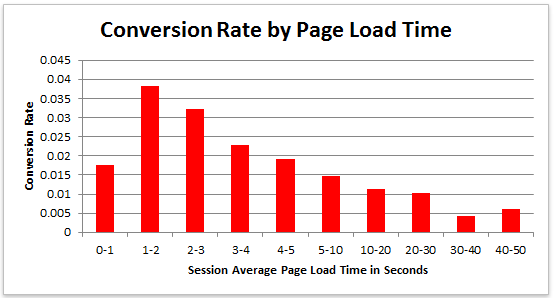
Studies reveal revealed that 47% of visitors expect a page to load in under 2 seconds. Around 40% of these will abandon a web page if it takes more than 3 seconds to load. Meanwhile, 52% claim that quick page loads are important for their loyalty to a site.
conversion-rate-by-page-load-time

What do these findings tell you, a site owner?

It just shows that site speed is very important. Those two seconds are crucial to capture your visitor’s attention, convince them to hang around, and increase your chance for conversion. Microsoft Bing also conducted a research about server delays and the effect they bring on user behavior.

server-delays-experiment

According to the results, a 2-second longer delay in page responsiveness reduced user satisfaction by 3.8%. They navigated 4.4% fewer pages, with a 4.3% lesser e-commerce revenue per user. Every second matters online.

Here’s the thing: visitors – your potential customers – can’t really tell the difference if a page is ‘just’ slow, or isn’t working at all. Thus, a slow website is quite the same as not having one. Most users won’t stare at the screen and wait. They move on to the next website and never come back.

site-visitors

Google announced that it has included site speed in its ranking algorithm. If your site speed is slow, it can affect SEO by having reduced rankings. They even launched a new web-based tool, which analyzes the performance of web pages.

With these information, we now know that site speed not only sells, but also leads to customer satisfaction and increased conversion.

If your site speed is slow, it’s time to fix that. Read on.

What Hardware And Software You Need?

The foundation you set up for your e-commerce site has a lot to do with its speed. If it’s the root of the problem, quick fixes won’t help. But, what makes a good foundation, and how can you set up a website that runs at lightning speed?

Web Hosting Provider.

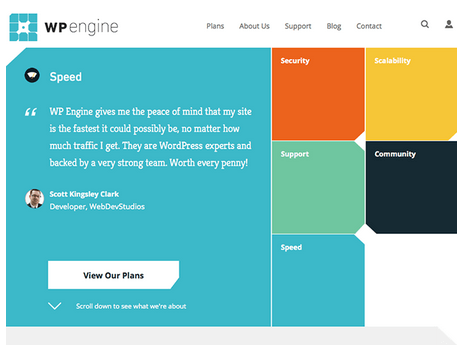
What’s your current hosting package? For an e-commerce site, you shouldn’t go with the cheapest. They may have limited RAM, processing power, and disk space which won’t benefit your site at all.
wp-engine

Wooassist recommends:
Wpengine and Siteground

Please note that we are affiliates of these hosts but we have only chosen them based on our years of experience dealing with hosting services for our clients’ and our own sites. And we can say that these two are among the best. If you were to sign up to either of them, we’d be grateful if you did so by clicking either of the links above.

WordPress Themes

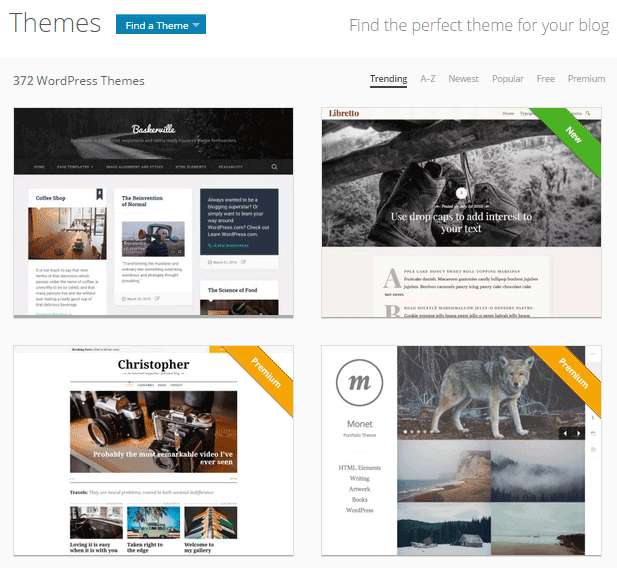
Not all WordPress themes are created equal, and not all are extremely fast and well-coded. In choosing a theme, checking the demo speed is a must. Tools such as Pingdom will give you an idea of how well-coded it is.
wp-themes

Wooassist recommends:
Storefront by Woothemes or Any HTML5 theme at Studio Press

Content Delivery Network

CDN is a system of distributed servers that accelerate the delivery of web content, and rich media to internet-connected devices. Since your bandwidth is spread across many different servers, the load on a single server is reduced.

Wooassist recommends:
Wpengine comes with CDN included or Cloudflare

Improving Site Speed by Caching and Minifying
caching-and-minification

Let’s start with the most popular, and probably, the easiest thing: Caching.

What is Caching?

Caching is storing your dynamic content in the server as static content. Serving static content is faster as opposed to dynamic content, which means longer page load times. It’s a fundamental technique of reducing database load and speeding up WordPress websites.

There are two types of Caching:

  • Client-Side
  • Server-Side

Let’s move on to Minification.

When developers make code, they make code with a lot of white space. This practice makes the code easier to read and understand for humans. However, computers don’t need that white space. It just makes reading the code take longer.

Minification is removing all that white space and optimizing the code. This makes it easier for machines to make parsing the webpage faster.

How to Implement Caching and Minification?

It may sound all too complicated, but don’t worry. It is really very simple. All you need is one plugin to do both, and it has all the caching and minification solutions you need.

W3 Total Cache

It’s the second most popular plugin with almost 4 million downloads and a 4.5 star rating. W3 Total Cache is more suitable for high traffic websites running from a VPS or a better hosting environment.

How to Set up Caching with W3 Total Cache?

  1. Before installing W3 Total Cache, uninstall other caching plugins like WP Super Cache
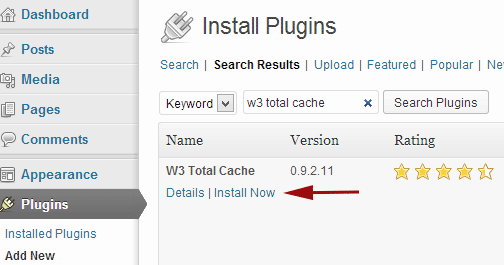
  2. Go to your WordPress admin panel and click on Plugins > Add New
w3-total-cache

  1. Search for “W3 Total Cache”
  2. Click on the ‘Install Now’ button and then activate
  3. Click on Performance on your WordPress dashboard and go to General Settings
  4. The first option that you see on this page is Page Cache.
  5. Check the ‘Enable’ box
  6. Click on ‘Save all settings’

By having this enabled, you will significantly decrease your load time.

How to Set up Minification with W3 Total Cache?
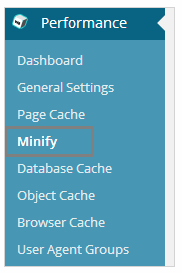
  1. minifyGo to your WordPress dashboard and click on Performance
  2. Look for ‘Minify’ under the Performance menu
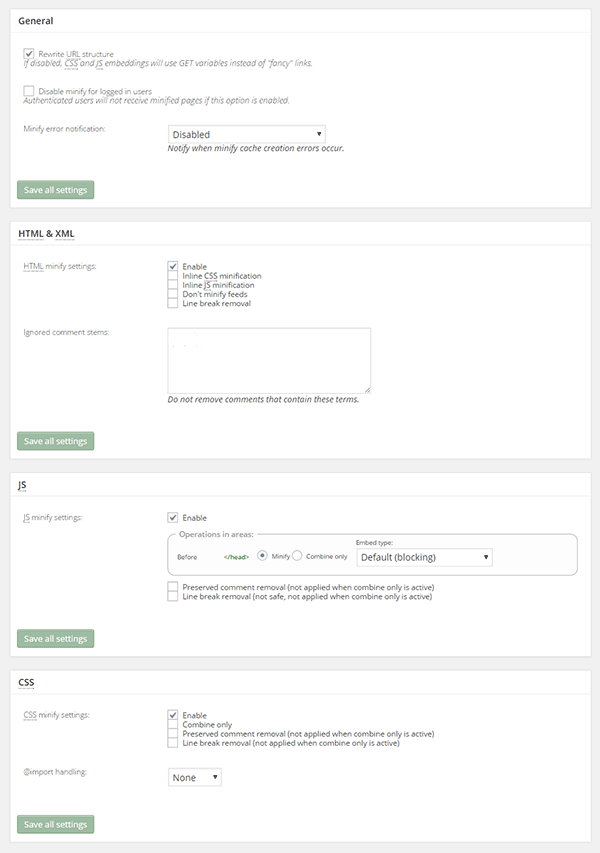
  3. Tick “Enable” for HTML & XML, JS, and CSS.
minify-2

  1. Click on ‘Save all settings’

The goal of minification is to make the source code “smaller” in order to improve your site’s performance. Get a more detailed information on each of the settings offered in Minification here.

Speed Up Site by Optimizing Images for Web

Your customers won’t wait around for that picture to load.

customers

Another technique to improve your online store’s performance is optimizing images on your website. High-resolution images may look great, but when you’re loading a 2MB image, it’s going to do more harm than good.

Aim for an image size of less than 100KB, but if you can go smaller without compromising quality, then better. It’s a rule of thumb to not let the images look bad or pixelated.

Striking a balance between a good looking image, and an acceptable image size, shouldn’t be a complex task.

Here are a few ways on how to optimize images for the web:

Using Photoshop

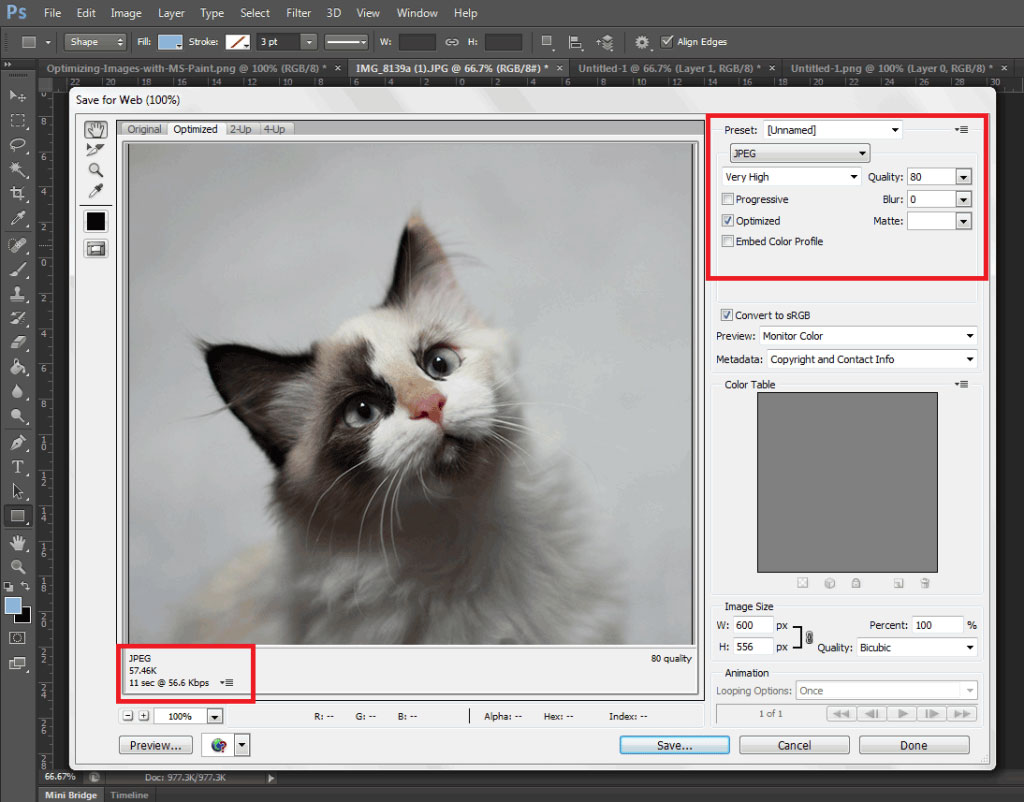
Before you upload your next product photo, logo, or banner image to your store, check the image size first.
optimizing-images-in-Photoshop

Open the image in Photoshop and view it at a 100%.

If the exact size is too large to be displayed on a computer monitor, you need to edit the size of the image. You don’t have to be a Photoshop wizard. Just open the image on Photoshop, and resize or crop your image to the appropriate size. Apart from that, you also need to consider its format and compression.

If you have a style, preset image sizes that you should be using. Click on File and Save for Web (Ctrl + Shift + Alt + S). The smaller the size the faster the image loads on the page.

Using WordPress Plugins

What if you don’t have Photoshop? And, you don’t have the time to optimize every image you add to your e-commerce store? You can always rely on some WordPress Plugins.
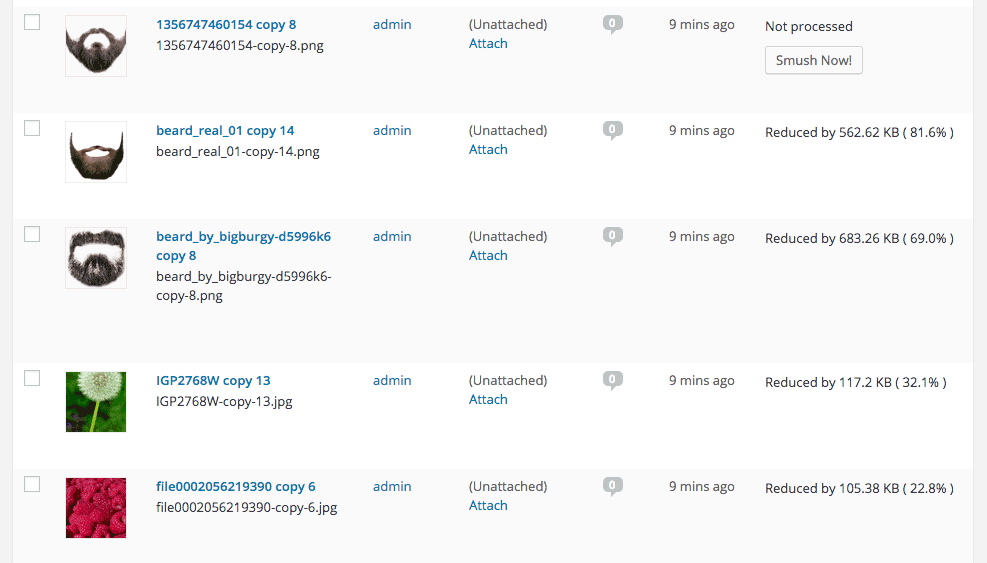
WP-Smush

Take WP Smush, for example. It’s popular for stripping hidden, bulky information from your images, reducing the file size without losing quality. You just need to upload your images, as you normally would, and the plugin will do its work behind the scenes.

The free version of the plugin cannot optimize images larger than 1M. You need to upgrade to WP Smush Pro to optimize images up to 8 MB.

Using a CDN to Increase Site Speed
CDN

So far, we’ve talked about optimizing images, caching, and minification. Now, it’s time to explore the concept of using a Content Delivery Network or CDN, and how it can help increase your site speed.

What is a CDN?

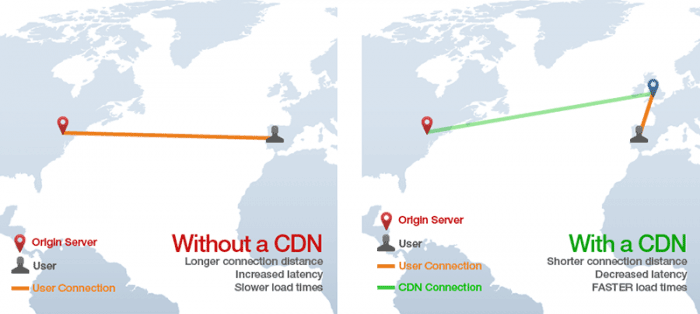
As mentioned earlier, CDN is a network of servers located at different locations around the world. It functions to cache the content of your website, so it can be delivered faster to your visitors based on their location.

Let’s say you’re server is based in Australia. Visitors far away from your geographic location will have a hard time connecting to your website. This would result in delayed responses.

With a Content Delivery Network, browsers will have a nearby server that they can connect to. This will deliver your content much faster. CDNs will mostly benefit the websites that cater to a global audience.

Because there are many options available, choosing the right CDN for your website can be tricky. It depends entirely on your needs, and the popularity of your site. Large-scale enterprise sites usually use popular CDN companies Akamai and Level3.

Setting Up CloudFlare CDN through CPanel

When it comes to small website owners, one of the more popular CDN solutions is CloudFlare. They offer a basic free plan that includes fast site performance, board security protection, and powerful stats about your visitors.

If you’re not sure if your hosting is a partner, you can check this list from CloudFlare.

According to CloudFlare, on average, a website using the CDN will load twice as fast, use 60 percent less bandwidth, have 65 percent fewer requests, and is more secure.

If your website is hosted on a CloudFlare hosting partner, you can easily use the tool available on CPanel.

  1. Go to CPanel’s ‘Site Improvement Tools’

cloudflare

  1. Click on the CloudFlare icon
  2. Tick ‘Activate Free’ for the free version or ‘Activate PLUS’ for the paid version
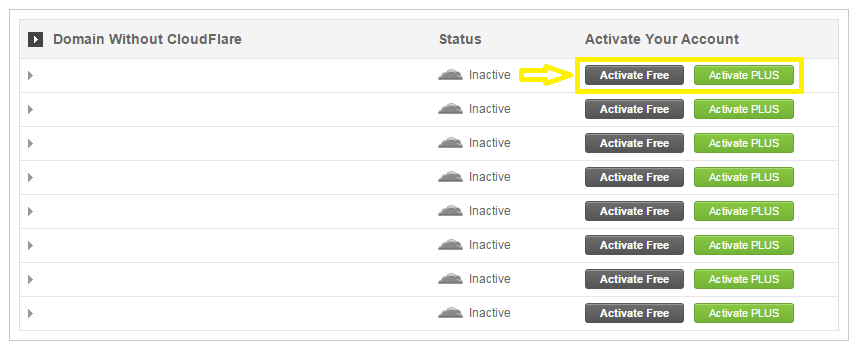
cloudflare-in-cpanel

  1. Enter your email to create an account with CloudFlare
  2. Once activated, click ‘Manage’ to tweak certain settings
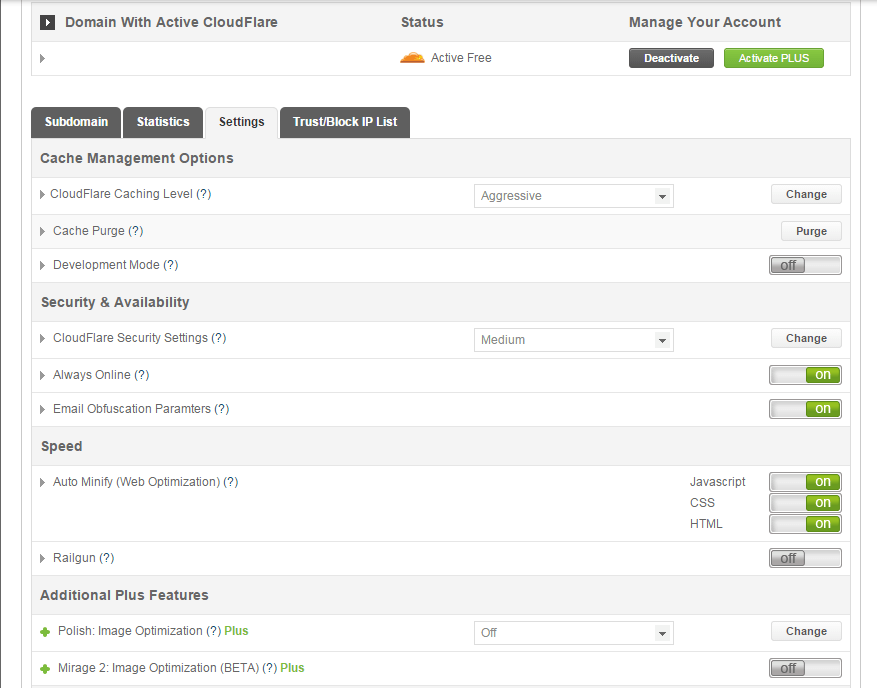
cloudflare-settings

And that’s it. Your CloudFlare CDN is all set and the performance of your website should be improving soon.

Setting Up CloudFlare Manually

Here’s what you need to do too set up CloudFlare manually:

  1. Sign up for an account
  2. Add your website on “Select a website” page for scanning
  3. A list of all found DNS records will be shown
  4. Set any subdomains that you would like to pass through CloudFlare
  5. Click on “I’ve added all missing records, continue” once you’re ready.
  6. Choose a plan, free or paid (SSLs won’t work with the free version)

You also need to edit the name server to the new one provided by CloudFlare. You can do this by going to CPanel, and clicking on Domain Manager. Then, go back to CloudFlare settings and click on “I’ve updated my name servers, continue”.

Note: It may take up to 24 hours for the name servers to be completely active.

With a CDN in place, your site should be running a lot faster. This improves the overall user experience and even boost your conversion rates.

Cleaning Your Database to Speed Up Your Site

cleaning-your-database

It’s a strategy that’s rarely discussed. Nevertheless, it can speed up your site just as well as the other methods. It’s maintaining and cleaning your database.

You might think that database is just one of the requirements for a WordPress install. It is, however, more than just that. If you keep your database clean and optimized, it can shave a few seconds of loading speed.

Remember, one or two seconds saved could mean the difference between a bounce and a conversion.

What’s In Your Database?

A database is just like your computer’s hard drive. It’s where all your data is stored. It contains important information such as: posts, pages, your WooCommerce products, comments and product reviews, users and customer information, URLs, etc.

For those who have been using WordPress for a while, doing regular clean ups allow you to reduce your database size. This can lead to quicker, and smaller backup files.

What’s there to clean?

cleaning-your-database-2

Over continued use of WordPress, your database accumulates many spam comments, copies of post revisions, trashed comments, remnants from plugins you are no longer using, themes, and more. When that becomes too large and bloated then website performance will suffer.

Backup Your Website First!

Before you start any database cleaning, it’s very important to create a backup of your website. If your database gets erased or corrupted, you stand to lose everything you have written. There are a couple of plugins in WordPress that can help you do this.

Your hosting provider will most likely have a backup of your website too. Here’s more detailed information on backing up your database in WordPress.

Cleaning Your Database

You may clean up your website database manually, or use these awesome plugins:
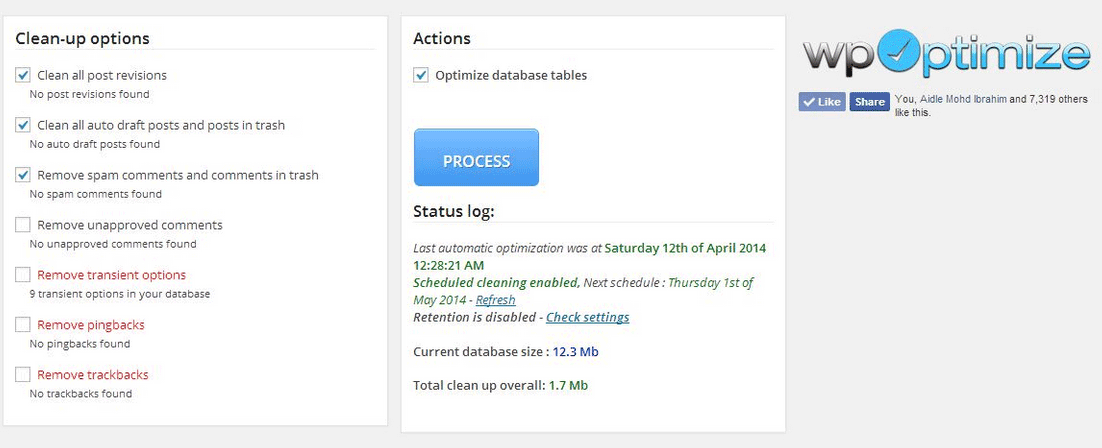
  1. WP-Optimize

wp-optimize

One of the most popular and easiest plugins for cleaning your database. It allows you to schedule a regular database cleanup which can be pretty handy. However, WP-Optimize plugin uses direct delete SQL queries which can leave orphaned data left behind.

  1. WP-Sweep

This plugin allows you to clean up unused, orphaned and duplicated data in your WordPress. It can also show you a report of how much clutter you can clean. WP-Sweep uses proper WordPress delete functions.
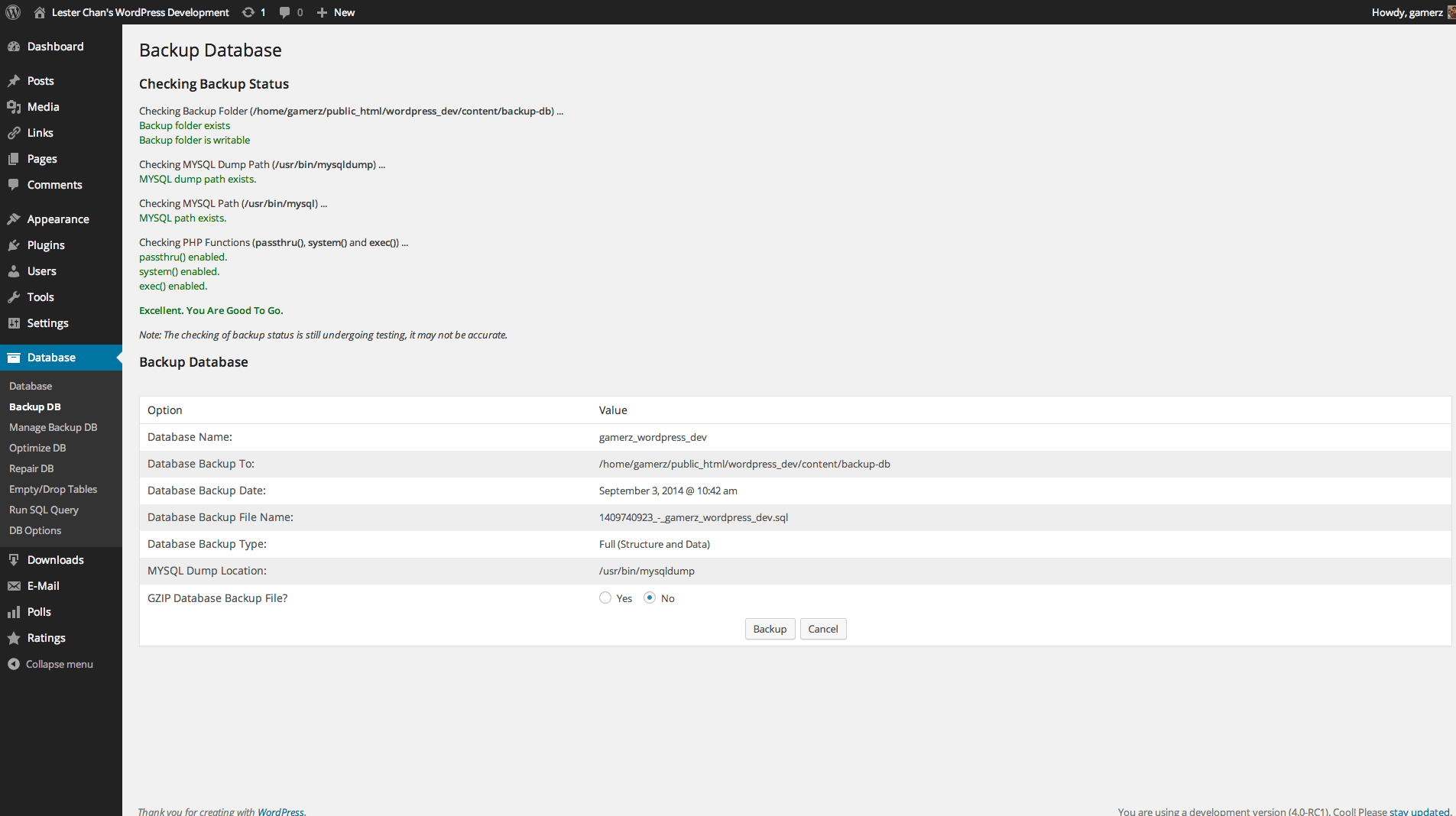
  1. WP-DBManager

wp-dbmanager

Geared for more advanced users, setting up WP-DBManager can be tricky if you’re not familiar with database elements. It offers more customizable options and features, but it cannot clear bloat.

If you want to use WP-DBManager for its features, look for other means to clear database bloat.

More Ways on How to Speed Up Your WooCommerce Store
woocommerce

Once you’ve set up a solid foundation for your e-commerce site, it’s time to do some fine-tuning. That is, if you’re still having speed issues with your WooCommerce website. Here are more useful tips to help you to solve this matter.

1. Upgrade your hosting account

As soon as you can afford it, do upgrade your hosting account. It would be better to use a good hosting publisher rather than shared hosting. Not only it can improve your site speed, but also prevent down time during high traffic periods.

2. Test your current speed

Checking the current performance of the website gives you a benchmark to compare against after you make the changes. There are various tools to help you check your loading speed:

  • Yahoo! Y slow
  • Google Page Speed
  • Pingdom is the quickest and easiest one
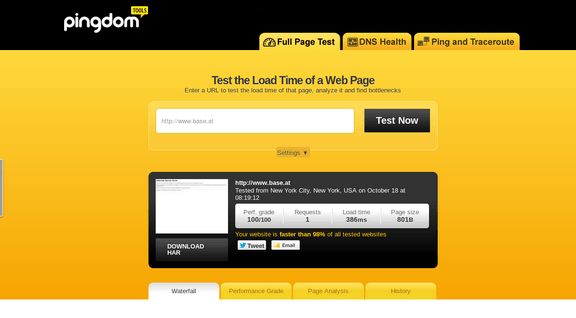
pingdom

3. Use minimum number of WordPress plugins

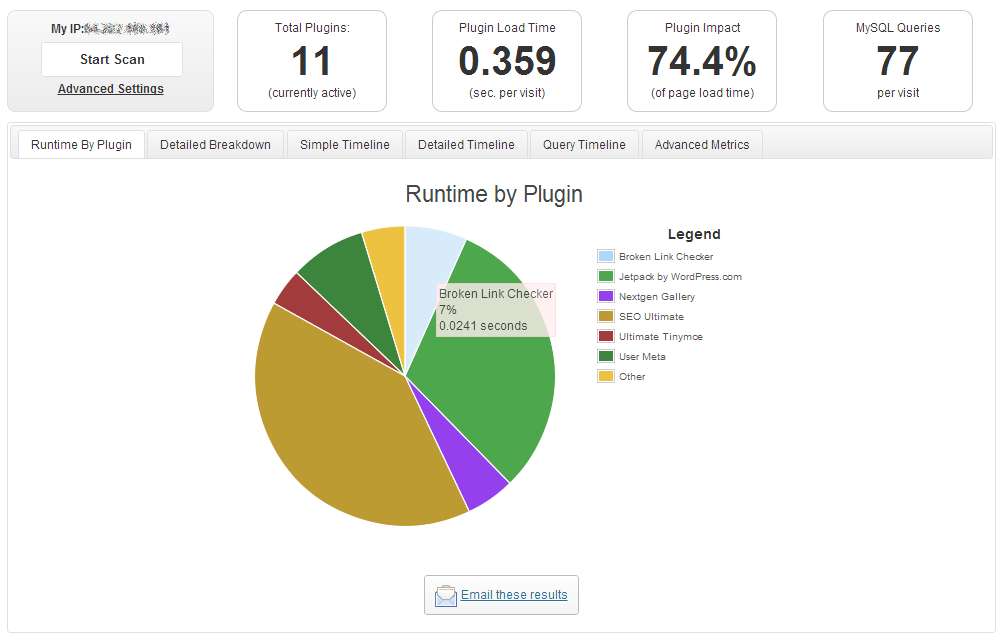
Using too many plugins in a website can slow your website speed, particularly if you’re using social-sharing plugins. It will help to identify plugins that are slowing you down.

P3 (Plugin Performance Profiler) is a well-known diagnostic plugin that shows which plugins are slowing down your site. It creates a profile of your WordPress site’s plugins’ performance by measuring their impact on your site’s load time.
p3

Once you’ve identified them, you can make an informed decision about whether to keep them, replace them or remove them entirely.

4. Compress your website

Gzip is the most popular, and effective compression method that reduces the response size by about 70%.

Compressing files on your computer as a ZIP file can reduce its total size, which makes it both easier and faster to send to someone. Gzip works the same way, but with your Web page files.

After installation, Gzip automatically compresses your website’s files as ZIP files. This can save bandwidth, and speed up page-loading times. When a user visits your site, their browser will automatically unzip the files and show their contents.

Some plugins will add Gzip to your website in a few simple clicks. For those who want to install it manually, it’s actually very simple.

    1. Open your .htaccess file, which is found in the root directory on your server
    2. Add the following code
AddOutputFilterByType DEFLATE text/plain
AddOutputFilterByType DEFLATE text/html
AddOutputFilterByType DEFLATE text/xml
AddOutputFilterByType DEFLATE text/css
AddOutputFilterByType DEFLATE application/xml
AddOutputFilterByType DEFLATE application/xhtml+xml
AddOutputFilterByType DEFLATE application/rss+xml
AddOutputFilterByType DEFLATE application/javascript
AddOutputFilterByType DEFLATE application/x-javascript
  1. Test whether it’s working by going to Check Gzip Compression

5. Optimize your homepage

Your homepage is a crucial part of your site because visitors land there the most. There are a few easy ways to ensure that your homepage loads quickly.

  • Show excerpts instead of full posts
  • Reduce the number of posts to 5 or 7
  • Remove unnecessary sharing widgets
  • Remove inactive plugins and widgets that you don’t need

A clean and focused homepage design will help your page not only look good, but load quicker as well.

6. CSS on Top and JavaScript at the Bottom

It’s widely recommended to link your style sheets as close to the top of the page. The reason is that browsers won’t render a page before rendering the CSS file.

Meanwhile, JavaScript should be as close to the bottom of the footer. Doing so can prevent browsers from parsing anything until it has fully loaded.

With just this simple fix, page-loading speed will improve, since files are forced to be downloaded in the optimal order.

7. Disable content hot linking and leeching

When other sites direct link to the images on your site, it can make your server load increasingly high. This adds up as more and more people “scrape” your posts.

Conclusion:

Just How Important is Site Speed?

importance-of-site-speed

Consumers take advantage of online shopping because of the convenience it offers. Most people can’t stand waiting in lines. And, they especially get frustrated when it’s taking longer than expected.

Now, going back to your website, users won’t wait for your site to load. If it takes too long, they’ll definitely find another online store.

Another thing to keep in mind is that Google wants the best experience for their users, giving site speed utmost importance. They even reward sites that have clean codes and download quickly.

Page speed is now one of 200 or so signals Google uses to determine rank. More importantly, do it for your existing and potential customers. The faster a page loads, the more satisfied they will be.

Filed Under: How-To Articles Tagged With: best practices, caching, CDN, CloudFlare, conversion optimization, CPanel, Genesis, how-to, minification, optimizations, photoshop, SEO tools, site speed optimization, Siteground, Storefront, W3 Total Cache, website maintenance, WooCommerce, woothemes, WordPress, WPengine

How to Optimize Email Opt-in Forms for Increased Conversions in WooCommerce

May 17, 2016 By John Leave a Comment

how to optimize email opt-in formsAs part of your sales funnel, your goal probably is to convert site visitors into subscribers and later on, into paying customers. Email marketing is still one of the best means to connect with your potential customers after they’ve left your site. As you get visitors in your WooCommerce store, you’ll want to get their emails. To do this, you need to learn how to optimize email opt-in forms.

In this post, we’ll show you what you should put in an opt-in form and how to position it strategically on your e-commerce store. We’ll also introduce you to some popular WordPress plugins to easily add opt-in forms on your site.

Where can You Add Opt-in Forms?

It is useful to add opt-in forms in different sections and pages on your e-commerce store.

Landing page

Using a landing page (or a squeeze page) is the traditional method of collecting leads. Because your goal is to get people to sign up to your mailing list, every element of the landing page should support that desired action. Don’t add a side-bar because it will just distract the users from the real goal. Remove links that will take the site visitor away from the landing page before they even fill out and submit the opt-in form.

Feature Box

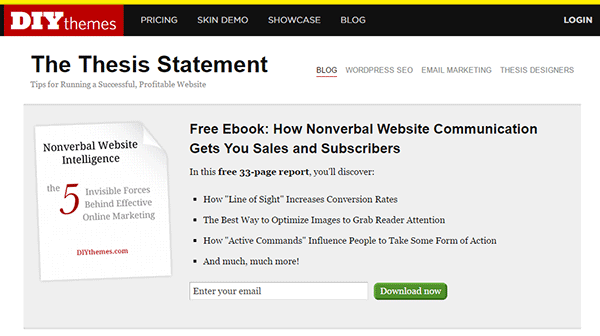
A feature box is a full-width email opt-in box usually added on top of your homepage. Some do not use a feature box because of two things: it takes up the most valuable space on your homepage, and it seems pushy to immediately ask for an email address. To validate the feature box’s location and avoid getting negative attention from site visitors, make sure that what you’re offering is definitely useful in exchange for their email address.

As an example, the use of a feature box on DIYthemes’ blog resulted in a 51.7% increase in its daily blog subscription.feature-box_DIYthemes

Pop-up Window

Because of its nature of ‘popping-up’ and interrupting the user while browsing the site, many visitors don’t like pop-ups. Nevertheless, a pop-up window is still one of the most effective lead generation tools. A lightbox works the same way as a pop-up window, but the rest of the site is darkened to make the form stand out.

Note that the timing should be perfect to avoid hindering good user experience. Once seen, you have only 1-2 seconds to grab the user’s attention and pique their interest before they close the window. Here are some examples of high converting pop-up email forms.

Opt-In Forms in Other Pages

options-2Apart from the feature box in the homepage, you can insert more opt-in forms in other pages (About page and Splash page) and in other page sections (top of sidebar, sticky top bar and below the footer).

The About Us page is usually one of the most visited pages in any website, so it’s a good idea to make the most of that traffic.

In a Kissmetrics review, using a splash page might be a better idea than a pop-up on the homepage. A pop-up is frowned upon because it interrupts the user while browsing the site. A splash page appears as a preliminary message. As such, it is better perceived.

Sidebar Opt-In Form

A sidebar opt-in form is the most common email list building method mainly because it is built in to most website templates. Keep your opt-in form to the top of your sidebar though, to maximize results.

Sticky Top Bar

Because a sticky top bar remains visible on top of the page even as you scroll down, visitors have plenty of time and opportunity to notice the message and eventually subscribe.

Components of an Opt-In Form

Once you’ve determined where you want your opt-in forms, the next step is to create them. To increase your chances of getting sign-ups, your opt-in form should have the right timing, design, form fields and copy.

Timing

15-seconds_traffic-stoplightIn using a pop-up window, you need to properly time it. You can set a time delay before showing the pop-up. If it’s too early, you’ll annoy site visitors even before they’ve taken a look of your site and what you have to offer. A 15-second delay is enough time for visitors to look around your site and not be too bothered with a pop-up. Note that this does not necessarily apply to your target audience. It’s best to conduct your own tests.
You can also show pop-ups as visitors reach the bottom of your content or as they exit your site.

Design

To effectively connect with your visitors as they quickly scan your opt-in form, you need to add visual elements that enhance your messaging. Humanize your opt-in form with a photo. Inject credibility with a testimonial or statistic. If your opt-in form is not a pop-up, make sure it will get noticed but at the same match your site’s theme.

Form Fields

More people sign up when less form data is requested. Note that you just need the email address of your site visitors for email marketing purposes. Usually just a name and email in the form will suffice. You can even make the name optional.

Concise Copy

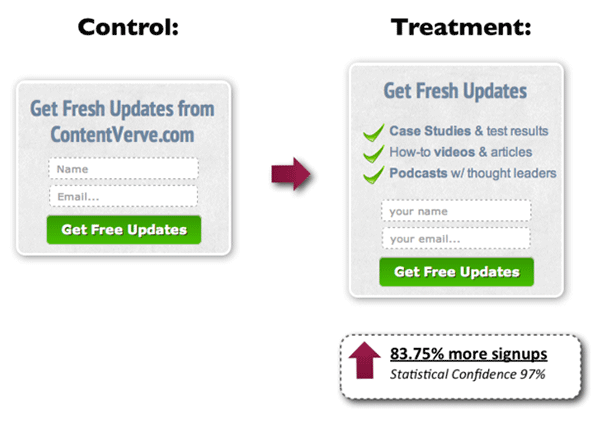
Make your opt-in form copy as concise as possible. It’s important to present a clear purpose when asking for personal information. Spell out what your site visitors will get in return. You can also assure them that you won’t sell their addresses to a third party or spam them. BeemDigital showed an 83.75% increase in sign-ups when they added value and relevance to their opt-in form.

concise-copy_Contentverve
Image Credit: http://contentverve.com/how-to-write-high-converting-signup-form-copy/

Another effective tactic is to offer a lead magnet, like a free e-book, product trial, discount, or even free shipping. On a side note, you can set up the incentive in such a way that your new subscribers won’t unsubscribe immediately. If you’re offering a free e-book, break it up in parts and offer them in a series of emails. Entice them to want to wait for what’s coming next.

Recommended Opt-In Form Plugins for Your WooCommerce Store

In choosing your opt-in plugin, consider what features you need and choose a plugin that provides just that and nothing more. Anything more is just extra bloat on your site. Below we list some of opt-in form plugins that we can recommend.

OptinMonster

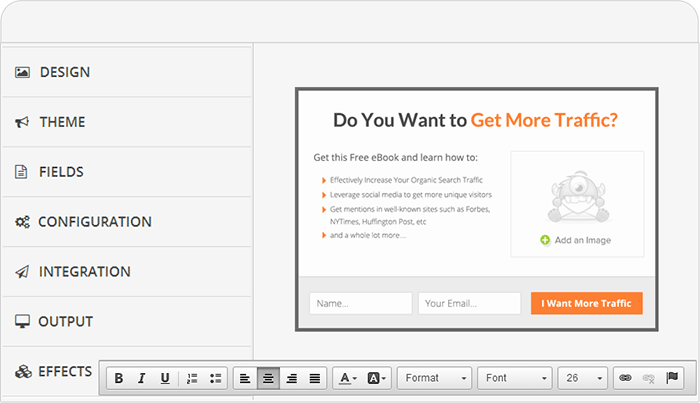
optinmonsterOptinMonster is a paid pop-up plugin that offers a wide range of functionality. It comes with an easy-to-use form builder that allows you to create various types of opt-in forms including WordPress popup forms, floating header and footer bars, slide-ins also known as scroll triggered boxes, sidebar forms, after post forms, in-line forms, mobile-specific forms, and welcome gates. Other features are exit-intent technology, page-level targeting, behavior automation and A/B testing, and a 2-step opt-in process.

PopupAlly

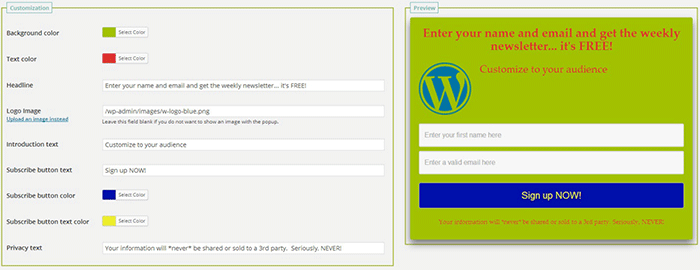
popupallyPopupAlly’s free version allows you to create advanced popup signup forms even if you don’t know how to code. You can also embed opt-in forms at the bottom of your posts, set a few seconds’ delay or have the pop-up appear as the users leave your site.

Its premium version, PopupAlly Pro, has an optimized interface and extra features. This includes more customizable templates, more opt-in options (horizontal, sidebar, below-the-post, etc) and allows for any web fonts to be used. Click-based and scroll activation timing features and one-on-one email support are available only with the premium version.

Hello Bar

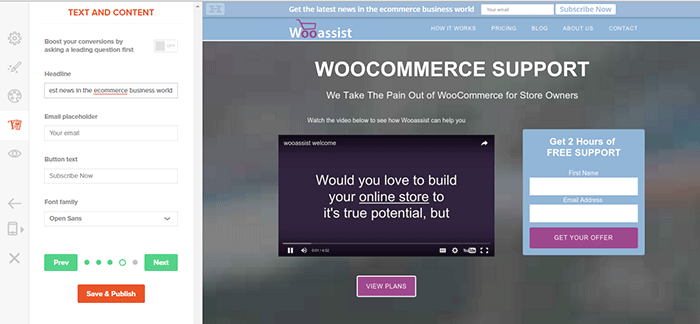
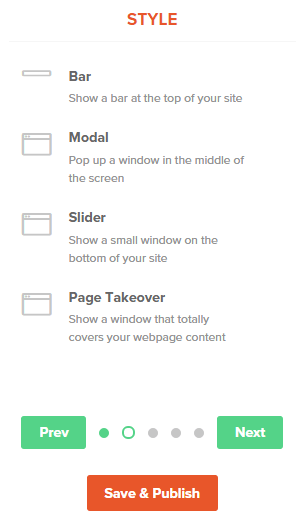
hellobar_wooassist pagehellobar_style menuHello Bar is a free plugin that allows you to copy and paste a code snippet from HelloBar.com straight to your WordPress admin interface. Above is the HelloBar interface from the website. You can choose from several goals like grow your email list, promote your social pages, promote an offer, or add a contact form. You can choose from several styles of opt-in forms and even change the colors to match your website’s colors. To set up HelloBar, just visit the site to configure. The interface is very straight forward so you should have the design in minutes. To apply this to your site, just install the free plugin that is generated specifically for your website. This plugin will only work for the site that you registered it for. You can just create a new one for another site.

This plugin also comes with A/B testing so you can easily optimize for increased conversion.

Ninja Forms

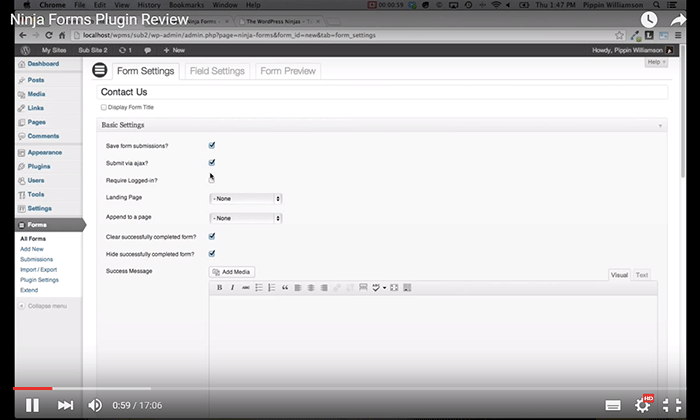
ninjaformsNinja Forms is a plugin built with developers in mind. Included are hundreds of functions, action hooks, and filters that developers can use to create their own custom functionality. Customize field options and forms with its extensive settings. Add a Ninja Form to your e-commerce site easily with a widget, shortcode, template function, or append it automatically to any content. Upgraded bundles include automatic updates, add-ons and sites per add-on, and email support with faster response time.

Which Opt-in Forms Leads to More Conversions?

arm-wrestling-2There is no single correct answer to this question. Different websites vary in terms of design and market. This article could help point you in the right direction, but there are a lot of things you need to figure out for yourself. Get to know your customers by creating a customer persona. When you are able to identify your customers, you’ll know how to market to them. From there, you can create a sales funnel that works for you. Use heat maps like CrazyEgg to find out where your visitors click. Constant A/B split testing will help you determine what variation converts better.

Conclusion

Opt-in forms should be placed strategically throughout your website. Optimize them so they are easily visible. Make them stand out. These forms should offer value and relevance to encourage users to subscribe. Enhance copy with visual elements and keep form fields to a minimum. If you decide to use pop-ups, you need to time them correctly so as not to be intrusive. Make sure you’re getting the most of your opt-in plugin’s features without sacrificing site performance. When your opt-in forms are set up, you need to conduct your own split testing to optimize for maximum conversion.

Hope this article helped you out. Do you have any strategies you’d like to share for increasing opt-in form conversion? Do you want to add something that we might have missed? Let us know in the comments section.

Filed Under: How-To Articles, Theme and Plugin Reviews Tagged With: best practices, conversion optimization, design tweaks, how-to, marketing strategy, plugins, PopupAlly, website development, WordPress

On page SEO for Ecommerce: The Online Store Ultimate Guide

September 2, 2015 By John Leave a Comment

on-page-SEO

I know I need SEO, but I don’t know exactly what I need.

We have heard this statement several times. Entrepreneurs realize the value of SEO, but they don’t truly know how to do it for their e-commerce business.

Before embarking on optimizing on page SEO for ecommerce, it’s crucial to understand what you hope to gain.

In this article, you’ll learn about the following:

  • Understanding your SEO needs so you can focus on the most profitable areas
  • How SEO really works for E-Commerce Websites
  • Our 8 step technical On-Page SEO process to guarantee you more traffic.
  • Our 7 Step On-Page SEO guide to user experience and engagement

Most users prefer using Google because it returns the most relevant search results on the web – and by ‘users’, we mean your potential customers. This means that being ranked on the top pages allows online stores to receive more visitors and generate more leads.

So, how can you rank higher than your competitors on Google?

The answer is a well-rounded website. Whether you’re just getting started with a new online store, or improving an existing site, you need to step up your SEO game.

I. Understanding your SEO needs

SEO-success
SEO can help potential customers find your store in search results. Let’s say someone is looking for a product you’re selling. How can we make Google recommend your brand to that user, instead of another store? This is where SEO can help.

A. Business Goals

Your business goals should always come first. Do you want to increase conversion? Build brand or product awareness? If your business goals are clearly set, it will be easier to determine the SEO strategy that will best fit your needs.

B. Existing Performance

Look at your analytics data to assess the existing performance of your site. It will show your site’s traffic and conversion trends over the years, helping you understand what keywords you need to optimize for. We will show you exactly how to do keyword research shortly.

C. Resource Constraints

After looking at your analytics data, and knowing where you’re lacking, you’ll know how to fill in the gaps. Know where you need help, and it will make the SEO planning easier.

II. SEO Basics for E-commerce Websites

SEO-google

For an e-commerce site, driving relevant traffic to boost sales is crucial.

It’s critical for websites to appear on Page 1 of Google. Surprisingly, the top three organic positions alone receive 58.4 percent of all clicks from users.

CTR

Websites ranked number one received an average click-through rate of 36.4 percent. The second spot received a CTR of 12.5 percent, and number three had a share of 9.5 percent.

Do you want to know how to rank your e-commerce site? Read on.

A. Start your Research

On-page SEO work needs two types of research: Keyword and Competitor Research.

The primary objective of doing research is to identify the gaps between your site, and the sites that are doing better. Keep in mind that the market you are about to enter might already be well-served by savvy site owners.

1. Keyword Research

First of all, targeting the wrong keywords makes your campaign ineffective. It can lead to low quality traffic, and few conversions.

Go for keywords that are highly relevant to your brand or products. What terms are your ideal clients using when searching for your service?

You can use tools such as:

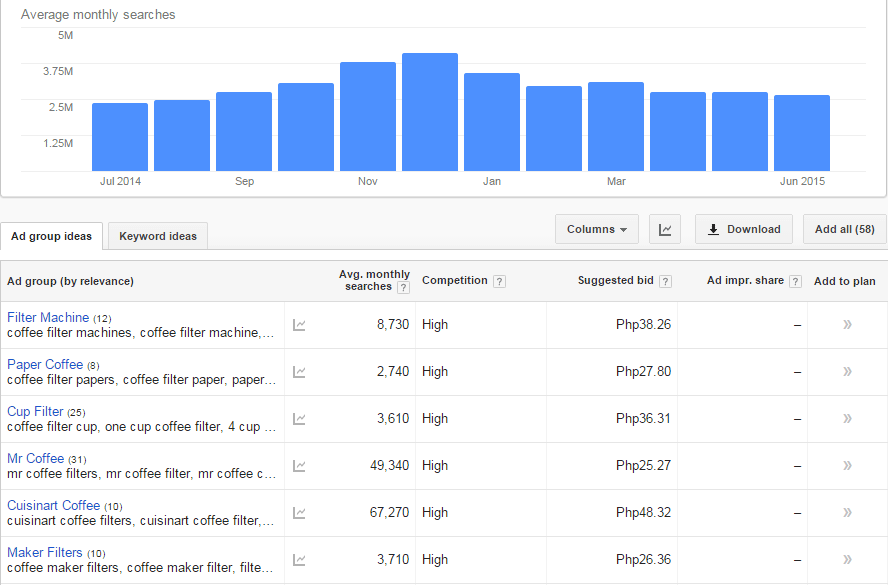
Google Keyword Planner (formerly the Keyword Tool)

keyword-tool

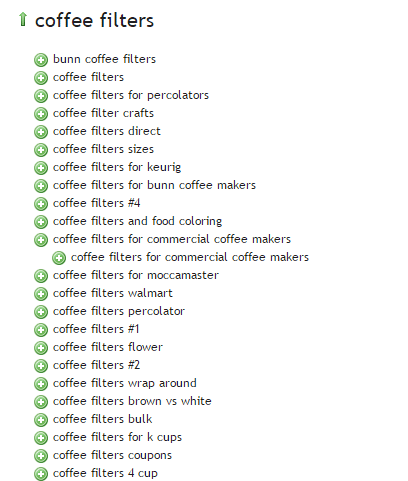
Übersuggest

ubersuggest

2. Competitor Research

Insightful competitor analysis

Insightful competitor analysis is an essential strategy to find out what rival e-commerce firms are doing. In SEO, you can track and analyze the performance of your competitors in relatively simple ways.

Which keywords are your main competitors going for?

List down the keywords which your competitors appear to be using with their SEO strategy. Check if they have higher Domain Authority and Page Authorities than you.

  • Domain Authority is a calculated metric for how well a given domain is likely to rank in Google’s search results. It is used to compare one site to another, or to track the strength of your website over time. It is scored on a 100-point, logarithmic scale.
  • Page Authority is a calculated metric for how well a given webpage is likely to rank in Google’s search results. It is also scored on a 100-point, logarithmic scale, and used to predict how well a specific page will rank on search engines.

If your competitors have higher DA’s or PA’s than you, contending against them will be very difficult. So, it may be a good idea to focus on other keywords or “longer tail” keywords instead.

You can use these tools to determine DA’s and PA’s:

MozBar

Allows for checking the SEO title and description your competitors use in their title tags.

moz-browser-extension

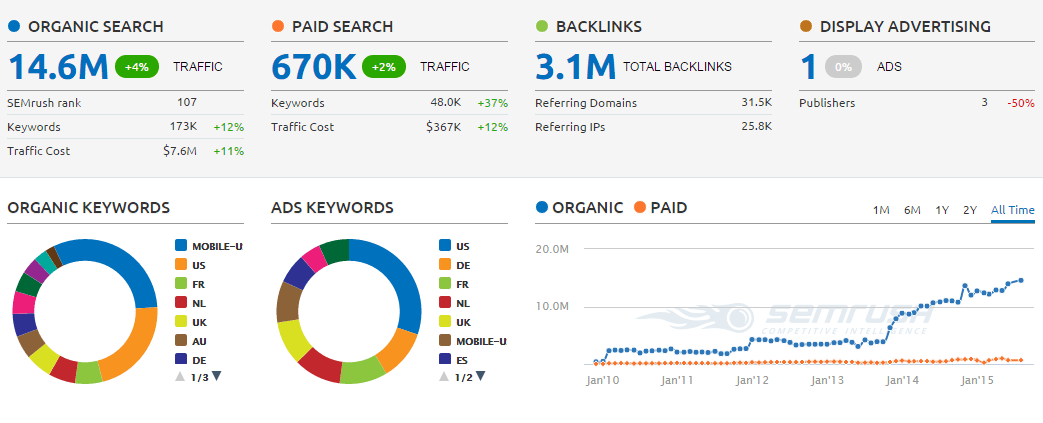
SEMrush

Allows for seeing what keywords your competitors are ranking for on both organic and paid search.

SEMRush

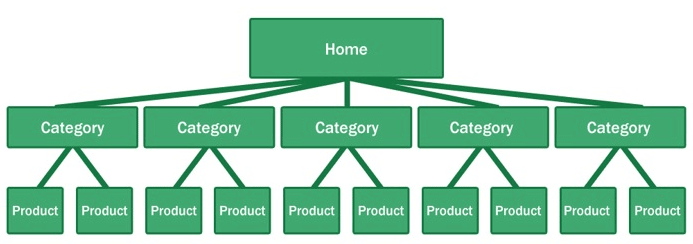
What is their site architecture like?

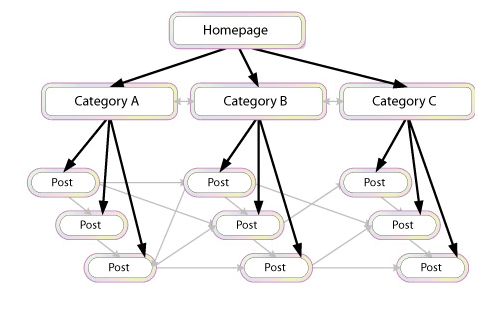
Try to look at the site architecture of competing sites, or the biggest companies in your industry. Pay special attention to popular products in a particular category, related products, top rated products, and recently viewed products.

site-architecture

Here’s why your site architecture is essential for organic traffic:

  • Google considers your site’s homepage the most authoritative page, so content closest to the homepage receives the most value.
  • By structuring your e-commerce store correctly, your main level navigation pages, such as the category pages, will contain a majority of your site’s authority.
  • Adding relevant, high-quality content to your main level navigation pages can increase conversion, page authority, and sub-category page’s authority.

B. Identify Current Problems

After discovering what keywords are going to make you the most profit comes auditing your site for problems.

404-error

1. Find site errors

Here are the top errors you’ll want to correct:

  • Redirecting any 404 pages to actual content
  • Changing 302 redirects to 301 redirects
  • Updating duplicate content pages, meta titles, and meta descriptions

The above mentioned are called HTTP status codes. These are three-digit numbers returned by servers that indicate the status of a web element.

404 HTTP status code

It can be shown as 404 Error, 404 Not Found, Error 404, 404 File or Directory Not Found, etc. This status code means that the server has not found anything matching the Request-URL. Or, simply the page you were trying to reach on a site couldn’t be found on their server, has been removed or does not exist.

Having lots of 404 pages will hurt your site in many ways. For instance, if a ranking page resolves to a 404 error, it might frustrate the user. This means you will be throwing away some earning potential. Google also counts it as a poor user experience. If you don’t fix the errors, Google will eventually remove that page from their index, which will eventually hurt your overall rankings.

302 Redirect HTTP status code

It’s also known as a temporary redirect. 302 should be put in place if you want to redirect visitors into another webpage, but you plan to bring the redirected page back after some time.

It’s not really recommended since it can hurt your site’s search engine visibility. While the redirected page will retain its page authority and traffic value, the temporary page won’t accumulate any. It’s often used to test a new page. You can gain client feedback without affecting the old page’s ranking.

301 Redirect HTTP status code

This refers to a permanent redirect from one URL to the other. All qualities of the redirected page will be passed on to the detour page. A 301 redirect is often implemented if one is ready to make a test page permanent. The old page will be removed from Google’s index, and the new one will replace it.

Without 301 redirect, the web authority which your previous domain collected will be thrown right out the window. Any inbound links earned will be lost, and you won’t get any SEO credit.

There are dozens of free online services that are capable of checking your website for errors, and finding ways of improving your web page.

Google Webmaster Tools, for instance, can help you identify any page or links with errors, scan for malware, find pages with short or missing titles, find duplicate meta tags, and much more.

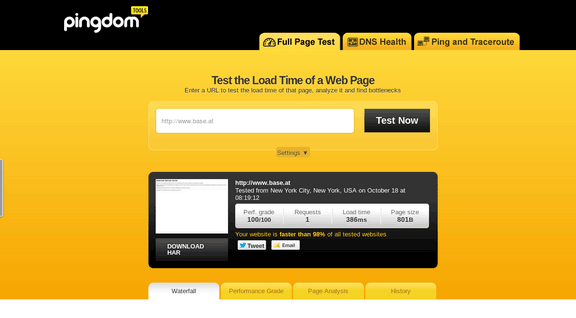
2. Determine your site speed

Any delay is enough reason to make your customers leave. This converts to lost revenue, which can hurt your bottom-line.

One study revealed that 1 in 2 visitors will abandon a website that takes more than 6 seconds to load.

There are various tools to help you check your loading speed:

  • Yahoo! Y slow
  • Google Page Speed
  • Pingdom is the quickest and easiest one

pingdom-site-speed-test

For a more in-depth guide to how to speed up your site see our article here.

C. On-Page Optimization

On-page optimization includes all of the actions you take within your own web pages to help your site rank better.

Learn more about on-page optimization for your online store on the next step.

III. Optimizing On-page SEO Technical Factors

optimizing-on-page-SEO

If your online store is not optimized for both search engines and users, you have a small chance for success. On-Page SEO refers to the settings you can apply on the website so that it is optimized for search engines.

A. Why start with On-page SEO?

  • With On-Page SEO, you ‘speak’ the language of search engines. You can easily make them understand what your website is about.
  • On-Page SEO can make the users happy. It ensures that your website is setup correctly, which leads to a better user experience.
  • Before promoting your site through off-page SEO, you need to be sure that the website is optimized and is running smoothly.

If you don’t know the basics of on-page SEO, you have very little chance of securing top spots for competitive key phrases. Get it right and you’ll succeed on the search engines.

Here are the basic factors of on-page SEO:

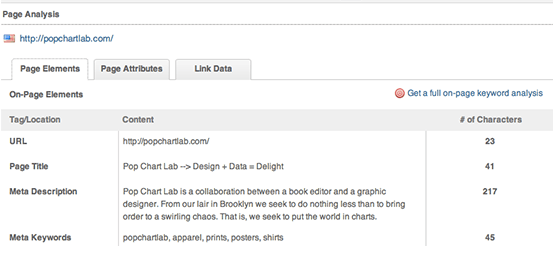
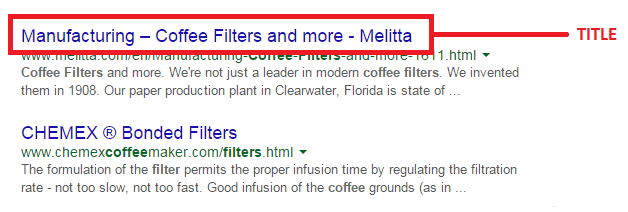
1. Title Tag

Title tags or title elements define the title of a document. It should be an accurate and concise description of a page’s content.

title-tag

Place your main keyword and variations in the title tag of a page. Google would display around 70 characters of a title tag, or based on pixel width. You can preview how your title tags will appear like through Moz’s preview tool. Make sure to include your business name along with the main keyword phrase you are targeting.

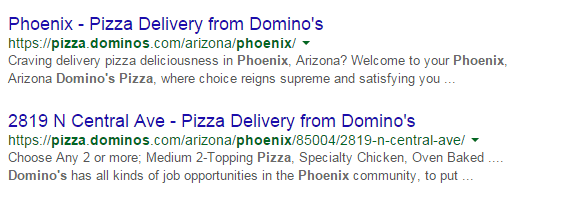
2. Title Tag Optimization

Your site’s title has to be appealing enough for a user to want to find out more information.

title-tag-optimization

Things to include in your title:

  • Business Name: Aside from customers may search you by your brand name, it’s also important for breading purposes. In the example above, it’s Domino’s.
  • Keywords: Putting certain keywords in your title can help them rank, just don’t staff too many. Domino’s used ‘pizza delivery’.
  • Toll-free numbers: It helps your visitors to take a direct action, and makes your title look professional. Users are left with an impression of authenticity of the business.

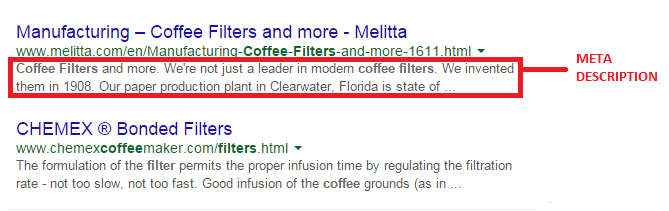
B. Meta Descriptions

A meta description is the snippet of information below the link of a search result. It describes the contents of the page to the searcher, with the goal of convincing the searcher to click through to your website.

meta-description

They may not contribute as a ranking signal but meta descriptions can encourage people to want to visit your website. It describes your business and shows up in the search results page beneath the title tag. It should be well-written and approximately 156 characters.

Think of meta description as a sales pitch for what the landing page is about. Get practical instructions on how to update them using WooCommerce.

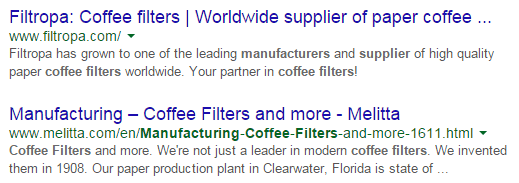
1. Meta Tags Optimization

As mentioned earlier, meta description is something that when done properly can urge users to check out your website.

meta-tag-optimization

Things to include in your Meta Description:

  • Selling Point: To get some advantage, write what your customers want to hear. For instance, a phrase like ‘affordable, all-natural coffee filters from only $3.99’ may result in more clicks.
  • Keywords: It will give you some advantage in Google’s relevancy algorithm.
  • Toll Free Numbers: If you don’t want to place it in your title tag, include it in your meta description instead. Again, it may help your visitors to take a direct action.

C. Heading Tags

Use headings correctly without over-optimizing them. Your main keyword should be in a H1 tag. Split sub-headings up with H2 and H3 tags. Only use the H1 tag once, and others can be used multiple times.

For more information of the correct use of when and how to use heading tags, check out How To Use H1-H6 HTML Elements Properly.

1. HTML Tags Optimization

The text inside your header tags is given very high importance by the search engine. They highlight certain parts of your website.

Header 1: Use it to define the most important section of your page. The H1 tag is an influential ranking factor, and an important signal to search engines as to what a page of content is about.

Header 2: Use it for sub-titles or important sections of your pages.

D. Content

Your content should be written primarily for users, and secondly for search engines. Make sure that the content on your homepage helps visitors learn more about your business, and the products you’re offering.

Use the keywords from your research, but make it look as natural as possible and easy to understand for the user.

Again, don’t forget to use H tags to break up your content into easy to digest sections.

E. URL Structure

Which has a more search engine friendly URL structure: “www.domain.com/page-name/” or “www.domain.com/index.php?id=1?” Obviously, the former makes more sense to both users and search engines.

Avoid having main pages sit too many directories deep in your site. Use hyphens rather than underscores. If you do make changes, implement 301 redirects from the old URL to the new. This way, your users won’t have to face 404 pages.

F. Keyword Optimization

Keyword stuffing is no longer acceptable. Maintain a balance between your keywords and your content.

1. Elements of Keyword Optimization:

  • Keyword Density: In SEO, keyword density is the measurement in percentage of the number of times a particular keyword or phrase appears compared to the total number of words in a page. It’s also an indicator whether your page is relevant to the targeted keyword. Yoast SEO plugin can help analyze keyword density.
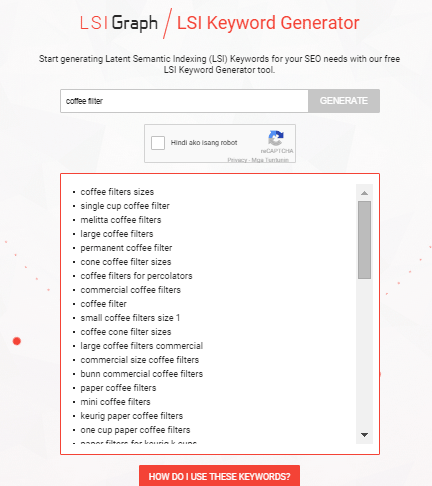
  • Related Keywords: Related keywords are keywords of industries and markets that are closely or somehow related to your niche. It’s using related, but less obvious keywords to bring targeted, conversion-friendly traffic. LSI is smart enough to see ‘coffee filters’ is somehow closely related to tea and accessories for brewing. LSI Graph is a good tool to find LSI keywords.

LSI

  • Long Tail Keywords: These are longer and more specific keyword phrases that visitors are more likely to use. It’s about adding common words like ‘best’, ‘free’, ‘cheap’, or ‘top’ to your actual keywords. Long tail keywords can help you craft the kind of content that engages and inspires readers.

Long tail keywords have less competition, give more qualified leads, and improve head term rankings. According to a research by Statistica, 50% of your focus should be on long-tail keywords in order to achieve a successful On-page SEO.

G. Internal Link Optimization

Internal linking is when you link pages of your website to other pages within your website. It’s a process that involves optimizing internal links, in order for algorithms to determine the relevance of web page content.

internal-link-optimization

If you lack internal links, it will be difficult for Google to crawl and index deeper sections of your website.

1. Why are internal links important?

  1. Internal links improve your ‘link flow’ or page rank to individual pages on your site, helping them to rank better.
  1. The anchor text of links helps Google to understand the context of a webpage, and to rank better.
  • Anchor text: It’s what you call the clickable text in a hyperlink. A good anchor text includes the appropriate keyword to give the page it is linking to more relevant meaning.
  1. Internal links help Google Bots crawl and access different parts of your site, and also improve user experience.

H. Image Optimization

On-page images need to be optimized because search engines can’t read them. This means the web crawlers would only read the text.

1. Elements of Image Optimization:

  • Alt text: Try to move the mouse over an image on a website. If a short description appears, that is alternate text. You can use your relevant keywords as ALT text.
  • File name: Use meaningful file names for your images, such as ‘coffee-filter-basket.jpg’ instead of just ‘DSC1234.jpg’. Make sure the file name is relevant to the image.

IV. Optimizing On-Page SEO for User Experience and Engagement.

user-experience

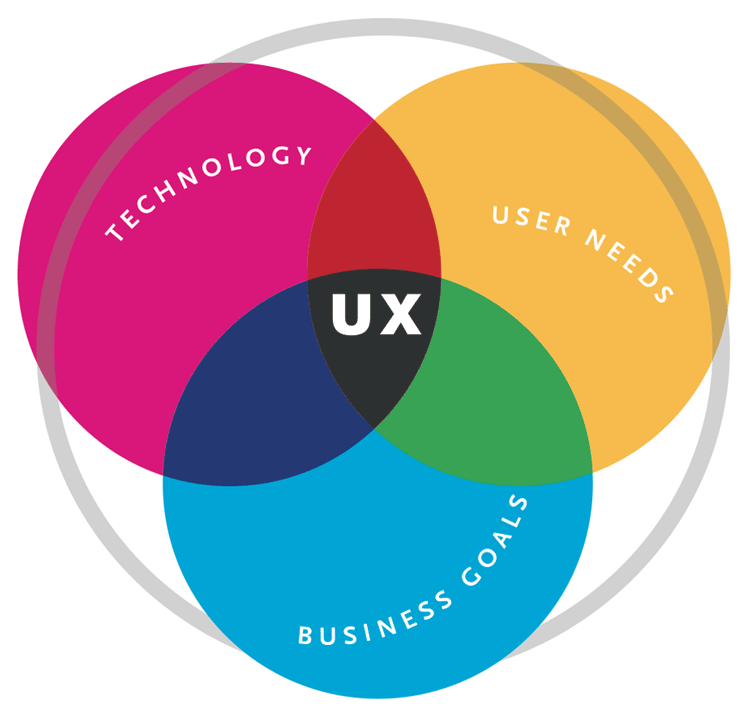
Google has been updating its ranking factors consistently, and user experience and engagement have become one of them, especially for mobile. What links UX and SEO? It’s about attracting visitors and converting them into customers.

Once you create a great user experience, visitors would perceive your site positively which encourages sharing, return visits, bookmarking, and inbound links. These factors are signals recognized by the search engines, contributing to high rankings.

  1. Focus on designs that fit SEO principles – you need to maximize H1 and H2 titles, optimize menu names and functionalities, create a clear navigation path, and provide focused product names and descriptions.
  1. Call-to-action – CTA buttons or even links with CTA should be designed not only for user experience, but also linked to content and page elements optimized for SEO.
  1. Focus on quality – when talking about quality websites, user experience is also taken into account page speed, easy navigation, internal link structure, descriptive content, and page layout.

A. Engagement Metrics

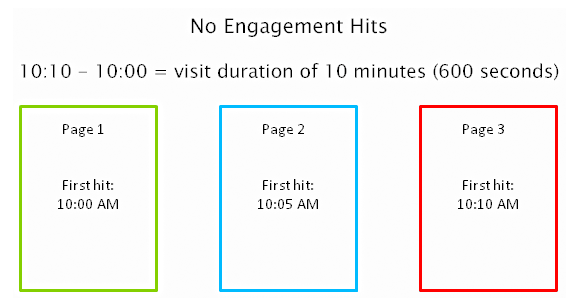
As a search engine delivers a page of results to you, it observes how you engage with those results, measuring the success of the rankings in the process. Search engines are looking for that ‘long click’, wherein a user does not immediately return to the search page.

engagement-metrics

For instance, you click on the first link found on the SERP, then immediately hit the back button and clicked the second link. The search engine will interpret this as not being satisfied with the first result.

engagement-hits

1. How important is Time on Site?

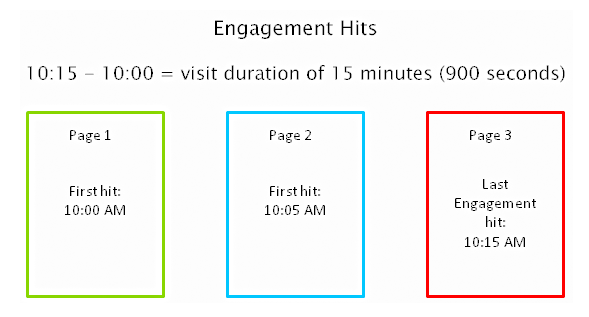
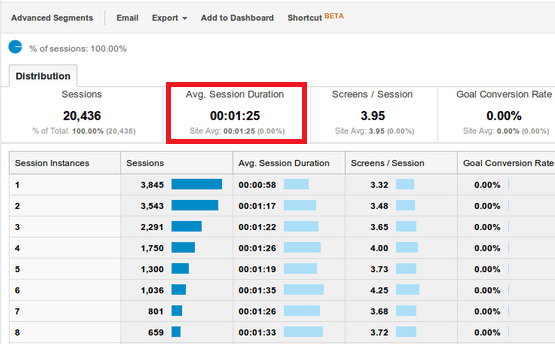
Time on site or visit duration refers to how long a visitor stays on your website. Because Google wants to give their users the best experience, they actively measure user behavior to help shape their algorithm. If a user is spending a significant time on a site, interacting with it, and going deeper within the content, it means there is something of value on the site for that particular user.

time-on-site

2. What is Relevance?

The relevance of a website’s content is particularly important for search engines. The term ‘relevance’ describes the extent to which the content of a website corresponds to the search term used. It can affect a website’s ranking in the search results, for a given search term.

If you’re selling coffee filters, you must not go off topic and talk about juicing machines. Go for the search terms that your potential customers are searching for. “Disposable paper coffee filters” could be a good choice for a keyword for a coffee-filter vendor, but “coffee maker parts” might not work. You would be confusing yourself, your to-be customers, and the search engines. Your relevance would get hurt, hence you ranking would get hurt too.

Ask yourself, how relevant is your page content to the keyword query of your visitor? You can make your site more relevant to searchers by optimizing the different on-page factors discussed in Part III. They include your site’s meta tags, headings, body text, and other content.

3. Google will reward you for being relevant.

According to Google’s official blog, their goal is simple: to give people the most relevant answers to their queries as quickly as possible.

relevance-to-users-reward

Maintaining your site’s relevance may lead to more clicks, and a higher position in search results. When Google changed its algorithm last February 2011, they began promoting sites with reports, in-depth analyses, and other forms of high-quality, value-adding content. Sites that were deemed irrelevant and invaluable by the algorithm were demoted.

4. How Google determines relevance?

Google displays web pages in their search results based on the authority and relevance of the page. So, how does it determine relevance? According to Neil Patel, it analyzes a page’s content based on several factors, including where and how often you use certain words in that piece of content. You can check out Google’s other ranking factors here.

Let’s move on to your WooCommerce product page.

B. Important Elements for On-Page Optimization

These are the elements that are important for on-page optimization:

1. Customer Reviews

These reviews not only improve your business, they also provide an amazing source of unique content. Internet Retailer reveals that an online store can increase its e-commerce conversion rate by 14-76% by adding product reviews.

Search engine spiders like unique content that is regularly updated, and user reviews are a great way to create more of this on your website. According to data, 88% of consumers trust online reviews as much as personal recommendations. This means that potential customers will be searching for the name of the product plus the word ‘review’, or related words such as ‘ratings’.

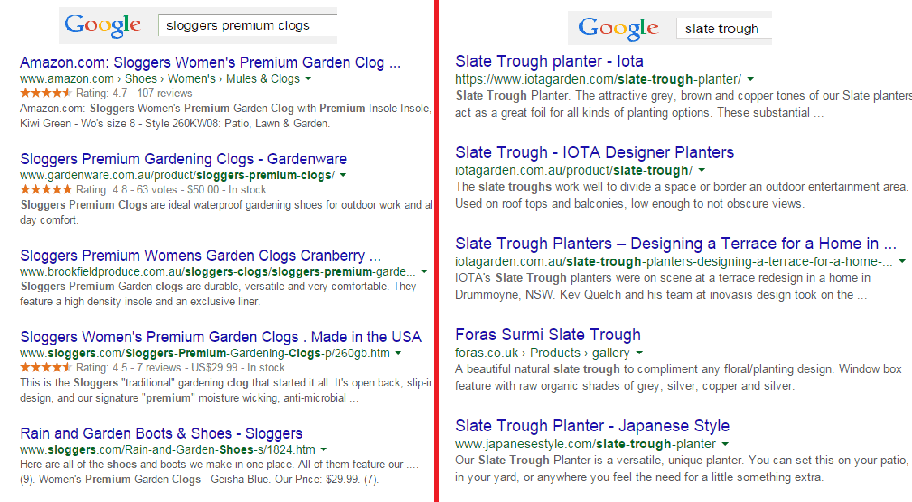
Compare these two images on SERPs:

customer-review-SERPS

The organic search results on the left are showing ratings just above the meta tag, while the image on the right doesn’t. So, what determines if ratings are shown on SERPs?

Apparently, sites on the left are using schema markup on their reviews. That is why their ratings occur on SERPs.

In AdWords, they are enabled through the product reviews ad extension. You have to submit your product data to Google, and be a client of selected review websites. Get reviewed by at least 30 unique users, submit your reviews to Google, and have your review extension enabled!

Increased CTR on results pages

Correctly formatted reviews can help increase click-throughs from search engine results pages. In the image below, the addition of star ratings make the first and third results stand out.

increased-CTR

Increased conversion rates

By increasing the chance of a click-through, you’re also increasing the chance for conversion. User reviews can increase trust in your ecommerce site, and can help remove doubts about products.

To collect customer reviews, try the following:

  • Email customers a few weeks after purchasing and ask for a review.
  • Offer discounts or other incentives on their next purchase in exchange for a review.

Don’t worry about negative reviews. Instead, take it as an opportunity to show good customer service. Offer to replace the faulty product or offer a refund.

2. Pagination

Because e-commerce sites are promoting a variety of products, they´re ultimately forced to divide them into multiple pages. This process is called pagination.
If you have product categories that contain thousands of products, make sure that all of them are indexed and regularly crawled. Google has some good instruction on pagination with rel=“next” and rel=“prev”.

Pagination affects two critical elements of search engine accessibility:

Crawl Depth: Google demands best practices, wherein spiders should reach content-rich pages in as few clicks as possible. If you have too much paginated content, Googlebot won’t travel through all of them. It won’t be able to index the final pages.

Duplicate Content: Search engines want to show only a single URL for a piece of content. If pagination is not implemented correctly, it may cause duplicate content problems. This will cause some confusion for the Googlebot, especially during search queries.

3. Page Speed

Google announced that website speed would begin having an impact on search ranking. Apparently for Google, a poor performing website results in a poor user experience. It’s enough reason for a website to gain less promotion in search results.

A user is not going to wait for your product pages to load, so you should care about site speed. Any delay is enough reason to make your customers leave. This converts to lost revenue, which can hurt your bottom-line.

There are several ways to optimize your WooCommerce site’s speed. You can read all about it here.

4. Search Option

Even with a good navigation structure, there are users who will just prefer to search. That’s why a search box has become an essential element of e-commerce sites.

Using your search feature, you can track your customers’ searches using CMS or Google Analytics. What phrases are they using? Does your site return good results? Is your search function working for singular and plural keywords?

search-option

Monitor the number of people who search and then leave straight away. What prevents them to go through the checkout process? Try including special offers related to the search, and see if it lessens your bounce rate. The data you have collected will help you improve your website and customer experience.

5. Product Description

It is very important to make your product descriptions unique. For retailers, don’t just rely on the manufacturer’s brochure. If you do, then you’ll have the same content as hundreds of other retailers. Make it unique and engaging.

Product descriptions shouldn’t just describe your products, product descriptions should sell them.

Here’s how:

Focus on your ideal buyer

If you focus on a huge group of buyers, you may end up addressing no one at all. Imagine your ideal buyer and consider how you would speak to him if you were selling your product face-to-face. Does he appreciate a good humor?

ThinkGeek starts their product description as:

think-geek

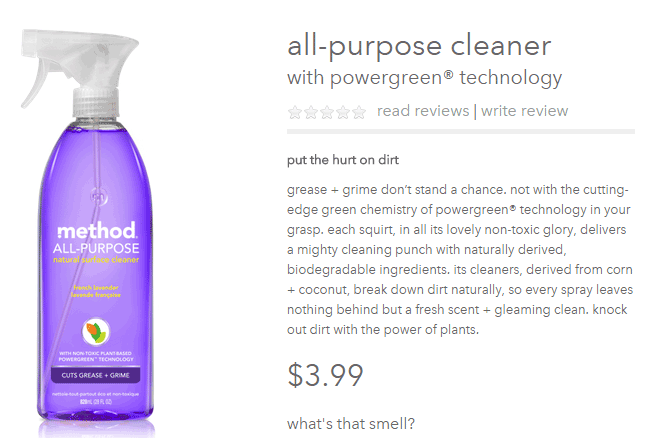
Entice with benefits

A consumer always wants to know what’s in it for them. What are your product’s features and specifications? Know how to highlight the benefits.

entice-with-benefits

Methodhome highlights the powergreen action of their all-purpose cleaner, wherein grease and grime don’t stand a chance!

6. Business Information

To optimize your business information, make sure that it’s complete and accurate.

Phone number: this can actually inspire trust. If a phone number is shown, it gives customers the impression that you can provide customer support if ever they encounter some problems with the purchase.

Company details: this is especially helpful if you’re trying to target local markets. If you give Google some location signals, it can help your location keywords rank.

7. Social Sharing

Are you happy with how social share buttons work on your website? To maximize the benefits, social share buttons need to be optimized.

social-sharing

What’s an optimized share button?

It’s a share button that automatically generates a shareable message with custom information for your brand.

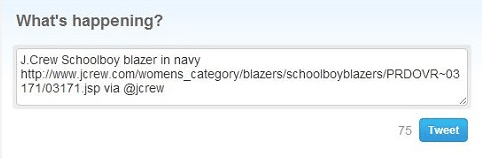
Here’s an example of an optimized Tweet:

Notice that the tweet has the brand’s Twitter handle @jcrew.

brand-on-Twitter-handle

Customizing your share buttons let your readers share useful information, and help you control brand messaging at the same time. You’re making it easy for your visitors to share your products on their social media profiles.

We all know how social media connects people who value each other’s opinions. People who see content being shared by their friends, family, or colleagues will think that it’s something worth checking out. This means more traffic to your site!

You can place social share buttons…

  • After the point of purchase on a confirmation type page
  • Email follow up and correspondence
  • After a review has been published – give the reviewer the option to share their review

V. Conclusion

team

With these steps, you can start optimizing the pages of your online store. If you want to do this by yourself, there are plenty of SEO tools given in this article to help you optimize your rankings. Nevertheless, don’t be shy to reach out to a professional for help. On the other side of the coin don’t try and outsource this completely, no one understands your products like you; an internal team member with intimate knowledge of the products and target market needs to be involved.

If on-page optimization is done right, you will see an increase in quality traffic, which will lead to more conversions and repeat visitors.

Keep in mind that Google constantly updates their algorithms, which also means you have to be up-to-date with your strategies. It may require a lot of work, but the benefits are worth it.

Filed Under: SEO For E-Commerce Tagged With: 404 error, conversion optimization, Google Analytics, Google Webmaster Tools, keyword research, redirection, SEO strategy, SEO tools, site speed optimization, social media

How to Increase Conversion Rate By Adding WooCommerce Side Cart Plugin

March 4, 2020 By John Leave a Comment

Did you know that you can increase conversion rates by adding the WooCommerce Side Cart plugin to your website?

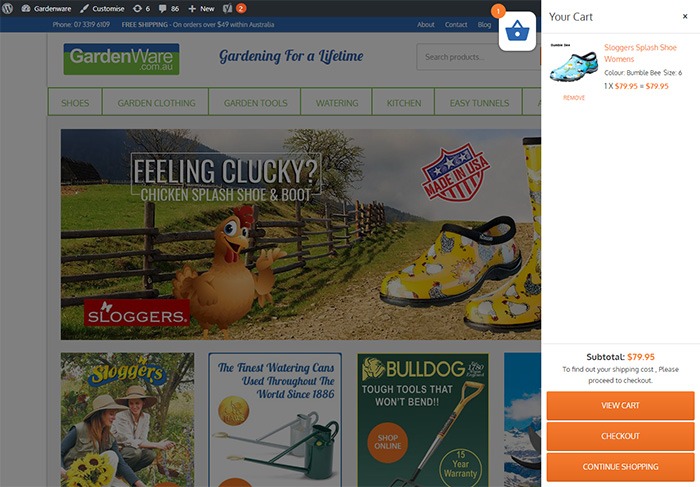
Improving the customer journey in your WooCommerce is a great way of boosting your conversion rate and this simple plugin gets the job done by adding an intuitive site-wide cart icon to your WooCommerce store. When you click on the icon, it brings up a view of your cart. When checking the cart contents, your customers don’t need to leave the page they are on which makes for great user experience.

Our Own Experience

We tested the plugin on GardenWare among others, but here’s how it looks on GardenWare. You can tweak the look to fit your brand with some custom CSS. You can adjust the position of the cart icon depending on your needs. You can also remove items or add quantity without refreshing the page.

Increase Conversion Rate By Adding WooCommerce Cart to Your Sidebar - GardenWare

Increasing Conversion Rate

After installing the plugin on Gardenware, we took the data after 3 months.

To account for seasonal data, we compared the data with the same months of the previous year, and we get an increase in conversion rate of almost 10%.

It is important to note that improving the customer journey and user experience leads to more conversions. From our user testing, the plugin does help improve user experience by a great deal.

How to Install and Set Up WooCommerce Side Cart

To get more conversions by using the WooCommerce Side Cart, you have to first install the WooCommerce Cart plugin. You can download the plugin here or search for it from the plugin repository. 

We recommend testing this first on a development site to make sure the plugin does not conflict with any other plugin you are using. It’s a good idea to extensively test your product purchase process to make sure there are no issues.

WooCommerce Side Cart Plugin

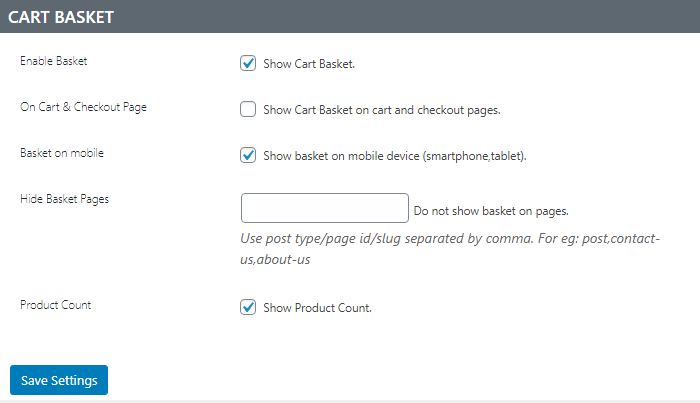
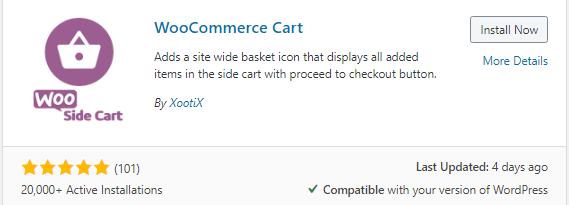
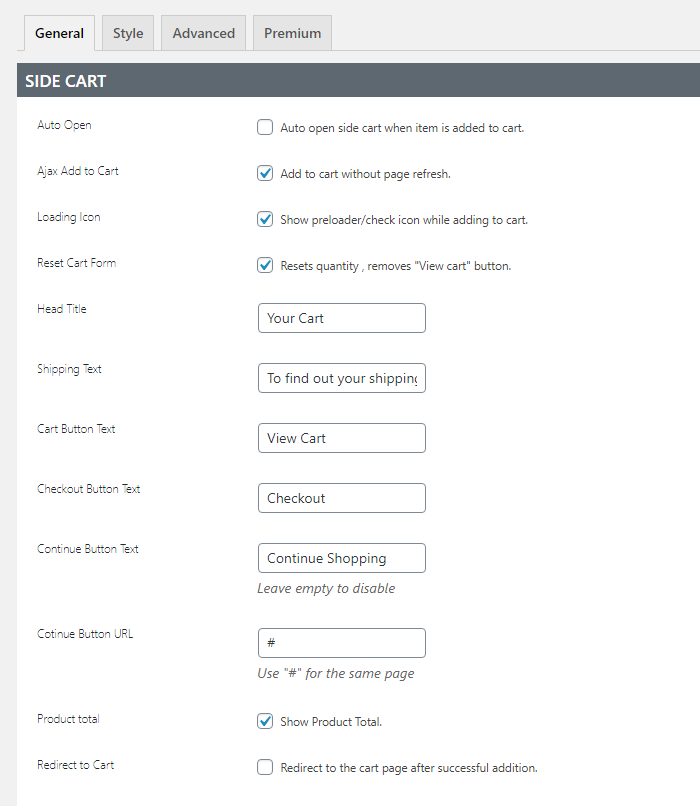
After installing and activating the plugin, click Woo Side Cart from your WordPress Dashboard to see the plugin settings. You can tweak the settings based on your needs.

WooCommerce Side Cart Plugin General Settings
WooCommerce Side Cart Plugin Other Settings

You can also tweak the CSS to make sure the sidebar cart colors and style fit your branding strategy.

Should you need assistance with setting up and customizing the plugin, we can help. Or if you have any questions, you can let us know in the comments.

Filed Under: How-To Articles Tagged With: conversion optimization, WooCommerce, woocommerce checkout

Design Tweaks on WooCommerce

January 29, 2015 By John Leave a Comment

SnapCrab_2015-06-26_15-14-47_No-0000

Your online business using WooCommerce is all set. Each important element is in place and accounted for. Your website is done. You get regular traffic. You got your marketing strategies in place. You have a blog and you are active in social media. You think you’ve got it all covered, but then a few things start to bug you.

Optimize Web Design

You realize the design needs few tweaks and you come up with a few ideas that should be able to increase sales. What you have to do right now is optimize your design for better conversion rates. This is called conversion rate optimization.

A few design tweaks on your website will help increase your conversion rates. It may involve adjusting or repositioning some visual and design elements. Color, images, cues and their placement on your landing or checkout pages, are all part of optimizing your web design – see here design tweaks.

Keep Your Design Simple

Your website needs to look good, but not necessarily flashy. Simplicity in your design can go a long way towards increasing conversions.

It is understandable that you’d like to fill your pages with a lot of useful features and elements. However, it could also be a hindrance. Visitors would usually turn away from complicated designs. Keep it simple and understandable.

Design Tweaks

In changing the colors on your website, take the context into consideration. Make use of call-to-actions (CTA), and place them in a favourable manner to make your visitors take action. The design of your website should encourage visitors to want to browse more. Essentially, they should immediately see what they’re looking for.

Use the right amount of white space. It can definitely put emphasis on where it is needed. It is a simple and effective way of making sure that important elements of your site are easy to locate. This post enumerates user interface tweaks can you make, to improve your conversion rates.

Know Your Audience

An important part of adjusting your site’s design is learning about your potential customers. Understand who they are what their personalities are like. That way, you could adjust your design elements to fit in with them.

SnapCrab_2015-06-26_15-15-17_No-0000

You can read more about customer personas in these articles:

New MailChimp User Persona Research

Web Design Tips that Increase Conversions

Having a clear idea of your current users can help you better empathize with them. Combining these tips will not only get people to visit your site, but also encourage visitors to take the next step.
A few design tweaks on your WooCommerce store can set you up for better conversions which will in turn lead to better sales for your business.

Filed Under: How-To Articles Tagged With: call-to-action, colors, conversion optimization, CSS, customer persona, design tweaks, how-to, optimizations, WooCommerce

  • 1
  • 2
  • 3
  • …
  • 7
  • Next Page »
Let us support your online store so you can manage your business

Get started today

Get 2 Hours of FREE SUPPORT

We are so confident that you will love our services that we will give you your first 4 hours at a 50% discount

That’s 4 hours for only $75

BUY NOW

Free eBook

5 Things Every Online Store Can Fix On Their Website In The Next Week To Increase Sales

Quick Links

  • How it Works
  • Pricing
  • Blog
  • Contact
  • About Wooassist
  • My Account
  • Checkout
  • Privacy Policy
  • Cookie Policy
  • Terms and Conditions

Wooassist

Australia:
59 Luke St.
Hemmant QLD 4174

Philippines:
San Miguel St.
Poblacion, Iligan City 9200

Connect


Copyright © 2026 · Wooassist

Yours FREE!

5 Things Every Online Store Can Fix On Their Website In The Next Week To Increase Sales