Wooassist

Assistance for Your Woocommerce Store

  • How it Works
  • Pricing
  • Services
    • Site Maintenance
    • AI SEO and Content Marketing
  • Blog
    • How-To Articles
    • Code Snippets
    • SEO For E-Commerce
    • Theme and Plugin Reviews
    • Wooassist News
    • WordPress/WooCommerce News
    • Interviews
  • About Us
  • Contact
You are here: Home / Archives for WordPress

How to Speed Up Your WooCommerce Store

August 3, 2015 By John 3 Comments

SnapCrab_2015-07-03_10-57-18_No-0000

Aside from the products or services you offer, there’s another crucial factor that may affect your conversion rate. We’re talking about your site speed. Any delay is enough reason to make your customers leave. This converts to lost revenue, which can hurt your bottom-line. How can you prevent or change this? This article will serve as an in-depth guide to and will teach you how to speed up your WooCommerce store.

In this article, you’ll learn about the following:

  • Why invest in site speed optimization?
  • What hardware and software you need?
  • Improving Site Speed by Caching and Minifying
  • Speed Up Site by Optimizing Images for Web
  • Using a CDN to Increase Site Speed
  • Cleaning Your Database to Speed Up Site
  • More Ways on How to Speed Up Your WooCommerce store

Why Invest in Site Speed Optimization?

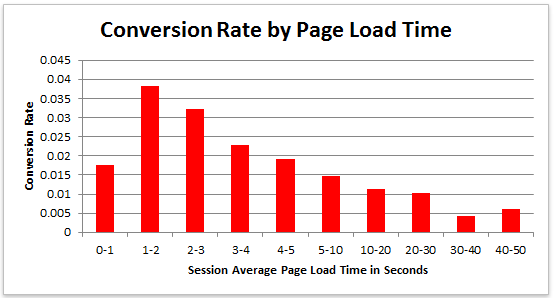
Studies reveal revealed that 47% of visitors expect a page to load in under 2 seconds. Around 40% of these will abandon a web page if it takes more than 3 seconds to load. Meanwhile, 52% claim that quick page loads are important for their loyalty to a site.
conversion-rate-by-page-load-time

What do these findings tell you, a site owner?

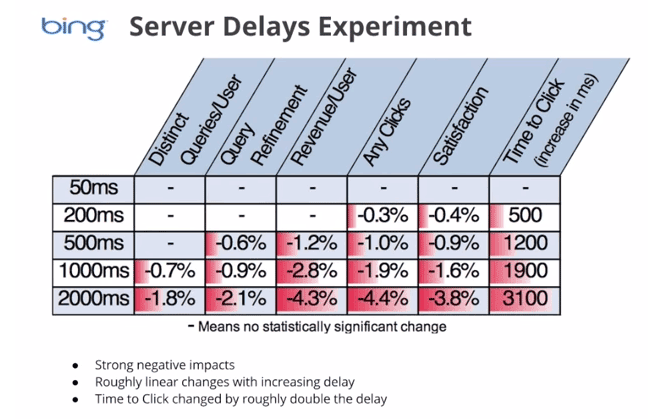
It just shows that site speed is very important. Those two seconds are crucial to capture your visitor’s attention, convince them to hang around, and increase your chance for conversion. Microsoft Bing also conducted a research about server delays and the effect they bring on user behavior.
server-delays-experiment

According to the results, a 2-second longer delay in page responsiveness reduced user satisfaction by 3.8%. They navigated 4.4% fewer pages, with a 4.3% lesser e-commerce revenue per user. Every second matters online.

Here’s the thing: visitors – your potential customers – can’t really tell the difference if a page is ‘just’ slow, or isn’t working at all. Thus, a slow website is quite the same as not having one. Most users won’t stare at the screen and wait. They move on to the next website and never come back.

site-visitors

Google announced that it has included site speed in its ranking algorithm. If your site speed is slow, it can affect SEO by having reduced rankings. They even launched a new web-based tool, which analyzes the performance of web pages.

With these information, we now know that site speed not only sells, but also leads to customer satisfaction and increased conversion.

If your site speed is slow, it’s time to fix that. Read on.

What Hardware And Software You Need?

The foundation you set up for your e-commerce site has a lot to do with its speed. If it’s the root of the problem, quick fixes won’t help. But, what makes a good foundation, and how can you set up a website that runs at lightning speed?

Web Hosting Provider.

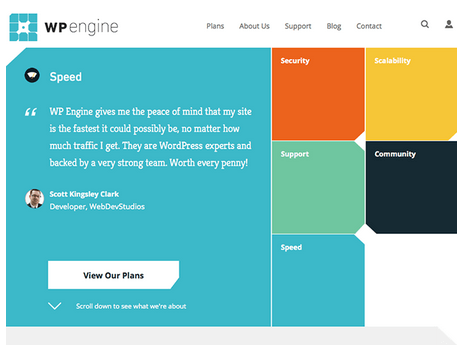
What’s your current hosting package? For an e-commerce site, you shouldn’t go with the cheapest. They may have limited RAM, processing power, and disk space which won’t benefit your site at all.
wp-engine

Wooassist recommends:
Wpengine and Siteground

Please note that we are affiliates of these hosts but we have only chosen them based on our years of experience dealing with hosting services for our clients’ and our own sites. And we can say that these two are among the best. If you were to sign up to either of them, we’d be grateful if you did so by clicking either of the links above.

WordPress Themes

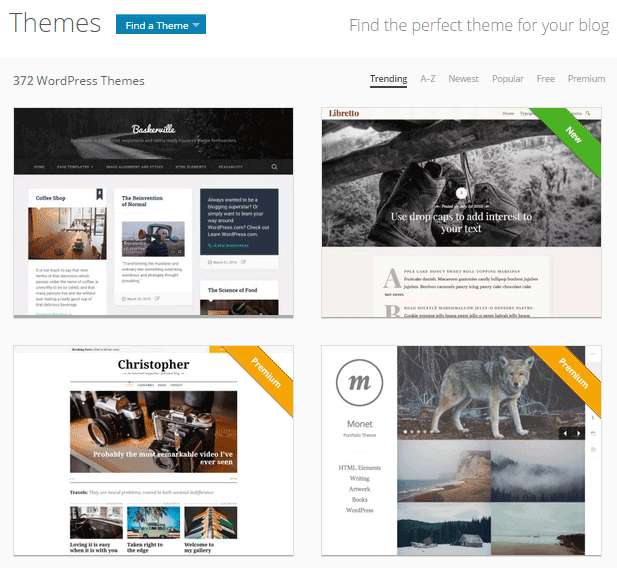
Not all WordPress themes are created equal, and not all are extremely fast and well-coded. In choosing a theme, checking the demo speed is a must. Tools such as Pingdom will give you an idea of how well-coded it is.
wp-themes

Wooassist recommends:
Storefront by Woothemes or Any HTML5 theme at Studio Press

Content Delivery Network

CDN is a system of distributed servers that accelerate the delivery of web content, and rich media to internet-connected devices. Since your bandwidth is spread across many different servers, the load on a single server is reduced.

Wooassist recommends:
Wpengine comes with CDN included or Cloudflare

Improving Site Speed by Caching and Minifying

caching-and-minification

Let’s start with the most popular, and probably, the easiest thing: Caching.

What is Caching?

Caching is storing your dynamic content in the server as static content. Serving static content is faster as opposed to dynamic content, which means longer page load times. It’s a fundamental technique of reducing database load and speeding up WordPress websites.

There are two types of Caching:

  • Client-Side
  • Server-Side

Let’s move on to Minification.

When developers make code, they make code with a lot of white space. This practice makes the code easier to read and understand for humans. However, computers don’t need that white space. It just makes reading the code take longer.

Minification is removing all that white space and optimizing the code. This makes it easier for machines to make parsing the webpage faster.

How to Implement Caching and Minification?

It may sound all too complicated, but don’t worry. It is really very simple. All you need is one plugin to do both, and it has all the caching and minification solutions you need.

W3 Total Cache

It’s the second most popular plugin with almost 4 million downloads and a 4.5 star rating. W3 Total Cache is more suitable for high traffic websites running from a VPS or a better hosting environment.

How to Set up Caching with W3 Total Cache?

  1. Before installing W3 Total Cache, uninstall other caching plugins like WP Super Cache
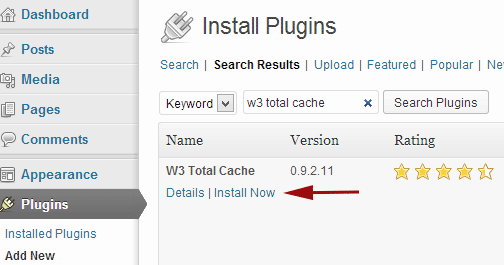
  2. Go to your WordPress admin panel and click on Plugins > Add New
w3-total-cache

  1. Search for “W3 Total Cache”
  2. Click on the ‘Install Now’ button and then activate
  3. Click on Performance on your WordPress dashboard and go to General Settings
  4. The first option that you see on this page is Page Cache.
  5. Check the ‘Enable’ box
  6. Click on ‘Save all settings’

By having this enabled, you will significantly decrease your load time.

How to Set up Minification with W3 Total Cache?
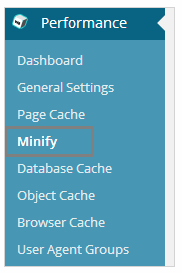
  1. minifyGo to your WordPress dashboard and click on Performance
  2. Look for ‘Minify’ under the Performance menu
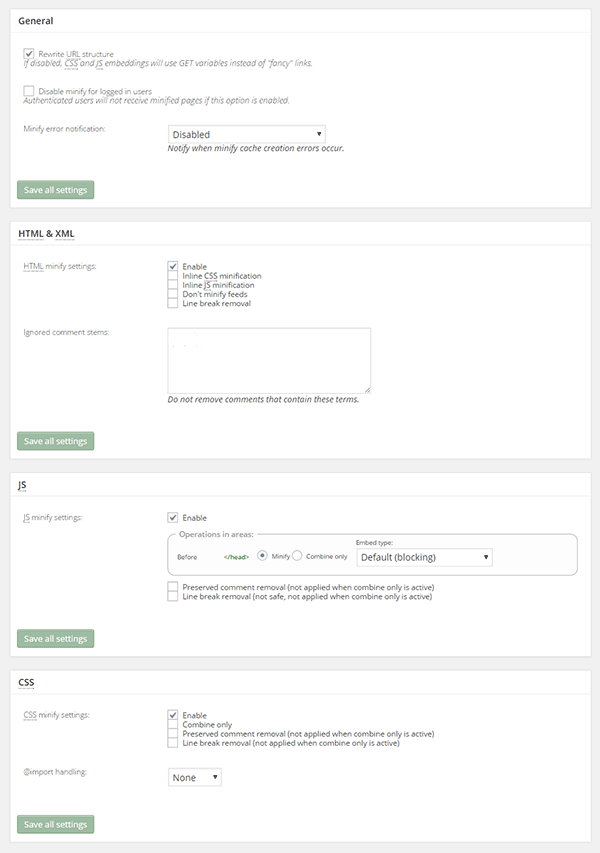
  3. Tick “Enable” for HTML & XML, JS, and CSS.
minify-2

  1. Click on ‘Save all settings’

The goal of minification is to make the source code “smaller” in order to improve your site’s performance. Get a more detailed information on each of the settings offered in Minification here.

Speed Up Site by Optimizing Images for Web

Your customers won’t wait around for that picture to load.

customers

Another technique to improve your online store’s performance is optimizing images on your website. High-resolution images may look great, but when you’re loading a 2MB image, it’s going to do more harm than good.

Aim for an image size of less than 100KB, but if you can go smaller without compromising quality, then better. It’s a rule of thumb to not let the images look bad or pixelated.

Striking a balance between a good looking image, and an acceptable image size, shouldn’t be a complex task.

Here are a few ways on how to optimize images for the web:

Using Photoshop

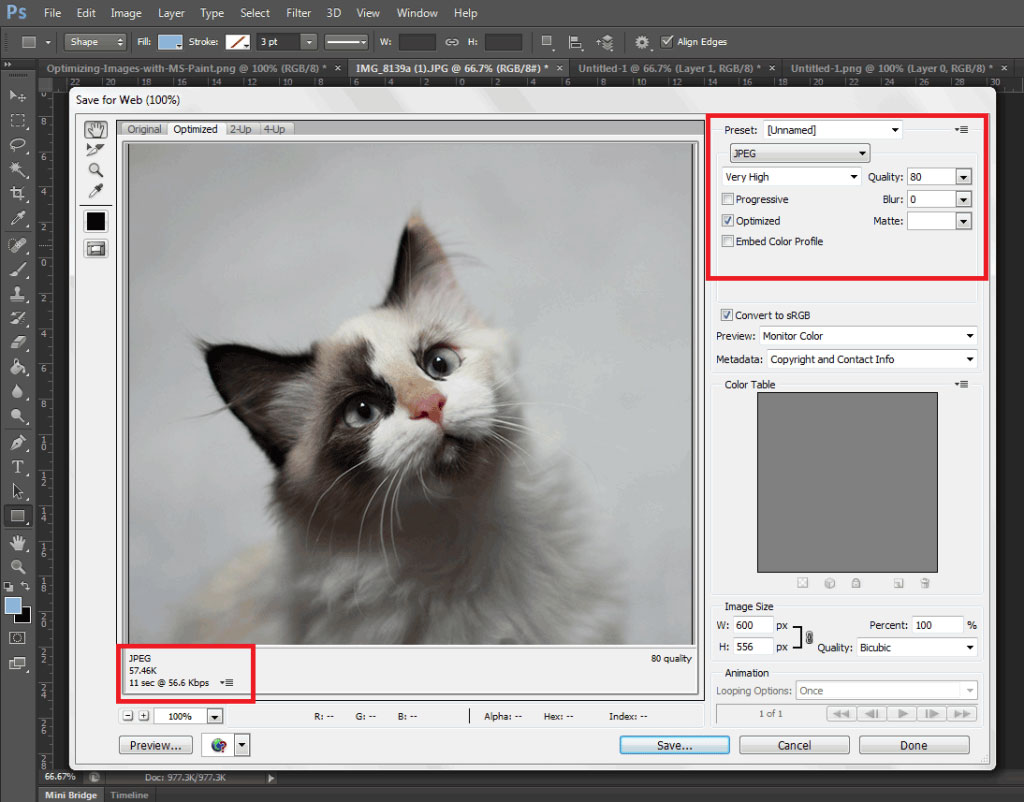
Before you upload your next product photo, logo, or banner image to your store, check the image size first.
optimizing-images-in-Photoshop

Open the image in Photoshop and view it at a 100%.

If the exact size is too large to be displayed on a computer monitor, you need to edit the size of the image. You don’t have to be a Photoshop wizard. Just open the image on Photoshop, and resize or crop your image to the appropriate size. Apart from that, you also need to consider its format and compression.

If you have a style, preset image sizes that you should be using. Click on File and Save for Web (Ctrl + Shift + Alt + S). The smaller the size the faster the image loads on the page.

Using WordPress Plugins

What if you don’t have Photoshop? And, you don’t have the time to optimize every image you add to your e-commerce store? You can always rely on some WordPress Plugins.
WP-Smush

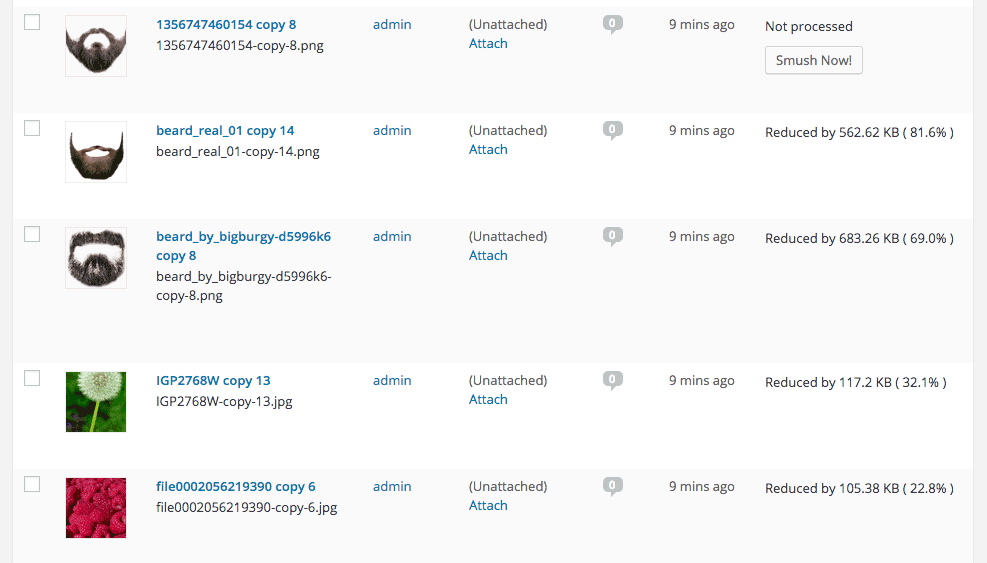
Take WP Smush, for example. It’s popular for stripping hidden, bulky information from your images, reducing the file size without losing quality. You just need to upload your images, as you normally would, and the plugin will do its work behind the scenes.

The free version of the plugin cannot optimize images larger than 1M. You need to upgrade to WP Smush Pro to optimize images up to 8 MB.

Using a CDN to Increase Site Speed
CDN

So far, we’ve talked about optimizing images, caching, and minification. Now, it’s time to explore the concept of using a Content Delivery Network or CDN, and how it can help increase your site speed.

What is a CDN?

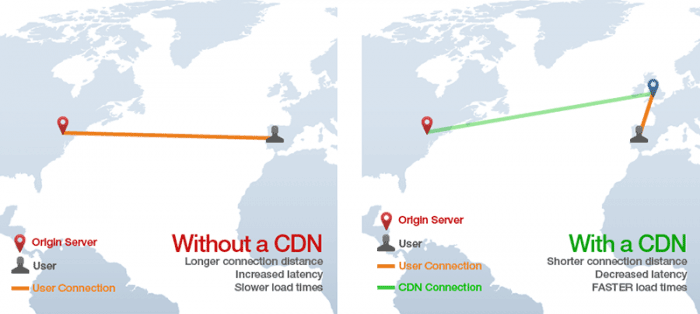
As mentioned earlier, CDN is a network of servers located at different locations around the world. It functions to cache the content of your website, so it can be delivered faster to your visitors based on their location.

Let’s say you’re server is based in Australia. Visitors far away from your geographic location will have a hard time connecting to your website. This would result in delayed responses.

With a Content Delivery Network, browsers will have a nearby server that they can connect to. This will deliver your content much faster. CDNs will mostly benefit the websites that cater to a global audience.

Because there are many options available, choosing the right CDN for your website can be tricky. It depends entirely on your needs, and the popularity of your site. Large-scale enterprise sites usually use popular CDN companies Akamai and Level3.

Setting Up CloudFlare CDN through CPanel

When it comes to small website owners, one of the more popular CDN solutions is CloudFlare. They offer a basic free plan that includes fast site performance, board security protection, and powerful stats about your visitors.

If you’re not sure if your hosting is a partner, you can check this list from CloudFlare.

According to CloudFlare, on average, a website using the CDN will load twice as fast, use 60 percent less bandwidth, have 65 percent fewer requests, and is more secure.

If your website is hosted on a CloudFlare hosting partner, you can easily use the tool available on CPanel.

  1. Go to CPanel’s ‘Site Improvement Tools’

cloudflare

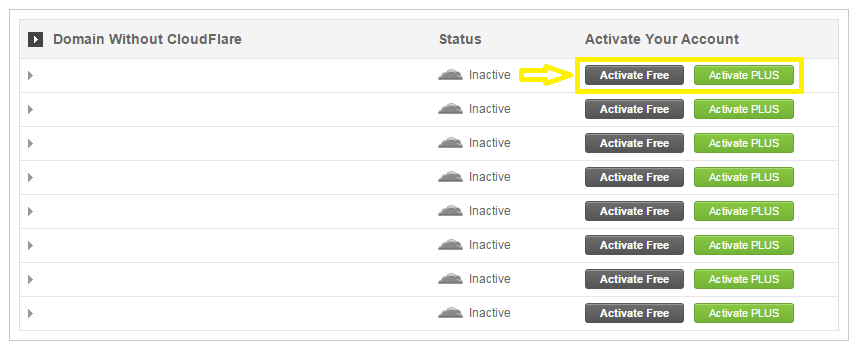
  1. Click on the CloudFlare icon
  2. Tick ‘Activate Free’ for the free version or ‘Activate PLUS’ for the paid version
cloudflare-in-cpanel

  1. Enter your email to create an account with CloudFlare
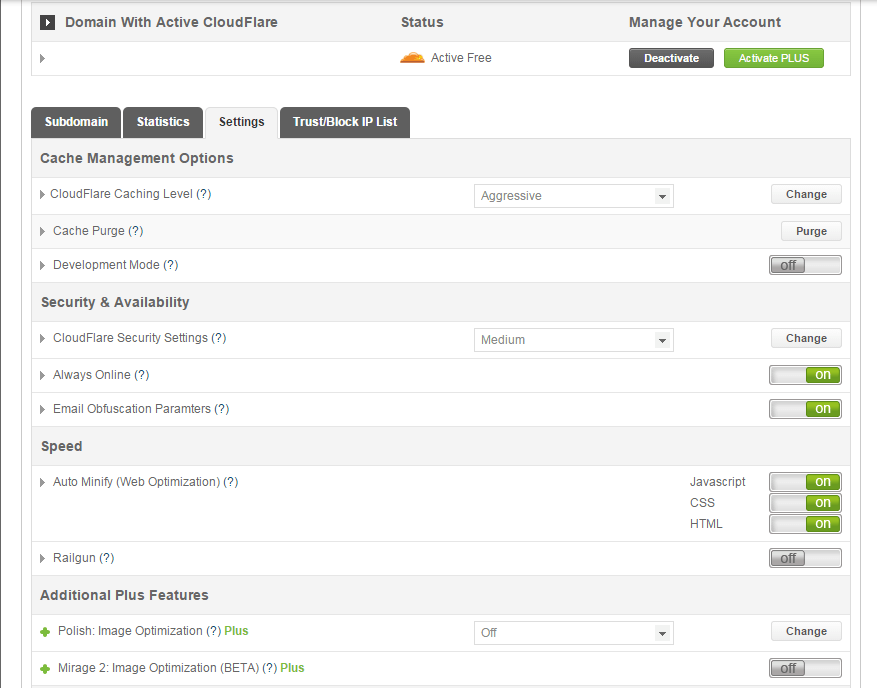
  2. Once activated, click ‘Manage’ to tweak certain settings
cloudflare-settings

And that’s it. Your CloudFlare CDN is all set and the performance of your website should be improving soon.

Setting Up CloudFlare Manually

Here’s what you need to do too set up CloudFlare manually:

  1. Sign up for an account
  2. Add your website on “Select a website” page for scanning
  3. A list of all found DNS records will be shown
  4. Set any subdomains that you would like to pass through CloudFlare
  5. Click on “I’ve added all missing records, continue” once you’re ready.
  6. Choose a plan, free or paid (SSLs won’t work with the free version)

You also need to edit the name server to the new one provided by CloudFlare. You can do this by going to CPanel, and clicking on Domain Manager. Then, go back to CloudFlare settings and click on “I’ve updated my name servers, continue”.

Note: It may take up to 24 hours for the name servers to be completely active.

With a CDN in place, your site should be running a lot faster. This improves the overall user experience and even boost your conversion rates.

Cleaning Your Database to Speed Up Your Site

cleaning-your-database

It’s a strategy that’s rarely discussed. Nevertheless, it can speed up your site just as well as the other methods. It’s maintaining and cleaning your database.

You might think that database is just one of the requirements for a WordPress install. It is, however, more than just that. If you keep your database clean and optimized, it can shave a few seconds of loading speed.

Remember, one or two seconds saved could mean the difference between a bounce and a conversion.

What’s In Your Database?

A database is just like your computer’s hard drive. It’s where all your data is stored. It contains important information such as: posts, pages, your WooCommerce products, comments and product reviews, users and customer information, URLs, etc.

For those who have been using WordPress for a while, doing regular clean ups allow you to reduce your database size. This can lead to quicker, and smaller backup files.

What’s there to clean?

cleaning-your-database-2

Over continued use of WordPress, your database accumulates many spam comments, copies of post revisions, trashed comments, remnants from plugins you are no longer using, themes, and more. When that becomes too large and bloated then website performance will suffer.

Backup Your Website First!

Before you start any database cleaning, it’s very important to create a backup of your website. If your database gets erased or corrupted, you stand to lose everything you have written. There are a couple of plugins in WordPress that can help you do this.

Your hosting provider will most likely have a backup of your website too. Here’s more detailed information on backing up your database in WordPress.

Cleaning Your Database

You may clean up your website database manually, or use these awesome plugins:
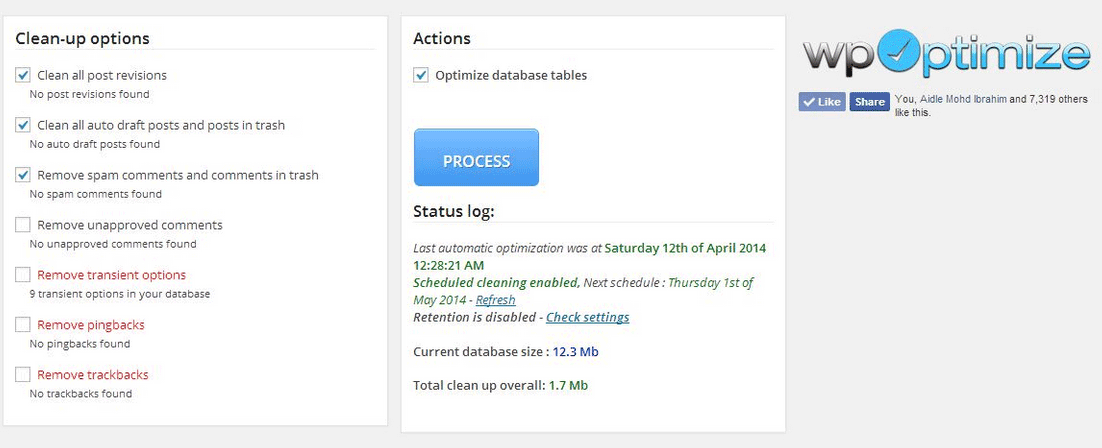
  1. WP-Optimize

wp-optimize

One of the most popular and easiest plugins for cleaning your database. It allows you to schedule a regular database cleanup which can be pretty handy. However, WP-Optimize plugin uses direct delete SQL queries which can leave orphaned data left behind.

  1. WP-Sweep

This plugin allows you to clean up unused, orphaned and duplicated data in your WordPress. It can also show you a report of how much clutter you can clean. WP-Sweep uses proper WordPress delete functions.
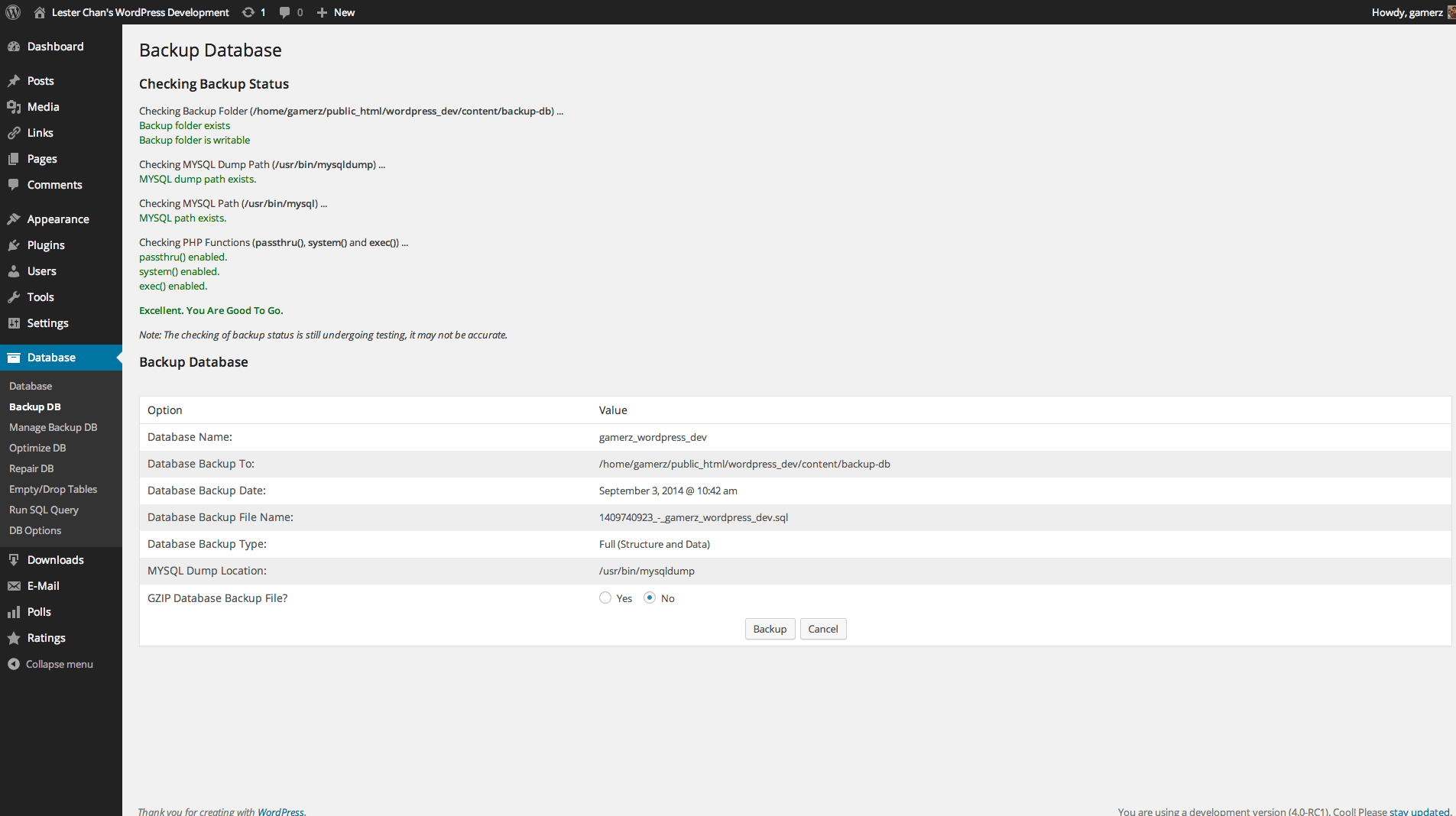
  1. WP-DBManager

wp-dbmanager

Geared for more advanced users, setting up WP-DBManager can be tricky if you’re not familiar with database elements. It offers more customizable options and features, but it cannot clear bloat.

If you want to use WP-DBManager for its features, look for other means to clear database bloat.

More Ways on How to Speed Up Your WooCommerce Store
woocommerce

Once you’ve set up a solid foundation for your e-commerce site, it’s time to do some fine-tuning. That is, if you’re still having speed issues with your WooCommerce website. Here are more useful tips to help you to solve this matter.

1. Upgrade your hosting account

As soon as you can afford it, do upgrade your hosting account. It would be better to use a good hosting publisher rather than shared hosting. Not only it can improve your site speed, but also prevent down time during high traffic periods.

2. Test your current speed

Checking the current performance of the website gives you a benchmark to compare against after you make the changes. There are various tools to help you check your loading speed:

  • Yahoo! Y slow
  • Google Page Speed
  • Pingdom is the quickest and easiest one
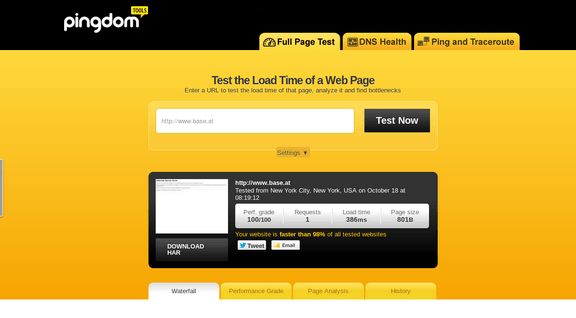
pingdom

3. Use minimum number of WordPress plugins

Using too many plugins in a website can slow your website speed, particularly if you’re using social-sharing plugins. It will help to identify plugins that are slowing you down.

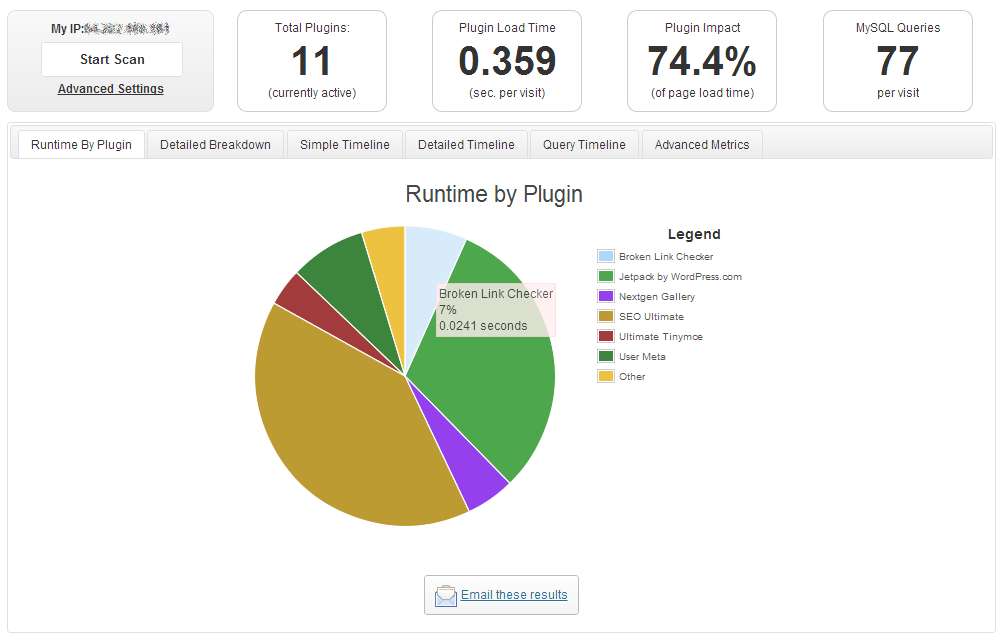
P3 (Plugin Performance Profiler) is a well-known diagnostic plugin that shows which plugins are slowing down your site. It creates a profile of your WordPress site’s plugins’ performance by measuring their impact on your site’s load time.
p3

Once you’ve identified them, you can make an informed decision about whether to keep them, replace them or remove them entirely.

4. Compress your website

Gzip is the most popular, and effective compression method that reduces the response size by about 70%.

Compressing files on your computer as a ZIP file can reduce its total size, which makes it both easier and faster to send to someone. Gzip works the same way, but with your Web page files.

After installation, Gzip automatically compresses your website’s files as ZIP files. This can save bandwidth, and speed up page-loading times. When a user visits your site, their browser will automatically unzip the files and show their contents.

Some plugins will add Gzip to your website in a few simple clicks. For those who want to install it manually, it’s actually very simple.

    1. Open your .htaccess file, which is found in the root directory on your server
    2. Add the following code
AddOutputFilterByType DEFLATE text/plain
AddOutputFilterByType DEFLATE text/html
AddOutputFilterByType DEFLATE text/xml
AddOutputFilterByType DEFLATE text/css
AddOutputFilterByType DEFLATE application/xml
AddOutputFilterByType DEFLATE application/xhtml+xml
AddOutputFilterByType DEFLATE application/rss+xml
AddOutputFilterByType DEFLATE application/javascript
AddOutputFilterByType DEFLATE application/x-javascript
  1. Test whether it’s working by going to Check Gzip Compression

5. Optimize your homepage

Your homepage is a crucial part of your site because visitors land there the most. There are a few easy ways to ensure that your homepage loads quickly.

  • Show excerpts instead of full posts
  • Reduce the number of posts to 5 or 7
  • Remove unnecessary sharing widgets
  • Remove inactive plugins and widgets that you don’t need

A clean and focused homepage design will help your page not only look good, but load quicker as well.

6. CSS on Top and JavaScript at the Bottom

It’s widely recommended to link your style sheets as close to the top of the page. The reason is that browsers won’t render a page before rendering the CSS file.

Meanwhile, JavaScript should be as close to the bottom of the footer. Doing so can prevent browsers from parsing anything until it has fully loaded.

With just this simple fix, page-loading speed will improve, since files are forced to be downloaded in the optimal order.

7. Disable content hot linking and leeching

When other sites direct link to the images on your site, it can make your server load increasingly high. This adds up as more and more people “scrape” your posts.

Conclusion:

Just How Important is Site Speed?

importance-of-site-speed

Consumers take advantage of online shopping because of the convenience it offers. Most people can’t stand waiting in lines. And, they especially get frustrated when it’s taking longer than expected.

Now, going back to your website, users won’t wait for your site to load. If it takes too long, they’ll definitely find another online store.

Another thing to keep in mind is that Google wants the best experience for their users, giving site speed utmost importance. They even reward sites that have clean codes and download quickly.

Page speed is now one of 200 or so signals Google uses to determine rank. More importantly, do it for your existing and potential customers. The faster a page loads, the more satisfied they will be.

Filed Under: How-To Articles Tagged With: best practices, caching, CDN, CloudFlare, conversion optimization, CPanel, Genesis, how-to, minification, optimizations, photoshop, SEO tools, site speed optimization, Siteground, Storefront, W3 Total Cache, website maintenance, WooCommerce, woothemes, WordPress, WPengine

Dustin Hartzler: On Being a WordPress Fanboy and Helping Out the WordPress Community

March 9, 2016 By John Leave a Comment

Dustin-HartzlerIn our quest to connect with top influencers in WordPress and Web Development, we found a kindred soul in Dustin Hartzler: a self-confessed WordPress fanboy, a WooCommerce customer support team member, and an entrepreneur who follows a strict schedule and values life outside work. He started using WordPress in 2009 and has taken big steps since then to immerse himself in his craft and contribute to the WordPress community.

Aside from being a Happiness Engineer at Automattic, Dustin is the founder of yourwebsiteengineer.com, a site devoted to WordPress with podcasts published weekly, and the owner of Hartzler Digital Media. He took a moment off of his busy schedule to answer our questions. In this interview, get to know Dustin as a keen web developer and a successful entrepreneur. What works for him may work for you too.

1. You described yourself as a WordPress fanboy. What do you think sets WordPress apart from other content management systems?

The community. There are so many passionate WordPress folks and they are all willing to share their knowledge with others.

2. What does it mean to be a Happiness Engineer at Automattic? What’s the most rewarding aspect of your role? What is the most challenging?

A Happiness Engineer is a member of the customer support team that helps people every day on how to use WordPress. I’m a Happiness Engineer on the WooCommerce team, so I get to debug and troubleshoot customer’s websites all day. It’s super challenging because every site is different; on a different host, with different plugins, with different themes. It’s most rewarding when I find bugs in our code, submit a request and have the issue fixed for all of our users.

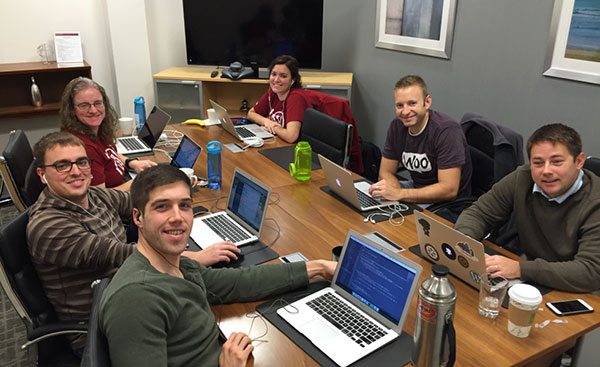
Dustin-Hartzler_Woo-Happiness-Engineers_Automattic_screengrab
Dustin with other Woo Happiness Engineers. Image Credit: https://dustinhartzler.com/2015/12/16/co-working-and-holiday-party/

3. In your opinion, what separates good developers from great developers?

Great developers continue to work on their craft. They also don’t add every feature that is requested. They have a vision of what the code should do and program until that vision has been met.

4. How would you describe your workflow when working on a project? How do you approach a challenging project? Do you have any rituals that you follow?

It depends on the project. I like to map things out and break them into little steps. It’s hard for me because I have way more ideas than time to implement.

5. What inspired you to start YourWebsiteEngineer.com?

After listening to podcasts for three years, I knew I wanted create my own show. I was also starting my own website development company at the time and thought it would be a great way for me to learn WordPress better; by teaching others. I’m still going strong with my podcast, releasing a new episode every week since 2010.

yourwebsiteengineer_podcast_screengrab_425
Image Credit: http://yourwebsiteengineer.com/category/podcast/

6. What are your favorite development tools and why?

I love using Sublime Text for coding and have the GitHub app installed on my computer so I can track all of my changes to my code with version control.

7. Why did you choose to have a career in web development? And why focus on WordPress?

I love the challenge of creating something out of nothing. There’s never a dull day when I’m constantly learning new things everyday. I’m focusing on WordPress, because I decided back in 2010 that I wanted to master one platform and I picked WordPress back then.

8. How do you manage your time between work and being a family man?

I balance having a full-time job and my family by having a very scheduled life. I add everything to my calendar. This helps me not over-schedule my day. I also wrap up all work by 4:30pm. This gives me time to spend with my family and I can enjoy non-computer things in the evening.

Dustin-Hartzler_family
Dustin with wife Melody and daughter Kenley. Image Credit: https://dustinhartzler.com/2015/12/05/happy-birthday-melody/

9. What’s in store for Dustin Hartzler? Do you have any big projects going on for you? What’s keeping you busy on your spare time?

When I look at OmniFocus, I’ve got tons of things that I want to do, but don’t have the time (like most entrepreneurs). One thing I want to release this year is a guide at how to manage your time / plan your day; written for developers and others who don’t have to report in for a job every day.

10. If you had one advice to give to a budding developer, what would it be?

Always keep learning. Find something that you love and continue to get better at it. If you like building themes for clients, pursue that. If you’d rather write code, write code.

Filed Under: Interviews Tagged With: best practices, WooCommerce, WordPress

How to Optimize Email Opt-in Forms for Increased Conversions in WooCommerce

May 17, 2016 By John Leave a Comment

how to optimize email opt-in formsAs part of your sales funnel, your goal probably is to convert site visitors into subscribers and later on, into paying customers. Email marketing is still one of the best means to connect with your potential customers after they’ve left your site. As you get visitors in your WooCommerce store, you’ll want to get their emails. To do this, you need to learn how to optimize email opt-in forms.

In this post, we’ll show you what you should put in an opt-in form and how to position it strategically on your e-commerce store. We’ll also introduce you to some popular WordPress plugins to easily add opt-in forms on your site.

Where can You Add Opt-in Forms?

It is useful to add opt-in forms in different sections and pages on your e-commerce store.

Landing page

Using a landing page (or a squeeze page) is the traditional method of collecting leads. Because your goal is to get people to sign up to your mailing list, every element of the landing page should support that desired action. Don’t add a side-bar because it will just distract the users from the real goal. Remove links that will take the site visitor away from the landing page before they even fill out and submit the opt-in form.

Feature Box

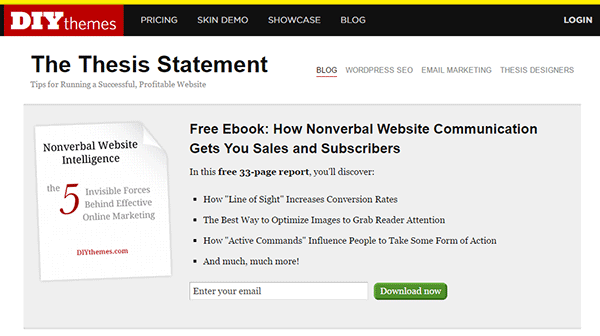
A feature box is a full-width email opt-in box usually added on top of your homepage. Some do not use a feature box because of two things: it takes up the most valuable space on your homepage, and it seems pushy to immediately ask for an email address. To validate the feature box’s location and avoid getting negative attention from site visitors, make sure that what you’re offering is definitely useful in exchange for their email address.

As an example, the use of a feature box on DIYthemes’ blog resulted in a 51.7% increase in its daily blog subscription.feature-box_DIYthemes

Pop-up Window

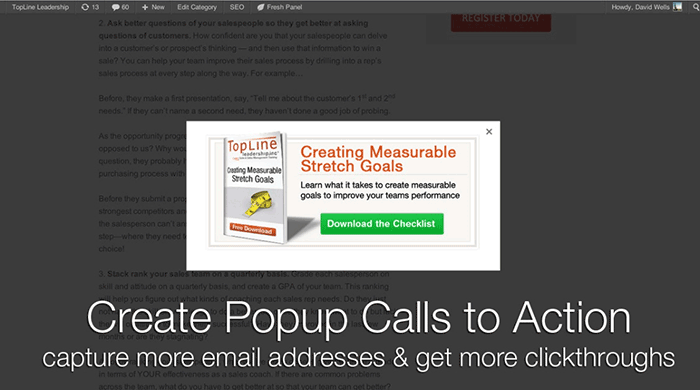
Because of its nature of ‘popping-up’ and interrupting the user while browsing the site, many visitors don’t like pop-ups. Nevertheless, a pop-up window is still one of the most effective lead generation tools. A lightbox works the same way as a pop-up window, but the rest of the site is darkened to make the form stand out.

Note that the timing should be perfect to avoid hindering good user experience. Once seen, you have only 1-2 seconds to grab the user’s attention and pique their interest before they close the window. Here are some examples of high converting pop-up email forms.

Opt-In Forms in Other Pages

options-2Apart from the feature box in the homepage, you can insert more opt-in forms in other pages (About page and Splash page) and in other page sections (top of sidebar, sticky top bar and below the footer).

The About Us page is usually one of the most visited pages in any website, so it’s a good idea to make the most of that traffic.

In a Kissmetrics review, using a splash page might be a better idea than a pop-up on the homepage. A pop-up is frowned upon because it interrupts the user while browsing the site. A splash page appears as a preliminary message. As such, it is better perceived.

Sidebar Opt-In Form

A sidebar opt-in form is the most common email list building method mainly because it is built in to most website templates. Keep your opt-in form to the top of your sidebar though, to maximize results.

Sticky Top Bar

Because a sticky top bar remains visible on top of the page even as you scroll down, visitors have plenty of time and opportunity to notice the message and eventually subscribe.

Components of an Opt-In Form

Once you’ve determined where you want your opt-in forms, the next step is to create them. To increase your chances of getting sign-ups, your opt-in form should have the right timing, design, form fields and copy.

Timing

15-seconds_traffic-stoplightIn using a pop-up window, you need to properly time it. You can set a time delay before showing the pop-up. If it’s too early, you’ll annoy site visitors even before they’ve taken a look of your site and what you have to offer. A 15-second delay is enough time for visitors to look around your site and not be too bothered with a pop-up. Note that this does not necessarily apply to your target audience. It’s best to conduct your own tests.
You can also show pop-ups as visitors reach the bottom of your content or as they exit your site.

Design

To effectively connect with your visitors as they quickly scan your opt-in form, you need to add visual elements that enhance your messaging. Humanize your opt-in form with a photo. Inject credibility with a testimonial or statistic. If your opt-in form is not a pop-up, make sure it will get noticed but at the same match your site’s theme.

Form Fields

More people sign up when less form data is requested. Note that you just need the email address of your site visitors for email marketing purposes. Usually just a name and email in the form will suffice. You can even make the name optional.

Concise Copy

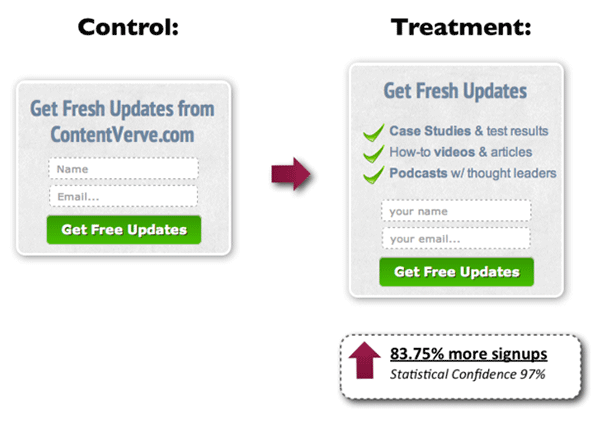
Make your opt-in form copy as concise as possible. It’s important to present a clear purpose when asking for personal information. Spell out what your site visitors will get in return. You can also assure them that you won’t sell their addresses to a third party or spam them. BeemDigital showed an 83.75% increase in sign-ups when they added value and relevance to their opt-in form.

concise-copy_Contentverve
Image Credit: http://contentverve.com/how-to-write-high-converting-signup-form-copy/

Another effective tactic is to offer a lead magnet, like a free e-book, product trial, discount, or even free shipping. On a side note, you can set up the incentive in such a way that your new subscribers won’t unsubscribe immediately. If you’re offering a free e-book, break it up in parts and offer them in a series of emails. Entice them to want to wait for what’s coming next.

Recommended Opt-In Form Plugins for Your WooCommerce Store

In choosing your opt-in plugin, consider what features you need and choose a plugin that provides just that and nothing more. Anything more is just extra bloat on your site. Below we list some of opt-in form plugins that we can recommend.

OptinMonster

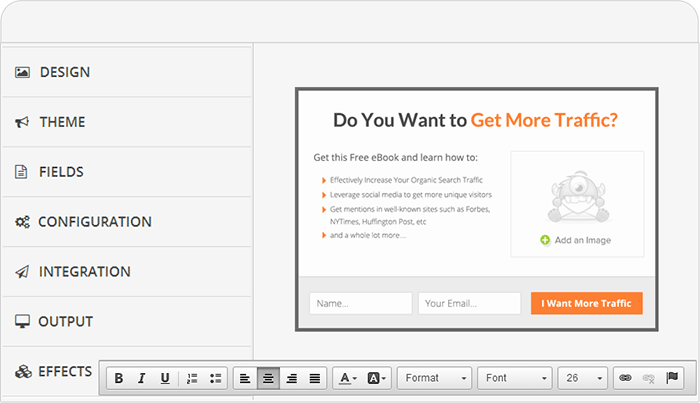
optinmonsterOptinMonster is a paid pop-up plugin that offers a wide range of functionality. It comes with an easy-to-use form builder that allows you to create various types of opt-in forms including WordPress popup forms, floating header and footer bars, slide-ins also known as scroll triggered boxes, sidebar forms, after post forms, in-line forms, mobile-specific forms, and welcome gates. Other features are exit-intent technology, page-level targeting, behavior automation and A/B testing, and a 2-step opt-in process.

PopupAlly

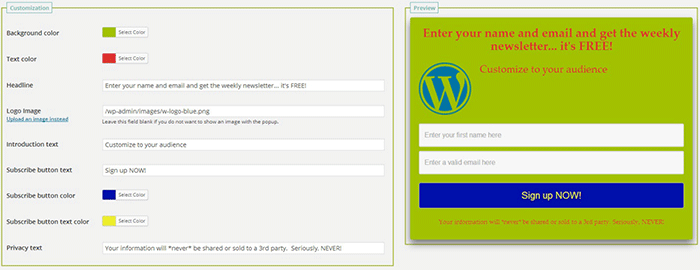
popupallyPopupAlly’s free version allows you to create advanced popup signup forms even if you don’t know how to code. You can also embed opt-in forms at the bottom of your posts, set a few seconds’ delay or have the pop-up appear as the users leave your site.

Its premium version, PopupAlly Pro, has an optimized interface and extra features. This includes more customizable templates, more opt-in options (horizontal, sidebar, below-the-post, etc) and allows for any web fonts to be used. Click-based and scroll activation timing features and one-on-one email support are available only with the premium version.

Hello Bar

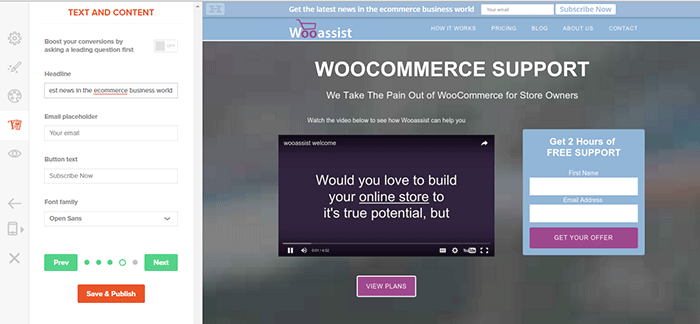
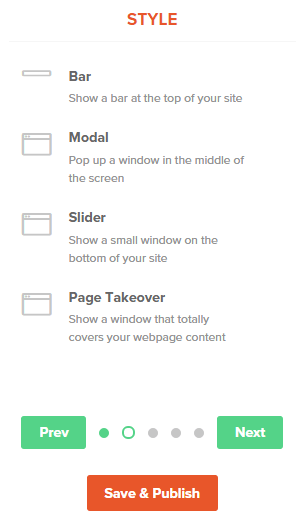
hellobar_wooassist pagehellobar_style menuHello Bar is a free plugin that allows you to copy and paste a code snippet from HelloBar.com straight to your WordPress admin interface. Above is the HelloBar interface from the website. You can choose from several goals like grow your email list, promote your social pages, promote an offer, or add a contact form. You can choose from several styles of opt-in forms and even change the colors to match your website’s colors. To set up HelloBar, just visit the site to configure. The interface is very straight forward so you should have the design in minutes. To apply this to your site, just install the free plugin that is generated specifically for your website. This plugin will only work for the site that you registered it for. You can just create a new one for another site.

This plugin also comes with A/B testing so you can easily optimize for increased conversion.

Ninja Forms

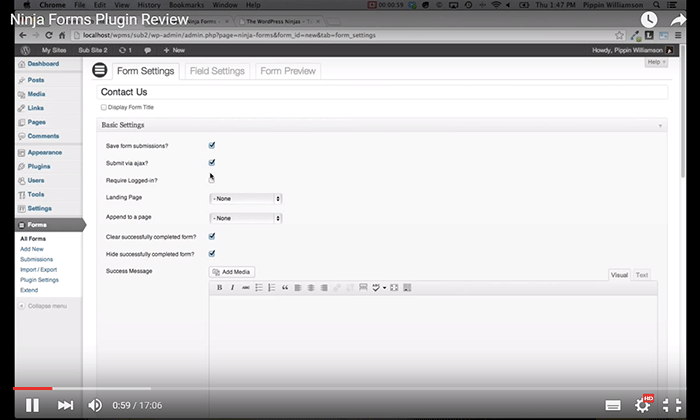
ninjaformsNinja Forms is a plugin built with developers in mind. Included are hundreds of functions, action hooks, and filters that developers can use to create their own custom functionality. Customize field options and forms with its extensive settings. Add a Ninja Form to your e-commerce site easily with a widget, shortcode, template function, or append it automatically to any content. Upgraded bundles include automatic updates, add-ons and sites per add-on, and email support with faster response time.

Which Opt-in Forms Leads to More Conversions?

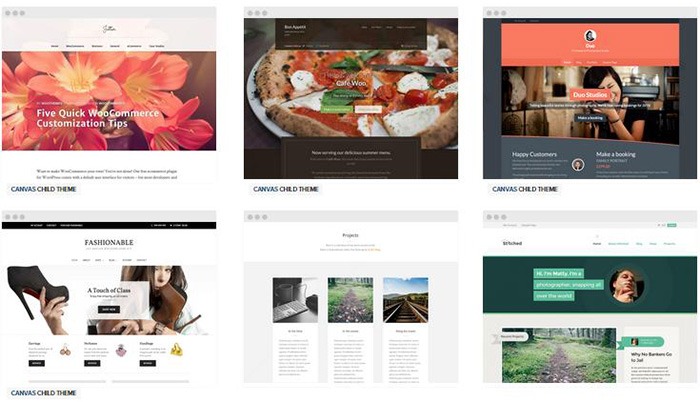
arm-wrestling-2There is no single correct answer to this question. Different websites vary in terms of design and market. This article could help point you in the right direction, but there are a lot of things you need to figure out for yourself. Get to know your customers by creating a customer persona. When you are able to identify your customers, you’ll know how to market to them. From there, you can create a sales funnel that works for you. Use heat maps like CrazyEgg to find out where your visitors click. Constant A/B split testing will help you determine what variation converts better.
Conclusion

Opt-in forms should be placed strategically throughout your website. Optimize them so they are easily visible. Make them stand out. These forms should offer value and relevance to encourage users to subscribe. Enhance copy with visual elements and keep form fields to a minimum. If you decide to use pop-ups, you need to time them correctly so as not to be intrusive. Make sure you’re getting the most of your opt-in plugin’s features without sacrificing site performance. When your opt-in forms are set up, you need to conduct your own split testing to optimize for maximum conversion.

Hope this article helped you out. Do you have any strategies you’d like to share for increasing opt-in form conversion? Do you want to add something that we might have missed? Let us know in the comments section.

Filed Under: How-To Articles, Theme and Plugin Reviews Tagged With: best practices, conversion optimization, design tweaks, how-to, marketing strategy, plugins, PopupAlly, website development, WordPress

Choosing a Theme for WooCommerce – What to Consider?

October 23, 2015 By John Leave a Comment

There are thousands of free and premium WordPress themes. You might need some help in choosing a theme for WooCommerce. But how exactly do you pick one that’s right for your Woocommerce store?

This article explains what to look for to fit the design requirements of your store and also the functionality requirements and to make sure your new theme will play nicely with Woocommerce.

Different themes have different layout styles. Knowing what you want or need will make looking for a theme easier. Right sidebar, left sidebar, full-width, or maybe parallax? Are you going to be using image sliders? Also, it is important that the theme that you choose supports WooCommerce integration.

Once you know what you need, it might be a good idea to talk it over with your web developer. He might already know of a theme that will suit your purpose.

woocommerce-themes

Here are some criteria for choosing your theme:

Aesthetic Needs

Of course, you shouldn’t focus on the look alone. But, you also need to make sure that the theme matches the look and feel you want. You may be able to customize colors, but major changes on the design are best left to pros. As you choose a theme, it should meet at least 80% of your layout, visual, and content needs.

Stay away from poorly coded themes as this could spell problems for your website down the track when updates are needed.

Many themes also offer a lot of other functionalities that allow users to easily edit the look of their site. However, such themes could add unnecessary bloat to your website. This unnecessary bloat could put strain on your page load times and cost you sales.

Be cautious of Themeforest themes as they are notorious for this. Instead of using a theme with many customizable options, you’ll be better off editing the CSS of the child theme to get your desired look.

We recommend Genesis themes and Storefront.

WordPress Updates

Most themes should support the latest version of WordPress. Still, you should verify before making your purchase. Some older themes that are no longer being updated may not support the most recent updates to WordPress. It’s important to keep up with WordPress updates for functionality and security purposes.

WooCommerce Compatibility

Your theme should be able to integrate with WooCommerce.

WooThemes recommends doing a quick check. Take a look at the theme’s demo and view the source code. You can do this by right-clicking on the page and clicking on “View Page Source”. Look for the WooCommerce version meta tag. Search for the words: WooCommerce Version

The closer it is to the current release of WooCommerce, the better. If it is nowhere near, look elsewhere for a better theme.

Also, go with a theme that has less custom WooCommerce templates. This is because having a lot of WooCommerce templates customized will be a pain to update.

The theme should not have a lot of unnecessary customizations which can be done through a plugin.

Multiple Layouts

Review the theme description and demo to ensure that the theme supports the layout you want to create.  Look for the theme’s documentation and review it to know if the theme can accomplish what you need.

storefront

Don’t just assume that the theme you chose will accommodate one or two sidebars, full width pages, or columns within content.

Theme Navigation

How many menus do you plan on having? Some site owners need secondary menu for categories. Check if the navigation bar can accommodate all your primary menu options. If you hired a web developer, discuss your content sitemap and navigation requirements first before buying your new theme.

Call-to-Actions

As an e-commerce website, you want your visitors to do something and eventually buy your product.

call-to-actions

Make sure your theme can support your list of visitor to-do items. A cohesive design, with built-in options for call-to-actions is recommended.

SEO Friendly

WordPress is SEO friendly by default, but not all its themes are. To achieve an ideal SEO ranking, it’s important for search engines to digest your content. In this case, quality code and solid design architecture are required. Here’s a do’s and don’ts guide from Yoast to make your theme SEO friendly.

Level of support

Theme support is usually available by phone, email, video tutorial, instruction manuals, forums, etc.

support

However, some developers don’t have much time to provide support or answer forum questions that often. For beginners, make sure your theme offers lots of support features.

Reviews and Feedback

If there are available reviews, read through them thoroughly to point out any theme pros and cons.

reviews

Take note of trends, plugin conflicts, and complaints. It may not have a 100% satisfaction rating but a strong rating may be present. Look at both positive and negative feedbacks. Take negative feedbacks with a grain of salt.

Fixed vs Responsive

Most WordPress themes are now designed to be responsive. This means that your website adapts to fit the screen size of the device where it’s viewed. If a potential client is browsing your site, he’ll find it easy to navigate. Not all themes are responsive and since Google has started penalizing non-mobile responsive sites, a responsive design is the only way to go. There is no reason you should be creating a non-responsive site. Check out our post on Google’s Mobile-Friendly Update.

Do you have any more tips when choosing a theme for a WooCommerce site? Let us know in the comments.

Filed Under: How-To Articles, Theme and Plugin Reviews Tagged With: child theme, colors, Genesis, how-to, mobile friendly, responsive design, Storefront, WooCommerce, woothemes, WordPress, WordPress updates

Ivan Bjelajac: On Working with Passionate People in a Dynamic Environment

July 11, 2016 By John Leave a Comment

Ivan-Bjelajac-Devana-COOUPDATE: Ivan Bjelajac is now CEO of Devana Technologies.
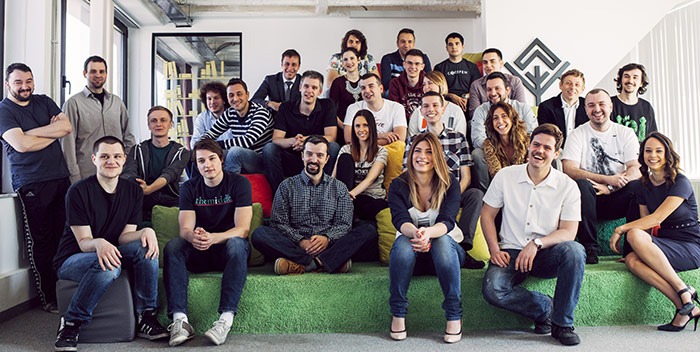

Ivan Bjelajac is Chief Operating Officer of Devana Technologies. Before joining Devana, he was a freelance web developer in 2006, moving onto various technical support and management roles. At one point, he became CEO of Cybernet Technologies. In this interview, Ivan shares his insights on the WordPress industry, how he does his job, the kind of people that he works with, and Kevin Garnett.

1. What sets ManageWP apart in today’s competitive WordPress niche?

I would say it’s the people. From the start of our journey we wanted to create a great premium product that would allow WordPress users to save time and increase productivity. It was the first product of its kind in the market and it obviously helped us out tremendously that we created a market niche in WordPress management but it’s not the product itself that earns us money. It’s the developers, product people and guys from the customer happiness departments that deliver the value to our customers on a daily basis. Without them we could not keep innovating and going the extra mile for our clients.  We would not be where we are today.

2. Could you describe the team that you are working with? How has your team dynamic changed over the years? What do you think can still be improved?

Devana-Technologies-Ivan-Bjelajac-Vladimir-Prelovac

Passionate is probably the right word. A number of people went through the company in the last 6 years, but passion has always been there.

In the beginning we thought we should just hire everyone that seemed to be good or have potential and we were completely flat as an organization. That did not turn out to be the best possible way to do things so now as the team grew we introduced strict hiring rules and gave more power to team leaders.

The good thing is that we managed to grow without sacrificing the focus on our customers and our product. We have some great mentors and seniors in our company and tend to hire great people, but we still have a long way to go when it comes to implementing processes, making our employee onboarding and development processes faster and more efficient.

3. Are there any people who have influenced your work ethic? And how? Are there any WordPress influencers that you look up to? Please tell us more about it.

Probably Kevin Garnett, although I have never met him personally. 😉

They say your own quality is an average of five people you spend the most time with. Most of the people I learned from are not involved with WordPress. Some are not even into technology but have successful businesses in other areas. I had the luck to surround myself with people that were not my role models but who did help me form certain beliefs. They are all of various ages, backgrounds and tend to offer different perspectives on things which can be invaluable.

When it comes to WordPress, there is of course our founder Vladimir Prelovac, whom I’ve known for 16 years and counting, but I also like to hear what Jason Cohen, Andrew Nacin, Adii Pienaar, Syed Balkhi and Mason James have to say about WordPress and business in general. I also tend to learn a lot from WordCamps and having different chances to talk to our customers in general.

Devana-Technologies-Ivan-Bjelajac-Vladimir-Prelovac-meeting

4. The work environment at Devana has been described as a ‘productive mess’. Can you tell us more about it?

Well I would have to say that it’s a pleasure and a curse to work with passionate people who believe in creating both great products for our users and in building a better life for their co-workers and their community. It is hard to match their resolve and honestly sometimes I find it hard to keep up. We tend to want to get too much done, step on each others toes, argue a lot but we also help each other, take pride in our work and keep a high standard of quality – so things tend to get unpredictable.

We are still looking for ways to incorporate a healthy amount of processes to go along with our creative chaos and keep that fine line between being efficient and creative.

5. What is a typical day for an Ivan Bjelajac? How do you get things done? Do you stick to a particular schedule or work rituals?

I would love for someone to answer this question for me. 🙂 We are a very dynamic environment so each day looks a lot different. I actively try to reduce the amount of things we work on and add more processes so hopefully I will be able to tell you about my typical day sometimes in the near future.

Devana-Technologies-Ivan-Bjelajac-meeting

6. Are you still involved in any development work for ManageWP or any other development projects?

Not that much. I am still involved in our business decisions, some feature and architecture decisions but I mostly focus on working with our partners and vendors. The team is more than capable doing most things without me and there are also many things where I actually think they are much better than me. I do tend to get involved a lot into our R&D. Sometimes our guys are happy about it and sometimes they hate me for it, but that is another story…

7. Aside from WordPress, what are your other interests? What do you like to do when you are not working?

I like to travel. I am trying to visit at least one country each month or two. Good thing is that my job actually helps me achieve that goal. Even if we are super-busy I can at least find a weekend to visit a conference or a WordCamp.

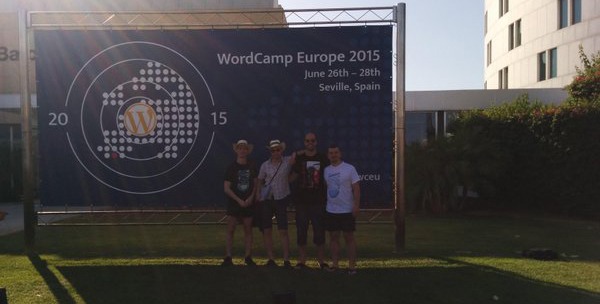
Ivan-Bjelajac-WordCamp-Europe-2015

8. Seems like you are fond of basketball. Have you ever played ball with the team at Devana?

Quite a few times though we haven’t done it for a while. We should probably do it again sometimes soon after we launch ManageWP Orion. That is a good idea, thanks for putting it in my head. 🙂

9. It is quite admirable that Devana has been pumping 10% of its profits Zivojin Misic Foundation. Why in particular did you choose this foundation?

All companies are built to make money. What makes them different is what they do with that money. There is a great TED talk by Simon Anholt that explains the concept we believe in.

When it comes to Zivojin Misic, we actually founded the foundation ourselves and so far it has been exclusively founded by our company. We chose to focus on education and promoting entrepreneurship because those are the areas that we think are lacking in systematic solutions and return the biggest ROI when it comes to our environment.

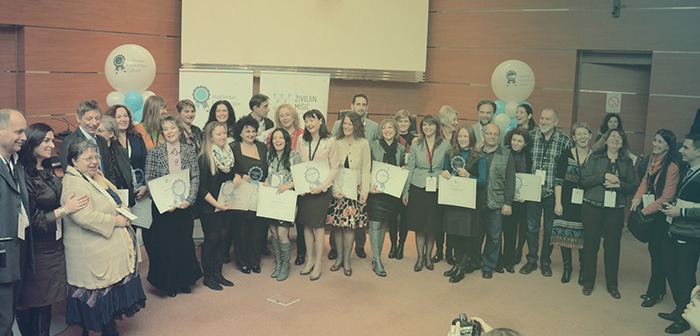
Ivan-Bjelajac-COO-Devana-Technologies-Zivojin-Misic

10. What makes you a successful COO? If you have one advice to give to a young entrepreneur, what would it be?

Be genuine. The COO is probably the only position in the company that is harder to describe than the CEO position as all kinds of different people get promoted to it and it is usually complementary to the CEO. So, as there are no 2 CEO’s that are exactly the same there usually are no 2 COO’s that are exactly the same and the position usually does not translate that well from company to company.

I think I owe my success to working with some great people and finding ways to help them do their jobs the best way possible without forgetting it’s about the product and other people in the company and mostly not about yourself.

So being a good COO is mostly about how well you play with others and complement your CEO and other senior executives.

If your main function is to play the role of an enabler for other people and you try to do it without being genuine – it’s probably not going to work out in the long run.

Filed Under: Interviews Tagged With: e-commerce, WordPress

  • 1
  • 2
  • 3
  • …
  • 8
  • Next Page »
Let us support your online store so you can manage your business

Get started today

Get 2 Hours of FREE SUPPORT

We are so confident that you will love our services that we will give you your first 4 hours at a 50% discount

That’s 4 hours for only $75

BUY NOW

Free eBook

5 Things Every Online Store Can Fix On Their Website In The Next Week To Increase Sales

Quick Links

  • How it Works
  • Pricing
  • Blog
  • Contact
  • About Wooassist
  • My Account
  • Checkout
  • Privacy Policy
  • Cookie Policy
  • Terms and Conditions

Wooassist

Australia:
59 Luke St.
Hemmant QLD 4174

Philippines:
San Miguel St.
Poblacion, Iligan City 9200

Connect


Copyright © 2026 · Wooassist

Yours FREE!

5 Things Every Online Store Can Fix On Their Website In The Next Week To Increase Sales