
Wooassist

Assistance for Your Woocommerce Store

  • How it Works
  • Pricing
  • Services
    • Site Maintenance
    • AI SEO and Content Marketing
  • Blog
    • How-To Articles
    • Code Snippets
    • SEO For E-Commerce
    • Theme and Plugin Reviews
    • Wooassist News
    • WordPress/WooCommerce News
    • Interviews
  • About Us
  • Contact
You are here: Home / Archives for backup

Wooassist Reviews the Best WooCommerce Hosting Services

June 16, 2016 By John Leave a Comment

serverThe right hosting service should be secure. Your hosting service should be able to help you solve hosting-related problems and quick. Your hosting service should be fast because quick page loads are critical in retaining site visitors. So what is the best WooCommerce hosting service?

Here is our review of some of the more popular hosting services around.

GoDaddy

GoDaddy_logo

Our rating: 7/10

GoDaddy has one of the cheapest plans available for website owners. They have a basic plan for those on a tight budget. Their basic plan has limited features and may not be a good choice. Make sure to check if these features will fit your needs as you might end up spending more with add-ons. Choose their higher priced packages if you need better functionalities such as a staging site to aid in development work.

Its performance and speed are acceptable but not that outstanding. As for support, it is not as good as other hosting services. All in all, it’s a decent hosting service. There is not much to worry about if you decide to go with them.

Bluehost

Bluehost

Our rating: 8/10

Bluehost is one of the most popular hosting services. For us, this popularity is reasonable. We haven’t had much trouble with the sites hosted in Bluehost that we’ve handled. Its server response time or speed can range from average to fast. It is still better than other shared hosting providers.

Their basic plan has less storage compared to GoDaddy’s but they offer more features. Features include a Global CDN, domain privacy, and SiteBackup. Your online store can benefit from better speed and security. In a hostbenchmarker study, Bluehost support takes some time to respond compared to other hosting services. We haven’t had much opportunity to work with their support though. To us, this gives them more value in that we or our clients haven’t had much to complain about.

Web Synthesis

Web-Synthesis

Our rating: 7/10

Synthesis is another good hosting service for online stores. It is a managed hosting service so it’s a bit pricier than others. They offer features that optimize site performance and security. Their speed is one of the fastest around. They also have an efficient support team.

The downside is that they don’t provide a staging site feature. This might complicate the development of your site. The usage of a staging/development site is best practice for website development. With a staging site, you’re able test your website updates before applying them to your live site.

Their processing power is also great but they have metered bandwidths. It’s not much to worry about as they provide 2TB-6TB plans. Unless you get huge bursts of traffic from content going viral, you’ll be okay. Overall, it provides a reliable hosting service.

Siteground

Siteground

Our rating: 9/10

We consider Siteground as one of the best hosting services for online stores and websites in general. Other review sites have pegged it as their top hosting service. Our experience with it has also been great.

The prices for its plans are reasonable. It has a metered bandwidth but the speed is top-notch with their super-caching feature. At the time of writing, they have servers in 3 continents and offer free CDN to each account.

All plans provide a decent backup service. Based on our experience, their customer service is good. You won’t find many hosting services giving the same value for money as Siteground.

WP Engine

WPEngine

Our rating: 9/10

WP Engine is a managed WordPress hosting service. This makes it work well for WooCommerce sites. It’s our hosting of choice for Wooassist.com. We chose this as it works great and comes with a host of other features.

In our experience, speed has not been a problem. They use EverCache for speed and massive scalability. They are also CDN-ready and this helps in delivering global content. They also offer good security and backup features to boot.

In addition, they also have the best support service compared to other hosting sites we have worked with. They don’t have the cheapest plans but they have reasonable and flexible value-for-money plans. We consider it the best hosting for low to medium volume online stores.

VPS Hosting Services

VPS-Hosting

Our rating: 5/10

This isn’t a review on a particular hosting but VPS or Virtual Private Server hosting in general. This type of hosting service is well suited for large websites. It is also a type of shared hosting that benefits most advanced users. Its pricing is not as cheap as the hosting services we reviewed in this post, but it’s not as expensive as dedicated servers.

The downside is its standard interface requires a lot of digging. Some services may be inflexible or frustrating because of its steep learning curve. Most VPSs do not come with a myriad of features, unlike the hosting services we reviewed in this post.

Not exclusive to VPS, but bursts of traffic tend to slow down a VPS-hosted site too much. The entire website could also go down because of this. They have failed in speed and reliability. For your WooCommerce store, we’d recommend to stay away from VPS hosting services in general.

Conclusion

Choosing a hosting service is something that you should do after thorough consideration. Read the fine print and the features before you pay for the service. This will keep you from wasting your time and money for hosting that is not a good fit for your WooCommerce store. Please note that even if we are affiliates with Siteground and WP Engine, we chose them based on years of experience. We have dealt with these hosting services for our clients’ and our own sites. We can attest that these two are among the best. If you were to sign up to either of them, we’d be grateful if you did so by clicking either of the links above.

Filed Under: Theme and Plugin Reviews Tagged With: backup, page speed, security, site speed optimization, Siteground, WooCommerce, WPengine

Things to Do Before Your Website Goes Live

May 7, 2015 By John Leave a Comment

checklistThe bulk of the work is done. Your website is ready to go live. But are you sure it is really ready? Here’s a handy checklist of things to do before your website goes live. Make sure everything is working fine before you click that “Go Live” button.



Page Content

  1. Proof read web copywriting, spelling and grammar are correct
  2. Paragraphs and headers and formatting are correct
  3. Copywriting date on the footer shows current year
  4. Company details and contact info are accurate all throughout the website.
  5. Lorem Ipsum has been removed
  6. Images, videos and audio files are properly formatted and are working on different devices
  7. Premium content such as PDFs, whitepaper, ebooks, etc. have been proofread, spelling and grammar are correct. These files are properly stored in their respective libraries.
  8. Images, font and other content are properly licensed or have proper citation

Design

  1. Site pages are compatible across different browsers (Firefox, Safari, IE 7, 8, 9, and 10, Chrome, Opera)
  2. Pages are compatible across different devices (tablets, laptops, desktops, and other mobile devices)
  3. Check for CSS and HTML error, fix and validate
  4. Favicon is uploaded and is rendering properly
  5. Paragraph and styles are working properly

design

Functionality

  1. Forms are submitting data properly
  2. Thank you message or confirmation message displays after the form is submitted.
  3. Form data is emailed to the recipient
  4. Auto-responders (if any) are working properly
  5. Internal links are working
  6. External links are working
  7. Social media icons are working properly
  8. Feeds are working properly
  9. Company logo is linked to the homepage
  10. Site load time should take not more than 2-3 seconds
  11. 404 Redirects are in place
  12. Integration with third-party tools such as e-commerce software, CRM, Marketing software platforms are running smoothly
  13. Site structure is clean and should be easy to navigate and maneuvered by your users
  14. Payment processing should be live
  15. Shipping options checked
  16. Credit card transaction checked
  17. Run a test order. Check tax, sub-total, total, coupons, etc
  18. Confirm order is placed
  19. Reset order number
  20. Verify MyAccount
  21. Dummy orders and test accounts are cleared.
  22. Test email from client to merchant
  23. Cart icon is on each page
  24. Checkout button should be large and is strategically located on the page.
  25. Search box with suggestive search
  26. Feedback tab at the bottom of each page for users to notify the webmasters when having problems with the site.

SEO

  1. Page titles should be unique, less than 70 characters and should include keywords.
  2. Meta Descriptions are unique and should not exceed 156 characters
  3. Keyword per page not more than 10, depending on the # of words per page
  4. Metadata for RSS in place
  5. Metadata for social media sharing in place
  6. Metadata spelling and grammar correct
  7. Alt tags for images
  8. Dynamic XML sitemap created and submitted to search engines
  9. Breadcrumbs in place
  10. Slugs should reflect site structure and should be short with relevant keywords.
  11. 301 redirects for old URLs are in place
  12. rel=”nofollow” tags are in place on applicable links and pages
  13. Site indexing is on

Google Analytics

  1. Analytics codes are properly inserted
  2. Relevant IP addresses have been excluded from analytics tracking.
  3. Google Webmaster Tools and Google Analytics are synced
  4. Google Adwords and Google Analytics are synced

Security and Backups

security

  1. Monitoring scripts installed.
  2. Copy of the final website stored in a safe place
  3. Ongoing copies of the site is being generated everyday (depending on how large the site is)
  4. Usernames and passwords stored in a secure database
  5. Check robots.txt file to restrict access to sensitive pages

Compliance to Web Rules and Regulations

This may vary depending on the country and industry.

  1. Pages offer accessibility to users with disabilities
  2. Users need to be informed if site is using cookies
  3. Compliant to usage rights of images, fonts, videos, etc.
  4. Terms and Privacy policy for users should be readily accessible and visible to site visitors
  5. Website is PCI compliant
  6. SSL certificate properly installed. Check receipt and checkout page, my account and my account details in SSL mode.
  7. SSL mode for logins and registrations

Filed Under: How-To Articles Tagged With: 404 error, backup, best practices, breadcrumbs, Google Analytics, Google Webmaster Tools, how-to, redirection, security, SEO strategy, website development, WordPress

Update Your WooCommerce Store Regularly to Prevent Your Site from Breaking

March 19, 2019 By John Leave a Comment

Update Your WooCommerce Store

Many times, when WooCommerce store owners come to us seeking for help, we usually find that the cause of the problem is an outdated site. In some cases, we find that the site’s plugins and themes have not been updated in years. And when a WooCommerce store site has not been updated in years, suddenly updating can sometimes break more things. Our recommendation is to update regularly.

Why Should You Update?

If you update your site regularly, you’ll be dealing with a lot less problems on your WooCommerce store. While it’s true that site updates may cause issues, these issues are usually less severe than issues that come up when you don’t update. In addition, you can troubleshoot these issues on a staging site which will have no effects on your live site. If your site breaks because it is outdated, your live site can go down for an indefinite period. That means no sales until you fix the issue. If this happens during a critical time for your business, it can have negative effects on your sales. Imagine running TV ads and then your site breaks due to being outdated. That’s advertising dollars down the drain.

How Often Should You Update Your WooCommerce Store?

The best schedule we’ve found for site updates is doing them at least monthly. You can update more often especially when severe security issues are patched.

What Happens When You Don’t Update?

When you don’t update your site, one or a few of these things could happen:

  • Your site may go down and become inaccessible
  • Your site layout may break
  • Images and icons may not load
  • Your payment processor may stop working
  • Your shipping plugins may stop working
  • Your product page may break
  • You may have various problems on your cart and checkout
  • Your sign-up forms and contact form may stop working
  • Your site may be hacked and infected with malware
  • Your SEO rating may drop
update woocommerce to increase security

What Do You Need to Do Before Updating Your Site?

Test Updates on a Development Site

It is important to test updates on a development site. If you do not have a development site, also called a staging site, you can check with your hosting company if they offer a staging service. Some hosting companies like WPEngine provide an easy-to-set-up staging service. You can also set up a staging site yourself. You can check this blog post to learn how to create a staging site for WordPress.

Before you update your live site, test updates on your development site first. Then do some user testing to find out if there are any issues with the updates. Some things you need to test are:

  • Your Site Layout
  • Opt-in Forms
  • Contact Forms
  • Shopping Cart
  • Checkout
  • Any custom development you’ve done on the site

If you find any issues on your staging site, it’s time to get fixing. If you do not know how to go about fixing the issue, you can check out our guide on troubleshooting for WooCommerce. You can also drop us an email so we can help you out.

Create a Backup

If there are no issues on your staging site, it’s time to update your live site. But first, don’t forget to create a backup. For backups, we can recommend UpdraftPlus or BackWPup. Once backup is successful, you can proceed to update then test your live site again. If more issues come up, proceed to troubleshoot.

backup your woocommerce store before updating

I updated my WooCommerce Store but my Site is Still Broken

Renew Your Plugin Subscriptions

Sometimes, issues may persist because automatic update are not available for your plugins. This is usually because your plugin subscription has expired. If this happens, you will need to renew your subscription. It is now easier to manage WooCommerce plugin subscriptions. You just need to connect your WooCommerce account to your WooCommerce store. For third-party premium plugins, you may need to check manually.

Do a Plugin Audit and Remove Abandoned Plugins

Another common reason why some websites break after updates is that it has a plugin that has been abandoned by the plugin developer. If a plugin is abandoned by the developer, it will not receive any updates and will eventually stop working. And it can break your site. Worse, it can even become a backdoor for hackers to get into your site. It is not easy to detect if your plugins are no longer being updated by the plugin developer so you will have to do it manually. View the details of each plugin on your plugin list and check when it was last updated. If the plugin has not been updated in a year or more, then remove that plugin right away. If a plugin has not been updated in over 6 months, use your better judgment if the plugin can be removed.

Find Incompatible Plugins

In some cases, plugins may break compatibility with each other. This is one reason why it is best to keep plugins to a minimum. Having more plugins can cause more problems. When plugins break compatibility, various errors can pop up on your site.

To troubleshoot incompatible plugins, deactivate all plugins on your site except WooCommerce. Then enable them one by and one while testing for the error. With some trial and error, you’ll be able to shortlist the incompatible plugins. When you find the incompatible plugins, you can replace one plugin with a compatible one. You can also report the issue to the plugin developers so they can address it.

WooCommerce Templates are Outdated

Sometimes you’ll find an error on your WordPress Dashboard alerting you of outdated WooCommerce templates. Most theme developers update their WooCommerce templates so check if your theme is updated. If your using a premium theme and have an expired license, you will receive automatic updates. If this is the case, update your subscription to get the updated templates. You can also fix this issue by following this guide from WooCommerce.

Final Notes

Add updating your WooCommerce store to your monthly to-do list to ensure your site is secure and won’t break in an uncontrolled environment. Renew your plugin subscriptions and do a plugin audit. If you find that you do not have time to do the monthly WooCommerce store updates yourself, the Wooassist team can help.

Filed Under: How-To Articles Tagged With: backup, plugins, security, shopping cart, WooCommerce, WooCommerce updates

Why Should You Keep WordPress Updated?

May 24, 2016 By John 1 Comment

WordPress is getting more popular as a platform for creating e-commerce stores. Because of this, WordPress sites have become attractive targets for hackers to try and break into. There are a few reasons why hackers do this but the main motive has always been for profit. In this article, we will discuss how hackers take advantage of a WordPress site with poor security. You’ll also learn what should be done before a site update and other means to keep your site safe.

How Does a Hacker Take Advantage of a Compromised WordPress Site?

why should you keep wordpress updatedA lot can be done to a hacked WordPress site. It is not just getting sensitive information. Actually, getting sensitive information like credit card numbers is just a “bonus”. It’s not really your website that the hackers want. What they want more is the power of your server resources: computing power, disk space, and anonymity on the internet. So how can they use your server to their advantage? Here are some ways:

Bitcoin Mining

Bitcoin mining is the process of adding transaction records to the Bitcoin’s public ledger. One offers processing power to the public Bitcoin community to validate transactions. He gets a portion of the money being transacted as processing fee. Bitcoin mining is intentionally resource and processing intensive so that the number of blocks found each day by miners remains steady. This is where the hackers can take advantage. They will use your server to mine for themselves, hence noticeably slowing down your site.

Distributed Denial of Service (DDoS)

This attack is an attempt to crash one’s server. It spams that server with thousands of traffic simultaneously, thus denying service for other users. This is commonly used for cheating in online gaming, online gambling, and in taking down a site. Since you can’t overwhelm a server with traffic using a single PC, the likely scenario is that the attacker will have thousands of hacked servers and personal computers to perform an attack. All they need is a single PHP script saved on each site which they can activate at will.

Anonymous Attacks and Spam

Hackers can also use your server to attack or spam anyone anonymously. Since they are using your servers to do these malicious things, these will point to your name and not theirs. They can be churning thousands of spam emails to other people at your expense. They can send viruses and malware through these emails to infect more PCs to aid their hacking.

Data Mining

Hackers can also just mine sensitive information like credit card numbers, passwords, emails and others.

Automated Hacking

hacking-code-destroyMost attacks are automated and target small and unsecure sites. This works similar to how a search engine uses search engine crawlers to index information on the web. The hacker’s crawlers roam around the web to find exploitable sites. When a vulnerability is spotted, the hackers will attack that vulnerable point. Attacks vary from brute force attacks to code injection on contact forms.

Importance of Updating WordPress for Security

The people behind WordPress are working hard to increase security against these attacks. This is what most of the minor updates are for. As the attacks get smarter, the security needs to upgrade as well. Fundamentally, there is no such thing as a perfectly secure system. So whenever WordPress developers see or hear about a possible vulnerability, they will try to fix it as fast as possible.

This is why WordPress updates are very important. By keeping your WordPress core updated, you are protecting yourself from the latest known vulnerabilities.

Things to Do Before Updating

Most of the time, updating WordPress is harmless. However, some major updates that involve the core code may break some plugins or theme files which in turn can break some layout or functionality on your site. That’s why it is important to follow a process before pushing through with an update to avoid breaking your site.

Create a Backup

Creating a backup is the best thing that you can do before pushing through with an update. Backups are your last line of defense in case something goes wrong. If you think it is a hassle, you can actually automate backup creation. There are even hosts that automatically do this for you. However, it is best to have your own backup and not depend on your host to make your backups for you.

Testing on a Staging Site

A staging site is an independent copy of your site. Most hosting sites offer an easy way to make them but you can always create your own. Staging sites are used to ensure that everything works perfectly before you present your site to your customers. This is very important especially for e-commerce sites. You can lose your customers’ trust if you let them experience downtime and bugs.

Other Things to Help You Secure Your Site

cyber-security_keyboard-lockedAside from the updates, there are a lot of things you can do to harden the security of your site. Here are some examples:


Installing a WP Security Plugin

Like creating a backup, installing a WP Security plugin is one of the best things that you can do. Sucuri Security plugin is highly recommended. Basically Sucuri will act as a firewall for your site. It will protect your website from hackers, malware, DDoS and blacklists. It will receive all the traffic going to your site and filter it before sending it to your host. This allows the plugin to block all the attacks and only send you legitimate traffic. Because the filtering/blocking is happening on the Sucuri servers, your servers are relieved of a lot of load. Sucuri has always been the top go-to plugin when it comes to security.

Password Protect Some Directories

Password protecting /wp-admin directory adds another layer of security to your site aside from the login page. This can be done either manually or using cPanel. This is addressed on sites that have a lot of users accessing the wp-admin; for example large news/blog sites that accept guest authors.

Disabling PHP Execution

Disabling PHP Execution from certain directories protects you from backdoor access file attacks. The attacks come disguised as a WordPress core PHP file and inserted in easy access directories like /wp-includes/ and /wp-content/uploads/. Preventing PHP execution from these directories reduces the risk of backdoor access.

Changing the Prefix of Your Database

The default prefix of a WordPress database is “wp_”. Everything on your database will start with this so changing it will make it difficult for attackers to access your database.

Conclusion

Now that you’re more familiar with how hackers work, you can better equip your site to avoid being a victim. Backup your site and do not skimp on WordPress updates, even the minor ones. Remember that these updates will help you safeguard your WordPress site from the latest known security threats. Updates are one thing but you should also harden your site by implementing the strategies mentioned above.

When was the last time you updated WordPress? Do you have any other security tips you’d like to share? Let us know in the comments.

Filed Under: How-To Articles Tagged With: admin, backup, best practices, brute force, e-commerce, how-to, plugins, security, sucuri, website maintenance, WordPress

Update Plugins and WordPress Core of Your WooCommerce Store

January 29, 2015 By John Leave a Comment

Just like websites, hacking is changing and evolving. Hackers are always on the lookout for new ways to exploit and infect all kinds of websites, including online stores. They adapt, and can even get one step ahead of developers.

If you’re not careful, your WooCommerce store could be targeted and compromised. This underlines the need to update plugins and core of your WooCommerce store.

Protect Your Site from Hackers

One of the primary culprits of being targeted by hackers is the failure to update plugins.It has been proven to be disastrous to WordPress websites and blogs.

It’s a good idea to keep your plugins up-to-date and delete those that are not in use. There are also security plugins out there that will protect your website for free. This article can give you detailed tactics on what to do once your site gets infected, as well as tips on preventing a cyber-attack.

Some steps are being made to have this done automatically. You now have the option to do core updates through WordPress.org. Here’s an interesting post on what we might get in the future.

In the meantime, the responsibility lies with you. You need to arm yourself with the right knowledge, such as these WordPress security tips. As a WooCommerce store owner, it’s one of your top priorities to make hacking as difficult as possible. Keep these methods in mind.

Back-up Your Website

While updating plugins and WordPress might seem like an easy chore, it can be more complicated than that. It doesn’t work with just one click.

Before updating plugins such as WooCommerce, and your WordPress core, make sure that you have a current backup of your site. Just in case something goes wrong, you’ll have a fall-back.

SnapCrab_2015-06-26_15-32-30_No-0000

It’s not uncommon for many websites to go down after installing an update. In some cases, you can even be locked out of your WordPress admin panel. While it may seem like a serious problem, it is actually easy to solve.

Just access your website’s files with an FTP client, find the folder of the plugin you updated, and just delete that plugin. If you updated multiple plugins, you can try deleting or renaming the specific plugin folders to find the culprit.

If your site goes down after updating your WordPress core, that’s a little more complicated. Learn how to backup your WordPress site here.

Wooassist Team Site Updates

Make sure that your WordPress core and plugins are always updated. It isn’t too difficult once you take the necessary measures. However, it can escape your notice if you’re quite busy and have a lot of things on your mind.

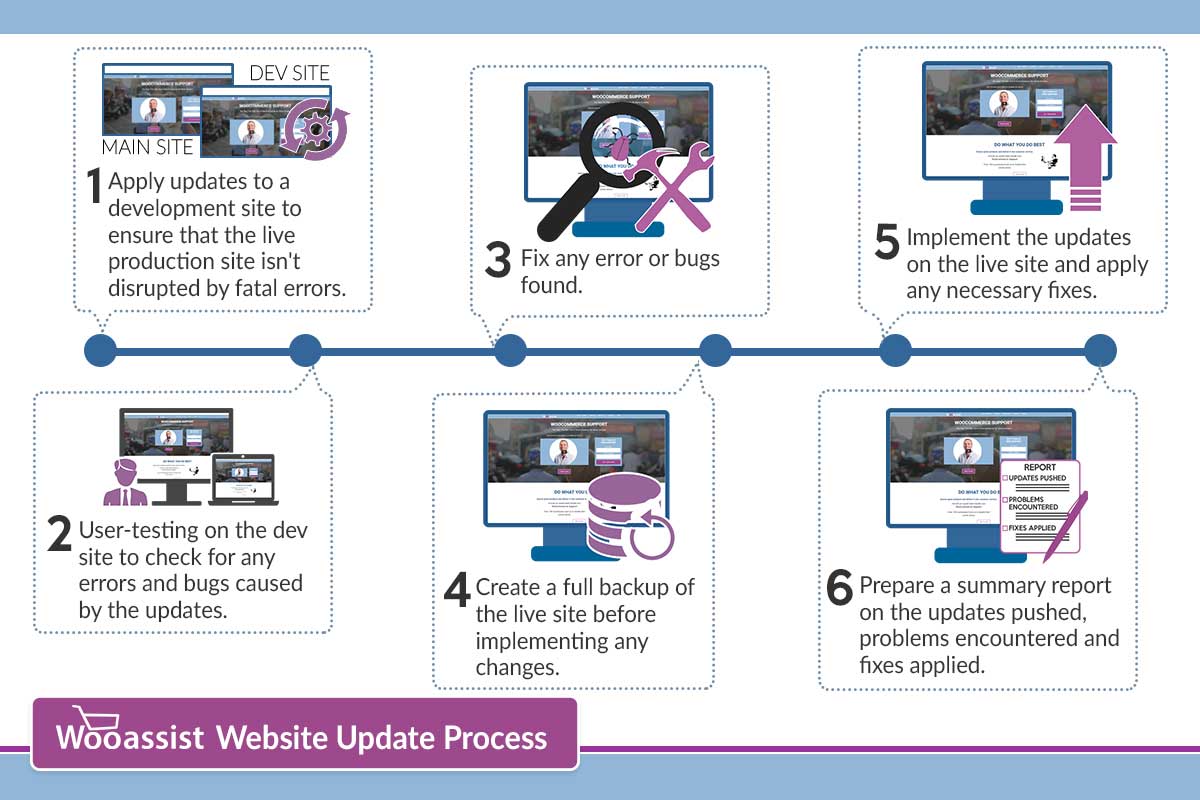
To ensure that problems with updates are immediately addressed, it would be a good idea to have a developer on board to handle the job. Better yet, have a developer do all your updates at regular time intervals. Handing over the responsibility to the Wooassist team is a viable option for you. As long as you have pre-paid credits in your account, we can automatically work on updating your WP Core, Themes and Plugins at regular intervals, either every fortnight or every month, depending on your preference.

How we do updates (click to enlarge image):
wooassist-website-update-process

Although it might be possible to skip most of these steps, proceed directly to updating the live site and wait for whatever errors to come up, it may end up causing irreversible damage to your site. This could cost you thousands of dollars in lost sales and having support services spend more time fixing the issue when it could have been easily avoided in the first place.

On average, we take around 2 to 3 hours implementing the entire process when done once every month. We take pride in our service and do not cut corners and take shortcuts. If in the rare occassion that we miss an error that was created due to the updates, we will have it resolved at top priority.

Letting us do your site updates for you will rid you of having to worry about this part of website ownership altogether leaving you with peace of mind and time to focus on growing your business.

Filed Under: How-To Articles Tagged With: backup, how-to, plugins, security, Wooassist, WooCommerce, WordPress

  • 1
  • 2
  • Next Page »
Let us support your online store so you can manage your business

Get started today

Get 2 Hours of FREE SUPPORT

We are so confident that you will love our services that we will give you your first 4 hours at a 50% discount

That’s 4 hours for only $75

BUY NOW

Free eBook

5 Things Every Online Store Can Fix On Their Website In The Next Week To Increase Sales

Quick Links

  • How it Works
  • Pricing
  • Blog
  • Contact
  • About Wooassist
  • My Account
  • Checkout
  • Privacy Policy
  • Cookie Policy
  • Terms and Conditions

Wooassist

Australia:
59 Luke St.
Hemmant QLD 4174

Philippines:
San Miguel St.
Poblacion, Iligan City 9200

Connect


Copyright © 2026 · Wooassist

Yours FREE!

5 Things Every Online Store Can Fix On Their Website In The Next Week To Increase Sales