Wooassist

Assistance for Your Woocommerce Store

  • How it Works
  • Pricing
  • Services
    • Site Maintenance
    • AI SEO and Content Marketing
  • Blog
    • How-To Articles
    • Code Snippets
    • SEO For E-Commerce
    • Theme and Plugin Reviews
    • Wooassist News
    • WordPress/WooCommerce News
    • Interviews
  • About Us
  • Contact
You are here: Home / Archives for WooCommerce updates

How to Make Your WooCommerce Store GDPR-Compliant

June 18, 2018 By John Leave a Comment

How to Make Your WooCommerce Store GDPR-Compliant

The GDPR took effect on May 25. WooCommerce store owners are still scrambling to make sure that their sites are compliant with GDPR requirements. If you serve clients from the European Union, then it is imperative that you make your WooCommerce store GDPR-compliant. Don’t know what to do? Read on below.

What is the GDPR?

First off, a brief introduction about the GDPR. The General Data Protection Regulation (GDPR) is a new regulation in the European Union that sets out standards and regulations for data protection. Data protection reform was initiated way back in 2012 and the GDPR is one fruit of that labor. If you are interested in seeing the GDPR in its purest form, you can check out this link.

Why Comply with GDPR Regulations?

If you do not serve customers from the European Union, then there is no need for you to comply with GDPR regulations. Still, your customers will appreciate the gesture if you make an effort to comply. This shows that you value their data and privacy.

If you serve a specific country in the EU or serve a global audience, then you are covered by the GDPR. That means you may receive hefty penalties of up to €20 million if you are found to be in violation of its provisions.

How Can I Make My WooCommerce Store GDPR Compliant?

Due to harsh penalties, it is recommended to act to make your WooCommerce store compliant. We will now detail the tasks that you need to do to comply with GDPR regulations.

Step 1: Update Your Site

The first thing you should do is update your site. The latest versions of WordPress and WooCommerce have implemented features to be GDPR-compliant. WooCommerce now has a feature that allows users to export their data and delete their data. Site administrators are also granted tools to determine how long data will be retained as well as an option to delete user data. Don’t forget to back up your site and test updates on a development site before updating your live site. For more information on the changes relating to the GDPR, you can check out this post.

Other popular plugins that manage user data such as MailChimp and Google Analytics have also implemented measures to make their services GDPR-compliant.

Step 2: Secure Your Site

Another mandate of the GDPR is that store owners should make their site secure. One way of keeping your site secure is by using the HTTPS protocol. You’ll need an SSL certificate to use HTTPS. You can follow this guide on how to install an SSL Certificate on your WooCommerce store.

There are a few other things that you can do to increase the security of your WooCommerce store. This includes keeping your site updated or using a security plugin. You can check this blog post for other important security tweaks.

Step 3: Create Important Pages

You will need to create a Terms and Conditions page, a Privacy Policy page and a Cookie Policy page. We would still recommend consulting your legal department about creating these pages. If you already have these pages, you need to make sure that you add provisions specific to the GDPR.

Create a Terms and Conditions Page

You can create your own Terms and Conditions page or you can generate a terms and conditions page using this tool from Shopify. If you choose to generate a terms and conditions page, you’ll still need to tweak it. And make sure to add any specific terms and conditions unique to your business.

Create a Privacy Policy Page

You can create your own Privacy Policy page or you can download a template here that you can tweak depending on your needs.

Create a Cookie Policy Page

You can create your own Cookie Policy page or you can download this template and tweak it according to your needs.

Notes on Important Pages

After you’ve created all the pages above, you will need to ensure that these pages can be accessed from any page on your site. For this purpose, we recommend adding links leading to these pages on your WooCommerce store’s footer.

Step 4: Create a Data Breach Response Plan

As per GDPR requirements, you will need to detail how your organization deals with a security breach. You can download a template here. Populate it with pertinent information about your Security Incident Response Team and external contacts.

In case of a security breach, you must also inform all customers whose data may have been leaked. You will need to have a template ready for communicating the breach. You can download the email template here.

Step 5: Add a Cookie Notification Pop-Up

You might have noticed that most, if not all, websites that you visit now have a pop-up that declares that the site uses cookies. That’s because the GDPR also requires website to declare that they are using cookies to track user data. Implementing this is easy on WordPress. You can use the UK Cookie Consent plugin to create a cookie notification pop-up on your WooCommerce store.

Step 6: Ensure that Your Email Opt-in Forms are GDPR-Compliant

If you are using MailChimp, you will need to turn on the GDPR fields on your opt-in forms. Note that this does not make your opt-in forms GDPR-compliant. Rather, this is the first step to making your WooCommerce store GDPR-compliant.

You will still need to get consent from new contacts and existing contacts. You read that right. Even if users have already consented to receive emails from you prior to the GDPR, you will still need to get consent again. For more information on how to get consent, you can check out this article from MailChimp.

If you are using a different tool for your email marketing, you can check with your service provider. Check if they have made any changes to help you comply with GDPR.

Step 7: Ensure that the Plugins You Use are GDPR Compliant

To ensure that your plugins are GDPR compliant, you will need to do a plugin audit. This task may be tedious as you have to sift through all the plugins that you use. First, you’ll need to check if the plugins are still being updated by the plugin author. If that plugin author has not updated the plugin in months (or worse, years), then that’s a red flag. A plugin that is not being updated is a security concern and GDPR requires that websites need to be secure.

Once you’ve weeded out the outdated plugins, you’ll need to identify which plugins manage or use user data. Example of plugins that deal with user data are analytics plugins, contact form plugins, and opt-in form plugins. Check if the plugins that manage user data have taken steps to become GDPR compliant. If they have not, consider finding another plugin that is GDPR-compliant.

Final Notes

Doing all the steps above does not guarantee that your WooCommerce store will be fully GDPR-compliant. We still recommend seeking legal advice. If you need any help getting any of these tasks done, you can contact the Wooassist team and we should be able to help.

Do you have any other tips on how to make a WooCommerce store GDPR-compliant? Let us know in the comments.

Filed Under: How-To Articles Tagged With: email marketing, GDPR, mailchimp, security, WooCommerce, WooCommerce updates, WordPress updates

How to Find and Remove Abandoned Plugins from Your WooCommerce Store to Keep Your Site Secure

December 4, 2020 By John Leave a Comment

How to Find and Remove Abandoned Plugins

You probably already know that keeping your site updated is important for security and to keep everything running. But did you know that just updating your WordPress core, themes and plugins might not be enough? What else should you be doing? You should find and remove abandoned plugins.

WordPress does not automatically warn users using a plugin when plugins are abandoned by their developers. This is important because when developers abandon their, they do not receive updates. This includes critical security updates and other updates to make sure that the plugins stay compatible the current versions of WordPress and WooCommerce and your theme.

Why is it Important to Find Abandoned Plugins?

Abandoned plugins are critical security issues as they are likely to contain deprecated code and vulnerabilities that may be exploited by hackers. Abandoned plugins can also break functionality on your WooCommerce. Your lucky if it breaks a layout or something else minor. In some cases, abandoned plugins can affect your product purchase process. Imagine breaking your WooCommerce store’s checkout because of an abandoned plugin.

How to Find Abandoned Plugins?

You can search for abandoned plugins manually by going to your plugins page and clicking on the “View Details” link on each plugin. Clicking on this link would take you to a different page and your next action would depend on where the link takes you.

If the plugin is not in the plugin repository, you might find a different link to visit the plugin’s site.

It Takes You to a Page with the Plugin Details

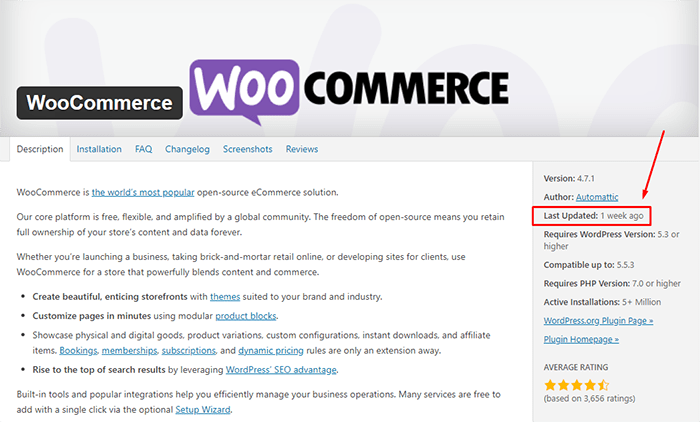
If you got the plugin from the WordPress plugin repository, you will most likely be taken to a plugin page with all the plugin details. There you can see when the plugin was last updated. You should be wary of plugins that have not been updated for several months. If you find that the plugin has not been updated in over a year, note it down.

It Takes You to a Page that Tells You that Plugin Has Been Remove From the WordPress Repository

If you find yourself on a page that tells that the plugin has been removed from the WordPress plugin repository, this is a major red flag. There are several reasons why a plugin could be removed from the repository. The less alarming reasons are if the plugin author has requested removal of the plugin or there are some licensing issues. However, in some cases, it would be because the plugin has violated the WordPress Plugin Guidelines or has been identified to have a security vulnerability severe enough to warrant a removal. If this is the case, remove the plugin immediately and scan your site for malware.

It Takes You to a Third-Party Plugin Vendor’s Site

If clicking on the link takes you to a plugin vendor’s site, you might need to do some further digging to find if the plugin is still being updated. Search for the developer’s change logs on the plugin to see when it was last updated. It might also be worth checking how often the plugin developers release an update. Also check if you have the latest version of the plugin installed. If it is a premium plugin, there is a likelihood that you are not getting automatic updates because of an expired license. In this case, renew your license and update.

It Takes You to a 404 Error

If it takes you to a page with a 404 error page, check the site’s home page and try to find information on your plugin. The plugin developers may have already gone out of business which means the plugin has been abandoned.

As you are probably thinking by now, scanning your site for abandoned plugins can be a handful. Thankfully, you can use WordFence to scan your site for abandoned plugins. Just install the WordFence plugin and run a scan, if there are any abandoned or outdated plugins on your site, WordFence should alert you of it.

So You Found One or More Abandoned Plugins on Your Site. What now?

In a perfect world, you just remove abandoned plugins and be done with it. However, things are usually more complicated than that. Chances are you are actively using the plugin and you might not be noticing any problems with it. But that doesn’t make the plugin any less of a security threat. We recommend removing the plugin and finding an alternative plugin that is not abandoned. If there are no alternatives available, you can customize the functionality instead. These should all be done on a staging site so as not to disrupt your live site.

But What if the Plugin is Critical to Your Site Functionality?

There’s not really much you can do in this case. You can try to contact the plugin developer or hire a developer to create your own plugin. It is most likely a bigger risk to your business if you keep using an unstable and unsecure plugin. Under the General Data Protection Regulation (GDPR), you will be liable to your customers if their data gets leaked because of a security breach. The fines are hefty so it might be best to err on the side of caution.

If you’ve fixed all the abandoned plugins on your WooCommerce store, you might want to keep yourself updated on the latest security news concerning WordPress and WooCommerce. You can subscribe to our newsletter to receive security updates on your inbox.

If you are looking for more things to do to make your site more secure, you can also check if your site is running the latest version of PHP.

Filed Under: How-To Articles Tagged With: GDPR, plugins, security, WooCommerce updates, WordPress updates

Update Your WooCommerce Store Regularly to Prevent Your Site from Breaking

March 19, 2019 By John Leave a Comment

Update Your WooCommerce Store

Many times, when WooCommerce store owners come to us seeking for help, we usually find that the cause of the problem is an outdated site. In some cases, we find that the site’s plugins and themes have not been updated in years. And when a WooCommerce store site has not been updated in years, suddenly updating can sometimes break more things. Our recommendation is to update regularly.

Why Should You Update?

If you update your site regularly, you’ll be dealing with a lot less problems on your WooCommerce store. While it’s true that site updates may cause issues, these issues are usually less severe than issues that come up when you don’t update. In addition, you can troubleshoot these issues on a staging site which will have no effects on your live site. If your site breaks because it is outdated, your live site can go down for an indefinite period. That means no sales until you fix the issue. If this happens during a critical time for your business, it can have negative effects on your sales. Imagine running TV ads and then your site breaks due to being outdated. That’s advertising dollars down the drain.

How Often Should You Update Your WooCommerce Store?

The best schedule we’ve found for site updates is doing them at least monthly. You can update more often especially when severe security issues are patched.

What Happens When You Don’t Update?

When you don’t update your site, one or a few of these things could happen:

  • Your site may go down and become inaccessible
  • Your site layout may break
  • Images and icons may not load
  • Your payment processor may stop working
  • Your shipping plugins may stop working
  • Your product page may break
  • You may have various problems on your cart and checkout
  • Your sign-up forms and contact form may stop working
  • Your site may be hacked and infected with malware
  • Your SEO rating may drop
update woocommerce to increase security

What Do You Need to Do Before Updating Your Site?

Test Updates on a Development Site

It is important to test updates on a development site. If you do not have a development site, also called a staging site, you can check with your hosting company if they offer a staging service. Some hosting companies like WPEngine provide an easy-to-set-up staging service. You can also set up a staging site yourself. You can check this blog post to learn how to create a staging site for WordPress.

Before you update your live site, test updates on your development site first. Then do some user testing to find out if there are any issues with the updates. Some things you need to test are:

  • Your Site Layout
  • Opt-in Forms
  • Contact Forms
  • Shopping Cart
  • Checkout
  • Any custom development you’ve done on the site

If you find any issues on your staging site, it’s time to get fixing. If you do not know how to go about fixing the issue, you can check out our guide on troubleshooting for WooCommerce. You can also drop us an email so we can help you out.

Create a Backup

If there are no issues on your staging site, it’s time to update your live site. But first, don’t forget to create a backup. For backups, we can recommend UpdraftPlus or BackWPup. Once backup is successful, you can proceed to update then test your live site again. If more issues come up, proceed to troubleshoot.

backup your woocommerce store before updating

I updated my WooCommerce Store but my Site is Still Broken

Renew Your Plugin Subscriptions

Sometimes, issues may persist because automatic update are not available for your plugins. This is usually because your plugin subscription has expired. If this happens, you will need to renew your subscription. It is now easier to manage WooCommerce plugin subscriptions. You just need to connect your WooCommerce account to your WooCommerce store. For third-party premium plugins, you may need to check manually.

Do a Plugin Audit and Remove Abandoned Plugins

Another common reason why some websites break after updates is that it has a plugin that has been abandoned by the plugin developer. If a plugin is abandoned by the developer, it will not receive any updates and will eventually stop working. And it can break your site. Worse, it can even become a backdoor for hackers to get into your site. It is not easy to detect if your plugins are no longer being updated by the plugin developer so you will have to do it manually. View the details of each plugin on your plugin list and check when it was last updated. If the plugin has not been updated in a year or more, then remove that plugin right away. If a plugin has not been updated in over 6 months, use your better judgment if the plugin can be removed.

Find Incompatible Plugins

In some cases, plugins may break compatibility with each other. This is one reason why it is best to keep plugins to a minimum. Having more plugins can cause more problems. When plugins break compatibility, various errors can pop up on your site.

To troubleshoot incompatible plugins, deactivate all plugins on your site except WooCommerce. Then enable them one by and one while testing for the error. With some trial and error, you’ll be able to shortlist the incompatible plugins. When you find the incompatible plugins, you can replace one plugin with a compatible one. You can also report the issue to the plugin developers so they can address it.

WooCommerce Templates are Outdated

Sometimes you’ll find an error on your WordPress Dashboard alerting you of outdated WooCommerce templates. Most theme developers update their WooCommerce templates so check if your theme is updated. If your using a premium theme and have an expired license, you will receive automatic updates. If this is the case, update your subscription to get the updated templates. You can also fix this issue by following this guide from WooCommerce.

Final Notes

Add updating your WooCommerce store to your monthly to-do list to ensure your site is secure and won’t break in an uncontrolled environment. Renew your plugin subscriptions and do a plugin audit. If you find that you do not have time to do the monthly WooCommerce store updates yourself, the Wooassist team can help.

Filed Under: How-To Articles Tagged With: backup, plugins, security, shopping cart, WooCommerce, WooCommerce updates

Let us support your online store so you can manage your business

Get started today

Get 2 Hours of FREE SUPPORT

We are so confident that you will love our services that we will give you your first 4 hours at a 50% discount

That’s 4 hours for only $75

BUY NOW

Free eBook

5 Things Every Online Store Can Fix On Their Website In The Next Week To Increase Sales

Quick Links

  • How it Works
  • Pricing
  • Blog
  • Contact
  • About Wooassist
  • My Account
  • Checkout
  • Privacy Policy
  • Cookie Policy
  • Terms and Conditions

Wooassist

Australia:
59 Luke St.
Hemmant QLD 4174

Philippines:
San Miguel St.
Poblacion, Iligan City 9200

Connect


Copyright © 2026 · Wooassist

Yours FREE!

5 Things Every Online Store Can Fix On Their Website In The Next Week To Increase Sales