
Wooassist

Assistance for Your Woocommerce Store

  • How it Works
  • Pricing
  • Services
    • Site Maintenance
    • AI SEO and Content Marketing
  • Blog
    • How-To Articles
    • Code Snippets
    • SEO For E-Commerce
    • Theme and Plugin Reviews
    • Wooassist News
    • WordPress/WooCommerce News
    • Interviews
  • About Us
  • Contact
You are here: Home / Archives for website maintenance

Backup Your WooCommerce Store on WordPress

January 29, 2015 By John Leave a Comment

hard-drive-656122_1280

Your online store may be up and running, but it still requires consistent management. Your database grows as you add new products or post something on your blog. It would be a shame if you lose everything in an instant.

This can be avoided by backing up your data. It’s one of the best ways to protect your investment. This post explains the importance of being backed up.

Set Your Own Backup

Most site owners assume that their web host does all the backing up. While most web hosts do have backups, they are not as reliable as your own. What’s more, there’s always a chance that your host failed to do so.

unita-disco-rigido-arch-01r

Not setting up your own backup is an unacceptable mistake. You can either learn to backup your data on WooCommerce, or you could have others to do it for you. These simple steps can teach you how to backup the data on your site. It’s crucial to choose a reliable web host that provides better security, and has backup solutions in case something happens to your own database.

Doing this right from the moment you go live with your WooCommerce store assures you peace of mind. Having all your data backed up means you don’t need to worry as much about any security problems. Your original site and all-important data can always be recovered.

WordPress-Specific Options

You shouldn’t rely solely on the backups made by web host companies. It’s because the backups they make, are not specific to WordPress. You need to look for WordPress-specific options. Using remote backup services is one good example. These services use cloud servers and guarantees that your data would be safe and secure.

BlogVault provides real-time backup solution in WooCommerce. It guarantees immediate backup with each update done. For a more detailed description of BlogVault, you can check it here.

For more information on how to backup your data on WooCommerce, check our earlier post. Having a good backup process helps keep all your data safe. But if you have your hands full on other areas of your business, the Wooassist team can setup a solid process for your online store.

Filed Under: How-To Articles Tagged With: backup, how-to, website maintenance, WooCommerce, WordPress

How to Speed Up Your Website by Cleaning Your Database

February 18, 2015 By John Leave a Comment

cleaning-upYou might have read a few, or maybe a ton of articles about optimizing your website page load speeds. You might already know a few strategies like optimizing images, caching and minification, and getting a CDN. But here’s another strategy that is rarely discussed: maintaining and cleaning your database.

For many website owners, the database is just one of the requirements for a WordPress install. It is however more than just that. Keeping your database clean and optimized can also shave a few seconds of loading speed. We’re all suckers for that one or two seconds. And believe it or not, one or two seconds saved could mean the difference between a bounce and a conversion.

What’s in Your Database?

mysqlIf you don’t know what the database is for, then you might be surprised just how important it is. WordPress makes use of PHP to communicate with the database which contains important information such as posts, pages, your WooCommerce products, comments and product reviews, users and customer information, URLs, etc.

Why Do You Need to Clean Your Database?

Think of a database like it’s your computer’s hard drive. It’s where all your data is stored. ­ It’s where you keep everything and without it, your computer won’t work. If you want to keep your computer running in top form, you clean your hard drive. The same concept applies to a website, to keep your website running fast and smooth, you clean its database by removing all that gunk and clutter.

What’s there to clean? Over continued use, a website accumulates many spam comments, copies of post revisions, and remnants of deleted plugins and themes. When that becomes too large and bloated then website performance will suffer.

Back Up Your Website

Now that you know the importance of a database, you just want to jump in and clean your database. Halt! Before you start any database cleaning, it would be wise to create a backup of your website. There are a couple of plugins that can help you do this. Your hosting provider will most likely have a backup of your website so can also check in with them.

Clean ‘Em Up

You can clean up your website database manually or you can use these awesome plugins.

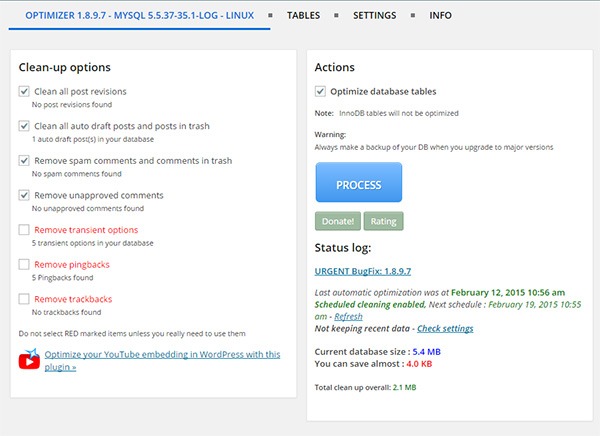
WP-Optimize

WP-Optimize is one of the most popular plugins for cleaning your database and it is also one of the easiest to use. Simply install the plugin and run it. The plugin also allows you to schedule a regular database cleanup which is pretty handy if you want to keep your database in peak condition.

wp-optimize

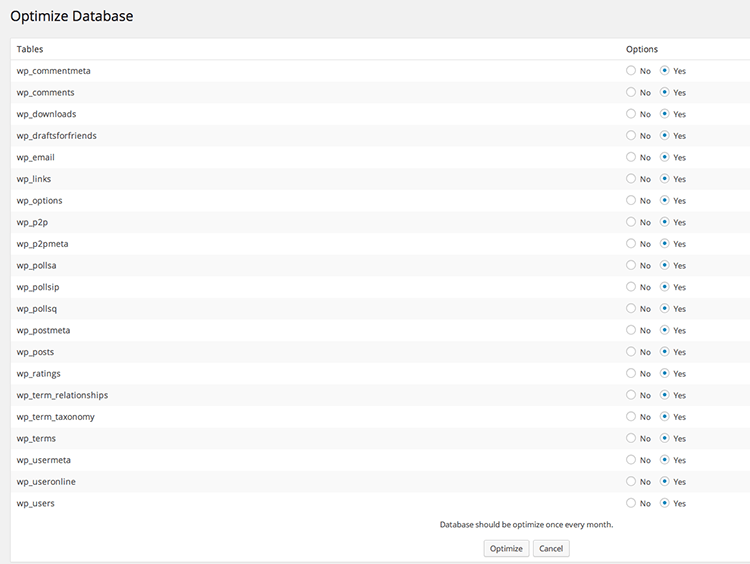
WP-DBManager

WP-DBManager is another popular plugin for database optimization. It is however geared for more advanced users. Setting it up can be tricky if you’re not familiar with database elements. Being trickier however means that it has more customizable options and features. Some of its features include repairing a corrupted database, a database restore, running MySQL calls, and clearing tables. WP-DBManager however cannot clear bloat so if you want to go with this one for its host of other features, you still might want to consider getting WP-Optimize or any other means to clear database bloat.

wpdbmanager

So when was the last time you optimized your database? What tool or plugin did you use to clean it?

Filed Under: How-To Articles Tagged With: backup, best practices, how-to, MySQL, optimizations, page speed, plugins, website maintenance, WordPress

How to Backup Your WordPress Site

February 22, 2015 By John 2 Comments

backupFor every website owner, there will always come a time when your website will go down. Often, this could be because of a downtime on your hosting service, but sometimes it’s because of some other reason. Maybe your website has been compromised or you did something that caused your site to go down. Notably, if you’re going to be doing some major work on your site, you shouldn’t be doing it without creating a backup first so you can restore your website to a working state just in case you mess something up. Here, we’ll teach you how to backup your WordPress site.
If you are adding some lines of your code to your functions.php file, it is best practice to create a backup copy. When you add your code and your site goes down, you simply replace your functions.php file with the working copy and voila! Your site will be back up. The same can be done for when you are tweaking your CSS files. Though errors in your CSS won’t cause your site to go down, it can really mess up how your website looks. So just create a copy of your CSS file and restore it if anything goes wrong. This basically sums up the concept of website backups only on a larger scale.

Your hosting service probably already has a few backups of your website. So you might think that creating your own backup is not necessary. That’s where you’re wrong. What’s your assurance that your hosting service creates regular backups? Certain situations can also render your host’s backups useless. So essentially, just to be on the safe side, you should have your own backup.

There are two ways to back up your website. The first one is through one of a few available plugins and the second is doing it manually.

Backing Up Your WordPress Site with BackUpWordPress

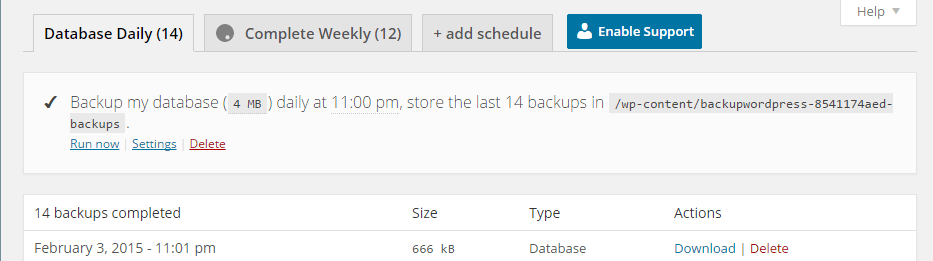
BackUpWordPress is the easiest means of backing up your website. Simply install the plugin and activate it. When that’s done, head over to tools and Backups. You can then choose between a Database Backup and a Complete Backup. To start backing up, just click on Run Now and wait until backup completes. You can also click on Settings to set the schedule for these backups. You can also add a custom schedule.

By default, your backups are stored on your server at /wp-content/backups. To restore a backup, simply find the latest working backup by navigating to the folder using an FTP client and unzip the backup on your server making sure to overwrite everything.

back-up

Backing Up Your WordPress Site with Backup Buddy

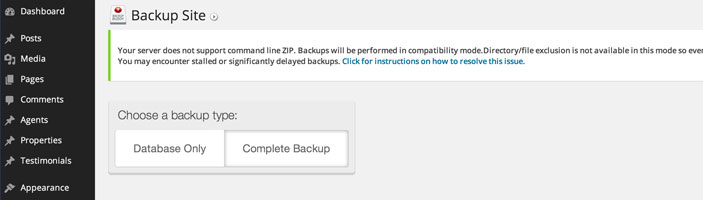
BackupBuddy is another popular backup plugin. Unlike BackupWordPress, BackupBuddy is a premium plugin so there is no free version. Once you get the plugin installed and set up, simply go to Backup. From there, you can choose to backup the database or do a complete backup. Next, you can choose to download the backup file so you can store it right in your computer’s hard drive.

BackupBuddy

You can also tweak your settings to have backups saved to Dropbox or Amazon S3, create custom backup profiles, and schedule backups.

How to Create Manual Backups

Backing Up Using MySQL

You can also backup your website manually using MySQL. To do this, head over to CPanel. From there, you can find phpMyAdmin. Click on the database and click on the Export tab. You can choose either quick or custom export. Set compression to gzip then click on Go.

Backing Up with CPanel

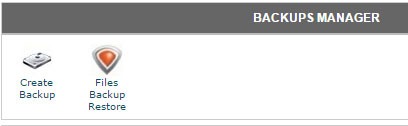
cpanel-backupTo create back-up using CPanel, navigate to Backup Manager and click on Create Backup. Where it says Download a MySQL Database Backup, just click on the database and download. A simple enough process but using a plugin just saves you from the trouble of doing this manually.

So when was the last time you backed up your website? Do you even have an existing backup? If you don’t, then it’s time to make one before it’s too late.

Filed Under: How-To Articles Tagged With: backup, best practices, CPanel, how-to, MySQL, plugins, website maintenance, WordPress

  • « Previous Page
  • 1
  • 2
  • 3
  • 4
Let us support your online store so you can manage your business

Get started today

Get 2 Hours of FREE SUPPORT

We are so confident that you will love our services that we will give you your first 4 hours at a 50% discount

That’s 4 hours for only $75

BUY NOW

Free eBook

5 Things Every Online Store Can Fix On Their Website In The Next Week To Increase Sales

Quick Links

  • How it Works
  • Pricing
  • Blog
  • Contact
  • About Wooassist
  • My Account
  • Checkout
  • Privacy Policy
  • Cookie Policy
  • Terms and Conditions

Wooassist

Australia:
59 Luke St.
Hemmant QLD 4174

Philippines:
San Miguel St.
Poblacion, Iligan City 9200

Connect


Copyright © 2026 · Wooassist

Yours FREE!

5 Things Every Online Store Can Fix On Their Website In The Next Week To Increase Sales
