Wooassist

Assistance for Your Woocommerce Store

  • How it Works
  • Pricing
  • Services
    • Site Maintenance
    • AI SEO and Content Marketing
  • Blog
    • How-To Articles
    • Code Snippets
    • SEO For E-Commerce
    • Theme and Plugin Reviews
    • Wooassist News
    • WordPress/WooCommerce News
    • Interviews
  • About Us
  • Contact
You are here: Home / Archives for seo

How to Set up AMP for WooCommerce and Speed Up Your Mobile Site

October 28, 2018 By John 2 Comments

For WooCommerce store owners, it is important to present your customers with a fast WooCommerce store. This is especially important for mobile the mobile platform. One means of achieving top speeds is to set up AMP. In this post, we’ll show you how to set up AMP for WooCommerce.

What is AMP?

Accelerated Mobile Pages, or simply AMP, makes websites load faster on mobile devices. This is an open-source initiative that Google started.

As Google pushes for a faster web experience, it approves of websites that have fast page loads speeds. And since AMP is  a pet project of Google, you have everything to gain and nothing to lose by adopting it. To be clear, AMP is not yet a ranking factor for SEO. However, you and your customers would still benefit from AMP since more searches are now being done on mobile devices.

How to Set Up AMP for WordPress
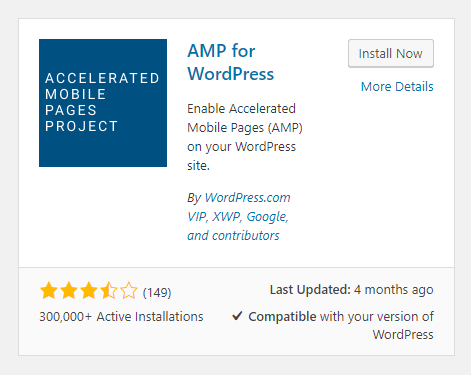
Before you can set up AMP for WooCommerce, you first need to set up AMP for WordPress.

To set up AMP for WordPress, you will need to use a plugin. On your WordPress Dashboard, go to Plugins then Click on ‘Add New’. Search for AMP for WordPress. Once you find the plugin, click on Install Now and then activate it.

You can also download the plugin directly from the WordPress plugin repository and upload  it on your site. After that, you will need to activate the plugin from your plugins page.

If you are running a multisite network, you can install the AMP plugin on the multisite and activate it for the network.

Now that you have set up AMP for WordPress, you can get started on setting up AMP for your WooCommerce pages.

How to Set up AMP for WooCommerce

For integrating AMP for WooCommerce, you will need another plugin. Currently, there are no free plugins that add AMP functionality to WooCommerce so you will have to purchase a premium plugin. You can choose between the WooCommerce Pro for AMP plugin or the Publisher AMP plugin.

To enable AMP for WooCommerce, simply install and activate the plugin.

As you can see, setting up AMP for WordPress and WooCommerce is easy. But the work doesn’t stop there. You will still need to test your AMP site.

How to Test AMP

There are a few tools that can help you test your AMP set up. Simply input any of your AMP pages on the two sites below and you will be provided with results.

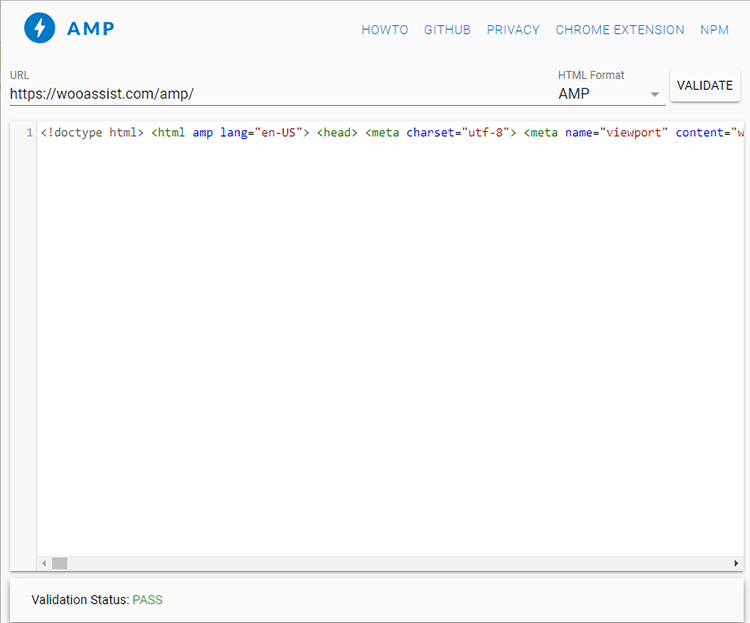
  • https://search.google.com/test/amp

  • https://validator.ampproject.org/

You might also want to check Google Search Console for any errors in your AMP set up. If you are not connected to Google Search Console, you can use Yoast SEO plugin to connect your WooCommerce store.

If you find any errors in your AMP set-up, you can get started on fixing them. If you are stuck and need help fixing any errors, you can contact the Wooassist team and we should be able to help out.

Check Your AMP Speed

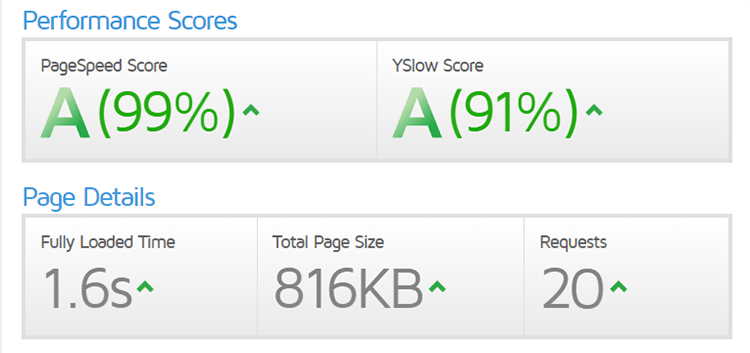
You can also check your AMP site for any improvements in site speed using GTmetrix or Pingdom.
Ensure Your AMP Pages are Indexed by Google

One way to ensure that your AMP pages will be indexed by Google is to generate a sitemap that includes the AMP pages. You can then upload it on Google Search Console. Just log in to your Google Search Console and then click on sitemap. In the field, just indicate your sitemap URL and click on “Submit”.

Ensure AMP Works with Yoast SEO Plugin

If you are using Yoast’s SEO  plugin, which we recommend you do, you will need to integrate Yoast SEO with AMP. This is a simple tasks and just requires that you install the Glue for Yoast SEO & AMP.

Final Notes

Now that you’ve set up AMP for your WooCommerce store, the mobile experience should be much faster. If you are having issues setting up your AMP, you contact us and we’ll see what we can do to help.

If you are looking for other ways to speed up your site, you can check out our post on how to speed up your WooCommerce store.

Filed Under: How-To Articles Tagged With: conversion optimization, seo, site speed optimization, WooCommerce

How to Optimize WooCommerce Products for SEO

May 31, 2018 By John 1 Comment

You’ve set up your WooCommerce store but you’re not getting any traffic. You wonder what you’re doing wrong. Have you optimized your product pages for SEO? If not, that could be one of the reasons why you’re not getting any traffic. In this article, we’ll teach you how to optimize your WooCommerce products for SEO.

Why Optimize for SEO?

You can do all the link-building you want but if the pages that you want to rank for are not properly optimized for SEO, then you’ll have a hard getting ranked on top of Google.

Still, traffic is just a metric and what really matters is your conversion rate. Even if you are getting thousands in traffic but they are not converting, you still have a problem. On the other hand, you can’t convert anyone if you are not getting any traffic at all. Essentially, SEO and conversion optimization go hand-in-hand.

You have to optimize for SEO to make sure you are attracting the right people to your WooCommerce store.

Steps on How to Optimize WooCommerce Products for SEO

Identify What Keywords to Optimize For

Normally, it will be difficult to rank for regular keywords. For example, if you are selling digital cameras, it will be difficult to compete with Wikipedia or Amazon unless your WooCommerce store is already an authority on digital cameras. So optimizing for the keyword “digital cameras” won’t work for you. This is where long-tail keywords come in.

What is a Long-Tail keyword?

Compared to a regular keyword, long tail keywords are longer and more specific. Instead of optimizing for “digital camera”, you can optimize for specific camera models or for specific features of digital cameras. Optimize for anything unique about the product that you are selling. A few examples of long-tail keywords can be “digital camera for underwater photography”, “digital cameras for beginners”, or “sports action digital camera”.

Do Your Keyword Research

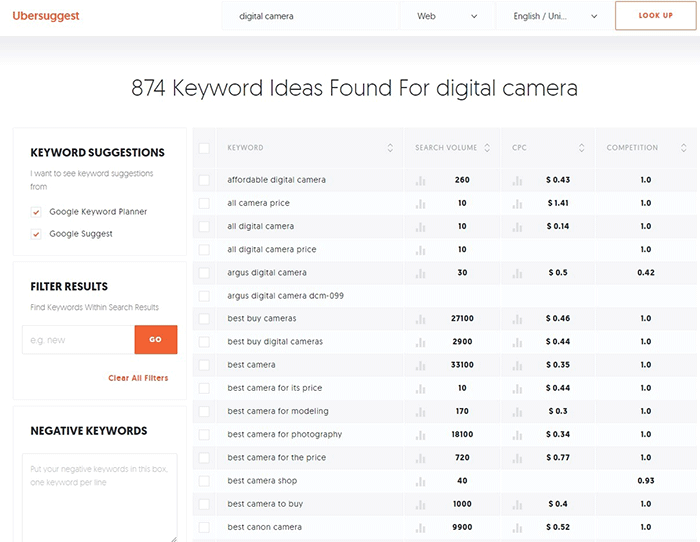
Don’t start optimizing until you do your keyword research. You can use whatever keyword research tool you have at your disposal. We can also recommend Ubersuggest. Just pop in a basic keyword and you can get a list of long-tail keywords that you can optimize for along with some valuable search data. You can even filter the keyword ideas and remove negative keywords. You can also export the keywords into a handy CSV file.

Ubersuggest Keyword Research

Add the Long-Tail Keyword to Your Product Page

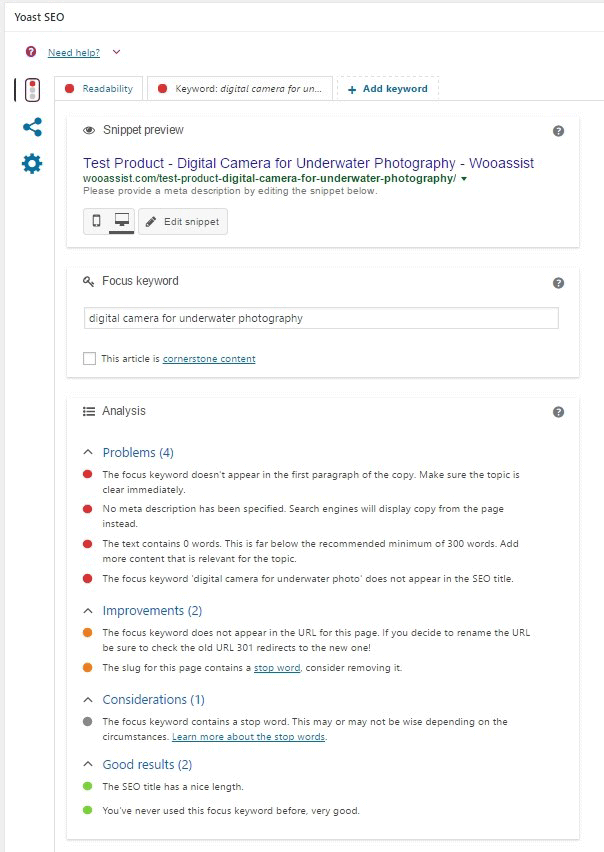
To help with optimizing your WooCommerce Products for SEO, you can use the WordPress SEO plugin by Yoast. The plugin provides detailed information on how you can optimize your products for SEO. It also has a boatload of other features that will help boost your SEO. Just install the plugin and you’ll gain access to the SEO optimizations block on your WooCommerce product editor.

When optimizing products for SEO, input the long-tail keyword that you wish to target on the “Focus Keyword” field. After doing this, you can see the analysis section below will show you recommendations on how you can improve your product’s SEO score.

How to Optimize WooCommerce Products for SEO

Generally, you will need to add your focus keywords to:

  1. The article title
  2. The first paragraph of the article
  3. One of the heading tags
  4. On the body of the article
  5. In one of the image alt tags
  6. In the URL/slug

You don’t need to force yourself to do every little thing that the Yoast SEO section recommends. Just use it a rough guide since it does recommend the currently known best practices.

Improving Content Readability

Google now also considers content readability as an SEO ranking factor. So it is important to ensure that your product descriptions are easy to read. In some cases, you may have to use some technical terms when writing your product descriptions and that’s totally fine. Depending on your products, that may actually be best practice. Still, it’s a good idea to check the readability of your content.

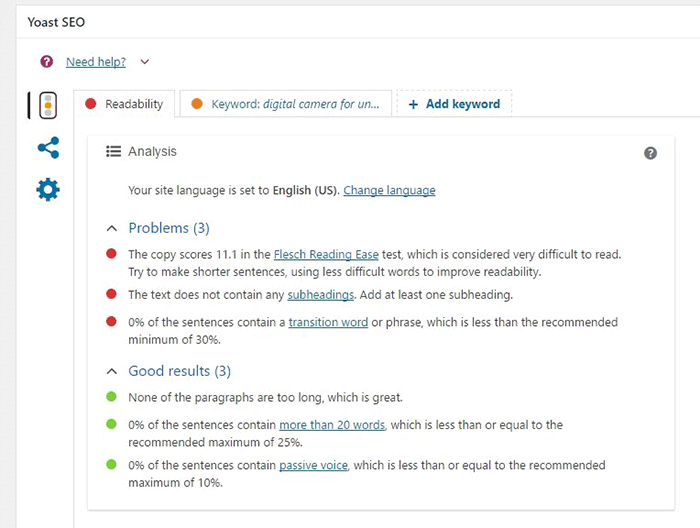
The Yoast SEO section also gives recommendations on Readability. Just click on the readability tab and you’ll see the problems that need to be addressed.

WooCommerce Products Optimize for Readability

When creating your product descriptions, you can also use Hemingwayapp to optimize its readability. You can also use this tool when writing blog posts.

Now that you know how to optimize your content for SEO, people who are interested in your products are now more likely to find your products. If you need help with SEO optimizations, the Wooassist Team can help. We’ll start off by doing an SEO audit of your site so we can determine what needs to be addressed and move forward from there.

Optimizing your WooCommerce store does not end with product optimizations. There are other optimizations that need to be done to ensure you are maximizing your conversion rates.

Filed Under: How-To Articles, SEO For E-Commerce Tagged With: keyword research, optimizations, seo, SEO strategy, SEO tools, WooCommerce, WooCommerce products, woocommerce seo, WordPress SEO, Yoast

Let us support your online store so you can manage your business

Get started today

Get 2 Hours of FREE SUPPORT

We are so confident that you will love our services that we will give you your first 4 hours at a 50% discount

That’s 4 hours for only $75

BUY NOW

Free eBook

5 Things Every Online Store Can Fix On Their Website In The Next Week To Increase Sales

Quick Links

  • How it Works
  • Pricing
  • Blog
  • Contact
  • About Wooassist
  • My Account
  • Checkout
  • Privacy Policy
  • Cookie Policy
  • Terms and Conditions

Wooassist

Australia:
59 Luke St.
Hemmant QLD 4174

Philippines:
San Miguel St.
Poblacion, Iligan City 9200

Connect


Copyright © 2026 · Wooassist

Yours FREE!

5 Things Every Online Store Can Fix On Their Website In The Next Week To Increase Sales