Wooassist

Assistance for Your Woocommerce Store

  • How it Works
  • Pricing
  • Services
    • Site Maintenance
    • AI SEO and Content Marketing
  • Blog
    • How-To Articles
    • Code Snippets
    • SEO For E-Commerce
    • Theme and Plugin Reviews
    • Wooassist News
    • WordPress/WooCommerce News
    • Interviews
  • About Us
  • Contact
You are here: Home / Archives for blog

How to Build Links for your Online Store with Guest Posting

April 1, 2015 By John 1 Comment

how-to-build-links-for-your-woocommerce-store

Most online store owners want to get links to their website for the sake of SEO. In this article, we’ll show you how to build links for your online store with guest posting.

There are many ways to get links such as through social media shares and directory listings. Social media is a powerful tool. Directory listings though might have a negative impact in your SEO efforts. For the past few years, Google has been penalizing many web directories. The single most promising way of earning free and quality links to your website is through guest posting in other blogs related to your industry.

How Does Guest Posting Work

Guest posting is creating content to post in another person’s blog or website with a link back to your own website. The more the links pointing to your website you have, the better it is for your SEO. Search engines such as Google look at your link network. The more popular the website that links to you, the better it is for your link profile. To learn more about the importance of links, check out this post.

How to Get Guest Posting Opportunitiesguest-post

Website Owners that You Know

To get guest posting opportunities, you can start with the people you know. You may have some friends who have a blog on a niche related to your website. You can ask them if they would let you guest post on their website or blog.

Social Networks

linkedin-logo

If you have a LinkedIn account, you can use that to reach out to other people that own websites within your niche.  You can then ask for guest posting opportunities. You can also use Facebook, Twitter or any other social network. LinkedIn better serves this purpose though since it is all about building a professional network.

Blog Search

Perhaps the most popular means of searching for guest posting opportunities is by searching for blogs on Google. You can do this by entering “your niche + blogs” in the search bar. When looking at the search results, analyse the website more closely. Ask yourself; is this a real fit for my niche? Do they accept guest posts? Try to see if they have accepted guest posts in the past or if they explicitly say that they don’t accept guest posts. If they haven’t had any guest posts in the past, don’t let that discourage you, there’s always a first time for everything. Also, make sure that the website is not a competitor.

guest-post-search

If you want to search specifically for blogs or websites that accepts guest posts, you can try these keywords on Google.

“your niche + guest post”

“your niche + submit guest post”

“your niche + write for us”

Once you’ve found a good website or blog, you should search for the owner’s email or a contact page. It will allow you to reach out to them about your concern.

Guest Posting Communities

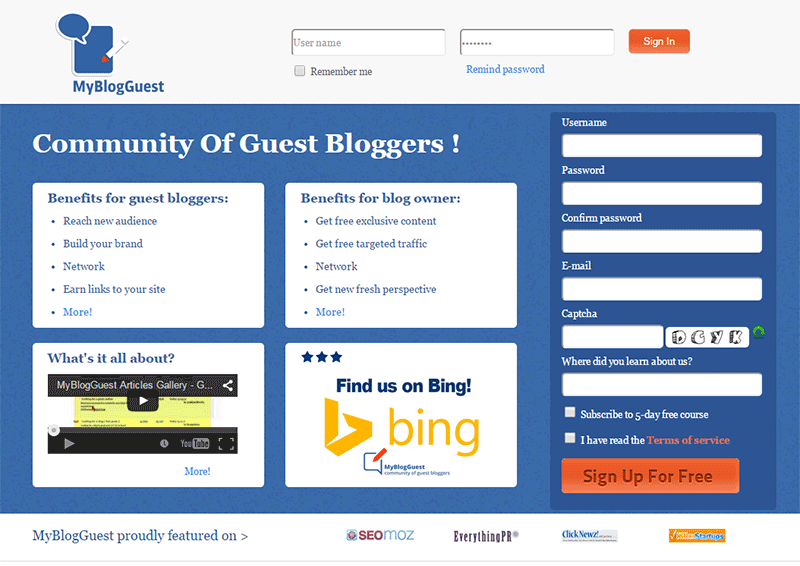
Another means of getting guest post opportunities is by joining guest posting communities. One of the most popular was MyBlogGuest but the site has already been shut down. MyBlogGuest was  a community for people looking for guest posting opportunities. People looking for bloggers to get free quality content also go to it. If you think about it, it’s a win-win situation. You get a link and the other person gets free quality content.
myblogguest

How to Request a Guest Post

When you request for a guest post, the golden rule is to not sound like spam.  Before emailing someone, check out the website first and read the blog. If they have a dedicated page for guest posting, they’ll have guidelines posted there. Read it and follow the guidelines strictly. If they ask you to email them a certain subject or to have a certain sentence as the first sentence in your email, then do so. By doing what they ask, you’ll come by as someone genuinely interested in a partnership and won’t be writing crappy content. This kind of practice separates the spammers from the real quality guest posters.

If they don’t have specific guidelines, just email them in a normal manner. It helps a lot if you address the recipient with using his/her first name. This is usually written in the ‘contact us’ page. If you can’t find it, that’s not a problem. Just be courteous. You can also write something about how you loved a specific post on their website. This shows that you’re not just interested in the guest post for a link. You’ll also show that you’re interested in the content that they publish. An important bit: Try not to come off as someone trying too hard to please them just so they would allow you to guest post.

In your email, you should also include one or two topics that you’re interested in writing about. Including a short summary of what your post will look like will go a long way.  Make sure that what you’re proposing is relevant to their audience otherwise it will just get rejected.

Many blogs don’t accept links within the content of the posts unless it’s integrated  well into the content. Usually, in cases like these, they will allow a link to your website in the author bio. Now here’s a pro-tip. When writing the author bio,  include your email and ask the readers to contact you if they would like you to guest post on their website. You’ll need to write some really good content for this to work though.

Getting Seconds

guest-blogging

­­In getting guest posts, it is more helpful if you guest post in a lot of different websites. But if you get offered another chance to guest post in the same website, always grab the opportunity. It will help you build your reputation as a guest blogger. Your second post can still contain a link back to your site. And while it will not be as valuable as your first post, it will still show on your link profile. It can also get you some organic traffic. This is true when your guest post is being posted in a popular website with a large following.

What Makes a Good Guest Post

A “good” guest post is subjective, but ideally, a good guest post should provide new information and is insightful. Reading  the guidelines of the website where you are guest posting will help you write a post which is “good” by their standards.

How-To posts that teach the readers how to do something are always a good idea. Try to target a specific topic. If you write an article entitled “How to Write an Essay” that’s not good at all. Just think of the thousands, maybe millions, of articles with the same title all over the internet. Something more specific is “How to Write an Essay Optimized for SEO” or “How to Write a Good Expository Essay”.

Always try to use subheadings on your guest post especially when it is long. If you write a 1000-word guest post without any subheadings, it’s not enticing to read. It will look like a big wall of text. While images can help make it more attractive, it’s not as helpful as subheadings.

Also, whenever possible, you should reference any claims on your post unless that is your expert opinion. You should establish that your opinion is credible. Claiming something without backing it up is akin to spouting gibberish and readers will take notice of that. If a claim links to some example or some study that proves your point, then it gets better.

Another important bit to remember is not to hard sell your products or services when guest posting. The blog or website you are guest posting on trusts that you will create good readable content and not a marketing gimmick. Don’t spam your article with links to different product pages, rather if you should add a link, make it a useful link. Maybe link to a related blog post on your own website’s blog. This is all the more reason, among the many other reasons, why you should have a blog on your online store with a bunch of useful and good posts.

Adding Your Links

This is the most important part of your guest post. You can post a link anywhere on the body of your post going to your website unless otherwise specified. The link can be on your home page or any other relevant page. Your link should integrate well into the content. To be integrated well into the content, the reader should know what to expect when they click a link. Are they going to get more information on the subject of your blog post or maybe an important resource? Just because you used a keyword that you are targeting doesn’t mean you should add a link there.

As I’ve mentioned earlier, some website owners refuse to add links in the body of the content. This is because many guest posters don’t integrate it well into the content. In these cases, they allow links in author bios.

So, that’s it. You got your crash course on guest posting. If you have any questions, feel free to hit the comments.


Filed Under: How-To Articles, SEO For E-Commerce Tagged With: blog, email, Google+, how-to, link building, LinkedIn, SEO strategy

How to Write Easy-to-Read Content for Your WooCommerce Store’s Blog

June 1, 2016 By John Leave a Comment

how to write easy-to-read content

It’s important to come up with a strong headline and back it up with great copy. But if readers find your content hard to read, they could leave your site. To avoid this, you should optimize your content for ease of reading. Use of simple words along with visual aids such as images, charts, graphs, videos, and proper heading structure should help you achieve this.

In this article, we’ll show you some tips on how to write easy-to-read content. We will also recommend a few tools that can help you write simple content.

Why Should Content Be Easy to Read?

A web usability study showed that 79% of web users are ‘scanners’, not readers. This means a typical user will scan the article, picking out individual words and sentences. If the scan deems the page as not very useful, the user won’t bother reading it and promptly skip to the next search result. Users can afford to be picky because of the abundance of good content on the web. With an estimated 3 million new blog posts every day, there’s a lot of competition.

Published content is meant to be read. For this to happen, you need to satisfy the user’s needs in the first 10 seconds as they scan your post. The web user clicked that link to your article because its headline promises an answer to the web user’s question or it has piqued his interest. With content optimized for ease of reading, the user will find more value in reading your content in its entirety.

Maintaining a blog on your WooCommerce store with great, easy-to-read content is an effective way to build traffic and convert visitors to customers. In fact, a survey showed that 57% of companies with a blog acquire customers from their blog.

How to Write Easy-to-Read Content?write-blog-laptop

Forget about complex sentences, long paragraphs, and difficult words. Keep the message clear. Avoid confusing your readers by trying to sound good. Here’s a list of the things that you can do to ensure your content is easy to read.

  • Break up your post with subheadings. Subheadings make the structure of your content clearer and easier to dissect. This is invaluable when writing long articles. Scanners will naturally be guided to the important points that they are searching for.
  • Introduce more white space. Adding just enough white space in between paragraphs makes content easier to read. Without line breaks, your article will look like a big block of content that is unreadable.
  • Use bulleted and/or numbered lists. Bullet lists are best used when enumerating. Numbered lists, on the other hand, are best used when mentioning steps that need to follow a certain order.
  • Structure your paragraphs in the inverted pyramid style. This means you include the most important information at the start of the article and the least important information at the end. This is the structure of most news reports. However, this kind of structure does not work for all audiences so take this with a grain of salt.
  • Avoid long paragraphs. If possible, a paragraph should be made up of 3-4 sentences at most and only deal with one idea. Neil Patel actually uses one-sentence paragraphs throughout his blog and it makes his content easier to read.
  • Avoid passive voice. Using passive voice is not necessarily wrong but it weakens the clarity of your writing.
  • Avoid using adverbs. Adverbs are unnecessary and most of the time is just overly descriptive to the point that it is insulting to the readers. For example, one can say “scream loudly” when in fact screaming is done loudly.
  • A complex topic can be broken into a series of posts. While long articles are good in their own right, short articles are easier to read. If you are looking to write a 2000-word article, you can consider writing a series of short articles instead. This can also help you gain a loyal following on your blog as the readers look forward to the next part of the series.
  • Add relevant links where needed. When you reference something, it is important to link to it. If your reader wants to learn more about that topic, they can simply click on the link. Linking to your sources also adds to your site’s credibility. Not to mention it can be an opportunity to reach out and network with other people in your niche.
  • Use images and other visual content. Images make your post less boring. Choose relevant images and make use of charts and graph as needed. Charts and graphs are especially useful when you are presenting data.
  • Use deep captions. These are captions that are two to three sentences long. Along with the image itself, deep captions can catch your reader’s interest, enough for them to read on.
  • Proofread before publishing. It is important to get a new set of eyes to review your content before publishing. Proofreading your own content is okay but a fresh set of eyes can spot errors that you may miss.

Tools to Help You Write Easy to Read Content

Here are some online tools that read easy-to-read content.

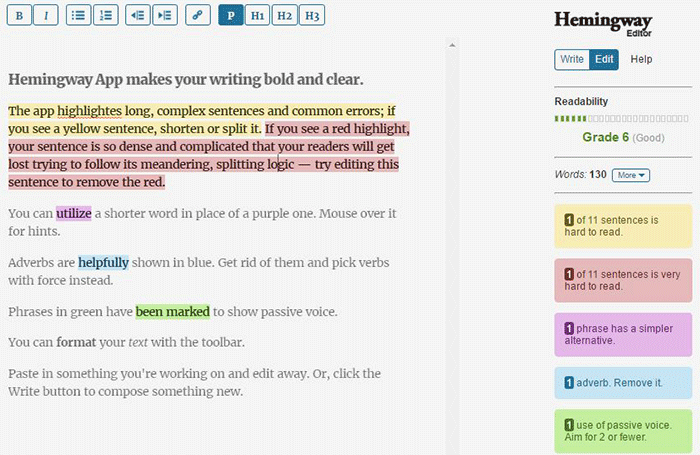
Hemingway Editor

Hemingwayapp

Hemingway Editor checks if your content is easy to read by identifying hard-to-read sentences. In ‘Edit’ mode, you can make changes and see real-time Hemingway feedback to the right of the editor. Adverbs, use of passive voice, difficult words/phrases and hard to read sentences are highlighted so you can fix them on the fly.

This style checker includes a readability grade level based on the Automated Readability Index. Readability is the ease with which your reader can understand your writing. A good target is 7 to 8, but don’t go over tenth-grade level.

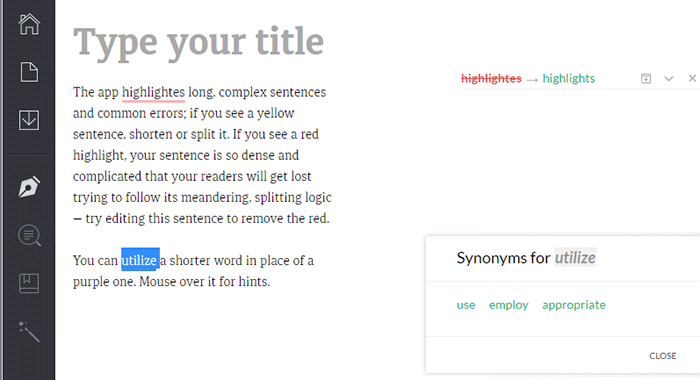
Grammarly

Grammarly

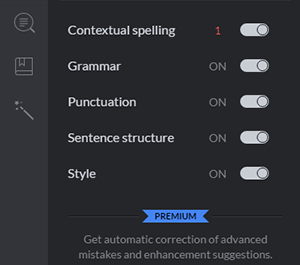
Grammarly_Menu_Grammarly offers free contextual spellchecker, grammar, punctation, sentence structure and style checks. With a premium account you also get plagiarism checks, vocabulary enhancement and professional proofreading.

If you choose to install its Chrome extension, you can use this to edit content in Gmail, WordPress, pretty much anywhere you write on the web.

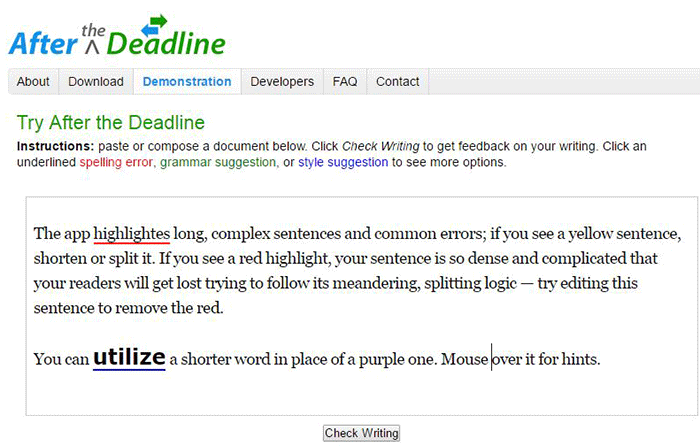
After the Deadline

After-the-Deadline

You can use the After the Deadline (AtD) Demo page to check your content online. After you click ‘Check Writing’, click each underlined word to see the suggestion to select or just ignore.

You can also download AtD and use it as a WordPress plugin and extensions to web browsers. This is free for personal use, and they have free server software for commercial needs.

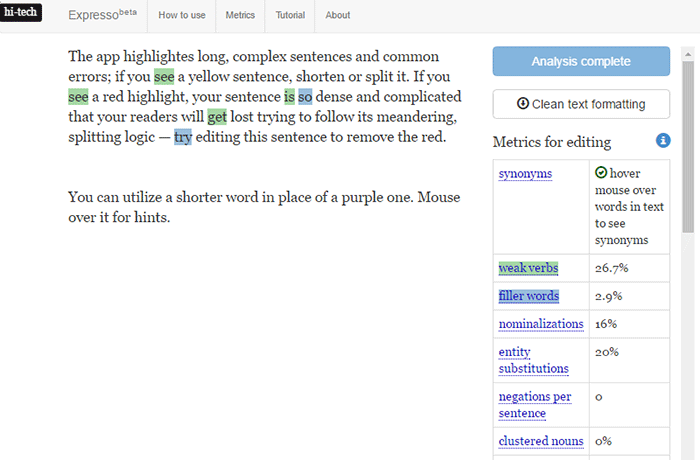
Expresso

Expresso

Expresso can help you analyze and edit content by helping you choose simpler words and identifying weak verbs, filler words, etc. An extensive list of general and editing metrics are found to the right of the editor. Click on one to highlight the associated words. Note that this is still in its beta phase.

Conclusion

Always aim for great content that is easy to read. This will keep readers on your site for longer periods. If you apply the above tips and make use of the online tools, you’re well on your way to writing easy-to-read content. You can even use these tools to optimize your current content and product copy. Soon enough you will see the payoffs in longer session times and probably an increase in conversion.

We hope the tools and formatting techniques here can help you create easy-to-read content. Do you have any other tips to share for writing easy-to-read content? Maybe you know of some other tools that can help. Let us know in the comments.

Filed Under: How-To Articles Tagged With: admin, best practices, blog, content marketing, how-to, marketing strategy, SEO strategy

How to Outsource Writing Blog Posts and Get 55% More Traffic to Your Site

October 7, 2015 By John Leave a Comment

blog-793047_640

Did you know that e-commerce websites that have a blog gain 55% more traffic?

Writing blog posts can be a daunting and a time-consuming task. Learning how to outsource writing blog posts makes a lot of sense. However, before you go about outsourcing, you should get a few things organized.

Prepare a Blog Strategy

If you already have a blog and didn’t start it with a strategy in mind, then you are doing it wrong. Without a clear strategy in mind, you are unlikely to reach your objectives. With a strategy, you will have a goal and everything you do on your blog should contribute to achieving that goal.

strategy

Being consistent with your strategy is key according to Neil Patel.

It’s hard – if not impossible – to succeed at content marketing without creating blog posts on a regular basis. Every successful blog is built on a solid foundation of content, but it’s consistency that’s the real key to success.

If you are going to write content, write the best content on that topic. Competition is tight so doing anything less than the best is not likely to give any results.

Prepare a Style Guide

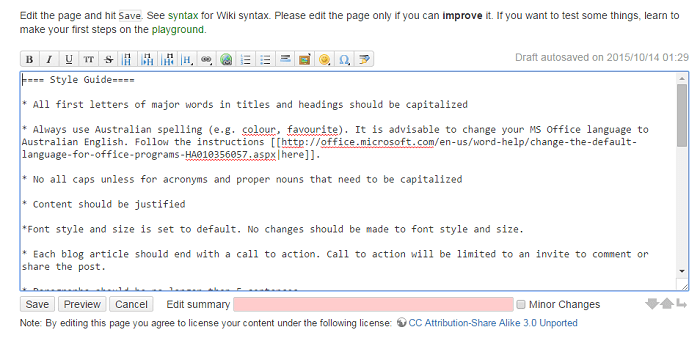
What is a style guide? Think of a style guide as the written rules for your blog. It can be a simple bullet point list available on the web. We use Dokuwiki for this.

style-guide

Your style guide should show what kind of language will be used throughout your blog. For example, if your target market is Australia, you should be using Australian English. If your market is the US, then US English.  Your style guide should also contain your preferred spelling of words with multiple spellings. Examples of words with different spellings are “aesthetic” and “esthetic” or “e-commerce” vs “ecommerce”.

You can also list how you plan to use images on your style guide including preferred sizes and alignment.

This style guide should be updated from time to time and should be made available to anyone writing content for you.

Prepare a Customer Persona­­

customer-personaYour blog needs to speak the language of your customers. This is best achieved by creating a customer persona. Check out this blog post to learn how to create a customer persona.

When you know your audience, you understand their needs. If you understand their needs you can speak their language and give them exactly what they want.

Prepare a Content Roadmap

A content roadmap shows a list of blog post ideas that you want to add to your blog. Each idea should include a title, a summary, and sources that you plan to use. You can have the writer that you will outsource do this after you have shown him/her your blog strategy.

Outsourcing a Writer

When it’s time to outsource a writer for your blog, share all the documents that you have prepared. This includes your blog strategy, style guide, customer persona, and content roadmap if you did it already. This will give the writer a better idea on how to write content that will accomplish your goals and speak with your customers.

blogging

Note that it might take a while before you can find a writer that you will like. Don’t be afraid to try a few writers to find the one satisfies your needs.

Find a Writer that Knows SEO

When looking for a writer to write content for your blog, you should find a writer that is knowledgeable in SEO. A blog should be targeting long-tail keywords. To know what a long-tail keyword is and to learn how it can be used to attract more visitors to your site, check out this post.

Communicating with the Writer

Your roadmap is not set in stone and should change from time to time as new trends arise and/or you come up with new ideas. You will often think of a topic that you need to act on straight away. When this happens a rough draft or a summary of the article will do to start with.

See what your writer comes back with and then make suggestions if needed. It will be much easier for you to start with a draft a quality writer has already created than a blank page

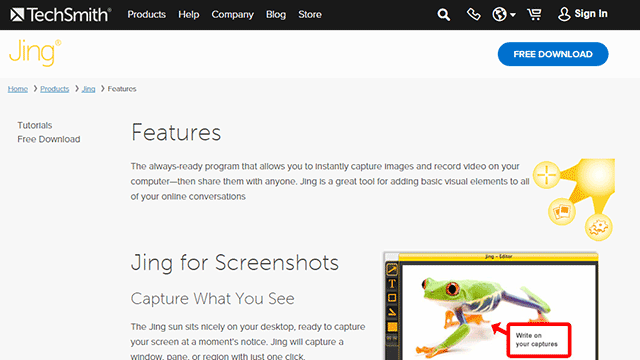
Sometimes you will need to talk about the content that you want written. It might be a good idea to record a video brief of the instructions. We do this sometimes and in such cases, we make use of Jing. Jing will capture a video of your screen. With a mic, you can send instructions. When you’re done making the video, you can just send a link to the contractor. Compared to Skype conversations, this is better as the contractor can review the instructions when needed.

jing

Proofreading and Editing Content

Proofreading and editing content is an important process that needs to be done every time you will publish content. Never skip this process as a poorly written blog post with lots of grammar and spelling errors will reflect poorly on your brand.

Even if you opt to write the blog posts yourself and not outsource. This is one step that you must outsource. You need a fresh pair of eyes on your content.

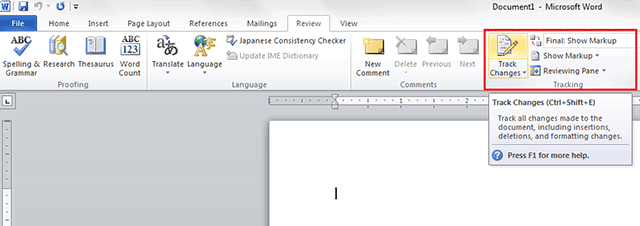
In our case, we have at least two other people check any article before it is published. The writer writes the content and sends it to the first editor who will check the content and give feedback. If there any changes to be made, it is returned to the writer to make the changes. After that, the article will be sent to the second editor. The second editor will check the style, fix any grammar or spelling errors, and ensure that it follows the blog style guide. The “Track Changes” function in Microsoft Word works great for proofreading and editing content.

track-changes

Summary

To sum it up, outsourcing a writer for your blog doesn’t mean just jumping in and immediately hiring someone to do the writing for you. You need to have a clear strategy before you do any of that. In line with your strategy, you should also prepare a blog style guide, a customer persona, and a content roadmap. When that’s out of the way, you can start looking for a writer that will accomplish all of your writing needs. Finding that perfect writer can take a while so keep at it.

Do you have any other tips for outsourcing a writer for a blog? Let us know in the comments.

Filed Under: How-To Articles, SEO For E-Commerce Tagged With: blog, customer persona, how-to, marketing strategy, outsourcing

How to Set Up WordPress SEO by Yoast for WooCommerce

March 26, 2015 By John Leave a Comment

How to Set Up WordPress SEO by Yoast

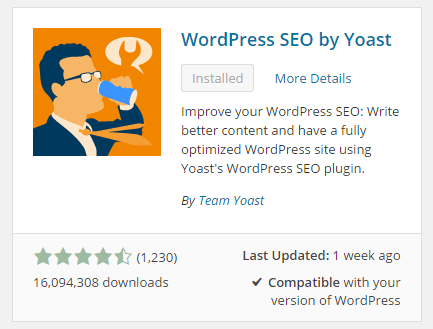
The WordPress SEO plugin by Yoast with over 16 million downloads is easily one of the best plugins that you need to have on your website. Whether it’s a personal blog, an e-commerce store, or a company website, you should have this plugin. In fact, many WordPress developers have WordPress SEO by Yoast in their list of plugins to install each time they create a new website. Many of you may already know a bit (or a lot) about SEO and that’s okay. That just means you’ll make better use of this plugin. And for those that don’t know much about SEO, don’t worry. The plugin is user friendly. I’ll walk you through all the functionalities so you’ll know how to set up WordPress SEO by Yoast for WooCommerce.

Installing WordPress SEO by Yoast for WooCommerce

To install the plugin, head over to the plugin developer’s website. Once there, download the plugin and upload it at the plugin page of your WordPress Dashboard.

You can search for the plugin on the plugin repository by going to your WordPress Dashboard. Click on “Plugins” and then “Add New”. From there just use the search bar to search for the WordPress SEO plugin and click on “Install Now”.

SEO Plugin Especially for WooCommerce

For WooCommercestore owners, getting the premium Yoast WooCommerce SEO plugin is a worthwhile buy. When used with the WordPress SEO plugin, you can better optimize your WooCommerce store. It enhances the existing Open Graph and Twitter Card enhancements in the WordPress SEO plugin. It will also optimize your sitemap for an ecommerce store setup, among other things. For a guide on how to set this up, check out this post.

Optimizing Product Pages for SEO for WooCommerce

The single most important function of the WordPress SEO plugin by Yoast is its ability to help you optimize your blog posts and pages for SEO. That includes WooCommerce products. WooCommerce products work just like posts/pages so it is the same procedure. So when I say page or post, the same applies to WooCommerce products.

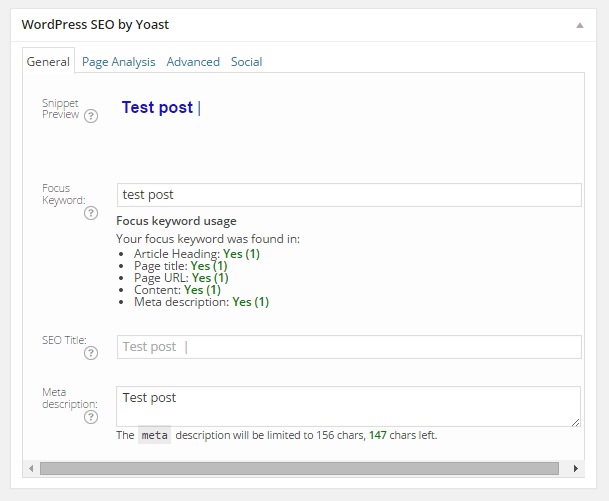
Optimizing posts/pages is easy enough. You can do it right after you finish creating the post/page in WordPress. When you’re on the post or page, just scroll down and there will be a section named “WordPress SEO by Yoast”. On the General tab, you’ll see a Snippet Preview. This is how your post/page will show up on the Google search results page. And the fun part is that you can edit how your post will show up. First off, you set a focus keyword. This should be the keyword that you want your blog post or page to rank for. What you should be aiming for is to have this focus keyword in:

  • the title of your article
  • in the body of the content especially in the first paragraph
  • and the meta description which you can set in the field where it says meta description

If you got that all right, you should be seeing all green below the focus keyword that you set.

post-optimization

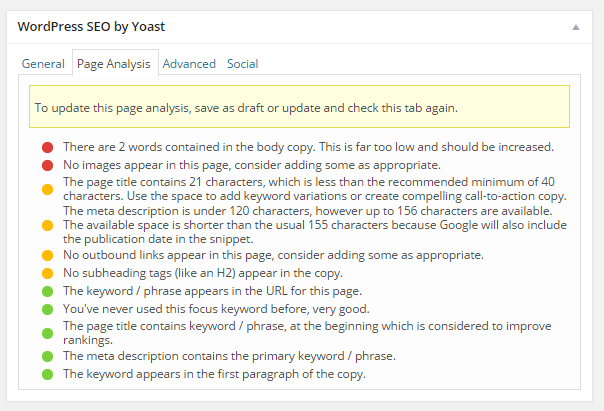
You can also click on the Page Analysis tab to get more information and other suggestions to improve your post/page. You don’t have to follow all the suggestions. But following everything will help increase the quality of your post/page.

page-analysis

You can tweak a bunch of other settings under the Advanced tab so feel free to change them as you see fit. You can even change how your post would appear when it gets shared on social media under the Social tab.

Optimizing WooCommerce Product Categories for SEO

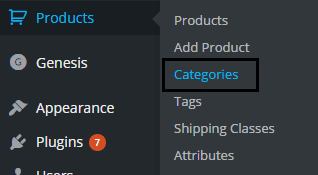
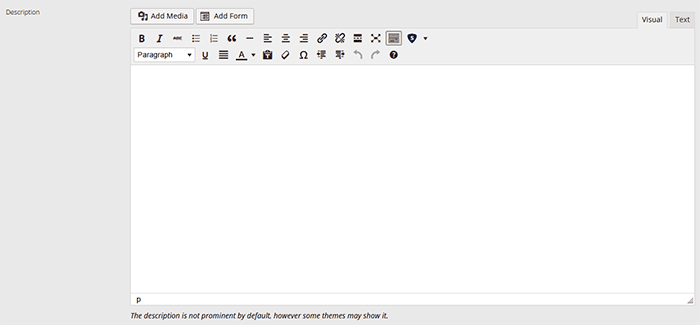
woocommerce-product-categoriesSimilarly, you can also optimize WooCommerce product categories for SEO. Just go to “Products” and click on “Categories” Edit the category that you want to optimize. When you scroll down to the bottom of the “Edit Category” page, you’ll see a section called Yoast SEO Settings. Fill in the SEO Title and SEO Description fields and click on Update.
optimizing-product-categories

Unlike when optimizing product pages, you don’t get to set a focus keyword. However, you can still target a keyword by including the keyword in the SEO Title and SEO Description fields. You should also put it in the Category Description field above the Yoast SEO Settings section.

Note that not all themes are able to display product category description on the category page but if your theme supports this function, the text that you put will appear on your product category page.

product-description

Verifying Your Website with Search Console

Verifying your website with different Google Search Console tools is important if you want your site crawled. It will have your website crawled by spiders. I don’t mean actual spiders. I mean search engine spiders that index websites on different search engines. Verifying with different webmaster tools can be a complex process but this is made easy with the WordPress SEO plugin.

Linking with Social Media Profiles

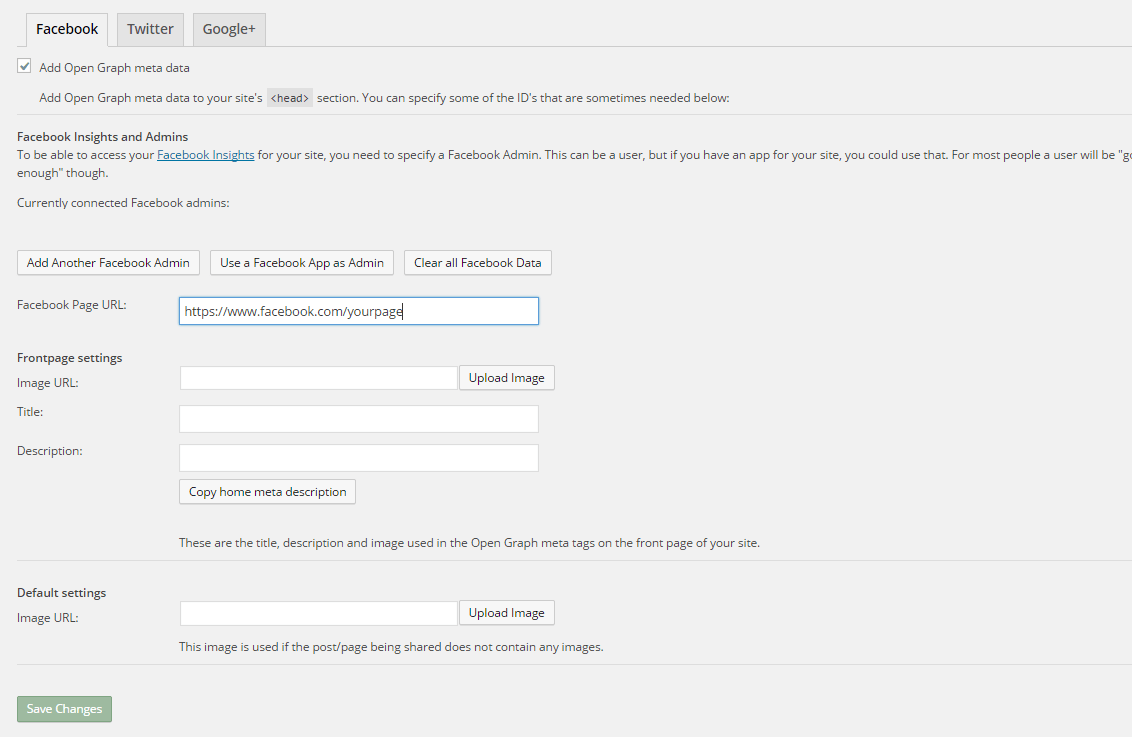
You can connect your website with your social media pages with the WordPress SEO plugin. You can do this by going to “SEO” and then clicking on “Social”. Here there are three tabs: Facebook, Twitter and Google+.

How to Connect Facebook

Linking Facebook to your site allows you access to Facebook Insights. If you already have a Facebook page, you just need to get the URL of your Facebook page. Copy the URL and then paste it where it says “Facebook Page URL”. You can then set the administrators for your page by clicking on Add Facebook Admin. If you are an advanced user, you can tweak a bunch of other settings. When you’re done, just click on “Save Changes”.

facebook

How to Set Up Twitter Cards

Do you use Twitter? Have you ever seen links in Twitter that show a snippet of the page that it links to? That’s called a Twitter card and you can enable that on your website using WordPress SEO. The usual thing is that enabling Twitter cards would call for you to add some lines of code to your header. But WordPress SEO eliminates the need for that.

twitter

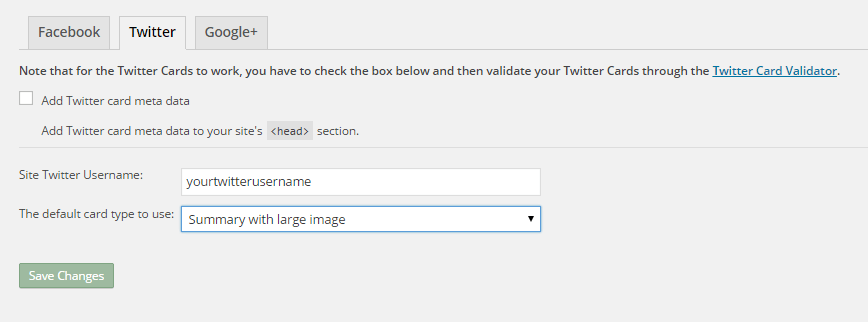
How do you do this? On the Social section of the plugin, click on Twitter. Fill in your Twitter username on the appropriate field. Specify the kind of Twitter card that you want to have then click on “Save Changes”. You’re not done yet. You still need to confirm your Twitter card. Head over to this link. Specify the URL and click on “Preview Card”. After that, click on “Request Approval” and fill out the form. Finally, click on another “Request Approval”.

Soon, you’ll be able to see Twitter cards on your Twitter links.

The premium YoastWooCommerce SEO plugin will further help you optimize your Twitter Cards if you have that.

How to Connect Google+

To connect your website with Google+ means setting your Google+ profile as the publisher of your content with the “rel=publisher” markup. “Rel=publisher” is an authorship markup which connects websites to Google+ pages (not personal profiles).

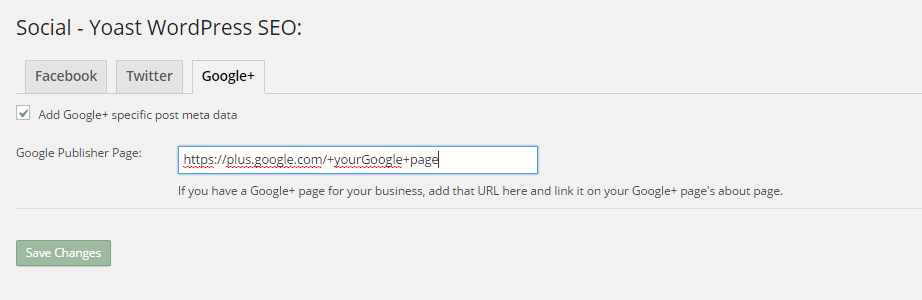
To connect your Google+ company page, head over to the “Social” section of the plugin and click on Google+. Fill out the field with the URL of your company page on Google+ and click on “Save Changes”.

google+

You might have heard of “rel=author” which links the content to the Google+ profile of the author. When implemented in the proper way, “rel=author” should show a snippet of the content with a photo of the author in the SERPs page. If you’re a writer and you’re hyped by that, I’d hate to burst your bubble but “rel=author” is no longer supported by Google. You can read more about it here.

Improving Sharing on Pinterest

Pinterest is another social media platform that’s worth mentioning. It has great potential for e-commerce stores. Why? Because Pinterest is image-based. The YoastWooCommerce SEO plugin makes sharing on Pinterest more worthwhile. After setting Twitter products and Schema Open Graph additions, your pins on Pinterest will start to show in a different way. In most cases, WooCommerce product will show up like posts. But with the plugin configured, your products will show up as “products”. They will show product related information such as price and variations.

Implementing Sitemaps with WordPress SEO

In a nutshell, sitemaps communicate with search engines to let the latter know when there are changes to the website. There are a lot of plugins that lets you create a sitemap. If you are already using the WordPress SEO plugin, just use the built-in sitemap module. Looking for another plugin just add an extra load to your server.

sitemaps

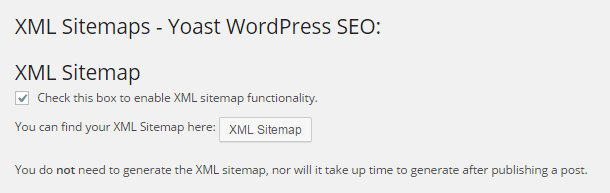
To get your sitemap, go to the plugin’s “XML Sitemaps” tab and then tick on the first box to enable sitemaps and click on “Save Changes”. There are a bunch of settings that you can tweak. You can have a look at them and change them as you please. They are pretty much self-explanatory.

You also might want to get the WooCommerce SEO plugin, which was mentioned above a couple of times. This removes some unnecessary bits from your sitemap in automatic fashion.

Check out our post on how to create a sitemap for your WooCommerce store to learn about sitemaps and other means of creating it.

Permalink Settings

Permalink settings all have to do with your URLs. I would not recommend changing any of the settings here but you are free to check them out and change them as you please.

Enabling Breadcrumbs with WordPress SEO

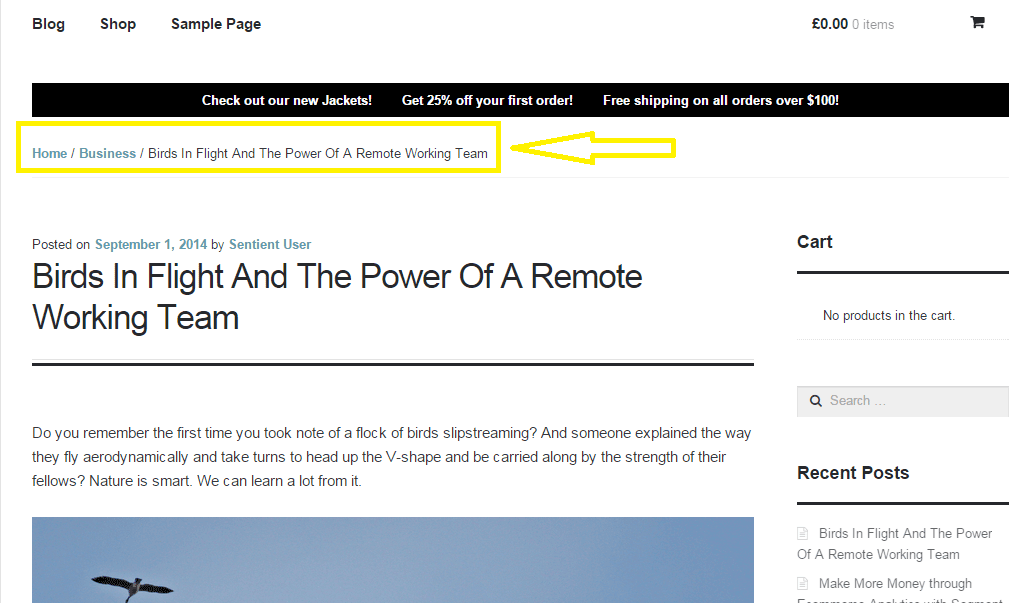
Breadcrumbs, when enabled, helps users identify where they are on your website. It also helps search engines determine your website’s structure. See the image below.  Where the yellow arrow is pointing at, that’s the breadcrumbs.

Enabling breadcrumbs on your website is simpler than snapping your fingers. Just go to SEO and then click on Internal Links. You should see a box that says “Enable Breadcrumbs”. So just tick that box and save. There are a few settings that you can tweak so just change them up as you need.

breadcrumbs

Did we miss anything? Or do you have any questions about the WordPress SEO plugin? Let us know in the comments.

Filed Under: How-To Articles, SEO For E-Commerce Tagged With: blog, breadcrumbs, content marketing, Google Webmaster Tools, Google+, how-to, navigation, optimizations, plugins, SEO tools, social media, Twitter, WooCommerce, WordPress, WordPress SEO, XML sitemap, Yoast

13 Routine Maintenance Tasks that You Should Do on WordPress and WooCommerce

April 2, 2018 By John Leave a Comment

Routine Maintenance Tasks for WordPress

Maintaining a WooCommerce store is a lot of work. There are a lot of routine maintenance tasks for WordPress and WooCommerce that need to be done on a regular basis. In this post, we list down the most important tasks that you should do on your WooCommerce store.

1. Create Regular Website Backups

Create Regular Website BackupsCreating regular site backups is critical. It is your first fallback in case something breaks on your site. While you can make backups manually, it is important to make regular automated backups. Check with your hosting provider if they create regular backups of your database as well as a complete backup of your site. You can also install a backup plugin such as Updraft Plus or BackWPup and set it up to make regular automated backups for you. We still recommend creating manual backups before doing major work on your WooCommerce store though.

2. Update WordPress, WooCommerce, Themes and Plugins

Updating all elements of your WooCommerce store should be done on a regular basis. Do this weekly if you have the time. If not, monthly updates are good enough. Updates include updating WordPress Core, themes, WooCommerce and all other installed plugins. Remember to backup up your site before proceeding with updates since updates could cause your website to break. If you have a development site, it would be best to test the updates first on this staging environment. Then, do some user testing to make sure that there are no errors. After that, you can proceed to update your live site. When that’s done, you will need to do another round of testing. Some important elements to test include checkout, add to cart, contact form emails, opt-in forms and other customizations that were done on the site.

3. Update WooCommerce Template Files

After updating WooCommerce, you will sometimes get an error notifying you of outdated WooCommerce template files. This just means that your theme has not updated to include the latest WooCommerce template files. In some cases, this could cause some formatting issues on your store. If there are no errors on your store, you can simply wait for your theme to release an update that includes the most recent template files. Or you can also fix this manually by following the steps in this documentation from WooCommerce.

4. Change User Passwords

It is important to use strong passwords. However, it is just as important to change passwords on a regular basis. There are times when security breaches can go undetected for a long time. Changing your password regularly blocks out these security breaches that you might not realize are there. You should change your password for WordPress admin, FTP, database and cPanel. And a pro-tip, never use “admin” as your username. This is the first username that hackers try out when brute forcing into websites.

5. Optimize Your Product Images

We’ve always emphasized the importance of optimizing images for your WooCommerce store to keep your site running fast. If you have uploaded any product image that is more than 100KB in size, it might be a good idea to replace that image with an optimized product image. To learn more, you can check out our blog post on how to optimize images.

6. Approve and Respond to Product Reviews

Moderate Product ReviewsIf you are not asking your customers for product reviews then you might want to reconsider. Most people who buy online look for product reviews before they decide to purchase something. One study found that 85.57% of users read reviews before they purchase. And if you are asking your customers for product reviews, then you will need to approve reviews on a regular basis. A word of advice, do not remove negative reviews of your products. Instead, make it an avenue where you can show good customer service. Respond to the negative review. Offer a replacement for a defective product or offer a refund. People reading reviews will want to see some negative reviews to get a well-rounded picture of your product. When moderating reviews, you only need to remove the spam reviews.

7. Approve and Respond to Blog Comments

If you have a blog that is made to drive customer engagement, then your blog will most likely attract comments. Same with product reviews; don’t delete the negative comments. Rather, address them positively. Remove any spam comments as this will negatively impact the user experience of your blog. If you are using Akismet: Anti Spam plugin, this will block out most spam comments. However, some spam comments can still get through and you will need to manage them manually.

8. Test Your Contact Forms and Email Opt-in Forms

Every now and then, you will need to make sure that your contact forms and email opt-in forms are working. Just fill in your forms and send. If you receive it in your email, then you’re all good. But if you don’t, there’s something wrong and you need to do something about it. Have your developer look into it.

9. Optimize Your Database

Over time, your database accumulates a lot of gunk and you need to clean it to make sure your website runs fast. Before you go about this task, make sure you create a backup. You can choose to clean your database manually if you are comfortable and familiar with working on your database. Otherwise, you can use a plugin to do the optimizations for you. Notable plugins include WP-DBManager and WP-Optimize. You can check out our guide on how to clean your database.

10. Test Your WooCommerce Store’s Speed

If you have not yet made optimizations to your WooCommerce store’s speed, you should consider doing it now. Site speed has become increasingly important for WooCommerce store owners. Google now considers site speed as a ranking factor for SEO. Also, if you have a slow site, this will negatively impact the customer’s experience on your site. It is easy for your customers to buy instead from your competitors. You can test your site speed on Google’s Page Speed test and Google will provide you with recommendations on how you can improve your site’s speed. Other notable tools that you can use to test your site are Pingdom Website Speed Test and GTmetrix.

11. Scan Your Site for Malware

One way to keep on top of your website’s security is to regularly test your site for any malware. If you are connected to Google Search Console, it will let you know if malware is detected on your site. If your site has been found to have any form of malware, Google Chrome will actually alert your visitors that your site is dangerous. This can have devastating effects on your traffic and conversion rate. No one will want to enter their payment information on a site that has malware. In extreme cases, Google may block your site from appearing in the Google search results page. You want to prevent this from happening. It would be best to invest on your site’s security by installing a security plugin such as Sucuri Security and WordFence. Even if you have those plugins installed, it is still a good idea to a manual scan. You can scan your website at Sucuri’s Website Malware and Security Scanner, or at SiteGuarding. If any manual scans detect anything malicious, you can contact your developer to fix the issue. You should get it fixed before Google applies any penalties. Wooassist also offers a security hardening service to improve the security of your site so you can prevent this from happening.

12. Fix Broken Links

Broken links are bad for user experience so check your site regularly for any broken links. You can use W3C Link Checker or any other similar tool to check for broken links. Once you’ve found the broken links on your site, you can start fixing them. You can either remove the links or points the links to a new relevant URL.

13. Test Your Checkout Process

Last but definitely not the least; you should regularly test your checkout process. If you suddenly experience loss of sales, it’s a good idea to test your checkout. There might be an error that prevents your customers from checking out. Testing also gives you a feel of what your customers go through so you can optimize your checkout. Once you’ve determined that your checkout has problems, you can check out our post on how to fix the most common checkout problems in WooCommerce.

Final Notes

By doing these tasks on a regular basis, you can keep yourself on top of any issues that may occur on your WooCommerce store. If you find yourself overwhelmed by the all these, you can hire someone else to do it. You can also contact us and our team will be glad to assist with any of these tasks.

Are there any other routine maintenance tasks for WordPress and WooCommerce you think should be done on a regular basis? Do you have any suggestions? Let us know in the comments.

Filed Under: How-To Articles Tagged With: blog, contact form, conversion optimization, image optimization, plugins, security, site speed optimization, website maintenance, WooCommerce, WooCommerce products, WordPress, WordPress SEO, WordPress updates

  • 1
  • 2
  • Next Page »
Let us support your online store so you can manage your business

Get started today

Get 2 Hours of FREE SUPPORT

We are so confident that you will love our services that we will give you your first 4 hours at a 50% discount

That’s 4 hours for only $75

BUY NOW

Free eBook

5 Things Every Online Store Can Fix On Their Website In The Next Week To Increase Sales

Quick Links

  • How it Works
  • Pricing
  • Blog
  • Contact
  • About Wooassist
  • My Account
  • Checkout
  • Privacy Policy
  • Cookie Policy
  • Terms and Conditions

Wooassist

Australia:
59 Luke St.
Hemmant QLD 4174

Philippines:
San Miguel St.
Poblacion, Iligan City 9200

Connect


Copyright © 2026 · Wooassist

Yours FREE!

5 Things Every Online Store Can Fix On Their Website In The Next Week To Increase Sales