Wooassist

Assistance for Your Woocommerce Store

  • How it Works
  • Pricing
  • Services
    • Site Maintenance
    • AI SEO and Content Marketing
  • Blog
    • How-To Articles
    • Code Snippets
    • SEO For E-Commerce
    • Theme and Plugin Reviews
    • Wooassist News
    • WordPress/WooCommerce News
    • Interviews
  • About Us
  • Contact
You are here: Home / Archives for payment gateway

Do This Right Now to Protect Your WooCommerce Website from Credit Card Attacks (And Save Yourself From Enormous Fees)

September 17, 2021 By John Leave a Comment

Website security is often one of the most overlooked aspects of owning a WooCommerce website, at least until the attacks succeed. One of the most worrying security risks over the last few months is the increase in the frequency of credit card fraud. The increase specifically comprises of card testing and bin attacks. In this article, you will learn how you can protect your WooCommerce website from credit card attacks.

Protect Your WooCommerce Website from Credit Card Attacks

What are Card Testing and Bin Attacks?

Card testing and bin attacks involve an attacker attempting a transaction on your website and testing thousands of credit card number combinations on your checkout page. They will keep doing this until they get a combination that works.

If an attack is successful, they will be able to commit fraud. But even if the attackers don’t succeed, it still doesn’t bode well for the website owners. You will get slapped with a hefty fee worth thousands of dollars by the credit card processor company themselves.

If this hasn’t happened to you yet, consider yourself lucky as it already has to many other store owners. You can improve the security of your site so you don’t fall victim to card testing and bin attacks.

Standard Website Security

woocommerce security

If you own a WooCommerce website, you should have already taken the standard security measures for your website. This includes keeping your plugins and themes updated, installing an SSL certificate, installing a security plugin, and other best practices. If you haven’t yet, you can check out these posts.

  • Secure Your WooCommerce Site
  • Increase the Security of Your WooCommerce Store

The Most Important Steps to Take Against Card Testing and Bin Attacks

Credit card processors will usually push the blame of the card testing and bin attacks to the business owner. However, they also have a responsibility to keep their own systems secure. Being financial organizations, credit card processors need to have the most secure systems.

Most merchant account owners would not be aware that card processors have additional security features. These can be configured to prevent card testing and bin attacks. This extra line of security is your best protection against credit card fraud.

  • 3DSecure

  • While some of these features may bring some additional fees, enabling them is recommended. For example, one of these technologies is 3DSecure. This requires customers to complete an additional verification step for each credit card transaction. In theory, this should fully prevent any automated attacks. And even if an attack does get through, the credit card processor should no longer hold you liable for it.

  • Fraud Filters/Rules

  • Some credit cards processors would have other extra security features that don’t require any additional payment. One example is being able to configure simple rules to filter out suspicious card activity. For instance, you could filter out all transaction attempts outside of the countries you are servicing. That would already block most attackers.

    You can also filter out transactions that have had a number of failed attempts within a short amount of time. This is called the velocity filter or rate-limiting. For example, you can filter out transactions with 5 failed attempts within 5 minutes. This results in the card processor rejecting further attempts. This won’t stop the attack entirely. However, it can reduce the number of attempts because the rejected combinations are now worthless to the attacker.

  • Know What Security Tools are Available to You as a Merchant

  • The most important thing is to know your credit card processor and the security features they have available. Contact them if necessary. If they don’t have any of these, then we strongly recommend switching to another company that offers better security.

    Steps to Take on the Website Side to Prevent Card Testing and Bin Attacks

    Once the credit card processor side of things has been sorted, next will be the website side. Proper defense against credit card fraud consists of measures taken on both the card processor and website site. To this end, we recommend a system with 3 lines of defense.

    1. Install a Website Firewall

    A website firewall such as Sucuri is designed to monitor activity on the website. It can block brute force attacks, filter user sessions with suspicious behavior, and patch vulnerabilities. For preventing card testing and bin attacks, we want the ability to filter out sessions that display suspicious behavior. Since credit card attacks usually involve bots, a firewall is a good first line of defense.

    1. Add a Captcha

    A captcha is a verification system designed to filter out bots from legitimate human users. It helps prevent bots from doing any malicious activity on your sites like submitting contacts forms, sign-up forms and even checkout forms.

    captcha for woocommerce checkout

    Preventing bots from completing the checkout form is what we need against card attacks. While Captchas have a slight impact on user experience, they’ve continued to improve over the years. Google’s ReCaptcha v2 and v3 are among the best examples. Learn how to set up Recaptcha for WooCommerce here. And with that, your second line of defense is set.

    1. Set Checkout Attempt Limit

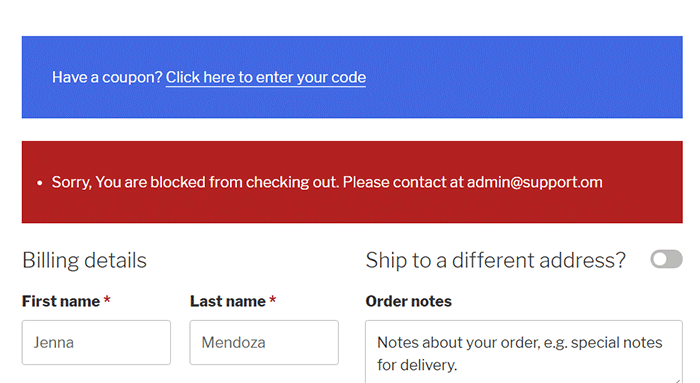
    In the unlikely chance that attackers bypass both the firewall and captcha, this next line of defense is designed to address the main problem. The main issue with card testing and bin attacks is the surge of transaction attempts sent over to the card processor. Similar to the velocity filter on the card processor side, you can set up a similar filter on the website side using the Woo Manage Fraud Orders plugin. You can set it up to automatically block the users that execute consecutive failed attempts at placing an order on your site. The plugin allows you to set a limit to the number of fraud attempts. For example, you can set this at 5 attempts. This way, 5 will be the maximum number of transaction attempts sent to the card processor and the attacker is permanently blocked from the website.
    Conclusion

    Credit card testing and bin attacks are on the rise. You can prevent it from happening to your site.

    Make use of fraud prevention features on your credit card processor and implement our recommended security measures on the website side. Find out what anti-fraud measures are available to you as a merchant. These security tools will save you from being fined thousand’s of dollars. Contact your credit card processors to know what tools you can set up. Implement them. Then proceed to implement the security measures on the website next

    If you need any assistance on the technical side, we can help. And if you have questions, don’t hesitate to contact our support team.

    Disclaimer: Article contains affiliate links. When you buy through links from this article, we may earn an affiliate commission.


    Filed Under: How-To Articles Tagged With: payment gateway, security, WooCommerce

    Why Have More Than One Payment Gateway for WooCommerce?

    September 17, 2018 By John Leave a Comment

    Why Have More Than One Payment Gateway for WooCommerce?

    If you own a WooCommerce store and only have one mode of accepting payments, you might want to consider adding other payment options. Adding more payment gateways should be easy. WooCommerce can integrate easily with many payment gateway providers. In most cases, you’ll just need to configure a plugin and a few settings. But why have more than one payment gatewat for WooCommerce if the one you have is working fine?

    Why Have More than One Payment Gateway?

    There are several benefits to having more than one payment gateway.

    Reduce Checkout Abandonment

    One important reason why you should have more than one payment gateway is to reduce checkout abandonment. Not to be confused with cart abandonment, checkout abandonment is when a user reaches checkout and does not complete the checkout process.

    There are various reasons your customers can abandon checkout. Common reasons include having too many form fields, hidden fees, and not having the user’s preferred payment option. For example, some users may prefer to pay using Paypal since it comes with buyer protection or they may believe it is more secure. But if you only have credit card payments, then users who want to use Paypal might abandon your checkout.

    Backup Payment Gateway

    If you only have one payment gateway and you encounter issues with your payment gateway, your customer will have no other options for completing checkout. That means you are out of business until you sort out your payment gateway issue. It’s great if these issues can be fixed in a matter of minutes, but sometimes these issues can go for days. The longer that it takes for you to fix the issue, the more business you lose.

    In short, using only one payment gateway is risky. Having two or more modes of payment allows your customers to check out using another payment gateway if their first choice is not available or having problems.

    Flexibility

    Many payment gateways are not capable of handling different payment methods. If you want to cover all bases, then you should use more than one payment gateway. In addition, some payment gateways might not be able to process foreign currency. This can be a problem if your business caters to a global market.

    Customer Preference

    Having more choices is better when it comes to payment options. Trust is hard to come by and if you are using a payment gateway that your customers trust, they will hand you their money. The more payment options you offer, it is more likely that you’ll have your customers’ preferred payment option.

    Some users may not be comfortable with entering their credit card information on every ecommerce site that they use. These users are more comfortable using services such as Paypal, Apple Pay or Amazon Pay. Still, some people might not have an account for these services and would prefer entering their credit card information. It’s all a matter of preference. Giving your customers the ability to pay with their preferred payment gateway scores you a point.

    What are the Common Payment Options?

    There are a lot of payment gateway choices to use for WooCommerce. These include Paypal, which can be Paypal Standard, Paypal Express, Paypal Advanced or Paypal Pro. Using Paypal is already akin to having two payment gateways since users can pay via Paypal or through their credits cards without need for a Paypal account. You can check out the Paypal Extension Comparison page to determine which Paypal option is right for your WooCommerce store.

    Other popular payment gateway options include Stripe, Authorize.net, Amazon Pay and Apple Pay which is available through Stripe.

    Which Payment Option is Right for Me?

    How do you know which payment option is right for you? There are several factors to consider such as cost, location and security. Depending on where you do business, you might also want to consider location-specific regulations such as GDPR. There is no single right answer as to which payment gateway is the best, it all depends on your business’ particular needs.

    Get to adding that extra payment gateway as soon as possible. If you ever need help setting up your payment gateways for WooCommerce, you can contact the Wooassist team and we’ll help you out. If you have any suggestions or comments, you can post them in the comments section below.

    Filed Under: How-To Articles Tagged With: conversion optimization, payment gateway, Paypal, Stripe, WooCommerce

    How to Set Up Amazon Pay for WooCommerce

    July 16, 2018 By John Leave a Comment

    How to Set Up Amazon Pay for WooCommerce

    Amazon, the ecommerce giant, provides a secure means of payment through Amazon Pay. And did you know that you can set Amazon Pay to receive payments on your WooCommerce store? In this post, we’ll teach you how to set up Amazon Pay for WooCommerce.

    Why Use Amazon Pay?

    As a WooCommerce store owners, having more payment gateways is always a good idea. In case your only payment gateway fails, your customers will still have a means to check out using other payment gateways that you have set up.

    Sometimes your customers prefer to pay using a different payment gateway so it’s a good idea to given them different options.

    Using Amazon Pay, make for faster and easier payments since users would have already set up their Amazon Pay accounts. They won’t need to keep entering their credit card numbers every time they make a purchase on your store.

    Also, Amazon is already a trusted name in ecommerce so having Amazon Pay on your checkout may increase your store’s trust rating. An increased trust rating could result in better conversion rates.

    What About Amazon Pay Fees?

    If you want to know more about the fees associated with Amazon Pay, you can check out this link.

    How to Set Up Amazon Pay for WooCommerce

    To set up Amazon Pay for WooCommerce, follow the steps below.

    1. To get started, download and install the Amazon Pay plugin for WooCommerce.
    2. Sign up for an Amazon Pay Merchant account for your region.
      • US – Amazon Pay
      • UK – Amazon Pay
      • DE – Amazon Pay
      • FR – Amazon Pay
      • IT – Amazon Pay
      • ES – Amazon Pay
      • JP – Amazon Pay
    3. When that’s done, head over to your WordPress Dashboard and go to WooCommerce > Settings > Checkout > Login & Pay with Amazon.
    4. The first option on your screen should be the box for “Enable Amazon Payments Advanced”. Tick the box to enable Amazon Pay.
    5. Input your Seller ID, MWS Access Key and Secret Key on the appropriate fields.
      • You can find your Seller ID in your Amazon Seller Central Account. Go to Settings and then on Integration Settings.
      • For the MWS Access Key and Secret Key, click on Integration and then on MWS Access Key (also on your Amazon Seller Central account).
    6. Under Payment Capture, choose how to you want to capture payments. You have the option to:
      • Authorize and Capture – Payment is automatically authorized and captured.
      • Authorize – Payment needs to be captured manually.
      • Don’t authorize – Payment needs to be manually capture and authorized.
    7. Under “Cart login button dislay”, you can either choose button or banner.

    Note: If you want to test the payment gateway, tick the “Use Sandbox” option on the settings page.

    Note: You can enable debug mode for the plugin to log any errors. This can be used when troubleshooting payment issues.

    With that, you are now set to accept payments through Amazon Pay.

    In you want to use Apple Pay to provide your customers more payments, you can also check out our guide on how to enable Apple Pay for your WooCommerce store.

    Got any questions about enabling Amazon Pay on your WooCommerce store? Let us know in the comments.

    Filed Under: How-To Articles Tagged With: Amazon, Amazon Pay, payment gateway, WooCommerce

    Let us support your online store so you can manage your business

    Get started today

    Get 2 Hours of FREE SUPPORT

    We are so confident that you will love our services that we will give you your first 4 hours at a 50% discount

    That’s 4 hours for only $75

    BUY NOW

    Free eBook

    5 Things Every Online Store Can Fix On Their Website In The Next Week To Increase Sales

    Quick Links

    • How it Works
    • Pricing
    • Blog
    • Contact
    • About Wooassist
    • My Account
    • Checkout
    • Privacy Policy
    • Cookie Policy
    • Terms and Conditions

    Wooassist

    Australia:
    59 Luke St.
    Hemmant QLD 4174

    Philippines:
    San Miguel St.
    Poblacion, Iligan City 9200

    Connect


    Copyright © 2026 · Wooassist

    Yours FREE!

    5 Things Every Online Store Can Fix On Their Website In The Next Week To Increase Sales