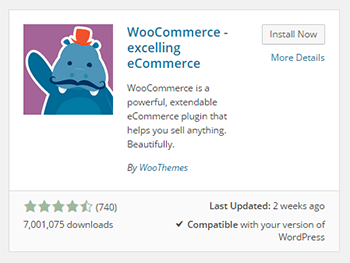
 Getting started on a WooCommerce store all starts with installing WooCommerce. It’s pretty simple and straightforward, but if you don’t know how to install it, we’ll help you out. There are two ways to install WooCommerce and we’ll detail them both in this post.
How to Install WooCommerce through the WordPress Plugin Repository
- On your WordPress Dashboard, head over to Plugins then click on Add New.
- On the search bar, type in WooCommerce and press Enter. WooCommerce should appear as the first plugin in the search results. To make sure, check that it is the one published by WooThemes and that you are not installing some other plugin.
- Just click on Install Now and wait for the plugin to install and activate.
How to Install WooCommerce by Upload
The other method of installing WooCommerce is by downloading and uploading.
- Head over to the WooThemes website to download the latest version of WooCommerce.
- After that, go to your WordPress Dashboard. Click on Plugins and then Upload Plugin.
- Choose the WooCommerce installer that you just downloaded and click on Install Now.
- After that, just wait for the file to finish uploading. It should install and activate by itself.
How to Install WooCommerce via FTP
Here’s a bonus – another means of installing WooCommerce. This is a little bit more complicated than the first two methods since you need to access your WordPress install files. It is not recommended for the average user since you might alter the install files for your WordPress site. Doing so can cause your website to go down. Use this only if the other two methods fail or if you really know what you are doing.
For this method, you’ll need an FTP client like FileZilla. You’ll need this to upload the plugin file to your WordPress install. And since you need to log in to the FTP server, you’ll need the login information for that too. If you don’t know the login information, you can contact your hosting provider. Here’s are the steps:
- Download the WooCommerce plugin and extract the file.
- Log in to your FTP server using FileZilla or any other FTP client. Navigate to the wp-content/plugins directory of your WordPress install.
- Place the extracted folder in the wp-content/plugins folder.
- After that, head over to the plugin page of your WordPress site and activate the WooCommerce plugin.
Now that you know how to install WooCommerce, you’re just a few steps away from setting up your own e-commerce store.







Leave a Reply