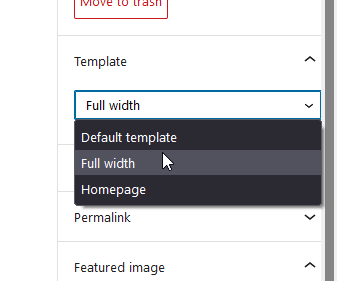
EDIT: Storefront now has a full-width page template so you no longer need to use the custom code in this article. To remove the sidebar on WooCommerce pages, you can set the page template to Full Width.
If you are using Storefront theme and you want to use the Full Width template for your store and other pages, you might come across a problem. After you’ve set your page to the Full Width template, you can still see the sidebar. And that’s not the case with the other pages, since setting the template to Full Width effectively hid the sidebar.
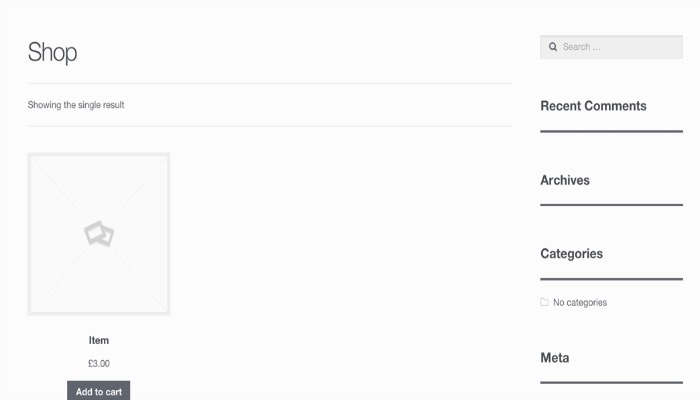
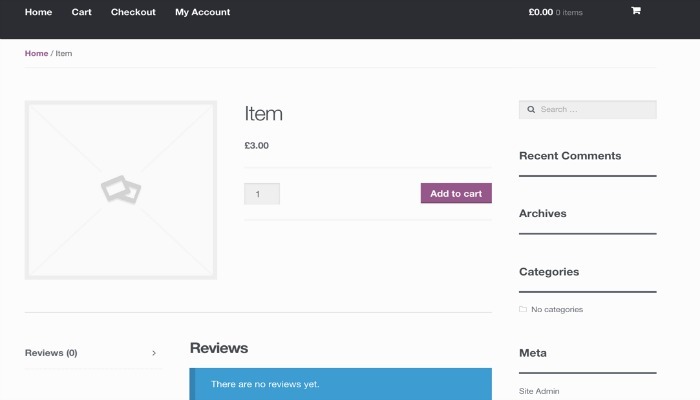
And here is a product page which is supposed to be full-width but still shows the sidebar
This happens because all WooCommerce pages use the templates on the WooCommerce plugin. They do not use the Storefront templates. To resolve the problem, add the following code to your child theme’s functions.php.
add_action( 'wp', 'woa_remove_sidebar_shop_page' );
function woa_remove_sidebar_shop_page() {

if ( is_shop() || is_tax( 'product_cat' ) || get_post_type() == 'product' ) {

remove_action( 'storefront_sidebar', 'storefront_get_sidebar', 10 );
add_filter( 'body_class', 'woa_remove_sidebar_class_body', 10 );
}
}

function woa_remove_sidebar_class_body( $wp_classes ) {

$wp_classes[] = 'page-template-template-fullwidth-php';
return $wp_classes;
}
This code would remove the sidebars on the product page, product categories, and the shop page. It would also add the page-template-template-fullwidth-phpclass that causes the layout to be in full width.
Now you know how to make WooCommerce pages full width in Storefront Theme! If you have further questions please let us know.






i copied and pasted it into the .php theme file in WordPress and I got an Error 500 syntax error and I cant get access to my website anymore 🙁 PLEASE HELP
Hi Adam, We do not recommend editing files from your WordPress dashboard as these things can happen when mistakes are made. You can just access the file system via FTP or Cpanel File Manager and remove the code snippet from there. Find the functions.php file from the Storefront theme folder.
Hi
I have WP 4.7 and the last version of Woocommerce an storefront theme
I have a storefront child theme
My problem is: WP doesn’t show page template option in the page attributes when I edit or create a new page.
What can I do to show page templete option?
thanks
Hi Manuel, what child theme are you using? Have you tried using other themes like the twentyseventeen theme? The problem may be caused by your child theme.
Hi Nick
I need half of this! I need the shop to retain the sidebar (as it contains filters) but the product itself to be full width.
Can this be done?
Hi Tim,
Here’s the code:
add_action( 'wp', 'woa_remove_sidebar_shop_page' );function woa_remove_sidebar_shop_page() {
if ( is_product() ) {
remove_action( 'storefront_sidebar', 'storefront_get_sidebar', 10 );
add_filter( 'body_class', 'woa_remove_sidebar_class_body', 10 );
}
}
function woa_remove_sidebar_class_body( $wp_classes ) {
$wp_classes[] = 'page-template-template-fullwidth-php';
return $wp_classes;
}
Hi Nick,
How about if I want the shop and individual product pages to be full-width, but want to show the sidebar on product categories pages? I tried to use the following: if ( is_shop() ) || ( is_product() ) { but got an error of “unexpected ||”. Of course, I’m doing something wrong, but not sure what it is.
Any help would be greatly appreciated!
Still works beautifully with WooCommerce 4.0.1 and Storefront 2.5.5 – thank you!
It works fine! Thanks!
Now we have more space for the shop area, but woocommerce-storefront keep putting there 3 products in a row. I would like to put more products (say 4) in each row.
Excuse me, all!
It was just a matter of woocommerce settings. No more code needed.
What is the code to use if I want to create all pages in full-with. We used Elementor as a page builder and currently my homepage doesn’t show in full-width
great that code worked for me thanks i just removed the sidebar from my single product page and made it full width and shop and category pages are with side bar that’s what i wanted
thanks again …………
Tried it on my blog – progic.in
Did not work..
Click on the image to see the shop page..
Thank you. That worked for me
Tested this and it works. Thank You.