Wooassist

Assistance for Your Woocommerce Store

  • How it Works
  • Pricing
  • Services
    • Site Maintenance
    • AI SEO and Content Marketing
  • Blog
    • How-To Articles
    • Code Snippets
    • SEO For E-Commerce
    • Theme and Plugin Reviews
    • Wooassist News
    • WordPress/WooCommerce News
    • Interviews
  • About Us
  • Contact
You are here: Home / Archives for John

Orbit Fox by ThemeIsle Plugin Patched for Critical Vulnerabilities

January 14, 2021 By John Leave a Comment

The plugin Orbit Fox by ThemeIsle, a multi-functionality plugin installed on over 400,000 sites, has been found to carry two critical vulnerabilities. The vulnerabilities can potentially allow attackers to take over a WordPress website or inject malicious JavaScript into posts.

These are critical severity vulnerabilities and so have been addressed and patched urgently. With that, we strongly recommend updating to the patched version, 2.10.3, immediately if you have the plugin installe on your website.

For more information, please check the official public release.


If you have questions, don’t hesitate to contact our support team.

Filed Under: WordPress/WooCommerce News

Contact Form 7 Critical Vulnerability in File Upload Functionality

December 18, 2020 By John Leave a Comment

A security update has been released for the plugin, Contact Form 7, one of the most popular WordPress plugins with more than 5 million users.

The security update is meant to address a vulnerability with the file upload functionality in Contact Form 7. While the vulnerability itself is not easily exploitable, but with the popularity, it may be inevitable for attackers to target this vulnerability.

We strongly recommend an immediate update to version 5.3.2 to ensure your website is kept secure. If you aren’t using the file upload functionality, this issue doesn’t apply but it is still recommended to keep the plugin updated.

For more information, please check the official public release.


If you have questions, don’t hesitate to contact our support team.
Filed Under: WordPress/WooCommerce News

Why is it Important to Keep Your PHP Version Updated?

December 18, 2020 By John 4 Comments

The WordPress ecosystem is built on the PHP programming language. PHP is continuously being developed to improve security and make code execution faster among many other improvements.

PHP End of Life

At some point, a version of PHP will become obsolete which is referred to as the “end of life” of that version. This means that version of PHP will no longer receive any security fixes.

Unfortunately, many websites are still running on outdated PHP versions. All these websites are at risk.

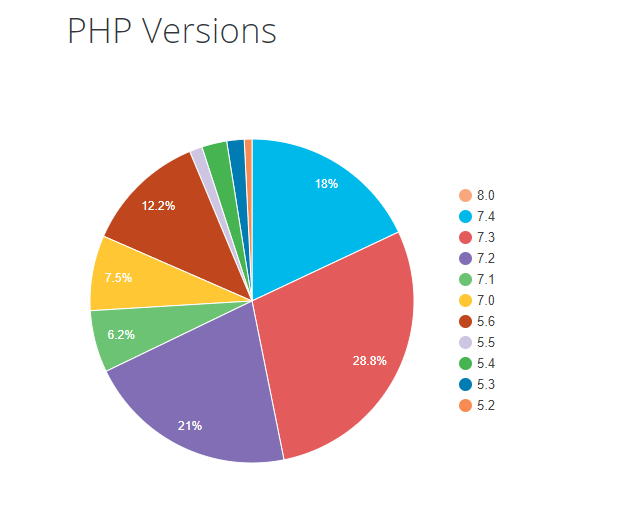
According to WordPress statistics, 18.5% of WordPress sites are still running on PHP 5.6 or lower. Support for PHP 5.5 ended on December 2018. Another 34.7% of WordPress sites are running PHP 7.2, 7.1 and 7.0. Support for PHP 7.2 ended November 20,2020. That would make 53.2% of WordPress sites vulnerable to PHP exploits.

WP PHP versions
Source: WordPress.org

Why are Majority of WordPress Sites Running Outdated Versions of PHP?

Many users most likely don’t even know what PHP version they have since updating it is more complex than updating themes and plugins. Many non-technical WordPress users are wary of touching their hosting settings or cPanel. And for good reason. one wrong click on cPanel could cause your site to go down if you don’t know what you are doing. This seems to be the biggest barrier to adoption of newer PHP versions.

Some hosts are also slow to adopt and offer newer PHP versions. We recommend WPEngine and Siteground as they are quick on the uptake when it comes to PHP version offerings.

Why You Should Update

Better Security

The main reason that you should update your PHP is for security. As we have already mentioned, older PHP versions are no longer getting security fixes. That means known vulnerabilities are not being fixed on that version which leaves your site open to attacks.

Site Speed

Newer PHP versions will execute code faster so that means faster page load speeds. Faster page load speed means better user experience and good SEO signals. Site speed is an SEO ranking factor. So if you want to hit page one of Google search results, invest in site speed.

Ongoing Support

If you are running the latest PHP versions, you are protected from the latest known vulnerabilities. People work to fix security vulnerabilities in PHP when they come to light. The same goes for known bugs.

How Do You Check Your PHP Version?

Now you’re curious how to update your PHP version. First off, you have to find out what version of PHP you are using. There are several ways to check your PHP version. You can actually check on your WordPresh Dashboard.

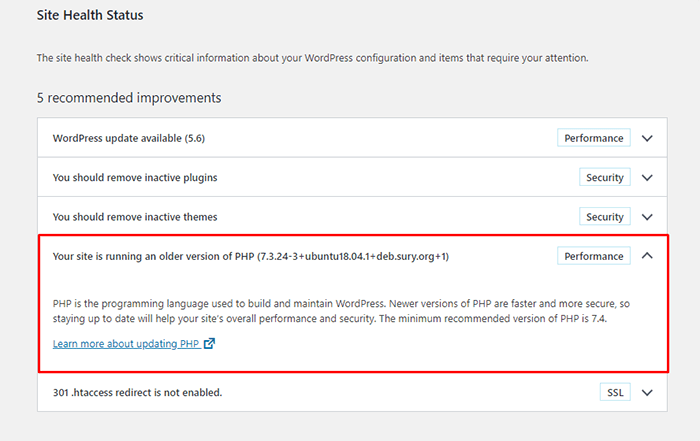
Site Health Page

The Site Health page that you can access from your WordPress Dashboard contains a plethora of useful information that you can address to keep your site secure. You can reach it by going to Tools and then clicking on “Site Health”. Or you can just append your domain with:

/wp-admin/site-health.php

WooCommerce Status Page

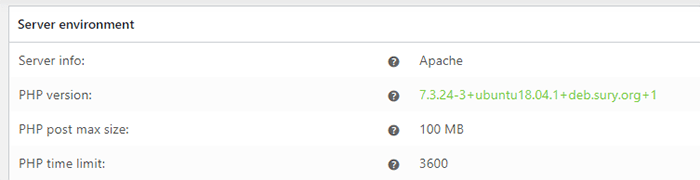
If you are using WooCommerce, you can also click on WooCommerce and then on Status. You can see your PHP version when you scroll down to the “Server environment” table.

woocommerce PHP version

There are other ways to view your PHP version but these are the easiest methods for WordPress users.

You Know What Version of PHP You are Running, Now What?

If you not running an outdated version of PHP, then you don’t need to do anything. If you find that your PHP version is outdated, there are a few things you need to do before you update your PHP version.

  1. Create a staging environment. You can test all your updates here before updating your live site. You will, essentially, also need to test the PHP upgrade on a staging environment so this is a necessary step.
  2. Create a backup of your site.
  3. Update your WordPress core.
  4. Update all your themes and plugins. If you are using premium themes and plugins, make sure you have an active license for everything so you can receive automatic updates.
  5. Remove unused plugins.
  6. Find and remove abandoned plugins. This could get complicated if your site relies heavily on an abandoned plugin. We have a separate guide for removing abandoned plugins.

Now You’re Ready to Upgrade Your PHP

We recommend letting a developer upgrade your PHP version in case something goes wrong or at least have a developer at your beck and call before you proceed.

How you upgrade your PHP depends on your hosting provider so you should consult your hosting provider’s documentation. You will most likely need to navigate cPanel or your hosting account’s dashboard. Some hosting providers will actually require you to create a support ticket to request a PHP upgrade.

Make sure you are testing the PHP upgrade on a staging environment first so you can sort any issues in a controlled environment.

Have your hosting provider’s contact information at the ready so you can reach out to them right away if you encounter a problem.

If you need technical help with any of the steps leading to the PHP upgrade or the actual upgrade, you can contact us.

If you have any questions, you can also let us know in the comments.

Filed Under: How-To Articles Tagged With: security, site speed optimization, website maintenance, WordPress updates

PageLayer Plugin Vulnerability Affects Over 200,000 WordPress Sites

December 13, 2020 By John Leave a Comment

Two reflected Cross-Site Scripting (XSS) vulnerabilities were found on the plugin PageLayer which is installed on over 200,000 sites. This is a critical issue as it could allow an attacker to take over a vulnerable WordPress site.

These vulnerabilities have been fully patched in version 1.3.5 and we strongly recommend all users update to the latest version.

For more information, please check the official public release.


If you have questions, don’t hesitate to contact our support team.
Filed Under: WordPress/WooCommerce News

How to Find and Remove Abandoned Plugins from Your WooCommerce Store to Keep Your Site Secure

December 4, 2020 By John Leave a Comment

How to Find and Remove Abandoned Plugins

You probably already know that keeping your site updated is important for security and to keep everything running. But did you know that just updating your WordPress core, themes and plugins might not be enough? What else should you be doing? You should find and remove abandoned plugins.

WordPress does not automatically warn users using a plugin when plugins are abandoned by their developers. This is important because when developers abandon their, they do not receive updates. This includes critical security updates and other updates to make sure that the plugins stay compatible the current versions of WordPress and WooCommerce and your theme.

Why is it Important to Find Abandoned Plugins?

Abandoned plugins are critical security issues as they are likely to contain deprecated code and vulnerabilities that may be exploited by hackers. Abandoned plugins can also break functionality on your WooCommerce. Your lucky if it breaks a layout or something else minor. In some cases, abandoned plugins can affect your product purchase process. Imagine breaking your WooCommerce store’s checkout because of an abandoned plugin.

How to Find Abandoned Plugins?

You can search for abandoned plugins manually by going to your plugins page and clicking on the “View Details” link on each plugin. Clicking on this link would take you to a different page and your next action would depend on where the link takes you.

If the plugin is not in the plugin repository, you might find a different link to visit the plugin’s site.

It Takes You to a Page with the Plugin Details

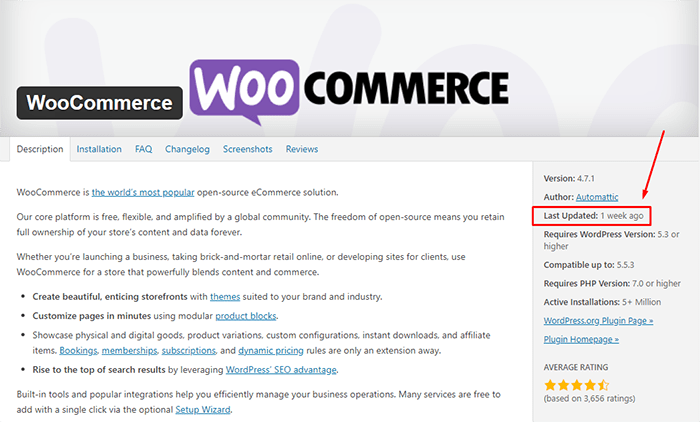
If you got the plugin from the WordPress plugin repository, you will most likely be taken to a plugin page with all the plugin details. There you can see when the plugin was last updated. You should be wary of plugins that have not been updated for several months. If you find that the plugin has not been updated in over a year, note it down.

It Takes You to a Page that Tells You that Plugin Has Been Remove From the WordPress Repository

If you find yourself on a page that tells that the plugin has been removed from the WordPress plugin repository, this is a major red flag. There are several reasons why a plugin could be removed from the repository. The less alarming reasons are if the plugin author has requested removal of the plugin or there are some licensing issues. However, in some cases, it would be because the plugin has violated the WordPress Plugin Guidelines or has been identified to have a security vulnerability severe enough to warrant a removal. If this is the case, remove the plugin immediately and scan your site for malware.

It Takes You to a Third-Party Plugin Vendor’s Site

If clicking on the link takes you to a plugin vendor’s site, you might need to do some further digging to find if the plugin is still being updated. Search for the developer’s change logs on the plugin to see when it was last updated. It might also be worth checking how often the plugin developers release an update. Also check if you have the latest version of the plugin installed. If it is a premium plugin, there is a likelihood that you are not getting automatic updates because of an expired license. In this case, renew your license and update.

It Takes You to a 404 Error

If it takes you to a page with a 404 error page, check the site’s home page and try to find information on your plugin. The plugin developers may have already gone out of business which means the plugin has been abandoned.

As you are probably thinking by now, scanning your site for abandoned plugins can be a handful. Thankfully, you can use WordFence to scan your site for abandoned plugins. Just install the WordFence plugin and run a scan, if there are any abandoned or outdated plugins on your site, WordFence should alert you of it.

So You Found One or More Abandoned Plugins on Your Site. What now?

In a perfect world, you just remove abandoned plugins and be done with it. However, things are usually more complicated than that. Chances are you are actively using the plugin and you might not be noticing any problems with it. But that doesn’t make the plugin any less of a security threat. We recommend removing the plugin and finding an alternative plugin that is not abandoned. If there are no alternatives available, you can customize the functionality instead. These should all be done on a staging site so as not to disrupt your live site.

But What if the Plugin is Critical to Your Site Functionality?

There’s not really much you can do in this case. You can try to contact the plugin developer or hire a developer to create your own plugin. It is most likely a bigger risk to your business if you keep using an unstable and unsecure plugin. Under the General Data Protection Regulation (GDPR), you will be liable to your customers if their data gets leaked because of a security breach. The fines are hefty so it might be best to err on the side of caution.

If you’ve fixed all the abandoned plugins on your WooCommerce store, you might want to keep yourself updated on the latest security news concerning WordPress and WooCommerce. You can subscribe to our newsletter to receive security updates on your inbox.

If you are looking for more things to do to make your site more secure, you can also check if your site is running the latest version of PHP.

Filed Under: How-To Articles Tagged With: GDPR, plugins, security, WooCommerce updates, WordPress updates

  • « Previous Page
  • 1
  • …
  • 8
  • 9
  • 10
  • 11
  • 12
  • …
  • 41
  • Next Page »
Let us support your online store so you can manage your business

Get started today

Get 2 Hours of FREE SUPPORT

We are so confident that you will love our services that we will give you your first 4 hours at a 50% discount

That’s 4 hours for only $75

BUY NOW

Free eBook

5 Things Every Online Store Can Fix On Their Website In The Next Week To Increase Sales

Quick Links

  • How it Works
  • Pricing
  • Blog
  • Contact
  • About Wooassist
  • My Account
  • Checkout
  • Privacy Policy
  • Cookie Policy
  • Terms and Conditions

Wooassist

Australia:
59 Luke St.
Hemmant QLD 4174

Philippines:
San Miguel St.
Poblacion, Iligan City 9200

Connect


Copyright © 2026 · Wooassist

Yours FREE!

5 Things Every Online Store Can Fix On Their Website In The Next Week To Increase Sales