Wooassist

Assistance for Your Woocommerce Store

  • How it Works
  • Pricing
  • Services
    • Site Maintenance
    • AI SEO and Content Marketing
  • Blog
    • How-To Articles
    • Code Snippets
    • SEO For E-Commerce
    • Theme and Plugin Reviews
    • Wooassist News
    • WordPress/WooCommerce News
    • Interviews
  • About Us
  • Contact
You are here: Home / Archives for John

Security Vulnerability in Spam protection, AntiSpam, FireWall by CleanTalk

April 11, 2022 By John Leave a Comment

The Wordfence Threat Intelligence team has reported on two separate vulnerabilities in Spam protection, AntiSpam, FireWall by CleanTalk, a WordPress plugin with over 100,000 installations. These were both reflected Cross-Site scripting vulnerabilities which could be used for site takeover if an attacker could successfully trick a site administrator into performing an action, such as clicking a link.

We strongly recommend updating to the latest version available, 5.174.1, as soon as possible.

For more information, please check the official public release.


If you have questions, don’t hesitate to contact our support team.

Filed Under: WordPress/WooCommerce News

How to Fix Any Issue in WooCommerce – A Step by Step Guide

January 7, 2022 By John 1 Comment

how to troubleshoot problems in woocommerce

Whether you’re having problems with your cart, your shipping, your payment gateway, your WooCommerce checkout, or any other aspect of WooCommerce, you can just follow these simple steps to fix most problems.

Step 1: Try to Recall What Recent Changes You Did to Your WooCommerce Site

The first step in trying to solve a problem in WooCommerce is to try to determine what had caused it. Sometimes problems arise when you make a change to your site which is why it is important to always create a backup when you make any changes. In some cases, you might not always notice the problem right away which is also why it is important to do some user testing when you make changes to your store.

Try to recall what changes you made recently. Did you change any settings? Did you add a new plugin? Did you remove any plugins? Did you add any code snippets? In many situations, you can resolve the issue by rolling back the recent changes you made.

Step 2: Revert to a Backup

Determine when was the last time your site was working and revert to a backup from that date. If the issue is with a theme or plugin conflict, however, the issue will most likely pop back when you update. Not updating is not an option. You will have to update eventually. Reverting to a backup is only a temporary solution if you need your site back working and fast.

Step 3: Update Everything

If remedying the recent changes you did does not solve the issue you are having, the next step would be to update your site. Update everything – WordPress Core, themes, plugins, WooCommerce template files, and also make sure you’re using a supported PHP version.

If you are using any premium plugin that has a subscription, make sure you have an active subscription so you can get the latest updates.

If the updates don’t do the trick, it is time to test for a plugin conflict. You’ll want to do this on a staging site so you don’t affect the functionality of your live site.

Step 4: Check for a Theme Conflict

On your staging site, switch to a default WordPress theme like Twenty-Twenty One. Test if the issue still persists. If the issue is resolved, then it is a conflict with your theme. You’ll want to pass this on to your developer to fix the issue with the theme or contact the theme developers to let them know of the issue so it can be fixed. If the issue still persists after changing the theme, then it’s time to check for a plugin conflict.

twenty twenty-one theme

Step 5: Check for a Plugin Conflict

On your staging site, deactivate all your plugins except WooCommerce. Test if the issue persists. If the issue is resolved, it is time to identify which plugin is causing the issue. Activate your plugins one at a time. Every time you activate a new plugin, test if the issue returns. You’ll know if it’s the erring plugin if the issue pops back up after activating it. Once you’ve determined the problematic plugin, you can find a replacement plugin or reach out to the plugin developers so they can fix it.

If deactivating all your plugins does not fix the issue, then it is not a plugin conflict. You’ll have to explore other options.

Step 6: Check for Abandoned Plugins

abandoned plugin

WordPress will only alert you that you need to update a plugin when a new update is available. However, if a developer abandons a plugin or a plugin or it is removed from the plugin repository, WordPress will not alert you of this.

Over time, these abandoned plugins may stop working with future releases of WordPress and WooCommerce, and when that happens you’re going to have problems. These abandoned plugins can also become a backdoor for hackers.

WordFence can help you detect abandoned plugins. Just install WordFence and do a scan of your site. If for some reason you don’t want to use WordFence, you’ll have to check all your plugins manually. Just head to your plugins page and click on View Details for each plugin. Keep tabs on plugins that have not been updated in a few months. Odds are those plugins could be abandoned. Any plugin that have not been updated in over 6 months is most likely already abandoned. Consider removing the abandoned plugins you find and then test if the issue you are having disappears.

Step 7: Submit a Bug Report

If all the above steps do not yield anything, it could be a bug in WordPress or WooCommerce. If this is the case, the next step would be to report the bug and how it can be reproduced.

Or you can contact the Wooassist team. We can help diagnose and fix the issue for you.

You can also file a support ticket with WooCommerce if the issue involves a premium plugin. To save time, before you contact WooCommerce, make sure you do the above steps first. They’ll just ask you to do the same things we mentioned in this article before they help you out.

Filed Under: How-To Articles

Do This Right Now to Protect Your WooCommerce Website from Credit Card Attacks (And Save Yourself From Enormous Fees)

September 17, 2021 By John Leave a Comment

Website security is often one of the most overlooked aspects of owning a WooCommerce website, at least until the attacks succeed. One of the most worrying security risks over the last few months is the increase in the frequency of credit card fraud. The increase specifically comprises of card testing and bin attacks. In this article, you will learn how you can protect your WooCommerce website from credit card attacks.

Protect Your WooCommerce Website from Credit Card Attacks

What are Card Testing and Bin Attacks?

Card testing and bin attacks involve an attacker attempting a transaction on your website and testing thousands of credit card number combinations on your checkout page. They will keep doing this until they get a combination that works.

If an attack is successful, they will be able to commit fraud. But even if the attackers don’t succeed, it still doesn’t bode well for the website owners. You will get slapped with a hefty fee worth thousands of dollars by the credit card processor company themselves.

If this hasn’t happened to you yet, consider yourself lucky as it already has to many other store owners. You can improve the security of your site so you don’t fall victim to card testing and bin attacks.

Standard Website Security

woocommerce security

If you own a WooCommerce website, you should have already taken the standard security measures for your website. This includes keeping your plugins and themes updated, installing an SSL certificate, installing a security plugin, and other best practices. If you haven’t yet, you can check out these posts.

  • Secure Your WooCommerce Site
  • Increase the Security of Your WooCommerce Store

The Most Important Steps to Take Against Card Testing and Bin Attacks

Credit card processors will usually push the blame of the card testing and bin attacks to the business owner. However, they also have a responsibility to keep their own systems secure. Being financial organizations, credit card processors need to have the most secure systems.

Most merchant account owners would not be aware that card processors have additional security features. These can be configured to prevent card testing and bin attacks. This extra line of security is your best protection against credit card fraud.

  • 3DSecure

  • While some of these features may bring some additional fees, enabling them is recommended. For example, one of these technologies is 3DSecure. This requires customers to complete an additional verification step for each credit card transaction. In theory, this should fully prevent any automated attacks. And even if an attack does get through, the credit card processor should no longer hold you liable for it.

  • Fraud Filters/Rules

  • Some credit cards processors would have other extra security features that don’t require any additional payment. One example is being able to configure simple rules to filter out suspicious card activity. For instance, you could filter out all transaction attempts outside of the countries you are servicing. That would already block most attackers.

    You can also filter out transactions that have had a number of failed attempts within a short amount of time. This is called the velocity filter or rate-limiting. For example, you can filter out transactions with 5 failed attempts within 5 minutes. This results in the card processor rejecting further attempts. This won’t stop the attack entirely. However, it can reduce the number of attempts because the rejected combinations are now worthless to the attacker.

  • Know What Security Tools are Available to You as a Merchant

  • The most important thing is to know your credit card processor and the security features they have available. Contact them if necessary. If they don’t have any of these, then we strongly recommend switching to another company that offers better security.

    Steps to Take on the Website Side to Prevent Card Testing and Bin Attacks

    Once the credit card processor side of things has been sorted, next will be the website side. Proper defense against credit card fraud consists of measures taken on both the card processor and website site. To this end, we recommend a system with 3 lines of defense.

    1. Install a Website Firewall

    A website firewall such as Sucuri is designed to monitor activity on the website. It can block brute force attacks, filter user sessions with suspicious behavior, and patch vulnerabilities. For preventing card testing and bin attacks, we want the ability to filter out sessions that display suspicious behavior. Since credit card attacks usually involve bots, a firewall is a good first line of defense.

    1. Add a Captcha

    A captcha is a verification system designed to filter out bots from legitimate human users. It helps prevent bots from doing any malicious activity on your sites like submitting contacts forms, sign-up forms and even checkout forms.

    captcha for woocommerce checkout

    Preventing bots from completing the checkout form is what we need against card attacks. While Captchas have a slight impact on user experience, they’ve continued to improve over the years. Google’s ReCaptcha v2 and v3 are among the best examples. Learn how to set up Recaptcha for WooCommerce here. And with that, your second line of defense is set.

    1. Set Checkout Attempt Limit

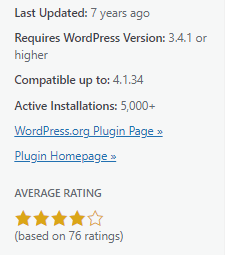
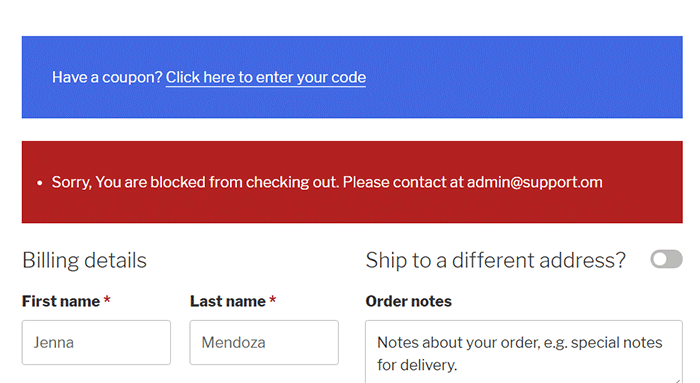
    In the unlikely chance that attackers bypass both the firewall and captcha, this next line of defense is designed to address the main problem. The main issue with card testing and bin attacks is the surge of transaction attempts sent over to the card processor. Similar to the velocity filter on the card processor side, you can set up a similar filter on the website side using the Woo Manage Fraud Orders plugin. You can set it up to automatically block the users that execute consecutive failed attempts at placing an order on your site. The plugin allows you to set a limit to the number of fraud attempts. For example, you can set this at 5 attempts. This way, 5 will be the maximum number of transaction attempts sent to the card processor and the attacker is permanently blocked from the website.

    Conclusion

    Credit card testing and bin attacks are on the rise. You can prevent it from happening to your site.

    Make use of fraud prevention features on your credit card processor and implement our recommended security measures on the website side. Find out what anti-fraud measures are available to you as a merchant. These security tools will save you from being fined thousand’s of dollars. Contact your credit card processors to know what tools you can set up. Implement them. Then proceed to implement the security measures on the website next

    If you need any assistance on the technical side, we can help. And if you have questions, don’t hesitate to contact our support team.

    Disclaimer: Article contains affiliate links. When you buy through links from this article, we may earn an affiliate commission.

    Filed Under: How-To Articles Tagged With: payment gateway, security, WooCommerce

    Elementor Ecosystem of Plugins Rocked by Vulnerabilities

    April 14, 2021 By John Leave a Comment

    Over the last few weeks, critical security vulnerabities were discovered in more than 15 of the most popular addon plugins for popular pagebuilder Elementor – a blow to millions of users dependent on Elementor and it’s ecosystem of addons.

    These vulnerabilities (Cross-Site Scripting in nature) are similar to the recently patched vulnerabilities in the main Elementor plugin itself. They allow any user with access to the Elementor editor, to add JavaScript to posts and these could result in the website being taken over in the worst cases.

    In general, the addons affected were those that adds additional elements to the page builder. It is strongly recommended to update Elementor and all addons being used on your sites as soon as possible.

    For more information, please check the official public release.


    If you have questions, don’t hesitate to contact our support team.

    Filed Under: WordPress/WooCommerce News

    How to Fix Your Website Structure

    April 13, 2021 By John Leave a Comment

    how to fix your website structure

    Have you ever considered looking at your WooCommerce store’s site structure? Probably not. After all, it doesn’t look like an urgent issue that warrants a lot of immediate attention. However, if your WooCommerce site suffers from poor structure, you could actually be hurting your SEO rankings. Odds are you are also making it difficult for your customers to navigate your site. In fact, depending on how bad your site structure is, it could be causing your customers a lot of frustration. You should make it a top priority to learn how to fix your website structure.

    Why Should You Fix Your Site Structure?

    If you know your site structure has problems, then do not delay. Address it right away so you can reap the benefits of following best SEO practices. If you are serious about getting on page of Google’s search results page, then you should not skimp on fixing your site structure. Not to mention, a good site structure will make it easier for your customers to navigate your site. This leads to good user experience which can increase your sales by as much as 30%.

    What Does Good Site Structure Look Like?

    Good site structure should look like a proper flow chart. The home page should have a link to all stand-alone pages this includes the about page, contact page, privacy policy page, pricing page, portfolio page, my account page, blog page, shop page and any other important pages.

    Blog posts should make full use of blog categories and blog tags, if necessary. The same goes for products. Make full use of product categories and blog tags. Your blog categories and product categories should never have the same name as they will cannibalize each other. They will compete with each other for SEO rankings. Also, categories and tags should not be the same.

    What You Should Do to Fix Site Structure?

    Do a Content Audit

    Before you go about fixing your WooCommerce store’s structure, it is important to understand your content. You can do a content audit to better understand your content assets and determine how to optimize your website’s structure. After doing a content audit and getting a clear picture of your content assets, the next step is to identify site structure problems.

    Identify Site Structure Problems

    Check and Fix Your Navigation Menu

    Check all your navigation menus. From a user perspective, do they make sense? Do you use dropdown menus? More important menu items should go to your main navigation menu. Less important links to pages like Privacy Policy, Cookie Policy, Terms and Conditions should go to your secondary or footer menu. Having a privacy policy and cookie policy page is essential if you want to comply with GDPR regulations which you should.

    You can even have people try using your site and ask them feedback about your site’s navigation.

    What Should Be on Your Main Navigation

    Your main navigation should contain your most important pages or all pages you want your visitors to have easy access to. We recommend your Shop Page, Blog Page, About Page, Contact Page, or depending on your business, a portfolio or pricing page.

    Find 404 Errors

    Isn’t annoying when you go a certain website, you click a link and then land at a 404 error page?

    Google has been putting more attention on good user experience and having 404 errors on your website is not good user experience. Fixing 404 errors should be included in your website maintenance tasks. You can find 404 errors by using this Broken Link Checker tool. Once you determine which links lead to a 404 error, remove that link or point it to the appropriate page.

    Redirect 404 Errors

    In some cases, your broken links could be because of a change in your website’s URL structure. In this case, you might want to redirect all your all URLs to the new URLs. Make sure you use a 301 redirect. You can use the Redirection plugin to set up your redirects. For SEO purposes, it is important to set up a 301 redirect to tell search engines that the old page has been permanently moved to a new address.

    Update or Remove Outdated Content

    It is important for SEO to have fresh content so you should be updating your content regularly. In some cases, you might find that some of your old content may no longer be relevant so you can either update or delete that page. If you have updated content, you should redirect the deleted page to the updated content.

    Make the Most of Your Internal Links

    Proper internal linking creates a smooth flow between all your site’s pages. When you’re writing a blog post and you mention another blog post that is related to your current post, link to it. When you mention a specific page on your site, link to it. When you mention a specific product, link to it. Google appreciates good internal links.

    Learn How to Properly Use Posts and Pages

    Think of categories as a file cabinet where you place files that belong together so everything remains organized. So if a user is interested in a specific kind of product or blog post, the user can find them all in one place. Tags, on the other hand, are used differently. You can think of tags as the index section of a book. Properly tagging your posts and products makes it easier for users to find posts or products that mention a specific keyword or topic.

    Should You Revise Your Categories?

    If you found out that you’ve been using your categories all wrong and want to revise it to make it clearer, you should do it sooner rather than later. Making sure your category structure is optimum will go a long way in helping your SEO. Just make sure you properly redirect everything to the new URL.

    Changing the Permalink Structure

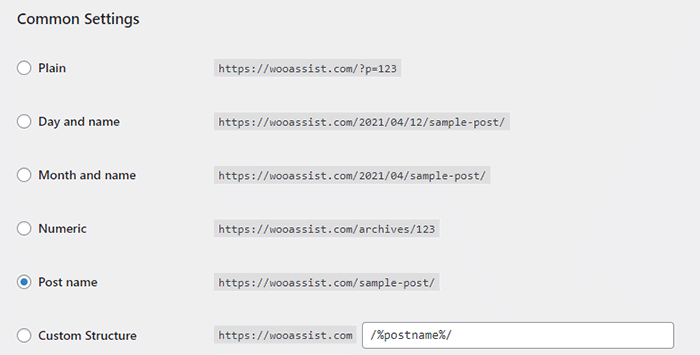
    By default, WordPress sets your permalink structure to something that is not optimal. It is ideal to have a custom structure or a post name structure. It should be one of the first things you should change when you create a new WordPress site. So if you didn’t do it before and now have hundreds of posts and pages, then changing your site structure could become a major issue.

    When you change your site structure, you will lose many external links pointing to your site and that’s a big SEO disaster. You have to make sure you make proper 301 redirects to the new URLs.

    It might be a lot of work but you will soon reap better SEO rankings. If you already have good content, the benefits of optimizing your permalink structure could be significant. This means you should not skip doing this.

    Resubmit Your Site Map

    When you finish all your site structure optimizations, you should resubmit your sitemap to major search engines. That would be Bing and Google. Resubmitting your sitemaps ensure that search engines index the changes in your site structure.

    Have you checked your site structure lately? What problems did you find?

    Filed Under: How-To Articles Tagged With: 404 error, best practices, content marketing, navigation, SEO strategy, woocommerce seo, WordPress SEO, XML sitemap

    • « Previous Page
    • 1
    • …
    • 6
    • 7
    • 8
    • 9
    • 10
    • …
    • 41
    • Next Page »
    Let us support your online store so you can manage your business

    Get started today

    Get 2 Hours of FREE SUPPORT

    We are so confident that you will love our services that we will give you your first 4 hours at a 50% discount

    That’s 4 hours for only $75

    BUY NOW

    Free eBook

    5 Things Every Online Store Can Fix On Their Website In The Next Week To Increase Sales

    Quick Links

    • How it Works
    • Pricing
    • Blog
    • Contact
    • About Wooassist
    • My Account
    • Checkout
    • Privacy Policy
    • Cookie Policy
    • Terms and Conditions

    Wooassist

    Australia:
    59 Luke St.
    Hemmant QLD 4174

    Philippines:
    San Miguel St.
    Poblacion, Iligan City 9200

    Connect


    Copyright © 2026 · Wooassist

    Yours FREE!

    5 Things Every Online Store Can Fix On Their Website In The Next Week To Increase Sales