
WooCommerce (WC) and themes from WooThemes go hand in hand when building an e-commerce website. But what if you wanted to use a theme not from WooThemes? There may be some compatibility issues but it could still work. To solve these problems, we’ll need to set it up in such a way that your non-WooCommerce or custom theme supports Woocommerce and make the integration flawless.
WooCommerce provides two methods to do this. Either we use hooks or make use of their catch-all woocommerce_content() function. The second method is the easier of the two so we’ll only talk about the second method of the catch-all woocommerce_content() function in this post.
To start, know that it’s divided into 5 simple steps which we’ll outline below:
STEP 1: Duplicate your page.php file and rename it as woocommerce.php
For this, you’ll need to access your website files using an FTP program or cPanel file manager. Find your page.php file which is usually located in wp-content/themes/[YOURTHEME]/page.php.
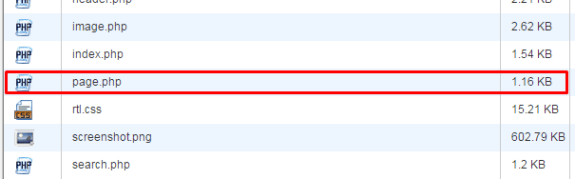
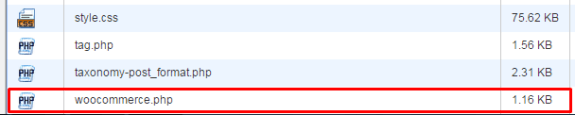
All themes should have this file so make a copy of yours then rename it to woocommerce.php. Basically, you’re creating a file called woocommerce.php where the content is the same as page.php.
If you’re using a child theme, you’ll need to copy the page.php of the parent theme and place woocommerce.php on the child theme so that you don’t have to worry about it being overwritten when the theme is updated.
STEP 2: Edit woocommerce.php and locate the loop
After creating the file woocommerce.php, you then need to edit it with the editor of your choice. When it’s opened, browse through and look for code that looks like the one below:
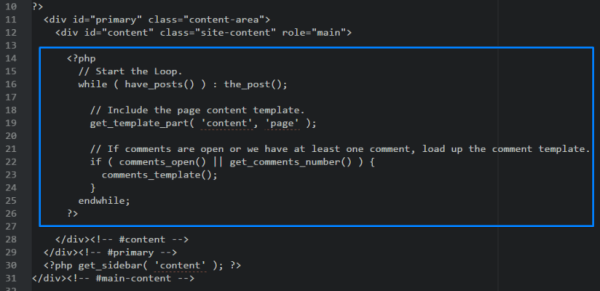
It usually starts with
<?php if ( have_posts() ) :
and ends with
<?php endif; ?>
but in our case it ends with
endwhile; ?>
so it’s not always the same. This bit is called the loop and you need to determine where it starts and where it ends.
STEP 3: Replace the loop with <?php woocommerce_content(); ?>
Now, after finding the loop, replace it with:
<?php woocommerce_content(); ?>
That lengthy bit of code will be replaced by just this one line. And that’s entirely the point – nothing to be alarmed of. And when you’ve done that, it should look like the one below:

Now, save it.
STEP 4: Declare support for WooCommerce
Next, we’ll do something about the notice message that looks like the one below.

To do this, we’ll need to add:
add_theme_support( 'woocommerce' );
to our functions.php. If you’re using a child theme, you’ll need to find the functions.php file that is inside the child theme folder. Once you’ve found the correct functions.php, place the code exactly at the end. Now, save. And that’s it. That notice should be gone now.
STEP 5: Bask in your success
And that’s how to integrate WooCommerce with a non-Woothemes Theme. For the unavoidable instances that you need to make use of a non-WooCommerce or custom theme, you need to follow the steps above.
Do you have any other suggestions? Feel free to comment below.







Leave a Reply