Like most themes, Storefront theme comes with a generic footer text. As a WooCommerce store owner, this doesn’t really help your site so you will want to change it.

Why Edit Footer Credit Text Area?
Well, you certainly wouldn’t want the default one. You can edit your site footer credit text area to include your business name and declare your copyright. You can also use this area to include whatever best fits your needs.
But first off…
How Do You Edit the Edit Footer Credit Text in Storefront Theme?
By editing your e-commerce store’s footer, you can make it a part of your strategy. You can easily edit it if you know how to code. However, this can prove challenging to the average user. In this case, there’s a plugin for that. Just follow the steps below:
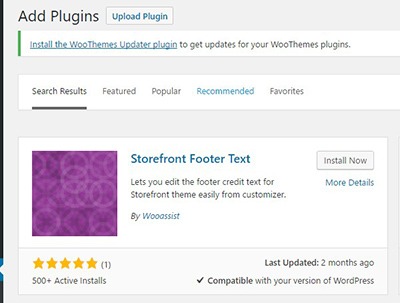 Head over to your WordPress Dashboard and go to plugins
- Click on “Add New”. In the Search field, input “Storefront Footer Text” and press Enter.
- Click on ‘Install Now’ on the plugin and then click Activate.
- Once Activated, head over Appearance > Customizer
- Under the Footer section, you will find a text area for you to enter your custom credit text. You can use HTML tags so you can be creative when adding your footer text.
- When you’re done, just click on Save.
What Can I Add to My WooCommerce Store’s Footer Credit Area?
There are a lot of things you can add to your store’s footer credit section. Below are just some of them.
Declare Copyright and Other Important Declarations
The most common use of this area is to declare a copyright. This has three elements: the copyright icon, the company name and the year that you started the e-commerce store/business up to the current year.
If there are other important declarations that you want to add for legal purposes, you can add them in this section as well. Some websites have been known to use this area to declare the use of cookies.
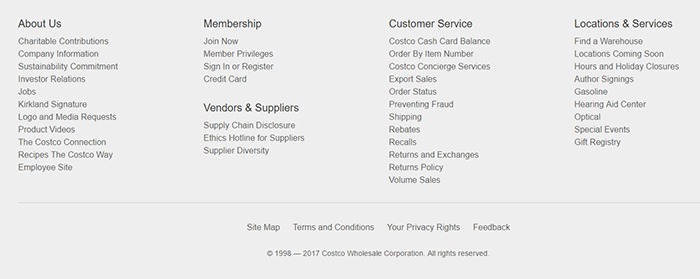
Here’s how it looks like on the Costco website.
Contact Details
In addition to copyright information, you can add your contact details on the footer credit section to increase your credibility. You can add your phone number, address, email as well as a link to your contact us page.
Social Media Icons
You can add social media icons in this section in a way that is not intrusive. When you add social icons at the top of your page, it can be a distraction from your website’s goal. But when you add it at the bottom of your site, it becomes another way for you to engage with your visitors if they ignored your main call-to-action.

Show Security Seals and Certificates
Newegg.com adds the security seals on their footer credit section along with their social media icons. You can add your own Norton Security Seal here.
Payment Options
You can also add icons of the payment options that you accept on your e-commerce store. This makes it easier for your visitors to know what payment options you accept without having to look for the FAQ section.
Add Other Important Links
You can also use the footer credit area to add other important links such as your terms and conditions and privacy policy. This is how Amazon does it.
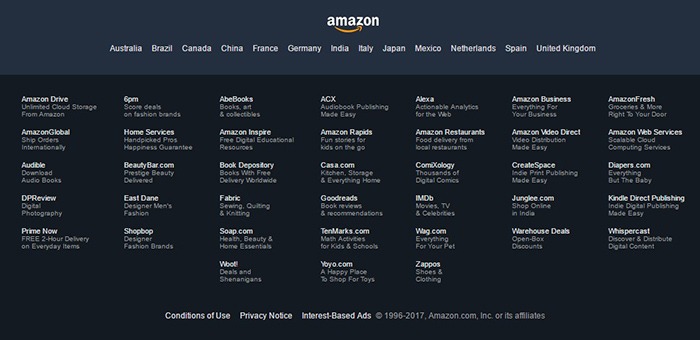
No matter what you put on your footer credit text area, it must be an element that helps you achieve your e-commerce store’s goals.
Did this plugin help you edit footer credit text in Storefront? Did you experience any problems using it? What elements did you add to your footer credit area? Let us know in the comments.







Leave a Reply