 You might have heard about XML sitemaps and that it’s good for your website’s SEO but don’t really know what it is. Or maybe you don’t know how to create a sitemap for your WooCommerce store. We can help with that. For starters, Google defines a sitemap as:
…a file where you can list the web pages of your site to tell Google and other search engines about the organization of your site content.
In short, a sitemap tells search engine crawlers about the structure of your site. Whenever you add something new to your website, whether that’s a new blog post, a new page or a new WooCommerce product, your sitemap is updated and communicates with web crawlers to tell search engine that there is something new on your website.
Even without a sitemap, the content on your website will still eventually be crawled by search engine crawlers but if the structure of your website is not well-organized, some pages may not be indexed. Also, having a sitemap will make crawling your website easier and much sooner. And if you have a new website, you probably don’t have a lot of other websites linking to your pages so it is highly likely that some of your pages may not get indexed. Having a sitemap almost ensures that all your pages get indexed.
How to Generate a Sitemap for Your WordPress Site
There are a couple of plugins that you can use to create a sitemap for your e-commerce website. We’ll list them down here.
How to Create a Sitemap Using WordPress SEO by Yoast
WordPress SEO by Yoast is the all-in-one plugin for your SEO needs. It is easily one of the best SEO plugins in the WordPress plugin repository. It has a lot of useful features and that includes the creation of a sitemap. If you are already using WordPress SEO by Yoast, then look nowhere else for creating your own XML sitemap. If you are not using WordPress SEO yet, I would suggest joining the bandwagon that is unless you are already using an SEO plugin that works well for you.
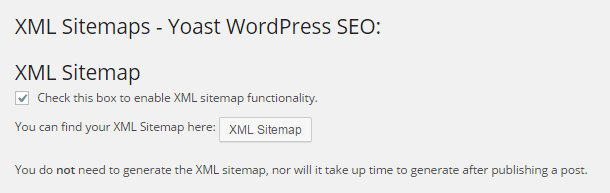
To enable XML sitemaps in WordPress SEO, go to SEO and click on XML sitemaps. Afterwards, just tick the box where it says “Check this box to enable XML sitemap functionality” and then “Save Changes”. When that’s done, just click on the button below and you will be taken to your sitemap.
How to Create a Sitemap Using Google XML Sitemaps
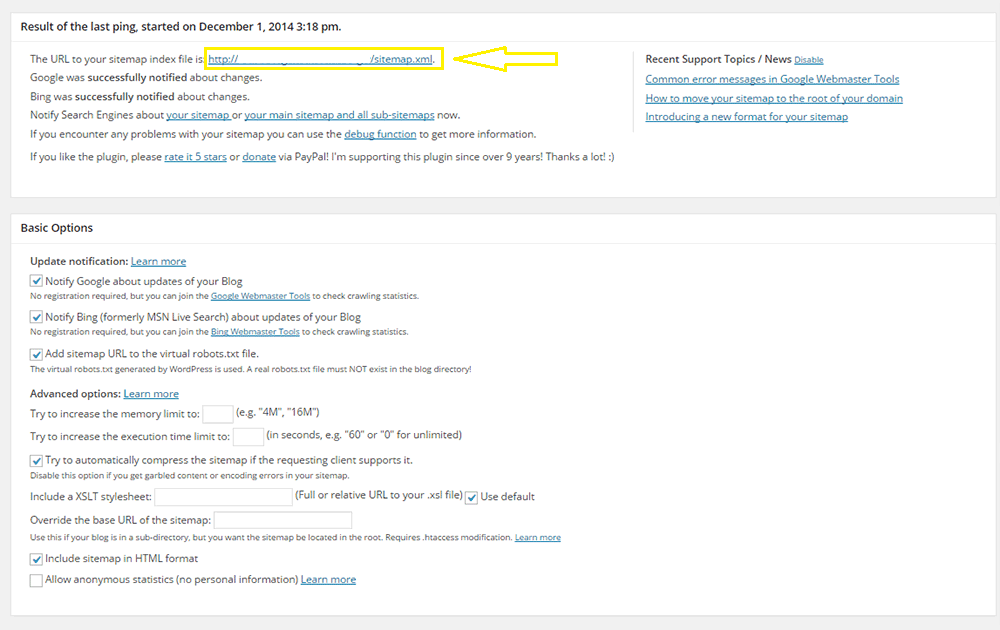
Creating a sitemap with the Google XML Sitemaps plugin is very easy. Simply download and install the plugin here. After you activate the plugin, just head over to Settings and click on XML-Sitemap. You should see a section that indicates the URL for your sitemap. There are a bunch of other settings that you can tweak. The default settings are good as is but if you want to change anything depending on your needs, feel free to do so.
How to Create a Sitemap Using XML Sitemaps
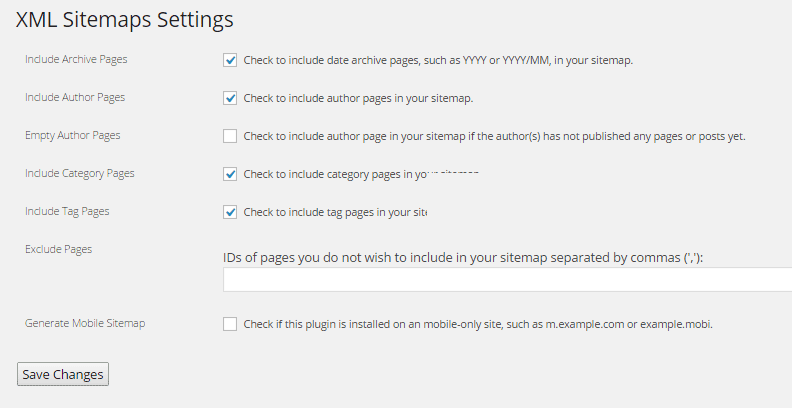
To create a sitemap using the XML Sitemaps plugin, simply install the plugin from this link. Activate the plugin and head over to yourdomain.com/sitemap.xml. That’s your sitemap. There are a few settings that you can tweak if you head over to Settings and click on XML Sitemaps.
Adding a Link to Sitemap for Your WooCommerce Store
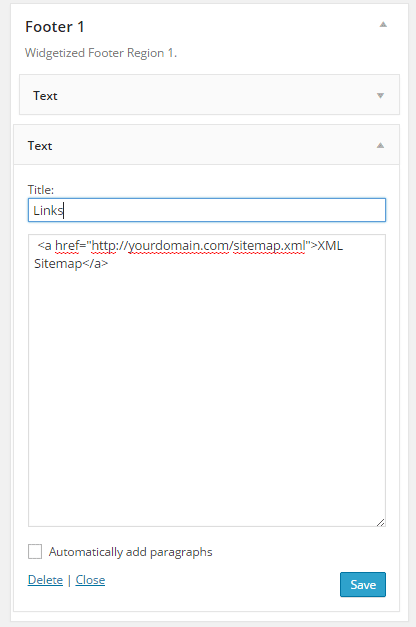 Most SEO experts say that adding a link to your sitemap on your website does not serve any purpose since the search engines find the sitemap through the robots.txt file or when you manually submit the sitemap to Google Webmaster Tools or Bing’s. Some disagree however and mention that having a link in the footer adds value.
If you do want to add a link to your sitemap on your WordPress site’s footer, it is very easy to do. Just go to Appearance and click on Widgets. Afterwards, drag a text widget to the footer where you want to have the link. Just link your sitemap using HTML code.
If you are not sure how to do this, use the code below and just replace the URL with your sitemap’s URL:
<a href=”http://yourdomain.com/sitemap.xml”>XML Sitemap</a>
Submitting your Sitemap to Search Engines
When you get your sitemap ready, you should submit it to search engines using Webmaster Tools. Before you do this however, you need to verify your website with Webmaster Tools. You can check our post about the WordPress SEO plugin by Yoast which has links to some useful resources that can help you verify your site if you haven’t done that yet.
How to Submit Your Sitemap to Google Webmaster Tools
To submit your sitemap to Google Webmaster Tools, log in to your account and click on the website that you want to add a sitemap to. On the left sidebar, you should see Site Configuration, click that and then click on Sitemaps. There should be an Add/Test sitemap button in the upper right corner. Add your sitemap and then click on Submit.
How to Submit Your Sitemap to Bing Webmaster Tools
To submit your sitemap to Bing Webmaster Tools, log in to your account and click on Sitemaps. Then click on Submit a Sitemap. A text box should appear where you can specify the URL to your sitemap. Save your settings.
The Verdict: Which one is for you?
Between the XML sitemap plugins mentioned above, which one is for you? WordPress SEO by Yoast has a ton of other features and is one of, if not the best SEO plugin for WordPress. If you are already using this plugin for your SEO, then there’s no reason to get another plugin to get a sitemap. You’ll just be adding extra bloat to your site by going with another plugin. Between Google XML Sitemap and XML Sitemap Plugin, there’s not much of a difference. Both are easy to set up but Google XML Sitemaps has a slight advantage for having more options such as:
- Automatically notifying search engines whenever you post new content
- Creation of an HTML sitemap
- Compressing the sitemap
- Adding the sitemap URL to the robots.txt file
Got some questions about sitemaps? Let us know in the comments.
 Google mobile friendly update to penalize non-mobile friendly websites is out. Don’t tell me you didn’t see this coming. As more people used mobile devices to surf the internet, Google had to act. It was only a matter of time before Google started prioritizing websites that are optimized for mobile devices. The new algorithm came into effect April 21.
 That question is a bit like. “I need a car. How much will that cost?” Of course, the answer is, “It depends”. But to give you an example, we have recently upgraded a few clients themes to the new Storefront theme for between $400-$600.