Wooassist

Assistance for Your Woocommerce Store

  • How it Works
  • Pricing
  • Services
    • Site Maintenance
    • AI SEO and Content Marketing
  • Blog
    • How-To Articles
    • Code Snippets
    • SEO For E-Commerce
    • Theme and Plugin Reviews
    • Wooassist News
    • WordPress/WooCommerce News
    • Interviews
  • About Us
  • Contact
You are here: Home / Archives for page speed

How to Speed Up Your Website by Cleaning Your Database

February 18, 2015 By John Leave a Comment

cleaning-upYou might have read a few, or maybe a ton of articles about optimizing your website page load speeds. You might already know a few strategies like optimizing images, caching and minification, and getting a CDN. But here’s another strategy that is rarely discussed: maintaining and cleaning your database.

For many website owners, the database is just one of the requirements for a WordPress install. It is however more than just that. Keeping your database clean and optimized can also shave a few seconds of loading speed. We’re all suckers for that one or two seconds. And believe it or not, one or two seconds saved could mean the difference between a bounce and a conversion.

What’s in Your Database?
mysqlIf you don’t know what the database is for, then you might be surprised just how important it is. WordPress makes use of PHP to communicate with the database which contains important information such as posts, pages, your WooCommerce products, comments and product reviews, users and customer information, URLs, etc.

Why Do You Need to Clean Your Database?

Think of a database like it’s your computer’s hard drive. It’s where all your data is stored. ­ It’s where you keep everything and without it, your computer won’t work. If you want to keep your computer running in top form, you clean your hard drive. The same concept applies to a website, to keep your website running fast and smooth, you clean its database by removing all that gunk and clutter.

What’s there to clean? Over continued use, a website accumulates many spam comments, copies of post revisions, and remnants of deleted plugins and themes. When that becomes too large and bloated then website performance will suffer.

Back Up Your Website

Now that you know the importance of a database, you just want to jump in and clean your database. Halt! Before you start any database cleaning, it would be wise to create a backup of your website. There are a couple of plugins that can help you do this. Your hosting provider will most likely have a backup of your website so can also check in with them.

Clean ‘Em Up

You can clean up your website database manually or you can use these awesome plugins.

WP-Optimize

WP-Optimize is one of the most popular plugins for cleaning your database and it is also one of the easiest to use. Simply install the plugin and run it. The plugin also allows you to schedule a regular database cleanup which is pretty handy if you want to keep your database in peak condition.
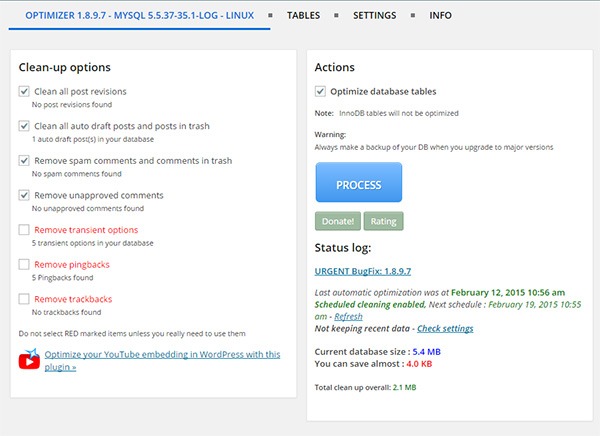
wp-optimize

WP-DBManager

WP-DBManager is another popular plugin for database optimization. It is however geared for more advanced users. Setting it up can be tricky if you’re not familiar with database elements. Being trickier however means that it has more customizable options and features. Some of its features include repairing a corrupted database, a database restore, running MySQL calls, and clearing tables. WP-DBManager however cannot clear bloat so if you want to go with this one for its host of other features, you still might want to consider getting WP-Optimize or any other means to clear database bloat.
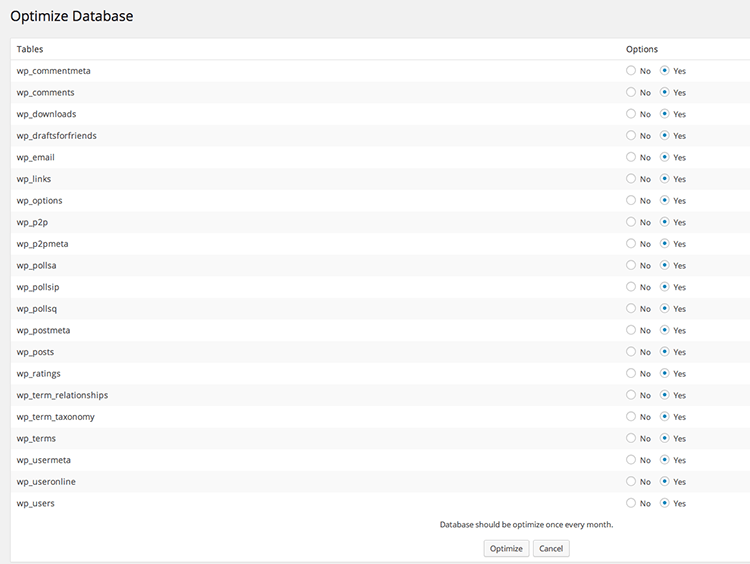
wpdbmanager

So when was the last time you optimized your database? What tool or plugin did you use to clean it?

Filed Under: How-To Articles Tagged With: backup, best practices, how-to, MySQL, optimizations, page speed, plugins, website maintenance, WordPress

How to Use a CDN to Speed Up Your Website

March 1, 2015 By John Leave a Comment

How to Use a CDN to Speed Up Your WebsiteSo far, we’ve talked about optimizing images, caching, and minification. This time around, we’ll talk about Content Delivery Networks or CDN. You will learn how to use a CDN to speed up your website.

What is a CDN and How Does it Help?

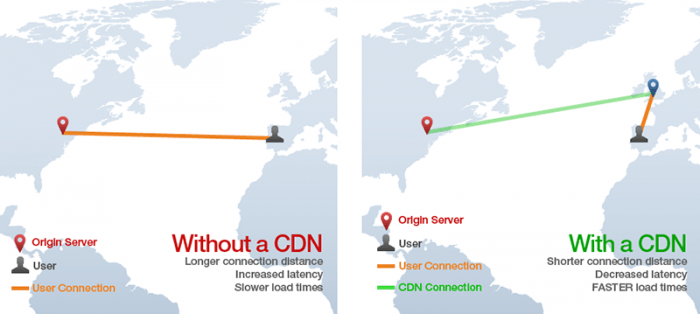
A CDN is basically a network of servers located at different locations around the world. As a service, a CDN will function to cache the content of your website so that it can be delivered faster to your visitors based on their location. Your static content will be saved on the servers so that when someone visits your site, it will send a request to the server nearest to them which will then deliver the content to the user. Basically, if you are a website owner and your server is based in Australia, your visitors from the US or Europe will have a hard time connecting to your website since the browsers will request data from servers that are too far away. This would result in delayed responses from the server known as lag.. With a CDN in place, browsers will always have a nearby server that they can connect to that will deliver your content much faster.

If that’s a bit too hard to swallow, here’s an infographic from GTmetrix with a visual representation of how CDNs work.

cdn

CDNs will mostly benefit the websites that cater to a global audience or market because if you are catering to a local audience, server requests will most likely be near your server’s location.

How to Use a CDN to Speed Up Your Website

Right now, you might be thinking that setting up a CDN is a complex endeavor. I’m telling you that it isn’t. We are in the age of web development where every service strives to be as user-friendly as possible. You can easily set up a CDN in a few clicks depending on your hosting service.

Setting Up CloudFlare CDN through CPanel

CloudFlare is one of the more popular CDN solutions out there and it has a free service for small website owners.

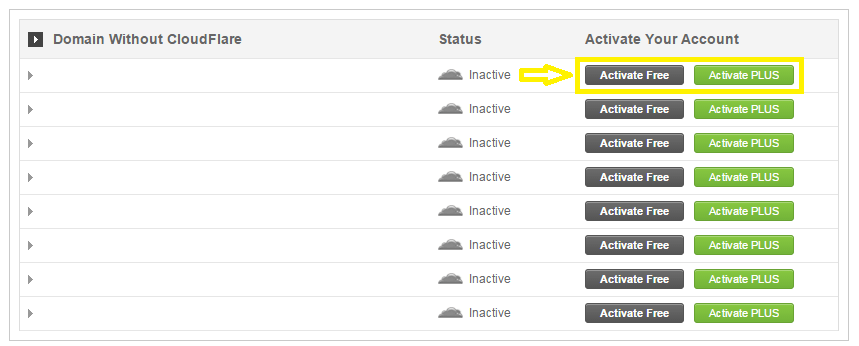
If your website is hosted on a CloudFlare hosting partner, then setting up CloudFlare is very easy. If you’re not sure if your hosting is a partner, check out this list. If your hosting is included in that list, then you can use the CloudFlare tool available on CPanel. Just go to CPanel and CloudFlare.

cloudflare

After that, just click on “Activate Free” for the free version or Activate PLUS for the paid version on the domain where you want to activate the CDN. You will then be prompted to enter your email to create an account with CloudFlare or just enter your email if you already have an account.

cloudflare-1

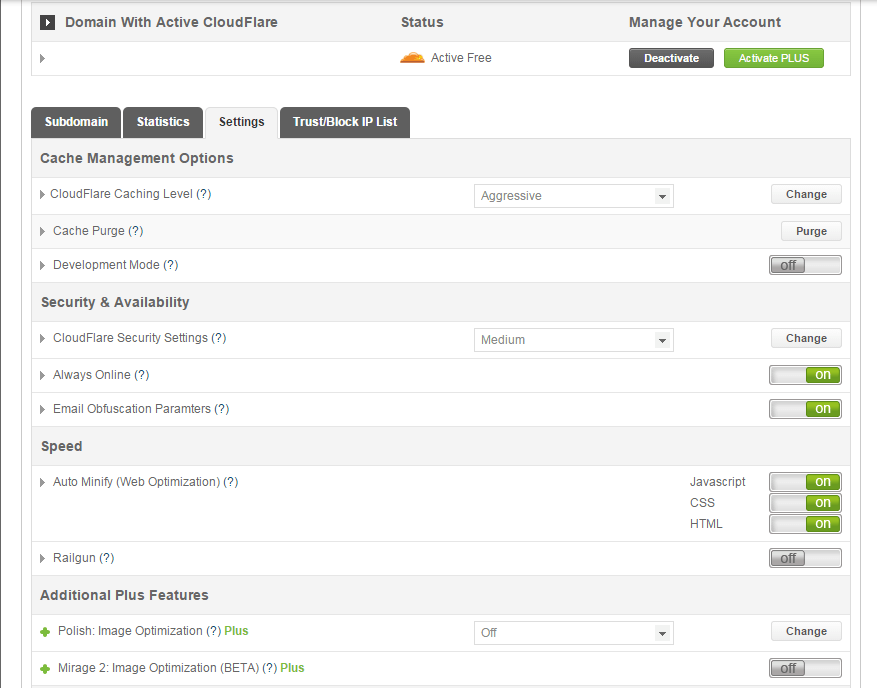
Once activated, you can tweak certain settings by clicking on Manage.

cloudflare-settings

And that’s it. Your CloudFlare CDN is all set and the performance of your website should be improving soon.

Setting Up CloudFlare Manually

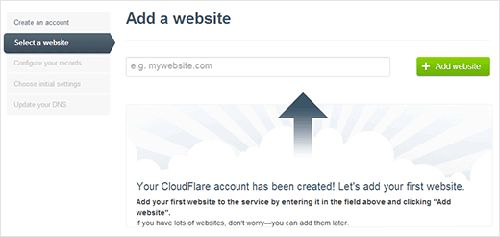
cloudflare-add-websiteTo set up CloudFlare manually, sign up for an account. After signing up, you will then be prompted to add your website to be scanned.

After the scan, you will be shown a list of all found DNS records. At this point, you should also set any subdomains that you would like to pass through CloudFlare. When you’re ready, just click on “I’ve added all missing records, continue”. The next page will let you choose a plan. You can choose the free version or the paid version, SSLs won’t work with the free version.

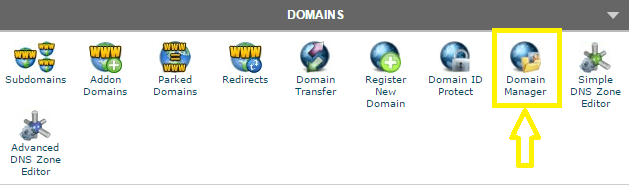
You will then need to change the name servers on your hosting service. You can do this by going to CPanel and clicking on Domain Manager. From there, just edit the name server to the new one provided by CloudFlare. If your hosting does not make use of CPanel, you can contact them on how to get this done.

domain-manager

As a final step, go back to CloudFlare settings and click on “I’ve updated my nameservers, continue”. Note that it may take up to 24 hours for the name servers to be completely active.

Setting Up Photon

Photon which is part of the Jetpack plugin is a sort of CDN although it’s not a complete CDN solution. Photon is mainly an image acceleration service which optimizes images on your site and caches them on the WordPress.com server to be served directly from there. Essentially, it only acts as a CDN for images and not all your static content like a normal CDN would.

If you are already using Jetpack, which hosts a number of other useful functionalities, then you can easily give Photon a go. However, if you are planning to install Jetpack just for Photon, you’ll be much better off going with a complete CDN solution like CloudFlare.

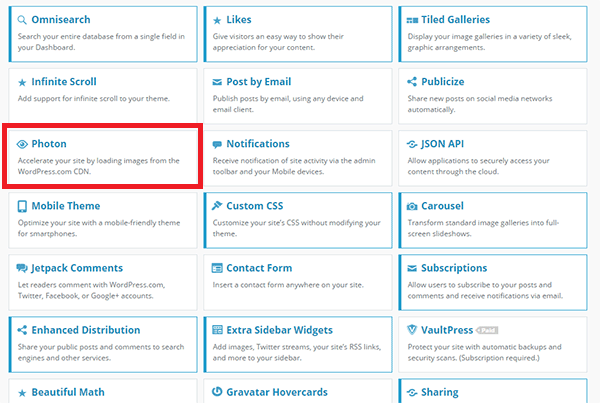
To activate Photon, just install Jetpack on your WordPress site and navigate to the Jetpack settings. From there, find Photon and click on Activate. Easy-peasy.

photon

With a CDN in place, your website should be running a lot faster which will improve overall user experience and probably even boost your conversion rates.

Filed Under: How-To Articles Tagged With: caching, CDN, CloudFlare, CPanel, how-to, optimizations, page speed, plugins, site speed optimization, WooCommerce

  • « Previous Page
  • 1
  • 2
Let us support your online store so you can manage your business

Get started today

Get 2 Hours of FREE SUPPORT

We are so confident that you will love our services that we will give you your first 4 hours at a 50% discount

That’s 4 hours for only $75

BUY NOW

Free eBook

5 Things Every Online Store Can Fix On Their Website In The Next Week To Increase Sales

Quick Links

  • How it Works
  • Pricing
  • Blog
  • Contact
  • About Wooassist
  • My Account
  • Checkout
  • Privacy Policy
  • Cookie Policy
  • Terms and Conditions

Wooassist

Australia:
59 Luke St.
Hemmant QLD 4174

Philippines:
San Miguel St.
Poblacion, Iligan City 9200

Connect


Copyright © 2026 · Wooassist

Yours FREE!

5 Things Every Online Store Can Fix On Their Website In The Next Week To Increase Sales