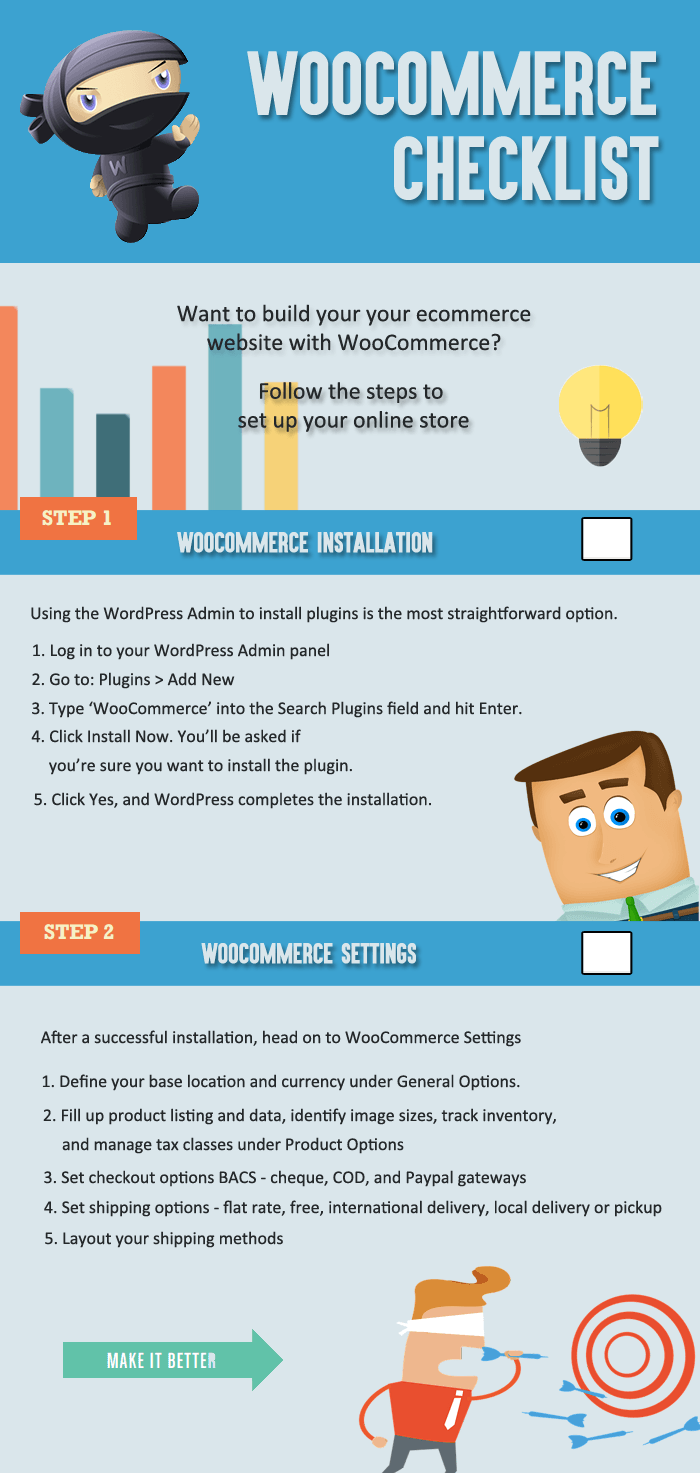
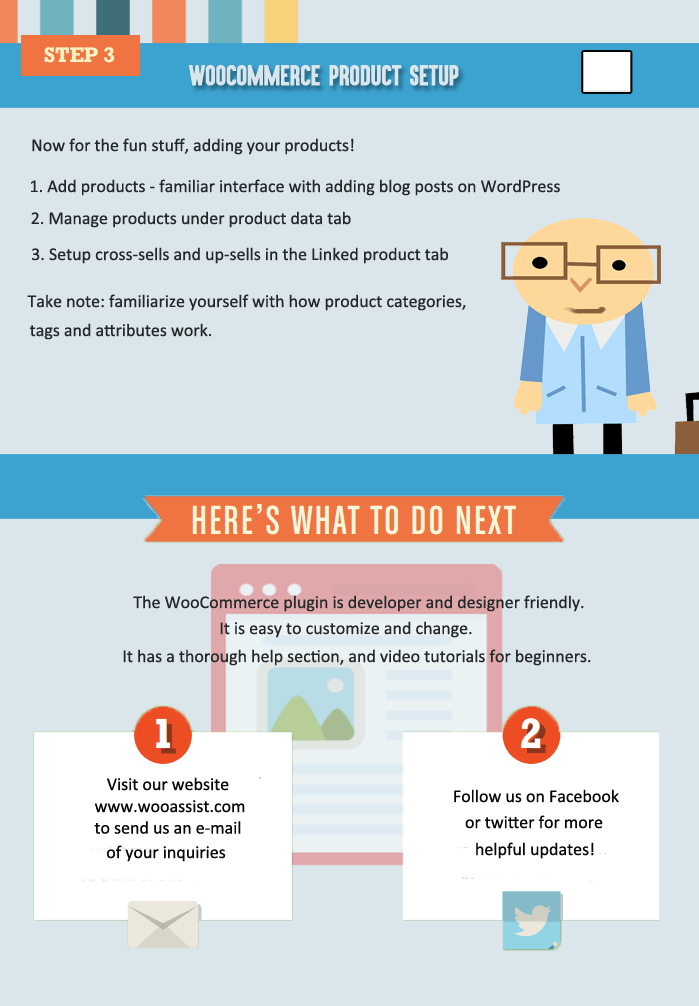
Do you want to build an on online store? Creating one is easy with WooCommerce. Here’s a handy WooCommerce infographic that can guide you on the process.
Assistance for Your Woocommerce Store
Do you want to build an on online store? Creating one is easy with WooCommerce. Here’s a handy WooCommerce infographic that can guide you on the process.

Error messages discourage site visitors from coming back to your website. It is frustrating for users to receive 404 Not Found Errors and this is bad user experience. Often, the visitor would just exit after reaching a 404 error.
Now you wouldn’t want that would you? In this post, we will teach you:
 What is a 404 Error?
A 404 Error (or HTTP Errror 404 – Not Found) appears when a website or page that want to access on the server could not be found. It is a standard response showing an error on the client’s side or browser and may appear in different ways because this can be customized. This is typically caused by a broken link for moved, renamed or deleted pages. You also get a 404 error mistyped or misspelled URLs.
This type of Error message might appear simple and unimportant but this can do a lot of harm to your business. It affects your web presence and your reputation as a business as it is reflective of how well you manage your website.
Experts say that attention span of the average user decreased greatly due to the huge amount of data available online. A site visitor would normally just spend a few seconds to and sometimes a few minutes when visiting a website. Getting 404 Errors can be annoying to site visitors and it usually results in a bounce.
Your site will be remembered as “that site with the 404 error” which could discourage them from visiting your site again. In a survey of online shoppers in Spain, 14% of the participants indicated ’page errors’ as the reason why they did not return to a website.
In the technical aspect, numerous dead links can negatively impact your SEO so it is best to create redirects for any changed URLs or deleted pages especially if you have backlinks pointing to that URL. Redirects help with your SEO as it salvages any backlinks that 404 error page might have.
 A redirect is a means of pointing a URL to another URL. There are many types of redirects but you only need to know two of them. A 301 redirect is a permanent redirect whereas as a 302 redirect is a temporary redirect. A 302 redirect is generally not recommended unless you are an SEO expert and you know what you are doing because different search engines process 302 redirects differently. To know more about the different types of redirects, you can check this blog post.
Redirection is not yet a standard feature in WordPress so you would need a plugin to help you with this. The first thing you have to do is install the Redirection Plugin for WordPress and activate it after installation.
This plugin by far is the most popular and actively used among many other similar plugins. You can use CSV files to easily manage a huge list of redirects. Just head over to the “Import” section and upload your CSV file. This is a pretty useful when migrating a website and you need to edit hundreds of URLs.
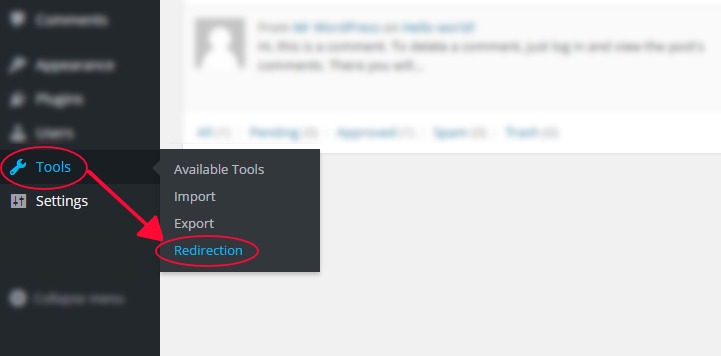
Once you have the plugin installed and activated, go to Tools and then click on Redirection. This plugin allows you to set your redirects complete with logs for all the URLs that you redirect, the plugin also helps you find 404 errors within your website.
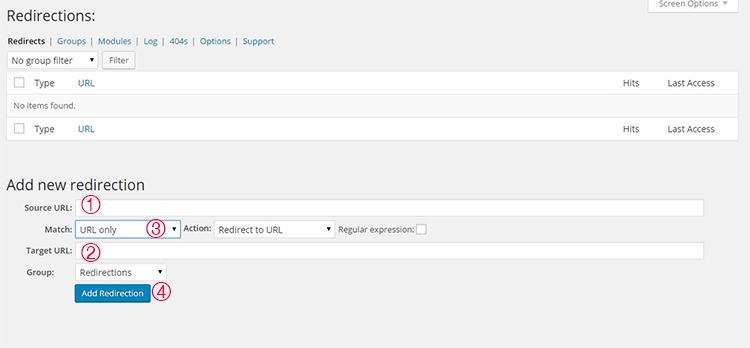
Once you have accessed the tool you will see that you will be presented with a list of redirects that you have set. Below that, you can see the “Add New Redirection” section and this where you add new redirects.
To add a redirect, just follow these 4 simple steps.
If you want to organize your redirects, you can create groups by clicking on the ‘Groups’ tab. You can just add future redirects in the groups you have created to keep them categorized. For more information on the plugin, you can visit the plugin developer’s documentation.
There are many plugins for WordPress that could help you manage your redirects. Here are some top plugins that you could also check out.

True to its name, this plugin is easy to install and setup. It makes restructuring your website easier. You can choose two types of redirect functions — ‘Individual Redirects’ and ‘Quick Redirects’. Their ‘Individual Redirects’ are for redirecting existing pages and posts while the ‘Quick Redirects’ can be set up for pages that do not exist which is great for fixing typo errors and pointing an old URL to a new one.
As the name of the plugin suggests, this is a pretty straightforward tool that you can use. This is recommended for people who want to manage their 404 Errors by using the 301 redirection method. All your 404 will simply be redirected to your homepage. The plugin is simple uses minimal resources.

This plugin, from the same developer of the previous plugin, helps you set redirections with ease. It allows for setting up various types of redirects. It also helps you monitor your website for 404 error pages. It has a Free and Pro version. The free version is good as is but if you want more options like redirecting folders and all its content and redirect all 404 Error Pages with ease, you can upgrade to the Pro version.
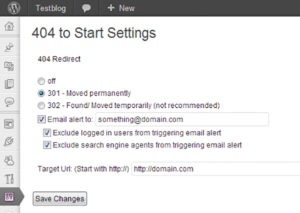
This has an optional email alert and a simple interface that will help you set redirects. You can set a 301 redirect or a 302 redirect which is generally not recommended.
This plugin has surprisingly a very good rating. It is upfront, simple, and does the job well. It permanently points all your 404 Errors to your main blog URL so you can use the ranking from those missing pages and not let them go to waste.

Similar to the other plugins mentioned above, 404 to 301 does its job of redirecting 404 errors. But as a plus, it has a sweet email notification for any 404 errors so you can fix them quickly.
Another way of effectively dealing with 404 pages is by creating a custom 404 error page. Having a custom 404 error page is a good thing to have for those 404 errors that are beyond your control such as when a user mistypes a URL. A custom 404 error page should show the visitor why they are receiving a 404 error and what they can do to fix it. It should also suggest some links on your website that they were probably looking for. You can check out our other post on creating custom 404 error pages for a detailed guide on how you can do this for your own site.
Having errors on your website is not good user experience. 404 errors in particular can harm your conversion rates. Setting up redirects to fix 404 errors is easy with the help of a plugin. Checking for 404 Errors and setting up redirects should be a part of your monthly or weekly website maintenance. And while a 404 error will not harm your SEO, a little extra time fixing them can save you from bigger problems in the long run. How do you fix 404 errors on your website? Let us know in the comments.
 There are a lot of platforms that you can choose from and two of the most popular ones are WooCommerce and Shopify. If you are torn between the two, then you’ve come to the right place.
Before you go comparing the two platforms, you should first know what your business needs are and how much resources you are working with.
WooCommerce is free, offers unlimited customizations but is a bit harder to set up. On the other hand, Shopify is more expensive, easier to set up, but does not have as many customizable options. Migrating from one platform to the other is not difficult. If you do choose Shopify you can still migrate to WooCommerce later if you find that you need more customizability.
If you need more functionality from the get go, you can get this from WooCommerce. WooCommerce can be a bit harder to set up and requires working knowledge of website development. But the customizability of WooCommerce is almost endless if you have the resources to get it done.
Between WooCommerce and Shopify, which one is priced better?
WooCommerce is free for everyone to use. Shopify requires a subscription fee. Both platforms rely on plugins for added functionality. Woocommerce has a lot of free plugins, but you may need features that require paid versions. Paid plugins are subscription based which means the costs can really stack up in the long run.
For the non-technical entrepreneur, Shopify may seem like the better choice. You can easily set it up without needing a professional website developer. Instead of focusing your resources on website development, you can just buy a subscription on Shopify and focus on doing business.

When it comes to ease of use, Shopify rates highly. Shopify is easy to use even for non-technical people. WooCommerce is still considered user-friendly but it just has more options to customize. You just need to learn what these options are and how to use them.
Out of the box, Shopify comes with 11 free responsive themes. And they look good too. If none of the free themes are to your liking, you can buy a new theme which costs around $150. Even if you are a new user, you can easily change colors and styles in Shopify. Also, more advanced users are not limited as they can do some more complex design tweaks in the code.
On the other hand, WooCommerce needs to be installed on the WordPress platform. The design will then depend on your chosen WordPress theme. There are thousands of free and premium themes to choose from. Since WooThemes created WooCommerce, their themes will work well with the platform. Their Storefront theme is made especially for WooCommerce so you can be sure that it is compatible with all releases of WooCommerce.
When it comes to customizability, WooCommerce wins. And if you have a developer available, it gets better. Your developer can do wonders with WooCommerce. You can have him create plugins and just about any functionality that you can think of. This is all because WooCommerce is open source. Anyone is free to alter the code for their own use.
Shopify is a complete ecommerce solution which includes hosting for your website. And while Shopify’s hosting service is not always rated that highly, it is certainly one less thing to worry about when setting up your ecommerce store. Shopify will provide you everything that you need to keep your ecommerce store up and running. For WooCommerce, if you have no experience with websites, you have to rely on a developer to get things done.
 Support
When it comes to support, Shopify offers premium support. You need only contact Shopify and they’ll help you out with whatever problem you have with your e-commerce store.
Because WooCommerce is free, Woothemes does not provide free support but a developer or support team like Wooassist can assist you. You first need to identify what is causing the problem. Is it a problem with your host? Is it a problem with a certain plugin? After you identify the root of the problem, you need to contact the specific service provider or plugin developer about the problem.
If you are using a free plugin or any other free service, you have no assurance that the developers or the service provider will address your concern. But since WooCommerce is powered by WordPress, you can ask for help from the WordPress community through the forum. A lot of website owners, including those that use WooCommerce, post problems they encounter in the forums. Most of these problems are resolved with the help of the ever-reliable community. If you’re lucky, someone should have already encountered the same problem that you have and posted in the forums with a resolution already documented.
If you will be creating your own website and you already have a technical background, then WooCommerce will serve you better. And if you have a developer, it gets even better. If you do not have the time and the technical know-how to create a fully functional WooCommerce store, look at Shopify’s all in one e-commerce solution.
Shopify may provide everything that you need so you have less to worry about and spend more time doing actual business. It might be more expensive initially since you have to pay for subscriptions and plugins, but it is easier to set up. Albeit, with less customizability. There is no clear cut answer on which platform is better. It all depends on your needs and what is sustainable for your business.


