Wooassist

Assistance for Your Woocommerce Store

  • How it Works
  • Pricing
  • Services
    • Site Maintenance
    • AI SEO and Content Marketing
  • Blog
    • How-To Articles
    • Code Snippets
    • SEO For E-Commerce
    • Theme and Plugin Reviews
    • Wooassist News
    • WordPress/WooCommerce News
    • Interviews
  • About Us
  • Contact
You are here: Home / Archives for admin

Creating and Editing Products on WooCommerce

January 29, 2015 By John Leave a Comment

Creating and Editing Products

Want to boost your online conversion and sales? Adding more products to an already existing store, with an already existing user base, is the way to go!

You are not as limited by shelf space as a physical store, so make use of this and add more products. It makes sense that the more you have to offer the more you can sell, right? But should you be adding them yourself?

Our Solution for Convenience

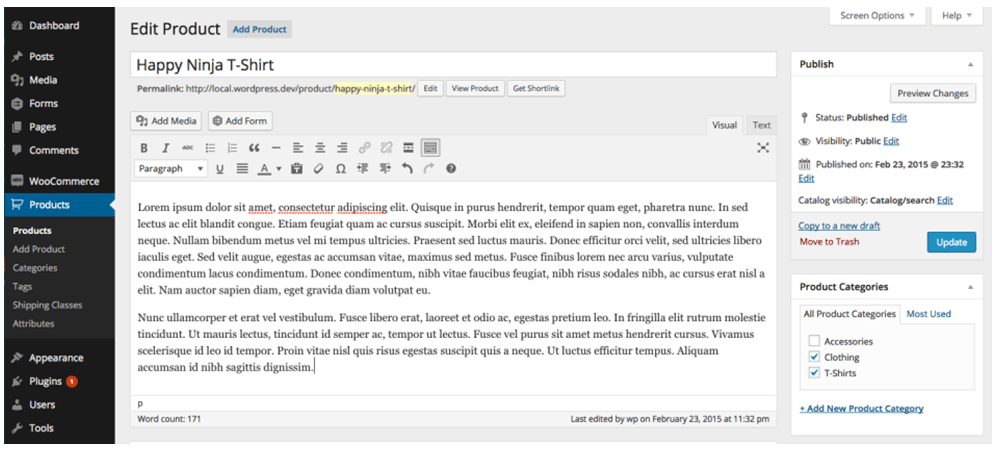
If you have a lot of products in your WooCommerce store, it may be difficult to manage it on your own.Tweaking the look of your product page, as well as creating variable and grouped products can be a little too complicated.

Adding and managing products can take a lot of your precious time. For one, you have to familiarize yourself with how the product categories, tags and attributes work. Then, all product data should be input.
large

If you own the business, wouldn’t you rather have someone else do all this while you focus on growing your business?

Here’s the thing – you should spend more time working ‘on’ rather than ‘in’ your business. It means doing developmental activities to improve your business, rather than routine activities that you do every day to keep the business going. Why? Read more about this post here.

Instead of staring at your WordPress dashboard and clicking on Add New Product day in and day out,use the time in planning, marketing, and following up on leads. Or, spend the time with your family.

Our team can help you out with your WooCommerce store so you can prioritize on your tasks that really matter. Leverage your time by hiring people who can create, add, and edit products on your online store – fast.
Filed Under: How-To Articles Tagged With: admin, how-to, outsourcing, product management, Wooassist, WooCommerce, WooCommerce products

How to Set Store Location and Currency in WooCommerce

May 13, 2015 By John Leave a Comment

After installing WooCommerce you have to make sure that it will run based on your geographic specifications. You will need to set store location and currency in WooCommerce. Changing these settings is really quite simple. You can do this if you head over to your WordPress dashboard and navigate to WooCommerce settings under the general tab.

Setting Your Location

To set your location, head over to WooCommerce settings under the General Tab. Here you can set your store’s location.

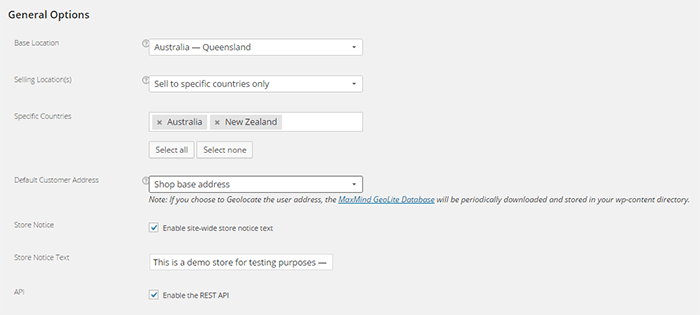
Here’s what you should see:

location-settings

Base Location

Under Base Location, you should state your base country and/or state. This setting also affects tax rates and customer locations.

Selling Location

Under Selling Locations is where you state where you sell your products. You can choose just one location or a few countries/states. If you ship your products globally you should specify “Sell to All Countries”. If you are only selling to specific location, choose “Sell to specific countries only” and a new field will come up which will let you add specific locations.

Default Customer Address

Under Default Customer Address, you can choose what the system will identify as the client’s location before he/she enters her location. Choosing “Shop base address” assumes that the client is located where your store is located. Choosing “No address” assumes no location. Choosing “Geolocate address” will verify the client’s location through Maxmind Geolite Database.

Setting Your Currency

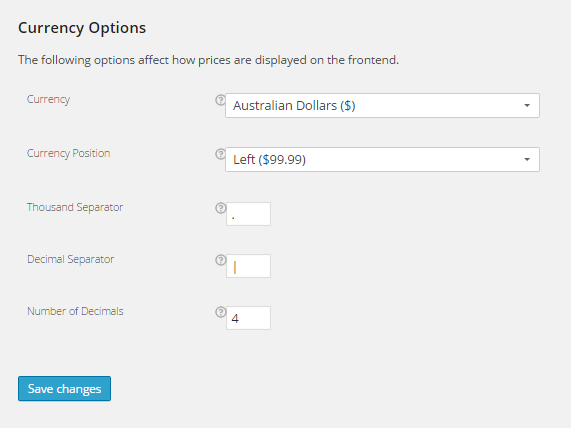
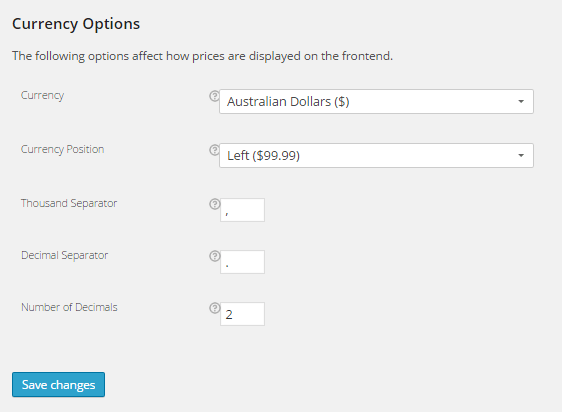
Below the location setting, you can see your WooCommerce store’s currency options.

Currency

Under Currency, you can set your store’s default currency. You can only set one currency here.

currency-options

Currency Position

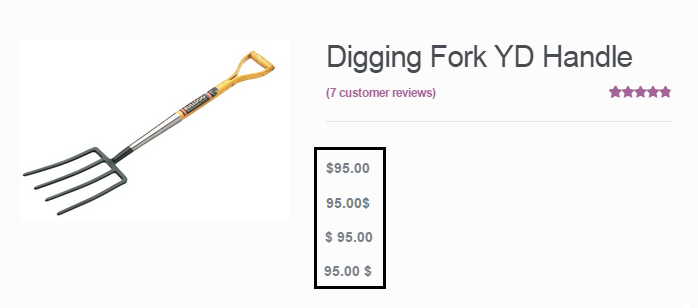
Currency position lets you set the default position for you currency symbol. You can set it to the left, right, left with space, or right with space. Below you’ll see a comparison of the different options for this setting.

different-prices

Thousand Separator and Decimal Separator

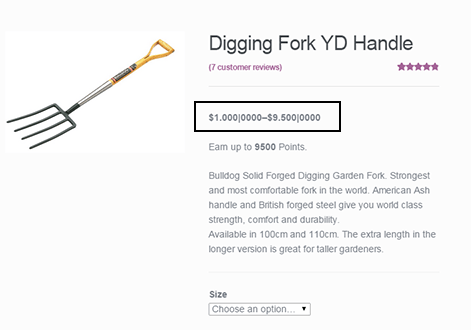
These settings let you set what symbol to use as the thousand and decimal separator for the prices displayed on your store. The image below show what the price would look like if you edit these.

changing-price-settings

changed-settings

Number of Decimals

This setting sets the number of decimal places shown on your prices. In most cases, 2 decimal places will do but if you should need more, you can always add more.

location-settings

Now that you’ve set your store’s location and currency, you can soon start selling to the market that you are targeting.

Filed Under: How-To Articles Tagged With: admin, e-commerce, how-to, WooCommerce, WordPress

How to Outsource Creating Products for WooCommerce

October 14, 2015 By John Leave a Comment

Outsourcing tasks can make your e-commerce store more profitable. When managing a WooCommerce store, you will need to add new products regularly. Sure you can do it yourself but shouldn’t you be doing more important things? When you outsource creating products for WooCommerce, you save precious time.

outsource-creating-products

Before you outsource creating products for WooCommerce, you have to get your information organized. This ensures that the task will be done properly.

Here are a few things you should prepare before handing over any WooCommerce product creation task.

Documentation

You need to have a “workspace” where can you document all the elements of the products. This can be in project management software like Asana or Basecamp or a Google doc. We at Wooassist have created a spreadsheet template that you can use for handing over product creation tasks to a WooCommerce expert. You can download it here. Just fill it with the information on the products that you want to add to your WooCommerce store.

After you have the same contractor do this for you a few times and they are starting to get comfortable with your product range, they will be able to fill out a lot of this spreadsheet themselves. You will be able to just send them the links to suppliers and competitors sites and save you even more time.

Optimizing Images for Product Pages

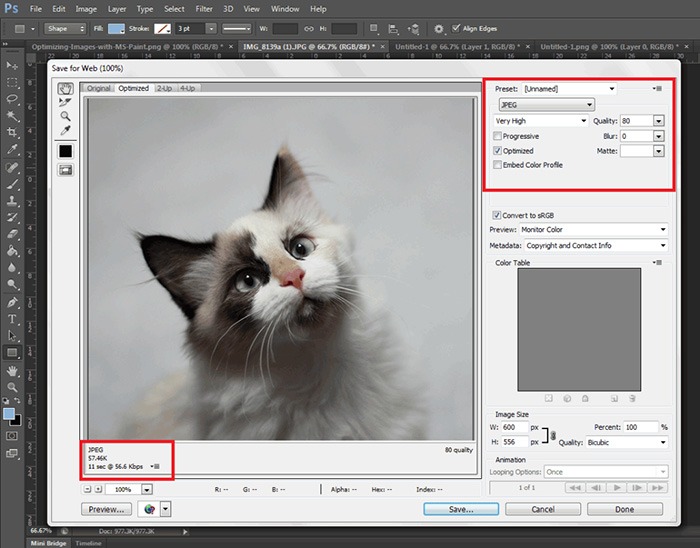
When selling online, having good images is crucial, since people need to see what they are buying.  Your contractor should have intermediate image editing skills.

optimizing-images

It is best practice have uniform image sizes on your site. When you set product image dimensions in WooCommerce settings, always keep your images to that same resolution and have this written clearly on your product creation documentation. Check out this post to learn more about optimizing images for web.

Writing Persuasive Copy

If you are at all serious about selling your products online, then you should have persuasive copy. We recommend outsourcing a professional copy writer. Putting a great deal of attention to writing persuasive copy for your products will help you convert more. For creating good product descriptions, you can check out our post on how to write persuasive copy.

persuasive-copy

You can give your product creation contractor a go at creating the copy and you might be pleasantly surprised, but more than likely you will need the help of a professional. Once you find a copy writer you are comfortable with, your product creation contractor can manage this specialist saving you time.

Different Types of Woocommerce Products

In WooCommerce, there are different product types: Simple, Grouped and Variable products. If you are not familiar with these product types, you can check out the WooCommerce Documentation for Managing Products.

Simple Products

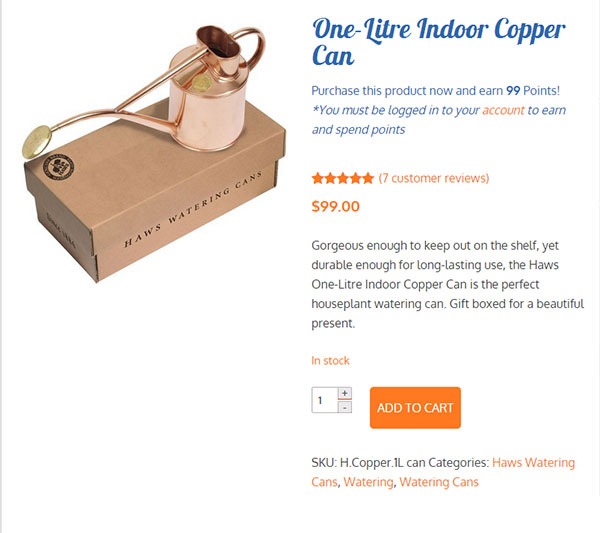
Simple products include: product name, SKU, inventory, price, sale price (if you are offering a discount), category, product tags if any, long and short product description, and any specific instructions.

simple-product

Upload your images to a file sharing website and be sure to include the download link in the spreadsheet. Before you do that, make sure you use folders and appropriate file names for easy identification. There is a field where you can put the link in the spreadsheet we created. For sharing files, we recommend Dropbox or Google Drive.

Grouped Products

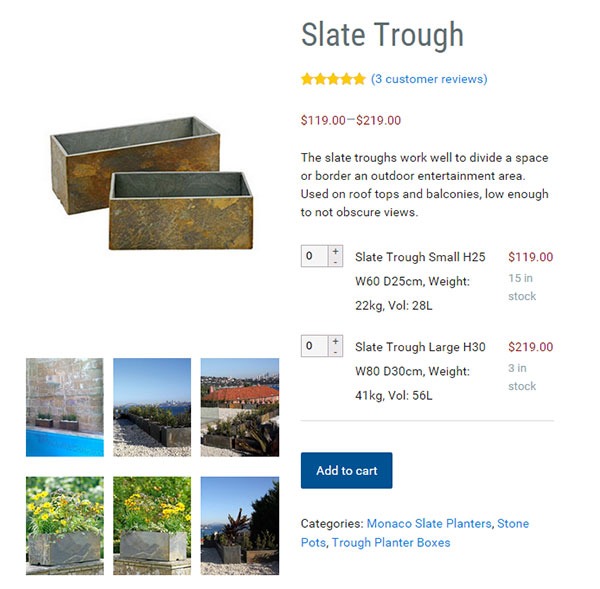
For Grouped Products, it becomes a bit more complex as this involves grouping two or more simple products. However, the information that you need to provide is no different from the information required for simple products.

grouped-products

If you are going to set the simple products as “not viewable individually”, you won’t need to provide images or descriptions for each simple product. You only need to state the product name, price and inventory for the simple products. All the other information should go to the grouped product.

If you are going to make each simple product viewable then it makes sense to outfit each simple product. And that means complete images, complete product descriptions and everything else necessary.

Variable Products

Variable Products deal with different product attributes. When sending information to your WooCommerce product expert, you should include the attributes for the product.

variable-products

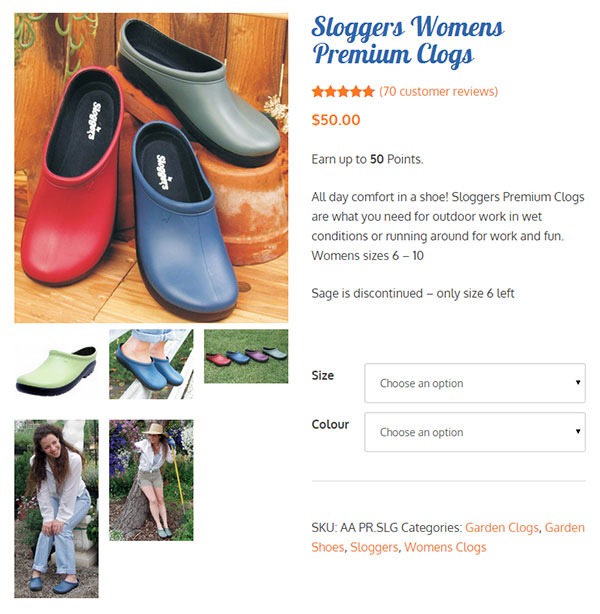
For example, if you are selling shoes, you can have several product attributes such as size, color or type (laces or straps). That will result in multiple variations of the product.  You need to provide information for each product variation. In some cases, different product varieties will have different prices. So make sure you include the price for each product variation. If you downloaded the spreadsheet we prepared, you just need to fill in the details.

Recommended Websites to Outsource Work

There are a lot of websites out there that provide freelance services and they have a lot of WooCommerce experts. We can recommend Elance and Upwork, formerly known as Odesk. And of course, we also highly recommend our team of WooCommerce experts at Wooassist. Our expert team from the Philippines can help you out with whatever problems you are having with your WooCommerce store.

Summary

This process takes time to develop. Clear documentation is the key, followed closely by developing a good relationship with a Woocommerce product expert. The better and more familiar your contractor is with your products the easier it will be for you to create the documentation.

It will take you longer to create these processes than to do the task yourself initially, but will save you hundreds of hours in the long run. I have 2 Woocommerce stores that sell physical products and I have not created a product myself for over 3 years. I plan on keeping it that way.

Filed Under: How-To Articles Tagged With: admin, copy writing, how-to, image optimization, outsourcing, task management, WooCommerce, WooCommerce products

  • « Previous Page
  • 1
  • 2
  • 3
  • 4
Let us support your online store so you can manage your business

Get started today

Get 2 Hours of FREE SUPPORT

We are so confident that you will love our services that we will give you your first 4 hours at a 50% discount

That’s 4 hours for only $75

BUY NOW

Free eBook

5 Things Every Online Store Can Fix On Their Website In The Next Week To Increase Sales

Quick Links

  • How it Works
  • Pricing
  • Blog
  • Contact
  • About Wooassist
  • My Account
  • Checkout
  • Privacy Policy
  • Cookie Policy
  • Terms and Conditions

Wooassist

Australia:
59 Luke St.
Hemmant QLD 4174

Philippines:
San Miguel St.
Poblacion, Iligan City 9200

Connect


Copyright © 2026 · Wooassist

Yours FREE!

5 Things Every Online Store Can Fix On Their Website In The Next Week To Increase Sales