Wooassist

Assistance for Your Woocommerce Store

  • How it Works
  • Pricing
  • Services
    • Site Maintenance
    • AI SEO and Content Marketing
  • Blog
    • How-To Articles
    • Code Snippets
    • SEO For E-Commerce
    • Theme and Plugin Reviews
    • Wooassist News
    • WordPress/WooCommerce News
    • Interviews
  • About Us
  • Contact
You are here: Home / Archives for admin

How to Create a Contact Form for WooCommerce

June 3, 2016 By John Leave a Comment

How to Create a Contact Form for Your E-Commerce Store

You might have used a good amount of your resources to create a website for your business. You have an inviting and irresistible call-to-action. The last thing you’d want to happen is for a potential customer to bounce away from your site because they couldn’t find your contact information.

The Contact Us page is one of the most important pages on your website. It is one of the easiest ways to give your visitors a means of getting in touch with you.

What Do You Need to Have on Your Contact Us Page?

Having a contact form is just about the easiest way that a user can contact you. If you have several departments such as customer support, sales, press, etc. it may be worthwhile listing the contact information for each department in addition to the contact form. This can include the name of the contact person, e-mail and a phone number. If you have an office that can accept visitors, then putting your office address and a map would help.

It is important to note that your contact information should also be easily visible on your website’s home page. This increases the trust rating of your website.

How to Create a Contact Form Using a Plugin?

There are several ways to add contact forms on your WordPress website. The easiest method is by using a plugin.

There are plenty of plugins to choose from and they easy are to set up. You can choose which fields you want to include on your contact form. Here are the ones that we can recommend.

How to Create a Contact Form Using Contact Form 7

Contact Form 7

Contact Form 7 is one of the most popular plugins for creating contact forms. Currently, it has over one million active installs. It is free and it gives you the ability to create multiple forms that you can modify with markup. You can also place a contact form in any post or page using a shortcode.

To create a contact form using Contact Form 7, you need to do the following steps:

  1. After installing the plugin, mouse over “Contact” and then click “Contact Forms”.
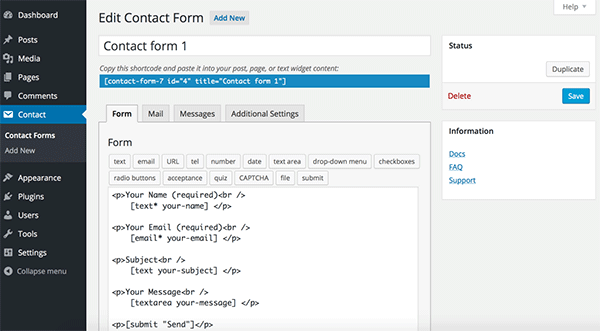
  2. Customizing the form may take a bit of HTML skills. Basically you use shortcodes to customize the fields. For example, the shortcodes for a text field looks like [text* your-name].Contact Form 7_Add New
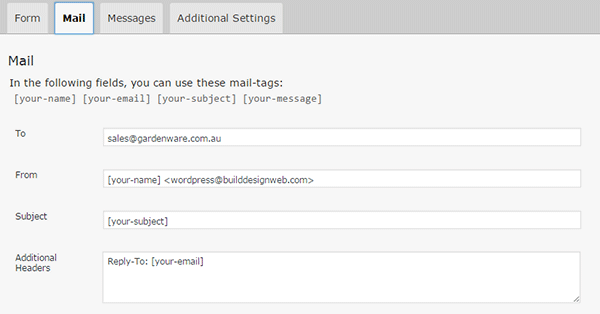
  3. Under the “Mail” tab, you can configure the email that will be sent after the confirmation. You can add the values of the fields to your email using the corresponding tags. For example, the email field [email* your-email] has the tag [your-email].Contact Form 7_Mail Tab
  4. Save the form.
  5. Copy and paste the shortcode to insert the form to your Contact Us page or wherever you want it shown.

How to Create a Contact Form Using Visual Form Builder

Visual Form Builder

Visual Form Builder was designed for fast and easy form building. There are no coding requirements. It has an intuitive drag and drop interface which lets you build forms fast.

You can insert your forms in any page or post using shortcodes. It has a logic based anti-spam system, a customizable confirmation message, and a multiple field layout option. It has an extensive FAQ page for customization and troubleshooting. It has an affordable premium version but the free version offers a lot too.

To create a contact form using Visual Form Builder, you need to do the following steps:

  1. Install the plugin and navigate to “Visual Form Builder”.
  2. To create a new form, click on “Add New Form” and fill in the required information.
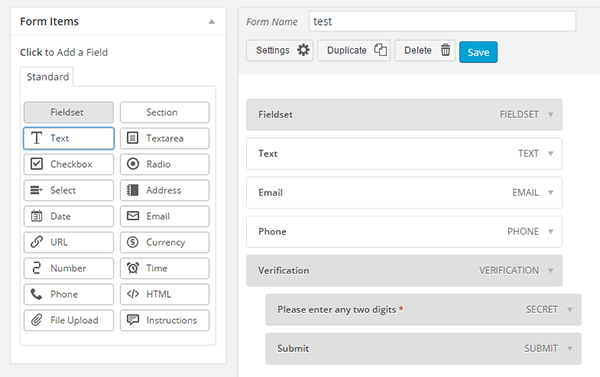
  3. Drag and drop the fields you need to the right and edit the details.Visual Form Builder_Add New
  4. Save the form when you are done.
  5. Under “Display Forms”, you can find the shortcode that you will paste on your Contact Us page.

How to Create a Contact Form Using Gravity Forms
Gravity Forms

Gravity Forms is the most popular paid contact form plugin for WordPress. It is one of most beginner friendly WordPress form plugins. With the help of some other add-ons, Gravity Forms can also be used to create surveys. It comes with premium support options and that is something you can get for spending extra bucks for this plugin.

To set up Gravity Forms, follow these steps:

  1. Install the plugin and activate your product under Forms > Settings tab. Enter your activation key and you’re set to make your first contact form.
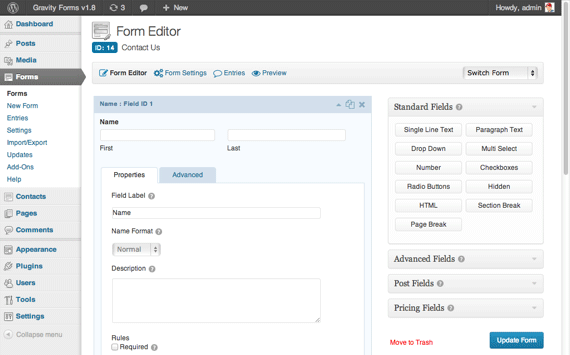
  2. Create a new form and then start adding the necessary fields.
  3. Customize the properties of each field.
  4. Save your form.
  5. Edit your contact page to insert the form by pasting the shortcode. Gravity Forms_Form Editor
How to Create a Contact Form Using Ninja Forms

Ninja Forms

With its really simple, intuitive, drag-and-drop interface, Ninja Forms is an excellent and powerful tool for building contacts forms in WordPress. Ninja Forms’ base product is free. If you wish to extend its functionality like connecting with Campaign Monitor, Freshbooks, Salesforce, SMS notifications, etc., you can buy the corresponding premium extensions.

To create a contact form using Ninja Forms:

  1. Once plugin is installed, find the “Forms” tab on your WordPress Dashboard then click on “Add New”.
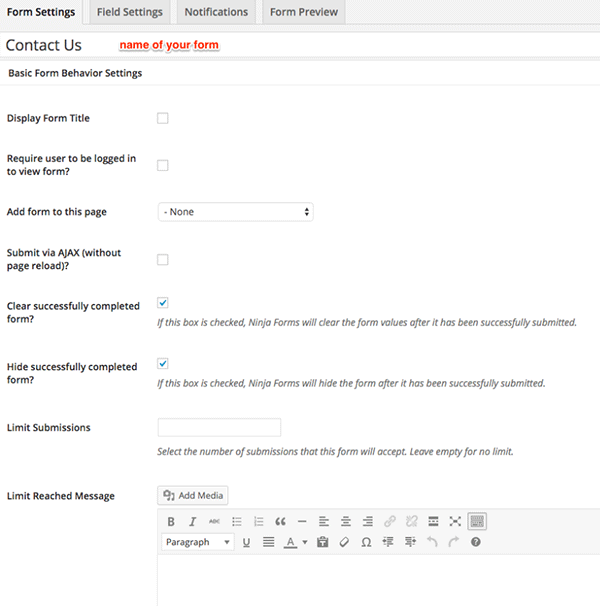
  2. In the “Form Settings” tab, you can see a lot of settings but the most important one to fill in is the form name. Other settings are quite intuitive but if you need some help, you can check out the Ninja Forms Documentation.Ninja Forms_Form Settings
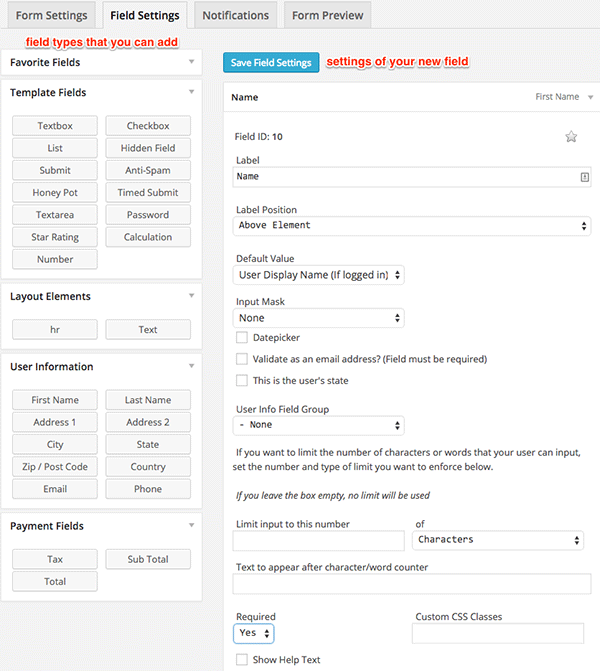
  3. The “Field Settings” tab is where you actually build your form. Drag and drop the needed fields and fill out the information. It is very easy to navigate so you can play around to learn the features. The best way to learn how to do it is actually doing it yourself.Ninja Forms_Field Settings
  4. You can edit the email notifications in the “Notifications” tab.
  5. Once you’ve completed your contact form, you can preview it in the “Form Preview” tab. Don’t forget to save it after.
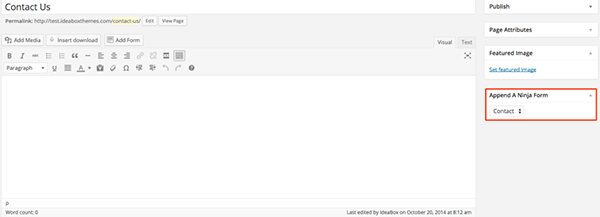
  6. Navigate to the ‘Edit’ mode of your Contact Us page. Find the section “Append A Ninja Form”, then select the form you just created and save the page.Ninja Forms_Append

How to Create a Contact Form Using Formidable Pro

Formidable Pro

Among WordPress users and developers, Formidable Pro is another popular choice. Formidable Pro provides a unique interface from which you can create stunning forms on your WordPress site. This form builder plugin has almost everything you’d need from a premium form plugin. Formidable Pro is a breath of fresh air. Its free version is powerful enough but going for the premium version gives you more features like integration with MailChimp, Aweber, Highrise, Twilio for SMS, WPML, and Zapier.

To set up a Formidable Pro contact form:

  1. After installing, go to Formidable > Forms and click “Add New”’ at the top of the page.
  2. You can start with a blank form or select from a template.
  3. Drag and drop the needed fields. The field settings are quite intuitive so you will learn as you select them.
  4. Click “Create” to save your form.
  5. There are two ways to publish a form on your Contact Us page:
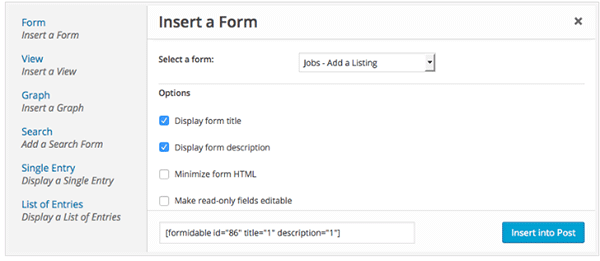
    • Use the shortcode builder. Click “Formidable”, select the correct form, and then click “Insert into Post”.

      Formidable Pro_Shortcode Builder
      img1 – In the Edit mode of your page, click “Formidable”
      Formidable Pro_Shortcode Builder_Insert
      img2 – Select the correct form, then click “Insert into Post”
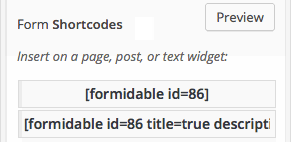
    • Insert the shortcode manually. Navigate to your form and in the upper right corner click “Show” then copy the form shortcode.
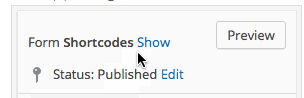
      Formidable Pro_Show Shortcode
      img1 – Click “Show”

      Formidable Pro_Show Shortcodes
      img2 – Copy either one of the two shortcodes

Note that the first shortcode [formidable id = 86], only shows the form itself. If you want the title and description to be displayed as well, copy the second shortcode [formidable id = 86 title=true description=true].

How to Create a Contact Form Using Fast Secure Contact Form

Fast Secure Contact Form is another popular free WordPress contact form plugin. Its name says it all. If you hate spam with a passion, then this is the plugin for you. It includes Akismet support to block spammers. You can also install a companion plugin to add CAPTCHA support.

To set up Fast Secure Contact Form:

  1. Install the plugin.
  2. Click the Plugin tab in the WordPress admin interface, then click “FS Contact Form”.
  3. Under the basic setting fill in the form label and the welcome introduction. The most important thing is to fill in the email address where you should receive the user information.
  4. The “Field” tab is where you actually build your form. You will see a default form with the default fields.
    • To add a field, click “Add New Field”. To edit the field, click on “Show Details”.
    • You can remove a field by clicking the “Show Details” then checking the “Disable Field”.
  5. Save your form when you’re done and locate the form shortcode.
  6. Copy and paste the shortcode to the Contact Us page.

Which is the Best Contact Form Plugin for WordPress?

Well there you have it! These are some of the more popular contact form plugins out there but there are more. Now you might ask what the best contact form to use is. Unfortunately, there is no definitive answer to that question as it will all depend on what you need in a contact form.

What is your favorite contact form plugin? Tell us in the comments.

Filed Under: How-To Articles, Theme and Plugin Reviews Tagged With: admin, e-commerce, how-to, plugins, WordPress

How to Add a Hero Image in Storefront

July 1, 2016 By John 36 Comments

laptop_Hero-Image

The idea of using hero images came about because of issues caused by homepage sliders. Using a homepage slider is discouraged as it will slow down your WooCommerce store and it doesn’t have good conversion rates. If your WooCommerce store running on Storefront has sliders and you are looking for a good alternative, you should consider using a hero image instead.

What is a Hero Image?

To better explain what a hero image is, let’s define what is the “fold” and “above the fold content”. Originally, the fold is a term used in the newspaper industry. Since newspapers are normally folded in half, the upper half of the front page will be the part of the newspaper that is exposed. This is where the most important content is featured, hence the term “above the fold content”. In web design, this is the area of the page that can be seen without scrolling down.

A hero image takes up most of the space above the fold. The trend is to make it large, attractive and relative to the content of the entire site.

It is important that you provide a complete overview of what your company/site is about with just a glance of your hero image. 90% of the time, the hero image has a large text in the center that is related to the branding of the site.

Preparing Your Images

Before you add your image, make sure you have it optimized for web use. You’d want to have the best image quality for the hero image, but you have to take into account the image size as well. As of 2016, the most common screen resolution is 1920x1080px. You should try not to go over this mark. Any excess is just a waste of page size and will just slow down your page load time.

Once you get the right resolution, try to further reduce the image size by down-scaling the image quality. You can actually reduce the image quality without having noticeable pixelation in the image. This is because the human eye can only see limited minute differences in the color changes. Try to strike a balance between having a small image size and having a good looking image. Check out this other post on how to optimize images. Once you are done preparing your image, just upload it to your WordPress site.

Adding a Hero Image in Storefront

To add a full-width hero image in Storefront, we need to use Storefront’s extensive hooks. We’ll just need to insert a few lines of code.

How-to-add-a-hero-image-in-Storefront-Appearance-Functions

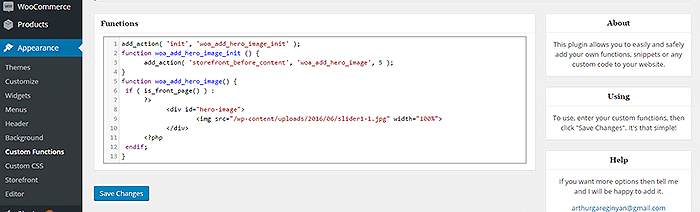
If you are comfortable working with code, you can paste the code below in the functions.php of your child theme. If you are a novice user, we recommend using My Custom Functions plugin to insert the code. Note that one error can cause your entire site to crash.

how to add a hero image in storefront

Copy and paste the code below. Just replace the “/wp-content/uploads/imageurl.jpg” with the URL of the image you uploaded earlier. Width set to 100% makes your image responsive to different screen sizes.

add_action( 'init', 'woa_add_hero_image_init' );
function woa_add_hero_image_init () {
   add_action( 'storefront_before_content', 'woa_add_hero_image', 5 );
}
function woa_add_hero_image() {
   if ( is_front_page() ) :
      ?>
         <div id="hero-image">
             <img src="/wp-content/uploads/imageurl.jpg" width="100%">
         </div>
      <?php
   endif;
}

Your hero image should now appear on your homepage below the main navigation.

If you want to add a link to the shop page or any other url on your image, copy and paste the code below. Just replace the “http://change_me_to_your_url” with the URL you want to link to.

add_action( 'init', 'woa_add_hero_image_init' );
function woa_add_hero_image_init () {
   add_action( 'storefront_before_content', 'woa_add_hero_image', 5 );
}
function woa_add_hero_image() {
   if ( is_front_page() ) :
      ?>
         <div id="hero-image">
             <a href="http://change_me_to_your_url"><img src="/wp-content/uploads/imageurl.jpg" width="100%"></a>
         </div>
      <?php
   endif;
}

Final Notes

Hero images are more effective than sliders in terms of aesthetics. You don’t have to keep using sliders if it’s slowing down your site. Explore more options. Keep your site simple and fast.

If you are still using sliders, you are most likely hurting your site speed. And a slow WooCommerce store will convert less. Your Google rankings could also suffer as a result. It’s time to do away with the slider. Go with a hero image instead.

Was this tutorial helpful? If you have any questions or anything you’d like to add, please let us know in the comments.

Filed Under: Code Snippets, How-To Articles Tagged With: admin, best practices, code snippet, conversion optimization, design tweaks, how-to, image optimization, plugins, site speed optimization, Storefront

11 Things You Can Do to Increase the Security of Your WooCommerce Store

March 11, 2018 By John Leave a Comment

Increase the security of your WooCommerce store

Keeping your WooCommerce store secure is important. Hackers discover new exploits every day. In fact, more than thirty thousand websites get hacked on a daily basis. Don’t be a part of that statistic. Increase the security of your WooCommerce store before it’s too late.

At Wooassist, we’ve had our fair share of clients that have had their websites hacked. Cleaning up after a hack is a lot of trouble. You have to get rid of the exploit and weed out any remaining backdoors that would allow the hacker to regain access to the hacked site. Worse, a hacking incident can lead to a website being penalized by search engines for containing malware. In this post, we’ll share some tips that you can do right now to increase the security of your WooCommerce store. Following these tips will reduce the odds of your site getting hacked.

1. Check Your Login Information.

Often, hacks happen because of the user’s fault. Almost 90% of cyber-attacks are caused by human error or behavior.

The first step to increase your website’s security is to make sure that your login information is secure. First, don’t use “admin” as your username. Why? Because brute force attacks usually target this username. And if you use admin as your username and have a weak password, it is almost guaranteed that your site will fall victim to a brute force attack. But what if you are already using admin as your username? You’ll just need to create a new administrator account using a unique username and a strong password. WordPress will already recommend a strong password that you can use. After creating a new account, log in to the new account and you can then proceed to delete the “admin” account.

2. Keep your WordPress/WooCommerce Site Updated

Keep your WordPress/WooCommerce Site UpdatedKeeping your WooCommerce store updated will protect your site from the latest known vulnerabilities. Developers regularly patch exploits that are found in their systems so it is imperative that you update on a regular basis.



Before updating however, it is important to test your updates first on a development site or at least create a backup. Often, updates can break your site and this can harm your conversion rates if you don’t have a backup that you can revert to. Websites breaking due to site updates are common. Some hosting providers such as WPEngine provide their customers an easy-to-set-up staging environment. Here you can test your updates before applying them to your live site.

3. Use Two-Factor Authentication.

Using 2-factor authentication greatly increases the security of your website. Even when a brute force attack manages to get into your site, you can block the hack with two-factor authentication. Unless the hackers get a hold of your phone, you’re safe.

4. Install a Security Plugin

A WordPress/WooCommerce site without a security plugin is like a computer without anti-virus software. Wordfence and Sucuri Security are some good options. Just install the plugins and then activate. After activating, just go to the plugin’s settings and configure depending on your needs.

Prevent Brute Force Attacks

5. Limit Login Attempts.

Limiting login attempts will deter brute force attacks. A brute force attack will attempt to guess your username and password sending hundreds if not thousands of requests every minute. Limiting login attempts pretty much renders brute force attacks powerless unless you have a weak password. There are a couple plugins that can help you limit login attempts such as Login Lockdown.

6. Protect your wp-config File

The wp-config file is a crucial part of the WordPress ecosystem. It contains important configuration information of your WordPress site which is why many hackers try to target this file. There is however a workaround to block intruders from getting access to this file. Simply place this code in your .htaccess file.

7. Hide Login Error Messages

Whenever you enter the wrong login credentials on WordPress, it returns an error message saying your username is wrong, your password is wrong, or your password does not match the username. You may think little of this, but for hackers, this bit of information is priceless. You can prevent hackers from getting clues on your WordPress logins. You can hide these error messages by adding the script below to your functions.php file. Do note however that making a mistake when tinkering with your functions.php file can cause your entire site to go down. Unless, you’re a web developer or know your way around the file, it is recommended to have a developer do this for you.

function wrong_login(){

Return ‘Wrong username or password.’;

}

Add_filter(‘login_errors’, ‘wrong_login’);

Hide WordPress Version

8. Hide WordPress Version

For hackers, discovering that your WordPress version is outdated is like finding a gold mine. So it is imperative that you always update to the latest version of WordPress. Many hosting providers will automatically update your WordPress version. However, this is not always ideal since automatic updates can mess up your site. If you’d like to do your WordPress updates at your own pace, then you should hide your WordPress version. To hide your WordPress version, paste the following code on your functions.php file.

function remove_version(){

Return”;

}

Add_filter(‘the_generator’, ‘remove_version’);

9. Do a Plugin Audit

A plugin audit is a process of reviewing the plugins installed on your site. You’ll want to look out for plugins that are no longer being updated by the developer. Outdated plugins usually become backdoors for hackers. When analyzing your plugins, you can categorize them in a number of ways.

  • Plugins that you want to keep.
  • Plugins that you don’t use or your customer’s don’t use. If you have a plugin that adds a certain functionality to your site but your customers are not using it, you might as well get rid of it. This just adds extra bloat to your site.
  • Plugins that are no longer being updated by the plugin author. This is a major security threat and you should get rid of these immediately. If you still need the functionality that the plugin provides, just find an alternative plugin. Just make sure that the new plugin is being constantly updated.

You can do a plugin audit every few months to keep your site spiffy clean.

10. Install Only Reliable Plugins

You’ve done your plugin audit. Great! Now, don’t go down the same road. Don’t just install any plugin that you find. Look at the plugin rating. Check reviews. Check when the plugin was last updated. If the plugin fails any of those three elements, consider finding something else.

11. Prevent Directory Access

If you do not block directory access on your WordPress site, users may be able to freely view the files on your site. These files may contain sensitive information that hackers can use to exploit vulnerabilities on your site. Disabling directory access can be done with a minor tweak. Just place the following code in your .htaccess file:

# Prevent folder browsing

Options All –Indexes

If you’ve done all these things, your WooCommerce store will be protected from most known threats. Should you need help getting any of these done, you can contact the Wooassist team and we’ll be able to help you out.

Do you know of any other things that you can do to help keep your WooCommerce store more secure? Let us know in the comments.

Filed Under: Code Snippets, How-To Articles Tagged With: admin, brute force, hacker, optimizations, plugin audit, plugins, security, WooCommerce, WordPress, WordPress updates

10 Things You Can Do Right Now to Improve Your WooCommerce Store

October 10, 2017 By John Leave a Comment

Ecommerce - Improve your WooCommerce StoreAs a WooCommerce store owner, your goal is to make your business as profitable as it can be. Here, we list down 10 things that you can do today to improve your WooCommerce store.



1. Add a call-to-action button on your home page

Adding a call-to-action button on your home page encourages your visitors to take whatever action you want them to take. You can direct them to click on your shop, sign up to your email newsletter, send you an email, call you, or add a product to the cart.

thumbs-up

2. Add your contact details

Making sure that your contact details are immediately visible will increase your site’s trust rating. It can be your email or phone number. You can even add your store’s address if you have a physical store.

3. Add an email capture form

Getting your customer’s emails will allow you to send newsletters or special offers to those who sign up.

4. Remove distractions from your checkout page

Removing distractions from your checkout page will reduce cart abandonment. When a customer reaches your checkout page, you don’t want them clicking anything else except that “Pay Now” button.

5. Add related products to your product page

Adding related products to your products page will encourage your customers to purchase more items from your store. This will increase your average order value.

6. Offer free shipping

Not everyone can offer free shipping. But if you are able to, free shipping can really amp up your conversion rates. You can also offer free shipping with a minimum order value or for specific locations only. Make sure your visitors know you offer free shipping by placing a notice in a prominent area of your site.

7. Optimize your product copy

There are a lot of ways to optimize your product copy. You can optimize your copy to appeal to customers by emphasizing on the problems that your products can solve. You can also optimize your product copy to include technical details. Lastly, you can optimize your copy for ease of reading. How you optimize your product copy really depends on your product and your customer profile. You can use Hemingwayapp to check your copy’s readability score.

8. Optimize images on your WooCommerce store

product-zoom-in

When uploading product images, you must first optimize your product images to make sure you are uploading the correct image sizes. To determine the correct image sizes for your theme, you will need to use the “Inspect Element” feature of your browser. You will then need to go to WooCommerce settings to set the correct image size. Uploading anything bigger than the image placeholder’s size is a waste of resources and will just slow down your site. You can learn how to optimize images for the web in this blog post.

9. Remove sliders and use a single hero image with a call-to-action

Sure, sliders look good. But the truth is, they may actually do more harm than good to your site. Sliders can really slow down a site and a slow site is bad for SEO and conversion rate. Also, sliders can confuse customers and makes for bad user experience. Your website must send a clear message on what you want your customers to do. A slider just confuses your customers with various images that look like advertisements.

10. Make your site is mobile responsive

If you have not updated your site’s design for years, it might not be mobile responsive. This means that your website does not adapt to different screen sizes which makes browsing on a mobile device difficult. This is not good for your site’s user experience. Also, having a mobile responsive WooCommerce store is an advantage in terms of SEO. You can address this by using a responsive theme such as Storefront or the Genesis framework with a Genesis child theme. Both these themes are compatible with WooCommerce.

If you need any help getting any of these things done, you can contact us and we will help you get these sorted. If you have any questions, you can let us know in the comments section.

Filed Under: How-To Articles Tagged With: admin, best practices, call-to-action, content marketing, conversion optimization, design tweaks, e-commerce, how-to, optimizations, page speed, responsive design, website maintenance

How Often Should I Update My WooCommerce Store?

July 20, 2017 By John Leave a Comment

update my woocommerce store

How often should I update my WooCommerce store? We get that a lot from our clients. The ideal answer is that site updates should be done whenever there are critical security updates to keep your site secure.

For regular scheduled site updates, we have found that monthly updates are ideal. Weekly updates may be too frequent. There usually isn’t a lot to update in one week’s time. Every two or three months is way too long that the site remains vulnerable to security threats. Monthly updates are just about right. Note that even if monthly updates are being done, site owners must promptly update their WooCommerce stores should a critical security update come up.

Should I Even Update my WooCommerce Store?

We sometimes get this question too. It is true that updating your WooCommerce store can break your site. However, not updating your WooCommerce store can also eventually break your site. So essentially, it is still best to do the updates.

How to Prevent Issues When Updating My WooCommerce Store?

There is no sure-fire way to know if there will be any issues on your site as a result of updates. The best you can do is to test the updates first on a development site to see if any errors would occur. Also, you can stay on top of what the WordPress and WooCommerce developers are doing. You can sign up to newsletters or follow developer blogs to stay updated. You can check out the WooCommerce changelogs and the WordPress changelogs too.

When major updates are released, it might be ideal to wait a few weeks before updating your site. This is to give WordPress, WooCommerce and other plugin and theme developers sufficient time to update anything that was broken during the update.

What to Do Before Updating My WooCommerce Store?

There are a few steps you can take before updating your WooCommerce store. First, you can test your site updates on a development or staging site. Many hosting providers, such as WPEngine, provide their clients a staging environment for testing site updates. If your hosting provider does not provide a staging environment, don’t worry. You can still create a staging site manually.

checklistAfter applying the updates on the development site, the next step is to check if the site has any broken features. Some important elements to check are:

  • Home Page Formatting
  • Product Page Formatting
  • Product Image Gallery
  • Add to Cart and Checkout Process
  • Contact Forms
  • Email Signup Forms

If you find that anything is not working, you can proceed to fix or forward to your developer to fix. If you do not have an in-house developer, you can contact us and we can help you fix the problem. If there are no problems, you can proceed to the next step.

The third step is to back up the live site. WPEngine features a one-click backup. You can also use a plugin for creating backups. We recommend Updraft Plus plugin which also features a quick restore feature in case something goes wrong.

Once you have created a backup, you can proceed to update WooCommerce, all other plugins, themes and the WordPress core. When that’s done, you need to check if anything is broken on the live site. If everything is working and there are no formatting issues, then that’s it. You have successfully updated your site. If something gets broken, you can attempt to fix the problem or restore your backup.

What to Do When Something Breaks When Updating Your Site?

The WordPress infrastructure makes updating your WooCommerce store easy. But dealing with the complications that come with updates can be very daunting, especially if you are not a developer. As such, we recommend working with a developer when doing your site updates so that any issues can be resolved quickly. If you do not have a full-time developer on board, you can contact us so we can get our experienced WooCommerce developers to help fix any issues.

Filed Under: How-To Articles Tagged With: admin, best practices, e-commerce, how-to, security, website maintenance, WooCommerce

  • « Previous Page
  • 1
  • 2
  • 3
  • 4
  • Next Page »
Let us support your online store so you can manage your business

Get started today

Get 2 Hours of FREE SUPPORT

We are so confident that you will love our services that we will give you your first 4 hours at a 50% discount

That’s 4 hours for only $75

BUY NOW

Free eBook

5 Things Every Online Store Can Fix On Their Website In The Next Week To Increase Sales

Quick Links

  • How it Works
  • Pricing
  • Blog
  • Contact
  • About Wooassist
  • My Account
  • Checkout
  • Privacy Policy
  • Cookie Policy
  • Terms and Conditions

Wooassist

Australia:
59 Luke St.
Hemmant QLD 4174

Philippines:
San Miguel St.
Poblacion, Iligan City 9200

Connect


Copyright © 2026 · Wooassist

Yours FREE!

5 Things Every Online Store Can Fix On Their Website In The Next Week To Increase Sales