Wooassist

Assistance for Your Woocommerce Store

  • How it Works
  • Pricing
  • Services
    • Site Maintenance
    • AI SEO and Content Marketing
  • Blog
    • How-To Articles
    • Code Snippets
    • SEO For E-Commerce
    • Theme and Plugin Reviews
    • Wooassist News
    • WordPress/WooCommerce News
    • Interviews
  • About Us
  • Contact
You are here: Home / Archives for plugins

Update Plugins and WordPress Core of Your WooCommerce Store

January 29, 2015 By John Leave a Comment

Just like websites, hacking is changing and evolving. Hackers are always on the lookout for new ways to exploit and infect all kinds of websites, including online stores. They adapt, and can even get one step ahead of developers.

If you’re not careful, your WooCommerce store could be targeted and compromised. This underlines the need to update plugins and core of your WooCommerce store.

Protect Your Site from Hackers

One of the primary culprits of being targeted by hackers is the failure to update plugins.It has been proven to be disastrous to WordPress websites and blogs.

It’s a good idea to keep your plugins up-to-date and delete those that are not in use. There are also security plugins out there that will protect your website for free. This article can give you detailed tactics on what to do once your site gets infected, as well as tips on preventing a cyber-attack.

Some steps are being made to have this done automatically. You now have the option to do core updates through WordPress.org. Here’s an interesting post on what we might get in the future.

In the meantime, the responsibility lies with you. You need to arm yourself with the right knowledge, such as these WordPress security tips. As a WooCommerce store owner, it’s one of your top priorities to make hacking as difficult as possible. Keep these methods in mind.

Back-up Your Website

While updating plugins and WordPress might seem like an easy chore, it can be more complicated than that. It doesn’t work with just one click.

Before updating plugins such as WooCommerce, and your WordPress core, make sure that you have a current backup of your site. Just in case something goes wrong, you’ll have a fall-back.

SnapCrab_2015-06-26_15-32-30_No-0000

It’s not uncommon for many websites to go down after installing an update. In some cases, you can even be locked out of your WordPress admin panel. While it may seem like a serious problem, it is actually easy to solve.

Just access your website’s files with an FTP client, find the folder of the plugin you updated, and just delete that plugin. If you updated multiple plugins, you can try deleting or renaming the specific plugin folders to find the culprit.

If your site goes down after updating your WordPress core, that’s a little more complicated. Learn how to backup your WordPress site here.

Wooassist Team Site Updates

Make sure that your WordPress core and plugins are always updated. It isn’t too difficult once you take the necessary measures. However, it can escape your notice if you’re quite busy and have a lot of things on your mind.

To ensure that problems with updates are immediately addressed, it would be a good idea to have a developer on board to handle the job. Better yet, have a developer do all your updates at regular time intervals. Handing over the responsibility to the Wooassist team is a viable option for you. As long as you have pre-paid credits in your account, we can automatically work on updating your WP Core, Themes and Plugins at regular intervals, either every fortnight or every month, depending on your preference.

How we do updates (click to enlarge image):
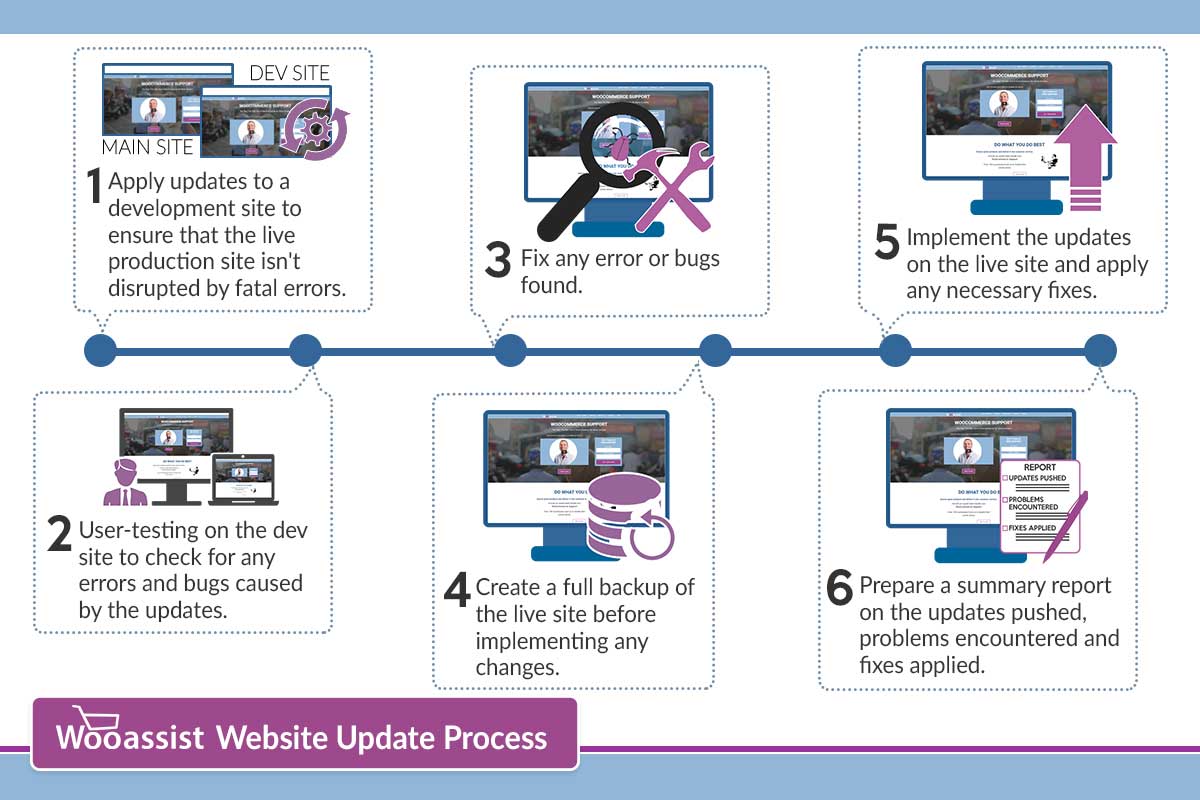
wooassist-website-update-process

Although it might be possible to skip most of these steps, proceed directly to updating the live site and wait for whatever errors to come up, it may end up causing irreversible damage to your site. This could cost you thousands of dollars in lost sales and having support services spend more time fixing the issue when it could have been easily avoided in the first place.

On average, we take around 2 to 3 hours implementing the entire process when done once every month. We take pride in our service and do not cut corners and take shortcuts. If in the rare occassion that we miss an error that was created due to the updates, we will have it resolved at top priority.

Letting us do your site updates for you will rid you of having to worry about this part of website ownership altogether leaving you with peace of mind and time to focus on growing your business.

Filed Under: How-To Articles Tagged With: backup, how-to, plugins, security, Wooassist, WooCommerce, WordPress

How to Set Up a Static Page as Your Home Page in a WordPress Site

February 9, 2015 By John Leave a Comment

homeIf you are creating an e-commerce store, chances are you’ll want a static page as your home page and not a blog or posts page which is the default home page for many WordPress themes. We’ll cover how you can do this in this article.
Before we dive deeper into this and assuming you are using Woocommerce, it might be a good idea to try the Woocommerce Storefront Theme.  Since the theme was built and is being maintained by the people behind Woocommerce, you can be assured that it integrates well with all Woocommerce features. Whenever a new version of Woocommerce comes out, you can be sure that it is optimized for the Storefront Theme. There is less chance of updates breaking your site.

Create a Page

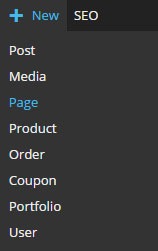
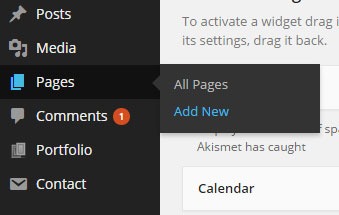
The first step to creating a static home page in WordPress is to create the page that you want to set as your home page. On your WordPress Dashboard, hover over “New” and click on “Page”. Alternatively, you can hover over “Pages” and click on “Add New”.

new-page      new-page-1

After that, just add the content you want on the page; format it accordingly then publish it. It is best practice to set the title of this page as “Home”.

Setting the Page as Home Page

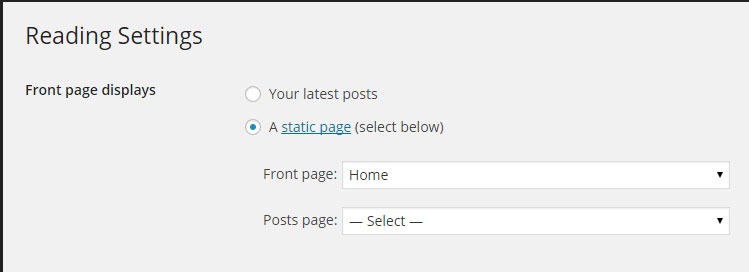
To set the page you just created as your home page, go to “Settings” then click on “Reading”. Under “Front page displays”, tick on “A static page” then under “Front page” choose “Home” or whatever you named the page you are going to use as your home page.

static-home-page

When that’s set, you’re done.

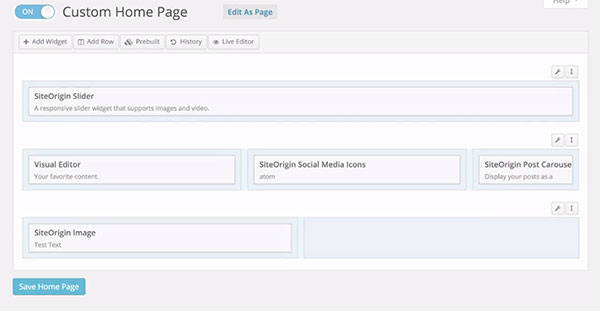
If you want a more powerful tool to help you create a good-looking home page without needing to know any sort of coding, we can recommend the SiteOrigin Page Builder plugin. This plugin enhances the content editor into a drag and drop widgetized editor which allows for easy creation of responsive grid-based pages. This plugin is optimized for the WordPress engine and will work with any theme that you are running. Let yourself create stunning pages that look like they were done by a professional web developer.

site-origin-page-builder

If you have any comments or questions, just hit the comments sections and we’ll get back to you.

Filed Under: How-To Articles Tagged With: e-commerce, how-to, plugins, Storefront, WordPress

How to Speed Up Your E-commerce Site through Caching and Minification

February 12, 2015 By John Leave a Comment

speed-up-your-websiteHow fast your website loads affects your conversion rate and ultimately, your revenue. If it takes 12 seconds to load up your website, that’s just a little too long and many potential clients could be annoyed and just click on the close button; go back to Google and click on something else. If that’s not bad enough, that person could forever remember that your website is that one website that loads very slowly. Any chance of converting from that person is gone.
There are a lot of ways to speed up your website. One is by optimizing the images that you use for your e-commerce site which I discussed in another post. This time around, we’ll look at how to speed up your e-commerce site with caching and minification.

What is Caching?

Caching is a means of serving your content as static pages instead of being dynamic pages. Serving static content is faster as opposed to dynamic content which means longer page load times. Essentially, caching is storing your dynamic content in the server as static content which will then be served when a browser communicates with the server. The static content that is saved on the server is updated at set intervals.

What is Minification?

When developers make code, they make code with a lot of white space. This is best practice in the sense that the code becomes easier to read and understand for humans. This however is not best practice for servers that read and parse the code to load up all the elements of your website. Computers don’t need that white space. All that white space just makes reading the code take longer for the machine. Even when you’re using a premium theme, you’ll see a lot of white space when you try to look at the code. This is where minification comes in. Minification removes all that white space and optimizes your code so that it becomes easier to read for machines to make parsing the webpage faster.

Implementing Caching and Minification

w3-total-cacheNow that we know what caching and minification is, it’s time to get to know how to implement it. If that sounds all too complicated, don’t worry. It is really very simple. All you need is one plugin to do both. That’s the beauty of WordPress. Seemingly complicated stuff becomes easy work. For this bit, we would recommend the W3 Total Cache plugin, because it has caching and minification solutions all in one plugin.
Setting up Caching with W3 Total Cache

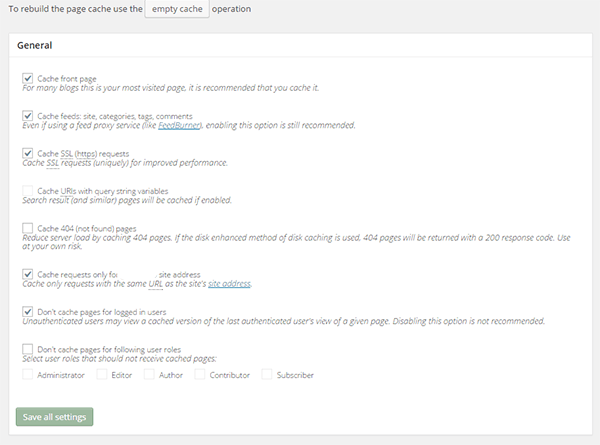
Install the plugin and activate it. After that, click on Performance on your WordPress dashboard and click on Page Cache. From there, you can turn on specific settings based on your caching needs. There is no single effective setting for all websites so feel free to go with your own settings and test page loads speeds after. When you’re done tweaking, just click on “Save all settings”.

A note on caching… When you’re updating your website like adding new products, editing blog posts, or adding new functionality,  it would be best to turn off caching entirely while working so you can see all the changes you make right away. Just don’t forget to turn caching back on when you’re done.

caching

Setting up Minification with W3 Total Cache

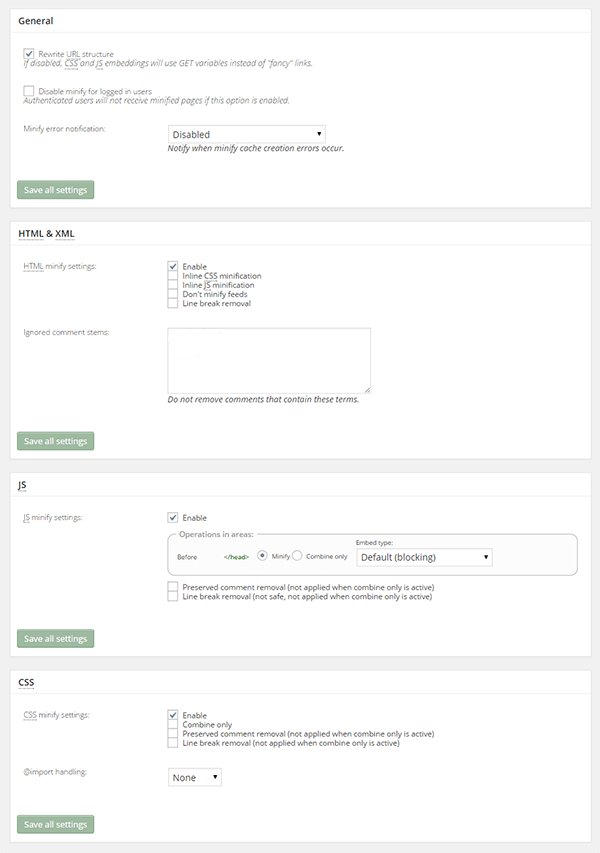
While you can set up minification manually, there’s no need to do it when all you need is a plugin and a few clicks. To set up minification with W3 Total Cache, just click on Performance then on Minify. After that, just tick “Enable“ for HTML & XML, JS, and CSS. You can tick other settings on and off as needed. When you’re done, just click on “Save all settings” and you’re all set for minification.

minification

Filed Under: How-To Articles Tagged With: caching, how-to, minification, optimizations, plugins, site speed optimization, W3 Total Cache, WordPress

How to Speed Up Your Website by Cleaning Your Database

February 18, 2015 By John Leave a Comment

cleaning-upYou might have read a few, or maybe a ton of articles about optimizing your website page load speeds. You might already know a few strategies like optimizing images, caching and minification, and getting a CDN. But here’s another strategy that is rarely discussed: maintaining and cleaning your database.
For many website owners, the database is just one of the requirements for a WordPress install. It is however more than just that. Keeping your database clean and optimized can also shave a few seconds of loading speed. We’re all suckers for that one or two seconds. And believe it or not, one or two seconds saved could mean the difference between a bounce and a conversion.

What’s in Your Database?

mysqlIf you don’t know what the database is for, then you might be surprised just how important it is. WordPress makes use of PHP to communicate with the database which contains important information such as posts, pages, your WooCommerce products, comments and product reviews, users and customer information, URLs, etc.

Why Do You Need to Clean Your Database?

Think of a database like it’s your computer’s hard drive. It’s where all your data is stored. ­ It’s where you keep everything and without it, your computer won’t work. If you want to keep your computer running in top form, you clean your hard drive. The same concept applies to a website, to keep your website running fast and smooth, you clean its database by removing all that gunk and clutter.

What’s there to clean? Over continued use, a website accumulates many spam comments, copies of post revisions, and remnants of deleted plugins and themes. When that becomes too large and bloated then website performance will suffer.

Back Up Your Website

Now that you know the importance of a database, you just want to jump in and clean your database. Halt! Before you start any database cleaning, it would be wise to create a backup of your website. There are a couple of plugins that can help you do this. Your hosting provider will most likely have a backup of your website so can also check in with them.

Clean ‘Em Up

You can clean up your website database manually or you can use these awesome plugins.

WP-Optimize

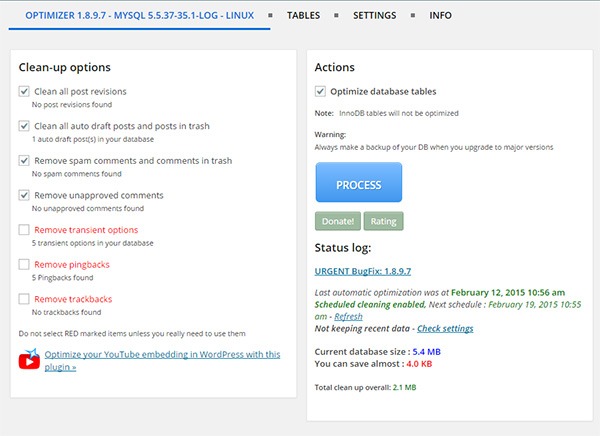
WP-Optimize is one of the most popular plugins for cleaning your database and it is also one of the easiest to use. Simply install the plugin and run it. The plugin also allows you to schedule a regular database cleanup which is pretty handy if you want to keep your database in peak condition.

wp-optimize

WP-DBManager

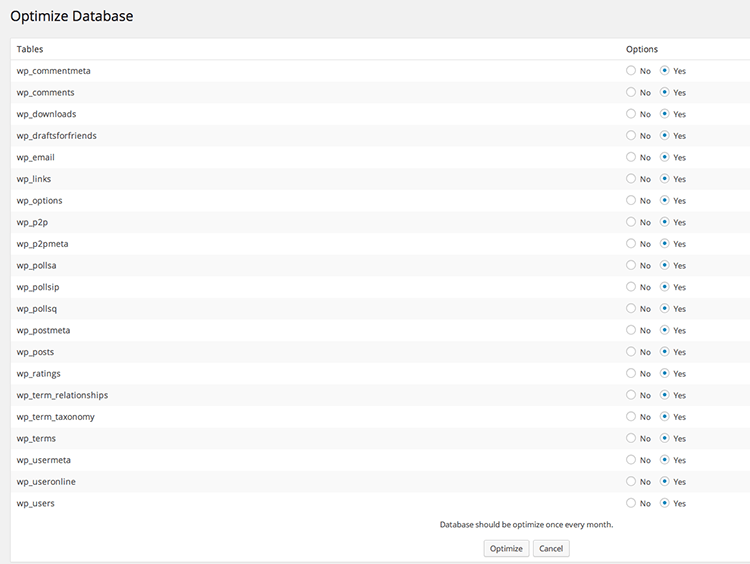
WP-DBManager is another popular plugin for database optimization. It is however geared for more advanced users. Setting it up can be tricky if you’re not familiar with database elements. Being trickier however means that it has more customizable options and features. Some of its features include repairing a corrupted database, a database restore, running MySQL calls, and clearing tables. WP-DBManager however cannot clear bloat so if you want to go with this one for its host of other features, you still might want to consider getting WP-Optimize or any other means to clear database bloat.

wpdbmanager

So when was the last time you optimized your database? What tool or plugin did you use to clean it?

Filed Under: How-To Articles Tagged With: backup, best practices, how-to, MySQL, optimizations, page speed, plugins, website maintenance, WordPress

How to Backup Your WordPress Site

February 22, 2015 By John 2 Comments

backupFor every website owner, there will always come a time when your website will go down. Often, this could be because of a downtime on your hosting service, but sometimes it’s because of some other reason. Maybe your website has been compromised or you did something that caused your site to go down. Notably, if you’re going to be doing some major work on your site, you shouldn’t be doing it without creating a backup first so you can restore your website to a working state just in case you mess something up. Here, we’ll teach you how to backup your WordPress site.
If you are adding some lines of your code to your functions.php file, it is best practice to create a backup copy. When you add your code and your site goes down, you simply replace your functions.php file with the working copy and voila! Your site will be back up. The same can be done for when you are tweaking your CSS files. Though errors in your CSS won’t cause your site to go down, it can really mess up how your website looks. So just create a copy of your CSS file and restore it if anything goes wrong. This basically sums up the concept of website backups only on a larger scale.

Your hosting service probably already has a few backups of your website. So you might think that creating your own backup is not necessary. That’s where you’re wrong. What’s your assurance that your hosting service creates regular backups? Certain situations can also render your host’s backups useless. So essentially, just to be on the safe side, you should have your own backup.

There are two ways to back up your website. The first one is through one of a few available plugins and the second is doing it manually.

Backing Up Your WordPress Site with BackUpWordPress

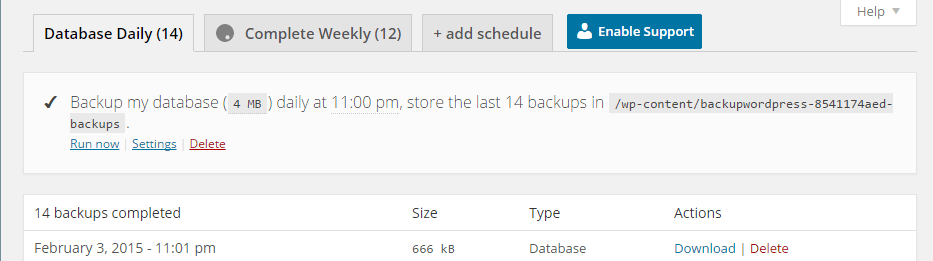
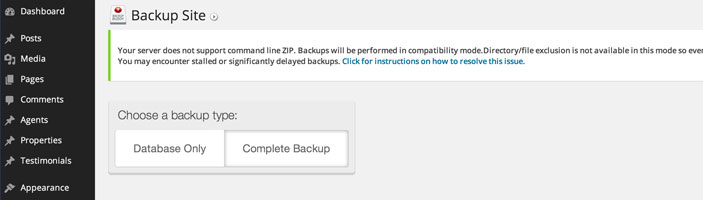
BackUpWordPress is the easiest means of backing up your website. Simply install the plugin and activate it. When that’s done, head over to tools and Backups. You can then choose between a Database Backup and a Complete Backup. To start backing up, just click on Run Now and wait until backup completes. You can also click on Settings to set the schedule for these backups. You can also add a custom schedule.

By default, your backups are stored on your server at /wp-content/backups. To restore a backup, simply find the latest working backup by navigating to the folder using an FTP client and unzip the backup on your server making sure to overwrite everything.

back-up

Backing Up Your WordPress Site with Backup Buddy

BackupBuddy is another popular backup plugin. Unlike BackupWordPress, BackupBuddy is a premium plugin so there is no free version. Once you get the plugin installed and set up, simply go to Backup. From there, you can choose to backup the database or do a complete backup. Next, you can choose to download the backup file so you can store it right in your computer’s hard drive.

BackupBuddy

You can also tweak your settings to have backups saved to Dropbox or Amazon S3, create custom backup profiles, and schedule backups.

How to Create Manual Backups

Backing Up Using MySQL

You can also backup your website manually using MySQL. To do this, head over to CPanel. From there, you can find phpMyAdmin. Click on the database and click on the Export tab. You can choose either quick or custom export. Set compression to gzip then click on Go.

Backing Up with CPanel

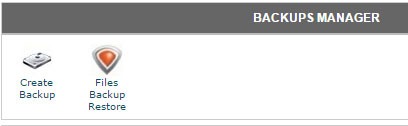
cpanel-backupTo create back-up using CPanel, navigate to Backup Manager and click on Create Backup. Where it says Download a MySQL Database Backup, just click on the database and download. A simple enough process but using a plugin just saves you from the trouble of doing this manually.

So when was the last time you backed up your website? Do you even have an existing backup? If you don’t, then it’s time to make one before it’s too late.

Filed Under: How-To Articles Tagged With: backup, best practices, CPanel, how-to, MySQL, plugins, website maintenance, WordPress

  • « Previous Page
  • 1
  • …
  • 5
  • 6
  • 7
  • 8
  • Next Page »
Let us support your online store so you can manage your business

Get started today

Get 2 Hours of FREE SUPPORT

We are so confident that you will love our services that we will give you your first 4 hours at a 50% discount

That’s 4 hours for only $75

BUY NOW

Free eBook

5 Things Every Online Store Can Fix On Their Website In The Next Week To Increase Sales

Quick Links

  • How it Works
  • Pricing
  • Blog
  • Contact
  • About Wooassist
  • My Account
  • Checkout
  • Privacy Policy
  • Cookie Policy
  • Terms and Conditions

Wooassist

Australia:
59 Luke St.
Hemmant QLD 4174

Philippines:
San Miguel St.
Poblacion, Iligan City 9200

Connect


Copyright © 2026 · Wooassist

Yours FREE!

5 Things Every Online Store Can Fix On Their Website In The Next Week To Increase Sales