Wooassist

Assistance for Your Woocommerce Store

  • How it Works
  • Pricing
  • Services
    • Site Maintenance
    • AI SEO and Content Marketing
  • Blog
    • How-To Articles
    • Code Snippets
    • SEO For E-Commerce
    • Theme and Plugin Reviews
    • Wooassist News
    • WordPress/WooCommerce News
    • Interviews
  • About Us
  • Contact
You are here: Home / Archives for John

How to Install an SSL Certificate on Your WooCommerce Store

April 11, 2016 By John Leave a Comment

cyber-security-lockFor WooCommerce stores, an SSL certificate plays a huge role in securing sensitive data for your users particularly their credit card details and other payment information. Having a secure WooCommerce store builds your customers’ trust. Without trust, the visitor will not convert. If you are serious about your e-commerce business, you should take the necessary steps to secure your site.

What is SSL?

SSL stands for secure sockets layer. It is a type of security that handles the encryption of data before they are sent to the internet. Encryption locks data to avoid unauthorized use. Data sent via SSL must be decrypted for the content to be readable.

Why is SSL a Requirement for Accepting Credit Card Payments?

credit-card-online-purchase

Connections that use plain Hyper Text Transfer Protocol (http) are sending data in plain text. Data will pass through a lot of internet nodes and it is possible to intercept the data before it reaches the destination server. It is a security concern when sensitive data like credit card numbers are sent unencrypted.

Connections that check for an SSL certificate and encrypt data use https (secured http). Aside from encryption, SSL certificates also provide authentication. Trusted SSL providers will only issue an SSL certificate after several layers of identity checks. A green https address bar and a lock icon in it are the best indicators that a site has an SSL certificate and can be trusted. Your customers are less likely to fall for a scam because scammers will not have an SSL certificate in their sites. Also, users will see a warning in their browsers should they try to go to a website without proper SSL certificate using https.

Maintaining Your SSL

One downside of getting an SSL is the added administrative burden in terms of cost, paperwork, and third party verification. Once you get an SSL certificate for your e-commerce site, you must not neglect its renewal. Your WooCommerce store will get a red flag as an unsecure site if you have an expired SSL certificate. It’s scary enough that many users will tend to back off seeing your site as a security threat. If you neglect to renew your SSL, your organic traffic would suffer and you could be penalized by Google.
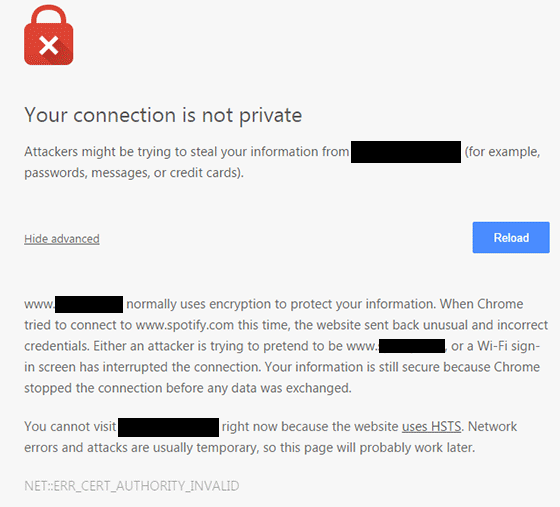
ssl-error_cert-authority-invalid

How to Choose an SSL Plan for WooCommerce
data-keyThere are a lot of SSL plans available. An SSL certificate is generally priced depending on its scope and type of validation.

Scope of Validation

Basic SSL only provides security on the main domain. Wildcard SSL certificate secures a domain together with its sub-domains. If you have sub-domains like sports.example.com, shop.example.com, and news.example.com, go for a wildcard SSL certificate.

Types of Validation

Domain Validation

Domain Validation SSL certificate is cheaper than other certificates and issued within minutes. It only verifies the domain name and you do not need to provide any documents.

Organization Validation

This certificate validates that your business really exists. The validation process usually takes two to five business days. Your organization’s name will be displayed in the certificate which in turn earns your customer’s trust.

Extended Validation

An EV SSL certificate has the highest form of SSL certificate validation. Sites with EV SSL certification will have unique visual cues in them: a green https address bar and a lock icon in it. To get an Extended Validated SSL, an organization will have to complete a process defined by Certificate Authority (CA).

paypal-validation

Choosing a reliable SSL certificate for your WooCommerce store is a matter of trust. You might choose to have an inexpensive yet relatively unknown certificate. Some of these inexpensive certificates are just as reliable as the expensive ones.

How to Acquire an SSL certificate

Installing an SSL on your e-commerce site can be really easy or quite frustrating, depending on your hosting provider. SSL installations require configuring the servers and hosting providers typically own the servers themselves.

There are two ways of getting an SSL certificate: buying from the hosting provider themselves or buying from a third party.

Buying from the hosting provider is the simplest way to get an SSL. The process differs from one hosting provider to another. But in most cases they will handle the installation themselves. All you have to do is fill out a form and accept the terms. In 1 to 2 days, you will get an email finalizing your SSL installation. Most of these SSL certificates are domain validation though.

If you want a higher type of validation, consider buying a certification from a third party. The process may vary with different SSL and hosting providers but here’s the general process that you need to follow:

  • Prepare your validating documents. Ask for a separate dedicated IP address from your hosting provider. Shared IP addresses aren’t allowed in SSL.
  • Generate the Certificate Signing Request (CSR) from your web hosting server. It is best to ask your hosting provider to generate the CSR. The Certificate Authority will create your certificate based on the information contained in the CSR.
  • Submit the CSR and other validating documents to the Certificate Authority. Usually, your SSL provider will handle this for you.
  • Have your domain and company validated.
  • After receiving the SSL certificate, you need to upload it to your hosting account, then “turn it on” for the site you want to secure. Depending on the hosting server, you can do this in the cPanel. Alternatively, you can send a ticket on your hosting provider to do this for you.

If you are having problems with securing an SSL certificate it is best to get in touch with your hosting provider.

Now that you have a better understanding of SSL certificates, it’s time to get one for your site if you don’t already have one. If you have any other questions or if anything is not clear, let us know in the comments and we’ll do our best to help.

Filed Under: How-To Articles Tagged With: best practices, e-commerce, how-to, security

6 Things That Slow Down Your WooCommerce Site and What You Can Do To Fix It

April 8, 2016 By John Leave a Comment

highway-speed-lightsIf you see that your WooCommerce site visitors are leaving your site not long after they get in, you might want to check if your site is loading fast enough. Slow page loading is one of the primary reasons people leave websites. Studies have shown that a 1-second delay in page response can result in a 7% reduction in conversions. Even Google admitted they hate slow-loading sites and penalize the ranking of slow websites. In this article, we will get into the factors that cause your site to slow down and how you can fix them.

Unoptimized Images

camera-lensIt is critical for WooCommerce sites to have optimized images, specifically product images. The sheer number of product images and alternate images can significantly affect a WooCommerce site’s page speed. You might want to aim for a file size not larger than 100kb. But this is just a rule of thumb. Full-width images are of course an exception. Also always try to use appropriate sizes. For optimum speed, the images should not exceed the size of the placeholder. Lastly, try to adjust the quality of the image. It doesn’t mean you compromise image quality. There are ways to reduce image file size without affecting image quality. You can optimize the image by adjusting some settings and removing some color palettes that are not observable by the naked eye.

We suggest a plugin called WPSmush.it. This is a plugin that automatically optimizes the image as you upload your images through the WordPress Media Library. Still, it is important that you optimize your images before uploading them. Learn more about pre-upload adjustments in our post about image optimizations.

Serving Content without Caching

Content caching is basically preprocessing the files and storing them as static content instead of asking the server for the contents upon each client’s request. The static content can be stored either from an intermediary nearby server (server-side caching) or from the client’s web browser (client-side caching). This practice reduces page load time significantly because it reduces server load and the content is served from a closer location. Caching can improve your website speed by up to 300%. If you are looking for a caching plugin, we can recommend WP Super Cache.

Having Too Many Plugins Installed

run-track-and-fieldPage size is not the only thing that has a direct impact on your page load time. The total number of HTTP requests is a major factor as well. Every image, JavaScript file, CSS file, and jQuery file adds up to more HTTP requests.

This is why having too many plugins installed on your WooCommerce site is not advisable. The same goes for having a theme with a lot of bundled plugins. Plugins can have their own stylesheets and scripts and these add to total the number of requests. Of course, it depends on the plugin. Some plugins have efficient code, but others can have issues with poorly coded PHP scripts. A poorly coded plugin needs a longer server processing time before it completes a calculation. That’s why it is important to only use plugins that you really need. Avoid plugins with too many features that you don’t really need.

Not Minifying Scripts and Stylesheets

Even if you already uninstalled unused plugins, chances are you will still have a couple of individual stylesheets and scripts queued for request. Minifying is a technique made to handle this issue. What it does is combine stylesheets and scripts. So instead of 5-7 stylesheets and 9-12 scripts, you will end with a single file for each type. After combining, it will further compress the files and serve them with gzip compression. This technique reduces the number of requests and page size significantly. Don’t worry about the technicalities of minifying though. W3 Total Cache has Minify together with the caching service.

Plenty of Externally Hosted Content

binary-treeAnother culprit in slowing down a site is having externally hosted content. They can look harmless at first but without moderation, your site will get bogged down by these contents. Your site will only be as fast as your external host server. It is not limited to external videos, audio, and images. External content can also be stylesheets and scripts. One common culprit is the overuse of Google Fonts, so as much as possible try to only use at most 2 font families from Google fonts.


Server Load

Server overload is a common problem, especially for site owners that use shared servers. Shared servers don’t cost that much but they have their limits. Most of these servers can’t handle huge amounts of traffic. One solution is to invest in a pricier dedicated server. Another one is to use a Content Delivery Network (CDN) service. CDN is a system of distributed servers. Basically, you can apply to use a CDN service and they will store your cached site in their server systems across the globe. You can use the W3 Total Cache plugin to easily set up a CDN for your WooCommerce store.

Conclusion

It is important to invest in speed optimization to maintain a good user experience across your WooCommerce store and if you want to keep your SEO rankings. To test your WooCommerce store’s speed, you can use Pingdom’s site speed test or Google’s page speed tool. If your site takes more than 2 seconds to load, you have to make some adjustments. Hopefully, the pointers above will help you achieve an acceptable page load speed.

Was this article helpful? Do you know of any tips to help improve a WooCommerce store’s page load speed? Let us know in the comments.

Filed Under: How-To Articles Tagged With: best practices, caching, CDN, how-to, minification, page speed, site speed optimization, W3 Total Cache, website development, WooCommerce

10 WooCommerce Plugins to Supercharge Your Store

April 5, 2016 By John Leave a Comment

ecommerce-cart-frog-mini-computer

WooCommerce is a great tool to sell online with unlimited possibilities for customization. One of WooCommerce’s best features is its extensive library of plugins available.

Many of the customizations you need for your WooCommerce store will most likely have been requested by a lot of WooCommerce users. This is where the plugin developers come in. Hence, there will almost always be a plugin for your specific needs.

Here we’ll list down 10 WooCommerce plugins to supercharge your store.

1. WooCommerce Customizer

WooCommerce-Customizer

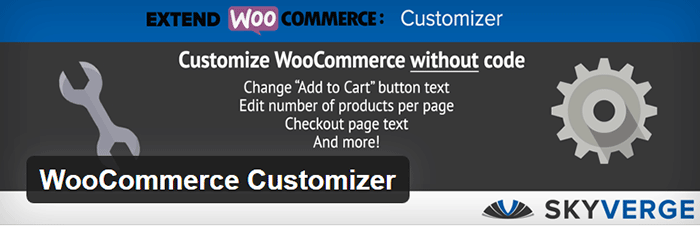
WooCommerce Customizer is a free plugin from Skyverge. It adds an extra settings page for WooCommerce to help you make quick changes which otherwise would require writing some custom PHP functions. The plugin allows users to edit the text for Add to Cart and Submit Order buttons on the WooCommerce store. It allows you to edit the number of products shown as well as the number of columns on the category pages. You can also edit page coupons, tax labels, logins, product headers and additional information tab headers. The plugin only works on individual sites and does not support multisite networks. It is a great tool for A/B testing because you can change settings in a few clicks. You can optimize the look of your WooCommerce store for optimum conversion.

2. WooCommerce Products Filter

WooCommerce Products Filter is a great plugin especially when you have a lot of products on your WooCommerce store. It lets you set search categories for your visitors and use this to filter products by categories, tags, attributes, and taxonomies. It uses AJAX for easy product search. This allows the user to continuously search without the need to reload the page which is convenient. You can choose from various display formats like drop-downs, check-boxes or radio buttons. These display formats let you customize how users can search products in your WooCommerce site. It also has simple options if you want your product search filter to be less complicated. To add the filter, you just need to insert the shortcode.


3. WooCommerce Products Slider

Create a mobile-friendly slider of your products anywhere in your site using WooCommerce Products Slider. You just create your sliders then paste the generated shortcode where you want them to appear. This plugin lets you display featured items, latest products, or sort products posted by date and more. The height, column numbers, size, items and button colors are easy to customize. The free version comes with two themes to help you showcase your products across your WooCommerce store.


4. Booster for WooCommerce

Booster-for-WooCommerce

Booster for WooCommerce is a free plugin that supercharges your e-commerce site with features that will empower your standard WooCommerce store. It extends WooCommerce features and lets you add more customizations. It lets you customize prices and currencies, button and price labels, products, cart and checkout, payment and gateways, shipping, invoices, emails, etc. You can check out the long list of features in the plugin page.

5. WooDiscuz WooCommerce Comments

WooDiscuz WooCommerce Comments is a plugin that can help you build customer trust, boost engagement and increase sales. This can also double as your instant FAQ and support platform for specific products. It gives you a platform where your customers or users can discuss your products and add reviews. Visitors can ask pre-sale questions.

This plugin allows you to moderate comments, tweak permissions, and edit security options. It also has anti-spam, AJAX pagination, and redirect to “Thank you” page features.


6. WooCommerce – Store Exporter

WooCommerce-Store-Exporter

Take control of your store data with WooCommerce – Store Exporter. It lets you design advanced and concise exports of your data in minutes. This will benefit e-commerce businesses that need to deal with large amounts of data. The free version lets you export your products, categories, tags, and user data into a CSV file or WordPress Media. It is also compatible with WordPress multisite.

7. WooCommerce PDF Invoices and Packing Slips

WooCommerce-PDF-Invoices-and-Packing-Slips

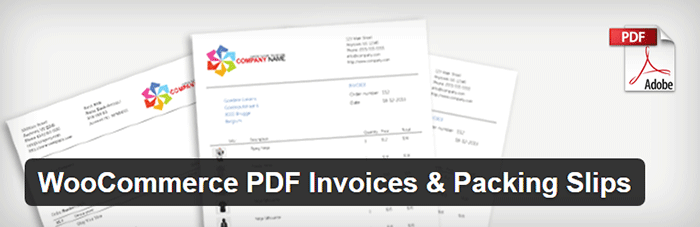
WooCommerce PDF Invoices and Packing Slips will automatically create and add a PDF invoice to WooCommerce emails sent to your customers. Save time from having to send invoices manually and increase your WooCommerce store’s trust rating. You can easily modify the base template for the invoices or create your own template. The plugin also allows for generating and downloading invoices and packing slips in bulk. Monitoring your invoices is easier with the custom format sequential invoice numbers. It has multi-language functionality and lets you add custom fonts.

8. Stripe Payment Gateway WooCommerce Addon

Stripe-Payment-Gateway-WooCommerce-Addon

Stripe Payment Gateway WooCommerce Addon is a free payment gateway plugin for WooCommerce. Setting a payment gateway with Stripe is made easier through this plugin. When configured, the plugin allows your WooCommerce store to accept credit cards payment on checkout. Stripe does this with a generated API. Paying won’t seem like they are redirected to a different site with its overlay appearance. Customers can choose to use and edit saved cards to speed up the checkout process. It also integrates well with refund options in WooCommerce 2.2 versions and above. Do note that an SSL certificate is still required for this to work.

9. Smart Manager for WooCommerce & WPeC

Smart Manager for WooCommerce & WPeC plugin gives you the functionalities of spreadsheet software like Excel within the WordPress Dashboard. It helps you manage products, product variations, customers, coupons and orders quickly with ease. No more tedious importing and exporting of data. The browser-like spreadsheet interface gets rid of distractions with a full-screen view. Typical store administration with WooCommerce will require you hundreds of hours. This plugin would reduce that significantly so you can focus on other important business aspects. The advanced search function will help you to easily manage large amount of data at once. The free version allows you to edit up to 3 items at once.


10. UltimateWoo

UltimateWoo

UltimateWoo plugin is like the JetPack for WooCommerce. The plugin provides access to a multitude of WooCommerce extension modules. UltimateWoo has a total of 72 modules that you can use to customize your WooCommerce store. These modules help manage analytics, reporting, e-mail, payment, products, sales, marketing, and shipping. For a complete rundown of all the modules, you can check out this page. A word of caution though, plugins with a lot of functionalities tend to add a lot of bloat to the site.

Conclusion

These are just some of the most useful plugins for WooCommerce. These 10 plugins will make WooCommerce much better for you. However, do note that you should only install plugins that you really need. While plugins are powerful tools when used properly, they can slow down your site. If this should happen, you could lose customers and your conversion rates would suffer.

What are your thoughts on this post? What other WooCommerce plugins do you think deserve a spot in this list? Let us know in the comments.

Filed Under: Theme and Plugin Reviews Tagged With: plugins, website development, WooCommerce, WooCommerce products

How to Choose the Best Domain Name for Your WooCommerce Store

April 5, 2016 By John Leave a Comment

how to choose the best domain name for WooCommerce

Your domain name is part of your company’s identity. It should play an integral part in your branding strategy. In this article, we will identify how to choose the best domain name for your WooCommerce store.

Stay Relevant

You can start with a list of five to ten keywords that communicate what your WooCommerce store is about. You can then narrow it down, choose to add a prefix or a suffix, use them to make compound words, or make a new word.

Brand is not an SEO ranking factor but it has a positive influence on your SEO and reputation. At a glance, your customers should be able to connect your domain name to the nature of your business. Having a relevant domain name will also benefit you in defining your target market.

Stay Unique

Set your e-commerce business apart by having a unique and creative domain name. Avoid having your website domain name close to another brand’s name. A sure recipe for disaster is when users confuse you with another popular site.

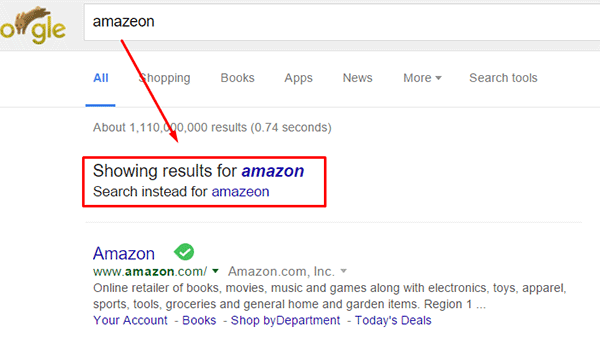
Intentionally going with a domain name similar to a popular brand in an attempt to deceive users can land you in jail. Same goes for intentionally misspelling a popular brand’s name. The practice is known as “typosquatting” and it is illegal. In fact, Facebook recently won $2.8 million and gained control of over 100 domains in a typosquatting case. You could also be charged with fraud or copyright infringement. Also, even if the popular brand does not catch wind of your site, intentionally misspelling a popular brand name can direct your traffic to the popular brand. Just check out the image below. A unique domain name will do wonders to your branding as it sticks into your customers minds.

misspell-popular-brand-name

Keep it Simple, Short and Memorable

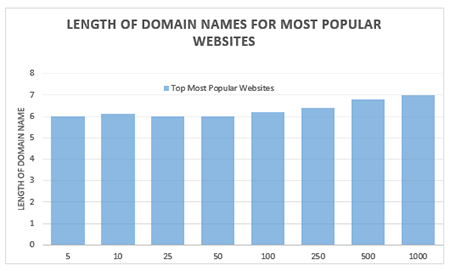
domain name lengthChoose a domain name that is easy to type and easy to remember. Don’t use hyphens, numbers, slang, and odd misspellings. In Alexa.com’s top 500 sites on the web, some of the top most popular websites have domain name lengths of 6-7 characters on average: Google, Youtube, Amazon and Linkedin, to name a few. From this data, it does appear that domain length matters.

Difficult-to-remember and hard-to-pronounce domain names would most likely rank low in search engines. A simple, short and memorable domain name is a great help with word-of-mouth marketing. It also fits well on any online or print form of marketing.

Tools to Help You Choose

There are now many tools online that you can use when you’re stuck or don’t know where to start in searching for a good domain name. Here are tools that can help you jump-start your domain name brainstorming session.

Domain Typer

Domain Typer helps you search for domain names. It displays popular domain name extensions like ‘.com’, ‘.net’, ‘.org’, ‘.co’, ‘.info’, and ‘.mobi’. It also displays prices should you need to compare.

If a domain name is not available, it displays links to its registration information, website and page ranking. It also has a domain hack section where you can select unusual combinations of your keywords.

domain-typer

Lean Domain Search (formerly Domain Pigeon)

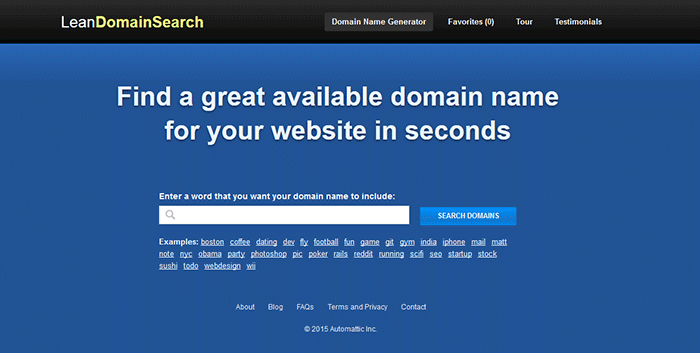
Aside from the search option, Lean Domain Search gives you some examples to help you get started. You can sort the results and even add search term filters. It shows ‘.com’ results and it shows you the popularity index of your keyword by domain count.

lean-domain-search

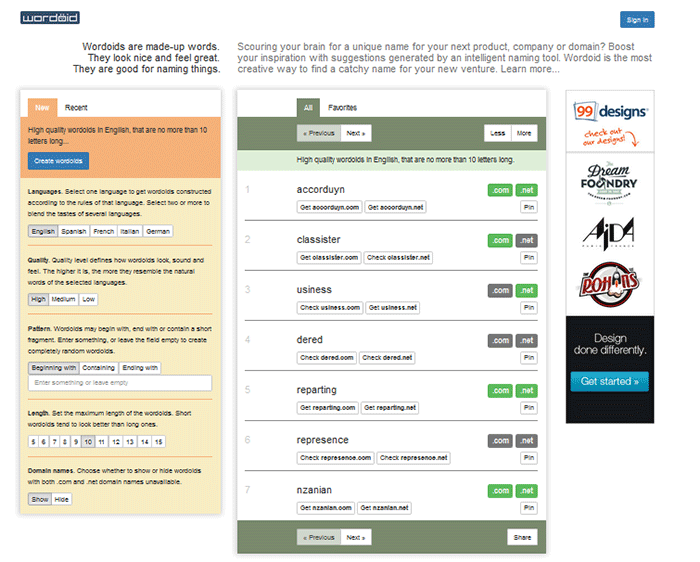
Wordoid

Wordoid is a more intelligent tool that sparks your creativity in getting a unique name for your domain. Just remember to not overdo it. Simple names are easier to remember.

wordroid

What if the Domain I Want is Not Available

You did your brainstorming and you have decided on the perfect domain name for your WooCommerce store. But upon checking, you find out that the domain you want is no longer available. You can try the alternative solutions below.

Just Come Up with a Different Domain Name

Discretion is the better part of valor. You may think you are smart by using the same domain and just using a different domain extension like .net or .co. However, you may just end up sending your hard-earned traffic to the other domain. Put on those thinking caps and think of another domain.

Create an Offer

One option is to find out who the registered owner is and create an offer. This is especially advisable when the domain is registered but not being used. Just visit the actual address or use a tool like theWhois Domain Tools or ICANN lookup tool to get information on the current registered owner. Send them a message and ask if they would consider selling the domain name. Most domain registrars offer services wherein they contact the domain owner in your stead. This is worth a try if you really want that domain.

If you decide to get in touch with the owner yourself, try to make your request sound casual. Don’t act too interested as you could get an overpriced offer.

Monitor the Domain Name

If your lookup shows that the domain registration is expiring soon, waiting it out might be a viable option. When the domain is back in the open market, grab it. However, do note that certain domain registrars give domain owners ample time to renew their registration. The domain may not appear on the market on the actual day that it expires.

Avoiding Overpriced Domains

money-financial-crisisIt is difficult to gauge the exact value of a domain name because it’s all about demand. Some domain names are really just expensive and there’s not much you can do about that. You can just build your not-so-popular domain’s reputation from the ground up. Many domain registrars provide discounts and offers so you can save a few bucks on that. If the domain that you want is being auctioned, you can join the auction and get it very cheap if you are lucky.

Background Check on Domains

Buying a domain, especially used ones, can be a nightmare if you don’t do your research. If you have decided to buy a used domain, don’t buy that domain yet unless you’ve done the following.

Check its Registration History and Reputation

Check the site ownership registration history. Use Whois Domain Tools to look up ownership information, ranking, traffic, SEO and more. The frequency of change in its owner or host speaks about its reputation and stability.

Avoid buying domain names sold numerous times in a short span of time. It might have a negative reputation from search engines that can be a nightmare to solve.

Analyze Link and Content History

You can use Internet Archive to check domain name’s content history. To check a domain’s reputation, google ‘site:yourdomain.com’ (without the quotations). You can also do a regular search to bring up all mentions of the domain name.

Be on the lookout for spammy illegitimate links. Check for Google red flags like bans and penalties. Make sure to also check the domain name’s Google cache date, including the text only version.

Do a thorough examination of its back-links. If you find anything shady, it might be a good idea to back off. While Google now gives website owners the ability to manually remove or disavow links, this isn’t something that you’d want to be doing. Save yourself from a lot of headache and go with a domain with a good rep.

To Sum It Up

A domain name is your online store’s identity. You can be successful with your branding and online business with a good domain name. You just need to carefully choose a domain name that is unique, relevant, short, simple and easy to remember. You also need to do a thorough background research to make sure you are not buying a domain with a bad rep.

Do you have any tips you’d like to share? Or did we miss something? Let us know in the comments.

Filed Under: How-To Articles Tagged With: best practices, e-commerce, how-to, marketing strategy, WooCommerce

Dustin Hartzler: On Being a WordPress Fanboy and Helping Out the WordPress Community

March 9, 2016 By John Leave a Comment

Dustin-HartzlerIn our quest to connect with top influencers in WordPress and Web Development, we found a kindred soul in Dustin Hartzler: a self-confessed WordPress fanboy, a WooCommerce customer support team member, and an entrepreneur who follows a strict schedule and values life outside work. He started using WordPress in 2009 and has taken big steps since then to immerse himself in his craft and contribute to the WordPress community.

Aside from being a Happiness Engineer at Automattic, Dustin is the founder of yourwebsiteengineer.com, a site devoted to WordPress with podcasts published weekly, and the owner of Hartzler Digital Media. He took a moment off of his busy schedule to answer our questions. In this interview, get to know Dustin as a keen web developer and a successful entrepreneur. What works for him may work for you too.

1. You described yourself as a WordPress fanboy. What do you think sets WordPress apart from other content management systems?

The community. There are so many passionate WordPress folks and they are all willing to share their knowledge with others.

2. What does it mean to be a Happiness Engineer at Automattic? What’s the most rewarding aspect of your role? What is the most challenging?

A Happiness Engineer is a member of the customer support team that helps people every day on how to use WordPress. I’m a Happiness Engineer on the WooCommerce team, so I get to debug and troubleshoot customer’s websites all day. It’s super challenging because every site is different; on a different host, with different plugins, with different themes. It’s most rewarding when I find bugs in our code, submit a request and have the issue fixed for all of our users.

Dustin-Hartzler_Woo-Happiness-Engineers_Automattic_screengrab
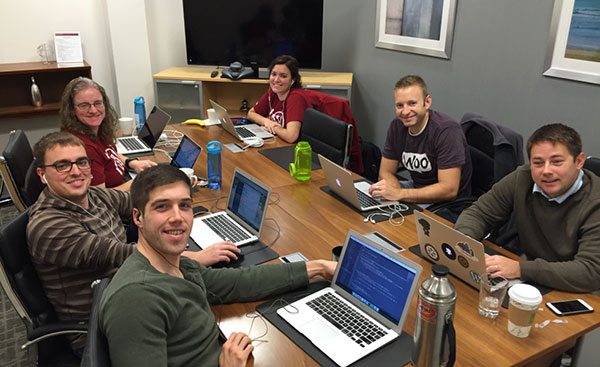
Dustin with other Woo Happiness Engineers. Image Credit: https://dustinhartzler.com/2015/12/16/co-working-and-holiday-party/

3. In your opinion, what separates good developers from great developers?

Great developers continue to work on their craft. They also don’t add every feature that is requested. They have a vision of what the code should do and program until that vision has been met.

4. How would you describe your workflow when working on a project? How do you approach a challenging project? Do you have any rituals that you follow?

It depends on the project. I like to map things out and break them into little steps. It’s hard for me because I have way more ideas than time to implement.

5. What inspired you to start YourWebsiteEngineer.com?

After listening to podcasts for three years, I knew I wanted create my own show. I was also starting my own website development company at the time and thought it would be a great way for me to learn WordPress better; by teaching others. I’m still going strong with my podcast, releasing a new episode every week since 2010.

yourwebsiteengineer_podcast_screengrab_425
Image Credit: http://yourwebsiteengineer.com/category/podcast/

6. What are your favorite development tools and why?

I love using Sublime Text for coding and have the GitHub app installed on my computer so I can track all of my changes to my code with version control.

7. Why did you choose to have a career in web development? And why focus on WordPress?

I love the challenge of creating something out of nothing. There’s never a dull day when I’m constantly learning new things everyday. I’m focusing on WordPress, because I decided back in 2010 that I wanted to master one platform and I picked WordPress back then.

8. How do you manage your time between work and being a family man?

I balance having a full-time job and my family by having a very scheduled life. I add everything to my calendar. This helps me not over-schedule my day. I also wrap up all work by 4:30pm. This gives me time to spend with my family and I can enjoy non-computer things in the evening.

Dustin-Hartzler_family
Dustin with wife Melody and daughter Kenley. Image Credit: https://dustinhartzler.com/2015/12/05/happy-birthday-melody/

9. What’s in store for Dustin Hartzler? Do you have any big projects going on for you? What’s keeping you busy on your spare time?

When I look at OmniFocus, I’ve got tons of things that I want to do, but don’t have the time (like most entrepreneurs). One thing I want to release this year is a guide at how to manage your time / plan your day; written for developers and others who don’t have to report in for a job every day.

10. If you had one advice to give to a budding developer, what would it be?

Always keep learning. Find something that you love and continue to get better at it. If you like building themes for clients, pursue that. If you’d rather write code, write code.

Filed Under: Interviews Tagged With: best practices, WooCommerce, WordPress

  • « Previous Page
  • 1
  • …
  • 26
  • 27
  • 28
  • 29
  • 30
  • …
  • 41
  • Next Page »
Let us support your online store so you can manage your business

Get started today

Get 2 Hours of FREE SUPPORT

We are so confident that you will love our services that we will give you your first 4 hours at a 50% discount

That’s 4 hours for only $75

BUY NOW

Free eBook

5 Things Every Online Store Can Fix On Their Website In The Next Week To Increase Sales

Quick Links

  • How it Works
  • Pricing
  • Blog
  • Contact
  • About Wooassist
  • My Account
  • Checkout
  • Privacy Policy
  • Cookie Policy
  • Terms and Conditions

Wooassist

Australia:
59 Luke St.
Hemmant QLD 4174

Philippines:
San Miguel St.
Poblacion, Iligan City 9200

Connect


Copyright © 2026 · Wooassist

Yours FREE!

5 Things Every Online Store Can Fix On Their Website In The Next Week To Increase Sales