Wooassist

Assistance for Your Woocommerce Store

  • How it Works
  • Pricing
  • Services
    • Site Maintenance
    • AI SEO and Content Marketing
  • Blog
    • How-To Articles
    • Code Snippets
    • SEO For E-Commerce
    • Theme and Plugin Reviews
    • Wooassist News
    • WordPress/WooCommerce News
    • Interviews
  • About Us
  • Contact
You are here: Home / Archives for best practices

Why Should You Keep WordPress Updated?

May 24, 2016 By John 1 Comment

WordPress is getting more popular as a platform for creating e-commerce stores. Because of this, WordPress sites have become attractive targets for hackers to try and break into. There are a few reasons why hackers do this but the main motive has always been for profit. In this article, we will discuss how hackers take advantage of a WordPress site with poor security. You’ll also learn what should be done before a site update and other means to keep your site safe.

How Does a Hacker Take Advantage of a Compromised WordPress Site?

why should you keep wordpress updatedA lot can be done to a hacked WordPress site. It is not just getting sensitive information. Actually, getting sensitive information like credit card numbers is just a “bonus”. It’s not really your website that the hackers want. What they want more is the power of your server resources: computing power, disk space, and anonymity on the internet. So how can they use your server to their advantage? Here are some ways:

Bitcoin Mining

Bitcoin mining is the process of adding transaction records to the Bitcoin’s public ledger. One offers processing power to the public Bitcoin community to validate transactions. He gets a portion of the money being transacted as processing fee. Bitcoin mining is intentionally resource and processing intensive so that the number of blocks found each day by miners remains steady. This is where the hackers can take advantage. They will use your server to mine for themselves, hence noticeably slowing down your site.

Distributed Denial of Service (DDoS)

This attack is an attempt to crash one’s server. It spams that server with thousands of traffic simultaneously, thus denying service for other users. This is commonly used for cheating in online gaming, online gambling, and in taking down a site. Since you can’t overwhelm a server with traffic using a single PC, the likely scenario is that the attacker will have thousands of hacked servers and personal computers to perform an attack. All they need is a single PHP script saved on each site which they can activate at will.

Anonymous Attacks and Spam

Hackers can also use your server to attack or spam anyone anonymously. Since they are using your servers to do these malicious things, these will point to your name and not theirs. They can be churning thousands of spam emails to other people at your expense. They can send viruses and malware through these emails to infect more PCs to aid their hacking.

Data Mining

Hackers can also just mine sensitive information like credit card numbers, passwords, emails and others.

Automated Hacking

hacking-code-destroyMost attacks are automated and target small and unsecure sites. This works similar to how a search engine uses search engine crawlers to index information on the web. The hacker’s crawlers roam around the web to find exploitable sites. When a vulnerability is spotted, the hackers will attack that vulnerable point. Attacks vary from brute force attacks to code injection on contact forms.

Importance of Updating WordPress for Security

The people behind WordPress are working hard to increase security against these attacks. This is what most of the minor updates are for. As the attacks get smarter, the security needs to upgrade as well. Fundamentally, there is no such thing as a perfectly secure system. So whenever WordPress developers see or hear about a possible vulnerability, they will try to fix it as fast as possible.

This is why WordPress updates are very important. By keeping your WordPress core updated, you are protecting yourself from the latest known vulnerabilities.

Things to Do Before Updating

Most of the time, updating WordPress is harmless. However, some major updates that involve the core code may break some plugins or theme files which in turn can break some layout or functionality on your site. That’s why it is important to follow a process before pushing through with an update to avoid breaking your site.

Create a Backup

Creating a backup is the best thing that you can do before pushing through with an update. Backups are your last line of defense in case something goes wrong. If you think it is a hassle, you can actually automate backup creation. There are even hosts that automatically do this for you. However, it is best to have your own backup and not depend on your host to make your backups for you.

Testing on a Staging Site

A staging site is an independent copy of your site. Most hosting sites offer an easy way to make them but you can always create your own. Staging sites are used to ensure that everything works perfectly before you present your site to your customers. This is very important especially for e-commerce sites. You can lose your customers’ trust if you let them experience downtime and bugs.

Other Things to Help You Secure Your Site

cyber-security_keyboard-lockedAside from the updates, there are a lot of things you can do to harden the security of your site. Here are some examples:

Installing a WP Security Plugin

Like creating a backup, installing a WP Security plugin is one of the best things that you can do. Sucuri Security plugin is highly recommended. Basically Sucuri will act as a firewall for your site. It will protect your website from hackers, malware, DDoS and blacklists. It will receive all the traffic going to your site and filter it before sending it to your host. This allows the plugin to block all the attacks and only send you legitimate traffic. Because the filtering/blocking is happening on the Sucuri servers, your servers are relieved of a lot of load. Sucuri has always been the top go-to plugin when it comes to security.

Password Protect Some Directories

Password protecting /wp-admin directory adds another layer of security to your site aside from the login page. This can be done either manually or using cPanel. This is addressed on sites that have a lot of users accessing the wp-admin; for example large news/blog sites that accept guest authors.

Disabling PHP Execution

Disabling PHP Execution from certain directories protects you from backdoor access file attacks. The attacks come disguised as a WordPress core PHP file and inserted in easy access directories like /wp-includes/ and /wp-content/uploads/. Preventing PHP execution from these directories reduces the risk of backdoor access.

Changing the Prefix of Your Database

The default prefix of a WordPress database is “wp_”. Everything on your database will start with this so changing it will make it difficult for attackers to access your database.

Conclusion

Now that you’re more familiar with how hackers work, you can better equip your site to avoid being a victim. Backup your site and do not skimp on WordPress updates, even the minor ones. Remember that these updates will help you safeguard your WordPress site from the latest known security threats. Updates are one thing but you should also harden your site by implementing the strategies mentioned above.

When was the last time you updated WordPress? Do you have any other security tips you’d like to share? Let us know in the comments.


Filed Under: How-To Articles Tagged With: admin, backup, best practices, brute force, e-commerce, how-to, plugins, security, sucuri, website maintenance, WordPress

“Getting Things Done”: How One Book Changed Our Workflow and Increased Productivity

February 26, 2016 By John Leave a Comment

thinking_business-man_laptop
Is your workflow a mess? Mine used to be until I read that one book. Soon after, I was getting more accomplished with much less effort and stress. David Allen’s Getting Things Done: The Art of Stress Free Productivity was the secret.

For every hire thereafter, part of their on-boarding became reading this book and implementing it into their workflow. Here’s an insight on what some of the team members do to manage their workflow.

Nick J – Director

Getting Things Done has been a game changer for my life. I took the instructions literally and dedicated a weekend going through old files and boxes of “stuff” so I could start with a clean slate. I even bought a label machine as instructed (which I now rarely use).

inbox-outbox_filesOnce I had my filing and boxes of “someday maybe” sorted I chose Evernote as my “In” box and everything I need to remember gets added into a notebook called “inbox” as a reminder so it goes to the top. This is very easy to do from my phone or laptop. The following morning, I catalogue all the previous day’s reminders into where they need to go, usually other Evernote notebooks.

This gives me a good idea of what I need to do for my day and catalogues what needs to be done down the track in their respective “buckets”. My mind is a lot freer because I don’t have to worry about remembering 101 things as they are all written down and catalogued. The only downside is now I have become really dependent on this system I don’t remember anything unless it is recorded in my “In bucket”. Oh well, the price of a free mind.

Junix – Lead Developer

After reading “Getting Things Done” by David Allen, I have realized how unorganized I was in handling my tasks. I have learned the 5 stages of managing workflow, which enables me to not forget an important task, which I tend to do sometimes. In Wooassist, most of the tasks assigned to me have an email notification from the project management tool. This allows me to collect the inputs I need to do for a day and coming days. But even so with these emails, I’m still forgetting things as I’m not properly jotting them down to a different platform. I also tend to preview emails, so that I can know the gist of all the things I need to do in a day, but then forget that I had to do that task because it’s not bolded anymore in my inbox. I also find it tedious to “copy and paste” information that is already there in the email.

thumbs-up_smileyI did my research and found a tool called Sortd which was still on a beta test and was invitation based only. Fortunately, I got an invitation link and was able to start using the tool. I love it as I am able to organize my tasks within my email. Even if I preview an email, it will still be bolded in my task list until I mark it completed. Within Gmail, I am now able to separate other emails from important tasks, and can also divide them into different categories easily.

Sortd allows me to create different columns, just like Kanbanflow and Trello. Currently, I have four columns in use: “Priority tasks”, “Today Tasks”, “Delegated Tasks”, and “Scheduled Tasks” respectively. With this four columns, processing tasks have been easier and I’m now doing most of the tasks assigned to me without forgetting anything.

For processing the tasks, I realized that the guide told by the book applies to me. It was stated there that if a task takes more than 2 minutes for me to complete it, I need to delegate it, but I believe for myself and kind of work I do, time is not a perfect barometer for it. Currently I check if the tasks can be delegated based on its difficulty. I like to do tasks that are difficult to do, so the tasks that are easy and moderate are the tasks that I delegate.

I am also making it a habit now to check the tasks that I have marked as complete and also my emails on a weekly basis, just to make sure that I have properly done them and that I haven’t missed a task that needs to be done.

John – Project Manager

How do I get things done? For myself, it stems from having low energy levels that I have designed the systems in my life to make them more efficient. I live and breathe efficiency. I hate books that bury their core actionable concepts in a layer of fluff. Whenever possible, I watch movies and TV shows on average at 1.5X playback speed. And I talk much, much less than normal people because I prefer to be short and concise with my words.

be-smartWithout context, that would mean I am very productive. But in actuality, it’s only to preserve my energy levels for the tasks that matter. In the past, I have done this subconsciously. But upon reading Getting Things Done by David Allen, I have started to take a conscious approach to productivity. I believe it all boils down to self-optimization.


As for myself, the concepts that I believe are most important to the way I get things done are:

  1. Creating or finding a task management system that fits my own needs and personality. The usual digital productivity apps are Asana, Evernote and other similar applications. We do make use of these as all-around solutions for Wooassist. But for the tasks specific to my own role, I am using a custom spreadsheet and Kanbanflow. I’ve tailor-made the spreadsheet to record everything I need to keep track of. And we chose Kanbanflow simply because we have found that it fits our needs best.
  2. Rid yourself of worry and think in terms of actionable steps (what’s the next step, what you can do about it, etc.
    • The usual culprit of being underproductive and burning out is worry. It is a nagging feeling that keeps draining your mental capacity even when you’re not at work. For this, I put my trust on my task management system. And let it serve as my memory so that I don’t have to worry about an unfinished task when I’m not at work.
    • And when mistakes happen, customer-facing roles usually have it bad. That is because clients lash out at the people on the frontlines. I can’t stop mistakes from happening but I do not worry about it too much. Instead, I think of the concrete steps that I can take to create a suitable solution or course of action.
    • Once you are overcome with worry, you become unproductive and stressed out. If fear is the mind-killer, worry is the mind-stopper.
  3. Keep optimizing yourself. This for me is the most important thing that people fail to do. There are tons of productivity techniques out there. E.g. time-blocking, the Pomodoro technique or establishing a routine. For myself, I am constantly A/B testing myself to figure out what works and what doesn’t. There’s no catch-all method, everyone is different and we’ve got to figure out what works for us ourselves.

Rob – Project Manager

Three years ago, Nick recommended reading the book Getting Things Done: The Art of Stress Free Productivity by David Allen. I wasn’t a big book reader so instead I listened to the audiobook.

Over the past three years, I tried to follow the tips in the book. Some stuff didn’t stick but some things I keep doing up until now.

sticky-notes

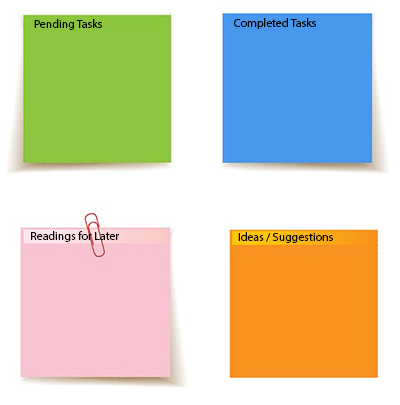
I start my work day checking emails. I have email alerts set up for Asana, Hipchat and Kanbanflow so everything goes to my email. For any task that can be done around 2 minutes I do it immediately. I also keep a log of all current tasks that I have. I use Sticky Notes for this.

I tried using Evernote before and I still use it from time to time for saving stuff that I might need access to when I’m not on PC. I’m rarely on another machine though so it doesn’t get much use. It has proven really useful the few times I had problems with my PC and had to log in at a net café. I’m not saying Evernote is bad. It’s actually really good but I just like Sticky Notes because it’s more lightweight and it just sits there on the background.

I keep a note of all my pending tasks called “Tasks” and this helps me get prepped for work. From this list, I pick out what I need to do for the day. Every task I complete I move to another note called “Completed Tasks”. This other note helps me prepare my report before I end of shift for the day.

While working, if I stumble upon any useful articles that I want to read later on either for leisure or for work, I put them on a note called “Readings for Later”. And if I come up with good ideas to suggest, I’ll note them down in another note called “Ideas/Suggestions”.

Oh and another thing. I have one note which just mentions the Wooassist mantra:

company-mantra_screenshot

 Joanne – Site Maintenance and Admin

Before reading “Getting Things Done” I found my work life in utter chaos, missed deadlines, increased stress levels, not being able to do the things that I want to do, and not having enough time for my family as much as I want to. Being a mom, a wife, a daughter and an employee is not that easy for me, especially because I work from home.

to-do-List_hand

I’ve tried numerous methods of organizing my daily routines, some actually work for some time, but once my schedule is disrupted for some reason, I crumble. I rush through things eager to do as much as I can in my limited time, playing catch up and formulating new ways to spend half an hour on a task that requires a full hour. And the result, well let’s just say, is less than stellar.

After reading Getting Things Done, I realized that useless cramming makes you unproductive and inefficient. I also recognized that my subconscious effort to juggle all my responsibilities, like doing the laundry or planning a weekend getaway for the kids can affect my work. With this in mind, I came up with a system to make sure that I exert effort on things where I can make a difference and not worry about the things that I can do nothing about.

For work, I have synced my email with Kanbanflow and Asana Board so that all of tasks and reminders will directly go to my email. I also formulated a morning routine that basically consists of morning meditation and coffee. I usually wake up around 4 am just to feel the sense of calmness. I used to think that I’m more productive working late hours but after reading Getting Things Done and evaluating myself, I realized that waking up around 8 or 9, when everyone is busy, affects me and I sort of get frantic and flustered too.

To manage my personal life, finances, and other things, I use a notebook. There I list down my goals for every month, track down my finances, and basically list down other things like groceries, things my son needs for school and so much more. Most of the task I list down there gets delegated though but it’s easier to keep track of things.

Each and every one of us is different and there’s no step by step solution for getting things done. You need to know what works for you and evaluate your values and priorities. If you haven’t read the book yet, I strongly suggest that you do. It can make your life easier.

The Secret to Stress-Free Productivity

relax_no-stress_300There is no concrete formula that would work for everyone. It is up to you to discover what will work best for you. The book Getting Things Done: The Art of Stress Free Productivity by David Allen did wonders for the Wooassist team. Each team member adapted his/her own way of dealing with the workflow based on the book and it worked wonders. We hope this post inspires you to set up your own system and to start being efficient.

If you can get the book, we highly recommend reading it. And when you’re done reading it and you’ve adapted your own stress-free workflow, we hope you can come back to this post, hit the comments and tell us something about it.

Filed Under: Wooassist News Tagged With: admin, best practices, task management, Wooassist

How to Speed Up Your Website by Cleaning Your Database

February 18, 2015 By John Leave a Comment

cleaning-upYou might have read a few, or maybe a ton of articles about optimizing your website page load speeds. You might already know a few strategies like optimizing images, caching and minification, and getting a CDN. But here’s another strategy that is rarely discussed: maintaining and cleaning your database.

For many website owners, the database is just one of the requirements for a WordPress install. It is however more than just that. Keeping your database clean and optimized can also shave a few seconds of loading speed. We’re all suckers for that one or two seconds. And believe it or not, one or two seconds saved could mean the difference between a bounce and a conversion.

What’s in Your Database?

mysqlIf you don’t know what the database is for, then you might be surprised just how important it is. WordPress makes use of PHP to communicate with the database which contains important information such as posts, pages, your WooCommerce products, comments and product reviews, users and customer information, URLs, etc.

Why Do You Need to Clean Your Database?

Think of a database like it’s your computer’s hard drive. It’s where all your data is stored. ­ It’s where you keep everything and without it, your computer won’t work. If you want to keep your computer running in top form, you clean your hard drive. The same concept applies to a website, to keep your website running fast and smooth, you clean its database by removing all that gunk and clutter.

What’s there to clean? Over continued use, a website accumulates many spam comments, copies of post revisions, and remnants of deleted plugins and themes. When that becomes too large and bloated then website performance will suffer.

Back Up Your Website

Now that you know the importance of a database, you just want to jump in and clean your database. Halt! Before you start any database cleaning, it would be wise to create a backup of your website. There are a couple of plugins that can help you do this. Your hosting provider will most likely have a backup of your website so can also check in with them.

Clean ‘Em Up

You can clean up your website database manually or you can use these awesome plugins.

WP-Optimize

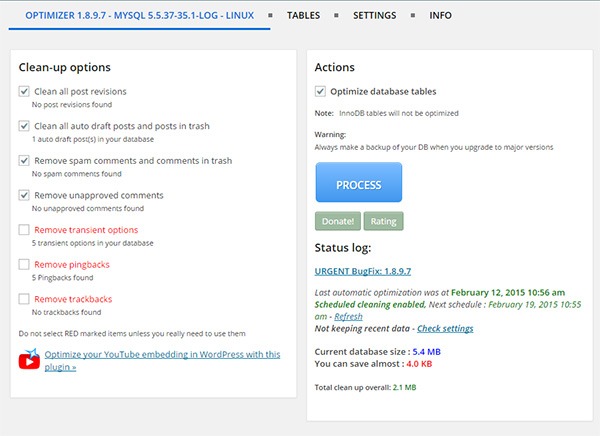
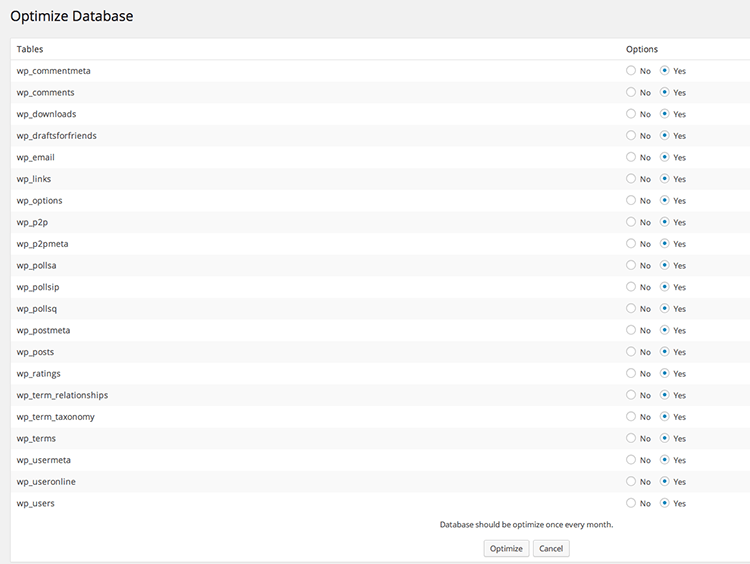
WP-Optimize is one of the most popular plugins for cleaning your database and it is also one of the easiest to use. Simply install the plugin and run it. The plugin also allows you to schedule a regular database cleanup which is pretty handy if you want to keep your database in peak condition.

wp-optimize

WP-DBManager

WP-DBManager is another popular plugin for database optimization. It is however geared for more advanced users. Setting it up can be tricky if you’re not familiar with database elements. Being trickier however means that it has more customizable options and features. Some of its features include repairing a corrupted database, a database restore, running MySQL calls, and clearing tables. WP-DBManager however cannot clear bloat so if you want to go with this one for its host of other features, you still might want to consider getting WP-Optimize or any other means to clear database bloat.

wpdbmanager

So when was the last time you optimized your database? What tool or plugin did you use to clean it?

Filed Under: How-To Articles Tagged With: backup, best practices, how-to, MySQL, optimizations, page speed, plugins, website maintenance, WordPress

How to Backup Your WordPress Site

February 22, 2015 By John 2 Comments

backupFor every website owner, there will always come a time when your website will go down. Often, this could be because of a downtime on your hosting service, but sometimes it’s because of some other reason. Maybe your website has been compromised or you did something that caused your site to go down. Notably, if you’re going to be doing some major work on your site, you shouldn’t be doing it without creating a backup first so you can restore your website to a working state just in case you mess something up. Here, we’ll teach you how to backup your WordPress site.
If you are adding some lines of your code to your functions.php file, it is best practice to create a backup copy. When you add your code and your site goes down, you simply replace your functions.php file with the working copy and voila! Your site will be back up. The same can be done for when you are tweaking your CSS files. Though errors in your CSS won’t cause your site to go down, it can really mess up how your website looks. So just create a copy of your CSS file and restore it if anything goes wrong. This basically sums up the concept of website backups only on a larger scale.

Your hosting service probably already has a few backups of your website. So you might think that creating your own backup is not necessary. That’s where you’re wrong. What’s your assurance that your hosting service creates regular backups? Certain situations can also render your host’s backups useless. So essentially, just to be on the safe side, you should have your own backup.

There are two ways to back up your website. The first one is through one of a few available plugins and the second is doing it manually.

Backing Up Your WordPress Site with BackUpWordPress

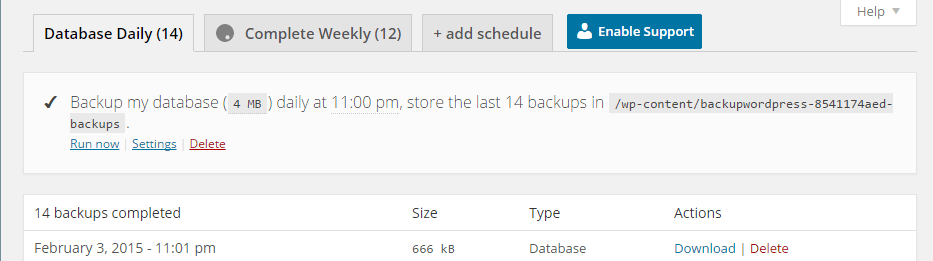
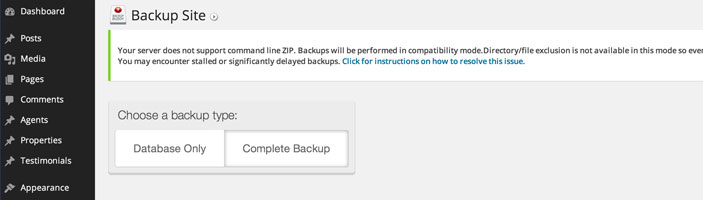
BackUpWordPress is the easiest means of backing up your website. Simply install the plugin and activate it. When that’s done, head over to tools and Backups. You can then choose between a Database Backup and a Complete Backup. To start backing up, just click on Run Now and wait until backup completes. You can also click on Settings to set the schedule for these backups. You can also add a custom schedule.

By default, your backups are stored on your server at /wp-content/backups. To restore a backup, simply find the latest working backup by navigating to the folder using an FTP client and unzip the backup on your server making sure to overwrite everything.

back-up

Backing Up Your WordPress Site with Backup Buddy

BackupBuddy is another popular backup plugin. Unlike BackupWordPress, BackupBuddy is a premium plugin so there is no free version. Once you get the plugin installed and set up, simply go to Backup. From there, you can choose to backup the database or do a complete backup. Next, you can choose to download the backup file so you can store it right in your computer’s hard drive.

BackupBuddy

You can also tweak your settings to have backups saved to Dropbox or Amazon S3, create custom backup profiles, and schedule backups.

How to Create Manual Backups

Backing Up Using MySQL

You can also backup your website manually using MySQL. To do this, head over to CPanel. From there, you can find phpMyAdmin. Click on the database and click on the Export tab. You can choose either quick or custom export. Set compression to gzip then click on Go.

Backing Up with CPanel

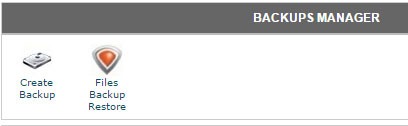
cpanel-backupTo create back-up using CPanel, navigate to Backup Manager and click on Create Backup. Where it says Download a MySQL Database Backup, just click on the database and download. A simple enough process but using a plugin just saves you from the trouble of doing this manually.


So when was the last time you backed up your website? Do you even have an existing backup? If you don’t, then it’s time to make one before it’s too late.

Filed Under: How-To Articles Tagged With: backup, best practices, CPanel, how-to, MySQL, plugins, website maintenance, WordPress

How to Set up Redirects for WordPress Sites

January 5, 2016 By John Leave a Comment

dead-end-404
Error messages discourage site visitors from coming back to your website. It is frustrating for users to receive 404 Not Found Errors and this is bad user experience. Often, the visitor would just exit after reaching a 404 error.

Now you wouldn’t want that would you? In this post, we will teach you:

  • What is a 404 error?
  • Why you should fix 404 errors?
  • What is a redirect?
  • How to fix 404 errors.
  • How to set up redirects for WordPress
  • How to create custom 404 error pages

404-errorWhat is a 404 Error?

A 404 Error (or HTTP Errror 404 – Not Found) appears when a website or page that want to access on the server could not be found. It is a standard response showing an error on the client’s side or browser and may appear in different ways because this can be customized. This is typically caused by a broken link for moved, renamed or deleted pages. You also get a 404 error mistyped or misspelled URLs.

Why You Should Fix 404 Errors?

This type of Error message might appear simple and unimportant but this can do a lot of harm to your business. It affects your web presence and your reputation as a business as it is reflective of how well you manage your website.

Experts say that attention span of the average user decreased greatly due to the huge amount of data available online. A site visitor would normally just spend a few seconds to and sometimes a few minutes when visiting a website. Getting 404 Errors can be annoying to site visitors and it usually results in a bounce.

Your site will be remembered as “that site with the 404 error” which could discourage them from visiting your site again. In a survey of online shoppers in Spain, 14% of the participants indicated ’page errors’ as the reason why they did not return to a website.

In the technical aspect, numerous dead links can negatively impact your SEO so it is best to create redirects for any changed URLs or deleted pages especially if you have backlinks pointing to that URL. Redirects help with your SEO as it salvages any backlinks that 404 error page might have.

What is a Redirect?

redirection person on arrowsA redirect is a means of pointing a URL to another URL. There are many types of redirects but you only need to know two of them. A 301 redirect is a permanent redirect whereas as a 302 redirect is a temporary redirect. A 302 redirect is generally not recommended unless you are an SEO expert and you know what you are doing because different search engines process 302 redirects differently. To know more about the different types of redirects, you can check this blog post.
How to Fix a 404 Error using Redirect Plugin

Redirection is not yet a standard feature in WordPress so you would need a plugin to help you with this. The first thing you have to do is install the Redirection Plugin for WordPress and activate it after installation.

This plugin by far is the most popular and actively used among many other similar plugins. You can use CSV files to easily manage a huge list of redirects. Just head over to the “Import” section and upload your CSV file. This is a pretty useful when migrating a website and you need to edit hundreds of URLs.

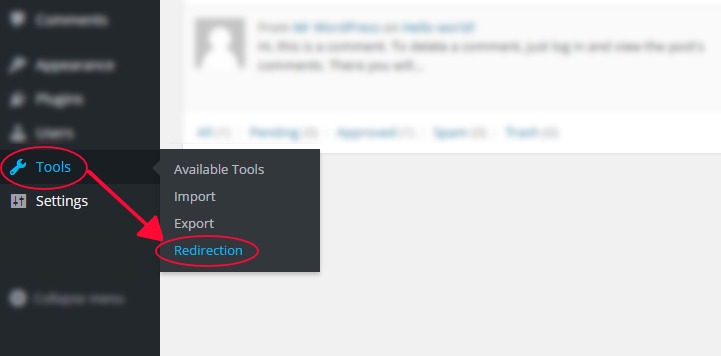
Once you have the plugin installed and activated, go to Tools and then click on Redirection. This plugin allows you to set your redirects complete with logs for all the URLs that you redirect, the plugin also helps you find 404 errors within your website.

tools-redirection-plugin

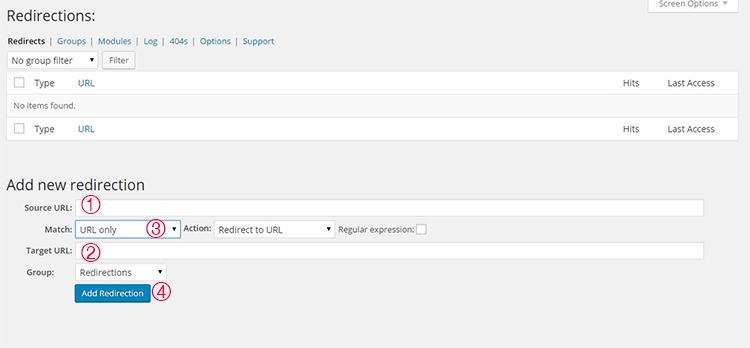
Once you have accessed the tool you will see that you will be presented with a list of redirects that you have set. Below that, you can see the “Add New Redirection” section and this where you add new redirects.

To add a redirect, just follow these 4 simple steps.

  1. Enter the URL of the link that you want to redirect in the ‘Source URL’ field. You don’t need to input the entire URL, just the slug will do. For example, instead of typing ‘http://www.mywebsite.com/page’, you can just input ‘/page’.
  2. Input your destination URL inside the ‘Target URL’ box. If needed, you can actually point the destination URL to an external URL. And just same, you can just type the slug.
  3. Make sure that ‘Match’ is set to ‘URL only’ and ‘Action’ is set to ‘Redirect to URL’. You can choose different settings based on your needs but if you want a standard redirect, the above will do.
  4. Submit by clicking on ‘Add Redirection’.

redirection-plugin

If you want to organize your redirects, you can create groups by clicking on the ‘Groups’ tab. You can just add future redirects in the groups you have created to keep them categorized. For more information on the plugin, you can visit the plugin developer’s documentation.

Other Plugins for Managing Redirects

There are many plugins for WordPress that could help you manage your redirects. Here are some top plugins that you could also check out.

Quick Page/Post Redirect Plugin

quick-page-post-redirect-plugin

True to its name, this plugin is easy to install and setup. It makes restructuring your website easier. You can choose two types of redirect functions — ‘Individual Redirects’ and ‘Quick Redirects’. Their ‘Individual Redirects’ are for redirecting existing pages and posts while the ‘Quick Redirects’ can be set up for pages that do not exist which is great for fixing typo errors and pointing an old URL to a new one.

All 404 Redirect to Homepage

As the name of the plugin suggests, this is a pretty straightforward tool that you can use. This is recommended for people who want to manage their 404 Errors by using the 301 redirection method. All your 404 will simply be redirected to your homepage. The plugin is simple uses minimal resources.

SEO Redirection Plugin

seo-redirection-plugin

This plugin, from the same developer of the previous plugin, helps you set redirections with ease. It allows for setting up various types of redirects. It also helps you monitor your website for 404 error pages. It has a Free and Pro version. The free version is good as is but if you want more options like redirecting folders and all its content and redirect all 404 Error Pages with ease, you can upgrade to the Pro version.

404 to Start

404-to-start-plugin

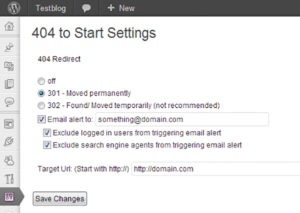
This has an optional email alert and a simple interface that will help you set redirects. You can set a 301 redirect or a 302 redirect which is generally not recommended.

404 Redirection

This plugin has surprisingly a very good rating. It is upfront, simple, and does the job well. It permanently points all your 404 Errors to your main blog URL so you can use the ranking from those missing pages and not let them go to waste.

404 to 301

404-to-301-plugin

Similar to the other plugins mentioned above, 404 to 301 does its job of redirecting 404 errors. But as a plus, it has a sweet email notification for any 404 errors so you can fix them quickly.

Creating Custom 404 error pages

Another way of effectively dealing with 404 pages is by creating a custom 404 error page. Having a custom 404 error page is a good thing to have for those 404 errors that are beyond your control such as when a user mistypes a URL. A custom 404 error page should show the visitor why they are receiving a 404 error and what they can do to fix it. It should also suggest some links on your website that they were probably looking for. You can check out our other post on creating custom 404 error pages for a detailed guide on how you can do this for your own site.

Conclusion

Having errors on your website is not good user experience. 404 errors in particular can harm your conversion rates. Setting up redirects to fix 404 errors is easy with the help of a plugin. Checking for 404 Errors and setting up redirects should be a part of your monthly or weekly website maintenance. And while a 404 error will not harm your SEO, a little extra time fixing them can save you from bigger problems in the long run. How do you fix 404 errors on your website? Let us know in the comments.

Filed Under: How-To Articles Tagged With: 404 error, best practices, how-to, plugins, redirection, WordPress

  • « Previous Page
  • 1
  • …
  • 6
  • 7
  • 8
Let us support your online store so you can manage your business

Get started today

Get 2 Hours of FREE SUPPORT

We are so confident that you will love our services that we will give you your first 4 hours at a 50% discount

That’s 4 hours for only $75

BUY NOW

Free eBook

5 Things Every Online Store Can Fix On Their Website In The Next Week To Increase Sales

Quick Links

  • How it Works
  • Pricing
  • Blog
  • Contact
  • About Wooassist
  • My Account
  • Checkout
  • Privacy Policy
  • Cookie Policy
  • Terms and Conditions

Wooassist

Australia:
59 Luke St.
Hemmant QLD 4174

Philippines:
San Miguel St.
Poblacion, Iligan City 9200

Connect


Copyright © 2026 · Wooassist

Yours FREE!

5 Things Every Online Store Can Fix On Their Website In The Next Week To Increase Sales