Wooassist

Assistance for Your Woocommerce Store

  • How it Works
  • Pricing
  • Services
    • Site Maintenance
    • AI SEO and Content Marketing
  • Blog
    • How-To Articles
    • Code Snippets
    • SEO For E-Commerce
    • Theme and Plugin Reviews
    • Wooassist News
    • WordPress/WooCommerce News
    • Interviews
  • About Us
  • Contact
You are here: Home / Archives for John

Custom Development for Your WooCommerce Store

March 20, 2017 By John Leave a Comment

One of WooCommerce’s best-selling points is its customizability. But as extensive as the WooCommerce plugin database is, sometimes it’s still not enough. That’s where custom development for your WooCommerce store comes in. With custom development, we open a whole new world to your website’s capabilities. Still, as powerful as it is, it doesn’t come without its challenges.

Customizability

business-meeting-discuss-website-development

What exactly do we mean when we say custom development? Well, it’s like a custom tailored suit – it is tailoring code according to your exact specifications. With that, we’ll have precise control of the end-result. It is making changes to your website using configurations beyond what the software or plugins are originally capable of.

Sometimes you may find that WooCommerce is lacking a certain functionality that you require. You search for a plugin and there’s no viable plugin for it. In cases like these, we can custom code to add that functionality to your WooCommerce store. If you don’t like how a WooCommerce plugin works, we can add custom code to tweak it and make it work the way you want it to.

However, this does not come without its challenges.

Compatibility

In a vacuum, programming is predictable. For example, if you only had to deal with WooCommerce and you wanted to change something, it is simple and straightforward. However, in reality, a website exists as a combination of different software working together. What should be a straightforward change to WooCommerce could become unpredictable. Other installed plugins may behave differently as a result of the custom code.

These complications can create additional work but solving them is a necessary step in custom development.

Iterative Nature

keyboard-testing-thumbs-up-down

Other obstacles to custom development are unexpected bugs and simple errors.

Custom development is adding short pieces of software to the site. And as with all software, the first release rarely turns out as perfect from the get-go. Even with thorough testing, not all cases can be tested. In some instances, the bugs can pop up at an irrelevant area of the website.

Errors are also common, especially with complex customizations. At Wooassist we have tested over 500 developers in our recruitment program and trialed almost 100 of them. We are left with the cream of the crop and have 3 solid developers. They are the top one percentile, but they are not machines. They are not perfect. These unexpected bugs and mistakes go hand in hand with custom development. To get things right, several iterations may be necessary.

More meticulous testing is advised, but it will also cost more. It is up to the client to set the balance between testing and cost.

Maintenance Costs

Another challenge for custom development is its dependency on the parent software. This includes – either WordPress itself, WooCommerce or the other plugins you have installed. There’s the possibility that updates and new software versions will affect your custom development.

This is because the custom code has been specifically designed for the current setup at the time. If the setup changes, then the custom code needs to be modified as well. This means that custom development is not a build-it-and-leave-it process. It needs regular maintenance to keep up with the updates of the original technology.

So should you still get custom development for your WooCommerce store?

Web-developer-dual-mointor

It depends.

Most of the time, the ready-built plugins and extensions for WordPress and WooCommerce are enough to get a website up and going. There are thousands of extensions, both free and paid. Chances are, the functionality you are looking for might already be available. If it comes down to a choice between a paid plugin and custom development, sometimes the paid plugin is more advisable. It is much safer and easier to adjust your expectations and solution compared to custom code.

Business owners can be guilty of coming up with less than optimal ideas and then investing in development to implement these. A much better process is to invest more in researching the problem and the range of solutions available. Find some experts, send them the objective, the problem and your proposed solution and let them do some research for you. There is often a much simpler and cheaper solution.

Now what if there are no plugins for the functionality you require?

This is when you have to decide whether the functionality is worth the challenges and costs that come with custom development. If it is a functionality that gives the site admins the capability to spend less time working on a task, then it will pay itself off in the long run. If it improves customer experience and increases conversions, then it should also be an acceptable cost.

You can also choose the option that requires the least customization. Strike a compromise between the functionality you require and functionality of the original software. Bend the software less to avoid complications. All in all, custom development is not advisable for all projects. While challenging, custom development tells us that there will almost always be a solution. For most website owners, custom development is a necessary step in creating the website that they envision. To pursue this path, the site owner must accept the challenges of custom development.

Examples

1. Here’s an example of a WooCommerce checkout that we’ve customized. Instead of the standard WooCommerce checkout page, we’ve separated certain sections grouping them together. We ended up with four sections, namely Billing Details, Shipping Details, Payment and Confirmation.
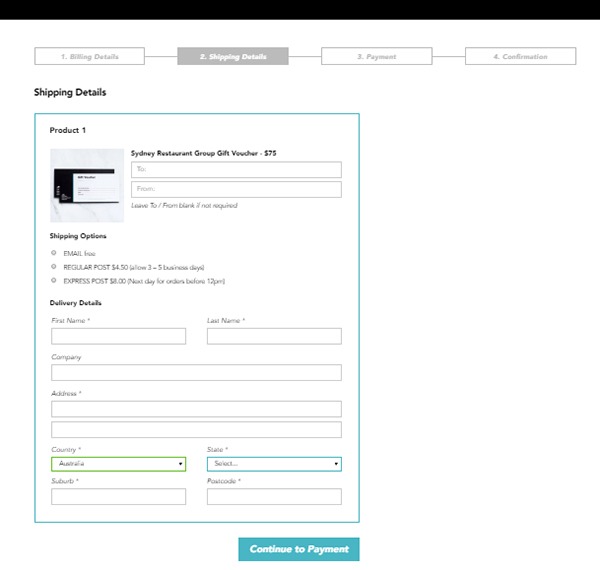
Example-1-Custom-Development-for-your-WooCommerce-Store

During the process, we encountered an error that cost some time to troubleshoot. So apart from the customization itself, we also needed to deal with unexpected complications.

Example-1-error-msg---Custom-Development-for-your-WooCommerce-Store

It turns out that it was caused by a conflict with an idle plugin activated on the site. Deactivating the plugin fixed the issue.

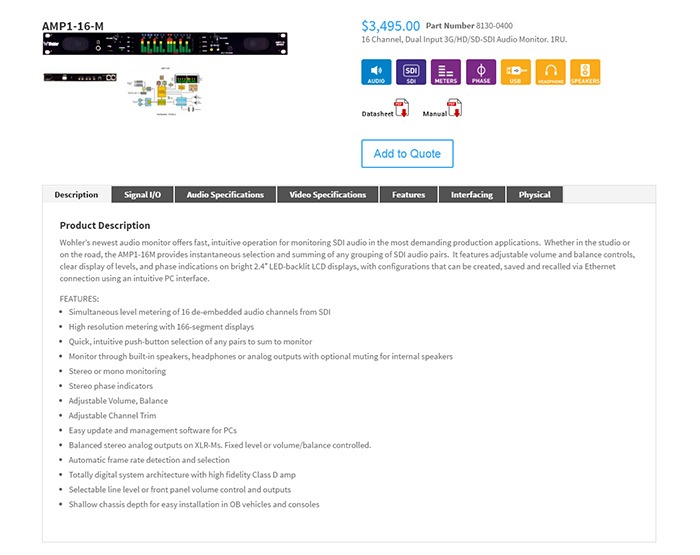
2. Here’s a product page that we’ve customized according to our client’s specifications. For this particular project, not only did we have to customize the product page, we also had to migrate an existing database of non-WooCommerce products to a WooCommerce website. This was complex as the existing products had attributes not compatible with WooCommerce.

The only viable solution we could think of was to make use of separate paid plugins to manage the attributes. In the end, the client had to purchase a separate premium plugin, WP All Import and the Advanced Custom Fields add-on. Unexpected costs like these may deter some website owners from custom development. However, these are often necessary.
Example-2 Custom Development for your WooCommerce Store

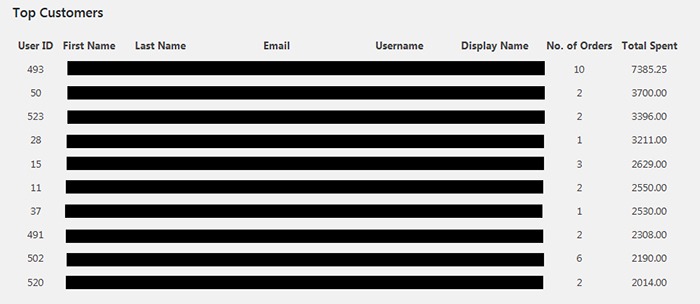
3. One of our clients asked for the functionality to create a list of the site’s most regular customers. She had installed a plugin for it. However, upon checking, the plugin has not been updated in over 2 years. As there are no alternative plugins, we figured that the most viable option would just be to build custom code for it.

The custom development itself was straightforward. Still, we needed to strike the right balance between spending time creating the code and spending time testing for errors. In the end, we were able to complete the custom development with the bare minimum in functionality in just a bit above 2 hours.
Example-3-Custom-Development-for-your-WooCommerce-Store

Final Advice

Here at Wooassist, we bill the work we do by the hour. So when it comes to custom development for your WooCommerce store, more complications can mean more time spent than expected. Most of our clients still prefer this arrangement as it is still cheaper than fixed price custom development work. Also, it is easier to arrange changes to the project along the way. Agencies that offer fixed-price quotes for free usually offer them at a premium as the client is also paying for the time when they didn’t get the work. And once the project has started, it is difficult to arrange changes without incurring additional charges.

But for those that would still prefer a fixed price quote, we can offer our Custom Project Roadmap product. When you purchase it, we will spend time researching, analyzing and defining the scope of the problem and solution. After these, we will offer a fixed price quotation. By having a clear strategy that is pre-assessed to be viable, we can minimize the complications. And when complications do arise, we won’t be billing you anymore for additional charges so you have control over the expense.

Filed Under: Theme and Plugin Reviews Tagged With: best practices, e-commerce, website development, website maintenance, Wooassist, WooCommerce

How to Edit Footer Credit Text in Storefront Theme

March 20, 2017 By John Leave a Comment

Like most themes, Storefront theme comes with a generic footer text. As a WooCommerce store owner, this doesn’t really help your site so you will want to change it.

Storefront-Default-Footer

Why Edit Footer Credit Text Area?

Well, you certainly wouldn’t want the default one. You can edit your site footer credit text area to include your business name and declare your copyright. You can also use this area to include whatever best fits your needs.

But first off…

How Do You Edit the Edit Footer Credit Text in Storefront Theme?

By editing your e-commerce store’s footer, you can make it a part of your strategy. You can easily edit it if you know how to code. However, this can prove challenging to the average user. In this case, there’s a plugin for that. Just follow the steps below:

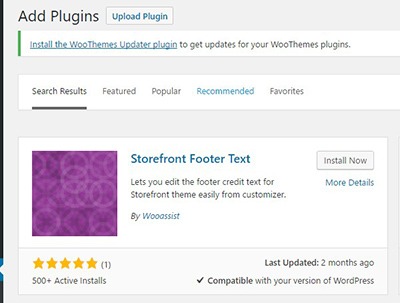
  1. Storefront-Footer-Text-Plugin-400x300Head over to your WordPress Dashboard and go to plugins

  2. Click on “Add New”. In the Search field, input “Storefront Footer Text” and press Enter.
  3. Click on ‘Install Now’ on the plugin and then click Activate.
  4. Once Activated, head over Appearance > Customizer
  5. Under the Footer section, you will find a text area for you to enter your custom credit text. You can use HTML tags so you can be creative when adding your footer text.
  6. When you’re done, just click on Save.

What Can I Add to My WooCommerce Store’s Footer Credit Area?

There are a lot of things you can add to your store’s footer credit section. Below are just some of them.

Declare Copyright and Other Important Declarations

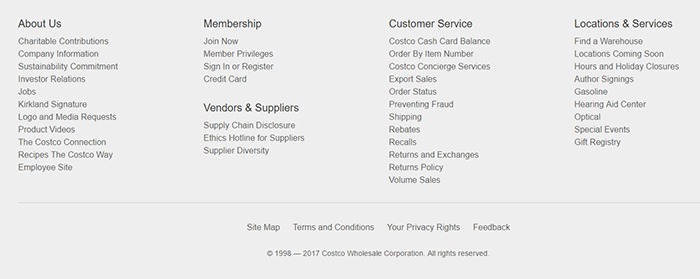
The most common use of this area is to declare a copyright. This has three elements: the copyright icon, the company name and the year that you started the e-commerce store/business up to the current year.

If there are other important declarations that you want to add for legal purposes, you can add them in this section as well. Some websites have been known to use this area to declare the use of cookies.

Declare-Copyright-in-Footer

Here’s how it looks like on the Costco website.

Contact Details

In addition to copyright information, you can add your contact details on the footer credit section to increase your credibility. You can add your phone number, address, email as well as a link to your contact us page.

Social Media Icons

You can add social media icons in this section in a way that is not intrusive. When you add social icons at the top of your page, it can be a distraction from your website’s goal. But when you add it at the bottom of your site, it becomes another way for you to engage with your visitors if they ignored your main call-to-action.

Social-Media-Icons-in-Footer
Newegg.com adds both social icons and security seals in the footer credit area.

Show Security Seals and Certificates

Newegg.com adds the security seals on their footer credit section along with their social media icons. You can add your own Norton Security Seal here.

Payment Options

You can also add icons of the payment options that you accept on your e-commerce store. This makes it easier for your visitors to know what payment options you accept without having to look for the FAQ section.

Add Other Important Links

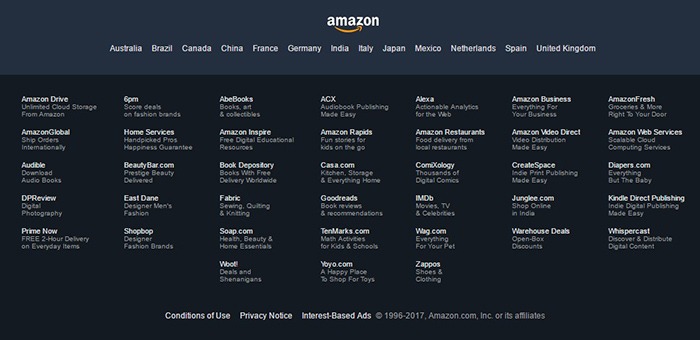
You can also use the footer credit area to add other important links such as your terms and conditions and privacy policy. This is how Amazon does it.

Terms-Conditions-Footer

No matter what you put on your footer credit text area, it must be an element that helps you achieve your e-commerce store’s goals.

Did this plugin help you edit footer credit text in Storefront? Did you experience any problems using it? What elements did you add to your footer credit area? Let us know in the comments.

Filed Under: How-To Articles, Theme and Plugin Reviews Tagged With: best practices, design tweaks, e-commerce, how-to, navigation, plugins, Storefront, Wooassist, WooCommerce

How to Edit Storefront Theme Header

March 6, 2017 By John 24 Comments

Editors Note: We have decided to retire the plugin mentioned in this article as the compact mode of the plugin no longer works with the new version of Storefront theme.

Editing a theme’s header is difficult for the average WordPress user. However, we’ve made it easier to do this for Storefront theme. With just a few clicks, you’ll be able to edit the format of the header, hide header elements, or change background, text and link colors.

But Why Storefront?

Storefront is the best theme to use with WooCommerce, which is the most popular e-commerce platform on WordPress. The theme was made and is being updated by the same people who created WooCommerce so compatibility will never be an issue. If you are already using Storefront theme on your WooCommerce store, then good for you. If not, you should consider using it to prevent any issues in the long run.

We’ve come across many WooCommerce stores that had a lot of problems due to conflicts with the theme. Each and every time, we recommended the use of Storefront theme. And each and every time, using Storefront fixed the problem.

Hence, we’ve created the Storefront Header Picker Plugin to make editing your header that much easier.

How to Install Storefront Header Picker Plugin

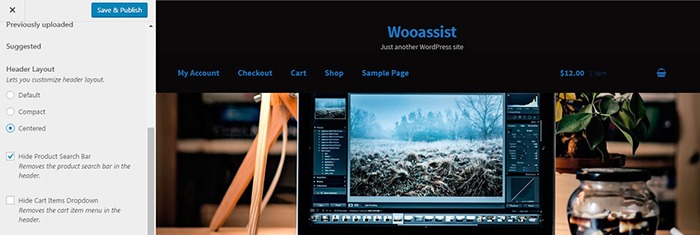
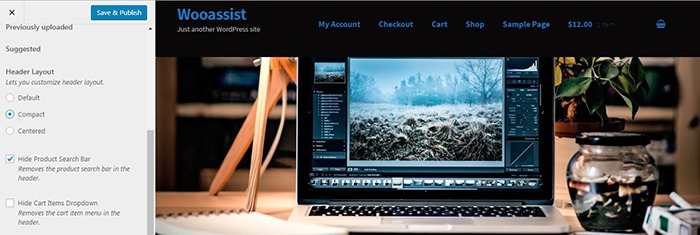
Header Layout - How to Edit Storefront Theme HeaderYou install the plugin just like any other plugin.
  1. Go to your WordPress Dashboard and click on “Plugins”.
  2. Click on “Add New” and search for “Storefront Header Picker”.
  3. Click on “Install” and then activate the plugin.

How to Edit Storefront Theme Header

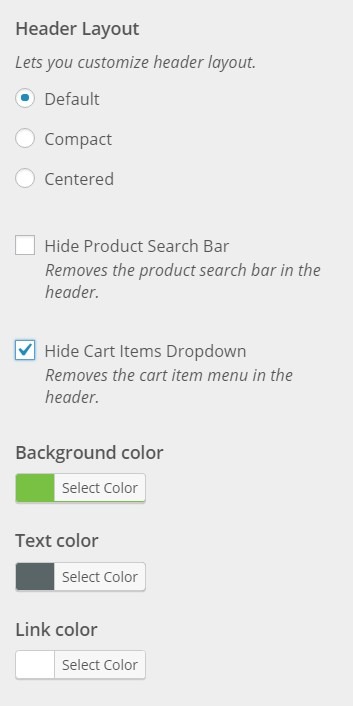
  1. To edit your Storefront theme header, click on Appearance > Customize > Header.
  2. Here you can choose between three header types: Default, Compact, and Centered.
  3. You can also choose to hide the product search bar and the cart. Just check/uncheck the corresponding boxes.
  4. At the bottom, you can change text and header colors.
  5. Once done, just click on “Save & Publish”.
Centered-Layout-How-to-Edit-Storefront-Theme-Header
Centered Layout
Compact-Layout-How-to-Edit-Storefront-Theme-Header
Compact Layout

Will This Work for Any Other Theme?

Unfortunately, this plugin will only wok for Storefront theme. It makes use of Storefront action hooks and filters. Activating the plugin when you are using a different theme will bring up a warning message.

Did this plugin help you edit your Storefront theme header? Do you have any questions about the plugin? Let us know in the comments.

Filed Under: How-To Articles, Theme and Plugin Reviews Tagged With: design tweaks, marketing strategy, plugins, Storefront, website development, Wooassist

Connect Your WordPress.com Account to Continue Using WooCommerce Services

February 13, 2017 By John Leave a Comment

Since Automattic, the company behind WordPress and WordPress.com has acquired WooCommerce, it was only a matter of time before the two were integrated.

WooCommerce now requires a WordPress account for managing purchases, tickets and other subscriptions. You need to connect Your WordPress.com account to continue using WooCommerce services.

Before, users had to access two accounts to use the services of one company. Integrating WordPress.com into WooCommerce solves that problem for some users.

If you have purchased and are using premium plugins from WooCommerce, you will need to log in with a WordPress.com account to manage your subscriptions. If you don’t have a WordPress.com account, you can sign up by following this link.

Once you have a WordPress.com account, you can head over to https://woocommerce.com and click on “Sign in with WordPress.com”.

Connect Your WordPress.com Account to Continue Using WooCommerce Services

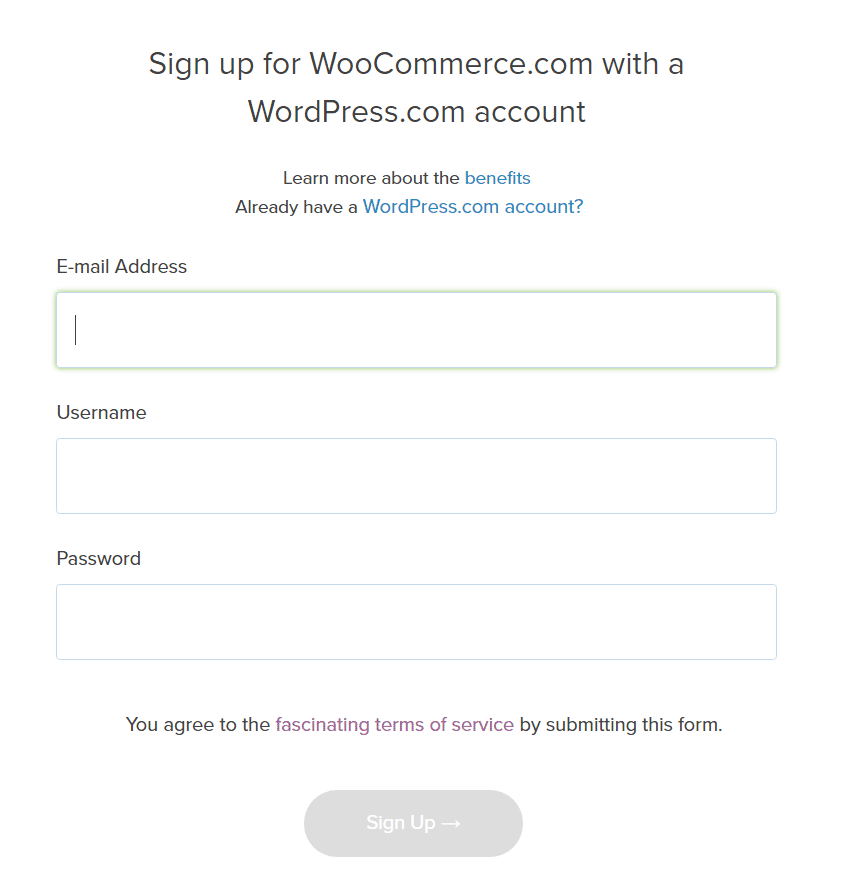
After that, click on the “Already have a WordPress.com account?” link, then proceed to the next step.

sign-up-with-woocommerce-with-wordpress

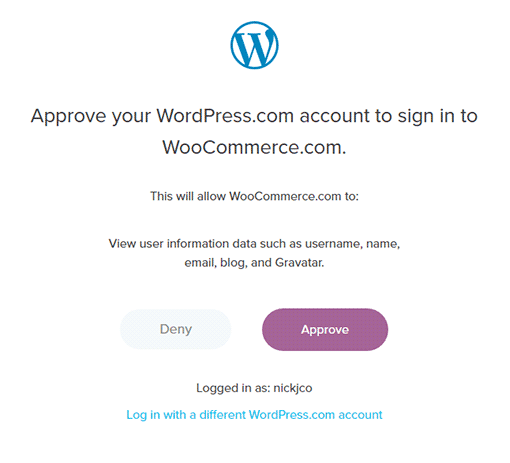
After logging in to Woocommerce.com via WordPress.com, you will need to click “Approve” to link your WordPress.com account to WooCommerce.

approve-wordpress.com-account

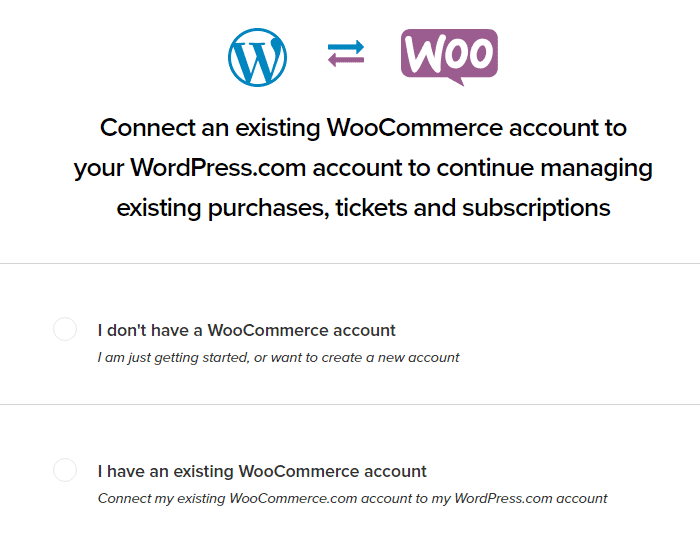
Next, you will need to connect an existing account or create a new one. Click on the “I have an existing WooCommerce account” if you have one and click on “Continue”.

connect-woocommerce-account-to-wordpres

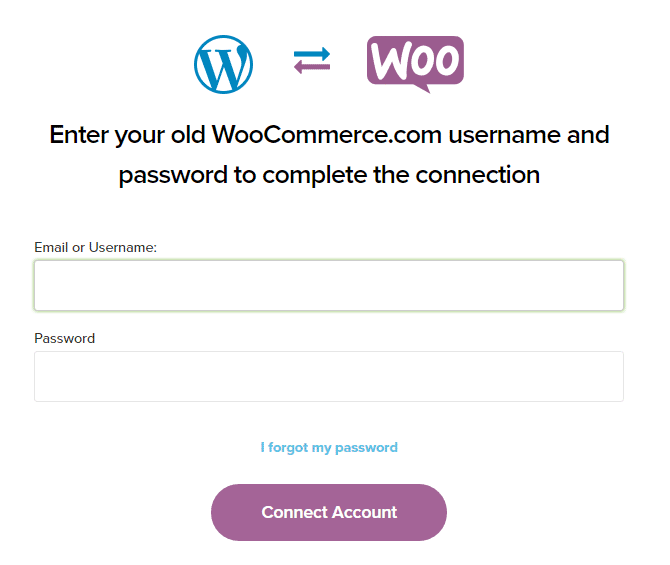
Here, you will to enter your old Woothemes.com/WooCommerce.com account.

After entering details, just click “Connect Account”.

connect-woocommerce-and-wordpress

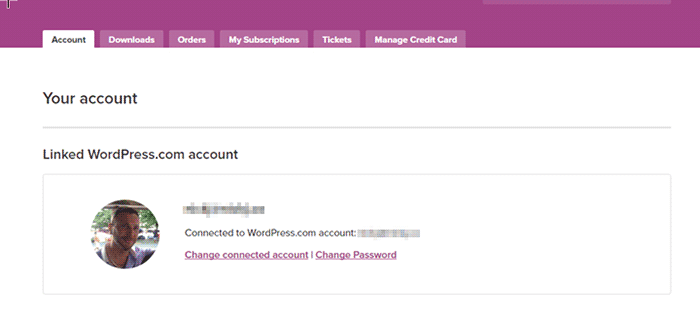
After connecting the account, you’ll then be redirected back to your account dashboard. From here on, you only need to login with your WordPress.com account to access WooCommerce services.

linked-wordpress.com-account

Were you able to successfully connect your WordPress.com and WooCommerce accounts? If you are having problems connecting your account, you can contact the Wooassist team to assist you.

Filed Under: How-To Articles, Wooassist News Tagged With: WooCommerce, woothemes, WordPress

How to Add “Where Did You Hear About Us” Field on WooCommerce Checkout

December 7, 2016 By John 16 Comments

As an e-commerce store owner, it is important to know where you are getting your customers so you can plan your marketing efforts. You can either focus on channels that help you convert or tweak your marketing strategy on channels that are not very successful. One way to find out where your customers are coming from is by adding a “Where Did You Hear About Us” field on WooCommerce checkout.

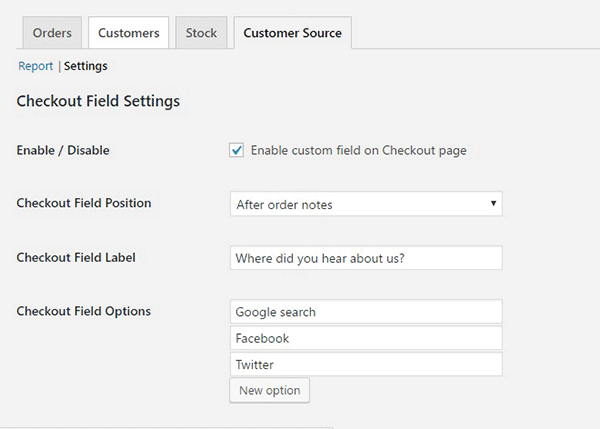
To start, just install and activate the “Where Did You Hear About Us Checkout Field for WooCommerce” plugin. When that’s done, go to WooCommerce > Reports > Customers Source Tab. Click on Settings to enable/disable the “Where Did You Hear About Us” custom field on checkout. Below you can see other plugin settings to customize. You can even make it a required field on your checkout page.

“Where Did You Hear About Us Field” on WooCommerce checkout

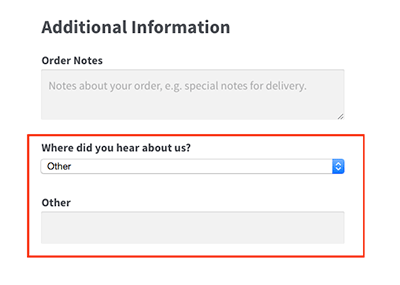
Using the plugin, you can add your channel options. You can even add an “Other” option so your clients can indicate how they found your e-commerce store if it is not in the list.

where-did-you-hear-about-us-plugin-additional-information

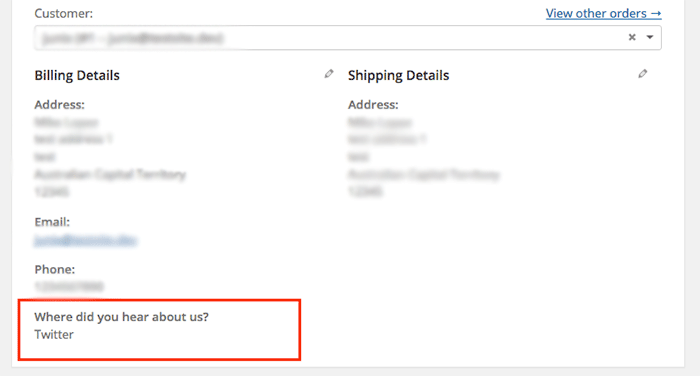
where-did-you-hear-about-us-plugin-below-billing-details

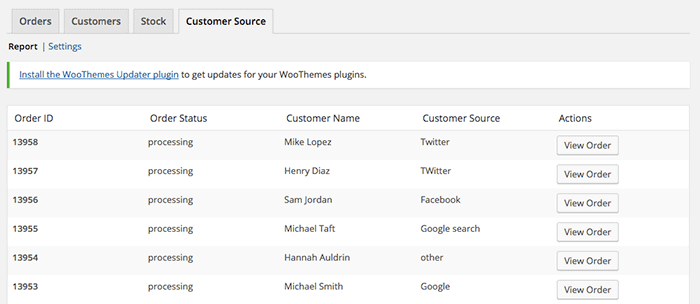
To view the data you gathered, go to Customer Source tab and click “Report”. You should be able to view the details which include customer name, customer source, order status, and order ID.

where-did-you-hear-about-us-plugin-customer-source-tab

The best part about this plugin is that it is totally free. There are no subscriptions. There is no premium version to buy. You can use it in as many websites as you want.

When you learn where your customers come from, you can make your business more profitable. If you tried using this plugin, tell us your experience about it in the comments section.

Filed Under: How-To Articles, Theme and Plugin Reviews Tagged With: e-commerce, how-to, marketing strategy, plugins, website development, Wooassist, WooCommerce

  • « Previous Page
  • 1
  • …
  • 21
  • 22
  • 23
  • 24
  • 25
  • …
  • 41
  • Next Page »
Let us support your online store so you can manage your business

Get started today

Get 2 Hours of FREE SUPPORT

We are so confident that you will love our services that we will give you your first 4 hours at a 50% discount

That’s 4 hours for only $75

BUY NOW

Free eBook

5 Things Every Online Store Can Fix On Their Website In The Next Week To Increase Sales

Quick Links

  • How it Works
  • Pricing
  • Blog
  • Contact
  • About Wooassist
  • My Account
  • Checkout
  • Privacy Policy
  • Cookie Policy
  • Terms and Conditions

Wooassist

Australia:
59 Luke St.
Hemmant QLD 4174

Philippines:
San Miguel St.
Poblacion, Iligan City 9200

Connect


Copyright © 2026 · Wooassist

Yours FREE!

5 Things Every Online Store Can Fix On Their Website In The Next Week To Increase Sales