Wooassist

Assistance for Your Woocommerce Store

  • How it Works
  • Pricing
  • Services
    • Site Maintenance
    • AI SEO and Content Marketing
  • Blog
    • How-To Articles
    • Code Snippets
    • SEO For E-Commerce
    • Theme and Plugin Reviews
    • Wooassist News
    • WordPress/WooCommerce News
    • Interviews
  • About Us
  • Contact
You are here: Home / Archives for John

How to Show Only Blog Excerpts in Storefront Theme

November 30, 2016 By John 7 Comments

How to Show Only Blog Excerpts in Storefront

Having a blog has a huge impact on e-commerce sites. A blog helps drive up to 55% more traffic. Blogs are all about providing relevant content to drive visitors to the site. Most blogs in the past prefer the full post display but recently, the snippet view or blog excerpts view has become quite popular. With blog excerpts view, the blog content is more scannable, with posts lined up and a Read More button available after each one. This lets the visitor browse through the posts and just click on the article he/she wants to read more about. In this article, we talk about how to show only blog excerpts in Storefront.

Why Show Only Blog Excerpts?

Increased Visibility

When you have a lot of posts on your blog, displaying only blog excerpts will make more of your content visible. Your latest post may not be the one that the reader is interested in. Having short excerpts of each post will show your visitors that you have a lot of content that they can indulge in.

Ease of Use for Visitors in Choosing Content that Interests Them

With a lot of posts in view, your visitors will be able to easily choose which article to read. This also helps bring more attention to your old posts so keeping those old posts updated with new information will also pay dividends. Readers can scan the blog page easily and may click not just one, but several articles that spark their interest.

Trims Down Lengthy Posts

If you create a lot of long blog posts, then having an excerpts view will make your blog more manageable. A 2000-word blog post is enough to cover a few screens which take attention away from other posts in a full-length view.

Reduced Page Load Times

Since you are only loading post snippets, your blog page will load much faster. Just imagine the number of images on a few of your blog posts and how much longer it would take to load all those.

Increased Page Views and Time on Site

With more content to browse through, showing only blog excerpts will increase your page views. And as visitors read more of your content, you also effectively increase user’s time on your site giving more opportunity for conversion.

Displaying Blog Excerpts in Storefront Theme Using a Plugin

You can switch to a blog excerpts display by editing the WordPress template files. However, you have to be familiar with the WordPress loop and edit the normal content with the excerpts function. An easier method is to use a plugin.
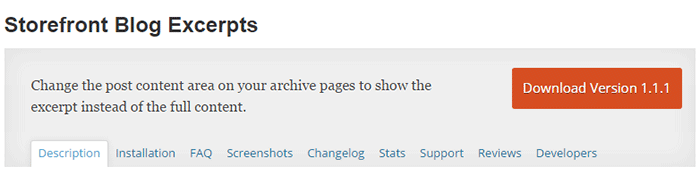
storefront-blog-excerpts-plugin

The Storefront Blog Excerpts plugin is made to work with Storefront theme by WooThemes. This also adds a section in the WordPress Customizer for you to modify how to display your blog content in excerpts view.

How to Use Storefront Blog Excerpts

  • In the plugins page, click “Add New”. Search for “Storefront Blog Excerpts” in the WordPress repository. Click on “Install” then activate the plugin.
  • After activation, the blog archive will be automatically replaced by the excerpts display.
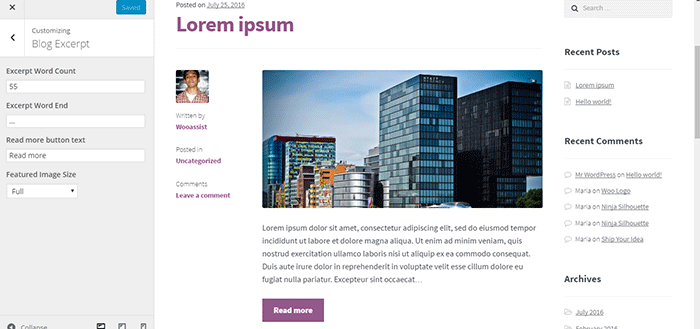
  • You can further customize how your blog archive is displayed. Go to the Appearance > Customizer and find the Blog Excerpts section.
  • You can modify the following properties in this section.
    • Excerpt word count – The default value is 55. The average word count of an academic paragraph is around 100 – 200. 55 is around half of it. Based on this, adjust how many words you want to display in each excerpt.
    • Excerpt word end – The default value is “…”. You can customize on the symbols that you can use to indicate a continuation. Other not so common symbols are “>”and “->”
    • Read more button text – The default value is “Read more”. This is the basic call-to-action. You can be more descriptive on the text and try “Go to Full Article”.
    • Featured image size – The default value is “Full”. Here, you can choose different sizes of feature images.
How to Show Only Blog Excerpts in Storefront

Have you tried displaying only blog excerpts on your WooCommerce store’s blog? If you haven’t, you should consider doing it as it might just get you more page views and increased time on site. If you have tried the plugin above, let us know your experience about it and your ideas on how it can be improved.

Filed Under: How-To Articles, Theme and Plugin Reviews Tagged With: best practices, how-to, navigation, plugins, Storefront, Wooassist

Why Use Long-Tail Keywords for your WooCommerce SEO

October 13, 2016 By John Leave a Comment

Are you optimizing your WooCommerce products but find that you are not getting any traction? It could be because you are optimizing for the wrong keywords. Many e-commerce businesses find more success with long-tail keywords. But what are long tail keywords and why use long-tail keywords for your WooCommerce SEO?

What are Long-Tail Keywords?

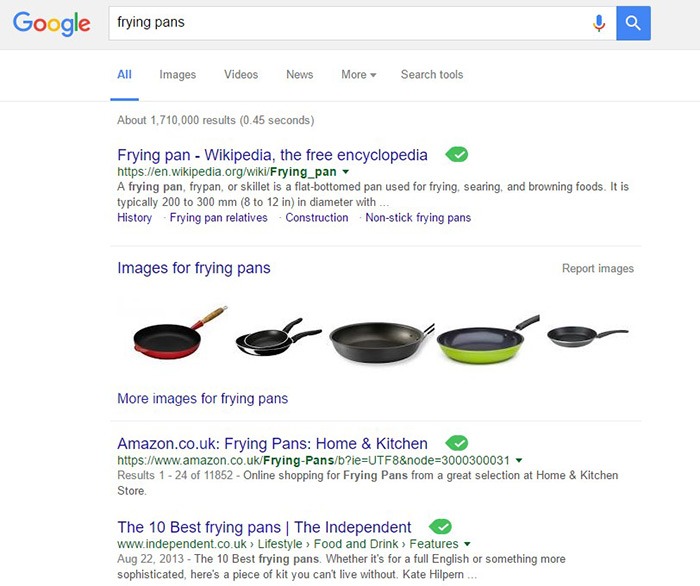
Long-tail keywords are longer, more specific keywords; much like a keyphrase. For example, if you are running an e-commerce store that sells frying pans, you could be tempted to optimize for keywords such as “frying pans”. However, ranking for “frying pans” would be very difficult. Do you expect to beat Wikipedia or Amazon who holds the top two spots in Google’s search results page? Even if you hire the most expensive SEO agency, that’s going to be hard to topple.

Why Use Long-Tail Keywords for your WooCommerce SEO

Let’s try to improve the keyword “frying-pan”. “Non-stick frying pan” is an improvement. It is more specific compared to just “frying pan” but this can still be made more targeted. “Non-stick stainless-steel frying pan” or “non-stick stainless-steel frying pan for induction stove” is taking it a step further.

bulls-eyeBenefits of Using Long-Tail Keywords

Long-Tail Keywords Produce Targeted Traffic that Converts Better

Long-tail keywords may or may not result in less traffic. The traffic that you do get will be more targeted and that means better conversion. Don’t stress yourself too much about losing traffic because traffic is a useless statistic. The important statistic to watch out for is your conversion rate because this is the moneymaker. Optimize your e-commerce store for increased conversion; not for increased traffic.

Long-Tail Keywords are Easier to Rank for

Because there is less competition for long-tail keywords, it is easier to rank for them. With a properly optimized page, you can land a top spot in the search results page. As long as you follow other known SEO best practices, this is achievable.

seo-google

But They Have Low Search Volume?

You might be looking at search data using Google’s Keyword Tool or any other tools. Then you see that there is no search volume for the long-tail keyword that you want to target. Don’t fret. Having no search volume does not mean that it will not show up in search results. Long-tail keywords are actually valuable. In the video below, Rand Fishkin talks about how valuable long-tail keywords are.

How to Choose the Right Long-Tail Keywords

Choosing the right long-tail keyword for your WooCommerce store is not difficult if you know who your customers are. If you already have a definitive image of your customers, then that’s a good thing. If not, it is imperative to identify your customer persona.

When you’ve created your customer persona, put yourself in your customers’ shoes. Think. What keyword would you search for if you were looking for the product you are selling? There is no single correct way to go about this. Most of the time, you will find that customers are looking for something specific. And once you identify that, that’s what you optimize for.

customer-persona

How Does Long-Tail Fare vs Popular Keywords?

If you choose to optimize for regular keywords, then you’re going to have a hard time getting to Page 1 of Google’s search results page. And if you don’t hit page one, then it won’t even matter. Page 1 of the search results page shows the top 10 results for the keyword. If you are ranked 11th, you’ll hardly get any traffic. This is not meant to discourage you to pursue the big keywords since it is not an impossible feat. It is possible but it’ll take some real genius or a lot of luck. Long-tail keywords, on the other hand, are easier to rank for.

Use Long-Tail Keywords with Other SEO Best Practices

seo-strategy

Using long-tail keywords alone won’t make your e-commerce store a conversion powerhouse. You need to use these keywords with other known SEO best practices. If you are using long-tail keywords right but doing everything else wrong, then it is not likely that you will get conversions.

You should create quality content that is easy to read. You should use proper URL structuring. Make your URLs readable. Implement proper navigation and good user interface. Upload a sitemap and make sure search engines can crawl your site. Use images properly and optimize your site for increased conversion. There’s a lot more to this but here’s a guide from Google to help you get started on best practices.

And that explains why you should use long-tail keywords for your WooCommerce store. If you have any questions, let us know in the comments.

Filed Under: SEO For E-Commerce Tagged With: best practices, e-commerce, marketing strategy, optimizations, SEO strategy

Why Use Storefront Theme on Your WooCommerce Store

August 26, 2016 By John Leave a Comment

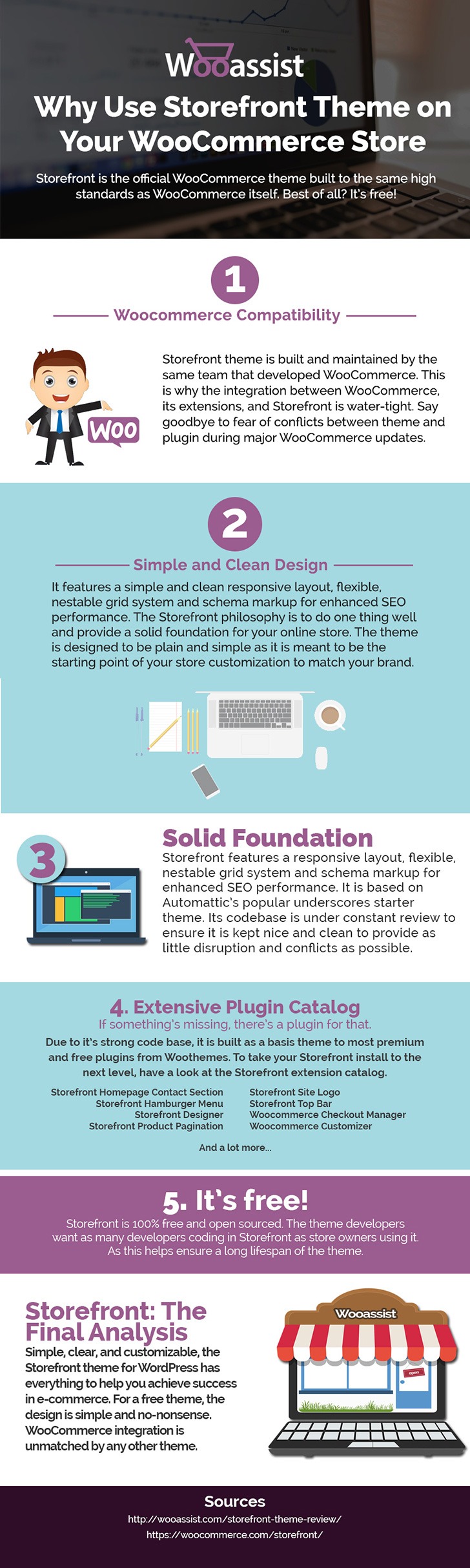
Storefront is the ideal platform for your WooCommerce store, providing a rock-solid foundation without the extra bloat or features. Developed by WooThemes, it reaches up to 3,000 downloads daily. But why use Storefront Theme on your WooCommerce Store? Find out in this infographic.

Why Use Storefront Theme on Your WooCommerce Store

To share this infographic on your site, just use the embed code below.

Filed Under: Theme and Plugin Reviews Tagged With: e-commerce, Storefront, website development, website maintenance, WooCommerce, WooCommerce products, woothemes, WordPress

12 WooCommerce Tasks You Should Outsource

August 18, 2016 By John Leave a Comment

WooCommerce Tasks You Should OutsourceHow much value do you put on your time? As a business owner, this is a question that you should be asking yourself. Ideally, you should be working on your business rather than in your business. This entails hiring staff to handle the day-to-day operations and outsourcing works well for this purpose. Outsourcing is not easy but it can do good for your e-commerce business.

We’ll take a look at some of the benefits of outsourcing. We’ll also discuss the challenges that come with outsourcing, how you can deal with them, and the tasks that you can outsource.

Benefits of Outsourcing

You may opt for an in-house staff, but why is outsourcing a popular alternative? Here are a couple of reasons.

Getting a WooCommerce Expert to Do the Job

Outsourcing an experienced virtual assistant is made simpler. With some digging, you can find a WooCommerce expert who doesn’t charge exorbitant fees. With the right approach, you can even find someone who will stick with your company for years.

Reduced Costs

Hiring a virtual assistant will cost less than hiring a full-time in-house staff. You won’t need to invest in an office space for the outsourced worker. The outsourced worker will have his/her own computer with internet access. You may however need to provide some online tools and resources specific to your business.

You may have to offer a higher salary (still cheaper than your local rates) or offer some benefits if you want to keep a good virtual assistant. Do some research to find out what benefits are afforded to employees in certain countries. For example, virtual assistants from the Philippines will expect a 13th month bonus. Incentives for good performance are also good.

Challenges with Outsourcing

laptop-outsourcing

Outsourcing comes with its share of risks but these risks can be controlled.

The Need for Training

When you delegate work, the outcome may not always meet your expectations. To improve on this, make sure you create systems that the virtual assistant can follow. Provide ample time in training the outsourced worker.  Familiarize them with your business processes. This will help in paving the way for a long-term mutually beneficial relationship.

Confidentiality or Security Issues

You want to protect your business and that’s understandable so you might be hesitant in hiring someone from the other side of the world. When hiring a virtual assistant, you will most likely be sharing sensitive company information. On top of that, you will be providing access to your site and other accounts. Before hiring, you can do your research on the person that you are hiring. Check out social media profiles and other mentions on the web. Charles Haines also offers some interview tips for measuring integrity.

During the first few weeks, you can consider providing the outsourced worker limited access to your systems. When you are more comfortable, you can start providing more access.

WooCommerce Tasks You Should Outsource

As you work on growing your business, you may find that you spend a lot of your time on tasks that you can delegate. Outsourced WooCommerce tasks are web design and development, marketing, SEO and other back-office roles.

WooCommerce Tasks

1. Create and Edit Products – Creating and editing WooCommerce products can be time consuming. You need to set up products with different attributes and optimize and upload images for each one. Delegate this task so you can use your business expertise where it is needed.

2. Product Image Editing – Images need to be optimized before being used on your WooCommerce store lest you risk bloating your site and increasing page load times.

3. Improve Product Copy – Writing product descriptions that highlight your product benefits will help you sell. Copy writers and virtual assistant know this. Speak to your target market and convince them to make the purchase. This is one less task to worry about, as professional copy writers can do this for you.

Web Design and Development

programming-outsourcing4. Update Plugins and Core – It’s important to keep your WooCommerce store protected from the latest known vulnerabilities. A WooCommerce expert can help improve security and site performance by keeping everything updated.
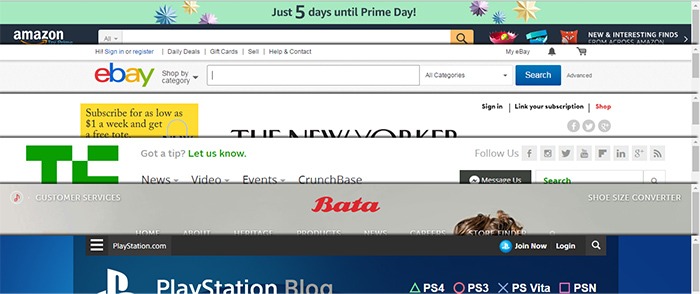

5. Design Tweaks – Improving user experience (UX) is a major factor in the success of your online store. A professional web developer can recommend and apply design changes to your site to optimize UX.

6. Analytics and Webmaster Reports – When optimizing your site to increase conversion or improve user experience, analyzing and interpreting existing data is invaluable. A virtual assistant adept at Google Analytics can analyze and interpret your website data. This can help you make sound decisions.

7. Technical Solutions – Don’t get wrapped up in the technicalities of developing and maintaining your website. An experienced WooCommerce developer can optimize your design and add new functionality in a fraction of the time it takes you to do.

8. Secure Your Site – Apart from WordPress and plugins updates, a WooCommerce expert can help you set up automated backups and set up other security features.

9. Speed Optimization – Keeping your site running at its fastest will improve user experience and will reduce bounce rates. Notably, site speed is also an important ranking factor for SEO. A WooCommerce developer can help you optimize your site speed. This can include optimizing images, optimizing the HTCaccess file, setting up caching, minification, and DNS.

Marketing and SEO

10. Search Engine Optimization – Make it easier for potential customers to find your WooCommerce store by ranking high in organic search results. This is no small feat as SEO can take a lot of time. However, many virtual assistants make a living through SEO so finding an SEO expert is easy. A WooCommerce SEO expert can help optimize your product pages and blog posts to rank better in search engines.

11. Email Opt-in Solutions – To improve your site’s lead generation capabilities, a WooCommerce expert can help you add email opt-in forms in strategic locations on your site.

12. Landing Pages – An effective landing page should help you achieve your site’s goals. A WooCommerce expert can help you optimize your landing pages for this purpose.

Final Notes

Outsourcing a WooCommerce expert can help you save your time so you can focus on other things that need your attention. You now have a better idea of what tasks you can outsource to save your time. A WooCommerce expert can do tasks in a fraction of the time that it would take you. While outsourcing can be a challenge, the tips above should help ease the process.

Do you have any questions? Have you tried outsourcing? Do you have any tips that you can share? Let us know in the comments.

Filed Under: How-To Articles Tagged With: admin, best practices, e-commerce, how-to, marketing strategy, outsourcing, website maintenance, Wooassist, WooCommerce

How to Add a Top Bar in Storefront Theme

July 29, 2016 By John 12 Comments

The release of Google’s Material design started the “top bar” trend. It was used mainly on mobile user experience (UX) designs but it found its way into desktop design. In this article, we’ll teach you how to add a top bar to the Storefront theme.

What Elements Can you Add to the Top Bar?

Top-Bar-examples

The top bar has been used in a variety of ways, depending on the UX design or the information you want to highlight. Let’s enumerate common items we see on the top bar.

  • Promotions – This can be anything from a sale to a new product release. The top bar is a good noticeable area that you can use to post your promotions and other offers.
  • User Login/Logout – When users want to log in or out, their eyes will scan the top right corner of the page to look for the link. Because of this, it makes sense to place the link in the top right corner.
  • Social Links – The top bar is a common location for the site’s social media profile links.
  • Mini Cart – The mini cart has a very important role in the UX design of e-commerce stores. It is an important element to have either on the main navigation or the top bar.
  • Search Bar – The search bar is also a crucial piece in the UX design of most websites and it can be positioned in the top bar.
  • Subscription Form/Link – Placing the subscription form on a very prominent location like the top bar draws the attention of your visitors to the form.
  • Quick Links Menu – Quick links can be any important link that you want your visitors to see or something that your visitors will be looking for. Some common quick links are My Account, Shop, Terms and Conditions, Privacy Policy, About, Contact and FAQs.

Depending on your site, you can use the top bar to contain other elements as you see fit.

How to Add a Top Bar to Storefront

To add a top bar to Storefront, you can use the Storefront Top Bar plugin. Our developers at Wooassist developed this plugin specifically for Storefront which adds two widget areas on top of the header.

Getting Started

Storefront-Top-Bar-Getting-Started

Install and activate Storefront Top Bar in your WordPress Dashboard.

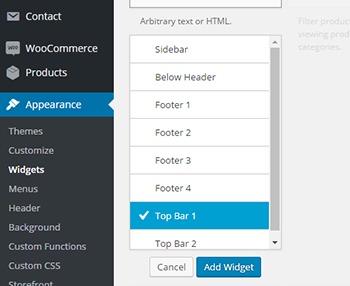
After installation, go to Appearance and click on Widgets. You should find two additional widget areas namely Top Bar 1 and Top Bar 2. These are the left and right widget areas on the top bar. You can add any content here just like in any widget area. Just make sure it looks good within the small space provided.

Adding a Simple Text

Storefront-Top-Bar-Appearance-Widgets

To add text to the top bar, find the text widget and add it to the top bar widget area. After that, you can just add any text in the text widget.

Storefront-Top-Bar-Adding-a-simple-text
Promotion 1 and Promotion 2 are the texts inserted in Top Bar 1 and Top Bar 2, respectively.

Adding a Menu

Storefront-Top-Bar-Adding-a-Menu

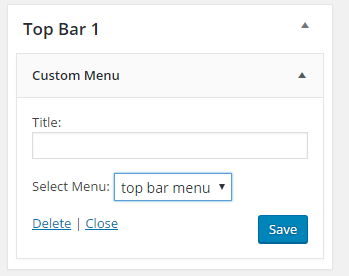
To add a custom menu to the top bar, you should first set up a custom menu in Appearance > Menu. After creating a menu, go back to the widgets area and add ‘custom menu widget’ in the top bar widget area. Select the menu you’ve just created and then click Save. Your custom menu should now appear in the top bar.

Storefront-Top-Bar-1-widget

Adding a Subscription Form Shortcode

You can add shortcodes using the text widget. In this example, we are using Mailchimp for WordPress. The plugin allows for creating a custom form which can be linked to your Mailchimp account. If you want to follow along and are wondering about the HTML markup of the subscription form in this example, you will just need the input type email and the submit button.

<input type="email" name="EMAIL" placeholder="Your email address" required />
<input type="submit" value="Sign up" />

After that, copy the shortcode and paste it in the text widget on the top bar. You can easily tweak the look of your form with CSS. In this case, the CSS we used is below. Feel free to use the code below for your own site. You can make adjustments to fit your needs.

.mc4wp-form input[type=email]{
width: 50%;
}
.mc4wp-form {
margin-bottom: 0;
}

Storefront-Top-Bar-Adding-Subscription-Form-Shortcode

Adding Other Elements to the Top Bar

The top bar works like a regular widget area. You can add shortcodes for other items like social icons, mini-cart, login, etc. You can also insert HTML and scripts in the text widget so the possibilities are endless.

Customizing the Top Bar Widget

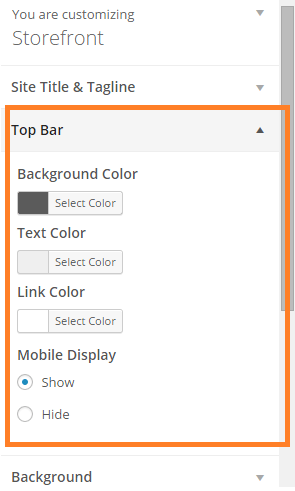
To customize the top bar widget, you can go to Appearance > Customize and click on “Top Bar”. Here you can change the background color, text color and link color. You can also set the top bar to be hidden in mobile view.
Storefront-Top-Bar-Customizing-Widget-Area

You can further tweak the top bar using CSS.

Align Top Bar 2 to the Right

By default, both Top Bar 1 and Top Bar 2 contents are left aligned. To make the content of Top Bar 2 align to the right, just use the CSS below.

.woa-top-bar.col-2 .woa-top-bar-2{
text-align: right;
}

Storefront-Top-Bar-Align-to-the-Right

Thickness/Height

To change the height of the bar, you can specify the height using CSS. Just use the code below and specify the height.

.woa-top-bar-wrap{
height: 35px;
}

Single Centered Top Bar

If you only want one top bar widget with a centered content, do not add any content to the Top Bar 2 widget area and then add the CSS below.

.woa-top-bar-wrap{
text-align: center;
}

Storefront-Top-Bar-Single-Centered

Final Notes

The Top Bar is the first thing that your customers will see on your site. It is one of most prominent areas above the fold. You now have the tools to make use of the top bar. It’s now up to how you will maximize the use of this valuable real estate.

Was this tutorial helpful? Do you have any questions about adding or tweaking the top bar in Storefront? Let us know in the comments.

Filed Under: How-To Articles, Theme and Plugin Reviews Tagged With: code snippet, CSS, design tweaks, how-to, navigation, plugins, Storefront, website development, Wooassist, WordPress

  • « Previous Page
  • 1
  • …
  • 22
  • 23
  • 24
  • 25
  • 26
  • …
  • 41
  • Next Page »
Let us support your online store so you can manage your business

Get started today

Get 2 Hours of FREE SUPPORT

We are so confident that you will love our services that we will give you your first 4 hours at a 50% discount

That’s 4 hours for only $75

BUY NOW

Free eBook

5 Things Every Online Store Can Fix On Their Website In The Next Week To Increase Sales

Quick Links

  • How it Works
  • Pricing
  • Blog
  • Contact
  • About Wooassist
  • My Account
  • Checkout
  • Privacy Policy
  • Cookie Policy
  • Terms and Conditions

Wooassist

Australia:
59 Luke St.
Hemmant QLD 4174

Philippines:
San Miguel St.
Poblacion, Iligan City 9200

Connect


Copyright © 2026 · Wooassist

Yours FREE!

5 Things Every Online Store Can Fix On Their Website In The Next Week To Increase Sales