Wooassist

Assistance for Your Woocommerce Store

  • How it Works
  • Pricing
  • Services
    • Site Maintenance
    • AI SEO and Content Marketing
  • Blog
    • How-To Articles
    • Code Snippets
    • SEO For E-Commerce
    • Theme and Plugin Reviews
    • Wooassist News
    • WordPress/WooCommerce News
    • Interviews
  • About Us
  • Contact
You are here: Home / Archives for security

Do This Right Now to Protect Your WooCommerce Website from Credit Card Attacks (And Save Yourself From Enormous Fees)

September 17, 2021 By John Leave a Comment

Website security is often one of the most overlooked aspects of owning a WooCommerce website, at least until the attacks succeed. One of the most worrying security risks over the last few months is the increase in the frequency of credit card fraud. The increase specifically comprises of card testing and bin attacks. In this article, you will learn how you can protect your WooCommerce website from credit card attacks.

Protect Your WooCommerce Website from Credit Card Attacks

What are Card Testing and Bin Attacks?

Card testing and bin attacks involve an attacker attempting a transaction on your website and testing thousands of credit card number combinations on your checkout page. They will keep doing this until they get a combination that works.

If an attack is successful, they will be able to commit fraud. But even if the attackers don’t succeed, it still doesn’t bode well for the website owners. You will get slapped with a hefty fee worth thousands of dollars by the credit card processor company themselves.

If this hasn’t happened to you yet, consider yourself lucky as it already has to many other store owners. You can improve the security of your site so you don’t fall victim to card testing and bin attacks.

Standard Website Security

woocommerce security

If you own a WooCommerce website, you should have already taken the standard security measures for your website. This includes keeping your plugins and themes updated, installing an SSL certificate, installing a security plugin, and other best practices. If you haven’t yet, you can check out these posts.

  • Secure Your WooCommerce Site
  • Increase the Security of Your WooCommerce Store

The Most Important Steps to Take Against Card Testing and Bin Attacks

Credit card processors will usually push the blame of the card testing and bin attacks to the business owner. However, they also have a responsibility to keep their own systems secure. Being financial organizations, credit card processors need to have the most secure systems.

Most merchant account owners would not be aware that card processors have additional security features. These can be configured to prevent card testing and bin attacks. This extra line of security is your best protection against credit card fraud.

  • 3DSecure

  • While some of these features may bring some additional fees, enabling them is recommended. For example, one of these technologies is 3DSecure. This requires customers to complete an additional verification step for each credit card transaction. In theory, this should fully prevent any automated attacks. And even if an attack does get through, the credit card processor should no longer hold you liable for it.

  • Fraud Filters/Rules

  • Some credit cards processors would have other extra security features that don’t require any additional payment. One example is being able to configure simple rules to filter out suspicious card activity. For instance, you could filter out all transaction attempts outside of the countries you are servicing. That would already block most attackers.

    You can also filter out transactions that have had a number of failed attempts within a short amount of time. This is called the velocity filter or rate-limiting. For example, you can filter out transactions with 5 failed attempts within 5 minutes. This results in the card processor rejecting further attempts. This won’t stop the attack entirely. However, it can reduce the number of attempts because the rejected combinations are now worthless to the attacker.

  • Know What Security Tools are Available to You as a Merchant

  • The most important thing is to know your credit card processor and the security features they have available. Contact them if necessary. If they don’t have any of these, then we strongly recommend switching to another company that offers better security.

    Steps to Take on the Website Side to Prevent Card Testing and Bin Attacks

    Once the credit card processor side of things has been sorted, next will be the website side. Proper defense against credit card fraud consists of measures taken on both the card processor and website site. To this end, we recommend a system with 3 lines of defense.

    1. Install a Website Firewall

    A website firewall such as Sucuri is designed to monitor activity on the website. It can block brute force attacks, filter user sessions with suspicious behavior, and patch vulnerabilities. For preventing card testing and bin attacks, we want the ability to filter out sessions that display suspicious behavior. Since credit card attacks usually involve bots, a firewall is a good first line of defense.

    1. Add a Captcha

    A captcha is a verification system designed to filter out bots from legitimate human users. It helps prevent bots from doing any malicious activity on your sites like submitting contacts forms, sign-up forms and even checkout forms.

    captcha for woocommerce checkout

    Preventing bots from completing the checkout form is what we need against card attacks. While Captchas have a slight impact on user experience, they’ve continued to improve over the years. Google’s ReCaptcha v2 and v3 are among the best examples. Learn how to set up Recaptcha for WooCommerce here. And with that, your second line of defense is set.

    1. Set Checkout Attempt Limit

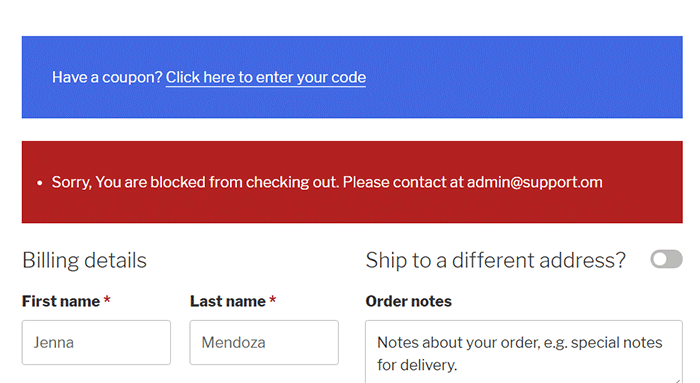
    In the unlikely chance that attackers bypass both the firewall and captcha, this next line of defense is designed to address the main problem. The main issue with card testing and bin attacks is the surge of transaction attempts sent over to the card processor. Similar to the velocity filter on the card processor side, you can set up a similar filter on the website side using the Woo Manage Fraud Orders plugin. You can set it up to automatically block the users that execute consecutive failed attempts at placing an order on your site. The plugin allows you to set a limit to the number of fraud attempts. For example, you can set this at 5 attempts. This way, 5 will be the maximum number of transaction attempts sent to the card processor and the attacker is permanently blocked from the website.
    Conclusion

    Credit card testing and bin attacks are on the rise. You can prevent it from happening to your site.

    Make use of fraud prevention features on your credit card processor and implement our recommended security measures on the website side. Find out what anti-fraud measures are available to you as a merchant. These security tools will save you from being fined thousand’s of dollars. Contact your credit card processors to know what tools you can set up. Implement them. Then proceed to implement the security measures on the website next

    If you need any assistance on the technical side, we can help. And if you have questions, don’t hesitate to contact our support team.

    Disclaimer: Article contains affiliate links. When you buy through links from this article, we may earn an affiliate commission.

    Filed Under: How-To Articles Tagged With: payment gateway, security, WooCommerce

    Why is it Important to Keep Your PHP Version Updated?

    December 18, 2020 By John 4 Comments

    The WordPress ecosystem is built on the PHP programming language. PHP is continuously being developed to improve security and make code execution faster among many other improvements.

    PHP End of Life

    At some point, a version of PHP will become obsolete which is referred to as the “end of life” of that version. This means that version of PHP will no longer receive any security fixes.

    Unfortunately, many websites are still running on outdated PHP versions. All these websites are at risk.

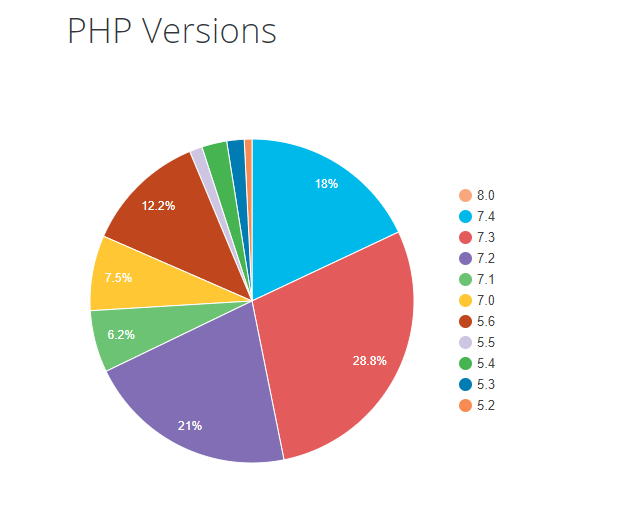
    According to WordPress statistics, 18.5% of WordPress sites are still running on PHP 5.6 or lower. Support for PHP 5.5 ended on December 2018. Another 34.7% of WordPress sites are running PHP 7.2, 7.1 and 7.0. Support for PHP 7.2 ended November 20,2020. That would make 53.2% of WordPress sites vulnerable to PHP exploits.

    WP PHP versions
    Source: WordPress.org

    Why are Majority of WordPress Sites Running Outdated Versions of PHP?

    Many users most likely don’t even know what PHP version they have since updating it is more complex than updating themes and plugins. Many non-technical WordPress users are wary of touching their hosting settings or cPanel. And for good reason. one wrong click on cPanel could cause your site to go down if you don’t know what you are doing. This seems to be the biggest barrier to adoption of newer PHP versions.

    Some hosts are also slow to adopt and offer newer PHP versions. We recommend WPEngine and Siteground as they are quick on the uptake when it comes to PHP version offerings.

    Why You Should Update

    Better Security

    The main reason that you should update your PHP is for security. As we have already mentioned, older PHP versions are no longer getting security fixes. That means known vulnerabilities are not being fixed on that version which leaves your site open to attacks.

    Site Speed

    Newer PHP versions will execute code faster so that means faster page load speeds. Faster page load speed means better user experience and good SEO signals. Site speed is an SEO ranking factor. So if you want to hit page one of Google search results, invest in site speed.

    Ongoing Support

    If you are running the latest PHP versions, you are protected from the latest known vulnerabilities. People work to fix security vulnerabilities in PHP when they come to light. The same goes for known bugs.

    How Do You Check Your PHP Version?

    Now you’re curious how to update your PHP version. First off, you have to find out what version of PHP you are using. There are several ways to check your PHP version. You can actually check on your WordPresh Dashboard.

    Site Health Page

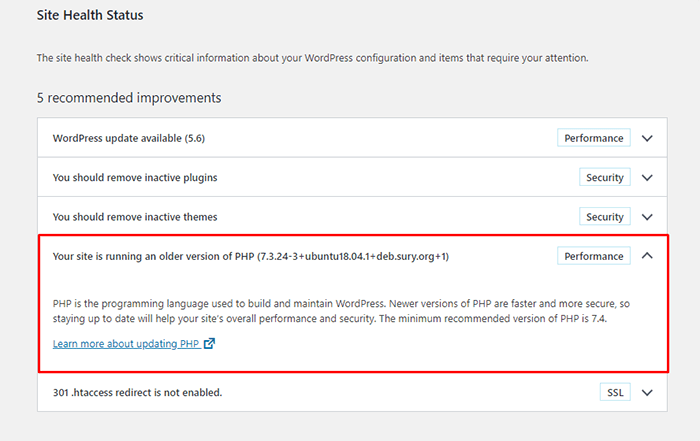
    The Site Health page that you can access from your WordPress Dashboard contains a plethora of useful information that you can address to keep your site secure. You can reach it by going to Tools and then clicking on “Site Health”. Or you can just append your domain with:

    /wp-admin/site-health.php

    WooCommerce Status Page

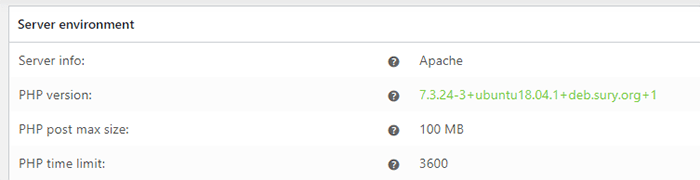
    If you are using WooCommerce, you can also click on WooCommerce and then on Status. You can see your PHP version when you scroll down to the “Server environment” table.

    woocommerce PHP version

    There are other ways to view your PHP version but these are the easiest methods for WordPress users.

    You Know What Version of PHP You are Running, Now What?

    If you not running an outdated version of PHP, then you don’t need to do anything. If you find that your PHP version is outdated, there are a few things you need to do before you update your PHP version.

    1. Create a staging environment. You can test all your updates here before updating your live site. You will, essentially, also need to test the PHP upgrade on a staging environment so this is a necessary step.
    2. Create a backup of your site.
    3. Update your WordPress core.
    4. Update all your themes and plugins. If you are using premium themes and plugins, make sure you have an active license for everything so you can receive automatic updates.
    5. Remove unused plugins.
    6. Find and remove abandoned plugins. This could get complicated if your site relies heavily on an abandoned plugin. We have a separate guide for removing abandoned plugins.

    Now You’re Ready to Upgrade Your PHP

    We recommend letting a developer upgrade your PHP version in case something goes wrong or at least have a developer at your beck and call before you proceed.

    How you upgrade your PHP depends on your hosting provider so you should consult your hosting provider’s documentation. You will most likely need to navigate cPanel or your hosting account’s dashboard. Some hosting providers will actually require you to create a support ticket to request a PHP upgrade.

    Make sure you are testing the PHP upgrade on a staging environment first so you can sort any issues in a controlled environment.

    Have your hosting provider’s contact information at the ready so you can reach out to them right away if you encounter a problem.

    If you need technical help with any of the steps leading to the PHP upgrade or the actual upgrade, you can contact us.

    If you have any questions, you can also let us know in the comments.

    Filed Under: How-To Articles Tagged With: security, site speed optimization, website maintenance, WordPress updates

    How to Find and Remove Abandoned Plugins from Your WooCommerce Store to Keep Your Site Secure

    December 4, 2020 By John Leave a Comment

    How to Find and Remove Abandoned Plugins

    You probably already know that keeping your site updated is important for security and to keep everything running. But did you know that just updating your WordPress core, themes and plugins might not be enough? What else should you be doing? You should find and remove abandoned plugins.

    WordPress does not automatically warn users using a plugin when plugins are abandoned by their developers. This is important because when developers abandon their, they do not receive updates. This includes critical security updates and other updates to make sure that the plugins stay compatible the current versions of WordPress and WooCommerce and your theme.

    Why is it Important to Find Abandoned Plugins?

    Abandoned plugins are critical security issues as they are likely to contain deprecated code and vulnerabilities that may be exploited by hackers. Abandoned plugins can also break functionality on your WooCommerce. Your lucky if it breaks a layout or something else minor. In some cases, abandoned plugins can affect your product purchase process. Imagine breaking your WooCommerce store’s checkout because of an abandoned plugin.

    How to Find Abandoned Plugins?

    You can search for abandoned plugins manually by going to your plugins page and clicking on the “View Details” link on each plugin. Clicking on this link would take you to a different page and your next action would depend on where the link takes you.

    If the plugin is not in the plugin repository, you might find a different link to visit the plugin’s site.

    It Takes You to a Page with the Plugin Details

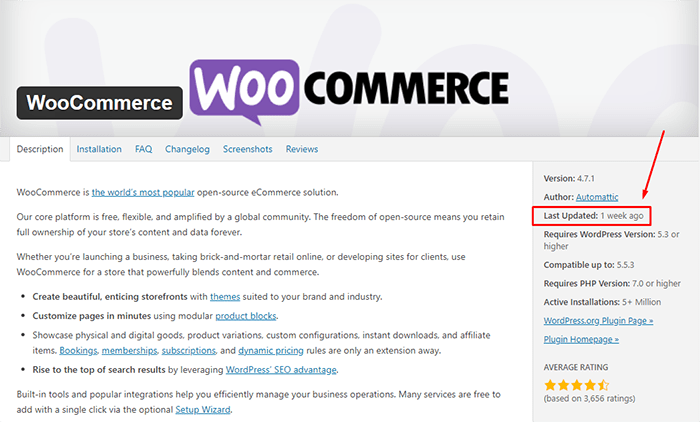
    If you got the plugin from the WordPress plugin repository, you will most likely be taken to a plugin page with all the plugin details. There you can see when the plugin was last updated. You should be wary of plugins that have not been updated for several months. If you find that the plugin has not been updated in over a year, note it down.

    It Takes You to a Page that Tells You that Plugin Has Been Remove From the WordPress Repository

    If you find yourself on a page that tells that the plugin has been removed from the WordPress plugin repository, this is a major red flag. There are several reasons why a plugin could be removed from the repository. The less alarming reasons are if the plugin author has requested removal of the plugin or there are some licensing issues. However, in some cases, it would be because the plugin has violated the WordPress Plugin Guidelines or has been identified to have a security vulnerability severe enough to warrant a removal. If this is the case, remove the plugin immediately and scan your site for malware.

    It Takes You to a Third-Party Plugin Vendor’s Site

    If clicking on the link takes you to a plugin vendor’s site, you might need to do some further digging to find if the plugin is still being updated. Search for the developer’s change logs on the plugin to see when it was last updated. It might also be worth checking how often the plugin developers release an update. Also check if you have the latest version of the plugin installed. If it is a premium plugin, there is a likelihood that you are not getting automatic updates because of an expired license. In this case, renew your license and update.

    It Takes You to a 404 Error

    If it takes you to a page with a 404 error page, check the site’s home page and try to find information on your plugin. The plugin developers may have already gone out of business which means the plugin has been abandoned.

    As you are probably thinking by now, scanning your site for abandoned plugins can be a handful. Thankfully, you can use WordFence to scan your site for abandoned plugins. Just install the WordFence plugin and run a scan, if there are any abandoned or outdated plugins on your site, WordFence should alert you of it.

    So You Found One or More Abandoned Plugins on Your Site. What now?

    In a perfect world, you just remove abandoned plugins and be done with it. However, things are usually more complicated than that. Chances are you are actively using the plugin and you might not be noticing any problems with it. But that doesn’t make the plugin any less of a security threat. We recommend removing the plugin and finding an alternative plugin that is not abandoned. If there are no alternatives available, you can customize the functionality instead. These should all be done on a staging site so as not to disrupt your live site.

    But What if the Plugin is Critical to Your Site Functionality?

    There’s not really much you can do in this case. You can try to contact the plugin developer or hire a developer to create your own plugin. It is most likely a bigger risk to your business if you keep using an unstable and unsecure plugin. Under the General Data Protection Regulation (GDPR), you will be liable to your customers if their data gets leaked because of a security breach. The fines are hefty so it might be best to err on the side of caution.

    If you’ve fixed all the abandoned plugins on your WooCommerce store, you might want to keep yourself updated on the latest security news concerning WordPress and WooCommerce. You can subscribe to our newsletter to receive security updates on your inbox.

    If you are looking for more things to do to make your site more secure, you can also check if your site is running the latest version of PHP.

    Filed Under: How-To Articles Tagged With: GDPR, plugins, security, WooCommerce updates, WordPress updates

    How to Properly Install SSL on Your WooCommerce Store

    January 21, 2019 By John Leave a Comment

    Having an SSL Certificate (using the https protocol) on ecommerce sites is now a must. Google has declared that they now consider HTTPS as a ranking signal. This means that it will be easier to rank your website in Google search results when you have an SSL Certificate installed.

    What is HTTPS and Why Should You Bother?

    An SSL Certificate is an encryption method that protects data being transferred from the browser to your servers. Having an SSL certificate ensures the security of your customers data. With SSL encryption, data is being transferred using an encrypted and secured connection. Even if an attacker is able to get a hold of the data, it will still need to be decrypted to be of any use.

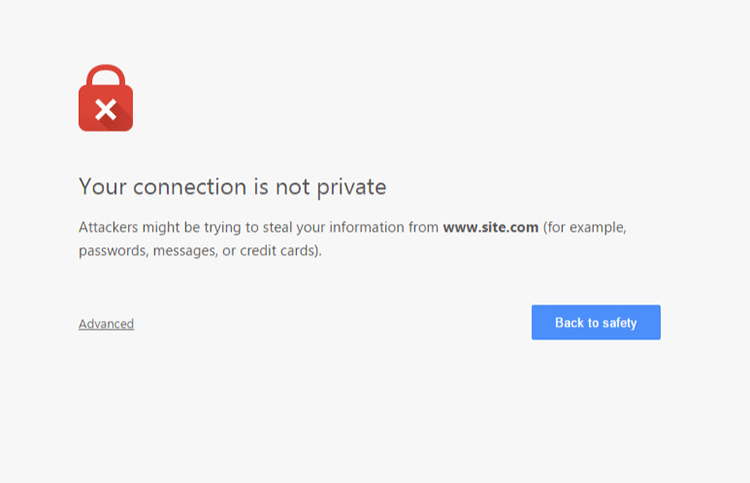
    If you do not have an SSL certificate installed on your WooCommerce store, a big warning will come up on browsers about your site not being secure. This could drive away potential customers. If this happens, the only way to reach your site is if users click on the “Advanced” link. After that, they will still need to confirm that they want to proceed to your site even if it not secure.

    How to Properly Install SSL on Your WooCommerce Store

    Having this warning appear on your site can have devastating effects on your traffic and especially your sales. Don’t take that risk.

    What Do You Need to Get an SSL Certificate?

    Most hosting companies such as WPEngine and Siteground can provide you with a free SSL certificate. You’ll just need to configure it on your site to use it. If your host is unable to provide you with a certificate, you can purchase one from RapidSSL or any other SSL provider. Configuring your SSL certificate is actually quite easy.

    How to Install Your SSL Certificate

    You will need to install your SSL on your domain using cPanel on your hosting account. If you host does not use cPanel, it will most likely have a wizard that can help you through the installation. You can get support from your host if you need help getting this done. When that’s done, you will need to head over to your WordPress Dashboard.

    Configuring Your SSL Certificate using a Plugin

    A simple method for configuring your SSL certificate is by using a plugin. Just go to your plugins page and search for the Really Simple SSL plugin. Install and activate it. After that, go to Settings > SSL. When you reach this page, the plugin will automatically detect your SSL certificate. When that’s done, your site will have a functioning SSL certificate.

    Configuring Your SSL Certificate Manually

    To configure your SSL manually, go to your WordPress Dahsboard, go to Settings. In the General Tab, under WordPRess Adress (URL) and Site Address (URL), change http to https.

    Configure SSL on WordPress

    Common Issues When Installing SSL

    Sometimes, you may come across some issues when installing your certificate. Here are some common issues and fixes.

    Mixed Content Errors

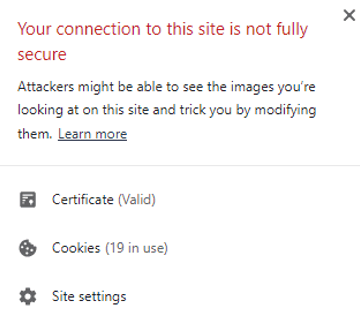
    A common issue when installing an SSL certificate is that sometimes not all elements are being served securely. And you’ll get a warning like this:

    SSL Mixed Content Error

    If you used Really Simple SSL plugin, that automatically takes care of elements not being served securely. If you did not use the plugin, you can still fix the issue albeit requiring a bit more work.

    WPBeginner details steps on how you can fix mixed content errors on your site.

    Cache Errors

    If you are having some errors related to the cache after installing your SSL certificate, just clear your cache and that should fix the issue. Steps will vary depending on your caching plugin so it is best to consult your plugin documentation.

    Final Notes

    If you’ve set up your SSL certificate on your WooCommerce store, you are one step closer to maximizing your site’s security and increasing your store’s trust rating. If you need help installing your SSL certificate or if you are having issues with your SSL certificate, you can contact the Wooassist team for expert help.

    Filed Under: How-To Articles Tagged With: conversion optimization, CPanel, security, SSL, trust rating

    13 Routine Maintenance Tasks that You Should Do on WordPress and WooCommerce

    April 2, 2018 By John Leave a Comment

    Routine Maintenance Tasks for WordPress

    Maintaining a WooCommerce store is a lot of work. There are a lot of routine maintenance tasks for WordPress and WooCommerce that need to be done on a regular basis. In this post, we list down the most important tasks that you should do on your WooCommerce store.

    1. Create Regular Website Backups

    Create Regular Website BackupsCreating regular site backups is critical. It is your first fallback in case something breaks on your site. While you can make backups manually, it is important to make regular automated backups. Check with your hosting provider if they create regular backups of your database as well as a complete backup of your site. You can also install a backup plugin such as Updraft Plus or BackWPup and set it up to make regular automated backups for you. We still recommend creating manual backups before doing major work on your WooCommerce store though.

    2. Update WordPress, WooCommerce, Themes and Plugins

    Updating all elements of your WooCommerce store should be done on a regular basis. Do this weekly if you have the time. If not, monthly updates are good enough. Updates include updating WordPress Core, themes, WooCommerce and all other installed plugins. Remember to backup up your site before proceeding with updates since updates could cause your website to break. If you have a development site, it would be best to test the updates first on this staging environment. Then, do some user testing to make sure that there are no errors. After that, you can proceed to update your live site. When that’s done, you will need to do another round of testing. Some important elements to test include checkout, add to cart, contact form emails, opt-in forms and other customizations that were done on the site.

    3. Update WooCommerce Template Files

    After updating WooCommerce, you will sometimes get an error notifying you of outdated WooCommerce template files. This just means that your theme has not updated to include the latest WooCommerce template files. In some cases, this could cause some formatting issues on your store. If there are no errors on your store, you can simply wait for your theme to release an update that includes the most recent template files. Or you can also fix this manually by following the steps in this documentation from WooCommerce.

    4. Change User Passwords

    It is important to use strong passwords. However, it is just as important to change passwords on a regular basis. There are times when security breaches can go undetected for a long time. Changing your password regularly blocks out these security breaches that you might not realize are there. You should change your password for WordPress admin, FTP, database and cPanel. And a pro-tip, never use “admin” as your username. This is the first username that hackers try out when brute forcing into websites.

    5. Optimize Your Product Images

    We’ve always emphasized the importance of optimizing images for your WooCommerce store to keep your site running fast. If you have uploaded any product image that is more than 100KB in size, it might be a good idea to replace that image with an optimized product image. To learn more, you can check out our blog post on how to optimize images.

    6. Approve and Respond to Product Reviews

    Moderate Product ReviewsIf you are not asking your customers for product reviews then you might want to reconsider. Most people who buy online look for product reviews before they decide to purchase something. One study found that 85.57% of users read reviews before they purchase. And if you are asking your customers for product reviews, then you will need to approve reviews on a regular basis. A word of advice, do not remove negative reviews of your products. Instead, make it an avenue where you can show good customer service. Respond to the negative review. Offer a replacement for a defective product or offer a refund. People reading reviews will want to see some negative reviews to get a well-rounded picture of your product. When moderating reviews, you only need to remove the spam reviews.

    7. Approve and Respond to Blog Comments

    If you have a blog that is made to drive customer engagement, then your blog will most likely attract comments. Same with product reviews; don’t delete the negative comments. Rather, address them positively. Remove any spam comments as this will negatively impact the user experience of your blog. If you are using Akismet: Anti Spam plugin, this will block out most spam comments. However, some spam comments can still get through and you will need to manage them manually.

    8. Test Your Contact Forms and Email Opt-in Forms

    Every now and then, you will need to make sure that your contact forms and email opt-in forms are working. Just fill in your forms and send. If you receive it in your email, then you’re all good. But if you don’t, there’s something wrong and you need to do something about it. Have your developer look into it.

    9. Optimize Your Database

    Over time, your database accumulates a lot of gunk and you need to clean it to make sure your website runs fast. Before you go about this task, make sure you create a backup. You can choose to clean your database manually if you are comfortable and familiar with working on your database. Otherwise, you can use a plugin to do the optimizations for you. Notable plugins include WP-DBManager and WP-Optimize. You can check out our guide on how to clean your database.

    10. Test Your WooCommerce Store’s Speed

    If you have not yet made optimizations to your WooCommerce store’s speed, you should consider doing it now. Site speed has become increasingly important for WooCommerce store owners. Google now considers site speed as a ranking factor for SEO. Also, if you have a slow site, this will negatively impact the customer’s experience on your site. It is easy for your customers to buy instead from your competitors. You can test your site speed on Google’s Page Speed test and Google will provide you with recommendations on how you can improve your site’s speed. Other notable tools that you can use to test your site are Pingdom Website Speed Test and GTmetrix.

    11. Scan Your Site for Malware

    One way to keep on top of your website’s security is to regularly test your site for any malware. If you are connected to Google Search Console, it will let you know if malware is detected on your site. If your site has been found to have any form of malware, Google Chrome will actually alert your visitors that your site is dangerous. This can have devastating effects on your traffic and conversion rate. No one will want to enter their payment information on a site that has malware. In extreme cases, Google may block your site from appearing in the Google search results page. You want to prevent this from happening. It would be best to invest on your site’s security by installing a security plugin such as Sucuri Security and WordFence. Even if you have those plugins installed, it is still a good idea to a manual scan. You can scan your website at Sucuri’s Website Malware and Security Scanner, or at SiteGuarding. If any manual scans detect anything malicious, you can contact your developer to fix the issue. You should get it fixed before Google applies any penalties. Wooassist also offers a security hardening service to improve the security of your site so you can prevent this from happening.

    12. Fix Broken Links

    Broken links are bad for user experience so check your site regularly for any broken links. You can use W3C Link Checker or any other similar tool to check for broken links. Once you’ve found the broken links on your site, you can start fixing them. You can either remove the links or points the links to a new relevant URL.

    13. Test Your Checkout Process

    Last but definitely not the least; you should regularly test your checkout process. If you suddenly experience loss of sales, it’s a good idea to test your checkout. There might be an error that prevents your customers from checking out. Testing also gives you a feel of what your customers go through so you can optimize your checkout. Once you’ve determined that your checkout has problems, you can check out our post on how to fix the most common checkout problems in WooCommerce.

    Final Notes

    By doing these tasks on a regular basis, you can keep yourself on top of any issues that may occur on your WooCommerce store. If you find yourself overwhelmed by the all these, you can hire someone else to do it. You can also contact us and our team will be glad to assist with any of these tasks.

    Are there any other routine maintenance tasks for WordPress and WooCommerce you think should be done on a regular basis? Do you have any suggestions? Let us know in the comments.

    Filed Under: How-To Articles Tagged With: blog, contact form, conversion optimization, image optimization, plugins, security, site speed optimization, website maintenance, WooCommerce, WooCommerce products, WordPress, WordPress SEO, WordPress updates

    • « Previous Page
    • 1
    • 2
    • 3
    • 4
    • Next Page »
    Let us support your online store so you can manage your business

    Get started today

    Get 2 Hours of FREE SUPPORT

    We are so confident that you will love our services that we will give you your first 4 hours at a 50% discount

    That’s 4 hours for only $75

    BUY NOW

    Free eBook

    5 Things Every Online Store Can Fix On Their Website In The Next Week To Increase Sales

    Quick Links

    • How it Works
    • Pricing
    • Blog
    • Contact
    • About Wooassist
    • My Account
    • Checkout
    • Privacy Policy
    • Cookie Policy
    • Terms and Conditions

    Wooassist

    Australia:
    59 Luke St.
    Hemmant QLD 4174

    Philippines:
    San Miguel St.
    Poblacion, Iligan City 9200

    Connect


    Copyright © 2026 · Wooassist

    Yours FREE!

    5 Things Every Online Store Can Fix On Their Website In The Next Week To Increase Sales