
Wooassist

Assistance for Your Woocommerce Store

  • How it Works
  • Pricing
  • Services
    • Site Maintenance
    • AI SEO and Content Marketing
  • Blog
    • How-To Articles
    • Code Snippets
    • SEO For E-Commerce
    • Theme and Plugin Reviews
    • Wooassist News
    • WordPress/WooCommerce News
    • Interviews
  • About Us
  • Contact
You are here: Home / Archives for security

How to Recover Abandoned Carts in WooCommerce?

November 30, 2019 By John Leave a Comment

How to Recover Abandoned Carts in WooCommerce

It’s not uncommon for ecommerce shoppers to abandon carts. You may not know it, but your store might also be suffering from carts being abandoned. This problem can be addressed however. To start, you must determine why your customers abandon their carts.

Why online shoppers abandon carts and what you can do about it?

There are various reasons why online shoppers abandon their carts. We lay out the most common ones and what you can do to address them.

Checkout is Too Complicated

Your customers will nitpick and that is to be expected. When you make your customers jump hoops during checkout, you’re not doing them a favor. Your checkout should be quick and straightforward. If you must add some other stuff that will complicate checkout, consider if you can add it on the thank you page instead. The thank you page is the page where the customer is redirected to after making a successful purchase. If you need help tweaking your thank you page, the Wooassist team can help.

Users Need to Create an Account to Check Out

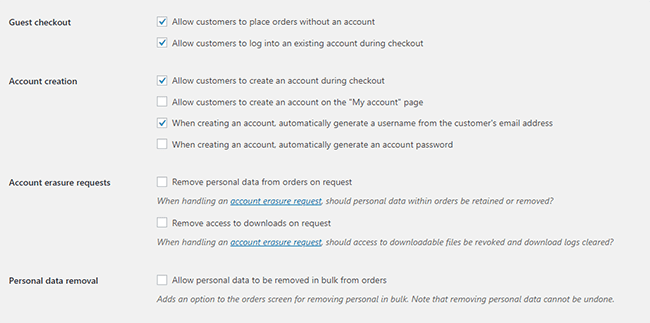
Internet users are already burned out having to create an account for each internet service that they use. Don’t add to that burden. Don’t force your customers to create an account if it’s not necessary. To enable guest checkouts on WooCommerce, go to your WordPress Dashboard, click on WooCommerce > Settings. Under the Account and Privacy tab, enable “Allow customers to place orders without an account”. You can tweak other account related settings here to your liking.
Too Many Checkout Form Fields

The default WooCommerce checkout page is good enough as it is. There is no need to add more fields unless necessary. If you’ve edited your checkout page before to add some unnecessary fields, look into it and consider removing it.

Unexpected Charges

Customers will abandon your checkout when they see the shipping fee. No one will force you to offer free shipping if it will make your business unsustainable. There are however some things that you can do to reduce abandoned carts as a result of shipping and other fees. People now are more accepting of shipping fees. For other fees, be transparent from the get-go. If you charge taxes, handling fees, and other fees, make it clear starting from the product page that you charge these fees. If they are suddenly greeted by these fees on checkout, it will look like unscrupulous practice.

Too Many Clicks to Checkout

Reducing cart abandonment is all about simplifying your product purchase process. Ideally, it should not take more than three clicks for a customer to check out. If it takes four clicks to check out, that is one click too many. Get rid of unnecessary barriers to completing checkout.

Don’t Make it Hard to Contact You

Some of your prospective customers will look for your contact details before they make a purchase. If they added a product to their cart but could not find your contact information or even a contact us page, there is a high likelihood that that user will abandon that cart. To prevent this from happening, make sure you have a contact us page. Even better, if you can add your email or phone number on your WooCommerce store’s header.

Payment Issues

Another common reason for abandoning shopping carts is payment issue. When the customer tries to pay for his/her order and it fails, you can bet that cart will be abandoned. The solution here is simple. Offer more than one mode of payment. Some common payment channels you can use are Paypal, Stripe, Authorize.net, Apple Pay, Amazon Pay, and Square.

Other Things You Can Do to Reduce Cart Abandonment

Show Security Certificates

To be able to sell your products or services online, you’ll need to be able to establish that you are trustworthy. You can show security certificates and security seals on your checkout page to improve your trust rating. Some security seals that you can add to your site as Norton, McAfee and TRUSTe.

Offer Free Shipping

Free shipping can significantly reduce your cart abandonment rates. However, not every business can make a profit when offering free shipping. As an alternative, you can offer free shipping when your customers meets a required minimum order value or quantity. This strategy can also help improve your average order value.

Offer a Money-Back Guarantee

Most consumer laws dictate that you should have a return policy anyway. So there’s no reason not to do it. Making your money-back guarantee known shows your prospective customers that you have faith in the quality of your product or service. Don’t worry about the people that might abuse your money-back guarantee. It hardly ever happens. And if it happens a lot, the problem might be your product.

Improve Your Page Load Speeds

If your site is slow, some of your prospective customers might get frustrated and abandon their carts. Make sure your site is fast.

How to Recover Abandoned Carts

There are many ways to recover abandoned carts. Some of the more common methods are remarketing and abandoned cart emails.

Using Remarketing to Recover Abandoned Carts

There are many platforms that you can use for remarketing. Essentially, remarketing works by saving a cookie on the user’s browser so you can show them your tailored ads. Neil Patel details how you can use remarking on Adwords to recover abandoned carts. Facebook is another platform that you can use for remarketing. SproutSocial details how to use remarketing on Facebook.

Using Abandoned Cart Emails to Recover Abandoned Carts

Abandoned cart emails send your customers a reminder email if they did not complete their purchase. For guest checkouts, this requires that the user must at least have entered his/her email address. This won’t be an issue if you require your customers to register before making a purchase. Do note however that requiring customers to create an account may hurt your conversion rates. There are a lot of abandoned cart email plugins that work for WooCommerce, you just have to find the plugin that works for your needs.

Recover abandoned carts and improve your sales by implementing these strategies. If you have any questions, you can post a comment below. If you need help setting up abandoned cart emails or anything else, you can send us email.


Filed Under: How-To Articles Tagged With: abandoned carts, checkout, checkout form, conversion optimization, email marketing, optimizations, remarketing, security, trust rating, WooCommerce, woocommerce checkout

Update Your WooCommerce Store Regularly to Prevent Your Site from Breaking

March 19, 2019 By John Leave a Comment

Update Your WooCommerce Store

Many times, when WooCommerce store owners come to us seeking for help, we usually find that the cause of the problem is an outdated site. In some cases, we find that the site’s plugins and themes have not been updated in years. And when a WooCommerce store site has not been updated in years, suddenly updating can sometimes break more things. Our recommendation is to update regularly.

Why Should You Update?

If you update your site regularly, you’ll be dealing with a lot less problems on your WooCommerce store. While it’s true that site updates may cause issues, these issues are usually less severe than issues that come up when you don’t update. In addition, you can troubleshoot these issues on a staging site which will have no effects on your live site. If your site breaks because it is outdated, your live site can go down for an indefinite period. That means no sales until you fix the issue. If this happens during a critical time for your business, it can have negative effects on your sales. Imagine running TV ads and then your site breaks due to being outdated. That’s advertising dollars down the drain.

How Often Should You Update Your WooCommerce Store?

The best schedule we’ve found for site updates is doing them at least monthly. You can update more often especially when severe security issues are patched.

What Happens When You Don’t Update?

When you don’t update your site, one or a few of these things could happen:

  • Your site may go down and become inaccessible
  • Your site layout may break
  • Images and icons may not load
  • Your payment processor may stop working
  • Your shipping plugins may stop working
  • Your product page may break
  • You may have various problems on your cart and checkout
  • Your sign-up forms and contact form may stop working
  • Your site may be hacked and infected with malware
  • Your SEO rating may drop
update woocommerce to increase security

What Do You Need to Do Before Updating Your Site?

Test Updates on a Development Site

It is important to test updates on a development site. If you do not have a development site, also called a staging site, you can check with your hosting company if they offer a staging service. Some hosting companies like WPEngine provide an easy-to-set-up staging service. You can also set up a staging site yourself. You can check this blog post to learn how to create a staging site for WordPress.

Before you update your live site, test updates on your development site first. Then do some user testing to find out if there are any issues with the updates. Some things you need to test are:

  • Your Site Layout
  • Opt-in Forms
  • Contact Forms
  • Shopping Cart
  • Checkout
  • Any custom development you’ve done on the site

If you find any issues on your staging site, it’s time to get fixing. If you do not know how to go about fixing the issue, you can check out our guide on troubleshooting for WooCommerce. You can also drop us an email so we can help you out.

Create a Backup

If there are no issues on your staging site, it’s time to update your live site. But first, don’t forget to create a backup. For backups, we can recommend UpdraftPlus or BackWPup. Once backup is successful, you can proceed to update then test your live site again. If more issues come up, proceed to troubleshoot.

backup your woocommerce store before updating

I updated my WooCommerce Store but my Site is Still Broken

Renew Your Plugin Subscriptions

Sometimes, issues may persist because automatic update are not available for your plugins. This is usually because your plugin subscription has expired. If this happens, you will need to renew your subscription. It is now easier to manage WooCommerce plugin subscriptions. You just need to connect your WooCommerce account to your WooCommerce store. For third-party premium plugins, you may need to check manually.

Do a Plugin Audit and Remove Abandoned Plugins

Another common reason why some websites break after updates is that it has a plugin that has been abandoned by the plugin developer. If a plugin is abandoned by the developer, it will not receive any updates and will eventually stop working. And it can break your site. Worse, it can even become a backdoor for hackers to get into your site. It is not easy to detect if your plugins are no longer being updated by the plugin developer so you will have to do it manually. View the details of each plugin on your plugin list and check when it was last updated. If the plugin has not been updated in a year or more, then remove that plugin right away. If a plugin has not been updated in over 6 months, use your better judgment if the plugin can be removed.

Find Incompatible Plugins

In some cases, plugins may break compatibility with each other. This is one reason why it is best to keep plugins to a minimum. Having more plugins can cause more problems. When plugins break compatibility, various errors can pop up on your site.

To troubleshoot incompatible plugins, deactivate all plugins on your site except WooCommerce. Then enable them one by and one while testing for the error. With some trial and error, you’ll be able to shortlist the incompatible plugins. When you find the incompatible plugins, you can replace one plugin with a compatible one. You can also report the issue to the plugin developers so they can address it.

WooCommerce Templates are Outdated

Sometimes you’ll find an error on your WordPress Dashboard alerting you of outdated WooCommerce templates. Most theme developers update their WooCommerce templates so check if your theme is updated. If your using a premium theme and have an expired license, you will receive automatic updates. If this is the case, update your subscription to get the updated templates. You can also fix this issue by following this guide from WooCommerce.

Final Notes

Add updating your WooCommerce store to your monthly to-do list to ensure your site is secure and won’t break in an uncontrolled environment. Renew your plugin subscriptions and do a plugin audit. If you find that you do not have time to do the monthly WooCommerce store updates yourself, the Wooassist team can help.

Filed Under: How-To Articles Tagged With: backup, plugins, security, shopping cart, WooCommerce, WooCommerce updates

11 Things You Can Do to Increase the Security of Your WooCommerce Store

March 11, 2018 By John Leave a Comment

Increase the security of your WooCommerce store

Keeping your WooCommerce store secure is important. Hackers discover new exploits every day. In fact, more than thirty thousand websites get hacked on a daily basis. Don’t be a part of that statistic. Increase the security of your WooCommerce store before it’s too late.

At Wooassist, we’ve had our fair share of clients that have had their websites hacked. Cleaning up after a hack is a lot of trouble. You have to get rid of the exploit and weed out any remaining backdoors that would allow the hacker to regain access to the hacked site. Worse, a hacking incident can lead to a website being penalized by search engines for containing malware. In this post, we’ll share some tips that you can do right now to increase the security of your WooCommerce store. Following these tips will reduce the odds of your site getting hacked.

1. Check Your Login Information.

Often, hacks happen because of the user’s fault. Almost 90% of cyber-attacks are caused by human error or behavior.

The first step to increase your website’s security is to make sure that your login information is secure. First, don’t use “admin” as your username. Why? Because brute force attacks usually target this username. And if you use admin as your username and have a weak password, it is almost guaranteed that your site will fall victim to a brute force attack. But what if you are already using admin as your username? You’ll just need to create a new administrator account using a unique username and a strong password. WordPress will already recommend a strong password that you can use. After creating a new account, log in to the new account and you can then proceed to delete the “admin” account.

2. Keep your WordPress/WooCommerce Site Updated

Keep your WordPress/WooCommerce Site UpdatedKeeping your WooCommerce store updated will protect your site from the latest known vulnerabilities. Developers regularly patch exploits that are found in their systems so it is imperative that you update on a regular basis.


Before updating however, it is important to test your updates first on a development site or at least create a backup. Often, updates can break your site and this can harm your conversion rates if you don’t have a backup that you can revert to. Websites breaking due to site updates are common. Some hosting providers such as WPEngine provide their customers an easy-to-set-up staging environment. Here you can test your updates before applying them to your live site.

3. Use Two-Factor Authentication.

Using 2-factor authentication greatly increases the security of your website. Even when a brute force attack manages to get into your site, you can block the hack with two-factor authentication. Unless the hackers get a hold of your phone, you’re safe.

4. Install a Security Plugin

A WordPress/WooCommerce site without a security plugin is like a computer without anti-virus software. Wordfence and Sucuri Security are some good options. Just install the plugins and then activate. After activating, just go to the plugin’s settings and configure depending on your needs.

Prevent Brute Force Attacks

5. Limit Login Attempts.

Limiting login attempts will deter brute force attacks. A brute force attack will attempt to guess your username and password sending hundreds if not thousands of requests every minute. Limiting login attempts pretty much renders brute force attacks powerless unless you have a weak password. There are a couple plugins that can help you limit login attempts such as Login Lockdown.

6. Protect your wp-config File

The wp-config file is a crucial part of the WordPress ecosystem. It contains important configuration information of your WordPress site which is why many hackers try to target this file. There is however a workaround to block intruders from getting access to this file. Simply place this code in your .htaccess file.

7. Hide Login Error Messages

Whenever you enter the wrong login credentials on WordPress, it returns an error message saying your username is wrong, your password is wrong, or your password does not match the username. You may think little of this, but for hackers, this bit of information is priceless. You can prevent hackers from getting clues on your WordPress logins. You can hide these error messages by adding the script below to your functions.php file. Do note however that making a mistake when tinkering with your functions.php file can cause your entire site to go down. Unless, you’re a web developer or know your way around the file, it is recommended to have a developer do this for you.

function wrong_login(){

Return ‘Wrong username or password.’;

}

Add_filter(‘login_errors’, ‘wrong_login’);

Hide WordPress Version

8. Hide WordPress Version

For hackers, discovering that your WordPress version is outdated is like finding a gold mine. So it is imperative that you always update to the latest version of WordPress. Many hosting providers will automatically update your WordPress version. However, this is not always ideal since automatic updates can mess up your site. If you’d like to do your WordPress updates at your own pace, then you should hide your WordPress version. To hide your WordPress version, paste the following code on your functions.php file.

function remove_version(){

Return”;

}

Add_filter(‘the_generator’, ‘remove_version’);

9. Do a Plugin Audit

A plugin audit is a process of reviewing the plugins installed on your site. You’ll want to look out for plugins that are no longer being updated by the developer. Outdated plugins usually become backdoors for hackers. When analyzing your plugins, you can categorize them in a number of ways.

  • Plugins that you want to keep.
  • Plugins that you don’t use or your customer’s don’t use. If you have a plugin that adds a certain functionality to your site but your customers are not using it, you might as well get rid of it. This just adds extra bloat to your site.
  • Plugins that are no longer being updated by the plugin author. This is a major security threat and you should get rid of these immediately. If you still need the functionality that the plugin provides, just find an alternative plugin. Just make sure that the new plugin is being constantly updated.

You can do a plugin audit every few months to keep your site spiffy clean.

10. Install Only Reliable Plugins

You’ve done your plugin audit. Great! Now, don’t go down the same road. Don’t just install any plugin that you find. Look at the plugin rating. Check reviews. Check when the plugin was last updated. If the plugin fails any of those three elements, consider finding something else.

11. Prevent Directory Access

If you do not block directory access on your WordPress site, users may be able to freely view the files on your site. These files may contain sensitive information that hackers can use to exploit vulnerabilities on your site. Disabling directory access can be done with a minor tweak. Just place the following code in your .htaccess file:

# Prevent folder browsing

Options All –Indexes

If you’ve done all these things, your WooCommerce store will be protected from most known threats. Should you need help getting any of these done, you can contact the Wooassist team and we’ll be able to help you out.

Do you know of any other things that you can do to help keep your WooCommerce store more secure? Let us know in the comments.

Filed Under: Code Snippets, How-To Articles Tagged With: admin, brute force, hacker, optimizations, plugin audit, plugins, security, WooCommerce, WordPress, WordPress updates

7 Things You Can Do to Increase the Trust Rating of Your WooCommerce Store – An Infographic

August 23, 2017 By John Leave a Comment

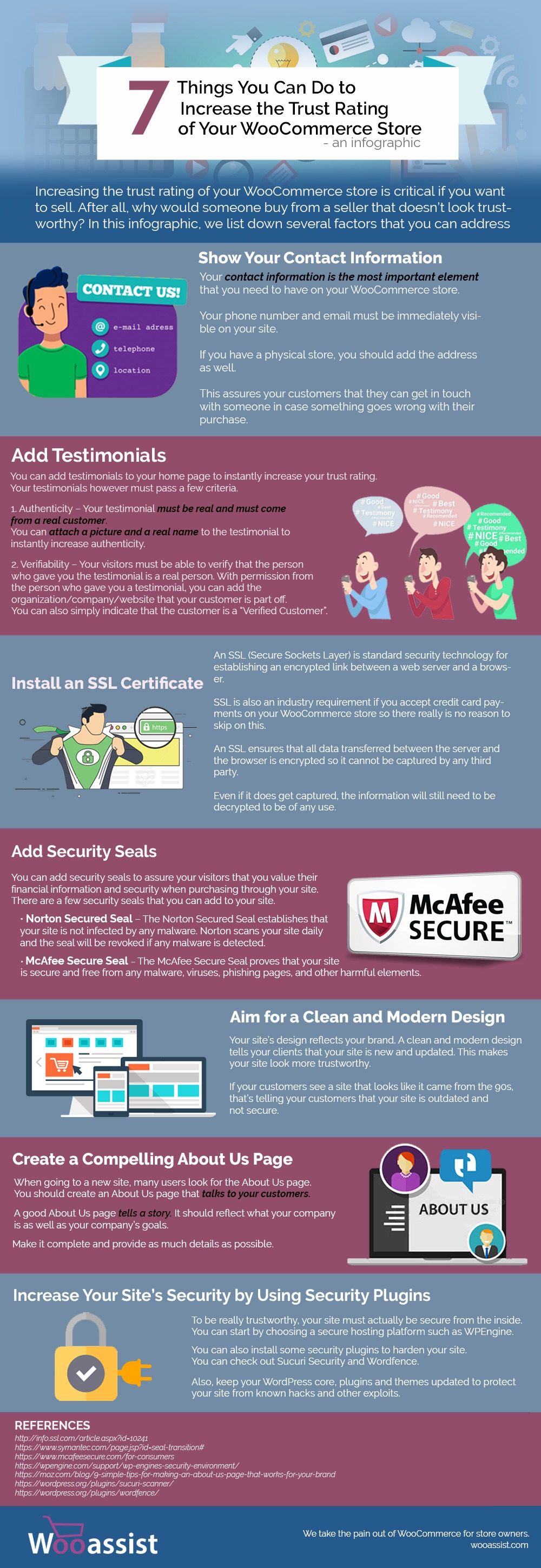
We listed down the 7 things that you can do to increase the trust rating of your WooCommerce Store in one handy infographic.

If you want to share this infographic on your site, you can use the code below and paste it in your HTML/text editor.

<a href="https://wooassist.com/7-things-you-can-do-to-increase-the-trust-rating-of-your-woocommerce-store-an-infographic"><img class="aligncenter wp-image-3017 size-full" src="https://wooassist.com/wp-content/uploads/2017/08/Increase-Trust-Rating.jpg" alt="Increase the Trust Rating of Your WooCommerce Store - An Inforgraphic by Wooassist" width="700" height="2030" /></a>

Filed Under: How-To Articles Tagged With: conversion optimization, security, testimonials, WooCommerce

How Often Should I Update My WooCommerce Store?

July 20, 2017 By John Leave a Comment

update my woocommerce store

How often should I update my WooCommerce store? We get that a lot from our clients. The ideal answer is that site updates should be done whenever there are critical security updates to keep your site secure.

For regular scheduled site updates, we have found that monthly updates are ideal. Weekly updates may be too frequent. There usually isn’t a lot to update in one week’s time. Every two or three months is way too long that the site remains vulnerable to security threats. Monthly updates are just about right. Note that even if monthly updates are being done, site owners must promptly update their WooCommerce stores should a critical security update come up.

Should I Even Update my WooCommerce Store?

We sometimes get this question too. It is true that updating your WooCommerce store can break your site. However, not updating your WooCommerce store can also eventually break your site. So essentially, it is still best to do the updates.

How to Prevent Issues When Updating My WooCommerce Store?

There is no sure-fire way to know if there will be any issues on your site as a result of updates. The best you can do is to test the updates first on a development site to see if any errors would occur. Also, you can stay on top of what the WordPress and WooCommerce developers are doing. You can sign up to newsletters or follow developer blogs to stay updated. You can check out the WooCommerce changelogs and the WordPress changelogs too.

When major updates are released, it might be ideal to wait a few weeks before updating your site. This is to give WordPress, WooCommerce and other plugin and theme developers sufficient time to update anything that was broken during the update.

What to Do Before Updating My WooCommerce Store?

There are a few steps you can take before updating your WooCommerce store. First, you can test your site updates on a development or staging site. Many hosting providers, such as WPEngine, provide their clients a staging environment for testing site updates. If your hosting provider does not provide a staging environment, don’t worry. You can still create a staging site manually.

checklistAfter applying the updates on the development site, the next step is to check if the site has any broken features. Some important elements to check are:

  • Home Page Formatting
  • Product Page Formatting
  • Product Image Gallery
  • Add to Cart and Checkout Process
  • Contact Forms
  • Email Signup Forms

If you find that anything is not working, you can proceed to fix or forward to your developer to fix. If you do not have an in-house developer, you can contact us and we can help you fix the problem. If there are no problems, you can proceed to the next step.

The third step is to back up the live site. WPEngine features a one-click backup. You can also use a plugin for creating backups. We recommend Updraft Plus plugin which also features a quick restore feature in case something goes wrong.

Once you have created a backup, you can proceed to update WooCommerce, all other plugins, themes and the WordPress core. When that’s done, you need to check if anything is broken on the live site. If everything is working and there are no formatting issues, then that’s it. You have successfully updated your site. If something gets broken, you can attempt to fix the problem or restore your backup.

What to Do When Something Breaks When Updating Your Site?

The WordPress infrastructure makes updating your WooCommerce store easy. But dealing with the complications that come with updates can be very daunting, especially if you are not a developer. As such, we recommend working with a developer when doing your site updates so that any issues can be resolved quickly. If you do not have a full-time developer on board, you can contact us so we can get our experienced WooCommerce developers to help fix any issues.

Filed Under: How-To Articles Tagged With: admin, best practices, e-commerce, how-to, security, website maintenance, WooCommerce

  • « Previous Page
  • 1
  • 2
  • 3
  • 4
  • Next Page »
Let us support your online store so you can manage your business

Get started today

Get 2 Hours of FREE SUPPORT

We are so confident that you will love our services that we will give you your first 4 hours at a 50% discount

That’s 4 hours for only $75

BUY NOW

Free eBook

5 Things Every Online Store Can Fix On Their Website In The Next Week To Increase Sales

Quick Links

  • How it Works
  • Pricing
  • Blog
  • Contact
  • About Wooassist
  • My Account
  • Checkout
  • Privacy Policy
  • Cookie Policy
  • Terms and Conditions

Wooassist

Australia:
59 Luke St.
Hemmant QLD 4174

Philippines:
San Miguel St.
Poblacion, Iligan City 9200

Connect


Copyright © 2026 · Wooassist

Yours FREE!

5 Things Every Online Store Can Fix On Their Website In The Next Week To Increase Sales