Wooassist

Assistance for Your Woocommerce Store

  • How it Works
  • Pricing
  • Services
    • Site Maintenance
    • AI SEO and Content Marketing
  • Blog
    • How-To Articles
    • Code Snippets
    • SEO For E-Commerce
    • Theme and Plugin Reviews
    • Wooassist News
    • WordPress/WooCommerce News
    • Interviews
  • About Us
  • Contact
You are here: Home / Archives for Storefront

How to Rename Primary Menu in Mobile View for Storefront Theme

February 26, 2015 By John 6 Comments

Updated 18/2/16 : Storefront Theme was updated. Adding a filter hook to rename the navigation.
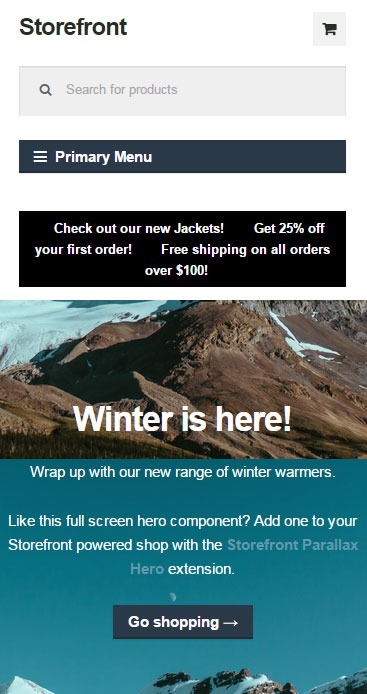
Rename Primary Menu in Mobile View for Storefront ThemeIf you have donned the Storefront Theme by WooThemes and tested the mobile view, you might have noticed that your main navigation/menu turns into a collapsible menu. While this menu does serve its purpose in the mobile view, it being named “Primary Menu” isn’t very desirable. You most likely need to change it to something more appropriate for your needs.

Different websites have different navigations so from the theme developer’s standpoint, putting in a not very descriptive text like “Primary Menu” will serve its purpose just fine. But for a website owner like you who knows what he wants, you’d want something more specific for that mobile collapsible menu. Maybe you’re selling your own line of apparel and your menu is filled with different product categories, so you want the text to be something like “Product Categories”, “Browse Clothing Line” or maybe even make it a call-to-action like “Shop Now” or “Shop Online”. Bottomline, you know what you need the text to be on that mobile collapsible menu. Lucky for you, it’s easy enough to accomplish with a few lines of code.

Get a Child Theme

Before we proceed, make sure you are running your website on a child theme. To begin with, there is really no reason why you shouldn’t have a child theme unless you want any changes you made to your theme to disappear whenever the theme updates. If you don’t have a child theme yet, get one.

Add the Filter

Now that you have a child theme, paste this code into your child theme’s functions.php file.

add_filter( 'storefront_menu_toggle_text', 'jk_storefront_menu_toggle_text' );
function jk_storefront_menu_toggle_text( $text ) {
 $text = __( 'MY NAVIGATION' );
 return $text;
}


Change the Text

Do you see the line with the following code?

$text = __( 'MY NAVIGATION' );

You’ll just need to modify the text “MY NAVIGATION” and change it with the text that you want on your collapsible mobile menu.
 

Filed Under: Code Snippets, How-To Articles Tagged With: call-to-action, child theme, code snippet, design tweaks, how-to, mobile friendly, navigation, responsive design, Storefront, woothemes

How to Remove Horizontal Line under Page Title in Storefront Theme

February 26, 2015 By John 2 Comments

Updated 18/2/16 due to Theme Update

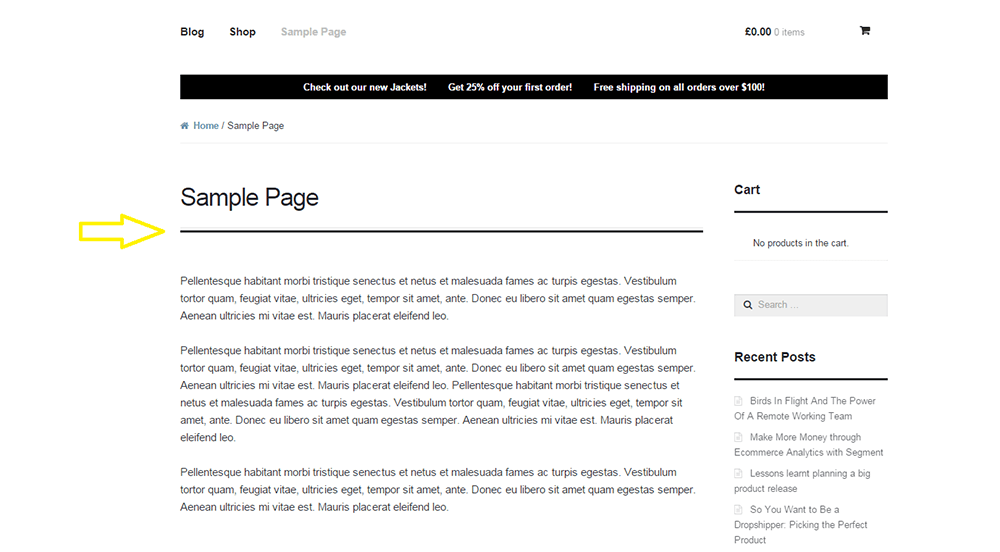
For one reason or another, you might find that you’d like to remove that horizontal line just below the page title in Storefront theme. The horizontal line becomes prominent when you don’t have a title for your page which could happen on home pages.

Remove Horizontal Line under Page Title in Storefront Theme
That line that the arrow is pointing at.

To remove the horizontal line, simply add the code below to your child theme Styles.css file.

.page-template-template-homepage-php .hentry .entry-header, .page-template-template-homepage-php .hentry .entry-header h1 {
 border-bottom: 0;
margin-bottom: 0px;
 }

The code “margin-bottom: 0px;” is necessary to remove the bit of extra spacing below where the line used to be.

Now you know how to remove horizontal line under page title in Storefront Theme but if that doesn’t fix your problem, let us know in the comments.

Filed Under: Code Snippets, How-To Articles Tagged With: code snippet, CSS, design tweaks, how-to, Storefront, woothemes

How to Move the Navigation Menu Outside of Header for Storefront

February 26, 2015 By John 9 Comments

Here’s another tweak that you can do on the Storefront theme.

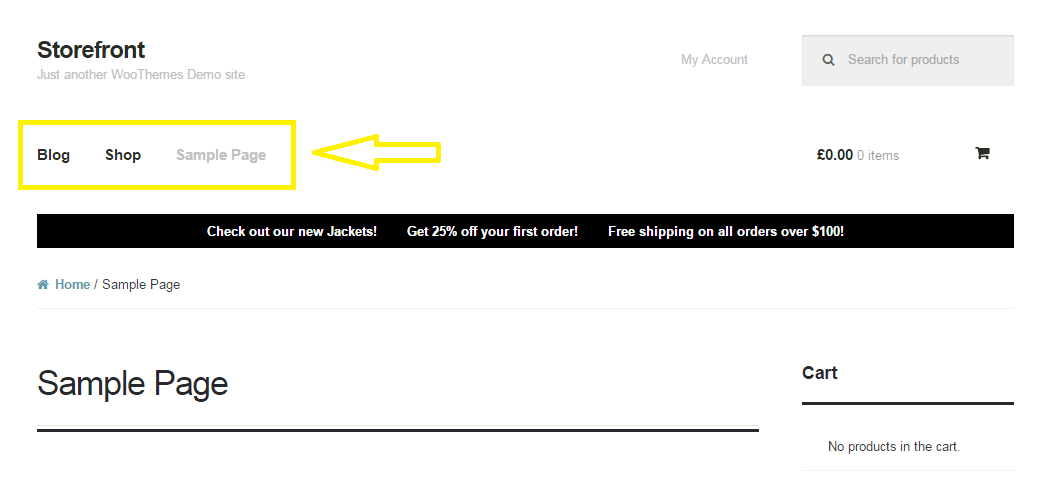
Move the Navigation Menu Outside of Header

If you want to move the main navigation/menu below or outside the header, you just need a few lines of code. There is no need to create a new header.php file on your child theme. Instead, just add this piece of code to your child theme’s functions.php file and you’re all set.

function child_theme_init() 
{
remove_action( 'storefront_header', 'storefront_primary_navigation', 50 );
add_action( 'storefront_before_content', 'storefront_primary_navigation', 5 );
}
add_action( 'init', 'child_theme_init' );

Before you do this, do know that it’s not really recommended to move the styles outside of its original location. After doing this, you will need to redo all the menu styles and that’s a lot of work.

Now you know how to move the navigation menu outside of header for storefront theme. Hope this worked for you. If not, feel free to post a comment and we’ll see what we can do to help you out.

Filed Under: Code Snippets, How-To Articles Tagged With: code snippet, design tweaks, how-to, navigation, Storefront, woothemes

How to Change the Arrows in Pagination for Storefront and WooCommerce

March 18, 2015 By John 2 Comments

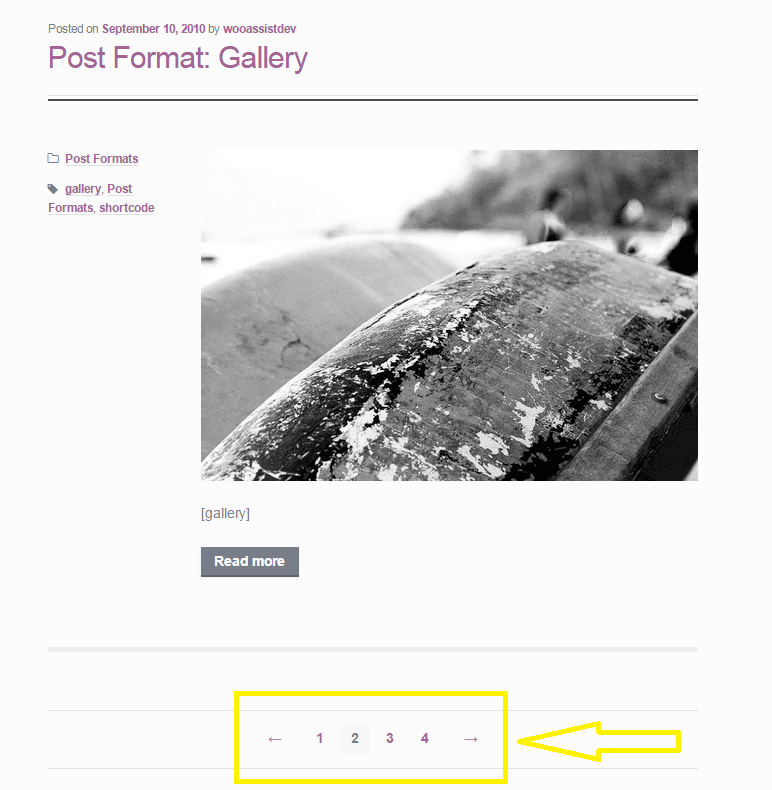
When looking at category pages for posts and WooCommerce products in Storefront theme, you can navigate to different pages by clicking on the default left and right pointing arrows. Notably, most themes would use a “Previous” or “Next” text instead of an arrow. If you want to change these arrows to text, it is easy enough to do by tweaking a few lines of code. Just follow the steps below.

pagination-2

Change the Arrows in Pagination for Storefront Theme

Since Storefront does not have a default filter for pagination, we’ll need to remove the function of the default pagination and replace it with our own function. Notably, the code in the function `woa_sf_paging_nav_replace` is just a copy of the original pagination function in Storefront and we just need to replace the text in the ‘prev_text’ and ‘next_text’ parameters. You don’t need to touch the other attributes.

Go to your functions.php and find the following code:

---- php-code ----

add_action( 'init', 'woa_sf_change_pagination_init' );
 
 
function woa_sf_change_pagination_init() {

 //remove current function used for Storefront's pagination
      remove_action( 'storefront_loop_after', 'storefront_paging_nav', 10 );

 //replaces pagination function with our own function
      add_action( 'storefront_loop_after', 'woa_sf_paging_nav_replace', 10 );
}
 
 
function woa_sf_paging_nav_replace() {
 
 global $wp_query;

      $big = 999999999; // need an unlikely integer
      $translated = __( 'Page', 'storefront' ); // Supply translatable string

      echo '<nav class="storefront-pagination">';

      echo wp_kses_post( paginate_links( array(
           'base' => str_replace( $big, '%#%', esc_url( get_pagenum_link( $big ) ) ),
           'format' => '?paged=%#%',
           'current' => max( 1, get_query_var( 'paged' ) ),
           'prev_text' => '<',
           'next_text' => '>',
           'type' => 'list',
           'total' => $wp_query->max_num_pages,
           'before_page_number' => '<span class="screen-reader-text">' . esc_attr( $translated ) . ' </span>',
 ) ) );

 echo '</nav>';
}

---- /php-code ----

Where it says:

'prev_text' => '<',
'next_text' => '>',

Change it to:

'prev_text' => 'Previous',
'next_text' => 'Next',

Change The Arrows in Pagination for WooCommerce Products

Editing the pagination for WooCommerce products is a bit simpler. We just need to find and use the filter `woocommerce_pagination_args`.
Head over to your functions.php and look for:

---- php-code ----

woa_wc_change_pagination_init() {

    add_filter( 'woocommerce_pagination_args', 	'woa_wc_woocommerce_pagination' );
}

function woa_sf_woocommerce_pagination( $args ) {

	$args['prev_text'] = '<';
	$args['next_text'] = '>';

	return $args;
}

---- /php-code ----

Where it says:

$args['prev_text'] = '<';
$args['next_text'] = '>';

Simply change it to:

$args['prev_text'] = 'Previous';
$args['next_text'] = 'Next;

Or replace ‘<‘ and ‘>’ to whatever text you prefer.

You just learned how to change the arrows in pagination for Storefront and WooCommerce. Did this post help solve your problem? Do you have any questions? Let us know in the comments.

Filed Under: Code Snippets, How-To Articles Tagged With: code snippet, design tweaks, how-to, navigation, Storefront, WooCommerce, woothemes

Google Mobile Friendly Update: Is Your Online Store Ready?

May 4, 2015 By John Leave a Comment

wooassist-iphoneGoogle mobile friendly update to penalize non-mobile friendly websites is out. Don’t tell me you didn’t see this coming. As more people used mobile devices to surf the internet, Google had to act. It was only a matter of time before Google started prioritizing websites that are optimized for mobile devices. The new algorithm came into effect April 21.

If you have an e-commerce store you should be concerned about all updates from Google. For a lot of online stores, the success of your business depends on Google. This update could destroy your rankings if your website is not mobile responsive. If ranking high in Google is a big part of your revenue strategy then this could be disastrous for your business.

What You Should Do

Use this Mobile-Friendly Test. If your website passes the test, then you have nothing to worry about. But if your website fails the test, you’ll be presented with suggestions on how you can resolve the problem.

If you have an e-commerce store using WooCommerce, there are a lot of responsive WordPress themes that you can use. These responsive themes are optimized for use on mobile devices. WooTheme’s own Storefront theme made especially for WooCommerce is responsive so that’s worth a look. We can also recommend Genesis themes from StudioPress.

How Much Will it Cost?

mobileThat question is a bit like. “I need a car. How much will that cost?” Of course, the answer is, “It depends”. But to give you an example, we have recently upgraded a few clients themes to the new Storefront theme for between $400-$600.
When upgrading a theme, you tend to notice things that you probably should have noticed on the original site, and need to update those as well. So setting a budget of $1000 – $1500 is probably more realistic.

Should You Have Made Your Site Responsive 12 Months Ago Anyway?

This update by Google might just be the thing that most store owners needed to push them into action. Non-responsive ecommerce sites are more than likely leaving a lot of money on table. There is some strong evidence to support this: 14-brands-that-increased-conversion-rates-via-responsive-design

For example, O’Neill Clothing’s redesign achieved some fairly spectacular results on iPhone/iPod:

  • Conversions increased by 65.71%.
  • Transactions went up 112.5%.
  • Revenue increased by 101.25%.

Similarly, on Android devices:

  • Conversions shot up by 407.32%.
  • Transactions increased by 333.33%.
  • Revenue increased by a whopping 591.42%.

Personally, we haven’t seen results this good on the sites we manage. But nonetheless, all responsive redesigns we have done have paid for themselves within 6 months.

The Mobile Friendly Algorithm

Like usual, Google’s algorithm remains a trade secret. It is now up to SEO experts to try to figure out what the algorithm considers in its ratings. Google is actually forgiving this time around as they did provide that tool that will let you check if your website meets their mobile-friendly standards.

If you want to see what your ecommerce store looks like on different mobile devices, you can use this mobile user testing tool. This tool emulates screen sizes of the most popular mobile devices so you can see exactly what your site looks like on a mobile device.

What Sites Were Affected

According to an article from USA Today, the algorithm update could affect as much as 40% of top websites.

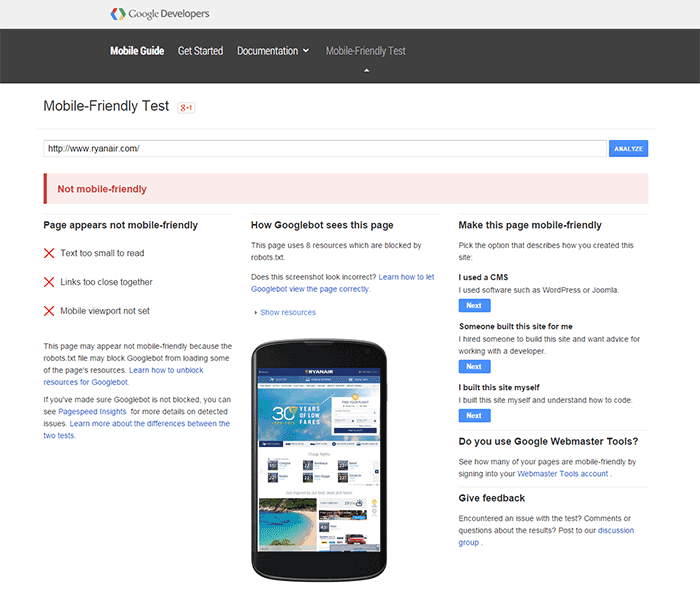
Here is the test result of one website that did not meet Google’s mobile-friendly update.

ryanair-non-mobile-friendly

A few weeks before the new algorithm came into effect, tech website TechCrunch tested the websites of Fortune 500 companies. Surprisingly, 44% of Fortune 500 companies’ websites did not pass the mobile-friendly test. So if your ecommerce store didn’t pass the test, you are not alone.

I Failed the Mobile Friendly Test. Should I be Worried?

Well, you should be worried. Still, according to an article from Search Engine Land, it’s not too late to act. You can still fix your website. While some changes in rankings were seen just a day after the update, these changes were not significant. This does not mean you shouldn’t bother doing anything. Sooner or later, Google could clamp down and bring harsher penalties to non-mobile friendly websites. Don’t wait for it to hit hard before you do something.

Filed Under: How-To Articles, SEO For E-Commerce Tagged With: e-commerce, Genesis, Google+, how-to, mobile friendly, responsive design, Storefront

  • « Previous Page
  • 1
  • …
  • 3
  • 4
  • 5
Let us support your online store so you can manage your business

Get started today

Get 2 Hours of FREE SUPPORT

We are so confident that you will love our services that we will give you your first 4 hours at a 50% discount

That’s 4 hours for only $75

BUY NOW

Free eBook

5 Things Every Online Store Can Fix On Their Website In The Next Week To Increase Sales

Quick Links

  • How it Works
  • Pricing
  • Blog
  • Contact
  • About Wooassist
  • My Account
  • Checkout
  • Privacy Policy
  • Cookie Policy
  • Terms and Conditions

Wooassist

Australia:
59 Luke St.
Hemmant QLD 4174

Philippines:
San Miguel St.
Poblacion, Iligan City 9200

Connect


Copyright © 2026 · Wooassist

Yours FREE!

5 Things Every Online Store Can Fix On Their Website In The Next Week To Increase Sales