Wooassist

Assistance for Your Woocommerce Store

  • How it Works
  • Pricing
  • Services
    • Site Maintenance
    • AI SEO and Content Marketing
  • Blog
    • How-To Articles
    • Code Snippets
    • SEO For E-Commerce
    • Theme and Plugin Reviews
    • Wooassist News
    • WordPress/WooCommerce News
    • Interviews
  • About Us
  • Contact
You are here: Home / Archives for Storefront

How to Show Only Blog Excerpts in Storefront Theme

November 30, 2016 By John 7 Comments

How to Show Only Blog Excerpts in Storefront

Having a blog has a huge impact on e-commerce sites. A blog helps drive up to 55% more traffic. Blogs are all about providing relevant content to drive visitors to the site. Most blogs in the past prefer the full post display but recently, the snippet view or blog excerpts view has become quite popular. With blog excerpts view, the blog content is more scannable, with posts lined up and a Read More button available after each one. This lets the visitor browse through the posts and just click on the article he/she wants to read more about. In this article, we talk about how to show only blog excerpts in Storefront.

Why Show Only Blog Excerpts?

Increased Visibility

When you have a lot of posts on your blog, displaying only blog excerpts will make more of your content visible. Your latest post may not be the one that the reader is interested in. Having short excerpts of each post will show your visitors that you have a lot of content that they can indulge in.

Ease of Use for Visitors in Choosing Content that Interests Them

With a lot of posts in view, your visitors will be able to easily choose which article to read. This also helps bring more attention to your old posts so keeping those old posts updated with new information will also pay dividends. Readers can scan the blog page easily and may click not just one, but several articles that spark their interest.

Trims Down Lengthy Posts

If you create a lot of long blog posts, then having an excerpts view will make your blog more manageable. A 2000-word blog post is enough to cover a few screens which take attention away from other posts in a full-length view.

Reduced Page Load Times

Since you are only loading post snippets, your blog page will load much faster. Just imagine the number of images on a few of your blog posts and how much longer it would take to load all those.

Increased Page Views and Time on Site

With more content to browse through, showing only blog excerpts will increase your page views. And as visitors read more of your content, you also effectively increase user’s time on your site giving more opportunity for conversion.

Displaying Blog Excerpts in Storefront Theme Using a Plugin

You can switch to a blog excerpts display by editing the WordPress template files. However, you have to be familiar with the WordPress loop and edit the normal content with the excerpts function. An easier method is to use a plugin.
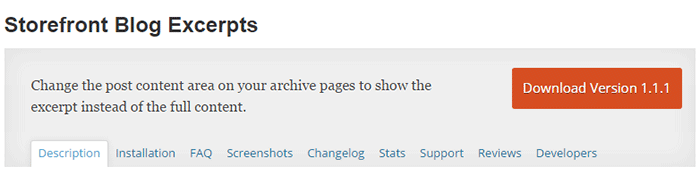
storefront-blog-excerpts-plugin

The Storefront Blog Excerpts plugin is made to work with Storefront theme by WooThemes. This also adds a section in the WordPress Customizer for you to modify how to display your blog content in excerpts view.

How to Use Storefront Blog Excerpts

  • In the plugins page, click “Add New”. Search for “Storefront Blog Excerpts” in the WordPress repository. Click on “Install” then activate the plugin.
  • After activation, the blog archive will be automatically replaced by the excerpts display.
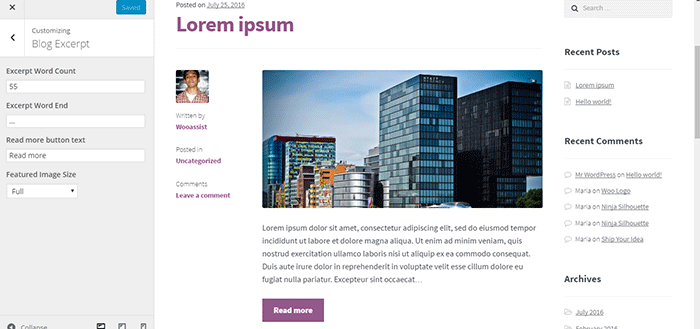
  • You can further customize how your blog archive is displayed. Go to the Appearance > Customizer and find the Blog Excerpts section.
  • You can modify the following properties in this section.
    • Excerpt word count – The default value is 55. The average word count of an academic paragraph is around 100 – 200. 55 is around half of it. Based on this, adjust how many words you want to display in each excerpt.
    • Excerpt word end – The default value is “…”. You can customize on the symbols that you can use to indicate a continuation. Other not so common symbols are “>”and “->”
    • Read more button text – The default value is “Read more”. This is the basic call-to-action. You can be more descriptive on the text and try “Go to Full Article”.
    • Featured image size – The default value is “Full”. Here, you can choose different sizes of feature images.
How to Show Only Blog Excerpts in Storefront

Have you tried displaying only blog excerpts on your WooCommerce store’s blog? If you haven’t, you should consider doing it as it might just get you more page views and increased time on site. If you have tried the plugin above, let us know your experience about it and your ideas on how it can be improved.
Filed Under: How-To Articles, Theme and Plugin Reviews Tagged With: best practices, how-to, navigation, plugins, Storefront, Wooassist

Why Use Storefront Theme on Your WooCommerce Store

August 26, 2016 By John Leave a Comment

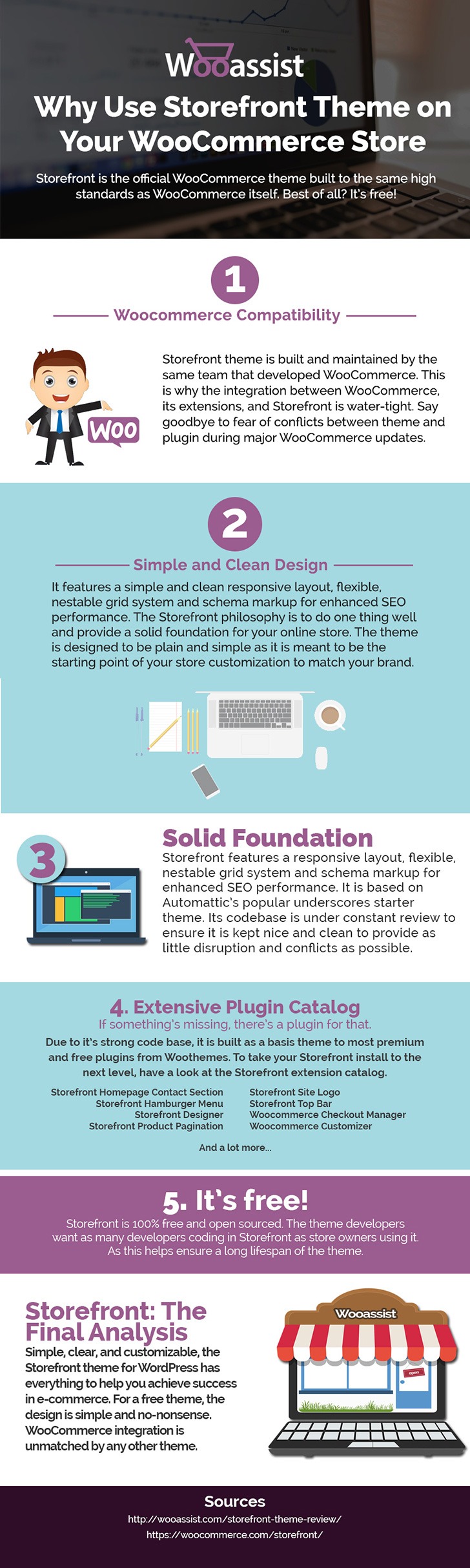
Storefront is the ideal platform for your WooCommerce store, providing a rock-solid foundation without the extra bloat or features. Developed by WooThemes, it reaches up to 3,000 downloads daily. But why use Storefront Theme on your WooCommerce Store? Find out in this infographic.

Why Use Storefront Theme on Your WooCommerce Store

To share this infographic on your site, just use the embed code below.

Filed Under: Theme and Plugin Reviews Tagged With: e-commerce, Storefront, website development, website maintenance, WooCommerce, WooCommerce products, woothemes, WordPress

How to Add a Home Page Slider in Storefront Theme

March 9, 2016 By John 7 Comments

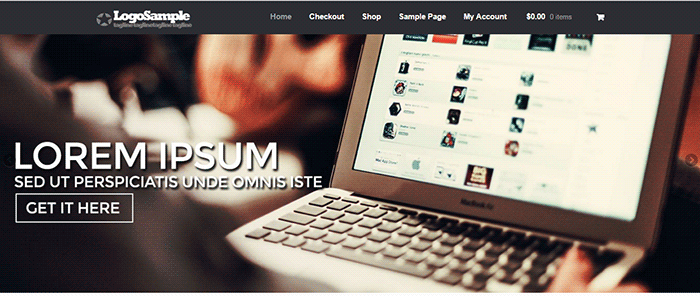
Storefront-home-page-slider_bannerContent sliders, also known as carousels, can contain complex arrangements of images, video and HTML content usually found top and center on your home page. Storefront however is about simplicity and by itself does not support sliders. You can however add a slider with the help of a plugin.

Should You Use a Content Slider on Your Site?

communication_i-am-rightMany websites overuse sliders and there has been a lot of debates about having sliders. E-commerce websites are able to present their products/services in a visually appealing way with the help of a slider. But a word of warning; sliders are not for every website. Many experts actually advise against the use of sliders.
It Causes Banner Blindness

Because many website owners are abusing the use of sliders, visitors tend to associate them with advertisements. And we all know what happens to advertisements, they get ignored. This is because web users have become increasingly indifferent with advertisements.

It Slows Down Your Site

The more complexity you add, the slower your page becomes. Packing three to five high resolution images alone can dramatically slow down your site. No matter how good or optimized your page is, no one can see it if your page takes too long to load. So keep your slides simple and avoid animations and layers. If you are only after the aesthetics value, there are a lot of alternatives to a home page slider that looks just as good and will not slow down your site.

Preparing Images for Sliders

There are a lot of things to consider when preparing images for your home page slider. Since this will be the largest element in your home page, it should be visually appealing and must convey the message efficiently.

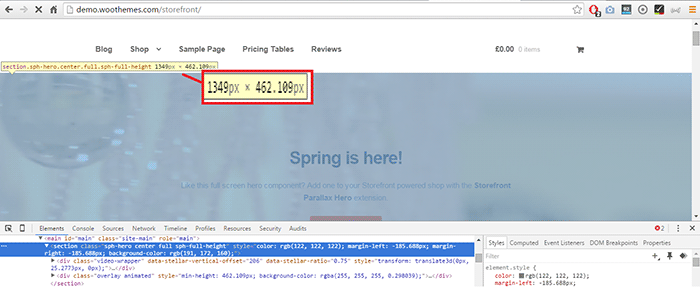
We recommend hiring a professional to do this for you. Before a graphic artist starts preparing your images, you must identify the size of your slider. This will depend on your placeholder. On your web browser, simply right click on the placeholder then click “Inspect Element”. You should be able to see the size of the placeholder in pixels.

Storefront_Placeholder_Inspect-ElementYou will most likely receive a large file from your graphic artist since the file will contain layers and other information about the image. You should request another copy that’s ready for web publishing or you can optimize the image yourself.
Here are some tips and ideas in preparing images for sliders.

  • Go for big, bold and bright images as these are what the human eye loves.
  • Avoid stock images. This will only make your images look like an advertisement and users will only ignore it. Taking your own photos or hiring a professional photographer is advantageous.
  • Your copy should be catchy. Avoid jargon and clichés. Make it short and simple. Copywriting isn’t easy so you might need to put in a bit more effort in finding the right words to help you sell your product/service. Have a strong call-to-action. Add some text or a button that tells the reader the action you want them to take like Shop Now or Download Free Trial.

Slider Plugins

Sliders use jQuery and CSS in its animations. Hence, it is necessary to have a lightweight slider plugin so that it won’t slow down your site significantly. Similarly, it is important to have a slider that is responsive. Since more and more people are browsing using mobile devices, a slider that works on small screen sizes is a necessity. Not to mention Google is now favoring mobile-friendly websites.

Here are some of the recommended slider plugins for WordPress.

Soliloquy Lite

Slider-plugin_Soliloquy-LiteSoliloquy Lite is built with performance in mind and is our slider plugin of choice. It is lightweight so it doesn’t add extra bloat to your site. Also, it is responsive making your WooCommerce site mobile friendly. In performance tests, Soliloquy has always been at the top. Its speed, responsiveness and ease of use are just top notch.

Meta Slider

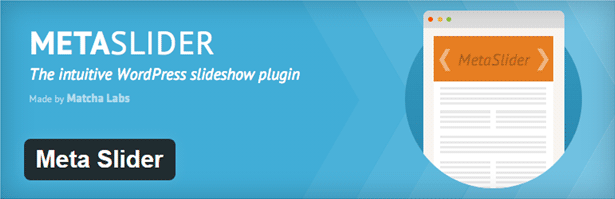
Slider-plugin_Meta-SliderMeta Slider is both the best rated and the most downloaded slider plugin in the WordPress repository. It’s simple and has a user–friendly interface that it is well-received by the WordPress community.

WooSlider

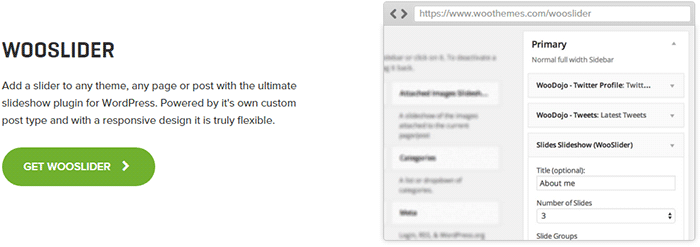
Slider-plugin_WooSliderWooSlider was made by WooThemes, the same people who developed WooCommerce and Storefront theme. Hence, you can expect that the plugin will work perfectly with WooCommerce and Storefront. WooSlider is a premium plugin and you can find out more about it in the plugin page.
Adding the Home Page Slider in Storefront

The guys that made Storefront built the theme with the philosophy to provide a basic, solid foundation to any WooCommerce project. Other WordPress themes already include multiple sliders in them and this adds unnecessary bloat to the website. Storefront lets you choose your own slider plugin should you decide you need one.

To add a full-width home page slider in Storefront, we need to make use of the extensive hooks conveniently provided by the makers of Storefront. For this example, we will use Soliloquy Lite.

How to Create a Home Page Slider in Storefront using Soliloquy Lite

WordPress-Dashboard_Soliloquy_Add-New-Images

    1. Install and activate the Soliloquy Lite plugin.
    2. Prepare the images for the slider. Make sure they are of the right size and optimized for web publishing.
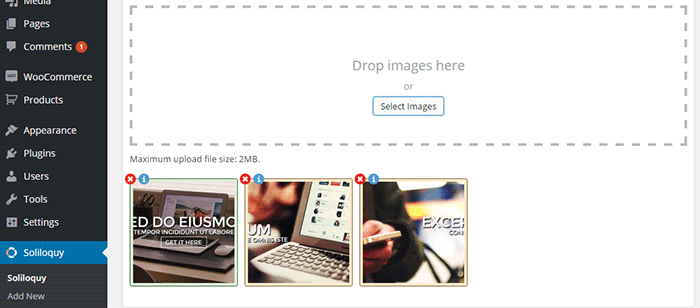
    3. On your WordPress Dashboard, click on Soliloquy > Add New. Select the slider images that you will be using.
    4. Go to the Config Tab to configure your slider settings. When you are done, click Update.
    5. Take note of the ‘shortcode’ for your slider. It will be something like [soliloquy id=“102”]. You have to remove the quotation marks inside the shortcode so it would look like [soliloquy id=102]
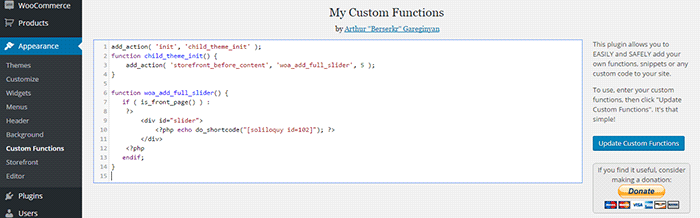
      • Note: The next steps require technical knowledge. This is a very delicate process and one mishap could cause your entire site to go down. If you do not know what you are doing, we would advise on having a developer do this step for you. An alternative is to use My Custom Functions plugin to prevent a fatal error on your site.
    6. Add the piece of code below to your theme’s functions.php file.
    7. Replace the shortcode in the code we provided with the shortcode of your slider.

WordPress-Dashboard_Appearance_Shortcode-Slider

add_action( 'init', 'child_theme_init' );
function child_theme_init() {
      add_action( 'storefront_before_content', 'woa_add_full_slider', 5 );
}

function woa_add_full_slider() { 
 if ( is_front_page() ) :
      ?> 
            <div id="slider">
                    <?php echo do_shortcode("[soliloquy id=102]"); ?>
            </div> 
      <?php
 endif; 
}

Using Other Plugins

The code above makes a container where you can put your slider shortcode. You can use this code in any slider plugin as long as it has shortcode capabilities. Just replace the ‘shortcode’ in the code we provided and you’re all set.

There are a lot of free and premium sliders out there that you can try. The important thing is to choose a slider plugin that is lightweight, responsive and addresses your individual needs. It is very easy to get carried away and use a complex slider plugin that offers lots of animation and layers but note that this will significantly slow down your site. Always remember to keep sliders simple.

If you have any questions or anything you’d like to add, please let us know in the comments.

Filed Under: Code Snippets, How-To Articles Tagged With: code snippet, design tweaks, plugins, Storefront, WooCommerce

How to Center Logo in Storefront Theme

February 12, 2016 By John 35 Comments

Centering the logo on a WordPress site is a popular design concept, but doing it can be tricky. Most themes, Storefront included, are styled with the logo aligned to the left.

While you can use a premium plugin like Storefront Designer to center the logo, you can edit your child theme’s CSS instead. There are two benefits in doing this manually. For one, you don’t have to buy a plugin. Secondly, you don’t add extra bloat to your site.

How to Center Logo in Storefront with CSS

Centering Your Logo with CSS

Before anything else, you should install a child theme on your site otherwise the changes you make will be lost every time you update your theme. Alternatively, you can use Simple Custom CSS Plugin which creates a new stylesheet that won’t get overwritten.

Add the following code to your child theme’s styles.css:

@media screen and (min-width: 768px) {
	.site-branding{
		text-align: center;
		margin: 0 auto !important;
		float: none !important;
	}
}

Text align and margin set the margin to adjust accordingly to the sides. We need to place “!important” in that line to make sure that it gets priority and doesn’t get overridden by other CSS codes.

We also need to override the default “float:left;” code so that it won’t stick to the left. We do this using “float:none !important;”.

To make sure these styles don’t affect the mobile version of your site, we set a minimum width in the selector.

Doing Away with the Secondary Menu and Search Bar

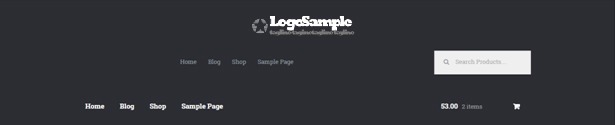
If you are using Storefront out of the box, the secondary menu and the product search bar will still be in the way. We need to do something about that next. Temporarily, the header will look something like this.

Doing Away with the Secondary Menu and Search Bar

To remove the secondary menu, go to Appearance > Customize > Menu > Menu Locations and do not set the secondary menu to anything.

To move the search bar inline with the main navigation and cart menu, you have to paste the code below to your functions.php file. A word of warning, do not proceed with this step if you do not know what you are doing. One slip up here could cause your site to go down and become inaccessible. Alternatively, you can install My Custom Functions plugin to insert the code. The plugin warns the user the code will cause a fatal error.

add_action( 'init', 'jk_remove_storefront_header_search' );
function jk_remove_storefront_header_search() {
remove_action( 'storefront_header', 'storefront_product_search', 	40 );
add_action( 'storefront_header', 'storefront_product_search', 	70 );
}

After this step, your site will look something like this.

Move search bar inline with the main navigation and cart menu

The product search bar is still not inline with the main navigation as you can see. The CSS code below will adjust the width of the main navigation so that the search box won’t warp around to the bottom.

/*adjusting the width of the main-navigation*/
.woocommerce-active .site-header .main-navigation {
	width: 50%;
}

Applying the CSS code above will result to this. Now, the only thing left to do is to resize the search box using CSS.

Adjust width of main navigation for search box to un-warp around the bottom

Putting Everything Together

Put everything inside the media screen brackets, together with the CSS code for the resizing of the search box. The final CSS code will be:

@media screen and (min-width: 768px) {
	/*centers the logo*/
	.site-branding{
		text-align: center;
		margin: 0 auto !important;
		float: none !important;
	}
	/* adjusts the width of the main navigation container to accommodate the search box in the same line*/
	.woocommerce-active .site-header .main-navigation {
		width: 50%;
	}
	/* positions the search icon properly in the search box*/
	#masthead .site-search .widget_product_search form:before {
		top: 1.75em;
		left: .75em;
		position: relative;
	}
	/*  resizes the search box*/
	#masthead .site-search .widget_product_search input[type=search],#masthead .site-search .widget_product_search input[type=text] {
		padding: .5em .5em .5em 2em;
		line-height: 1;
	}
	/* places the search box to the left of the cart menu(optional)*/
	.woocommerce-active .site-header .site-search {
		float: left;
	}

}

And you’re done. The outcome should look something like this.

Storefront Center Logo_Final

If you are unable to achieve this with the above code snippets, it could be that you are using a child theme that has codes that conflict with the codes above. Feel free to post your questions in the comments section.

Filed Under: Code Snippets, How-To Articles Tagged With: code snippet, CSS, design tweaks, how-to, mobile friendly, Storefront, WooCommerce, WordPress

How to Set Up a Static Page as Your Home Page in a WordPress Site

February 9, 2015 By John Leave a Comment

homeIf you are creating an e-commerce store, chances are you’ll want a static page as your home page and not a blog or posts page which is the default home page for many WordPress themes. We’ll cover how you can do this in this article.
Before we dive deeper into this and assuming you are using Woocommerce, it might be a good idea to try the Woocommerce Storefront Theme.  Since the theme was built and is being maintained by the people behind Woocommerce, you can be assured that it integrates well with all Woocommerce features. Whenever a new version of Woocommerce comes out, you can be sure that it is optimized for the Storefront Theme. There is less chance of updates breaking your site.

Create a Page

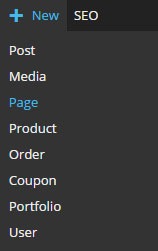
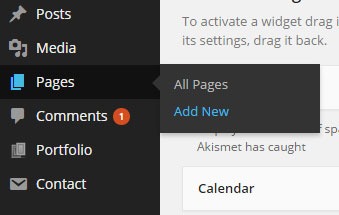
The first step to creating a static home page in WordPress is to create the page that you want to set as your home page. On your WordPress Dashboard, hover over “New” and click on “Page”. Alternatively, you can hover over “Pages” and click on “Add New”.

new-page      new-page-1

After that, just add the content you want on the page; format it accordingly then publish it. It is best practice to set the title of this page as “Home”.

Setting the Page as Home Page

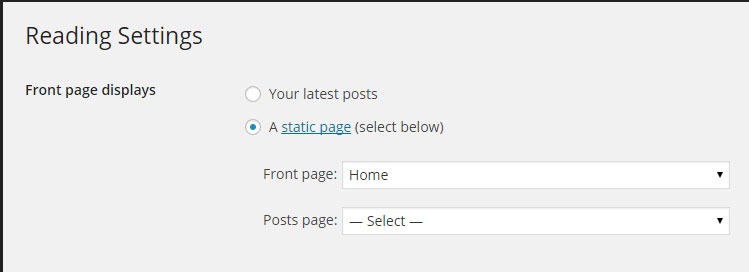
To set the page you just created as your home page, go to “Settings” then click on “Reading”. Under “Front page displays”, tick on “A static page” then under “Front page” choose “Home” or whatever you named the page you are going to use as your home page.

static-home-page

When that’s set, you’re done.

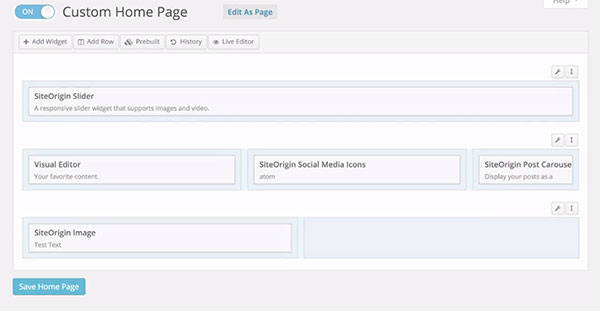
If you want a more powerful tool to help you create a good-looking home page without needing to know any sort of coding, we can recommend the SiteOrigin Page Builder plugin. This plugin enhances the content editor into a drag and drop widgetized editor which allows for easy creation of responsive grid-based pages. This plugin is optimized for the WordPress engine and will work with any theme that you are running. Let yourself create stunning pages that look like they were done by a professional web developer.

site-origin-page-builder

If you have any comments or questions, just hit the comments sections and we’ll get back to you.

Filed Under: How-To Articles Tagged With: e-commerce, how-to, plugins, Storefront, WordPress

  • « Previous Page
  • 1
  • 2
  • 3
  • 4
  • 5
  • Next Page »
Let us support your online store so you can manage your business

Get started today

Get 2 Hours of FREE SUPPORT

We are so confident that you will love our services that we will give you your first 4 hours at a 50% discount

That’s 4 hours for only $75

BUY NOW

Free eBook

5 Things Every Online Store Can Fix On Their Website In The Next Week To Increase Sales

Quick Links

  • How it Works
  • Pricing
  • Blog
  • Contact
  • About Wooassist
  • My Account
  • Checkout
  • Privacy Policy
  • Cookie Policy
  • Terms and Conditions

Wooassist

Australia:
59 Luke St.
Hemmant QLD 4174

Philippines:
San Miguel St.
Poblacion, Iligan City 9200

Connect


Copyright © 2026 · Wooassist

Yours FREE!

5 Things Every Online Store Can Fix On Their Website In The Next Week To Increase Sales