Wooassist

Assistance for Your Woocommerce Store

  • How it Works
  • Pricing
  • Services
    • Site Maintenance
    • AI SEO and Content Marketing
  • Blog
    • How-To Articles
    • Code Snippets
    • SEO For E-Commerce
    • Theme and Plugin Reviews
    • Wooassist News
    • WordPress/WooCommerce News
    • Interviews
  • About Us
  • Contact
You are here: Home / Archives for website development

How to Make WooCommerce Pages Full Width in Storefront Theme

April 23, 2015 By John 20 Comments

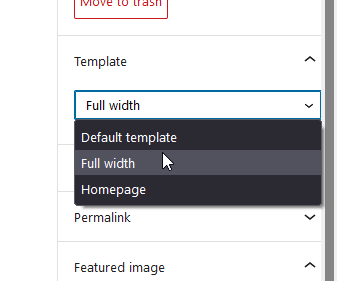
storefront full width template

EDIT: Storefront now has a full-width page template so you no longer need to use the custom code in this article. To remove the sidebar on WooCommerce pages, you can set the page template to Full Width.

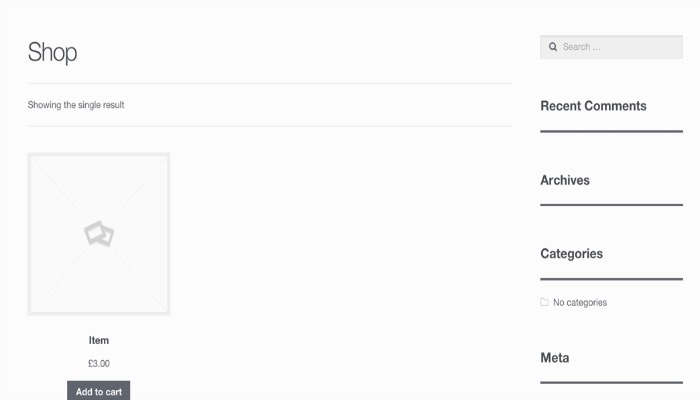
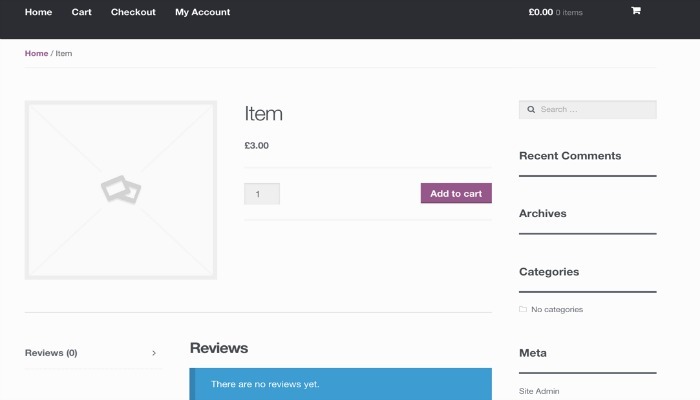
If you are using Storefront theme and you want to use the Full Width template for your store and other pages, you might come across a problem. After you’ve set your page to the Full Width template, you can still see the sidebar. And that’s not the case with the other pages, since setting the template to Full Width effectively hid the sidebar.
shopimage
Here is a shop page that is supposed to be full-width but still shows the sidebar
itemimage

And here is a product page which is supposed to be full-width but still shows the sidebar

This happens because all WooCommerce pages use the templates on the WooCommerce plugin. They do not use the Storefront templates. To resolve the problem, add the following code to your child theme’s functions.php.

add_action( 'wp', 'woa_remove_sidebar_shop_page' );
function woa_remove_sidebar_shop_page() {

if ( is_shop() || is_tax( 'product_cat' ) || get_post_type() == 'product' ) {

remove_action( 'storefront_sidebar', 'storefront_get_sidebar', 10 );
add_filter( 'body_class', 'woa_remove_sidebar_class_body', 10 );
}
}

function woa_remove_sidebar_class_body( $wp_classes ) {

$wp_classes[] = 'page-template-template-fullwidth-php';
return $wp_classes;
}

This code would remove the sidebars on the product page, product categories, and the shop page. It would also add the page-template-template-fullwidth-phpclass that causes the layout to be in full width.

Now you know how to make WooCommerce pages full width in Storefront Theme! If you have further questions please let us know.
Filed Under: Code Snippets, How-To Articles Tagged With: code snippet, design tweaks, how-to, Storefront, website development, WooCommerce

How to Edit Storefront Theme Header

March 6, 2017 By John 24 Comments

Editors Note: We have decided to retire the plugin mentioned in this article as the compact mode of the plugin no longer works with the new version of Storefront theme.

Editing a theme’s header is difficult for the average WordPress user. However, we’ve made it easier to do this for Storefront theme. With just a few clicks, you’ll be able to edit the format of the header, hide header elements, or change background, text and link colors.

But Why Storefront?

Storefront is the best theme to use with WooCommerce, which is the most popular e-commerce platform on WordPress. The theme was made and is being updated by the same people who created WooCommerce so compatibility will never be an issue. If you are already using Storefront theme on your WooCommerce store, then good for you. If not, you should consider using it to prevent any issues in the long run.

We’ve come across many WooCommerce stores that had a lot of problems due to conflicts with the theme. Each and every time, we recommended the use of Storefront theme. And each and every time, using Storefront fixed the problem.

Hence, we’ve created the Storefront Header Picker Plugin to make editing your header that much easier.

How to Install Storefront Header Picker Plugin

Header Layout - How to Edit Storefront Theme HeaderYou install the plugin just like any other plugin.
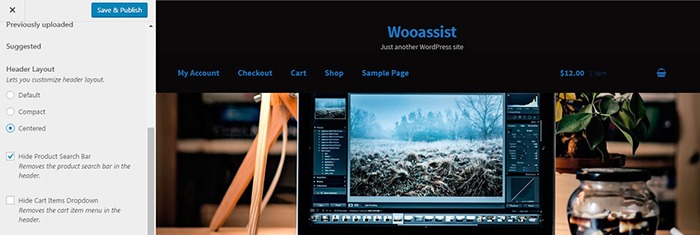
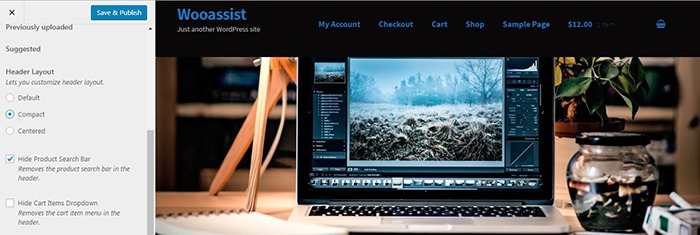
  1. Go to your WordPress Dashboard and click on “Plugins”.
  2. Click on “Add New” and search for “Storefront Header Picker”.
  3. Click on “Install” and then activate the plugin.

How to Edit Storefront Theme Header

  1. To edit your Storefront theme header, click on Appearance > Customize > Header.
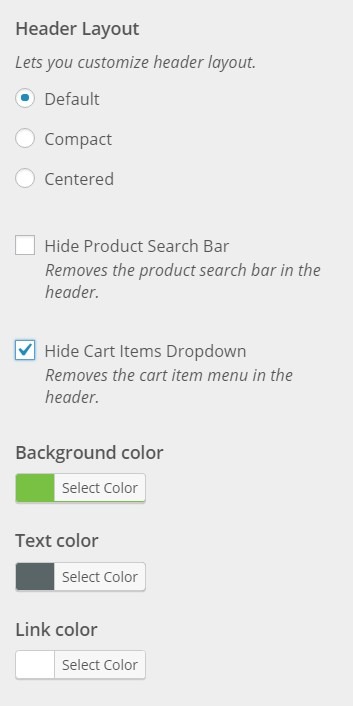
  2. Here you can choose between three header types: Default, Compact, and Centered.
  3. You can also choose to hide the product search bar and the cart. Just check/uncheck the corresponding boxes.
  4. At the bottom, you can change text and header colors.
  5. Once done, just click on “Save & Publish”.

Centered-Layout-How-to-Edit-Storefront-Theme-Header
Centered Layout

Compact-Layout-How-to-Edit-Storefront-Theme-Header
Compact Layout

Will This Work for Any Other Theme?

Unfortunately, this plugin will only wok for Storefront theme. It makes use of Storefront action hooks and filters. Activating the plugin when you are using a different theme will bring up a warning message.

Did this plugin help you edit your Storefront theme header? Do you have any questions about the plugin? Let us know in the comments.

Filed Under: How-To Articles, Theme and Plugin Reviews Tagged With: design tweaks, marketing strategy, plugins, Storefront, website development, Wooassist

How to Save Time and Money When Outsourcing a WooCommerce Developer

June 21, 2019 By John Leave a Comment

How much is your time worth? Do you usually spend a couple of hours trying to fix an issue on your WooCommerce store? You should be spending more time working on making your business more profitable. Don’t waste your time dealing with bugs and plugin updates. Leave that to a developer that can do the task more efficiently.

If you’ve never outsourced a WooCommerce developer before, you’ll find that it’s not that difficult. We’ve outlined some things that you can do so you can save time and money when hiring a WooCommerce developer.

Why Outsource?

If you are asking yourself why you should even outsource, outsourcing will help you free up your time. More free time means you can focus on the more important aspects of your business. Also, outsourced work is cheaper. Don’t waste time going through forums and various support channels for help. Sure, you might be able to fix your problem but at what cost?  That is time spent that you’ll never get back. You can outsource a WooCommerce developer that will do complex tasks in a fraction of the time.

What Tasks Can You Outsource?

You can outsource just about any tasks you don’t want to do. Outsourcing routine maintenance tasks is always a good idea.

Site Updates and Maintenance

There are plenty of tasks that you can outsource on WooCommerce and one of the most important one is your site updates. If you do not update your WooCommerce store on a regular basis, you are not getting important security updates. This exposes your and your customers’ data to cyber criminals.

Hackers typically look for outdated sites as they are easy targets for hacking. If you do not have time to do regular updates, you can have an outsourced WooCommerce developer do it for you.

On your end, you must ensure that your developer creates a back up of your site and tests updates on a staging site. Some WooCommerce store owners might be wary of updating their site because they experienced problems due to site updates in the past. This is the reason why you should test updates on a development site first. You should not wait for your production site to break because you haven’t been updating it in months. While your site can break when you update it, you can do this in a controlled environment. This is a lot better compared to being forced to take down your site while you troubleshoot. If this happens, your site could be down for hours or even days. You can do your site updates regularly to prevent this from happening.

Fixing Bugs and Other Issues

Things will break on your site every now and then. That’s an issue all ecommerce store owners will have to deal with. Instead of worrying about it, you can outsource a WooCommerce developer fix these issues for you.

Site Speed Optimization

Some elements on your site could be dampening your site speed. An experienced WooCommerce developer can help you optimize your site so it runs the fastest that it can.

Design Tweaks

If you need a quick design tweak, what would take you an hour or two to do might just be a 15-minute job to an experienced WooCommerce developer.

Adding New Features/Custom Development

WooCommerce is customizable if you know how to code. With a trusted WooCommerce developer, you can customize your site however you want to.

How Can You Save Time and Money When Ourtsourcing a WooCommerce Developer?

save time and money outsourcing

Find a Skilled Developer

Wooassist developers have spent years working on various WooCommerce sites. They have dedicated themselves to knowing everything about WooCommerce. If you are looking for WooCommerce expert, you can contact us. You can also try your luck hiring a freelancer at websites like Upwork. Try to find someone who has a lot of experience working with WooCommerce websites.

Wear the Project Manager Hat

If you’re going to outsource a WooCommerce developer, you’ll need to manage your projects. If you don’t have staff to do that for you, you’ll have to manage your projects yourself. Or you can hire Wooassist and you’ll be assigned your own project manager.

Use a Project Management Tool

There are several project management tools that you can use. You just need to determine which one would work for you. Some project management tools we can recommend include Asana, Kanbanflow and Trello.

Define Project Goals

A project is clearer if you have realistic and achievable goals. When talking to your developer about a project, always let them know what the goal is.

Make an Effort to Write a Detailed Project/Task Brief

Don’t downplay the importance of writing a project or task brief. Spending more time writing a detailed project brief actually saves you time. If you don’t write a good task brief, you will spend more time making corrections and asking for revisions. Define the objective and include all the necessary details in your task brief.

Prepare All Necessary Files

When you send a task to your developer, always send them all the necessary files needed to accomplish the task. Use appropriate file names to avoid confusion. Also, use common file formats.  If you are using the cloud to share your files, make sure you grant the necessary access permissions. In the task brief that you prepare, it helps to include a note on what the files are for.

Prepare and Double Check Login Information

Provide all the necessary login information to the developer working on your tasks. We recommend testing the login information to ensure they are correct. For a developer, nothing wastes more time than finding out you cannot log in to a site you are working on. More time is wasted if they can’t get the correct login information right away due to time zone differences.

If you have not tried outsourcing a developer before, don’t be afraid to take the first step. You can free yourself from your WooCommerce woes if you work with a trusted developer. Let us know in the comments if you might have any questions about outsourcing.

Filed Under: How-To Articles Tagged With: outsourcing, website development, website maintenance, WooCommerce

Why You Should Use a Development Site for WooCommerce

August 14, 2017 By John Leave a Comment

Using a development site (or a staging site) is best practice when working with websites. A development site allows web developers to safely test new features and updates without affecting the live site.

In the absence of a development site, developers will need to test new features and updates on a live site. This is not recommended because such actions can cause critical errors that may break the functionality of the site. In some cases, adding new features and new updates can cause a  website to go down. Without a proper backup, the results could be devastating especially for e-commerce stores.

Testing Ground When Adding New Site Features

If you want to add some new functionality on a live WooCommerce store, it is best to test this first on a development site. Make sure that everything is working before you roll out the new functionality to your customers.

You will most likely have a web developer who will help you add the new functionality that you want. If this is the case, the developer will recommend doing the changes first on a development site. On the off-chance he doesn’t, talk it over with your developer and recommend testing the new functionality on a development site. After adding the new feature, do some user testing on the development site to ensure that everything is working as intended and that no other existing features have been affected.

A Development Site Prevents Errors on Live Site During Site Updates

Aside from when adding new functionality to your WooCommerce store, you should use a development site when updating your site. Doing site updates on your live site can break your site so it is always best to test your updates on a development site. This is especially true when you are dealing with major releases of WordPress and WooCommerce.

How to Create a Development Site

But how do you create a development site on your server? Some hosting providers such as WPEngine provide a staging environment for their customers. If you do not have a development site, you can create one manually. However, do note that creating a development site is a complex process that includes tinkering with your site files and the database. If you are not confident in working with your site files and the database, scroll down to the next section. If you are confident with editing your site files and database, just follow the steps below:

1. Log in to cPanel.

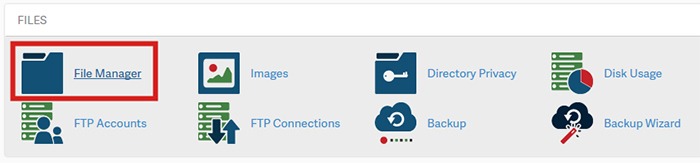
2. Go to your File Manager and go to the public_html folder. Create a ‘dev’ folder there.

How to Create a Development Site - step2

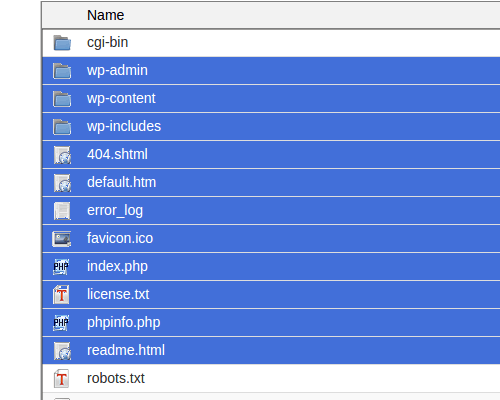
a. Copy your WordPress files from your current directory to the ‘dev’ folder you just created. Select all WordPress files and folders.

How to Create a Development Site - step2.a

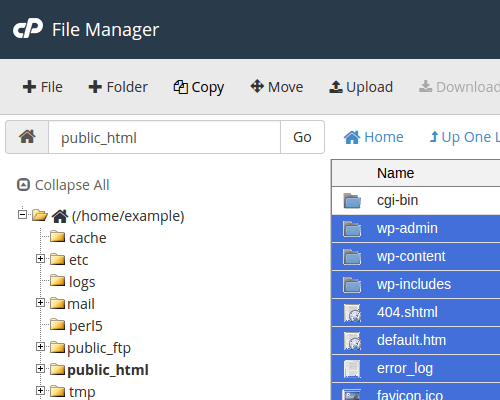
b. Click Copy on the top menu.

How to Create a Development Site - step2.b

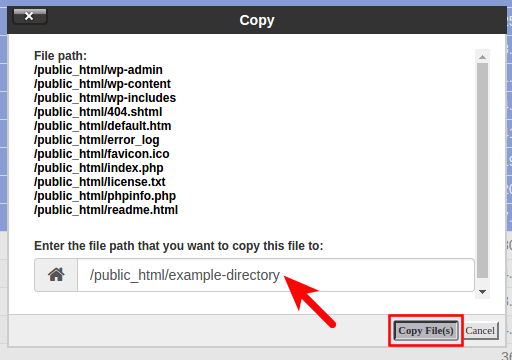
c. Type in the directory where you want to copy the files into. In this case, the directory is /public_html/dev

How to Create a Development Site - step2.c

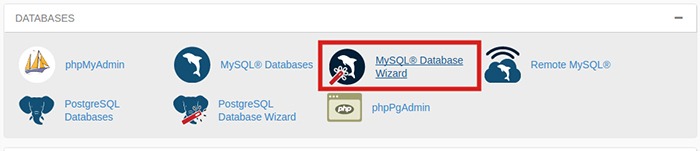
3. Create a database. Note: Icons may differ but the names of the items should be the same.

a. Go back to the cPanel home, Click the MySQL Database Wizard under the Databases heading.

How-to-Create-a-Development-Site---step3.a

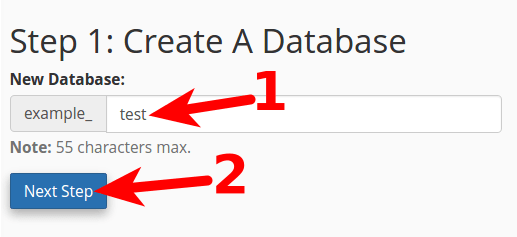
b. Next to New Database enter a name for your database and click Next Step.

How to Create a Development Site - step3.b

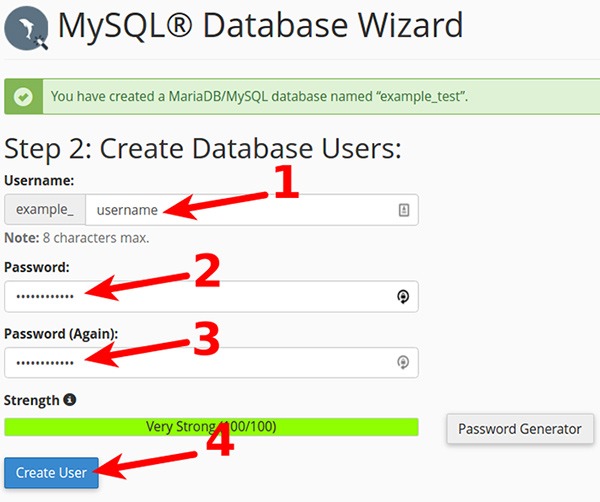
c. Next to Username enter a username. Enter and confirm a password and then click on Create User. Note these down as you will need it later.

How-to-Create-a-Development-Site---step3.c

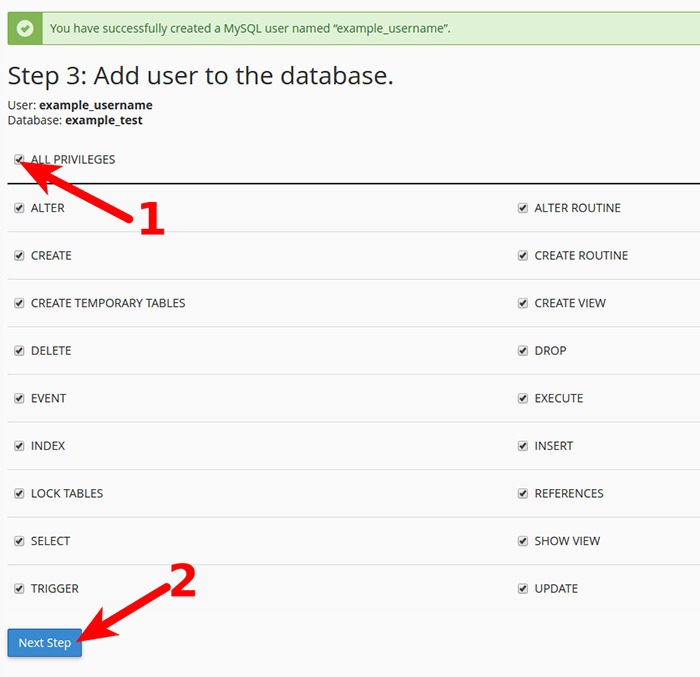
d. On the next page, you will need to assign privileges for the user on the database. Check the box next to All Privileges and then click Next Step.

How-to-Create-a-Development-Site---step3.d

4. Export your current database.

a. On the cPanel Home, click on phpMyAdmin icon under the Databases heading.

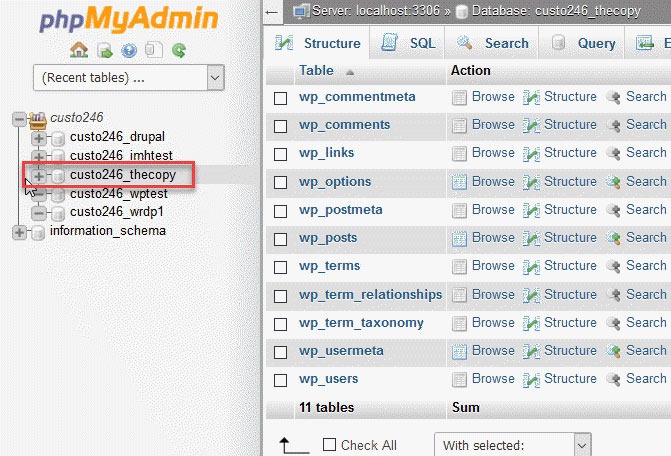
b. Select the database to export. Click on the database name you are working with in the left menu.

How-to-Create-a-Development-Site---step4.b

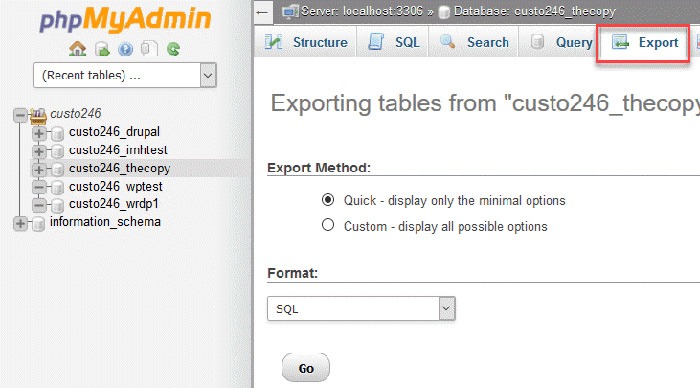
c. Click on Export option found in the tabs across the top of the screen.

How-to-Create-a-Development-Site---step4.c

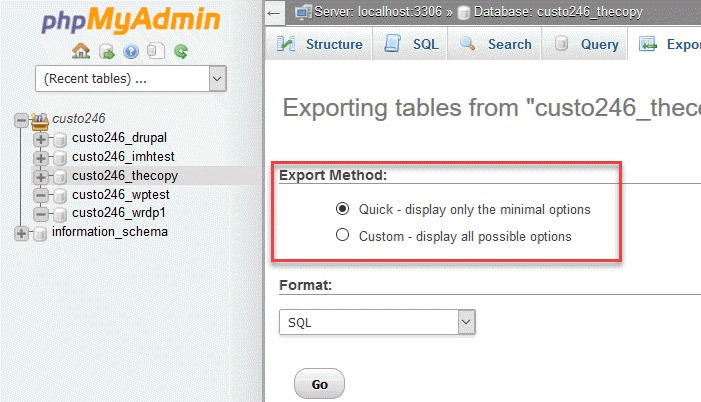
d. Click on the radial button for Quick.

How-to-Create-a-Development-Site---step4.d

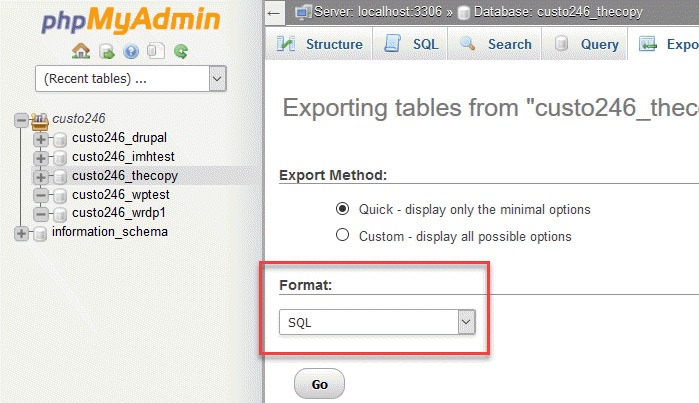
e. Next, you will need to click on the format of the export file. By default, it should be on SQL, so you don’t need to change anything.

How-to-Create-a-Development-Site---step4.e

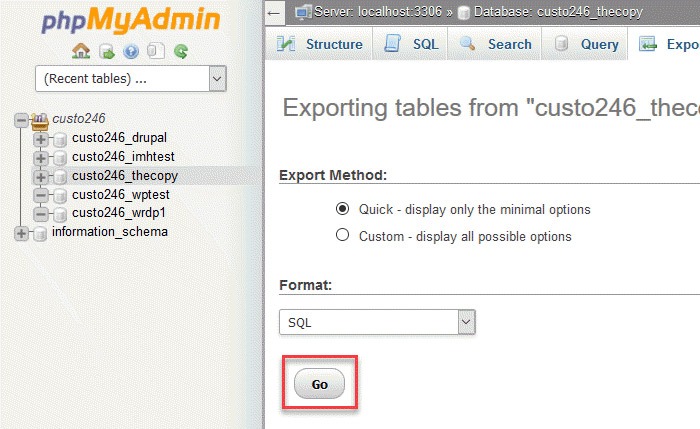
f. Click on the Go button to start the export.

How-to-Create-a-Development-Site---step4.f

g. You will be prompted to either open or save the file. Choose the option to save the file and then save it somewhere you’ll remember.

5. Import your Database to the new database you created.

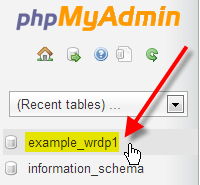
a. Still on the phpMyAdmin screen, on the left side, you should see the name of the new database you created earlier for the dev site.

b. Click on the database you created and click Import in the top menu.

c. Under File to Import, click Browse and select the backup file you previously created. You need to locate where you saved it on your computer.

d. Click Go at the bottom right. Wait for the import to finish.

e. When the database has been imported successfully, you should see a message that the import has successfully finished.

6. Configure the wp-config.php file for the dev site.

a. Click on File Manager located in the Files section of cPanel.

b. Navigate to the folder to where you uploaded WordPress.

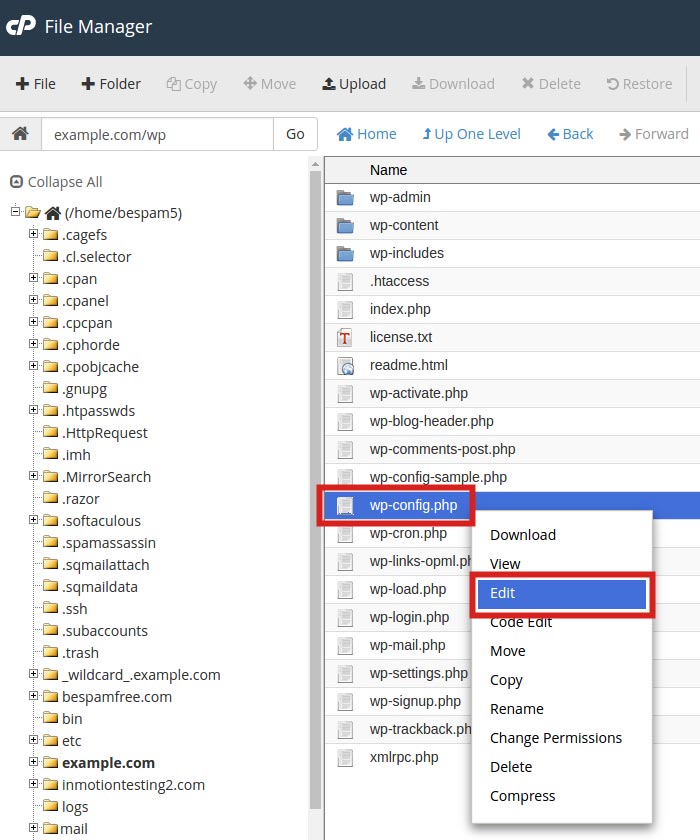
c. Click the wp-config.php file, then click the Edit link on the top menu.

How-to-Create-a-Development-Site---step6.c

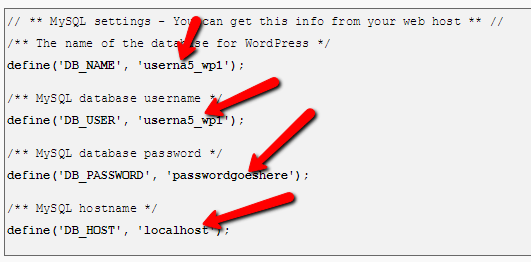
d. On the edit screen, change the values in the image below to the values you set for the new database you created earlier.

How to Create a Development Site - step6.d

7. Change the site URL for the dev site.

a. The site URL is stored in the WordPress database. In order for the site to load as a dev site, the site URL will need to be changed to the subfolder URL, eg. example.com/dev

b. Go to phpMyAdmin. Select your WordPress database. Then select your wp_options table.

How to Create a Development Site - step7.b

c. Your wp_ prefix may differ depending on your install settings.

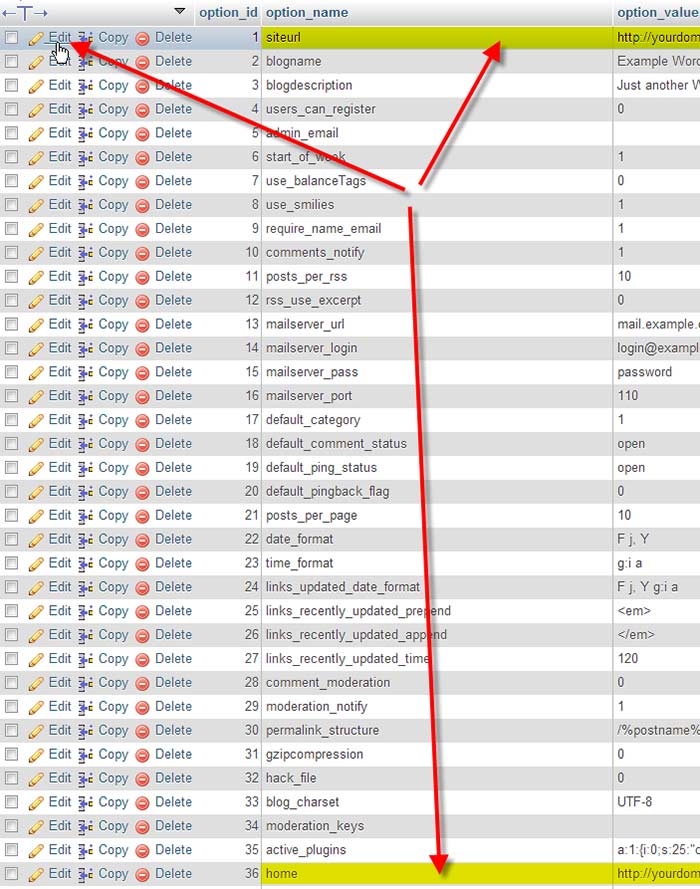
d. Click Edit beside either the siteurl or home entries.

How-to-Create-a-Development-Site---step7.d

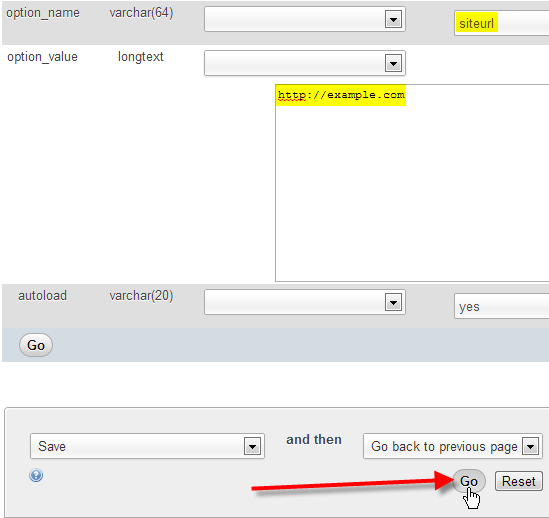
e. Enter in your new value in the option_value field, then click Go.

How to Create a Development Site - step7.e

8. Ensure that image links in your pages and posts are also changed.

a. These are in the database and not connected to the site URL so they will need to be changed separately.

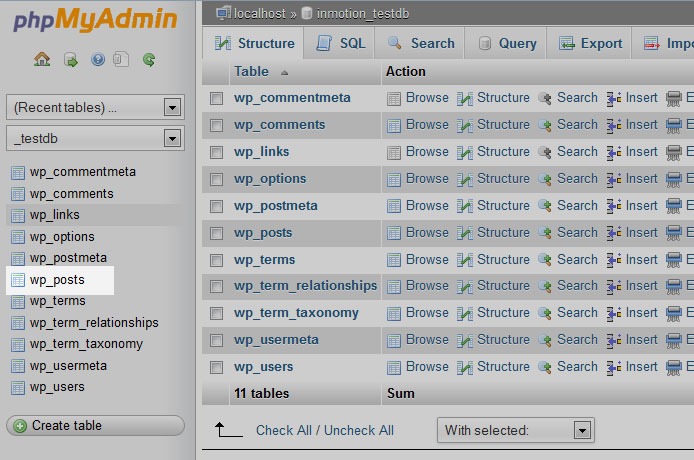
b. Using the sidebar again, find and click on the wp-posts table.

How-to-Create-a-Development-Site---step8.b

c. Look to the top of the screen and you will see several tabs that run across the page. Click on the SQL tab.

How-to-Create-a-Development-Site---step8.b2

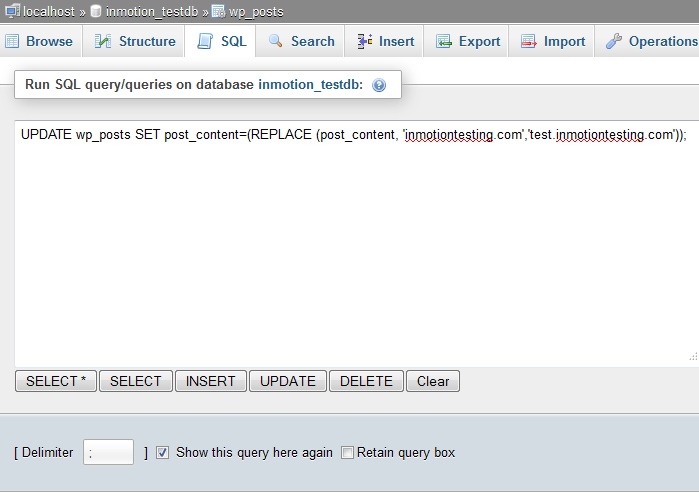
d. You are now on a MySQL editor screen. In the code area, copy the following bit of MySQL.

How-to-Create-a-Development-Site---step8.d

UPDATE wp_posts  SET post_content=(REPLACE (post_content, 'old url','new url'));

e. Be sure to replace <old_url> with the old sitename and <new_url> with the new site name. For instance, our original site was domain.com and the new test site will be at domain.com/dev so the code should appear as below:

UPDATE wp_posts SET post_content=(REPLACE (post_content,  ‘domain.com ',’ domain.com/dev '));

f. Click on the Go button to run the code and change the URLs for all images in the posts. This will also affect any other ‘hard coded’ links that were in the posts that pointed to the original site.

9. Update permalinks.

a. You can now login to your development site’s admin panel and update permalinks with the current settings. Just click update button. 

10. Hide dev site from search engines. 

a. Go to Settings > Reading page on backend, and make sure that the dev site is set to hide for search engines

b. If you are using WordPress SEO plugin by Yoast, you should turn off the sitemap functionality as well.

Create a Development Site Using a Plugin

If the steps in the previous section were too much to swallow, there are several plugins that you can use to create a development site. You can use Duplicator or WP-Staging plugin. Just follow the instructions on the plugin page and you should be good to go.

We hope this article can help you create your own development site. If you need help setting up a development site, the Wooassist team can help out. Just drop us an email. Or if you have questions, you can leave a comment below.

Filed Under: How-To Articles Tagged With: best practices, how-to, outsourcing, website development, website maintenance, Wooassist, WordPress

How to Add a Top Bar in Storefront Theme

July 29, 2016 By John 12 Comments

The release of Google’s Material design started the “top bar” trend. It was used mainly on mobile user experience (UX) designs but it found its way into desktop design. In this article, we’ll teach you how to add a top bar to the Storefront theme.

What Elements Can you Add to the Top Bar?

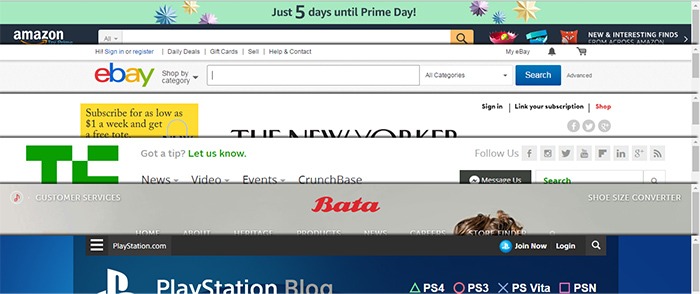
Top-Bar-examples

The top bar has been used in a variety of ways, depending on the UX design or the information you want to highlight. Let’s enumerate common items we see on the top bar.

  • Promotions – This can be anything from a sale to a new product release. The top bar is a good noticeable area that you can use to post your promotions and other offers.
  • User Login/Logout – When users want to log in or out, their eyes will scan the top right corner of the page to look for the link. Because of this, it makes sense to place the link in the top right corner.
  • Social Links – The top bar is a common location for the site’s social media profile links.
  • Mini Cart – The mini cart has a very important role in the UX design of e-commerce stores. It is an important element to have either on the main navigation or the top bar.
  • Search Bar – The search bar is also a crucial piece in the UX design of most websites and it can be positioned in the top bar.
  • Subscription Form/Link – Placing the subscription form on a very prominent location like the top bar draws the attention of your visitors to the form.
  • Quick Links Menu – Quick links can be any important link that you want your visitors to see or something that your visitors will be looking for. Some common quick links are My Account, Shop, Terms and Conditions, Privacy Policy, About, Contact and FAQs.

Depending on your site, you can use the top bar to contain other elements as you see fit.

How to Add a Top Bar to Storefront

To add a top bar to Storefront, you can use the Storefront Top Bar plugin. Our developers at Wooassist developed this plugin specifically for Storefront which adds two widget areas on top of the header.

Getting Started

Storefront-Top-Bar-Getting-Started

Install and activate Storefront Top Bar in your WordPress Dashboard.

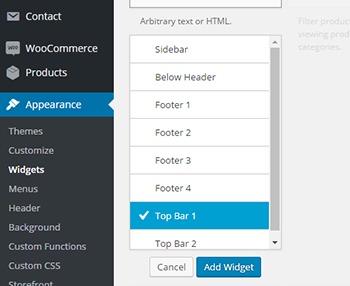
After installation, go to Appearance and click on Widgets. You should find two additional widget areas namely Top Bar 1 and Top Bar 2. These are the left and right widget areas on the top bar. You can add any content here just like in any widget area. Just make sure it looks good within the small space provided.

Adding a Simple Text

Storefront-Top-Bar-Appearance-Widgets

To add text to the top bar, find the text widget and add it to the top bar widget area. After that, you can just add any text in the text widget.

Storefront-Top-Bar-Adding-a-simple-text
Promotion 1 and Promotion 2 are the texts inserted in Top Bar 1 and Top Bar 2, respectively.

Adding a Menu

Storefront-Top-Bar-Adding-a-Menu

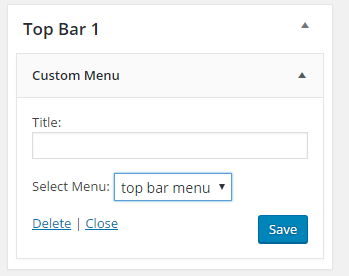
To add a custom menu to the top bar, you should first set up a custom menu in Appearance > Menu. After creating a menu, go back to the widgets area and add ‘custom menu widget’ in the top bar widget area. Select the menu you’ve just created and then click Save. Your custom menu should now appear in the top bar.

Storefront-Top-Bar-1-widget

Adding a Subscription Form Shortcode

You can add shortcodes using the text widget. In this example, we are using Mailchimp for WordPress. The plugin allows for creating a custom form which can be linked to your Mailchimp account. If you want to follow along and are wondering about the HTML markup of the subscription form in this example, you will just need the input type email and the submit button.

<input type="email" name="EMAIL" placeholder="Your email address" required />
<input type="submit" value="Sign up" />

After that, copy the shortcode and paste it in the text widget on the top bar. You can easily tweak the look of your form with CSS. In this case, the CSS we used is below. Feel free to use the code below for your own site. You can make adjustments to fit your needs.

.mc4wp-form input[type=email]{
width: 50%;
}
.mc4wp-form {
margin-bottom: 0;
}

Storefront-Top-Bar-Adding-Subscription-Form-Shortcode

Adding Other Elements to the Top Bar

The top bar works like a regular widget area. You can add shortcodes for other items like social icons, mini-cart, login, etc. You can also insert HTML and scripts in the text widget so the possibilities are endless.

Customizing the Top Bar Widget

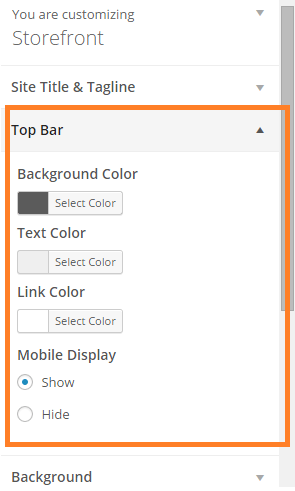
To customize the top bar widget, you can go to Appearance > Customize and click on “Top Bar”. Here you can change the background color, text color and link color. You can also set the top bar to be hidden in mobile view.
Storefront-Top-Bar-Customizing-Widget-Area

You can further tweak the top bar using CSS.

Align Top Bar 2 to the Right

By default, both Top Bar 1 and Top Bar 2 contents are left aligned. To make the content of Top Bar 2 align to the right, just use the CSS below.

.woa-top-bar.col-2 .woa-top-bar-2{
text-align: right;
}

Storefront-Top-Bar-Align-to-the-Right

Thickness/Height

To change the height of the bar, you can specify the height using CSS. Just use the code below and specify the height.

.woa-top-bar-wrap{
height: 35px;
}

Single Centered Top Bar

If you only want one top bar widget with a centered content, do not add any content to the Top Bar 2 widget area and then add the CSS below.

.woa-top-bar-wrap{
text-align: center;
}

Storefront-Top-Bar-Single-Centered

Final Notes

The Top Bar is the first thing that your customers will see on your site. It is one of most prominent areas above the fold. You now have the tools to make use of the top bar. It’s now up to how you will maximize the use of this valuable real estate.

Was this tutorial helpful? Do you have any questions about adding or tweaking the top bar in Storefront? Let us know in the comments.

Filed Under: How-To Articles, Theme and Plugin Reviews Tagged With: code snippet, CSS, design tweaks, how-to, navigation, plugins, Storefront, website development, Wooassist, WordPress

  • « Previous Page
  • 1
  • 2
  • 3
  • 4
  • Next Page »
Let us support your online store so you can manage your business

Get started today

Get 2 Hours of FREE SUPPORT

We are so confident that you will love our services that we will give you your first 4 hours at a 50% discount

That’s 4 hours for only $75

BUY NOW

Free eBook

5 Things Every Online Store Can Fix On Their Website In The Next Week To Increase Sales

Quick Links

  • How it Works
  • Pricing
  • Blog
  • Contact
  • About Wooassist
  • My Account
  • Checkout
  • Privacy Policy
  • Cookie Policy
  • Terms and Conditions

Wooassist

Australia:
59 Luke St.
Hemmant QLD 4174

Philippines:
San Miguel St.
Poblacion, Iligan City 9200

Connect


Copyright © 2026 · Wooassist

Yours FREE!

5 Things Every Online Store Can Fix On Their Website In The Next Week To Increase Sales