Wooassist

Assistance for Your Woocommerce Store

  • How it Works
  • Pricing
  • Services
    • Site Maintenance
    • AI SEO and Content Marketing
  • Blog
    • How-To Articles
    • Code Snippets
    • SEO For E-Commerce
    • Theme and Plugin Reviews
    • Wooassist News
    • WordPress/WooCommerce News
    • Interviews
  • About Us
  • Contact
You are here: Home / Archives for website development

How to Change Fonts in Storefront Theme

April 13, 2016 By John 8 Comments

UPDATED 19/06/2017: Revised steps in adding Google Fonts

how to change fonts in storefront themeBy default, Storefront theme uses the Helvetica Neue font. This default font is simple and simple is good. However simple may not always fit the design that you are aiming for. You may want to use a different font. But how do you go about changing the theme’s font? In this post, we’ll teach you how to change fonts in Storefront theme using Google Fonts.

What Type of Fonts Should I Use?

There are fonts that are expressive and stylish. There are some that just work in a lot of situations. Even though you would want to express yourself with a certain type of font, you would also want to use the font type suitable for your needs. The key is to find the right balance.

Four Basic Types of Fonts

font-types

Serif

Serif fonts are characterized by small lines attached to the end of a stroke. These small lines are called serifs. In general, they are thought to be traditional font types. Serif fonts are easier to read in print so they are preferred for use in print.

Sans-serif

Sans-serif literally means ‘without serifs’. These fonts are modern and minimalistic. Sans-serif fonts are recommended for web publishing.

Scripts

Also called cursive font types, Scripts mimic the cursive handwriting. They generally have connecting letters. This type is often portrayed to be feminine and elegant.

Decorative

Halloween fonts, Christmas fonts or the iconic Star Wars font, there are a lot of fonts out there that fall under the decorative type. They are novelty, used for specific purposes. As the name suggests, decorative fonts should only be used as for decoration and never for the main copy.

Serif vs Sans Serif?

It’s best to choose fonts wherein readers won’t notice the font but the message. Decorative and scripts type fonts can be a distraction when reading content. Hence, serif and sans-serif fonts are typically used in the body or in the copy.

yes-no-wood-postLet’s break down the difference between Serif’s and Sans-serif type fonts.

The purpose of the serif is to guide the horizontal “flow” of the words. These little decorations increase the contrast of the spacing. The serif helps the eyes and the brain in distinguishing each chunk of words as one making it easier to read.

This is not the case for texts made for the web though. Because of the limited dot per inch (DPI) in our monitors, the thick and thin lines of the serif types may not be as recognizable in small texts. This is why a simplified font is needed. Minimalist, modern and simplistic sans-serif is suitable for this purpose.

Serif fonts are good for reading that’s why it is mainly used in books, newspapers magazines and other print media. On the other hand, online publishing favors the use of sans-serif fonts because of the DPI limitations.

In some cases Serif works just fine even for online publishing. A good example for of a website using Serif fonts is the The Guardian. We can say the serif font type fits the news site’s identity as an online newspaper. The key to maintaining readability when using a serif font for online publishing is the proper use of font sizes and line spacing. This removes DPI problem.
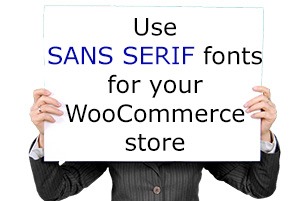
information-boardSo what font should you use for your WooCommerce store? The correct answer would be a sans serif font and this is true in most cases. However, you should not let this limit your design choices. If you think a serif font will work towards your purpose, then use it by all means.

What is Google Fonts?

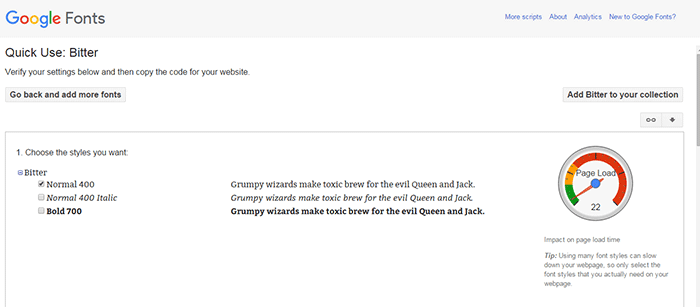
Google Fonts is a free service by Google that makes it easier for websites to use custom fonts. If you want to use a particular font from the Google Fonts directory, you only need to copy a piece of code and Google will host the font for your website. If you want to change your font easily, Google Fonts is one of the best solutions out there.
Google-Fonts

Google Fonts Pros and Cons

The Pros

  • Google Fonts are released as open source and can be used for any commercial or non-commercial project for free.
  • It is easy to install and set up.
  • Analytics show most popular fonts by usage across the web

The Cons

  • The font is hosted outside your site. Meaning, it could add a slight page loading time. Actually, Google displays a gauge for each font’s impact on page load time.
  • Open source fonts can have some quality issues. Except for the popular ones, most of the fonts in the directory are made by the community. Some may have been poorly executed. Issues like bad scalability, fonts not showing on iOS, and missing glyphs may arise depending on the font.

How to Find the Right Google Font for You

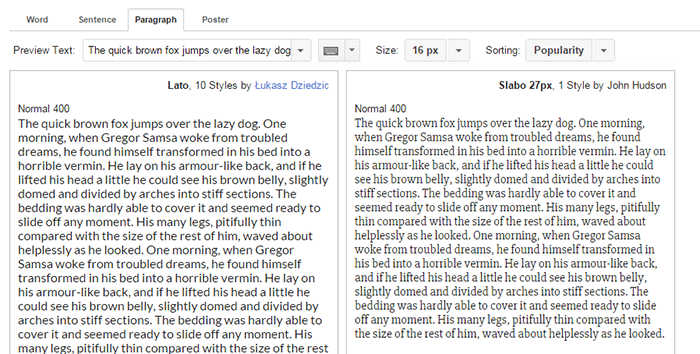
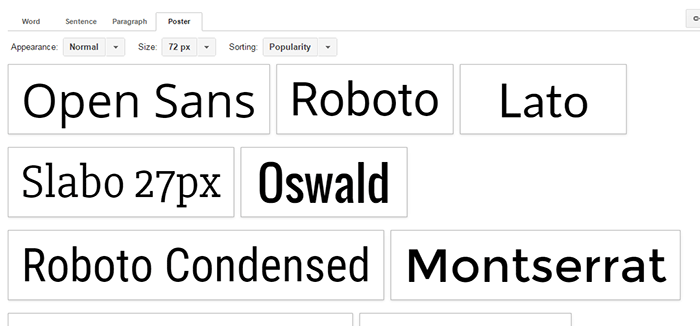
To help you choose the right font for your WooCommerce site, just go to Google Fonts then use the extensive font preview. You can preview the fonts as a word, sentence, paragraph or as a poster. This will help you decide what font to use.

Check a font type’s readability using the Paragraph preview. Here is Lato (a Sans-serif type) with Slabo (a Serif type) previewed in a paragraph.
Google-Fonts_Paragraph-preview

For headings and other large texts, use the Poster preview.
Google-Fonts_Poster-preview

If you are looking for font pairs that look good together, click the ‘pop-out’ button, then the Pairings tab. Google offers a lot of suggestions there and you can preview it in multiple layouts.
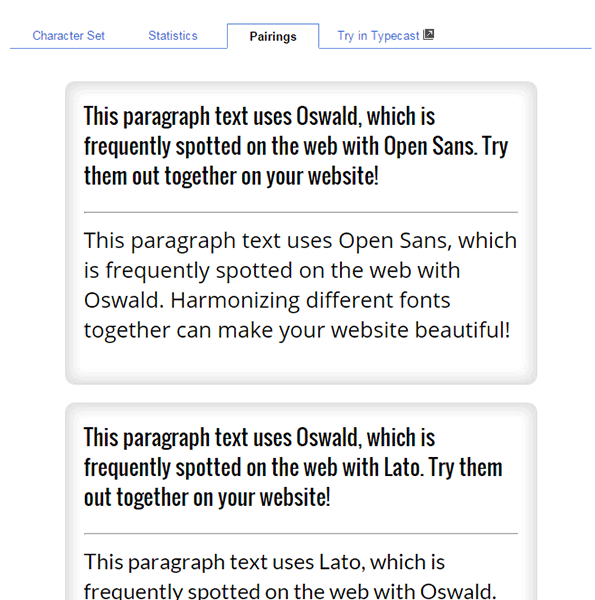
Google-Fonts_Pairings-tab

When you have decided what fonts you want to use, add them to your collection and click ‘Review’. Go to the ‘Test Drive’ tab and see your selected fonts in action.
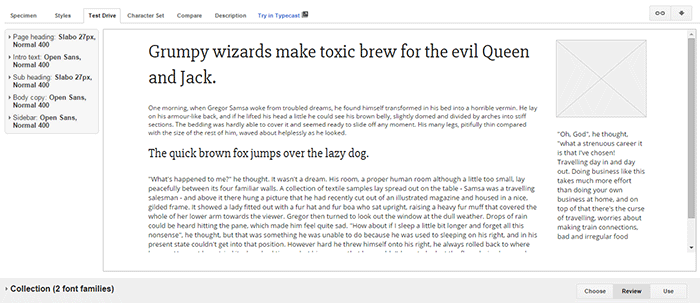
Google-Fonts_Test-Drive-tab

How to Add Google Fonts in Storefront

Implementing Google Fonts on your website is as simple as copy and paste. Here is a step-by-step instruction.

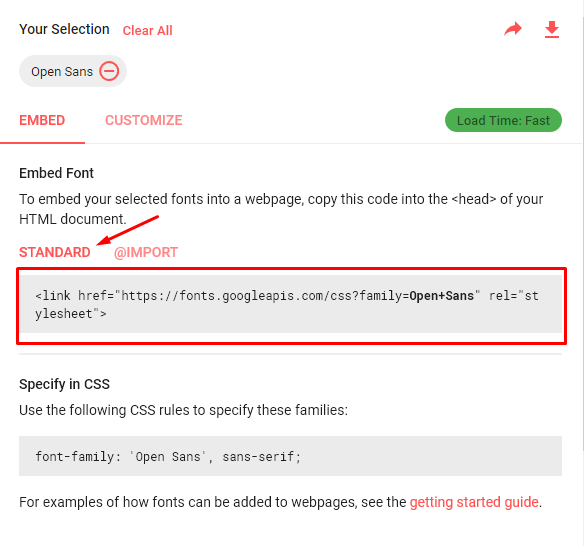
  1. Choose a font that you want to embed. Select the standard code and copy.Google Fonts - Standard Code
  2. Add a hook function to your child theme’s functions.php. Note that using a child theme is important here. If you don’t use a child theme, the changes you make will be lost when you update Storefront. Alternatively you can use the My Custom Functions plugin and paste the code snippet there.
    add_action( 'storefront_header', 'jk_storefront_header_content', 40 );
    	function jk_storefront_header_content() { ?>
    		// Replace this line with the copied google font code here
    		<?php
    	}
    

    *Note the part where you need to insert the code you got in Step 1.

After this, your WooCommerce site is now capable of using the fonts you’ve selected.

How to Apply the Fonts on the Contents

You still need to add the font to your CSS for the fonts to be live on your site. The code below will replace the default font in Storefront to ‘Open Sans’. You just need to replace the font name with the font that you added in the previous section and then paste the code to your child theme’s styles.css. You can also use Simple Custom CSS plugin to add the CSS to your site and not have to worry about it disappearing when you update your theme.

h1, h2, h3, h4, h5, h6, body, button, input, textarea {
	font-family: 'Open Sans', sans-serif;	
}

If you want to use a different set of fonts for your headers, use the code below instead. In this case, the headings will have the Slabo font and the rest will have the Open Sans font. Just replace the font name with the fonts that you added.

body, button, input, textarea {
	font-family: 'Open Sans', sans-serif;	
}
h1, h2, h3, h4, h5, h6 {
	font-family: 'Slabo 27px', serif;
}

Note that the above codes may not work if you are using a child theme that uses a more specific selector. It will give more priority to Storefront’s default selectors. You will need to update the selectors with the selectors used in your child theme. Check out this neat guide for a firm understanding on how CSS specificity works. You may need to apply a few more custom CSS codes to get the right look and feel for your site.

And that’s how you change Storefront theme’s font. Hope this article helped you out. If you have any questions or if this didn’t work for you, let us know in the comments. We’ll do our best to help.


Filed Under: Code Snippets, How-To Articles Tagged With: best practices, code snippet, design tweaks, how-to, Storefront, website development, WooCommerce

Custom Development for Your WooCommerce Store

March 20, 2017 By John Leave a Comment

One of WooCommerce’s best-selling points is its customizability. But as extensive as the WooCommerce plugin database is, sometimes it’s still not enough. That’s where custom development for your WooCommerce store comes in. With custom development, we open a whole new world to your website’s capabilities. Still, as powerful as it is, it doesn’t come without its challenges.

Customizability

business-meeting-discuss-website-development

What exactly do we mean when we say custom development? Well, it’s like a custom tailored suit – it is tailoring code according to your exact specifications. With that, we’ll have precise control of the end-result. It is making changes to your website using configurations beyond what the software or plugins are originally capable of.

Sometimes you may find that WooCommerce is lacking a certain functionality that you require. You search for a plugin and there’s no viable plugin for it. In cases like these, we can custom code to add that functionality to your WooCommerce store. If you don’t like how a WooCommerce plugin works, we can add custom code to tweak it and make it work the way you want it to.

However, this does not come without its challenges.

Compatibility

In a vacuum, programming is predictable. For example, if you only had to deal with WooCommerce and you wanted to change something, it is simple and straightforward. However, in reality, a website exists as a combination of different software working together. What should be a straightforward change to WooCommerce could become unpredictable. Other installed plugins may behave differently as a result of the custom code.

These complications can create additional work but solving them is a necessary step in custom development.

Iterative Nature

keyboard-testing-thumbs-up-down

Other obstacles to custom development are unexpected bugs and simple errors.

Custom development is adding short pieces of software to the site. And as with all software, the first release rarely turns out as perfect from the get-go. Even with thorough testing, not all cases can be tested. In some instances, the bugs can pop up at an irrelevant area of the website.

Errors are also common, especially with complex customizations. At Wooassist we have tested over 500 developers in our recruitment program and trialed almost 100 of them. We are left with the cream of the crop and have 3 solid developers. They are the top one percentile, but they are not machines. They are not perfect. These unexpected bugs and mistakes go hand in hand with custom development. To get things right, several iterations may be necessary.

More meticulous testing is advised, but it will also cost more. It is up to the client to set the balance between testing and cost.

Maintenance Costs

Another challenge for custom development is its dependency on the parent software. This includes – either WordPress itself, WooCommerce or the other plugins you have installed. There’s the possibility that updates and new software versions will affect your custom development.

This is because the custom code has been specifically designed for the current setup at the time. If the setup changes, then the custom code needs to be modified as well. This means that custom development is not a build-it-and-leave-it process. It needs regular maintenance to keep up with the updates of the original technology.

So should you still get custom development for your WooCommerce store?

Web-developer-dual-mointor

It depends.

Most of the time, the ready-built plugins and extensions for WordPress and WooCommerce are enough to get a website up and going. There are thousands of extensions, both free and paid. Chances are, the functionality you are looking for might already be available. If it comes down to a choice between a paid plugin and custom development, sometimes the paid plugin is more advisable. It is much safer and easier to adjust your expectations and solution compared to custom code.

Business owners can be guilty of coming up with less than optimal ideas and then investing in development to implement these. A much better process is to invest more in researching the problem and the range of solutions available. Find some experts, send them the objective, the problem and your proposed solution and let them do some research for you. There is often a much simpler and cheaper solution.

Now what if there are no plugins for the functionality you require?

This is when you have to decide whether the functionality is worth the challenges and costs that come with custom development. If it is a functionality that gives the site admins the capability to spend less time working on a task, then it will pay itself off in the long run. If it improves customer experience and increases conversions, then it should also be an acceptable cost.

You can also choose the option that requires the least customization. Strike a compromise between the functionality you require and functionality of the original software. Bend the software less to avoid complications. All in all, custom development is not advisable for all projects. While challenging, custom development tells us that there will almost always be a solution. For most website owners, custom development is a necessary step in creating the website that they envision. To pursue this path, the site owner must accept the challenges of custom development.

Examples

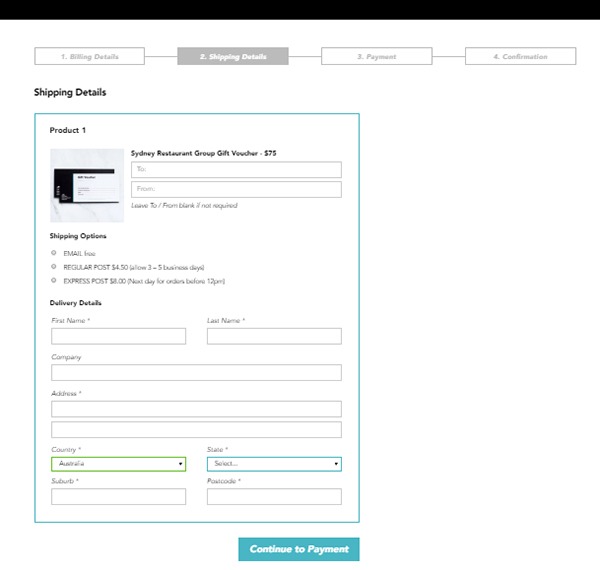
1. Here’s an example of a WooCommerce checkout that we’ve customized. Instead of the standard WooCommerce checkout page, we’ve separated certain sections grouping them together. We ended up with four sections, namely Billing Details, Shipping Details, Payment and Confirmation.

Example-1-Custom-Development-for-your-WooCommerce-Store

During the process, we encountered an error that cost some time to troubleshoot. So apart from the customization itself, we also needed to deal with unexpected complications.

Example-1-error-msg---Custom-Development-for-your-WooCommerce-Store

It turns out that it was caused by a conflict with an idle plugin activated on the site. Deactivating the plugin fixed the issue.

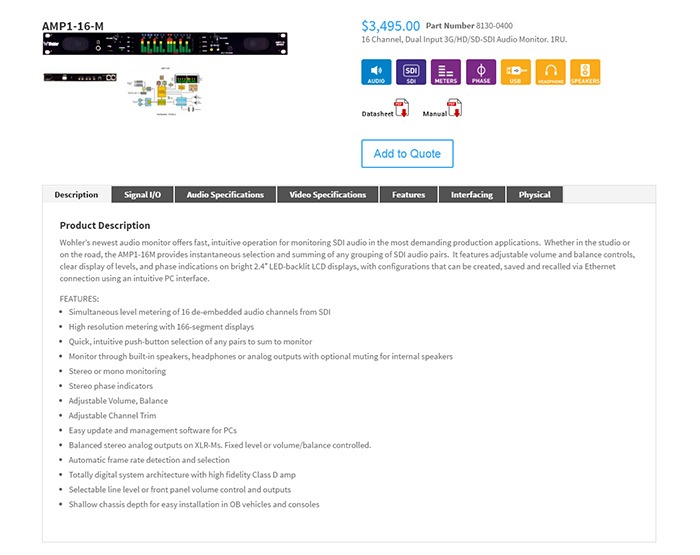
2. Here’s a product page that we’ve customized according to our client’s specifications. For this particular project, not only did we have to customize the product page, we also had to migrate an existing database of non-WooCommerce products to a WooCommerce website. This was complex as the existing products had attributes not compatible with WooCommerce.

The only viable solution we could think of was to make use of separate paid plugins to manage the attributes. In the end, the client had to purchase a separate premium plugin, WP All Import and the Advanced Custom Fields add-on. Unexpected costs like these may deter some website owners from custom development. However, these are often necessary.

Example-2 Custom Development for your WooCommerce Store

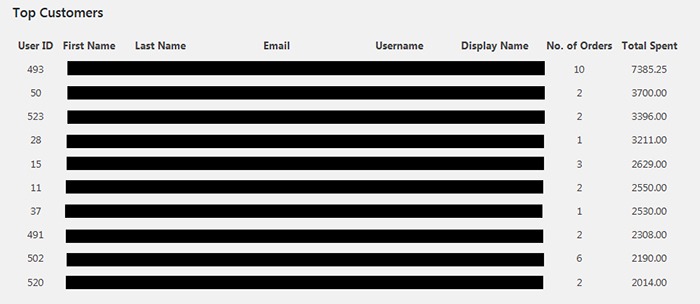
3. One of our clients asked for the functionality to create a list of the site’s most regular customers. She had installed a plugin for it. However, upon checking, the plugin has not been updated in over 2 years. As there are no alternative plugins, we figured that the most viable option would just be to build custom code for it.

The custom development itself was straightforward. Still, we needed to strike the right balance between spending time creating the code and spending time testing for errors. In the end, we were able to complete the custom development with the bare minimum in functionality in just a bit above 2 hours.

Example-3-Custom-Development-for-your-WooCommerce-Store

Final Advice

Here at Wooassist, we bill the work we do by the hour. So when it comes to custom development for your WooCommerce store, more complications can mean more time spent than expected. Most of our clients still prefer this arrangement as it is still cheaper than fixed price custom development work. Also, it is easier to arrange changes to the project along the way. Agencies that offer fixed-price quotes for free usually offer them at a premium as the client is also paying for the time when they didn’t get the work. And once the project has started, it is difficult to arrange changes without incurring additional charges.

But for those that would still prefer a fixed price quote, we can offer our Custom Project Roadmap product. When you purchase it, we will spend time researching, analyzing and defining the scope of the problem and solution. After these, we will offer a fixed price quotation. By having a clear strategy that is pre-assessed to be viable, we can minimize the complications. And when complications do arise, we won’t be billing you anymore for additional charges so you have control over the expense.

Filed Under: Theme and Plugin Reviews Tagged With: best practices, e-commerce, website development, website maintenance, Wooassist, WooCommerce

Why Storefront Theme is Good for Developers

September 12, 2015 By John 2 Comments

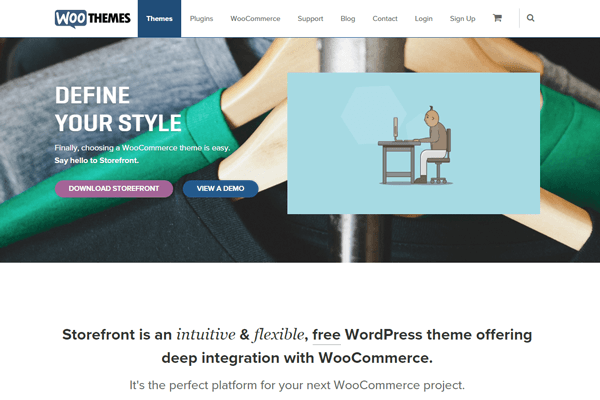
With its growing popularity and thousands of WooCommerce developers preaching how great this theme is, Storefront is without a doubt one of the best WooCommerce themes out there. Like some developers working closely on WooCommerce projects, we have also developed a liking to the Storefront theme.

Storefront was created by WooThemes, the same individuals who developed WooCommerce.  They created the theme with WooCommerce in mind and because of this, the integration with WooCommerce and its extensions is seamless.

storefront

Do Developers Prefer Storefront as a Base Theme?

When developing new websites, WordPress developers usually start with a base theme. As of today, there are hundreds of base themes to choose from. Some of the notable ones include Genesis, Roots, Underscores, Canvas and so much more.

Storefront-download-count-Feb2017

With more than 1 million downloads since it was launched last November 2014, Storefront is becoming more and more popular every day. However, only a few developers have actually switched or started using the theme for creating new sites. There are several reasons behind this but it is mainly because most developers prefer to stick to their current workflow, and changing the base theme means that you have to develop a new workflow to go with your base theme.

Is Storefront Friendly For Beginners?

A lot of beginner developers may find the Storefront theme not as friendly compared to other themes. If you look at the compiled style.css file, you’ll see that it is not your regular base theme. Storefront uses SASS, though organized neatly, most beginners aren’t familiar with it and may feel a bit overwhelmed when they see the compiled files.

storefront2

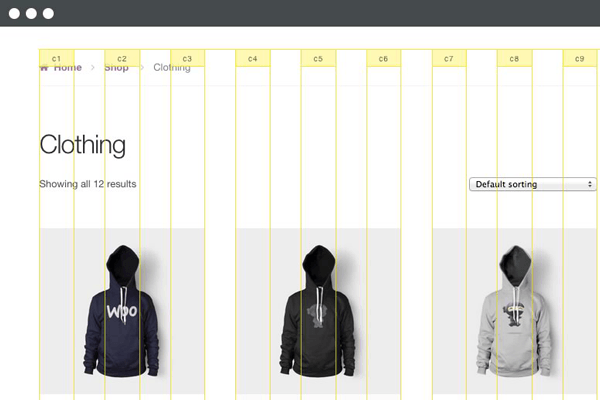
Another reason why beginners are hesitant to use the theme is because they don’t fully understand how the CSS grid system works. Storefront uses a flexible CSS grid, thanks to Susy, but when a beginner looks at it, they will see a lot of percentage and em values which scares them as most beginners prefer to work with px values.

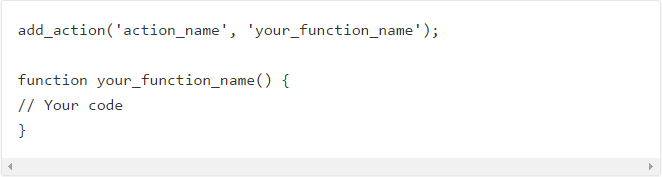
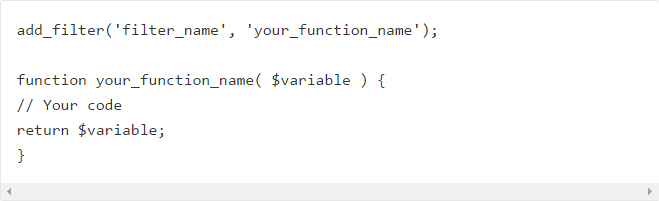
Another reason why most beginner developers would try to avoid Storefront is the action and filter hooks. Storefront has hooks and filters to make it friendlier to developers who would like to extend the theme’s functionality. Beginners who don’t understand how hooks and filters work would probably find it difficult to wrap their heads around the Storefront’s overall coding structure.

You’ll Learn More With Storefront

If you are a newbie developer, I highly recommend that you work with Storefront and understand its coding concepts. Storefront and WooCommerce are coded and developed by the same company, therefore the coding standards used for both are pretty similar. So if you are looking into working with WooCommerce on your projects, learning Storefront’s coding structure will give you tons of benefits. Understanding the concept of the theme also helps you understand how WooCommerce is coded; this is what I realized when working on projects using both Storefront and WooCommerce.

storefront1

Aside from the fact that it follows wordpress coding standards, Storefront also uses Underscores as its base theme. If you are not familiar with Underscores, it is a popular starter theme created by Automattic. They use this starter theme on all of their themes available on WordPress.com. What this means for developers? While learning how to develop websites with Storefront, you will also learn how to build websites using other themes developed using the Underscores as a base theme.

Understanding Storefront’s Coding Structure

Let us look at the directories and files of Storefront. Most files on its root directory are the standard WordPress files, but if you look at them one by one you will find that most of the usual code that you see on other themes are missing. This is because Storefront is powered with action hooks and filters.

I believe the most important file to look at is the functions.php file. Removing all the comments reveals that this file only has one line of code.

require get_template_directory() . ‘/inc/init.php’;

What this line does is call the init.php file under the inc directory. On that file, you can see lines of code that then adds all the files needed by the theme. This files also helps us understand how the code is divided into sections.

Storefront Theme has five main directories under the inc directory:

  • functions
  • structure
  • customizer
  • WooCommerce
  • admin

We can say that these directories are the theme’s sections in its code.

storefront3

The functions section includes the essential functions that are needed by the theme to define what it supports: menu, widget areas, featured images, etc. It also includes functions that are used independently on some of the theme’s templates.

The structure section is where code is divided per template area. In here you will see most of the code used on loop and on the general areas of your website’s frontend.

The customizer sections involve all functions for the theme to support the WordPress’ customizer.

The WooCommerce sections of course, involves all functions for the theme to support the WooCommerce plugin.

And lastly, the admin section is where you can see the functions used by theme for the backend (welcome screen).

I’d like to point out that it is essential to understand the purpose of each directory that way doing your next web development project would be easier.

Know What Functions Are Hooked Where

One of the problems I assume developers will have is determining what functions are hooked in a do_action or apply_filters statement. Unlike Genesis and other similar frameworks, Storefront doesn’t have a proper documentation for its hooks yet.

What I recommend is that when you want to add or modify something on a section of the theme, try to look first in the file where you think code is. An example for this is if you want to change the site title to an image logo, then open up the main header.php file.

After opening that file what you will then need to find is the do_action statement (for a filter, find the apply_filters statement). Above the statement you will see all of the functions hooked on it in the php comment and how they are  in order by priority.

action_hooks filters

If you want to list all available hooks on the theme, then the best way to do this is use your favorite text editor, like notepad++ or sublime, and find the do_action and apply_filters statement on all the storefront files. If you do this, I suggest that you then put all hook reference on a file.

Storefront As A Theme Framework

I believe that Storefront shouldn’t be treated as a theme, but as a working theme framework. If you look at the main functions.php file again, you can see a comment there that recommends using a child theme for customizations. The reason is pretty straightforward which is so we don’t lose our customizations during updates.

WooThemes have created a few child themes for people to use. These child themes are good examples that you can check and review to learn how WooThemes are extending the base theme’s functionalities using a child theme.

susy-and-bourbon

Take note that you don’t need to learn SASS to style your child theme. You can just use plain CSS for that, especially if the look and feel that you want to achieve doesn’t really differ much from that of the Storefront. However, we highly recommend that aspiring and seasoned developers learn SASS, because this significantly makes development and styling a lot easier.  Also, if you are working with SASS, you also need to familiarize yourself with Bourbon and Susy.

If you’re planning to just go with plain CSS, I suggest you at least familiarize with Susy so it will be easier for you to understand how Storefront uses its grid system.

Filed Under: Theme and Plugin Reviews Tagged With: CSS, Storefront, website development, WooCommerce, woothemes

How to Add “Where Did You Hear About Us” Field on WooCommerce Checkout

December 7, 2016 By John 16 Comments

As an e-commerce store owner, it is important to know where you are getting your customers so you can plan your marketing efforts. You can either focus on channels that help you convert or tweak your marketing strategy on channels that are not very successful. One way to find out where your customers are coming from is by adding a “Where Did You Hear About Us” field on WooCommerce checkout.

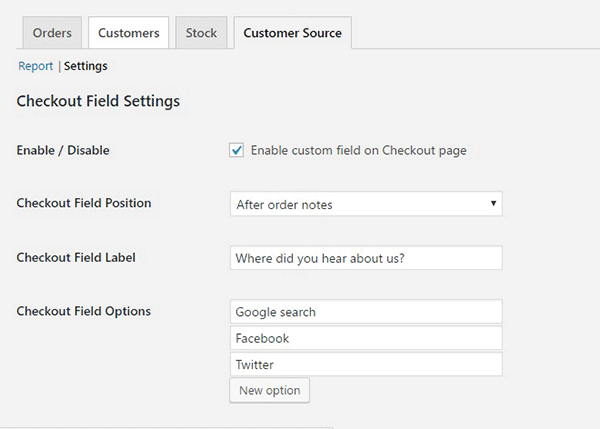
To start, just install and activate the “Where Did You Hear About Us Checkout Field for WooCommerce” plugin. When that’s done, go to WooCommerce > Reports > Customers Source Tab. Click on Settings to enable/disable the “Where Did You Hear About Us” custom field on checkout. Below you can see other plugin settings to customize. You can even make it a required field on your checkout page.

“Where Did You Hear About Us Field” on WooCommerce checkout

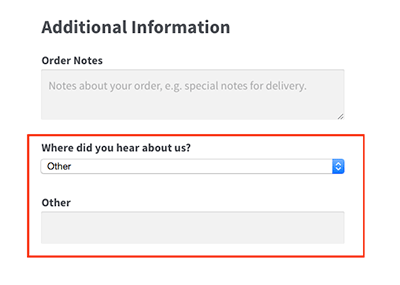
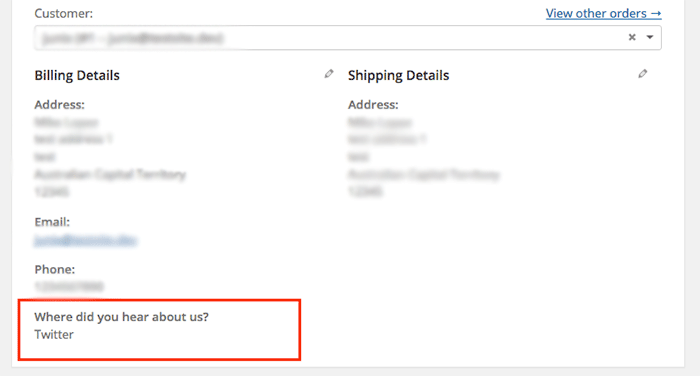
Using the plugin, you can add your channel options. You can even add an “Other” option so your clients can indicate how they found your e-commerce store if it is not in the list.

where-did-you-hear-about-us-plugin-additional-information

where-did-you-hear-about-us-plugin-below-billing-details

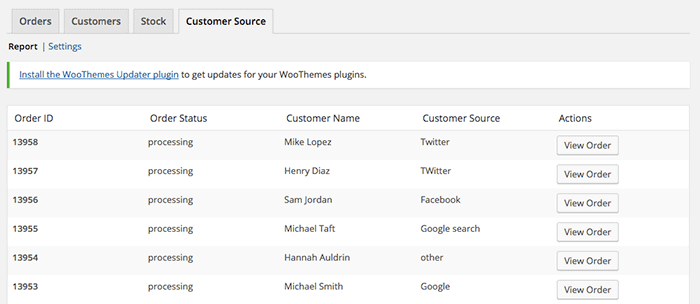
To view the data you gathered, go to Customer Source tab and click “Report”. You should be able to view the details which include customer name, customer source, order status, and order ID.

where-did-you-hear-about-us-plugin-customer-source-tab

The best part about this plugin is that it is totally free. There are no subscriptions. There is no premium version to buy. You can use it in as many websites as you want.

When you learn where your customers come from, you can make your business more profitable. If you tried using this plugin, tell us your experience about it in the comments section.

Filed Under: How-To Articles, Theme and Plugin Reviews Tagged With: e-commerce, how-to, marketing strategy, plugins, website development, Wooassist, WooCommerce

Why Use Storefront Theme on Your WooCommerce Store

August 26, 2016 By John Leave a Comment

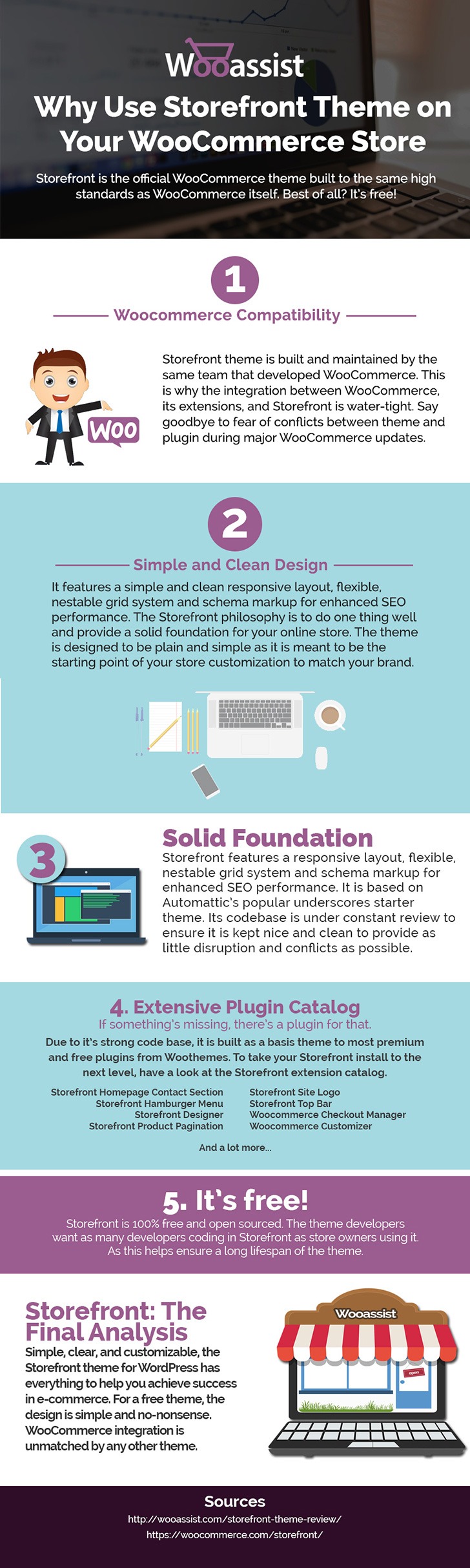
Storefront is the ideal platform for your WooCommerce store, providing a rock-solid foundation without the extra bloat or features. Developed by WooThemes, it reaches up to 3,000 downloads daily. But why use Storefront Theme on your WooCommerce Store? Find out in this infographic.

Why Use Storefront Theme on Your WooCommerce Store

To share this infographic on your site, just use the embed code below.

Filed Under: Theme and Plugin Reviews Tagged With: e-commerce, Storefront, website development, website maintenance, WooCommerce, WooCommerce products, woothemes, WordPress

  • « Previous Page
  • 1
  • 2
  • 3
  • 4
  • Next Page »
Let us support your online store so you can manage your business

Get started today

Get 2 Hours of FREE SUPPORT

We are so confident that you will love our services that we will give you your first 4 hours at a 50% discount

That’s 4 hours for only $75

BUY NOW

Free eBook

5 Things Every Online Store Can Fix On Their Website In The Next Week To Increase Sales

Quick Links

  • How it Works
  • Pricing
  • Blog
  • Contact
  • About Wooassist
  • My Account
  • Checkout
  • Privacy Policy
  • Cookie Policy
  • Terms and Conditions

Wooassist

Australia:
59 Luke St.
Hemmant QLD 4174

Philippines:
San Miguel St.
Poblacion, Iligan City 9200

Connect


Copyright © 2026 · Wooassist

Yours FREE!

5 Things Every Online Store Can Fix On Their Website In The Next Week To Increase Sales