Wooassist

Assistance for Your Woocommerce Store

  • How it Works
  • Pricing
  • Services
    • Site Maintenance
    • AI SEO and Content Marketing
  • Blog
    • How-To Articles
    • Code Snippets
    • SEO For E-Commerce
    • Theme and Plugin Reviews
    • Wooassist News
    • WordPress/WooCommerce News
    • Interviews
  • About Us
  • Contact
You are here: Home / Archives for website development

The Wooassist Blueprint: What Goes on in the Wooassist Backend

July 22, 2016 By John Leave a Comment

We’ve created our fair share of WordPress sites and provided support for other WooCommerce store owners since 2014. At the same time, we maintain and improve Wooassist.com. But what goes on in the Wooassist backend? Here we’ll provide a sneak peek of what goes on behind the scenes.

Publishing Platform

wordpress-logo

WordPress is one of the best Content Management System (CMS) with over 60 million websites powered, Woasssist included. It is free and open-source, with thousands of available plugins and themes to change and extend the look and functionality of your site.

Hosting Provider

WPEngine-logo-white

WPEngine provides one of the best WordPress hosting services on the web. Our hosting plan with WPEngine comes with caching, backup features and Content Delivery Network (CDN) provided by their partner MaxCDN. They use Ever Cache for speed and massive scalability. They also have one of the best support compared to other hosting providers.

WordPress Themes

Genesis Framework

logo-Genesis-Framework

Genesis Framework is a powerful foundation for building websites in WordPress. It is compatible with WooCommerce and anything can be customized around its core code using child themes. It is also SEO optimized.

 Parallax Pro

logo-Parallax-Pro-white

We use Parallax Pro theme on top of the Genesis framework. Notice how the Wooassist homepage content has a vertical design for easy visual eye movement and flow. As you scroll down the page, you will see that the content is divided into sections. The theme is also mobile responsive.

Installed Plugins

It is best practice to deactivate and delete any unused plugins on your site to minimize site bloat. Just stick to what features you need and the plugin that offers just that.

WooCommerce

WooCommerce

Since Wooassist provides WooCommerce support, it makes sense that we use WooCommerce.

Built with developers in mind, WooCommerce is extendable, adaptable and open source. It works with the core features of WordPress and is one of the most widely used ecommerce plugins. It’s free and allows for maximum flexibility and customization. You can even expand its features with a growing collection of more than 300 extensions.

WooCommerce Customizer
WooCommerce-Customizer

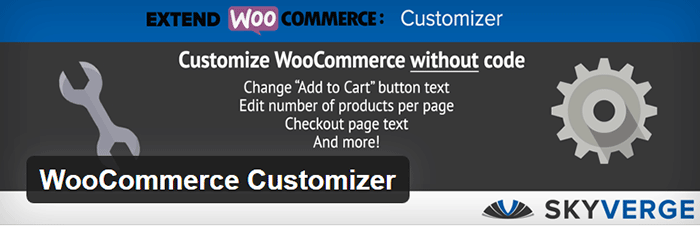
WooCommerce Customizer is a free plugin that adds an extra settings page for WooCommerce. This helps you make quick changes which otherwise would require writing some custom PHP functions. Basically, you can optimize the look of your WooCommerce store for optimum conversion, without writing any code.

Genesis Connect for WooCommerce
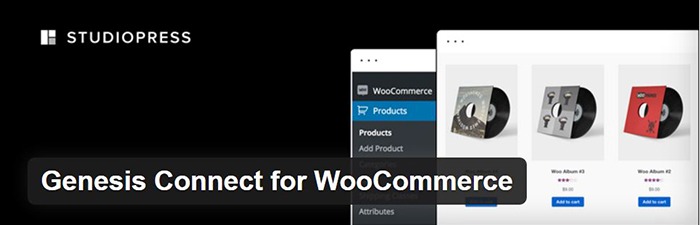
Genesis-Connect-for-WooCommerce

When WooCommerce is installed on a site using the Genesis platform, you may find some product pages do not display properly. Genesis Connect for WooCommerce fixes this by replacing WooCommerce’s built-in shop templates with its own Genesis-ready versions. These templates are single-product.php, archive-product.php and taxonomy.php.

WooCommerce Google Analytics Integration
WooCommerce-Google-Analytics-Integration

WooThemes created WooCommerce Google Analytics Integration plugin and is a must to integrate analytics in WooCommerce versions 2.1 and up. This plugin inserts tracking codes into your store pages.

WP-Optimize
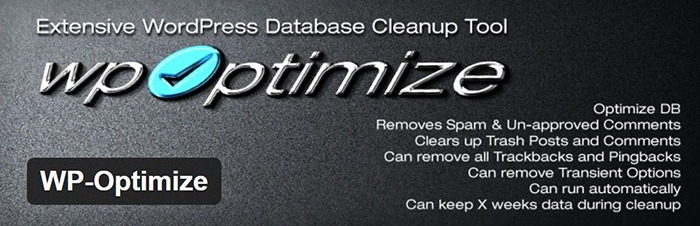
WP-Optimize

We use WP-Optimize to clean and keep our database down to a reasonable size. The plugin helps clean up your WordPress database by removing old revisions of posts and stale/trashed comments. It also allows for optimization of your WordPress core tables.

WordPress Related Posts

WordPress-Related-Posts

WordPress Related Posts automatically adds thumbnails at the footer of your content. This helps readers find other relevant posts in our blog for further reading.

WooCommerce Paypal Pro
WooCommerce-PayPal-Pro

We use WooCommerce Paypal Pro as our payment gateway. Our clients can pay with their credits cards. A Paypal account is not necessary.

WooCommerce Checkout Manager

WooCommerce-Checkout-Manager

We use WooCommerce Checkout Manager to customize the fields on our checkout page. This allows for faster and easier checkout.

Akismet
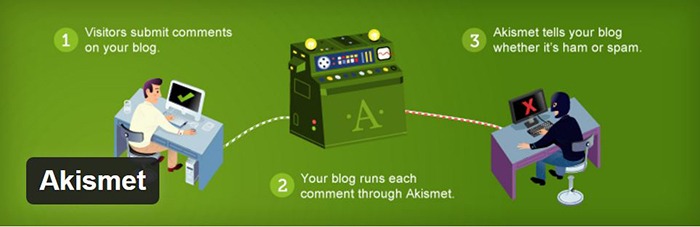
Akismet

We trust Akismet to safeguard our site against spam comments. This product by Automattic comes bundled with WordPress installations. You just need to sign up at their website and get your API key to activate it. Akismet automatically checks incoming comments and moves ‘spam-like’ comments to the Spam folder.

PopupAlly

PopupAlly

We use PopupAlly to show time-delayed and exit intent popups for our free e-book offer and newsletter subscription, respectively. The plugin makes it easy to customize popup forms even for novice users.

Yoast SEO

Yoast-SEO

We use Yoast SEO to optimize our blog post and pages for SEO. It is a powerful plugin that helps to give any site an SEO boost. This plugin can also help optimize product pages and product categories in WooCommerce.

Visual Form Builder

Visual-Form-Builder

We use Visual Form Builder to create forms such as our contact form and custom package form. Visual Form Builder is easy to set up and use even for novice users.

Responsive Pricing Table
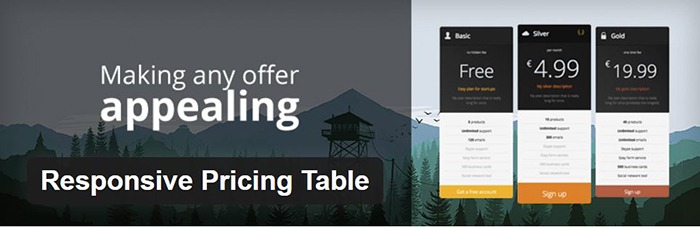
Responsive-Pricing-Table

We use Responsive Pricing Table plugin to add a ‘Pricing Tables’ tab in the WordPress admin panel . This allows for creating pricing tables without coding. You can add features of up to 5 plans and display the price table anywhere with a shortcode.

Redirection

Redirection

Redirection is a free plugin that makes managing our 301 redirects easier. It also helps us keep tabs on any 404 errors. We use this mainly when changing slugs of blogs post when optimizing for SEO.


Filed Under: Theme and Plugin Reviews, Wooassist News Tagged With: Genesis, navigation, optimizations, plugins, PopupAlly, redirection, website development, Wooassist, WooCommerce, WooCommerce products, woothemes, WordPress, WPengine, Yoast

10 WooCommerce Plugins to Supercharge Your Store

April 5, 2016 By John Leave a Comment

ecommerce-cart-frog-mini-computer

WooCommerce is a great tool to sell online with unlimited possibilities for customization. One of WooCommerce’s best features is its extensive library of plugins available.

Many of the customizations you need for your WooCommerce store will most likely have been requested by a lot of WooCommerce users. This is where the plugin developers come in. Hence, there will almost always be a plugin for your specific needs.

Here we’ll list down 10 WooCommerce plugins to supercharge your store.

1. WooCommerce Customizer

WooCommerce-Customizer

WooCommerce Customizer is a free plugin from Skyverge. It adds an extra settings page for WooCommerce to help you make quick changes which otherwise would require writing some custom PHP functions. The plugin allows users to edit the text for Add to Cart and Submit Order buttons on the WooCommerce store. It allows you to edit the number of products shown as well as the number of columns on the category pages. You can also edit page coupons, tax labels, logins, product headers and additional information tab headers. The plugin only works on individual sites and does not support multisite networks. It is a great tool for A/B testing because you can change settings in a few clicks. You can optimize the look of your WooCommerce store for optimum conversion.

2. WooCommerce Products Filter

WooCommerce Products Filter is a great plugin especially when you have a lot of products on your WooCommerce store. It lets you set search categories for your visitors and use this to filter products by categories, tags, attributes, and taxonomies. It uses AJAX for easy product search. This allows the user to continuously search without the need to reload the page which is convenient. You can choose from various display formats like drop-downs, check-boxes or radio buttons. These display formats let you customize how users can search products in your WooCommerce site. It also has simple options if you want your product search filter to be less complicated. To add the filter, you just need to insert the shortcode.


3. WooCommerce Products Slider

Create a mobile-friendly slider of your products anywhere in your site using WooCommerce Products Slider. You just create your sliders then paste the generated shortcode where you want them to appear. This plugin lets you display featured items, latest products, or sort products posted by date and more. The height, column numbers, size, items and button colors are easy to customize. The free version comes with two themes to help you showcase your products across your WooCommerce store.


4. Booster for WooCommerce

Booster-for-WooCommerce

Booster for WooCommerce is a free plugin that supercharges your e-commerce site with features that will empower your standard WooCommerce store. It extends WooCommerce features and lets you add more customizations. It lets you customize prices and currencies, button and price labels, products, cart and checkout, payment and gateways, shipping, invoices, emails, etc. You can check out the long list of features in the plugin page.

5. WooDiscuz WooCommerce Comments

WooDiscuz WooCommerce Comments is a plugin that can help you build customer trust, boost engagement and increase sales. This can also double as your instant FAQ and support platform for specific products. It gives you a platform where your customers or users can discuss your products and add reviews. Visitors can ask pre-sale questions.

This plugin allows you to moderate comments, tweak permissions, and edit security options. It also has anti-spam, AJAX pagination, and redirect to “Thank you” page features.


6. WooCommerce – Store Exporter

WooCommerce-Store-Exporter

Take control of your store data with WooCommerce – Store Exporter. It lets you design advanced and concise exports of your data in minutes. This will benefit e-commerce businesses that need to deal with large amounts of data. The free version lets you export your products, categories, tags, and user data into a CSV file or WordPress Media. It is also compatible with WordPress multisite.

7. WooCommerce PDF Invoices and Packing Slips

WooCommerce-PDF-Invoices-and-Packing-Slips

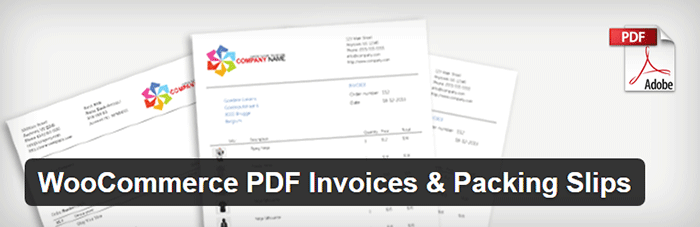
WooCommerce PDF Invoices and Packing Slips will automatically create and add a PDF invoice to WooCommerce emails sent to your customers. Save time from having to send invoices manually and increase your WooCommerce store’s trust rating. You can easily modify the base template for the invoices or create your own template. The plugin also allows for generating and downloading invoices and packing slips in bulk. Monitoring your invoices is easier with the custom format sequential invoice numbers. It has multi-language functionality and lets you add custom fonts.

8. Stripe Payment Gateway WooCommerce Addon

Stripe-Payment-Gateway-WooCommerce-Addon

Stripe Payment Gateway WooCommerce Addon is a free payment gateway plugin for WooCommerce. Setting a payment gateway with Stripe is made easier through this plugin. When configured, the plugin allows your WooCommerce store to accept credit cards payment on checkout. Stripe does this with a generated API. Paying won’t seem like they are redirected to a different site with its overlay appearance. Customers can choose to use and edit saved cards to speed up the checkout process. It also integrates well with refund options in WooCommerce 2.2 versions and above. Do note that an SSL certificate is still required for this to work.

9. Smart Manager for WooCommerce & WPeC

Smart Manager for WooCommerce & WPeC plugin gives you the functionalities of spreadsheet software like Excel within the WordPress Dashboard. It helps you manage products, product variations, customers, coupons and orders quickly with ease. No more tedious importing and exporting of data. The browser-like spreadsheet interface gets rid of distractions with a full-screen view. Typical store administration with WooCommerce will require you hundreds of hours. This plugin would reduce that significantly so you can focus on other important business aspects. The advanced search function will help you to easily manage large amount of data at once. The free version allows you to edit up to 3 items at once.


10. UltimateWoo

UltimateWoo

UltimateWoo plugin is like the JetPack for WooCommerce. The plugin provides access to a multitude of WooCommerce extension modules. UltimateWoo has a total of 72 modules that you can use to customize your WooCommerce store. These modules help manage analytics, reporting, e-mail, payment, products, sales, marketing, and shipping. For a complete rundown of all the modules, you can check out this page. A word of caution though, plugins with a lot of functionalities tend to add a lot of bloat to the site.

Conclusion

These are just some of the most useful plugins for WooCommerce. These 10 plugins will make WooCommerce much better for you. However, do note that you should only install plugins that you really need. While plugins are powerful tools when used properly, they can slow down your site. If this should happen, you could lose customers and your conversion rates would suffer.

What are your thoughts on this post? What other WooCommerce plugins do you think deserve a spot in this list? Let us know in the comments.

Filed Under: Theme and Plugin Reviews Tagged With: plugins, website development, WooCommerce, WooCommerce products

How to Specify CSS Styling on a Single WordPress Page  

March 5, 2015 By John Leave a Comment

Understanding a bit of CSS is a useful skill for a website owner. Now, suppose you wanted to apply a line of CSS styling on just a single page instead of the entire site. Learning how to target your CSS to specific pages can solve hours of frustration when a code snippet isn’t readily available on the internet.

Let’s use this example: we’re going to hide the page title of just the Home Page.

The basic CSS for hiding a page title will usually look like this:

.main-title {
display: none;
}

When you copy the code above and place it in your styles.css file, it should hide all the page titles in the website. Normally, we’d stop there if that was what we wanted but we just want to hide the page title on the home page.

Basically, the code right now is targeting the display attribute for the main-title element. There is however no indication of which main-title is targeted. Is it the main-title on the home page? Is it the main-title on the About page? For cases like these, all main-titles will be affected.

To target a specific page, you need to add another selector and it looks like this:

.home .main-title {
display: none;
}

The “.home” part is the part that indicates which main-title we are targeting.

Now, our next challenge will be figuring out what to write in the “.home” part. For that, we need to look at the page source. Look for the start of the <body> HTML. You will then see something like this:

page-classes

Notice those classes? Those are what we use for the selectors. We can’t just use any of those though because other pages might be using the same classes and if that’s the case, those other pages will be affected by your CSS as well. We have to find the class unique to that page and in this case it is “home”.

On this next example, the unique class which is also the page ID is “page-id-155”. When we make use of “.page-id-155”, we are basically specifying that only that page should be affected by any CSS you write next to it.

page id

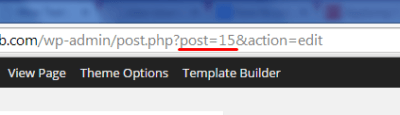
However, there are cases where you might have trouble finding the unique class or the page ID is not indicated as one of the classes. In this case, you should go edit that page in the WordPress dashboard. Once you are in the edit page, check out the URL in the address bar. The number corresponding to post= is your page ID that you can then use to target that page.

post id

That’s about it. And do keep in mind that this knowledge isn’t simply limited to your page titles. Here are some more applications:

  • Hiding the widget area for some of your pages.
  • Reducing/enlarging the main content area depending on the current page.
  • Keeping font/color styling on specific pages

When you know the unique class or page ID you can target specific pages with your CSS styling now and I hope it helps you make your website become the best it can be.

Now you know how to specify CSS styling on a single WordPress page. Got questions? Head over to the comments section.

Filed Under: How-To Articles Tagged With: CSS, design tweaks, how-to, website development, WordPress

How to Install WooCommerce on your WordPress Site

April 8, 2015 By John Leave a Comment

how-to-install-woocommerce-pluginGetting started on a WooCommerce store all starts with installing WooCommerce. It’s pretty simple and straightforward, but if you don’t know how to install it, we’ll help you out. There are two ways to install WooCommerce and we’ll detail them both in this post.
How to Install WooCommerce through the WordPress Plugin Repository

  1. On your WordPress Dashboard, head over to Plugins then click on Add New.
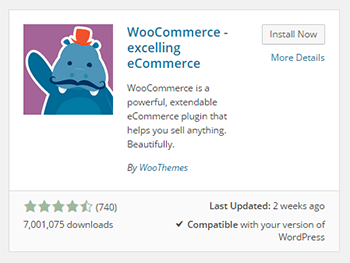
  2. On the search bar, type in WooCommerce and press Enter. WooCommerce should appear as the first plugin in the search results. To make sure, check that it is the one published by WooThemes and that you are not installing some other plugin.
  3. Just click on Install Now and wait for the plugin to install and activate.

How to Install WooCommerce by Upload

The other method of installing WooCommerce is by downloading and uploading.

  1. Head over to the WooThemes website to download the latest version of WooCommerce.
  2. After that, go to your WordPress Dashboard. Click on Plugins and then Upload Plugin.
  3. Choose the WooCommerce installer that you just downloaded and click on Install Now.
  4. After that, just wait for the file to finish uploading. It should install and activate by itself.

How to Install WooCommerce via FTP

Here’s a bonus – another means of installing WooCommerce. This is a little bit more complicated than the first two methods since you need to access your WordPress install files. It is not recommended for the average user since you might alter the install files for your WordPress site. Doing so can cause your website to go down. Use this only if the other two methods fail or if you really know what you are doing.

For this method, you’ll need an FTP client like FileZilla. You’ll need this to upload the plugin file to your WordPress install. And since you need to log in to the FTP server, you’ll need the login information for that too. If you don’t know the login information, you can contact your hosting provider. Here’s are the steps:

  1. Download the WooCommerce plugin and extract the file.
  2. Log in to your FTP server using FileZilla or any other FTP client. Navigate to the wp-content/plugins directory of your WordPress install.
  3. Place the extracted folder in the wp-content/plugins folder.
  4. After that, head over to the plugin page of your WordPress site and activate the WooCommerce plugin.

Now that you know how to install WooCommerce, you’re just a few steps away from setting up your own e-commerce store.

Filed Under: How-To Articles Tagged With: e-commerce, how-to, website development, WooCommerce, WordPress

How to Set Up a WooCommerce Store – Infographic

July 21, 2015 By John Leave a Comment

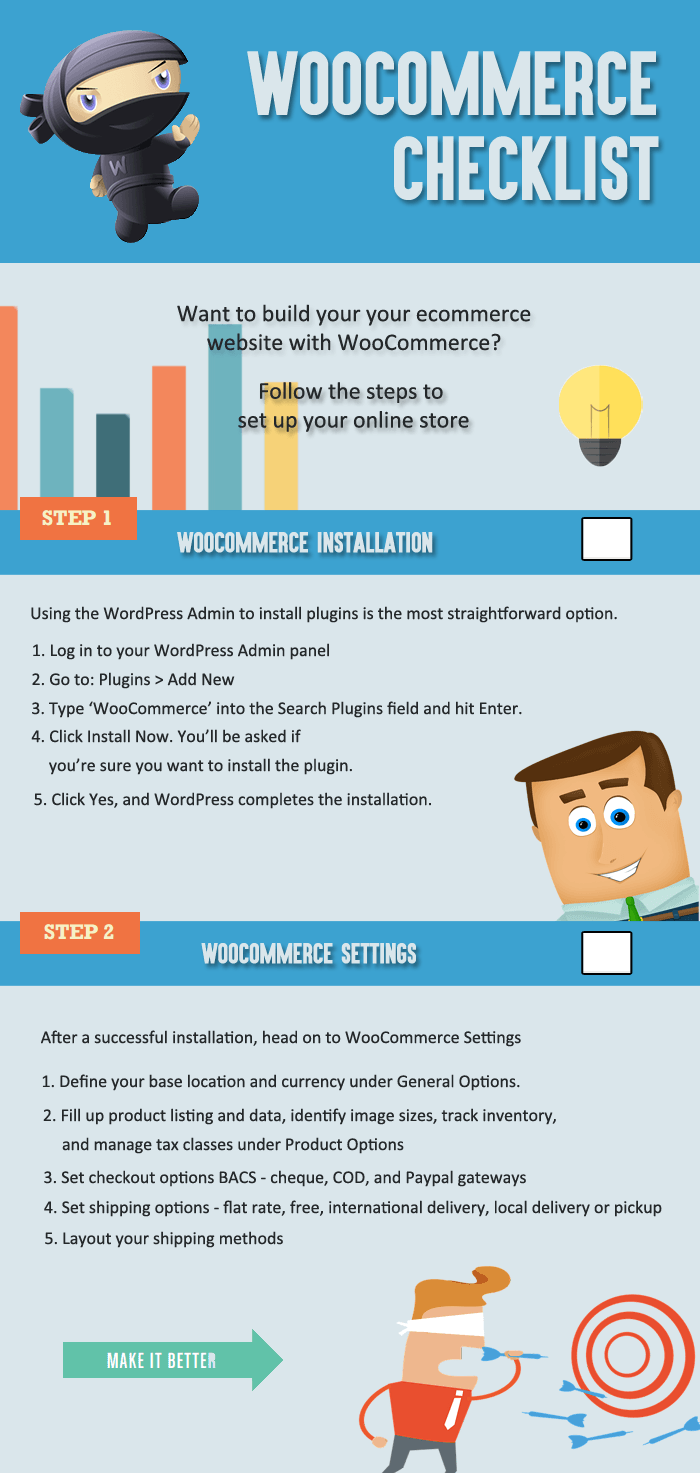
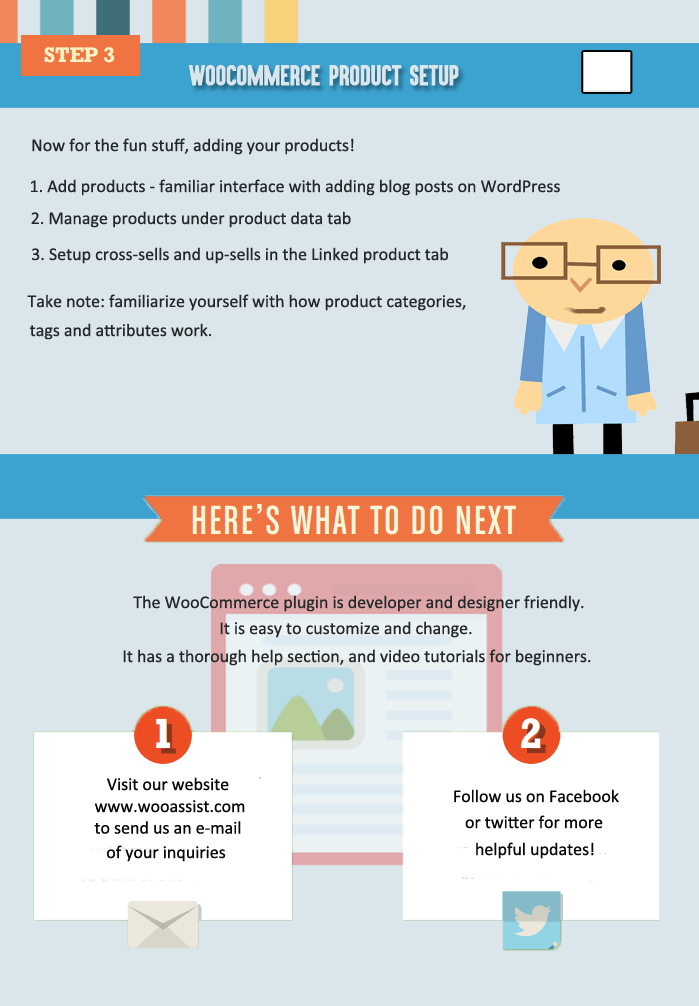
Do you want to build an on online store? Creating one is easy with WooCommerce. Here’s a handy WooCommerce infographic that can guide you on the process.

woocommerce_checklist_1 woocommercechecklist_2

Filed Under: How-To Articles Tagged With: e-commerce, how-to, infographic, website development, WooCommerce, WordPress

  • « Previous Page
  • 1
  • 2
  • 3
  • 4
Let us support your online store so you can manage your business

Get started today

Get 2 Hours of FREE SUPPORT

We are so confident that you will love our services that we will give you your first 4 hours at a 50% discount

That’s 4 hours for only $75

BUY NOW

Free eBook

5 Things Every Online Store Can Fix On Their Website In The Next Week To Increase Sales

Quick Links

  • How it Works
  • Pricing
  • Blog
  • Contact
  • About Wooassist
  • My Account
  • Checkout
  • Privacy Policy
  • Cookie Policy
  • Terms and Conditions

Wooassist

Australia:
59 Luke St.
Hemmant QLD 4174

Philippines:
San Miguel St.
Poblacion, Iligan City 9200

Connect


Copyright © 2026 · Wooassist

Yours FREE!

5 Things Every Online Store Can Fix On Their Website In The Next Week To Increase Sales