Wooassist

Assistance for Your Woocommerce Store

  • How it Works
  • Pricing
  • Services
    • Site Maintenance
    • AI SEO and Content Marketing
  • Blog
    • How-To Articles
    • Code Snippets
    • SEO For E-Commerce
    • Theme and Plugin Reviews
    • Wooassist News
    • WordPress/WooCommerce News
    • Interviews
  • About Us
  • Contact
You are here: Home / Archives for outsourcing

Why You Should Use a Development Site for WooCommerce

August 14, 2017 By John Leave a Comment

Using a development site (or a staging site) is best practice when working with websites. A development site allows web developers to safely test new features and updates without affecting the live site.

In the absence of a development site, developers will need to test new features and updates on a live site. This is not recommended because such actions can cause critical errors that may break the functionality of the site. In some cases, adding new features and new updates can cause a  website to go down. Without a proper backup, the results could be devastating especially for e-commerce stores.

Testing Ground When Adding New Site Features

If you want to add some new functionality on a live WooCommerce store, it is best to test this first on a development site. Make sure that everything is working before you roll out the new functionality to your customers.

You will most likely have a web developer who will help you add the new functionality that you want. If this is the case, the developer will recommend doing the changes first on a development site. On the off-chance he doesn’t, talk it over with your developer and recommend testing the new functionality on a development site. After adding the new feature, do some user testing on the development site to ensure that everything is working as intended and that no other existing features have been affected.

A Development Site Prevents Errors on Live Site During Site Updates

Aside from when adding new functionality to your WooCommerce store, you should use a development site when updating your site. Doing site updates on your live site can break your site so it is always best to test your updates on a development site. This is especially true when you are dealing with major releases of WordPress and WooCommerce.

How to Create a Development Site

But how do you create a development site on your server? Some hosting providers such as WPEngine provide a staging environment for their customers. If you do not have a development site, you can create one manually. However, do note that creating a development site is a complex process that includes tinkering with your site files and the database. If you are not confident in working with your site files and the database, scroll down to the next section. If you are confident with editing your site files and database, just follow the steps below:

1. Log in to cPanel.

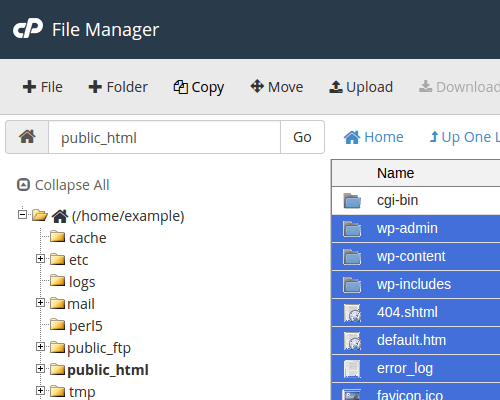
2. Go to your File Manager and go to the public_html folder. Create a ‘dev’ folder there.
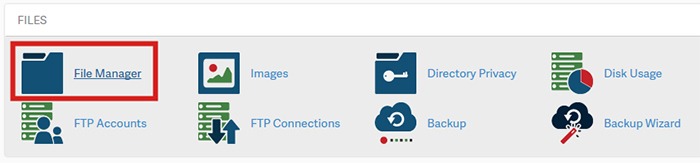
How to Create a Development Site - step2

a. Copy your WordPress files from your current directory to the ‘dev’ folder you just created. Select all WordPress files and folders.
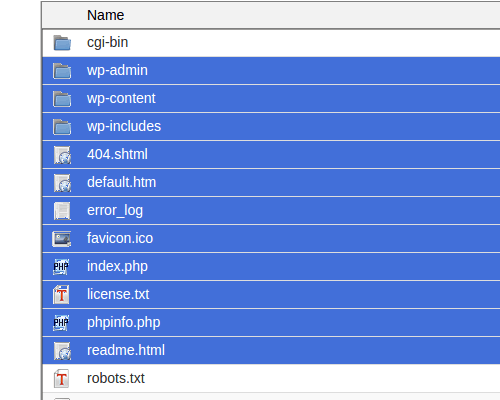
How to Create a Development Site - step2.a

b. Click Copy on the top menu.

How to Create a Development Site - step2.b

c. Type in the directory where you want to copy the files into. In this case, the directory is /public_html/dev
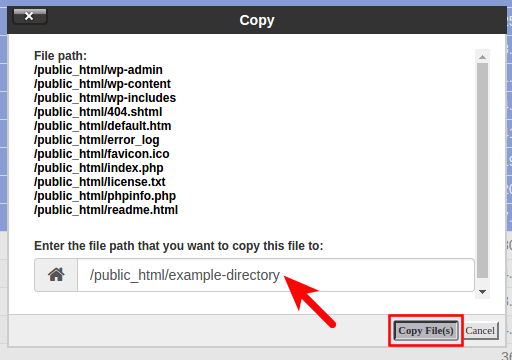
How to Create a Development Site - step2.c

3. Create a database. Note: Icons may differ but the names of the items should be the same.

a. Go back to the cPanel home, Click the MySQL Database Wizard under the Databases heading.
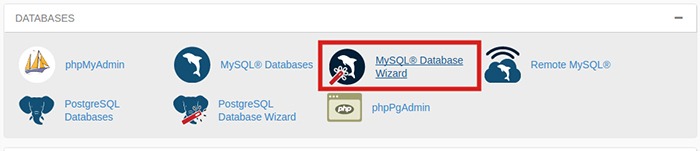
How-to-Create-a-Development-Site---step3.a

b. Next to New Database enter a name for your database and click Next Step.
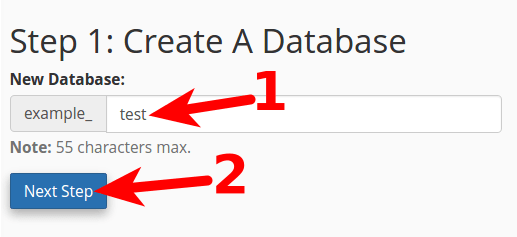
How to Create a Development Site - step3.b

c. Next to Username enter a username. Enter and confirm a password and then click on Create User. Note these down as you will need it later.
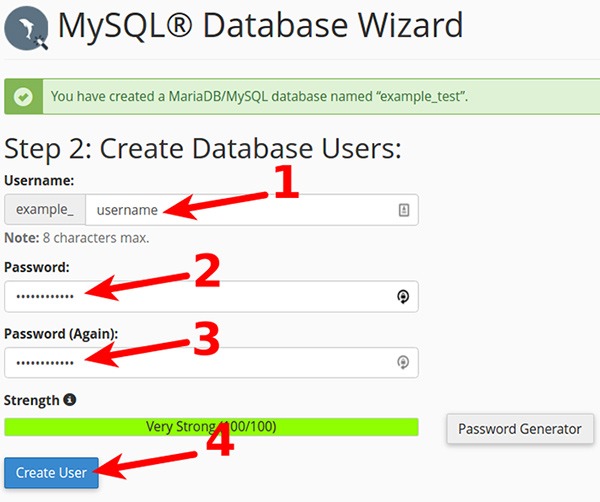
How-to-Create-a-Development-Site---step3.c

d. On the next page, you will need to assign privileges for the user on the database. Check the box next to All Privileges and then click Next Step.
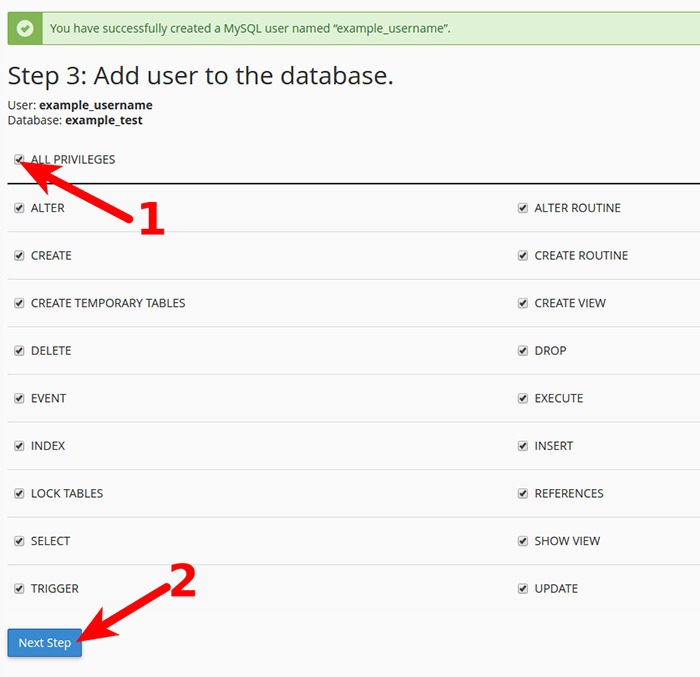
How-to-Create-a-Development-Site---step3.d

4. Export your current database.

a. On the cPanel Home, click on phpMyAdmin icon under the Databases heading.

b. Select the database to export. Click on the database name you are working with in the left menu.
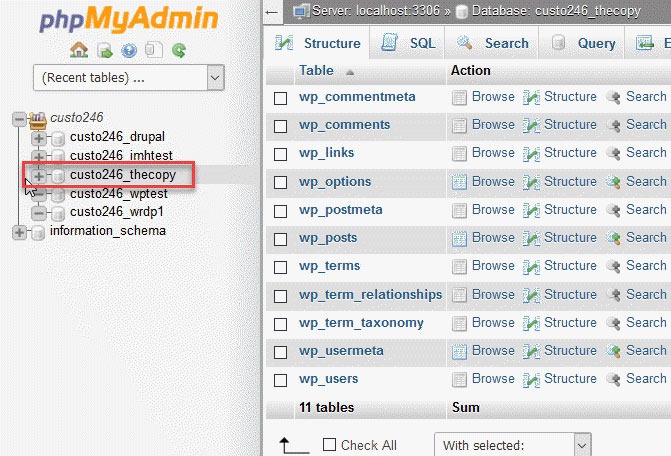
How-to-Create-a-Development-Site---step4.b

c. Click on Export option found in the tabs across the top of the screen.
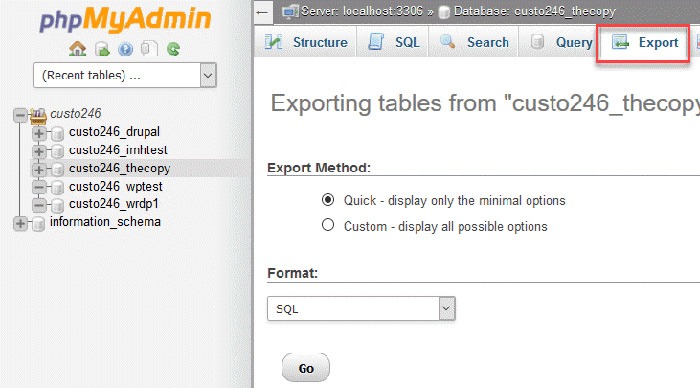
How-to-Create-a-Development-Site---step4.c

d. Click on the radial button for Quick.
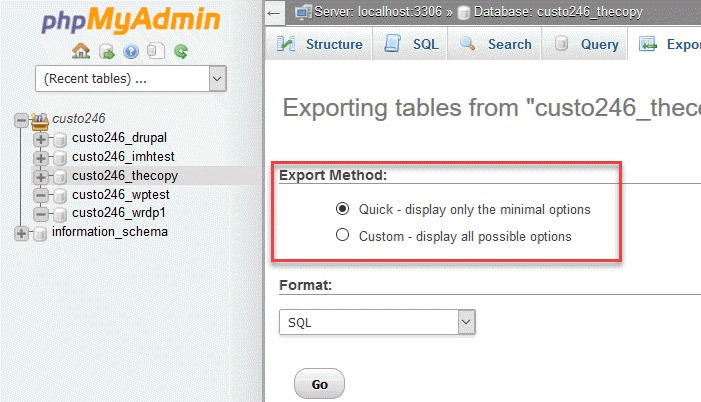
How-to-Create-a-Development-Site---step4.d

e. Next, you will need to click on the format of the export file. By default, it should be on SQL, so you don’t need to change anything.
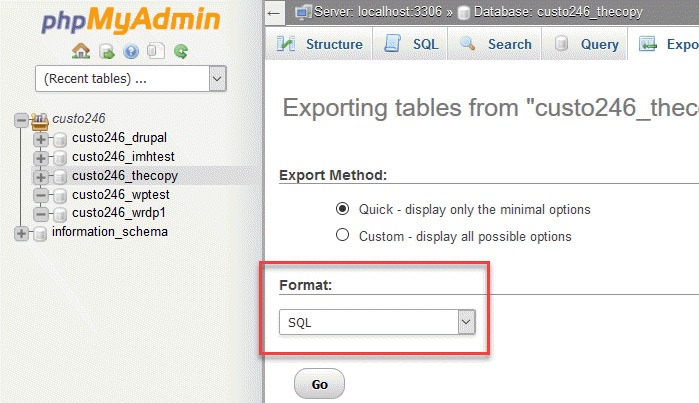
How-to-Create-a-Development-Site---step4.e

f. Click on the Go button to start the export.
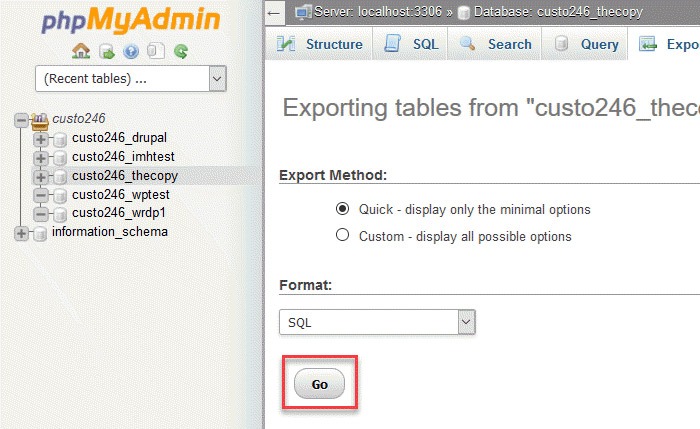
How-to-Create-a-Development-Site---step4.f

g. You will be prompted to either open or save the file. Choose the option to save the file and then save it somewhere you’ll remember.

5. Import your Database to the new database you created.

a. Still on the phpMyAdmin screen, on the left side, you should see the name of the new database you created earlier for the dev site.

b. Click on the database you created and click Import in the top menu.

c. Under File to Import, click Browse and select the backup file you previously created. You need to locate where you saved it on your computer.

d. Click Go at the bottom right. Wait for the import to finish.

e. When the database has been imported successfully, you should see a message that the import has successfully finished.

6. Configure the wp-config.php file for the dev site.

a. Click on File Manager located in the Files section of cPanel.

b. Navigate to the folder to where you uploaded WordPress.

c. Click the wp-config.php file, then click the Edit link on the top menu.
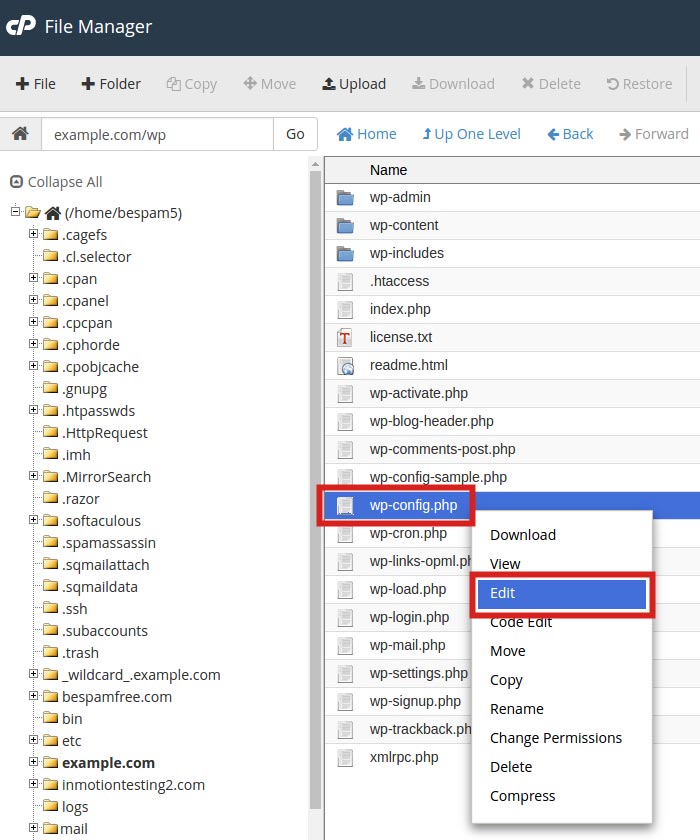
How-to-Create-a-Development-Site---step6.c

d. On the edit screen, change the values in the image below to the values you set for the new database you created earlier.
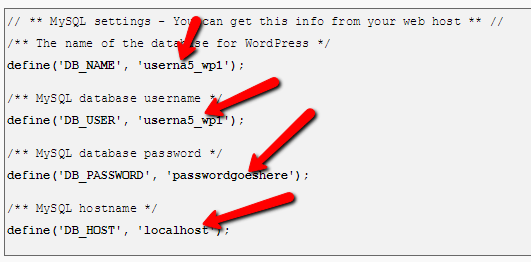
How to Create a Development Site - step6.d

7. Change the site URL for the dev site.

a. The site URL is stored in the WordPress database. In order for the site to load as a dev site, the site URL will need to be changed to the subfolder URL, eg. example.com/dev

b. Go to phpMyAdmin. Select your WordPress database. Then select your wp_options table.
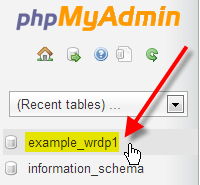
How to Create a Development Site - step7.b

c. Your wp_ prefix may differ depending on your install settings.

d. Click Edit beside either the siteurl or home entries.
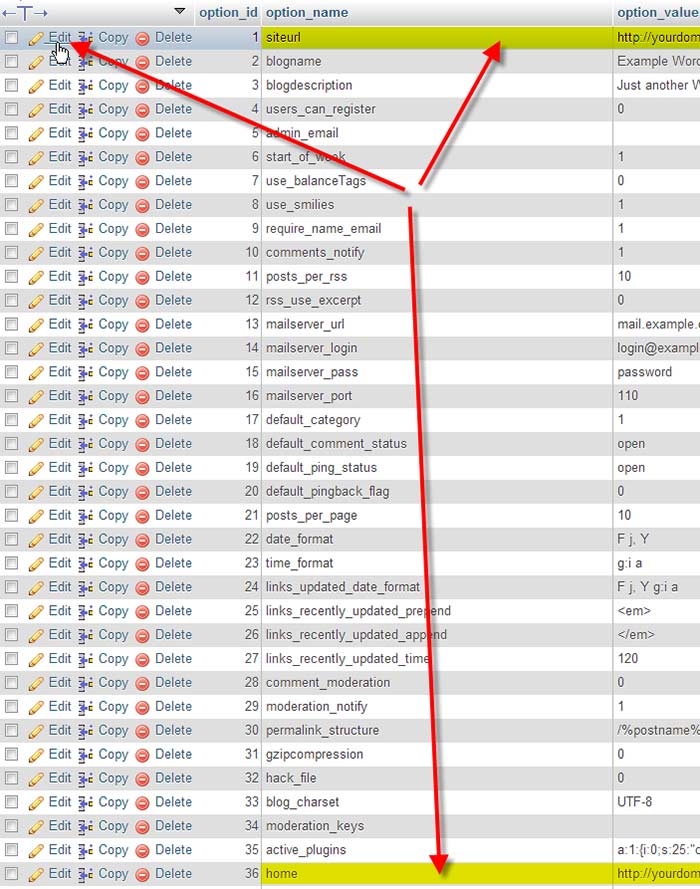
How-to-Create-a-Development-Site---step7.d

e. Enter in your new value in the option_value field, then click Go.
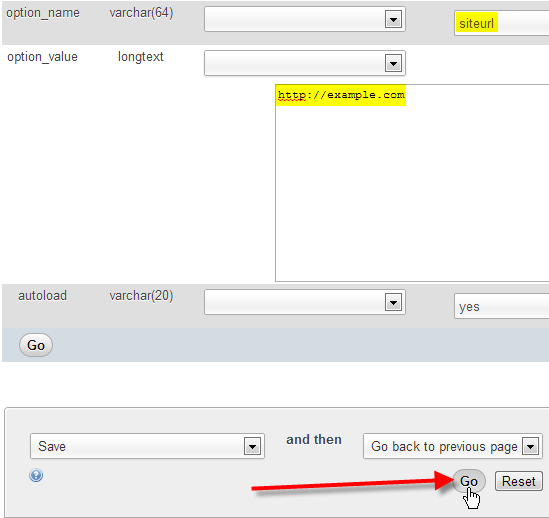
How to Create a Development Site - step7.e

8. Ensure that image links in your pages and posts are also changed.

a. These are in the database and not connected to the site URL so they will need to be changed separately.

b. Using the sidebar again, find and click on the wp-posts table.
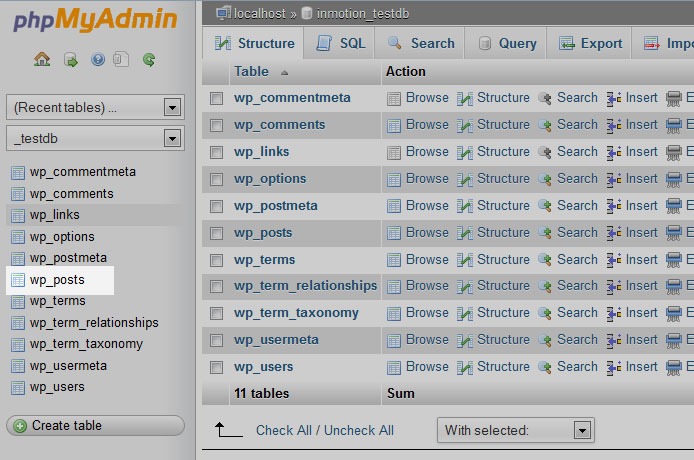
How-to-Create-a-Development-Site---step8.b

c. Look to the top of the screen and you will see several tabs that run across the page. Click on the SQL tab.

How-to-Create-a-Development-Site---step8.b2

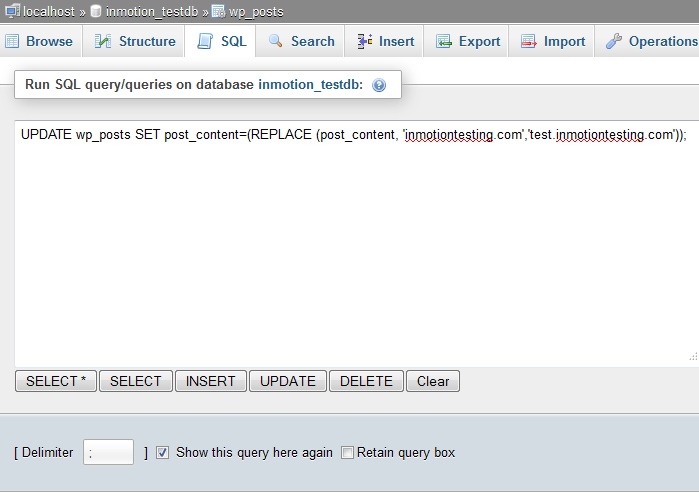
d. You are now on a MySQL editor screen. In the code area, copy the following bit of MySQL.
How-to-Create-a-Development-Site---step8.d

UPDATE wp_posts  SET post_content=(REPLACE (post_content, 'old url','new url'));

e. Be sure to replace <old_url> with the old sitename and <new_url> with the new site name. For instance, our original site was domain.com and the new test site will be at domain.com/dev so the code should appear as below:

UPDATE wp_posts SET post_content=(REPLACE (post_content,  ‘domain.com ',’ domain.com/dev '));

f. Click on the Go button to run the code and change the URLs for all images in the posts. This will also affect any other ‘hard coded’ links that were in the posts that pointed to the original site.

9. Update permalinks.

a. You can now login to your development site’s admin panel and update permalinks with the current settings. Just click update button. 

10. Hide dev site from search engines. 

a. Go to Settings > Reading page on backend, and make sure that the dev site is set to hide for search engines

b. If you are using WordPress SEO plugin by Yoast, you should turn off the sitemap functionality as well.

Create a Development Site Using a Plugin

If the steps in the previous section were too much to swallow, there are several plugins that you can use to create a development site. You can use Duplicator or WP-Staging plugin. Just follow the instructions on the plugin page and you should be good to go.

We hope this article can help you create your own development site. If you need help setting up a development site, the Wooassist team can help out. Just drop us an email. Or if you have questions, you can leave a comment below.

Filed Under: How-To Articles Tagged With: best practices, how-to, outsourcing, website development, website maintenance, Wooassist, WordPress

12 WooCommerce Tasks You Should Outsource

August 18, 2016 By John Leave a Comment

WooCommerce Tasks You Should OutsourceHow much value do you put on your time? As a business owner, this is a question that you should be asking yourself. Ideally, you should be working on your business rather than in your business. This entails hiring staff to handle the day-to-day operations and outsourcing works well for this purpose. Outsourcing is not easy but it can do good for your e-commerce business.

We’ll take a look at some of the benefits of outsourcing. We’ll also discuss the challenges that come with outsourcing, how you can deal with them, and the tasks that you can outsource.

Benefits of Outsourcing

You may opt for an in-house staff, but why is outsourcing a popular alternative? Here are a couple of reasons.

Getting a WooCommerce Expert to Do the Job

Outsourcing an experienced virtual assistant is made simpler. With some digging, you can find a WooCommerce expert who doesn’t charge exorbitant fees. With the right approach, you can even find someone who will stick with your company for years.

Reduced Costs

Hiring a virtual assistant will cost less than hiring a full-time in-house staff. You won’t need to invest in an office space for the outsourced worker. The outsourced worker will have his/her own computer with internet access. You may however need to provide some online tools and resources specific to your business.

You may have to offer a higher salary (still cheaper than your local rates) or offer some benefits if you want to keep a good virtual assistant. Do some research to find out what benefits are afforded to employees in certain countries. For example, virtual assistants from the Philippines will expect a 13th month bonus. Incentives for good performance are also good.

Challenges with Outsourcing

laptop-outsourcing

Outsourcing comes with its share of risks but these risks can be controlled.

The Need for Training

When you delegate work, the outcome may not always meet your expectations. To improve on this, make sure you create systems that the virtual assistant can follow. Provide ample time in training the outsourced worker.  Familiarize them with your business processes. This will help in paving the way for a long-term mutually beneficial relationship.

Confidentiality or Security Issues

You want to protect your business and that’s understandable so you might be hesitant in hiring someone from the other side of the world. When hiring a virtual assistant, you will most likely be sharing sensitive company information. On top of that, you will be providing access to your site and other accounts. Before hiring, you can do your research on the person that you are hiring. Check out social media profiles and other mentions on the web. Charles Haines also offers some interview tips for measuring integrity.

During the first few weeks, you can consider providing the outsourced worker limited access to your systems. When you are more comfortable, you can start providing more access.

WooCommerce Tasks You Should Outsource

As you work on growing your business, you may find that you spend a lot of your time on tasks that you can delegate. Outsourced WooCommerce tasks are web design and development, marketing, SEO and other back-office roles.

WooCommerce Tasks

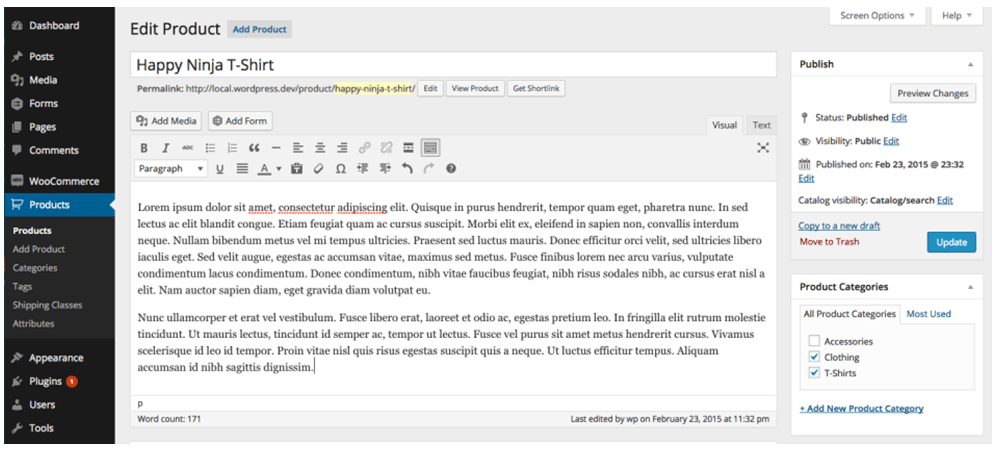
1. Create and Edit Products – Creating and editing WooCommerce products can be time consuming. You need to set up products with different attributes and optimize and upload images for each one. Delegate this task so you can use your business expertise where it is needed.

2. Product Image Editing – Images need to be optimized before being used on your WooCommerce store lest you risk bloating your site and increasing page load times.

3. Improve Product Copy – Writing product descriptions that highlight your product benefits will help you sell. Copy writers and virtual assistant know this. Speak to your target market and convince them to make the purchase. This is one less task to worry about, as professional copy writers can do this for you.

Web Design and Development

programming-outsourcing4. Update Plugins and Core – It’s important to keep your WooCommerce store protected from the latest known vulnerabilities. A WooCommerce expert can help improve security and site performance by keeping everything updated.



5. Design Tweaks – Improving user experience (UX) is a major factor in the success of your online store. A professional web developer can recommend and apply design changes to your site to optimize UX.

6. Analytics and Webmaster Reports – When optimizing your site to increase conversion or improve user experience, analyzing and interpreting existing data is invaluable. A virtual assistant adept at Google Analytics can analyze and interpret your website data. This can help you make sound decisions.

7. Technical Solutions – Don’t get wrapped up in the technicalities of developing and maintaining your website. An experienced WooCommerce developer can optimize your design and add new functionality in a fraction of the time it takes you to do.

8. Secure Your Site – Apart from WordPress and plugins updates, a WooCommerce expert can help you set up automated backups and set up other security features.

9. Speed Optimization – Keeping your site running at its fastest will improve user experience and will reduce bounce rates. Notably, site speed is also an important ranking factor for SEO. A WooCommerce developer can help you optimize your site speed. This can include optimizing images, optimizing the HTCaccess file, setting up caching, minification, and DNS.

Marketing and SEO

10. Search Engine Optimization – Make it easier for potential customers to find your WooCommerce store by ranking high in organic search results. This is no small feat as SEO can take a lot of time. However, many virtual assistants make a living through SEO so finding an SEO expert is easy. A WooCommerce SEO expert can help optimize your product pages and blog posts to rank better in search engines.

11. Email Opt-in Solutions – To improve your site’s lead generation capabilities, a WooCommerce expert can help you add email opt-in forms in strategic locations on your site.

12. Landing Pages – An effective landing page should help you achieve your site’s goals. A WooCommerce expert can help you optimize your landing pages for this purpose.

Final Notes

Outsourcing a WooCommerce expert can help you save your time so you can focus on other things that need your attention. You now have a better idea of what tasks you can outsource to save your time. A WooCommerce expert can do tasks in a fraction of the time that it would take you. While outsourcing can be a challenge, the tips above should help ease the process.

Do you have any questions? Have you tried outsourcing? Do you have any tips that you can share? Let us know in the comments.

Filed Under: How-To Articles Tagged With: admin, best practices, e-commerce, how-to, marketing strategy, outsourcing, website maintenance, Wooassist, WooCommerce

Technical Solutions for Your Online Store

January 29, 2015 By John 2 Comments

SnapCrab_2015-06-26_14-58-43_No-0000

Your online store needs constant management, which includes the technical details. When you’re suddenly faced with a technical problem, do you have the capacity to resolve it? If your website becomes the target of hacking, then you need to take action.

Awareness of the Problem

The first step in dealing with any technical problem is being aware of it. You need to keep in mind that it has the potential to hurt you. For instance, a simple issue with your WooCommerce cart would take a big hit on your business profit.

Let’s say that a plugin stops working. Users will be left wondering or confused, and you’re left with emails from disgruntled customers. Time is of the essence. The longer the issue persists, the more revenue you lose.Be aware when the problem hits, so you can act on it right away.

Finding the Right Solution

 After the problem has been identified, seek help from the right team. It may be from the third party who provided your plugins and themes, or your web hosting company. They should be able to provide site backups, security support, plugin upgrades, etc.

SnapCrab_2015-06-26_15-00-03_No-0000

Securing knowledge for yourself can make a difference. You may check out these resources from WooCommerce. These provide details on the most common plugin problems and how to solve them. It will help you boost your know-how on important technical solutions.

When it comes to managing your online store, it’s best to leave the technical aspects in the hands of experts. At Wooassist, we can troubleshoot your WooCommerce issues in a more efficient manner.

Filed Under: How-To Articles Tagged With: how-to, outsourcing, security, Wooassist

Creating and Editing Products on WooCommerce

January 29, 2015 By John Leave a Comment

Creating and Editing Products

Want to boost your online conversion and sales? Adding more products to an already existing store, with an already existing user base, is the way to go!

You are not as limited by shelf space as a physical store, so make use of this and add more products. It makes sense that the more you have to offer the more you can sell, right? But should you be adding them yourself?

Our Solution for Convenience

If you have a lot of products in your WooCommerce store, it may be difficult to manage it on your own.Tweaking the look of your product page, as well as creating variable and grouped products can be a little too complicated.

Adding and managing products can take a lot of your precious time. For one, you have to familiarize yourself with how the product categories, tags and attributes work. Then, all product data should be input.

large

If you own the business, wouldn’t you rather have someone else do all this while you focus on growing your business?

Here’s the thing – you should spend more time working ‘on’ rather than ‘in’ your business. It means doing developmental activities to improve your business, rather than routine activities that you do every day to keep the business going. Why? Read more about this post here.

Instead of staring at your WordPress dashboard and clicking on Add New Product day in and day out,use the time in planning, marketing, and following up on leads. Or, spend the time with your family.

Our team can help you out with your WooCommerce store so you can prioritize on your tasks that really matter. Leverage your time by hiring people who can create, add, and edit products on your online store – fast.

Filed Under: How-To Articles Tagged With: admin, how-to, outsourcing, product management, Wooassist, WooCommerce, WooCommerce products

How to Outsource Creating Products for WooCommerce

October 14, 2015 By John Leave a Comment

Outsourcing tasks can make your e-commerce store more profitable. When managing a WooCommerce store, you will need to add new products regularly. Sure you can do it yourself but shouldn’t you be doing more important things? When you outsource creating products for WooCommerce, you save precious time.

outsource-creating-products

Before you outsource creating products for WooCommerce, you have to get your information organized. This ensures that the task will be done properly.

Here are a few things you should prepare before handing over any WooCommerce product creation task.

Documentation

You need to have a “workspace” where can you document all the elements of the products. This can be in project management software like Asana or Basecamp or a Google doc. We at Wooassist have created a spreadsheet template that you can use for handing over product creation tasks to a WooCommerce expert. You can download it here. Just fill it with the information on the products that you want to add to your WooCommerce store.

After you have the same contractor do this for you a few times and they are starting to get comfortable with your product range, they will be able to fill out a lot of this spreadsheet themselves. You will be able to just send them the links to suppliers and competitors sites and save you even more time.

Optimizing Images for Product Pages

When selling online, having good images is crucial, since people need to see what they are buying.  Your contractor should have intermediate image editing skills.

optimizing-images

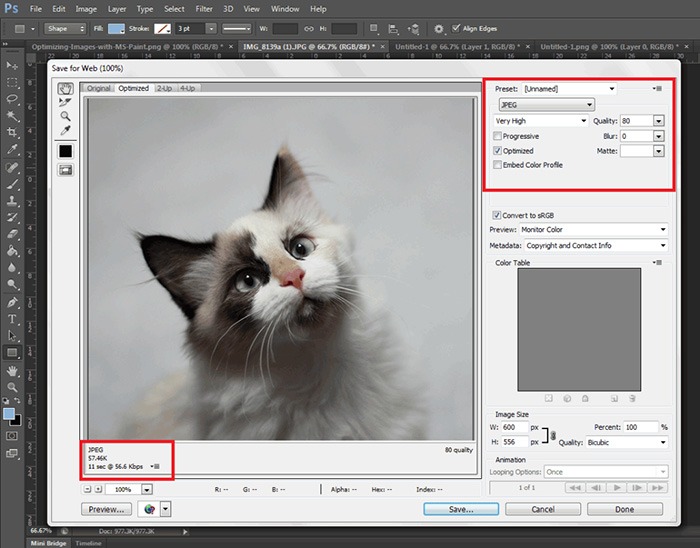
It is best practice have uniform image sizes on your site. When you set product image dimensions in WooCommerce settings, always keep your images to that same resolution and have this written clearly on your product creation documentation. Check out this post to learn more about optimizing images for web.

Writing Persuasive Copy

If you are at all serious about selling your products online, then you should have persuasive copy. We recommend outsourcing a professional copy writer. Putting a great deal of attention to writing persuasive copy for your products will help you convert more. For creating good product descriptions, you can check out our post on how to write persuasive copy.

persuasive-copy

You can give your product creation contractor a go at creating the copy and you might be pleasantly surprised, but more than likely you will need the help of a professional. Once you find a copy writer you are comfortable with, your product creation contractor can manage this specialist saving you time.

Different Types of Woocommerce Products

In WooCommerce, there are different product types: Simple, Grouped and Variable products. If you are not familiar with these product types, you can check out the WooCommerce Documentation for Managing Products.

Simple Products

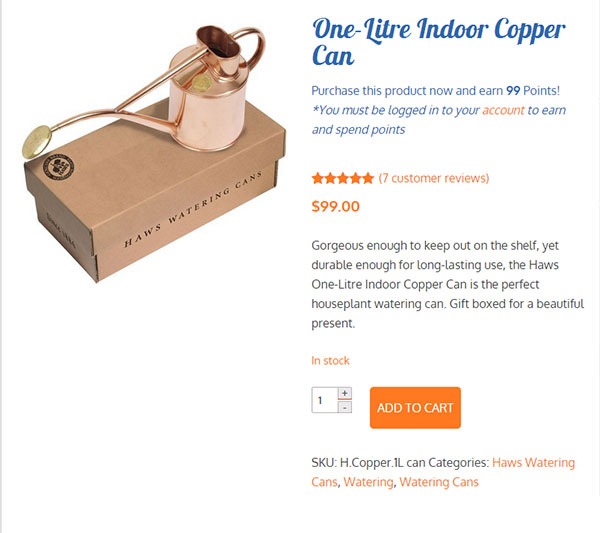
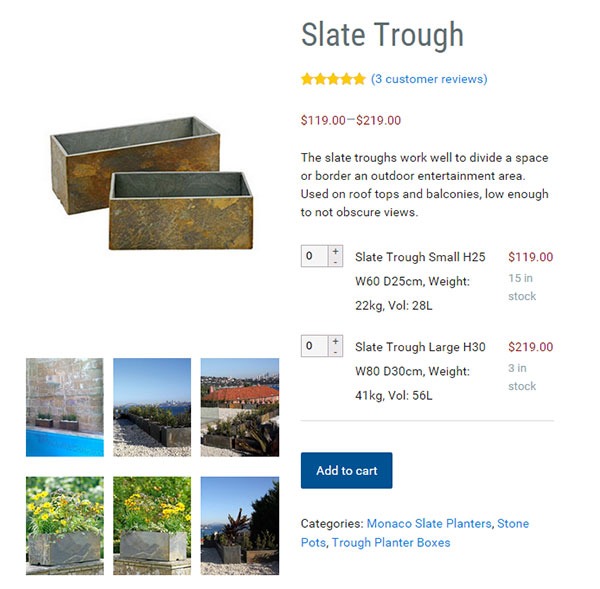
Simple products include: product name, SKU, inventory, price, sale price (if you are offering a discount), category, product tags if any, long and short product description, and any specific instructions.

simple-product

Upload your images to a file sharing website and be sure to include the download link in the spreadsheet. Before you do that, make sure you use folders and appropriate file names for easy identification. There is a field where you can put the link in the spreadsheet we created. For sharing files, we recommend Dropbox or Google Drive.

Grouped Products

For Grouped Products, it becomes a bit more complex as this involves grouping two or more simple products. However, the information that you need to provide is no different from the information required for simple products.

grouped-products

If you are going to set the simple products as “not viewable individually”, you won’t need to provide images or descriptions for each simple product. You only need to state the product name, price and inventory for the simple products. All the other information should go to the grouped product.

If you are going to make each simple product viewable then it makes sense to outfit each simple product. And that means complete images, complete product descriptions and everything else necessary.

Variable Products

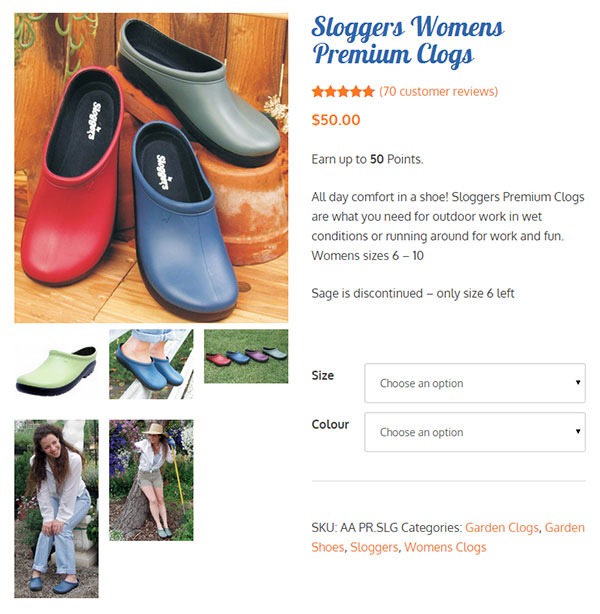
Variable Products deal with different product attributes. When sending information to your WooCommerce product expert, you should include the attributes for the product.

variable-products

For example, if you are selling shoes, you can have several product attributes such as size, color or type (laces or straps). That will result in multiple variations of the product.  You need to provide information for each product variation. In some cases, different product varieties will have different prices. So make sure you include the price for each product variation. If you downloaded the spreadsheet we prepared, you just need to fill in the details.

Recommended Websites to Outsource Work

There are a lot of websites out there that provide freelance services and they have a lot of WooCommerce experts. We can recommend Elance and Upwork, formerly known as Odesk. And of course, we also highly recommend our team of WooCommerce experts at Wooassist. Our expert team from the Philippines can help you out with whatever problems you are having with your WooCommerce store.

Summary

This process takes time to develop. Clear documentation is the key, followed closely by developing a good relationship with a Woocommerce product expert. The better and more familiar your contractor is with your products the easier it will be for you to create the documentation.

It will take you longer to create these processes than to do the task yourself initially, but will save you hundreds of hours in the long run. I have 2 Woocommerce stores that sell physical products and I have not created a product myself for over 3 years. I plan on keeping it that way.

Filed Under: How-To Articles Tagged With: admin, copy writing, how-to, image optimization, outsourcing, task management, WooCommerce, WooCommerce products

  • « Previous Page
  • 1
  • 2
  • 3
  • Next Page »
Let us support your online store so you can manage your business

Get started today

Get 2 Hours of FREE SUPPORT

We are so confident that you will love our services that we will give you your first 4 hours at a 50% discount

That’s 4 hours for only $75

BUY NOW

Free eBook

5 Things Every Online Store Can Fix On Their Website In The Next Week To Increase Sales

Quick Links

  • How it Works
  • Pricing
  • Blog
  • Contact
  • About Wooassist
  • My Account
  • Checkout
  • Privacy Policy
  • Cookie Policy
  • Terms and Conditions

Wooassist

Australia:
59 Luke St.
Hemmant QLD 4174

Philippines:
San Miguel St.
Poblacion, Iligan City 9200

Connect


Copyright © 2026 · Wooassist

Yours FREE!

5 Things Every Online Store Can Fix On Their Website In The Next Week To Increase Sales