Wooassist

Assistance for Your Woocommerce Store

  • How it Works
  • Pricing
  • Services
    • Site Maintenance
    • AI SEO and Content Marketing
  • Blog
    • How-To Articles
    • Code Snippets
    • SEO For E-Commerce
    • Theme and Plugin Reviews
    • Wooassist News
    • WordPress/WooCommerce News
    • Interviews
  • About Us
  • Contact
You are here: Home / Archives for John

Wooassist Interviews WooCommerce Entrepreneurs – Nicholas Jones on GardenWare

August 27, 2018 By John Leave a Comment

We  are starting a series of interviews with different WooCommerce entrepreneurs. We’ll listen to their stories — how they became successful and what their thoughts are on the ecommerce landscape. We’re starting our series with our very own Nicholas Jones or Nick J. as we call him. Nick started GardenWare back in 2003 and later on, Wooassist. He has since stepped down from managing Wooassist to focus on his other WooCommerce businesses and now only takes on a consulting role.

So, let’s get started.

Nicholas Jones Interview

How did GardenWare start?

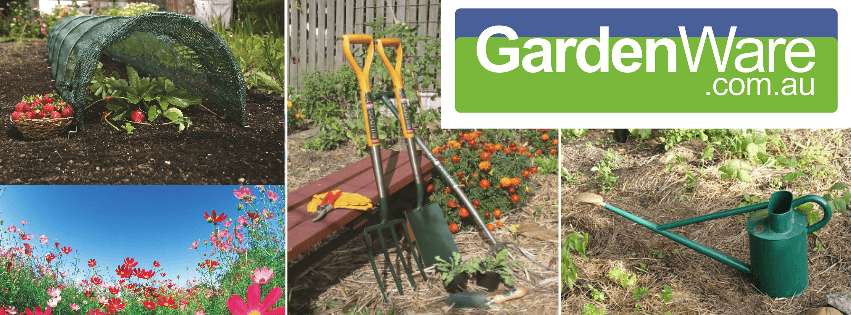
I was working as an accountant for a footwear importer that were selling Sloggers garden clogs and boots. Customers would ring from small country towns and ask where they could buy them. There were no stockists within hundreds of kilometres so we would take their credit card and address details and send them some in the post. After a couple years there was about 100 people. It was 2002 so ecommerce was not very big, but I thought a small catalogue might work. We designed the catalogue and a small website, placed a small add in Gardening Australia magazine, and mailed out to our small list.

We got a few sales and added garden clothing, gloves and hats to the range. In 2004 we added tools and watering cans not long after. Back then only 25% of sales were online. Most came from the catalogue, but every year that changed a little until the business was 95% ecommerce.
What are some of the major challenges for GardenWare?

Initial growth was the biggest challenge. I wanted to focus solely on my online business but the revenue was not enough, so I needed to supplement my income by consulting and my partner working a separate job. I wanted us both working for GardenWare full-time and pushed growth to make that happen. I would bet heavy on certain advertising and promotional campaigns, but they never met my expectations. I learnt the hard way that businesses growth comes best from demand not from supply. For a small business without funding it is much better to be patient and work those second jobs to supplement your income.

What has been the biggest challenge in your career?

The most rewarding has come from personal discipline and time management. When I am healthy mentally, emotionally and physically I am able to make better decisions. A 30-hour week’s work where I have exercised, meditated, read some good books, and spent time with loved ones can be much more effective than a 60-hour week where I don’t look after all the other areas of my life so well. Although the occasional 60-hour week is still needed.

What are your tips on how to make a business start-up a successful one?

Know yourself, product, and market. Waking up every morning to give your heart and soul to a business that may not succeed is a challenging task. You don’t have to love it, but doing something you don’t hate is very important. It is much easier if you have a personal interest in the product, or at least distribution or marketing channel. Take a thorough assessment of your personal strengths and weaknesses, likes and dislikes. I am an introvert and enjoy working on my own in my own time. It’s not surprising I have built a network of successful ecommerce businesses and my few attempts at bricks and mortar retail stores have failed.

How has ecommerce changed over the past 10 years?

Ecommerce hasn’t changed much for my businesses. While the technology has changed, the marketing principles are decades and hundreds of years old. You find a product people want, let them know you have it, sell it to them for more than you paid, and entice them to come back and buy more.

What do you think is the future of ecommerce?

I see as technology improves ecommerce and bricks and mortar retail merging more. The big market places like Ebay and Amazon will continue to grow so to compete in commodity price-based products you will need to be there.

How did you get started with WooCommerce?

In 2003 I was using my web hosts managed platform to sell. It was functional and easy enough for us to get started, but lacked the ability to take advantage of marketing strategies like upsells, cross-sells, rewards programs, abandoned cart reminders, custom shipping options, etc. So in 2009 I did some research and decided on Magento. WooCommerce was out then but didn’t have everything I needed at the time. We worked with Magento for a few years successfully, but the development and server costs seemed high. I looked at WooCommerce again and it seemed ready. We converted my two sites over in 2012 and have built all sites on WooCommerce ever since. I have no plans on changing ecommerce platforms.

Do you have any advice for aspiring ecommerce entrepreneurs?

If I was to speak to my younger self I would say invest more in yourself than the business. It can be easy to neglect your own education and work like a mouse on a treadmill. The problem with this is you are limited by working with your current skills and you can often miss the forest for the trees. You need to step back learn a new skill, read a business or motivational book, and get back to the grind the next day with a fresh brain. Recognise the value of your time and don’t try and do everything yourself. If you can find someone that can do something better and faster than you then delegate it to them and work on yourself and the parts of the business that only you can do.


Filed Under: Interviews, Wooassist News Tagged With: business development, Wooassist, WooCommerce

How to Set Up Amazon Pay for WooCommerce

July 16, 2018 By John Leave a Comment

How to Set Up Amazon Pay for WooCommerce

Amazon, the ecommerce giant, provides a secure means of payment through Amazon Pay. And did you know that you can set Amazon Pay to receive payments on your WooCommerce store? In this post, we’ll teach you how to set up Amazon Pay for WooCommerce.

Why Use Amazon Pay?

As a WooCommerce store owners, having more payment gateways is always a good idea. In case your only payment gateway fails, your customers will still have a means to check out using other payment gateways that you have set up.

Sometimes your customers prefer to pay using a different payment gateway so it’s a good idea to given them different options.

Using Amazon Pay, make for faster and easier payments since users would have already set up their Amazon Pay accounts. They won’t need to keep entering their credit card numbers every time they make a purchase on your store.

Also, Amazon is already a trusted name in ecommerce so having Amazon Pay on your checkout may increase your store’s trust rating. An increased trust rating could result in better conversion rates.

What About Amazon Pay Fees?

If you want to know more about the fees associated with Amazon Pay, you can check out this link.

How to Set Up Amazon Pay for WooCommerce

To set up Amazon Pay for WooCommerce, follow the steps below.

  1. To get started, download and install the Amazon Pay plugin for WooCommerce.
  2. Sign up for an Amazon Pay Merchant account for your region.
    • US – Amazon Pay
    • UK – Amazon Pay
    • DE – Amazon Pay
    • FR – Amazon Pay
    • IT – Amazon Pay
    • ES – Amazon Pay
    • JP – Amazon Pay
  3. When that’s done, head over to your WordPress Dashboard and go to WooCommerce > Settings > Checkout > Login & Pay with Amazon.
  4. The first option on your screen should be the box for “Enable Amazon Payments Advanced”. Tick the box to enable Amazon Pay.
  5. Input your Seller ID, MWS Access Key and Secret Key on the appropriate fields.
    • You can find your Seller ID in your Amazon Seller Central Account. Go to Settings and then on Integration Settings.
    • For the MWS Access Key and Secret Key, click on Integration and then on MWS Access Key (also on your Amazon Seller Central account).
  6. Under Payment Capture, choose how to you want to capture payments. You have the option to:
    • Authorize and Capture – Payment is automatically authorized and captured.
    • Authorize – Payment needs to be captured manually.
    • Don’t authorize – Payment needs to be manually capture and authorized.
  7. Under “Cart login button dislay”, you can either choose button or banner.

Note: If you want to test the payment gateway, tick the “Use Sandbox” option on the settings page.

Note: You can enable debug mode for the plugin to log any errors. This can be used when troubleshooting payment issues.

With that, you are now set to accept payments through Amazon Pay.

In you want to use Apple Pay to provide your customers more payments, you can also check out our guide on how to enable Apple Pay for your WooCommerce store.

Got any questions about enabling Amazon Pay on your WooCommerce store? Let us know in the comments.

Filed Under: How-To Articles Tagged With: Amazon, Amazon Pay, payment gateway, WooCommerce

How to Add a Custom Note on WooCommerce Checkout

July 1, 2018 By John 8 Comments

How to Add a Custom Note on WooCommerce Checkout

There are times when WooCommerce store owners need to add a custom note on checkout. This can be done by adding some custom code to your site. Read on below to learn how to add a custom note on WooCommerce checkout.

What Situations Would I Need to add a Custom Note on Checkout?

There are several situations when you’ll want to add a custom note on checkout such as:

  • If you are having checkout problems and you want to inform your customers of a workaround to the problem
  • If you want to let your customers know about a coupon code that they can use on checkout
  • If you want to remind your customers about an ongoing promotion so they can add more items to the cart

Adding the Custom Note on WooCommerce Checkout

Choose Functions.php

To add the custom note on WooCommerce checkout. You will need to edit your child theme’s functions.php file.

A word of caution before proceeding. The functions.php file is a sensitive file and editing it can cause your site to do down and even lock you out from the WordPress Dashboard. We recommend letting your developer do this. You can also edit the file using an FTP client so you can easily revert any changes in case you mess something up. If you have no developer and need help getting this done, you can contact the Wooassist team to help you out.

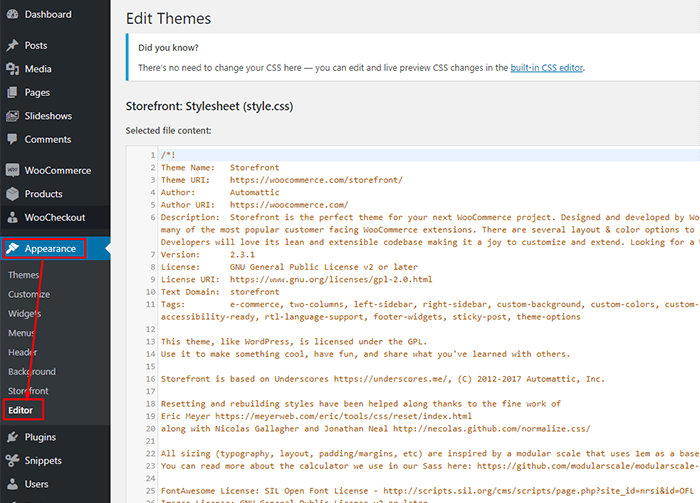
To get started, click on Appearance > Editor.

Edit Theme Functions.php

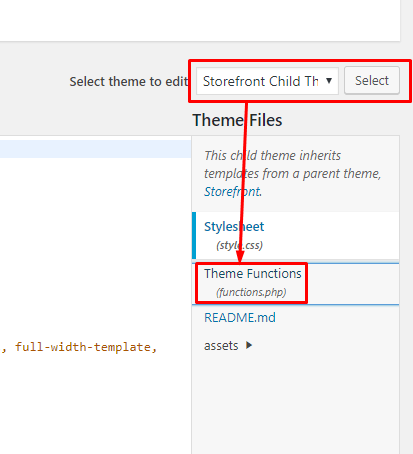
Next, choose the active theme. Make sure you are using a child theme. Click “Select”. If you are using Storefront theme and don’t have a child theme, check out this guide.

Find the “functions.php” and click to open it.

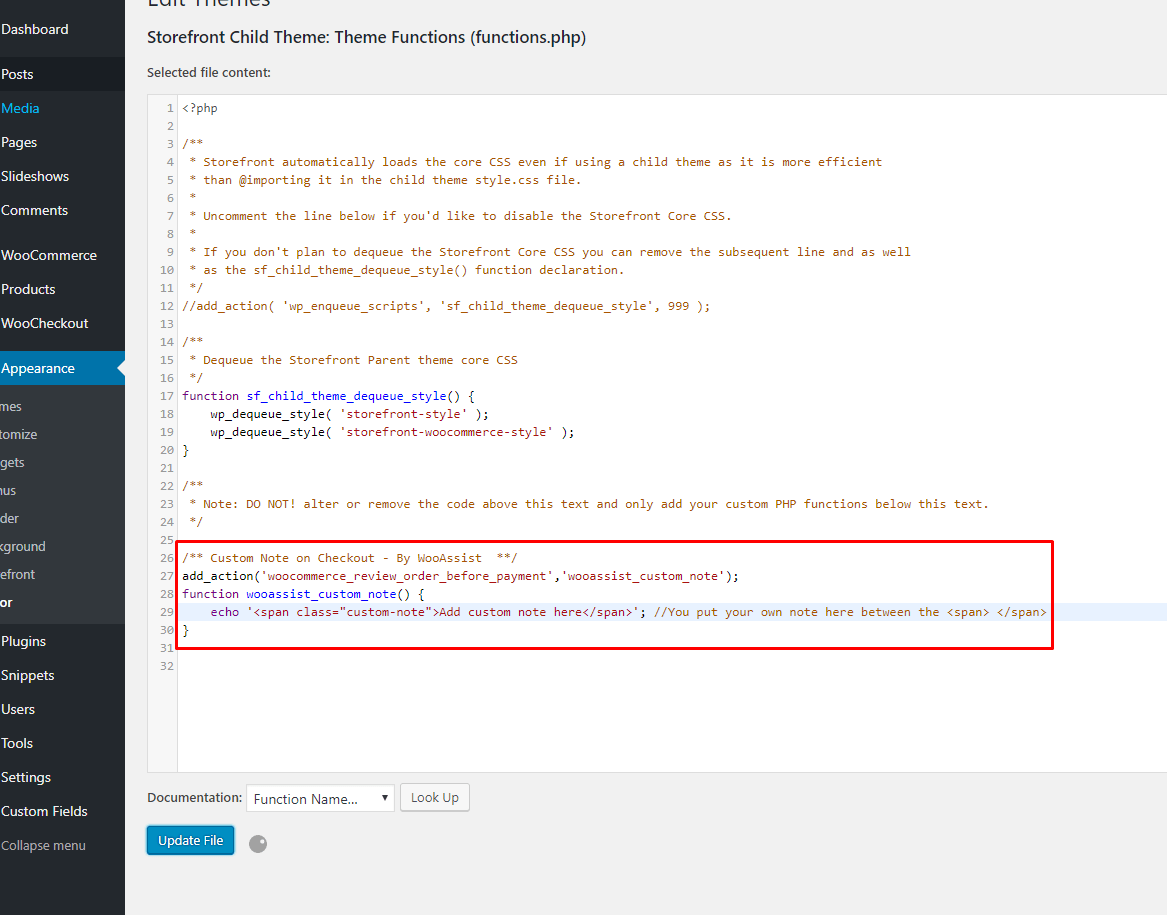
Copy the code below and paste it on the bottom part of the file as shown in the image. Edit the “Add custom note here” text with the custom text that you want to add.

/** Custom Note on Checkout - By WooAssist  **/

add_action('woocommerce_review_order_before_payment','wooassist_custom_note');

function wooassist_custom_note() {

echo 'Add custom note here'; //You put your own note here between the  

}

How to Add a Custom Note on WooCommerce Checkout - Insert Code Snippet

CSS Styling

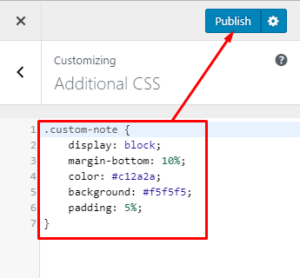
That’s a done deal but you may want add some styling to your custom note it will look professional. Add this CSS code by clicking the Customize link on your WordPress admin bar. Then click on Additional CSS.

You can then copy and paste the CSS code below and hit publish to save.

.custom-note {

display: block;

margin-bottom: 10%;

color: #c12a2a;

background: #f5f5f5;

padding: 5%;

}

Note that you may need to tweak the values in the code depending on your theme.

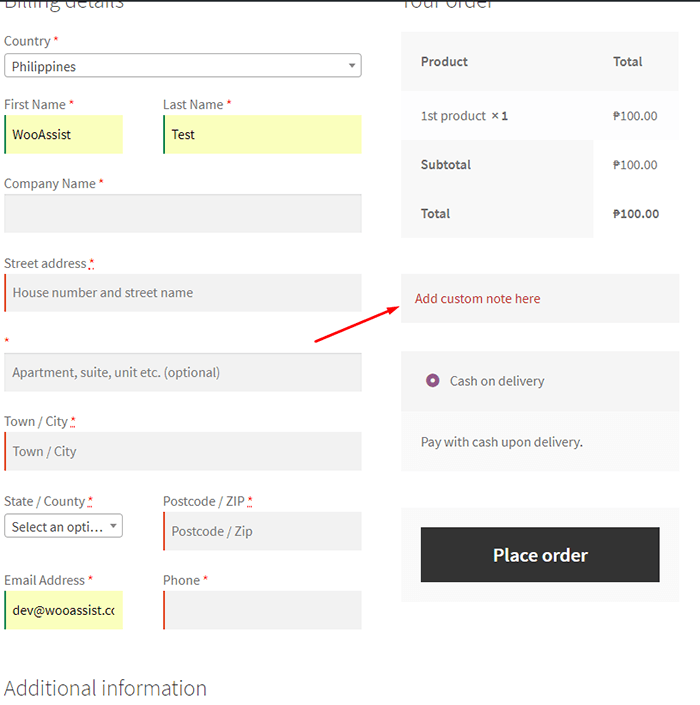
You can now see the styled custom note section on your WooCommerce store’s checkout.

See Custom Note section

Did that work for you? If you have any questions, let us know in the comments.

Filed Under: How-To Articles Tagged With: custom code, WooCommerce, woocommerce checkout

How to Make Your WooCommerce Store GDPR-Compliant

June 18, 2018 By John Leave a Comment

How to Make Your WooCommerce Store GDPR-Compliant

The GDPR took effect on May 25. WooCommerce store owners are still scrambling to make sure that their sites are compliant with GDPR requirements. If you serve clients from the European Union, then it is imperative that you make your WooCommerce store GDPR-compliant. Don’t know what to do? Read on below.

What is the GDPR?

First off, a brief introduction about the GDPR. The General Data Protection Regulation (GDPR) is a new regulation in the European Union that sets out standards and regulations for data protection. Data protection reform was initiated way back in 2012 and the GDPR is one fruit of that labor. If you are interested in seeing the GDPR in its purest form, you can check out this link.

Why Comply with GDPR Regulations?

If you do not serve customers from the European Union, then there is no need for you to comply with GDPR regulations. Still, your customers will appreciate the gesture if you make an effort to comply. This shows that you value their data and privacy.

If you serve a specific country in the EU or serve a global audience, then you are covered by the GDPR. That means you may receive hefty penalties of up to €20 million if you are found to be in violation of its provisions.

How Can I Make My WooCommerce Store GDPR Compliant?

Due to harsh penalties, it is recommended to act to make your WooCommerce store compliant. We will now detail the tasks that you need to do to comply with GDPR regulations.

Step 1: Update Your Site

The first thing you should do is update your site. The latest versions of WordPress and WooCommerce have implemented features to be GDPR-compliant. WooCommerce now has a feature that allows users to export their data and delete their data. Site administrators are also granted tools to determine how long data will be retained as well as an option to delete user data. Don’t forget to back up your site and test updates on a development site before updating your live site. For more information on the changes relating to the GDPR, you can check out this post.

Other popular plugins that manage user data such as MailChimp and Google Analytics have also implemented measures to make their services GDPR-compliant.

Step 2: Secure Your Site

Another mandate of the GDPR is that store owners should make their site secure. One way of keeping your site secure is by using the HTTPS protocol. You’ll need an SSL certificate to use HTTPS. You can follow this guide on how to install an SSL Certificate on your WooCommerce store.

There are a few other things that you can do to increase the security of your WooCommerce store. This includes keeping your site updated or using a security plugin. You can check this blog post for other important security tweaks.

Step 3: Create Important Pages

You will need to create a Terms and Conditions page, a Privacy Policy page and a Cookie Policy page. We would still recommend consulting your legal department about creating these pages. If you already have these pages, you need to make sure that you add provisions specific to the GDPR.

Create a Terms and Conditions Page

You can create your own Terms and Conditions page or you can generate a terms and conditions page using this tool from Shopify. If you choose to generate a terms and conditions page, you’ll still need to tweak it. And make sure to add any specific terms and conditions unique to your business.

Create a Privacy Policy Page

You can create your own Privacy Policy page or you can download a template here that you can tweak depending on your needs.

Create a Cookie Policy Page

You can create your own Cookie Policy page or you can download this template and tweak it according to your needs.

Notes on Important Pages

After you’ve created all the pages above, you will need to ensure that these pages can be accessed from any page on your site. For this purpose, we recommend adding links leading to these pages on your WooCommerce store’s footer.

Step 4: Create a Data Breach Response Plan

As per GDPR requirements, you will need to detail how your organization deals with a security breach. You can download a template here. Populate it with pertinent information about your Security Incident Response Team and external contacts.

In case of a security breach, you must also inform all customers whose data may have been leaked. You will need to have a template ready for communicating the breach. You can download the email template here.

Step 5: Add a Cookie Notification Pop-Up

You might have noticed that most, if not all, websites that you visit now have a pop-up that declares that the site uses cookies. That’s because the GDPR also requires website to declare that they are using cookies to track user data. Implementing this is easy on WordPress. You can use the UK Cookie Consent plugin to create a cookie notification pop-up on your WooCommerce store.

Step 6: Ensure that Your Email Opt-in Forms are GDPR-Compliant

If you are using MailChimp, you will need to turn on the GDPR fields on your opt-in forms. Note that this does not make your opt-in forms GDPR-compliant. Rather, this is the first step to making your WooCommerce store GDPR-compliant.

You will still need to get consent from new contacts and existing contacts. You read that right. Even if users have already consented to receive emails from you prior to the GDPR, you will still need to get consent again. For more information on how to get consent, you can check out this article from MailChimp.

If you are using a different tool for your email marketing, you can check with your service provider. Check if they have made any changes to help you comply with GDPR.

Step 7: Ensure that the Plugins You Use are GDPR Compliant

To ensure that your plugins are GDPR compliant, you will need to do a plugin audit. This task may be tedious as you have to sift through all the plugins that you use. First, you’ll need to check if the plugins are still being updated by the plugin author. If that plugin author has not updated the plugin in months (or worse, years), then that’s a red flag. A plugin that is not being updated is a security concern and GDPR requires that websites need to be secure.

Once you’ve weeded out the outdated plugins, you’ll need to identify which plugins manage or use user data. Example of plugins that deal with user data are analytics plugins, contact form plugins, and opt-in form plugins. Check if the plugins that manage user data have taken steps to become GDPR compliant. If they have not, consider finding another plugin that is GDPR-compliant.

Final Notes

Doing all the steps above does not guarantee that your WooCommerce store will be fully GDPR-compliant. We still recommend seeking legal advice. If you need any help getting any of these tasks done, you can contact the Wooassist team and we should be able to help.

Do you have any other tips on how to make a WooCommerce store GDPR-compliant? Let us know in the comments.

Filed Under: How-To Articles Tagged With: email marketing, GDPR, mailchimp, security, WooCommerce, WooCommerce updates, WordPress updates

How to Optimize WooCommerce Products for SEO

May 31, 2018 By John 1 Comment

You’ve set up your WooCommerce store but you’re not getting any traffic. You wonder what you’re doing wrong. Have you optimized your product pages for SEO? If not, that could be one of the reasons why you’re not getting any traffic. In this article, we’ll teach you how to optimize your WooCommerce products for SEO.

Why Optimize for SEO?

You can do all the link-building you want but if the pages that you want to rank for are not properly optimized for SEO, then you’ll have a hard getting ranked on top of Google.

Still, traffic is just a metric and what really matters is your conversion rate. Even if you are getting thousands in traffic but they are not converting, you still have a problem. On the other hand, you can’t convert anyone if you are not getting any traffic at all. Essentially, SEO and conversion optimization go hand-in-hand.

You have to optimize for SEO to make sure you are attracting the right people to your WooCommerce store.

Steps on How to Optimize WooCommerce Products for SEO

Identify What Keywords to Optimize For

Normally, it will be difficult to rank for regular keywords. For example, if you are selling digital cameras, it will be difficult to compete with Wikipedia or Amazon unless your WooCommerce store is already an authority on digital cameras. So optimizing for the keyword “digital cameras” won’t work for you. This is where long-tail keywords come in.

What is a Long-Tail keyword?

Compared to a regular keyword, long tail keywords are longer and more specific. Instead of optimizing for “digital camera”, you can optimize for specific camera models or for specific features of digital cameras. Optimize for anything unique about the product that you are selling. A few examples of long-tail keywords can be “digital camera for underwater photography”, “digital cameras for beginners”, or “sports action digital camera”.

Do Your Keyword Research

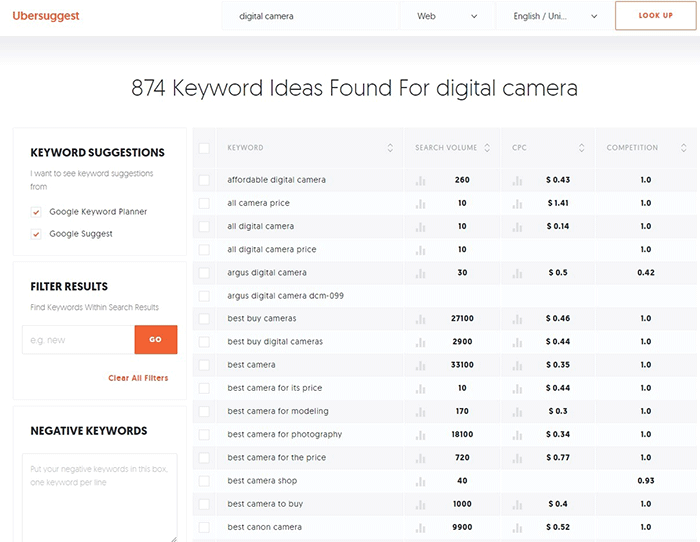
Don’t start optimizing until you do your keyword research. You can use whatever keyword research tool you have at your disposal. We can also recommend Ubersuggest. Just pop in a basic keyword and you can get a list of long-tail keywords that you can optimize for along with some valuable search data. You can even filter the keyword ideas and remove negative keywords. You can also export the keywords into a handy CSV file.

Ubersuggest Keyword Research

Add the Long-Tail Keyword to Your Product Page

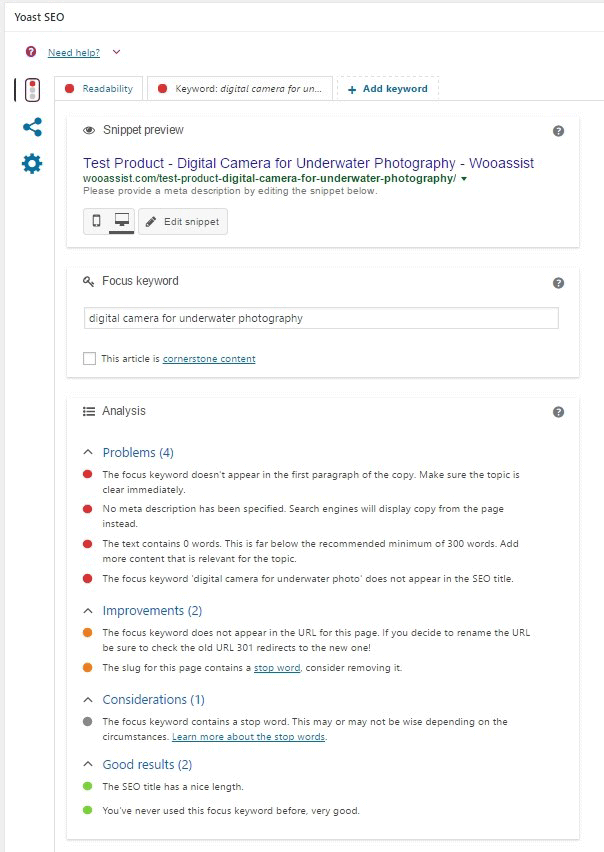
To help with optimizing your WooCommerce Products for SEO, you can use the WordPress SEO plugin by Yoast. The plugin provides detailed information on how you can optimize your products for SEO. It also has a boatload of other features that will help boost your SEO. Just install the plugin and you’ll gain access to the SEO optimizations block on your WooCommerce product editor.

When optimizing products for SEO, input the long-tail keyword that you wish to target on the “Focus Keyword” field. After doing this, you can see the analysis section below will show you recommendations on how you can improve your product’s SEO score.

How to Optimize WooCommerce Products for SEO

Generally, you will need to add your focus keywords to:

  1. The article title
  2. The first paragraph of the article
  3. One of the heading tags
  4. On the body of the article
  5. In one of the image alt tags
  6. In the URL/slug

You don’t need to force yourself to do every little thing that the Yoast SEO section recommends. Just use it a rough guide since it does recommend the currently known best practices.

Improving Content Readability

Google now also considers content readability as an SEO ranking factor. So it is important to ensure that your product descriptions are easy to read. In some cases, you may have to use some technical terms when writing your product descriptions and that’s totally fine. Depending on your products, that may actually be best practice. Still, it’s a good idea to check the readability of your content.

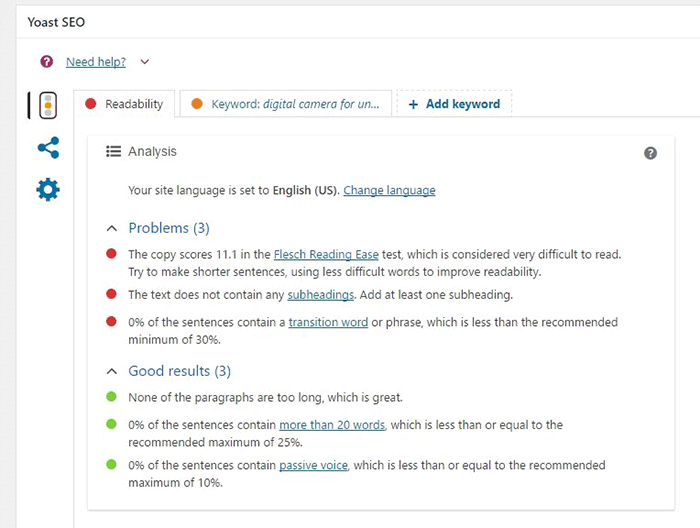
The Yoast SEO section also gives recommendations on Readability. Just click on the readability tab and you’ll see the problems that need to be addressed.

WooCommerce Products Optimize for Readability

When creating your product descriptions, you can also use Hemingwayapp to optimize its readability. You can also use this tool when writing blog posts.

Now that you know how to optimize your content for SEO, people who are interested in your products are now more likely to find your products. If you need help with SEO optimizations, the Wooassist Team can help. We’ll start off by doing an SEO audit of your site so we can determine what needs to be addressed and move forward from there.

Optimizing your WooCommerce store does not end with product optimizations. There are other optimizations that need to be done to ensure you are maximizing your conversion rates.

Filed Under: How-To Articles, SEO For E-Commerce Tagged With: keyword research, optimizations, seo, SEO strategy, SEO tools, WooCommerce, WooCommerce products, woocommerce seo, WordPress SEO, Yoast

  • « Previous Page
  • 1
  • …
  • 16
  • 17
  • 18
  • 19
  • 20
  • …
  • 41
  • Next Page »
Let us support your online store so you can manage your business

Get started today

Get 2 Hours of FREE SUPPORT

We are so confident that you will love our services that we will give you your first 4 hours at a 50% discount

That’s 4 hours for only $75

BUY NOW

Free eBook

5 Things Every Online Store Can Fix On Their Website In The Next Week To Increase Sales

Quick Links

  • How it Works
  • Pricing
  • Blog
  • Contact
  • About Wooassist
  • My Account
  • Checkout
  • Privacy Policy
  • Cookie Policy
  • Terms and Conditions

Wooassist

Australia:
59 Luke St.
Hemmant QLD 4174

Philippines:
San Miguel St.
Poblacion, Iligan City 9200

Connect


Copyright © 2026 · Wooassist

Yours FREE!

5 Things Every Online Store Can Fix On Their Website In The Next Week To Increase Sales