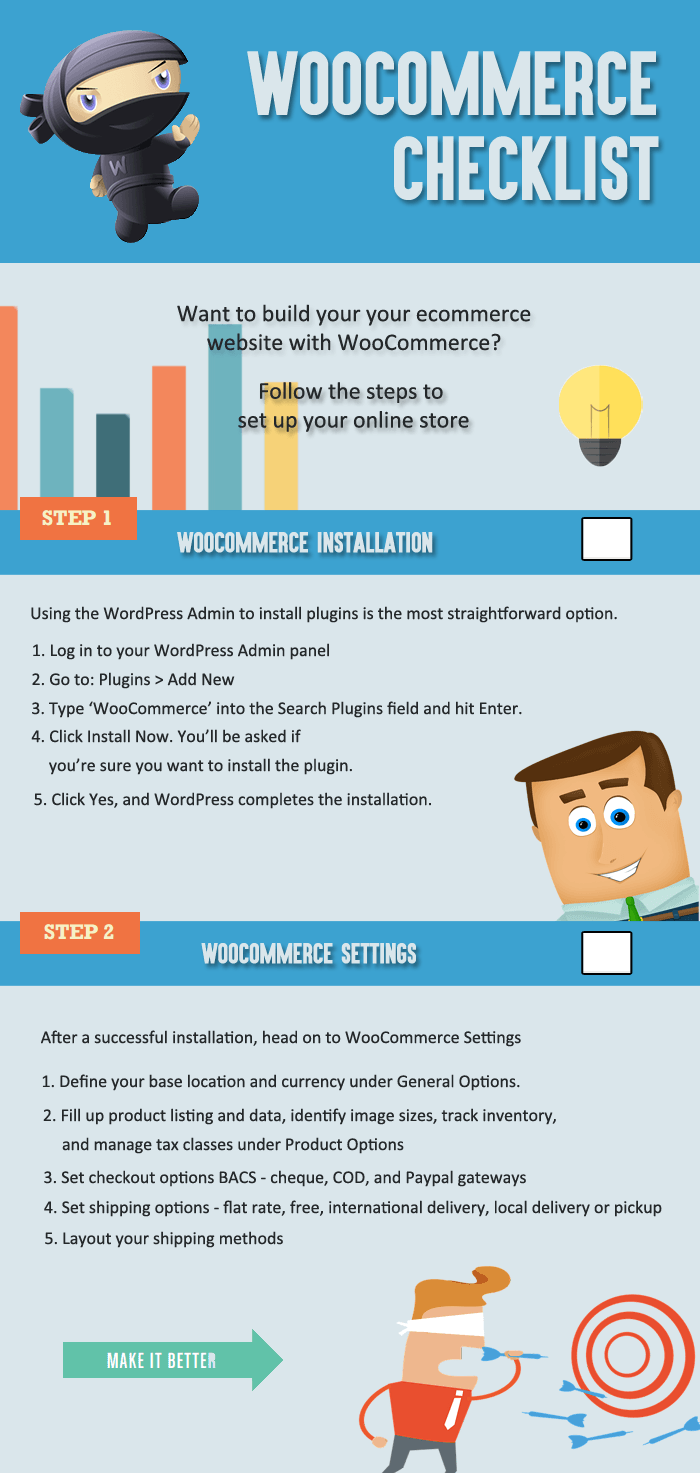
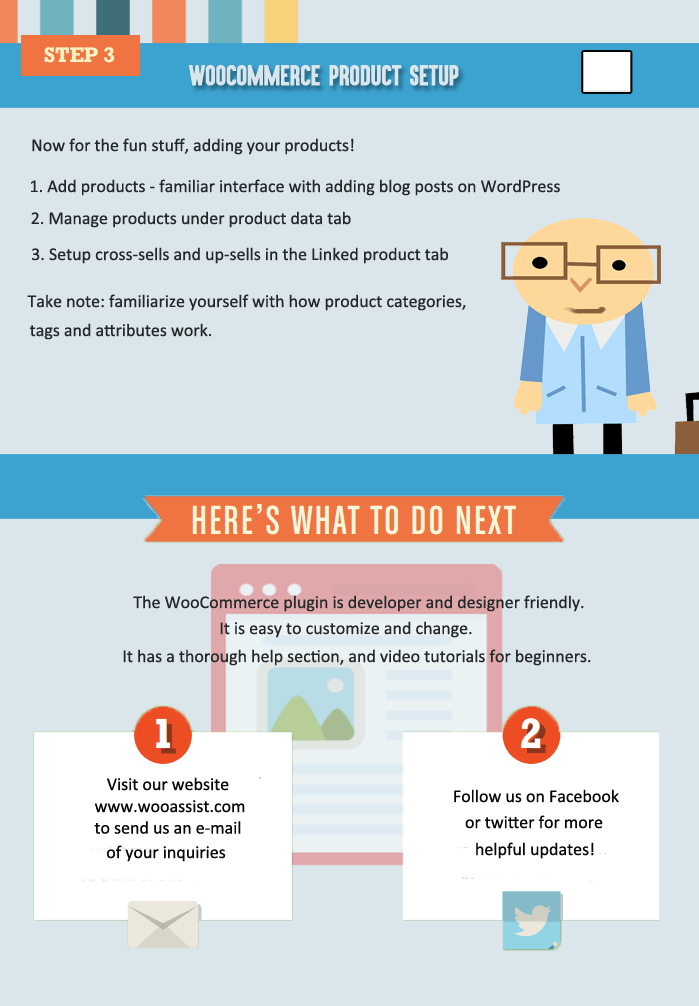
Do you want to build an on online store? Creating one is easy with WooCommerce. Here’s a handy WooCommerce infographic that can guide you on the process.
Assistance for Your Woocommerce Store
Do you want to build an on online store? Creating one is easy with WooCommerce. Here’s a handy WooCommerce infographic that can guide you on the process.
After installing WooCommerce you have to make sure that it will run based on your geographic specifications. You will need to set store location and currency in WooCommerce. Changing these settings is really quite simple. You can do this if you head over to your WordPress dashboard and navigate to WooCommerce settings under the general tab.
To set your location, head over to WooCommerce settings under the General Tab. Here you can set your store’s location.
Here’s what you should see:
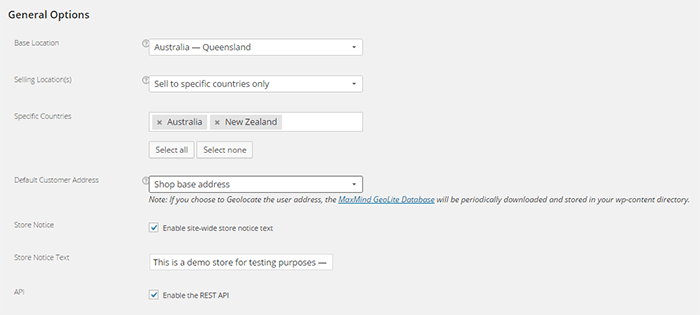
Under Base Location, you should state your base country and/or state. This setting also affects tax rates and customer locations.
Under Selling Locations is where you state where you sell your products. You can choose just one location or a few countries/states. If you ship your products globally you should specify “Sell to All Countries”. If you are only selling to specific location, choose “Sell to specific countries only” and a new field will come up which will let you add specific locations.
Under Default Customer Address, you can choose what the system will identify as the client’s location before he/she enters her location. Choosing “Shop base address” assumes that the client is located where your store is located. Choosing “No address” assumes no location. Choosing “Geolocate address” will verify the client’s location through Maxmind Geolite Database.
Below the location setting, you can see your WooCommerce store’s currency options.
Under Currency, you can set your store’s default currency. You can only set one currency here.
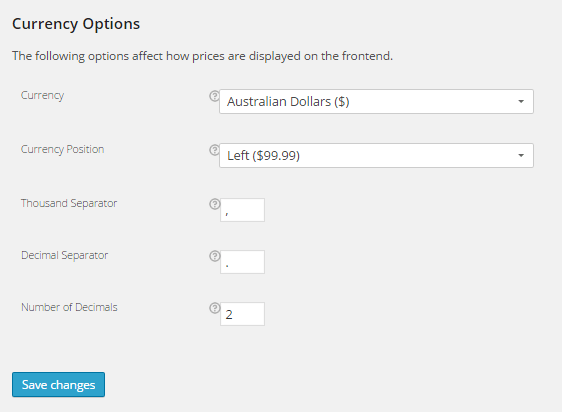
Currency position lets you set the default position for you currency symbol. You can set it to the left, right, left with space, or right with space. Below you’ll see a comparison of the different options for this setting.

These settings let you set what symbol to use as the thousand and decimal separator for the prices displayed on your store. The image below show what the price would look like if you edit these.
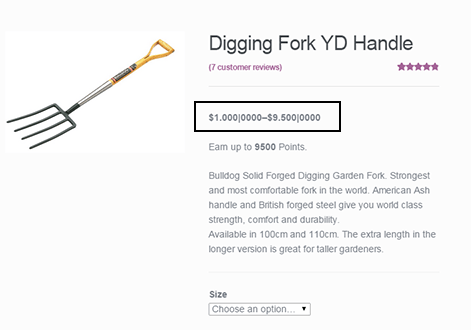
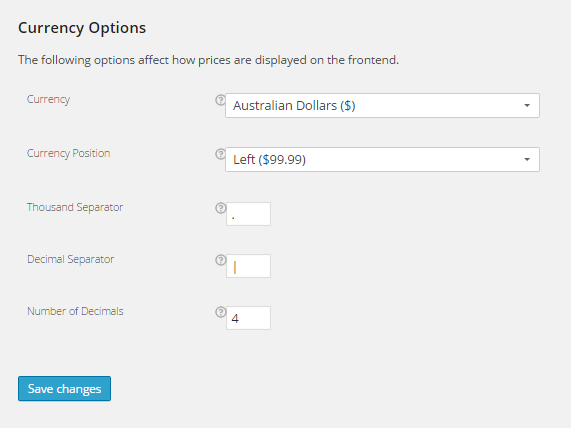
This setting sets the number of decimal places shown on your prices. In most cases, 2 decimal places will do but if you should need more, you can always add more.
Now that you’ve set your store’s location and currency, you can soon start selling to the market that you are targeting.
 The bulk of the work is done. Your website is ready to go live. But are you sure it is really ready? Here’s a handy checklist of things to do before your website goes live. Make sure everything is working fine before you click that “Go Live” button.


This may vary depending on the country and industry.
 Google mobile friendly update to penalize non-mobile friendly websites is out. Don’t tell me you didn’t see this coming. As more people used mobile devices to surf the internet, Google had to act. It was only a matter of time before Google started prioritizing websites that are optimized for mobile devices. The new algorithm came into effect April 21.
If you have an e-commerce store you should be concerned about all updates from Google. For a lot of online stores, the success of your business depends on Google. This update could destroy your rankings if your website is not mobile responsive. If ranking high in Google is a big part of your revenue strategy then this could be disastrous for your business.
Use this Mobile-Friendly Test. If your website passes the test, then you have nothing to worry about. But if your website fails the test, you’ll be presented with suggestions on how you can resolve the problem.
If you have an e-commerce store using WooCommerce, there are a lot of responsive WordPress themes that you can use. These responsive themes are optimized for use on mobile devices. WooTheme’s own Storefront theme made especially for WooCommerce is responsive so that’s worth a look. We can also recommend Genesis themes from StudioPress.
 That question is a bit like. “I need a car. How much will that cost?” Of course, the answer is, “It depends”. But to give you an example, we have recently upgraded a few clients themes to the new Storefront theme for between $400-$600.
When upgrading a theme, you tend to notice things that you probably should have noticed on the original site, and need to update those as well. So setting a budget of $1000 – $1500 is probably more realistic.
This update by Google might just be the thing that most store owners needed to push them into action. Non-responsive ecommerce sites are more than likely leaving a lot of money on table. There is some strong evidence to support this: 14-brands-that-increased-conversion-rates-via-responsive-design
For example, O’Neill Clothing’s redesign achieved some fairly spectacular results on iPhone/iPod:
Similarly, on Android devices:
Personally, we haven’t seen results this good on the sites we manage. But nonetheless, all responsive redesigns we have done have paid for themselves within 6 months.
Like usual, Google’s algorithm remains a trade secret. It is now up to SEO experts to try to figure out what the algorithm considers in its ratings. Google is actually forgiving this time around as they did provide that tool that will let you check if your website meets their mobile-friendly standards.
If you want to see what your ecommerce store looks like on different mobile devices, you can use this mobile user testing tool. This tool emulates screen sizes of the most popular mobile devices so you can see exactly what your site looks like on a mobile device.
According to an article from USA Today, the algorithm update could affect as much as 40% of top websites.
Here is the test result of one website that did not meet Google’s mobile-friendly update.
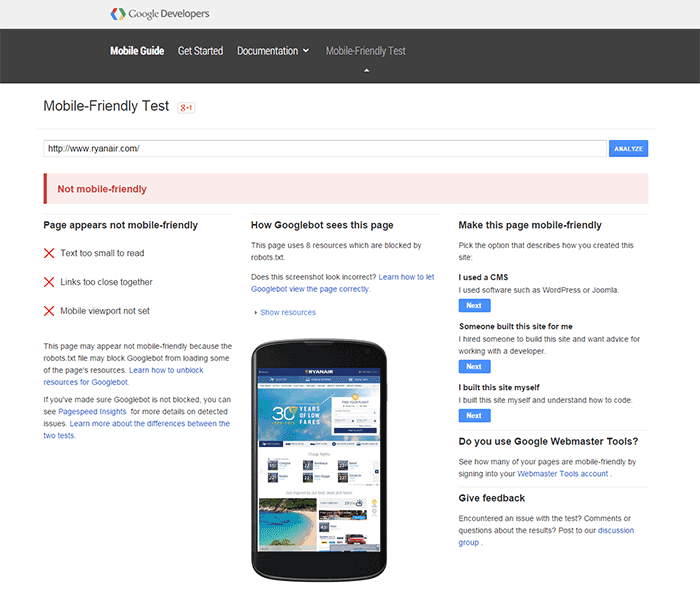
A few weeks before the new algorithm came into effect, tech website TechCrunch tested the websites of Fortune 500 companies. Surprisingly, 44% of Fortune 500 companies’ websites did not pass the mobile-friendly test. So if your ecommerce store didn’t pass the test, you are not alone.
Well, you should be worried. Still, according to an article from Search Engine Land, it’s not too late to act. You can still fix your website. While some changes in rankings were seen just a day after the update, these changes were not significant. This does not mean you shouldn’t bother doing anything. Sooner or later, Google could clamp down and bring harsher penalties to non-mobile friendly websites. Don’t wait for it to hit hard before you do something.
 There are a lot of platforms that you can choose from and two of the most popular ones are WooCommerce and Shopify. If you are torn between the two, then you’ve come to the right place.
Before you go comparing the two platforms, you should first know what your business needs are and how much resources you are working with.
WooCommerce is free, offers unlimited customizations but is a bit harder to set up. On the other hand, Shopify is more expensive, easier to set up, but does not have as many customizable options. Migrating from one platform to the other is not difficult. If you do choose Shopify you can still migrate to WooCommerce later if you find that you need more customizability.
If you need more functionality from the get go, you can get this from WooCommerce. WooCommerce can be a bit harder to set up and requires working knowledge of website development. But the customizability of WooCommerce is almost endless if you have the resources to get it done.
Between WooCommerce and Shopify, which one is priced better?
WooCommerce is free for everyone to use. Shopify requires a subscription fee. Both platforms rely on plugins for added functionality. Woocommerce has a lot of free plugins, but you may need features that require paid versions. Paid plugins are subscription based which means the costs can really stack up in the long run.
For the non-technical entrepreneur, Shopify may seem like the better choice. You can easily set it up without needing a professional website developer. Instead of focusing your resources on website development, you can just buy a subscription on Shopify and focus on doing business.

When it comes to ease of use, Shopify rates highly. Shopify is easy to use even for non-technical people. WooCommerce is still considered user-friendly but it just has more options to customize. You just need to learn what these options are and how to use them.
Out of the box, Shopify comes with 11 free responsive themes. And they look good too. If none of the free themes are to your liking, you can buy a new theme which costs around $150. Even if you are a new user, you can easily change colors and styles in Shopify. Also, more advanced users are not limited as they can do some more complex design tweaks in the code.
On the other hand, WooCommerce needs to be installed on the WordPress platform. The design will then depend on your chosen WordPress theme. There are thousands of free and premium themes to choose from. Since WooThemes created WooCommerce, their themes will work well with the platform. Their Storefront theme is made especially for WooCommerce so you can be sure that it is compatible with all releases of WooCommerce.
When it comes to customizability, WooCommerce wins. And if you have a developer available, it gets better. Your developer can do wonders with WooCommerce. You can have him create plugins and just about any functionality that you can think of. This is all because WooCommerce is open source. Anyone is free to alter the code for their own use.
Shopify is a complete ecommerce solution which includes hosting for your website. And while Shopify’s hosting service is not always rated that highly, it is certainly one less thing to worry about when setting up your ecommerce store. Shopify will provide you everything that you need to keep your ecommerce store up and running. For WooCommerce, if you have no experience with websites, you have to rely on a developer to get things done.
 Support
When it comes to support, Shopify offers premium support. You need only contact Shopify and they’ll help you out with whatever problem you have with your e-commerce store.
Because WooCommerce is free, Woothemes does not provide free support but a developer or support team like Wooassist can assist you. You first need to identify what is causing the problem. Is it a problem with your host? Is it a problem with a certain plugin? After you identify the root of the problem, you need to contact the specific service provider or plugin developer about the problem.
If you are using a free plugin or any other free service, you have no assurance that the developers or the service provider will address your concern. But since WooCommerce is powered by WordPress, you can ask for help from the WordPress community through the forum. A lot of website owners, including those that use WooCommerce, post problems they encounter in the forums. Most of these problems are resolved with the help of the ever-reliable community. If you’re lucky, someone should have already encountered the same problem that you have and posted in the forums with a resolution already documented.
If you will be creating your own website and you already have a technical background, then WooCommerce will serve you better. And if you have a developer, it gets even better. If you do not have the time and the technical know-how to create a fully functional WooCommerce store, look at Shopify’s all in one e-commerce solution.
Shopify may provide everything that you need so you have less to worry about and spend more time doing actual business. It might be more expensive initially since you have to pay for subscriptions and plugins, but it is easier to set up. Albeit, with less customizability. There is no clear cut answer on which platform is better. It all depends on your needs and what is sustainable for your business.


