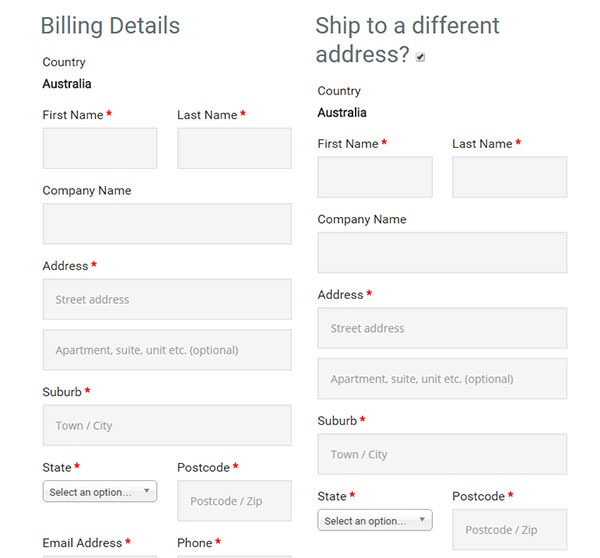
Here’s a neat trick if, for some reason, you want to change the checkout form heading in WooCommerce. By default, the heading is named “Billing Details” and you can change this to whatever you want in just a few steps.
First off, you’ll need to copy the template to your theme or more specifically, your child theme since you definitely should be using one.
The template can be found at:
\woocommerce\templates\checkout\form-billing.php
You should copy and paste it at:
\yourtheme\woocommerce\checkout\form-billing.php
Afterwards, just open the copy that you pasted into your theme and find the following lines of code:
<?php if ( WC()->cart->ship_to_billing_address_only() && WC()->cart->needs_shipping() ) : ?>

	<h3><?php _e( 'Billing & Shipping', 'woocommerce' ); ?></h3>

<?php else : ?>

	<h3><?php _e( 'Billing Details', 'woocommerce' ); ?></h3>

<?php endif; ?>
Once you find it, simply change “Billing Details” to the text that you want to replace it with.
 For every website owner, there will always come a time when your website will go down. Often, this could be because of a downtime on your hosting service, but sometimes it’s because of some other reason. Maybe your website has been compromised or you did something that caused your site to go down. Notably, if you’re going to be doing some major work on your site, you shouldn’t be doing it without creating a backup first so you can restore your website to a working state just in case you mess something up. Here, we’ll teach you how to backup your WordPress site.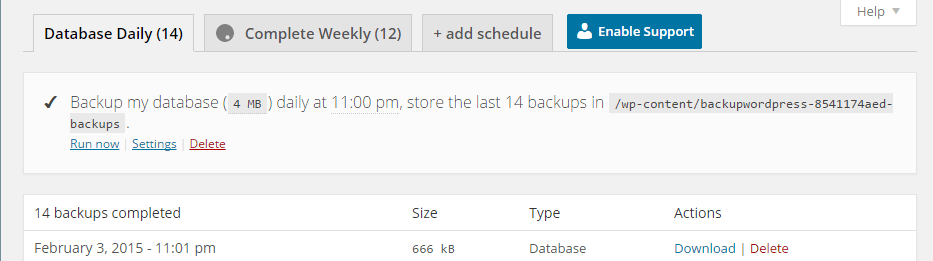
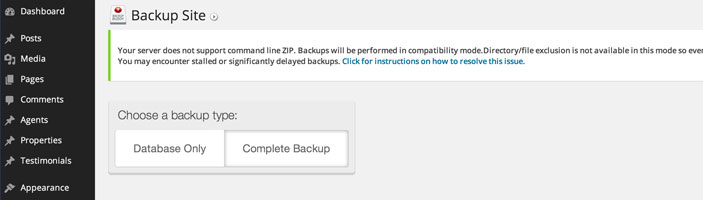
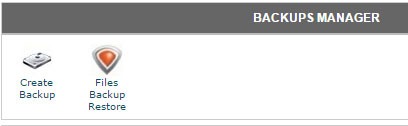 To create back-up using CPanel, navigate to Backup Manager and click on Create Backup. Where it says Download a MySQL Database Backup, just click on the database and download. A simple enough process but using a plugin just saves you from the trouble of doing this manually.
 You might have read a few, or maybe a ton of articles about optimizing your website page load speeds. You might already know a few strategies like
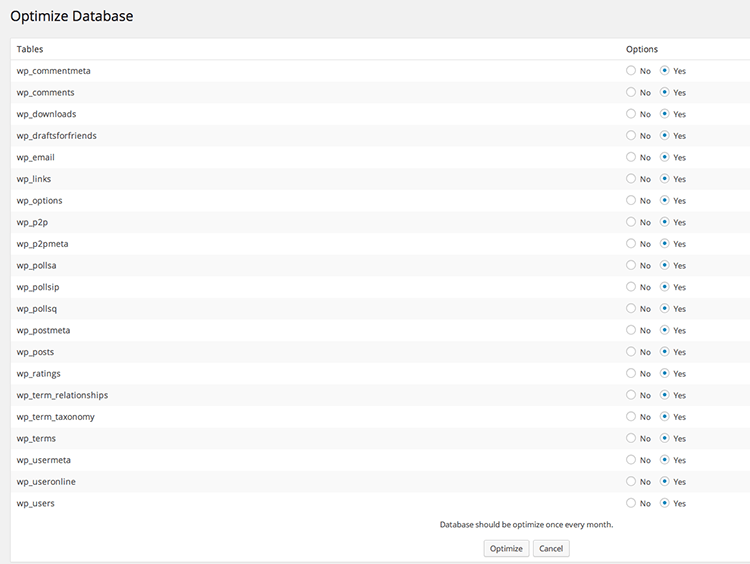
  If you don’t know what the database is for, then you might be surprised just how important it is. WordPress makes use of PHP to communicate with the database which contains important information such as posts, pages, your WooCommerce products, comments and product reviews, users and customer information, URLs, etc.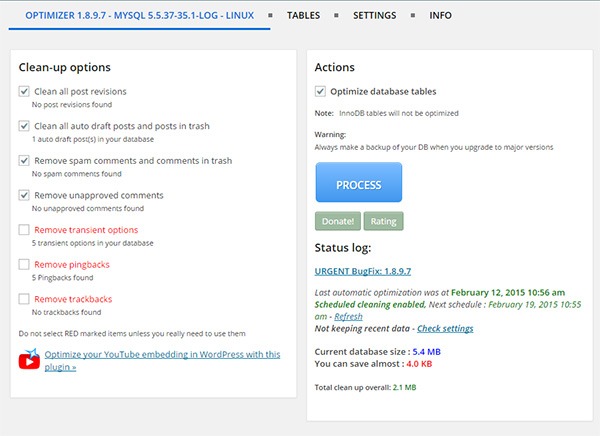
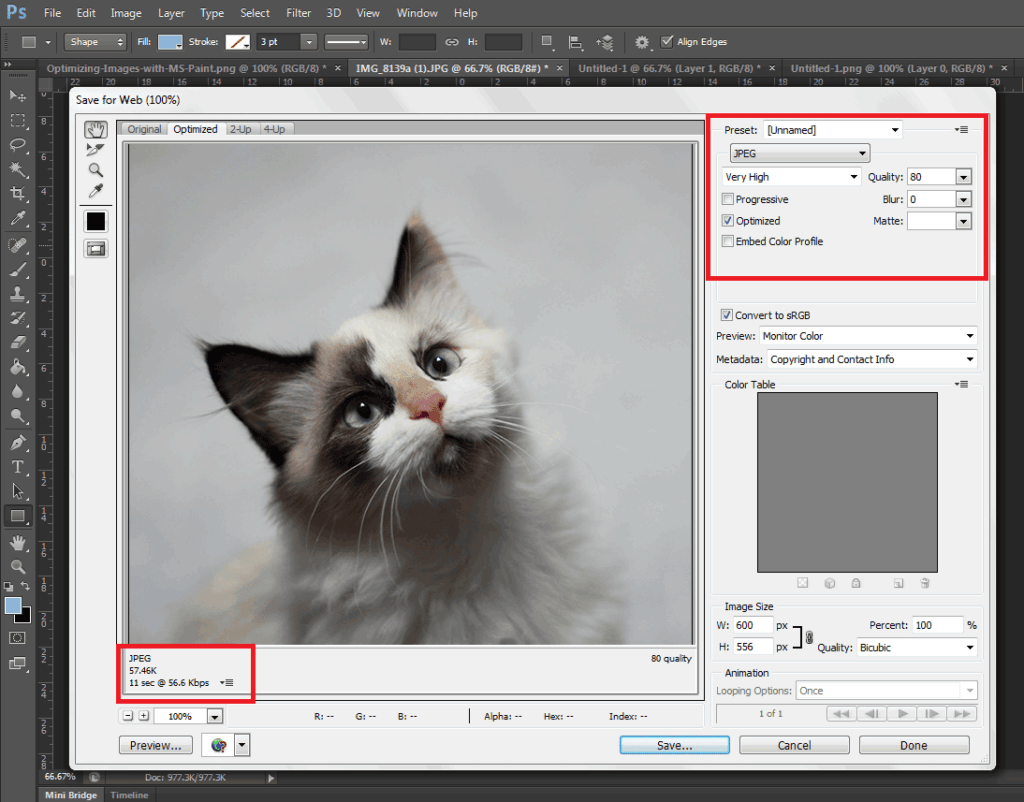
 How fast your website loads affects your conversion rate and ultimately, your revenue. If it takes 12 seconds to load up your website, that’s just a little too long and many potential clients could be annoyed and just click on the close button; go back to Google and click on something else. If that’s not bad enough, that person could forever remember that your website is that one website that loads very slowly. Any chance of converting from that person is gone.
 Now that we know what caching and minification is, it’s time to get to know how to implement it. If that sounds all too complicated, don’t worry. It is really very simple. All you need is one plugin to do both. That’s the beauty of WordPress. Seemingly complicated stuff becomes easy work. For this bit, we would recommend the