Wooassist

Assistance for Your Woocommerce Store

  • How it Works
  • Pricing
  • Services
    • Site Maintenance
    • AI SEO and Content Marketing
  • Blog
    • How-To Articles
    • Code Snippets
    • SEO For E-Commerce
    • Theme and Plugin Reviews
    • Wooassist News
    • WordPress/WooCommerce News
    • Interviews
  • About Us
  • Contact
You are here: Home / Archives for e-commerce

Analytics Reports Help Your Online Store Maximize Profits

January 29, 2015 By John Leave a Comment

SnapCrab_2015-06-26_15-06-01_No-0000

There is abundant data available on the Internet to help you better understand website traffic. All that data can be meaningless if you don’t know how to analyze and interpret it. Once you do, you could use the information to maximize your online store’s profits. You can do all that by making proper use of analytics reports.

Google has its own service for tracking and reporting website traffic – Google Analytics. Ecommerce sites can use analytics reports from this tool to assess their overall performance. Best of all, it’s free.Before we go any further, the first thing you need to do is register for Google Analytics and install the tracking code.

Creating Custom Reports

The most useful feature in Google Analytics, custom reports allow you find the data and presentation that is most relevant for your goals.You pick the dimensions and metrics and decide how they should be displayed. Google Analytics has over 70 standard reports to select from.

SnapCrab_2015-06-26_15-06-22_No-0000

This article can help you learn how to create and manage custom reports on Google Analytics on your own. You need not be an expert right away. What’s important is that you understand the process. Here’s another helpful resource on creating a custom report.

Wooassist Analytics Team

Google Analytics can monitor promotional activities, lead generation, visitor’s behaviour and conversion pattern. It can benefit your ecommerce store more than you expect.

Most website owners choose to do it themselves, but they end up collecting incorrect data. No matter easy it is to implement Google Analytics, you may still need the help of experts to make the best use of the data collected. If you find it too technical, or even time consuming to focus on, our Wooassist team can help you.

Filed Under: How-To Articles Tagged With: conversion optimization, e-commerce, Google Analytics, how-to, outsourcing, Wooassist

How to Create Calls-to-Action that Convert Online Sales

January 28, 2016 By John Leave a Comment

calls-to-action

Successfully selling online requires more than just posting your products on a WooCommerce site and hoping for the best. You also must increase your e-commerce site’s traffic with visitors that match your target market. This takes a considerable investment of time and money, so before that investment you need to make sure you are set up to convert all those visitors into customers. In this post, we will teach you how to create calls-to-action that convert for your WooCommerce store.

What is a Call-to-Action?

For e-commerce sites, a call-to-action (CTA) is a message that moves visitors toward your desired response. It can be a hyper-linked text or phrase, a button, a banner or any clickable element. Calls-to-action are usually seen in lead generation, sales funnels, trials and downloads. Its purpose is to help you achieve a goal or a conversion for your e-commerce store.

Why are Calls-to-Action Important for E-Commerce Stores?

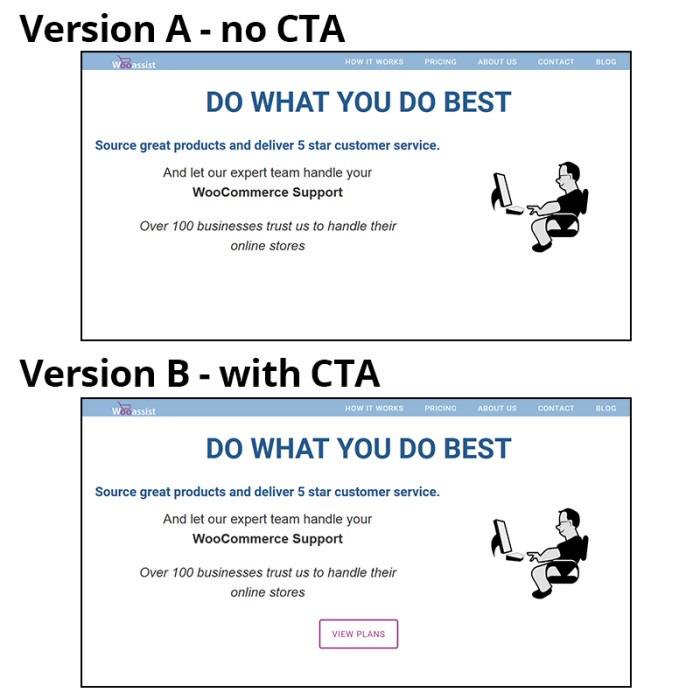
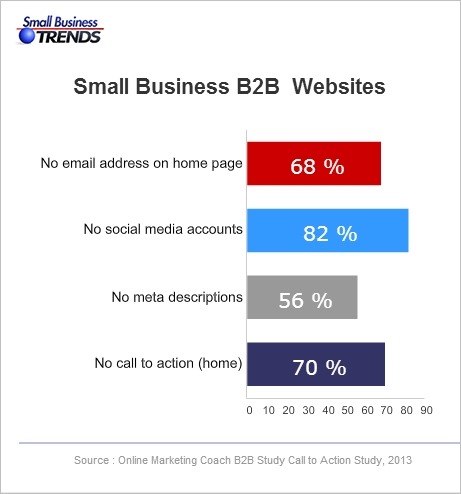
Ever wonder why some e-commerce sites make it big online while some do not? A survey on website failings showed that 70% of websites that fail do not have a CTA on their home page. Good website design and high traffic is not enough to get higher conversion rates. CTAs tell your visitors or audience what actions they can take.

B2B-call-to-action
Source: http://smallbiztrends.com/2013/08/b2b-small-business-websites-lack-call-to-action.html

There are nearly a billion active websites today. People could easily switch to another website if you don’t get them to take action. Your CTA is your marketing tool to educate, engage, and capture your potential customers. It will help you increase your conversion rate as you guide visitors to complete your e-commerce goals.

cta-samples-wooassist-view-plan

How to Create Calls-to-Action that Convert for Online Sales?

Having a CTA is not as simple as putting a text over a button. A weak or an unclear call-to-action may impede the sales process and you could end up losing a client. 30,000 new consumer products are being launched every year. Unfortunately, Clayton Christensen of Harvard Business School found that 95% of them fail.

Businesses often fail because they don’t take the time to understand their customers. Try to understand reasons behind sales and use that knowledge to your advantage. It will not only increase your online sales but promote customer loyalty.

There are four things you need to know to be able to create calls-to-action that convert online sales for your e-commerce store.

The Copy

You are often limited to just a few words or a phrase but that does not mean you should take this lightly. A subtle word change can make a big difference. Here are a few tips that you should consider.

Determine your Outcome

What outcome and action do you want from your audience? Is it accessing your shop page, signing up on your email list, downloading a trial version of the software, or downloading your e-book? Being clear with your desired outcome will allow you to get the results you want. CTAs should use specific, understandable and concrete language to lead customers to your goal. Avoid using ‘cute’ and vague language. To be effective, a customer must know what’s going to happen when they click on your CTA.

cta Change your life
Example of a vague CTA
cta Interested
Example of cute language. This CTA may seem attractive to some but it does not get as much clicks as ‘Download E-book’.

Identify your Audience

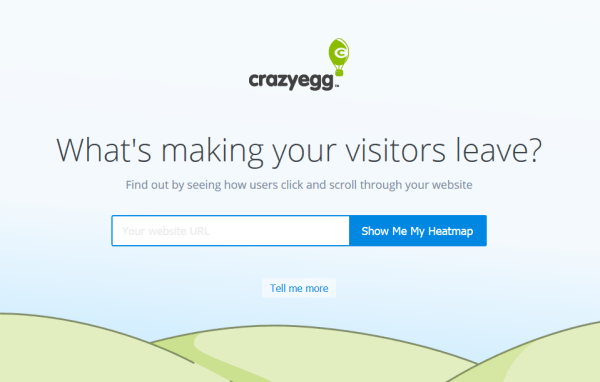
A CTA that works wonders for another website may not work the same way for you. A generic or copied call-to-action will work but conversions sky-rocket more with optimized versions. You can use analytics data to help you decide. Know your audience. Create a customer persona. By understanding your audiences’ desires and needs, you can convert them to paying customers better.

cta sample crazyegg
Crazy Egg asks its potential customers to try out their service for free.

Tailor to your Platform

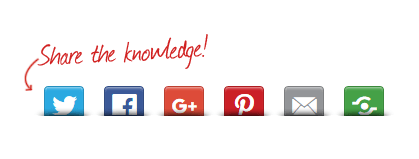
Different platforms offer different methods of interaction so modify your call-to-action to the common responses for each medium. Requesting a comment or reaction is appropriate on a blog or social media post but not on a landing page.

cta sample share
This is the kind of CTA that you’ll use in a blog post.

Position is Key

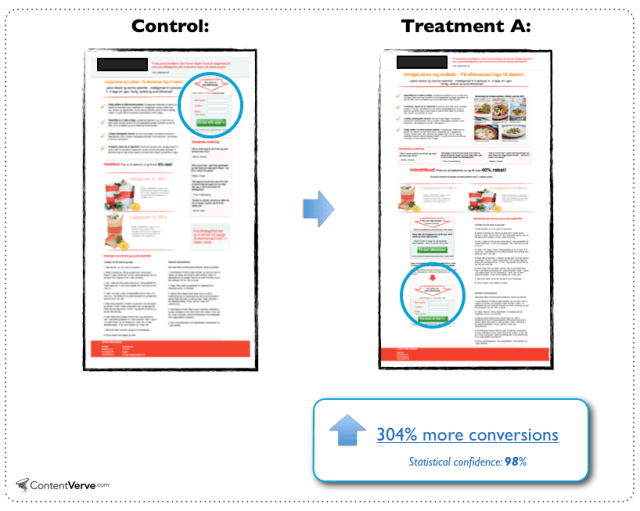
Calls-to-action should be placed after informing your visitors of what they are getting at. It can either be above the fold or below. You can also consider following the F pattern. You can add it at the end of a video or set up your website to display them before your visitor exits.

cta ab test sample
People need information so the change in location benefited this landing page.
Source: http://contentverve.com/10-call-to-action-case-studies-examples-from-button-tests/

Design is Important

Design should make your CTA noticeable but it should not interfere with your design. Don’t be too pushy with getting a sale as this might actually harm your online conversions. Your CTA needs to stand out from all the clutter. Try using white space to draw in more attention to it.

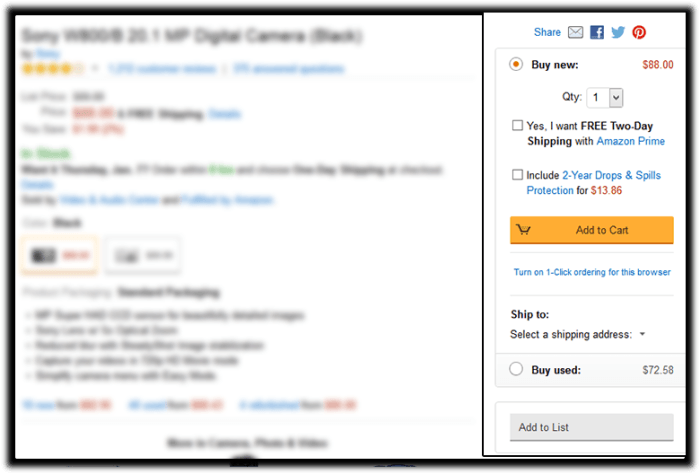
cta sample amazon ctas
Amazon’s add-to-cart button stands out more than other CTAs in this sidebar. Its cart icon is good for visual association.

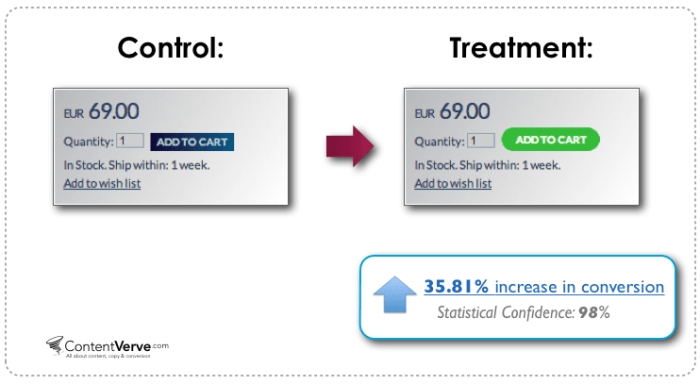
Colors help you increase your online conversion rates because colors have implied meanings. Your design needs balance. If you need a large button, choose a less prominent color that is relative to the elements around it. For smaller buttons, you may choose a brighter color. You can also make use of subtle hover animations.

cta ab test sample color
Change in color and design can increase conversion.
Source: http://contentverve.com/10-call-to-action-case-studies-examples-from-button-tests/

Optimization

Your CTA may be converting but is it the best one? Getting a high converting CTA needs constant testing. Set up your analytics and tracking services first. Use Google Analytics or Crazy Egg’s heat-maps and scroll-maps. You can also use A/B test services like Split Button for optimization. Once you have the data, do not be afraid to experiment and use the data to your advantage. You can use these A/B test ideas to get you started or check out this guide from Neil Patel on how to do split testing.

Summary

Calls-to-action help you to have higher conversion rates and good ROI for your e-commerce store. Good strategy, monitoring and optimization are keys to good CTAs. What calls-to-action ideas, experience and online marketing tips would you like to share for other online store owners? Let us know in the comments.

Filed Under: How-To Articles Tagged With: call-to-action, conversion optimization, e-commerce, how-to, marketing strategy, optimizations

How to Choose the Best Domain Name for Your WooCommerce Store

April 5, 2016 By John Leave a Comment

how to choose the best domain name for WooCommerce

Your domain name is part of your company’s identity. It should play an integral part in your branding strategy. In this article, we will identify how to choose the best domain name for your WooCommerce store.

Stay Relevant

You can start with a list of five to ten keywords that communicate what your WooCommerce store is about. You can then narrow it down, choose to add a prefix or a suffix, use them to make compound words, or make a new word.

Brand is not an SEO ranking factor but it has a positive influence on your SEO and reputation. At a glance, your customers should be able to connect your domain name to the nature of your business. Having a relevant domain name will also benefit you in defining your target market.

Stay Unique

Set your e-commerce business apart by having a unique and creative domain name. Avoid having your website domain name close to another brand’s name. A sure recipe for disaster is when users confuse you with another popular site.

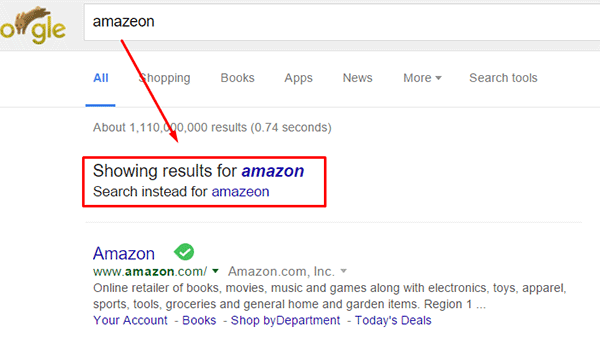
Intentionally going with a domain name similar to a popular brand in an attempt to deceive users can land you in jail. Same goes for intentionally misspelling a popular brand’s name. The practice is known as “typosquatting” and it is illegal. In fact, Facebook recently won $2.8 million and gained control of over 100 domains in a typosquatting case. You could also be charged with fraud or copyright infringement. Also, even if the popular brand does not catch wind of your site, intentionally misspelling a popular brand name can direct your traffic to the popular brand. Just check out the image below. A unique domain name will do wonders to your branding as it sticks into your customers minds.

misspell-popular-brand-name

Keep it Simple, Short and Memorable

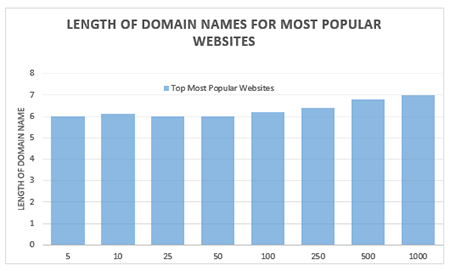
domain name lengthChoose a domain name that is easy to type and easy to remember. Don’t use hyphens, numbers, slang, and odd misspellings. In Alexa.com’s top 500 sites on the web, some of the top most popular websites have domain name lengths of 6-7 characters on average: Google, Youtube, Amazon and Linkedin, to name a few. From this data, it does appear that domain length matters.
Difficult-to-remember and hard-to-pronounce domain names would most likely rank low in search engines. A simple, short and memorable domain name is a great help with word-of-mouth marketing. It also fits well on any online or print form of marketing.

Tools to Help You Choose

There are now many tools online that you can use when you’re stuck or don’t know where to start in searching for a good domain name. Here are tools that can help you jump-start your domain name brainstorming session.

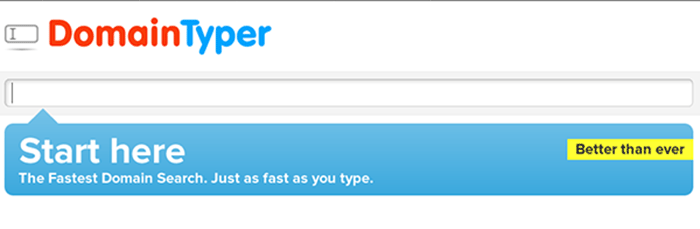
Domain Typer

Domain Typer helps you search for domain names. It displays popular domain name extensions like ‘.com’, ‘.net’, ‘.org’, ‘.co’, ‘.info’, and ‘.mobi’. It also displays prices should you need to compare.

If a domain name is not available, it displays links to its registration information, website and page ranking. It also has a domain hack section where you can select unusual combinations of your keywords.

domain-typer

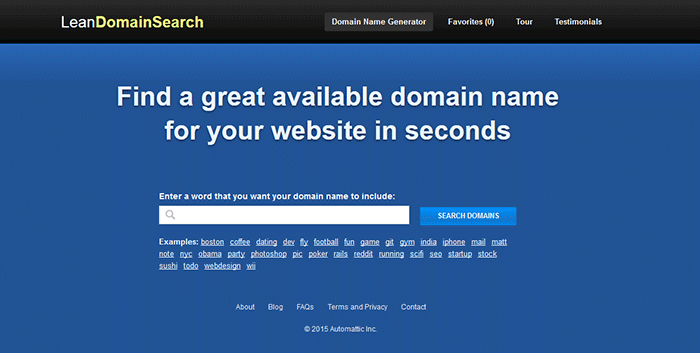
Lean Domain Search (formerly Domain Pigeon)

Aside from the search option, Lean Domain Search gives you some examples to help you get started. You can sort the results and even add search term filters. It shows ‘.com’ results and it shows you the popularity index of your keyword by domain count.

lean-domain-search

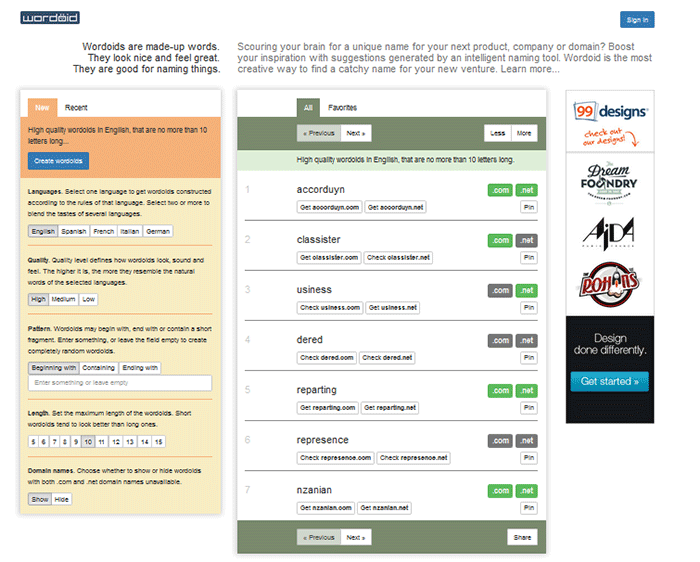
Wordoid

Wordoid is a more intelligent tool that sparks your creativity in getting a unique name for your domain. Just remember to not overdo it. Simple names are easier to remember.

wordroid

What if the Domain I Want is Not Available

You did your brainstorming and you have decided on the perfect domain name for your WooCommerce store. But upon checking, you find out that the domain you want is no longer available. You can try the alternative solutions below.

Just Come Up with a Different Domain Name

Discretion is the better part of valor. You may think you are smart by using the same domain and just using a different domain extension like .net or .co. However, you may just end up sending your hard-earned traffic to the other domain. Put on those thinking caps and think of another domain.

Create an Offer

One option is to find out who the registered owner is and create an offer. This is especially advisable when the domain is registered but not being used. Just visit the actual address or use a tool like theWhois Domain Tools or ICANN lookup tool to get information on the current registered owner. Send them a message and ask if they would consider selling the domain name. Most domain registrars offer services wherein they contact the domain owner in your stead. This is worth a try if you really want that domain.

If you decide to get in touch with the owner yourself, try to make your request sound casual. Don’t act too interested as you could get an overpriced offer.

Monitor the Domain Name

If your lookup shows that the domain registration is expiring soon, waiting it out might be a viable option. When the domain is back in the open market, grab it. However, do note that certain domain registrars give domain owners ample time to renew their registration. The domain may not appear on the market on the actual day that it expires.

Avoiding Overpriced Domains

money-financial-crisisIt is difficult to gauge the exact value of a domain name because it’s all about demand. Some domain names are really just expensive and there’s not much you can do about that. You can just build your not-so-popular domain’s reputation from the ground up. Many domain registrars provide discounts and offers so you can save a few bucks on that. If the domain that you want is being auctioned, you can join the auction and get it very cheap if you are lucky.

Background Check on Domains

Buying a domain, especially used ones, can be a nightmare if you don’t do your research. If you have decided to buy a used domain, don’t buy that domain yet unless you’ve done the following.

Check its Registration History and Reputation

Check the site ownership registration history. Use Whois Domain Tools to look up ownership information, ranking, traffic, SEO and more. The frequency of change in its owner or host speaks about its reputation and stability.

Avoid buying domain names sold numerous times in a short span of time. It might have a negative reputation from search engines that can be a nightmare to solve.

Analyze Link and Content History

You can use Internet Archive to check domain name’s content history. To check a domain’s reputation, google ‘site:yourdomain.com’ (without the quotations). You can also do a regular search to bring up all mentions of the domain name.

Be on the lookout for spammy illegitimate links. Check for Google red flags like bans and penalties. Make sure to also check the domain name’s Google cache date, including the text only version.

Do a thorough examination of its back-links. If you find anything shady, it might be a good idea to back off. While Google now gives website owners the ability to manually remove or disavow links, this isn’t something that you’d want to be doing. Save yourself from a lot of headache and go with a domain with a good rep.

To Sum It Up

A domain name is your online store’s identity. You can be successful with your branding and online business with a good domain name. You just need to carefully choose a domain name that is unique, relevant, short, simple and easy to remember. You also need to do a thorough background research to make sure you are not buying a domain with a bad rep.

Do you have any tips you’d like to share? Or did we miss something? Let us know in the comments.

Filed Under: How-To Articles Tagged With: best practices, e-commerce, how-to, marketing strategy, WooCommerce

How to Use Google Analytics to Track Website Goals in WooCommerce

May 25, 2016 By John 4 Comments

Google-Analytics

Knowing your site’s stats is critical in decision making to guide your site to success. Google Analytics is a web analytics service designed for this particular job. If you have a WooCommerce store, you probably have it set up to gather traffic data. In this article, we will teach you how to use Google Analytics to track website goals. Get more value from Google Analytics by tracking the completion of your site goals.

What is Google Analytics?

Google Analytics is a free web service from Google that tracks and reports website traffic data. It was launched in 2005 and is available to all users, whether they use Google for advertising or not. It is tightly integrated with Google Adwords, the company’s main advertising service, as it helps users keep track of their online web marketing campaigns. But using Adwords is not a necessity in order to get the most out of the Analytics.

Why Should You Use Google Analytics?

Google Analytics yields valuable information to help you make smarter marketing decisions, generate more leads and improve user experience. Traffic data can help you identify which of your blog posts provides the most user engagement and which one results in a conversion whether it’s a sale or an email sign-up. You can pinpoint the best time to post a new article. You can see the number of visitors who exit your site and from what page they exit. With that information on hand, you can look for ways to improve that specific page to reduce exit or what is known as bounce rate. In a nutshell, this treasure trove of data will be invaluable in your decision making for optimizing your website.

How to Track Completion of Goals in Google Analytics?

In Google Analytics, tracking page views and visitors is just the tip of the iceberg. Finding out if your website is actually accomplishing the goals you’ve set for your e-commerce site is more important. In fact, even if your traffic is ranging in the millions but you are not getting your intended conversions, that traffic is mostly worthless. This is where setting goals in Analytics come in. A ‘goal’ is a completed activity in your website that is tracked in Google Analytics. Defining your goals will depend on what kind of website you have. For an e-commerce site, goals can be a newsletter sign up, a purchase, downloading a trial software or e-book, or adding a product to a wish list.

Tracking your goals in Google Analytics will yield crucial data. If you see that many of your visitors add your products to the cart but exit when they reach checkout, there must be something in your checkout process that is preventing your visitors from completing purchases. You can then proceed to analyze and identify what factors you need to try and solve the problem After applying fixes, data from Analytics will help you identify if your tweaks have helped your conversion rates or not.

There are 4 ways to track goal completion: Destination, Duration, Pages per session, and Event.

Destination/URL Tracking

Your website is basically a network of pages represented by an identifier address or URL. Google Analytics provides an easy way to track specific URLs through destination goals. Each time someone navigates to a specific destination URL, it will trigger the goal as completed. This is the easiest and most common way to track goals because it is straightforward and easy to set up. This is ideal for tracking thank you pages every time someone subscribes, makes a purchase, or sends a contact email using the contact form, etc. which registers as a completed goal in analytics.

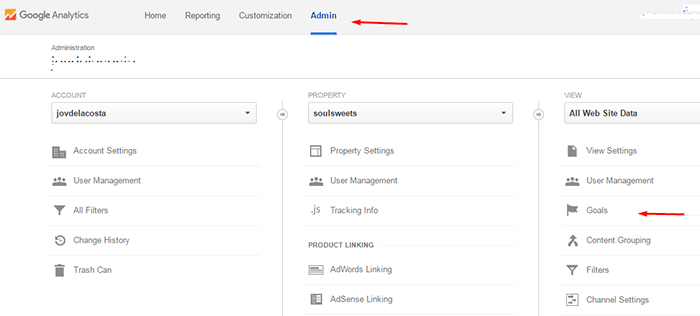
To setup a URL tracking goal, navigate to the Goals section in Analytics first. Go to Admin and click Goals.

how to use google analytics to track website goals

In Goal Setup, we set our goal name as “Place an order” and this goal will track how many visitors placed their orders/completed the checkout. Since checkout is normally closed with a thank you page, we can track how many times the thank you page is visited to track the number of purchases. Google Analytics also allows users to view other important statistics such as time on site and the referring URL which led to the sale.

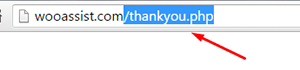
In Goal Description, set the goal type as Destination and enter the URL of your thank you page. You don’t have to enter the full URL, just the slug after the domain name will do. So, instead of www.example.com/thankyou.php, just enter /thankyou.php.

domain-slug

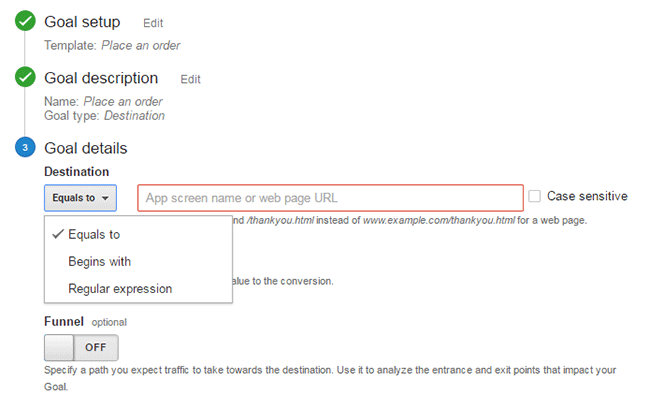
In Goal Details, select which of the below corresponds to your desired action.

  • Equals to – Requires the exact same string to trigger a goal. Good for tracking single pages.
  • Begins with – Only requires that string begins with the inputted URL. So if you put “/products” it will track any URL that starts with “/products”. This includes “/products/bags”, “/products/shirts”, etc. This is ideal for tracking a group of related pages under the same category.
  • Regular Expression – This is meant for advanced users. You can write wildcard terms to select a variety of URLs. You can read more about regular expressions in this guide.Google-Analytics_URL-Tracking_Goal-Details

Funnels

The basic concept of funnels for destination goals is to track a series of pages. These pages form the path you expect traffic to take. For example, you might want to get your visitors to watch a video of the product demo, proceed to add the product to cart, checkout and finally the thank you page.

Funnels are optional and not all e-commerce sites have a defined sales funnel. Still this should not be neglected. Tracking your funnel provides insights on how effective your website setup is in achieving your goal. When your visitor exits at the end of your funnel, the goal is triggered.

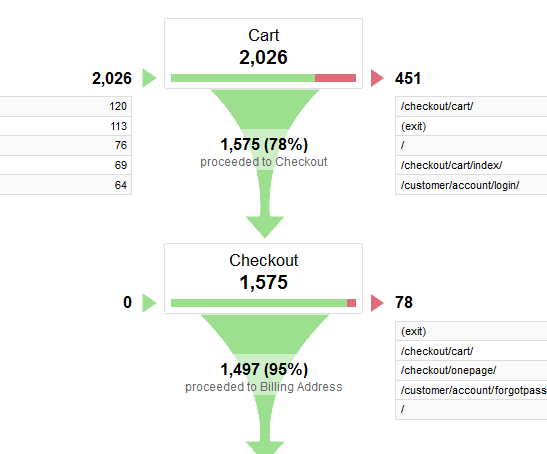
Setting up a funnel is very handy because you’ll also know how many visitors proceeded to each step. You’ll know at which step most of your visitors abandoned the process so you can make the necessary adjustments.

Google-Analytics_Funnel

Here is a sample data from a funnel. Notice that you can easily view how many proceeded to the checkout from the carts page.

Duration Tracking

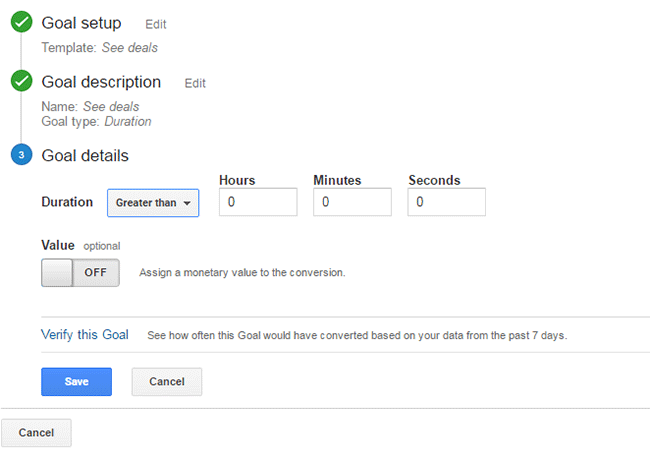
This tracks how much time the user spends on your site. To set this up, you just need to set a minimum amount of time in “Goal details” and if the user spends more than that, the goal will trigger. This tracking is useful for tracking goal pages with important content such as infographics, your portfolio or any other content that you want your visitors to view.

Google-Analytics_Duration-Tracking

Pages/Screens per Session

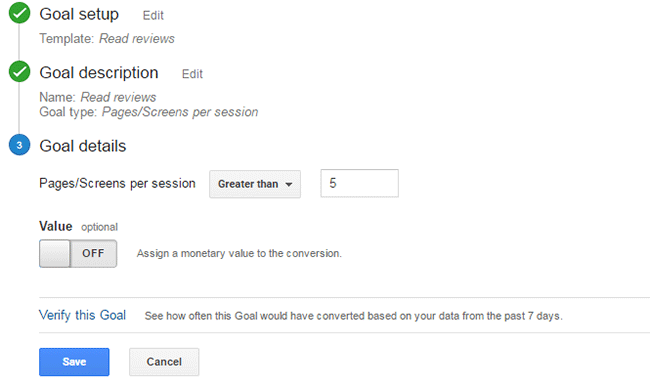
If your visitors reach a specific number of pages before exiting, it will trigger this goal type. This is useful when you have a lot of content that you want your visitors to view. This goal is used mostly by news and other media sites that earn advertising income.

To set this up, set Pages/Screens per session in “Goal details” and then choose a number that you want to target for your goal.

Google-Analytics_Pages-per-Screen

Event

This goal is meant for advanced users. You need to know some script coding to trigger the event. And it can be as specific as you want it to be. Using scripts on your site, you can track a click of the button, scroll on a page, and more specific actions that are happening during the visit.

Wooassist_Call-to-Action_View-Plans

Mostly, an event goal is used on button clicks. While you can use URL tracking to track button click, it becomes a problem when you have multiple buttons on different pages that point to the same URL. You won’t know which button was clicked. With event tracking you can keep track of each button individually. This is very useful in identifying which particular button or button design is more effective in completing your goals. To know more about setting up event tracking, you can visit Google’s guide for event tracking.

Conclusion

Remember that Google doesn’t retroactively track your goals. So it is important that you set up your goals as soon as you have your site running so that you can effectively start collecting data right away. Use the data you gather to improve your conversion rates. Google has provided you the resources to improve your site and increase your income. Now it’s up to you how you will use that data to your benefit.

Was this post helpful? Do you have any tips you’d like to share about Google Analytics conversion tracking? Let us know in the comments.

Filed Under: How-To Articles Tagged With: best practices, call-to-action, conversion optimization, e-commerce, Google Analytics, how-to, marketing strategy, optimizations

How to Add a Favicon to your WooCommerce Store

February 29, 2016 By John Leave a Comment

What is a Favicon?

Favicons are typically 16×16 square images. Old versions of Internet Explorer refer to the bookmark section as “favorites”. Hence the name “favorites icon” or favicon for short.

What is the Point of Having Favicons?

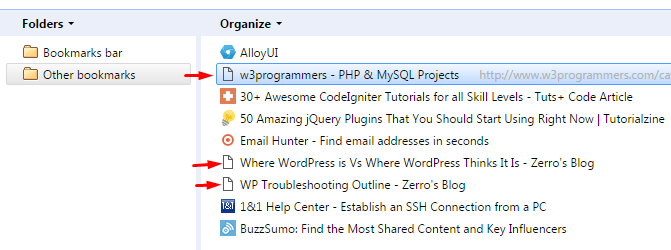
The main purpose of having favicons is to easily distinguish different websites in the bookmarks page. Here is a snapshot of a bookmarks page. Notice that the pages without favicons are hard to distinguish if they belong to the same website or not.

favicons in bookmark manager

Search engines and websites then are not as powerful and strongly connected with links. If you came across a good site, it was usually a good idea to bookmark it. As a result, people often have a long list in their “Favorites page”. The favicon answers the need to tell each website apart in the list at a glance.

Favicons are not limited to bookmarks pages though. It is also used around different parts of the browser like the history page, tabs, and more. Favicons play a huge role in online branding providing easy recognition and association. If you are serious in brand recognition, then you must add a favicon to your site.

Adding a Favicon to Your Woocommerce Store

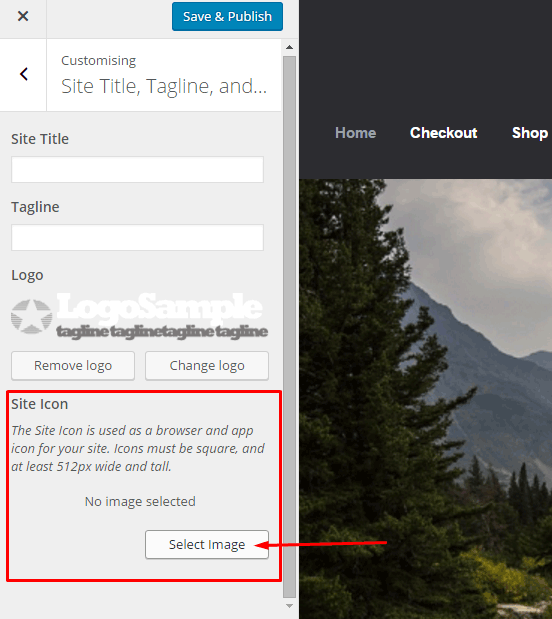
Starting from WordPress 4.3, you can now add your favicon directly using the admin panel. Navigate to Appearance > Customize > Site Title, Tagline, and Logo.

add favicon to your woocommerce - customize wordpress site icon

Simply select a 512×512 image from your media library or you can upload a new one. If you select an image larger than 512×512 or a non-square image, you will receive a prompt to crop your image.

After this, click save and publish. Refresh or restart your browser to see your new favicon.

Note that this is a default feature since WordPress 4.3. If you don’t see this feature in the theme you are using, contact your theme’s support for assistance. Or you can do it the old fashioned way with the steps below.

How to Make a Favicon?

If you have a small logo, that would be good to use for a favicon. Otherwise, you’ll have to create a miniature version of your logo. If you are not comfortable working with graphics, you can contact your graphic designer to help you out.

How to Manually Add a Favicon?

To add a favicon to your WooCommerce store, start by saving the image to one of your site’s folders. You can upload it using FTP or via media library upload. After saving it, take note of the filename and file path. It is best to save your favicon in your website’s root folder or in the images folder of your theme’s folder.

On your Dashboard, navigate to Appearance > Editor. Find your theme’s header.php file. Remember, the best way to edit your theme’s files is via a Child Theme. You can select one from several Storefront child themes to help you customize your WooCommerce store.

Paste the code below in your header.php file just below the other lines starting with “<link rel=”.

<link rel="icon" href="http://www.domain.com/favicon.png" type="image/x-icon" />
<link rel="shortcut icon" href="http://www.domain.com/favicon.ico" type="image/x-icon" />

Replace “http://www.domain.com/favicon.ico” with the file path of your favicon. Save the file and you’re done. You may need to restart your browser to see the new favicon.

I hope we helped you in adding a favicon to your WooCommerce store. If you have any questions and feedback, leave us a comment below. We are always ready to help.

Filed Under: How-To Articles Tagged With: code snippet, design tweaks, e-commerce, how-to, image optimization, photoshop, WooCommerce, WordPress

  • « Previous Page
  • 1
  • 2
  • 3
  • 4
  • …
  • 8
  • Next Page »
Let us support your online store so you can manage your business

Get started today

Get 2 Hours of FREE SUPPORT

We are so confident that you will love our services that we will give you your first 4 hours at a 50% discount

That’s 4 hours for only $75

BUY NOW

Free eBook

5 Things Every Online Store Can Fix On Their Website In The Next Week To Increase Sales

Quick Links

  • How it Works
  • Pricing
  • Blog
  • Contact
  • About Wooassist
  • My Account
  • Checkout
  • Privacy Policy
  • Cookie Policy
  • Terms and Conditions

Wooassist

Australia:
59 Luke St.
Hemmant QLD 4174

Philippines:
San Miguel St.
Poblacion, Iligan City 9200

Connect


Copyright © 2026 · Wooassist

Yours FREE!

5 Things Every Online Store Can Fix On Their Website In The Next Week To Increase Sales