Wooassist

Assistance for Your Woocommerce Store

  • How it Works
  • Pricing
  • Services
    • Site Maintenance
    • AI SEO and Content Marketing
  • Blog
    • How-To Articles
    • Code Snippets
    • SEO For E-Commerce
    • Theme and Plugin Reviews
    • Wooassist News
    • WordPress/WooCommerce News
    • Interviews
  • About Us
  • Contact
You are here: Home / Archives for e-commerce

How to Enable Apple Pay for WooCommerce

June 16, 2017 By John 2 Comments

What is Apple Pay?

how to enable Apple PayApple Pay presents a new and more convenient way to pay for mobile e-commerce purchases. Since Apple does not share your credit card details when you pay, it is safe, secure and private. Currently, Apple Pay is already accepted in a number of stores and websites. You can check this list of merchants that accept Apple Pay.

Why Add Apple Pay to Your WooCommerce Store?

Early adopters of Apple Pay have experienced an increase in conversion rates of up to 80%. The checkout process is made much faster as payment only requires a fingerprint check as opposed to entering your credit card number.

What Do I Need to Install Apple Pay on WooCommerce?

To install apple pay with WooCommerce, there are a few requirements. First, the store must support Stripe payments. You’ll also need the WooCommerce Stripe Extension which is free. Stripe is currently available in 10 countries, namely, Australia, Switzerland, United Kingdom, Hong Kong, Singapore, Canada, Spain, France, New Zealand, and the United States.

How to Enable Apple Pay on Your WooCommerce Store

Just follow the steps below to enable Apple Pay on your WooCommerce store. If you have already set up the WooCommerce Stripe Extension, please proceed to Step 7.

    1. Install and activate the WooCommerce Stripe Extension. You can download it here or just search for it in the plugins page.
    2. Head over to WooCommerce > Settings > Checkout > Stripe and check the “Enable Stripe” box. Make sure you disable “Enable Test Mode” if you want to go live. If you are already accepting payment through Stripe, go to Step 7.
    3. Input your Live Secret Key and Live Publishable Key. You can get the information from your Stripe account.
    4. Input the Statement Descriptor. This is the text that will appear on your customer’s credit card statement.
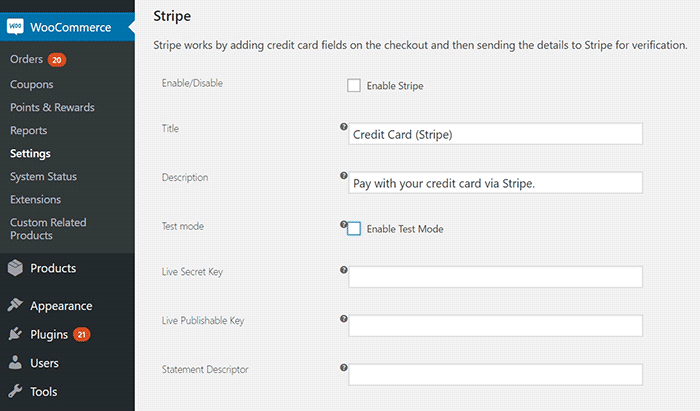
      Stripe setup
    5. Choose whether to “Capture Charge Immediately” or not. If you choose not to charge immediately, you will need to manually initiate the charge through the WooCommerce order page.
    6. You can choose to “Enable Stripe Checkout” for the plugin to create a pop-up that requests details. Choose this option if you want to accept Bitcoin.
    7. To enable Apple Pay, tick on the Enable Apple Pay box.
    8. Under “Apple Pay Button Style”, you can choose what color you want the Apple Pay button to be.
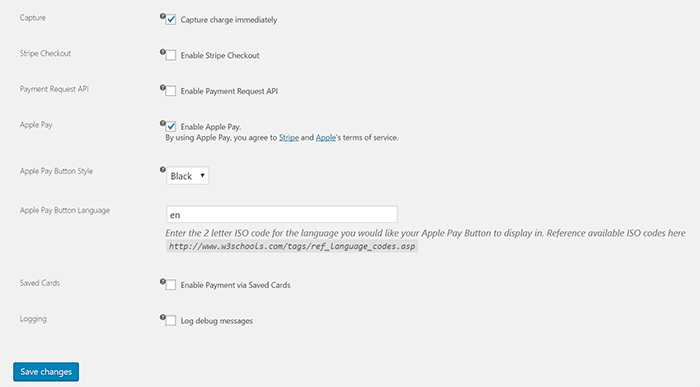
      Stripe setup2
    9. Under “Apple Pay Button Language”, you can enter the ISO code for the language you want to use. For English, just use “en”.
    10. Click on Save Changes when done.

That’s it. You are now ready to accept Apple Pay payments on your WooCommerce store.

If you are having problems enabling Apple Pay on WooCommerce, let us know in the comments.

Filed Under: How-To Articles, Theme and Plugin Reviews Tagged With: best practices, checkout form, e-commerce, how-to, plugins, WooCommerce

How to Troubleshoot Problems in WooCommerce

September 4, 2017 By John 2 Comments

How to Troubleshoot Problems in WooCommerce

When something breaks on your WooCommerce store, don’t panic. Usually, these issues are caused by an outdated software/plugin, a theme conflict or a plugin conflict. These issues can normally be resolved in a few basic steps. In this post, we’ll teach you how to troubleshoot problems in WooCommerce before you hire some professional help.

Before anything else, you need to identify the scope of the problem and if you need to set your site to maintenance mode. If the current problem will cause more problems down line like having to issue refunds for any sale, you might want to consider putting your site on maintenance mode. There are a lot of plugins on the plugin repository that can help you set up a maintenance mode page. When that’s done, you can proceed with the steps below.

Step 1: Update Your Themes and Plugins

The first step to troubleshooting an issue on your WooCommerce store is to update your themes and plugins. However, before you update, make sure you create a backup or test your updates on a development site.

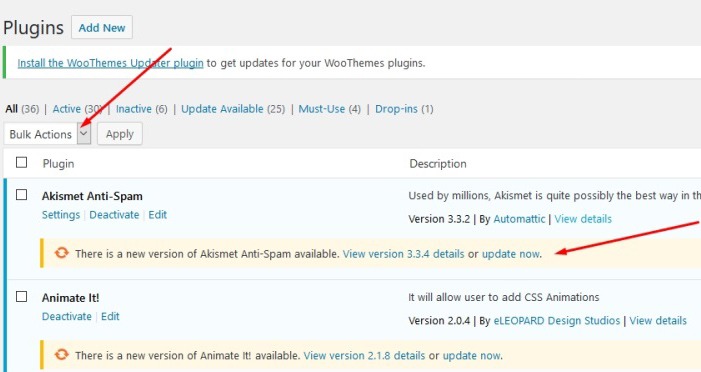
To update your plugins, just go to your WordPress Dashboard, click on plugins and click on Update Now for each plugin. To update all your plugins in one go, you can tick on the tick boxes and then click on Update in the Bulk Actions field and then click on Apply. If you are running some premium plugins, note that you may need to renew expired licenses to update those.

plugin-dashboard-1

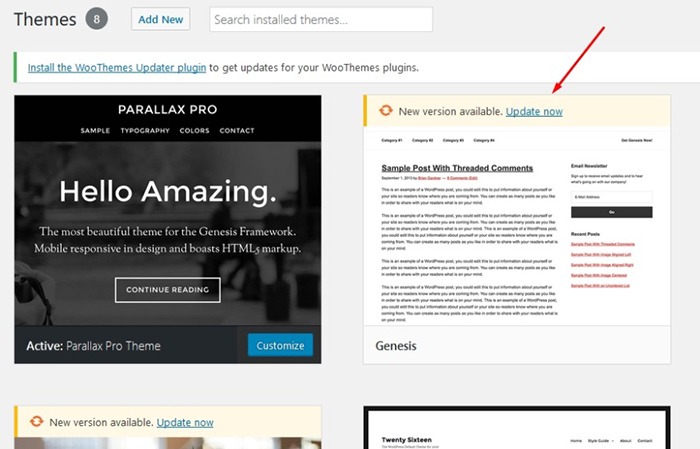
To update your themes, click on ‘Appearance’ and then ‘Themes’. This will bring you to the Theme page which shows all your installed themes. Here, just click on Update Now on the theme that you need to update.

themes-dashboard

Step 2: Deactivate All Your Plugins

If updating your themes and plugin does not fix the issue, you have to rule out the possibility that a plugin is causing the issue. You will need to deactivate all your plugins.

You can first choose to deactivate any new plugins you have recently installed and then test if that would fix the issue on your site.

If that does not fix the problem, you can deactivate other plugins that you think may be related to the issue. Minification and caching plugins often cause site issues so you can start with those plugins if you have any. If that still does not work, proceed to deactivate the rest of your plugins one by one.

When you’ve found the plugin in question, you can just leave it deactivated and find an alternative plugin. You can also reach out to the plugin developers to let them know about the problem you had so they can look into it and try to fix it.

If deactivating all your plugins still does not fix the issue. You can proceed to the next step.

Step 3: Use a Default WordPress Theme

Many theme developers bloat their themes with unnecessary features. Sometimes this causes conflicts with WordPress, WooCommerce and other plugins. Before you change your theme, make sure you back up your site.

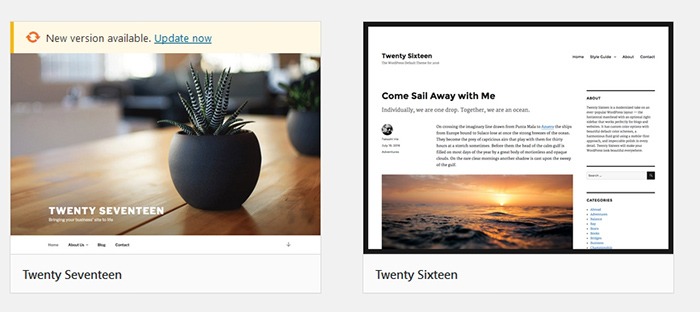
When you are ready, you can proceed to activate any of the basic WordPress themes such as Twenty Seventeen. If that fixes your problem, then you’ve got an issue with your theme. You can get in contact with your theme developer about the issue so they can fix it. You can use another theme but this is not an easy choice to make especially if you’ve invested a lot of work on your current site’s design. You can also contact us so we can advise if there is anything else that can be done to fix the theme issue. There is a chance that the problem can be fixed with a few simple tweaks.

twenty-seventeen

We recommend using Storefront theme which is one of the best themes to use for WooCommerce because of compatibility. Storefront theme was made specifically for WooCommerce by the same developers who created WooCommerce.

The Genesis Framework is also a good choice for a theme. It has a wide range of child themes customized for the needs of specific website types.

But My Problem Still Persists?

If the steps above did not solve your problems, there are still a few things you can do. Forums and message boards are a good way of getting help with issues concerning WordPress or WooCommerce. If you have a WordPress problem, you can post it in the WordPress forums and someone might be able to help you out. If your problem is specific to WooCommerce, you can head over to the WooCommerce support page.

If all else fails and you don’t have an in-house developer, you can contact us so we can have our expert WooCommerce developers try and fix the issue for you.

Filed Under: How-To Articles Tagged With: best practices, e-commerce, troubleshooting

10 Things You Can Do Right Now to Improve Your WooCommerce Store

October 10, 2017 By John Leave a Comment

Ecommerce - Improve your WooCommerce StoreAs a WooCommerce store owner, your goal is to make your business as profitable as it can be. Here, we list down 10 things that you can do today to improve your WooCommerce store.



1. Add a call-to-action button on your home page

Adding a call-to-action button on your home page encourages your visitors to take whatever action you want them to take. You can direct them to click on your shop, sign up to your email newsletter, send you an email, call you, or add a product to the cart.

thumbs-up

2. Add your contact details

Making sure that your contact details are immediately visible will increase your site’s trust rating. It can be your email or phone number. You can even add your store’s address if you have a physical store.

3. Add an email capture form

Getting your customer’s emails will allow you to send newsletters or special offers to those who sign up.

4. Remove distractions from your checkout page

Removing distractions from your checkout page will reduce cart abandonment. When a customer reaches your checkout page, you don’t want them clicking anything else except that “Pay Now” button.

5. Add related products to your product page

Adding related products to your products page will encourage your customers to purchase more items from your store. This will increase your average order value.

6. Offer free shipping

Not everyone can offer free shipping. But if you are able to, free shipping can really amp up your conversion rates. You can also offer free shipping with a minimum order value or for specific locations only. Make sure your visitors know you offer free shipping by placing a notice in a prominent area of your site.

7. Optimize your product copy

There are a lot of ways to optimize your product copy. You can optimize your copy to appeal to customers by emphasizing on the problems that your products can solve. You can also optimize your product copy to include technical details. Lastly, you can optimize your copy for ease of reading. How you optimize your product copy really depends on your product and your customer profile. You can use Hemingwayapp to check your copy’s readability score.

8. Optimize images on your WooCommerce store

product-zoom-in

When uploading product images, you must first optimize your product images to make sure you are uploading the correct image sizes. To determine the correct image sizes for your theme, you will need to use the “Inspect Element” feature of your browser. You will then need to go to WooCommerce settings to set the correct image size. Uploading anything bigger than the image placeholder’s size is a waste of resources and will just slow down your site. You can learn how to optimize images for the web in this blog post.

9. Remove sliders and use a single hero image with a call-to-action

Sure, sliders look good. But the truth is, they may actually do more harm than good to your site. Sliders can really slow down a site and a slow site is bad for SEO and conversion rate. Also, sliders can confuse customers and makes for bad user experience. Your website must send a clear message on what you want your customers to do. A slider just confuses your customers with various images that look like advertisements.

10. Make your site is mobile responsive

If you have not updated your site’s design for years, it might not be mobile responsive. This means that your website does not adapt to different screen sizes which makes browsing on a mobile device difficult. This is not good for your site’s user experience. Also, having a mobile responsive WooCommerce store is an advantage in terms of SEO. You can address this by using a responsive theme such as Storefront or the Genesis framework with a Genesis child theme. Both these themes are compatible with WooCommerce.

If you need any help getting any of these things done, you can contact us and we will help you get these sorted. If you have any questions, you can let us know in the comments section.

Filed Under: How-To Articles Tagged With: admin, best practices, call-to-action, content marketing, conversion optimization, design tweaks, e-commerce, how-to, optimizations, page speed, responsive design, website maintenance

How Often Should I Update My WooCommerce Store?

July 20, 2017 By John Leave a Comment

update my woocommerce store

How often should I update my WooCommerce store? We get that a lot from our clients. The ideal answer is that site updates should be done whenever there are critical security updates to keep your site secure.

For regular scheduled site updates, we have found that monthly updates are ideal. Weekly updates may be too frequent. There usually isn’t a lot to update in one week’s time. Every two or three months is way too long that the site remains vulnerable to security threats. Monthly updates are just about right. Note that even if monthly updates are being done, site owners must promptly update their WooCommerce stores should a critical security update come up.

Should I Even Update my WooCommerce Store?

We sometimes get this question too. It is true that updating your WooCommerce store can break your site. However, not updating your WooCommerce store can also eventually break your site. So essentially, it is still best to do the updates.

How to Prevent Issues When Updating My WooCommerce Store?

There is no sure-fire way to know if there will be any issues on your site as a result of updates. The best you can do is to test the updates first on a development site to see if any errors would occur. Also, you can stay on top of what the WordPress and WooCommerce developers are doing. You can sign up to newsletters or follow developer blogs to stay updated. You can check out the WooCommerce changelogs and the WordPress changelogs too.

When major updates are released, it might be ideal to wait a few weeks before updating your site. This is to give WordPress, WooCommerce and other plugin and theme developers sufficient time to update anything that was broken during the update.

What to Do Before Updating My WooCommerce Store?

There are a few steps you can take before updating your WooCommerce store. First, you can test your site updates on a development or staging site. Many hosting providers, such as WPEngine, provide their clients a staging environment for testing site updates. If your hosting provider does not provide a staging environment, don’t worry. You can still create a staging site manually.

checklistAfter applying the updates on the development site, the next step is to check if the site has any broken features. Some important elements to check are:

  • Home Page Formatting
  • Product Page Formatting
  • Product Image Gallery
  • Add to Cart and Checkout Process
  • Contact Forms
  • Email Signup Forms

If you find that anything is not working, you can proceed to fix or forward to your developer to fix. If you do not have an in-house developer, you can contact us and we can help you fix the problem. If there are no problems, you can proceed to the next step.

The third step is to back up the live site. WPEngine features a one-click backup. You can also use a plugin for creating backups. We recommend Updraft Plus plugin which also features a quick restore feature in case something goes wrong.

Once you have created a backup, you can proceed to update WooCommerce, all other plugins, themes and the WordPress core. When that’s done, you need to check if anything is broken on the live site. If everything is working and there are no formatting issues, then that’s it. You have successfully updated your site. If something gets broken, you can attempt to fix the problem or restore your backup.

What to Do When Something Breaks When Updating Your Site?

The WordPress infrastructure makes updating your WooCommerce store easy. But dealing with the complications that come with updates can be very daunting, especially if you are not a developer. As such, we recommend working with a developer when doing your site updates so that any issues can be resolved quickly. If you do not have a full-time developer on board, you can contact us so we can get our experienced WooCommerce developers to help fix any issues.

Filed Under: How-To Articles Tagged With: admin, best practices, e-commerce, how-to, security, website maintenance, WooCommerce

29 Business Principles From A Self-Made Billionaire Business, Entrepreneurship, and Success Principles From Richard Branson’s “Like A Virgin”

June 12, 2017 By John Leave a Comment

Richard Branson's Like A VirginIf you’re an entrepreneur it’s important to leverage the experience of other successful entrepreneurs so you can save time, avoid costly mistakes, and achieve your goals faster.

I’ll share with you some principles from one Entrepreneur—Richard Branson who founded the Virgin Group but first let’s get to know a little more about who he is.

Who is Richard Branson?

Richard Branson is an entrepreneur and a philanthropist who founded the Virgin Group, which has 400 companies under it. When he was still starting he stood against the giants in the industry such as the British Airlines and was able to rise up despite having less advertising budget.

How much is the net worth of Richard Branson?

As of 2017, his net worth is 5.1 billion US dollars.

What are Richard Branson’s Philanthropy projects?

First he works with The Elders which is a group of leaders who join together to resolve conflict all over the world. One of the founders is Nelson Mandela, the president of South Africa and a Nobel Peace Laureate.

Another is the Carbon War Room, an organization founded by Virgin Unite for combating global warming by reducing carbon emissions.

Richard Branson’s Reality TV about entrepreneurs

Richard Branson has a reality TV show about developing entrepreneurs called The Rebel Billionaire – Branson’s – Quest For The Best. See below video:

Who does Richard Branson consider as his role model?

Archbishop Desmond Tutu – who fought against racial discrimination and is also one of the founding members of The Elders.

What is Richard Branson’s vision?

To ensure world conflicts are resolved more effectively or even become a thing of the past.

29 Powerful Business Principles From Richard Branson

Now that we know who Richard Branson is and where he’s coming from, here are some of his principles and advice to grow your business. These principles were based on an interview of him written at the start of his book “Like A Virgin” which despite the title is actually a business and management book.

  1. What’s the best advice he can give? Look only for the best qualities in people.
  2. What’s the best advice he can give? Only a fool never changes his mind.
  3. The key to success in three words: People. People. People.
  4. Luck doesn’t just happen, you have to work at it.
  5. Love what you do, love people, love making a difference.
  6. Avoid negativity, avoid looking for the worst in others, avoid having ‘glass-empty’ mentality.
  7. Avoid gossiping.
  8. Overcome challenges, and if you fail, pick yourself up quickly.
  9. Five secrets to starting a business: if you don’t enjoy it, don’t do it. Why? Because starting a business consumes a lot of time so you need to be willing to spend huge amounts of hard work and time.
  10. Five secrets to starting a business: be innovative, create something radically different. Do things that have never been done before and continue innovating. If you enter a crowded industry, be ready to offer customer service that blows the competition away.
  11. Five secrets to starting a business: Build your business so that people are proud to be associated with the company. It generates a special level of advocacy and dedication from your people. In most businesses, people are your biggest assets.
  12. Five secrets to starting a business: lead by listening and be extremely good at lavishing praise. Never openly criticize people. Never lose your temper. Always be quick to applaud a job well done. People flourish on praise. Usually people don’t need to be told that they’ve done wrong because most of the time they know it.
  13. Be visible: even if you work from home be constantly out and about and meet people. Keep a notebook as you go out and jot down questions, concerns and good ideas. Meet as many of the people that your company is serving because you will get good suggestions or ideas. Write those ideas down. Talk to your staff and customers at every opportunity, listen to the good and the bad feedback and act on it. Appoint leaders in your team who have the same philosophy–keep it proactive, responsive, and friendly.
  14. Learn from failure, then pick yourself up again. Some of the best lessons are learned from failure, but pick yourself up and start all over again.
  15. The real engine of any business – people. Good people are not only crucial to your business, they ARE the business.
  16. Find the right people
  17. Manage the right people
  18. Inspire the right people
  19. Hold on to the right people
  20. Keeping and maintaining the right people are one of the most important challenges that a business leader faces
  21. What sets a business apart from others are the attitude of the people
  22. Your people should be smiling, cheerful, pleased to help, so customers want to do business with you again.
  23. People are your key asset.
  24. A good leader must know the team, its strengths and weaknesses. Socializing and listening to the team is key.
  25. Remind the managers and leaders in your team about having a true sense of pride in the business because that’s what makes all the difference.
  26. Be willing to give people a second chance. Remember the times when you too made mistakes and were given a second chance. Branson once tried to sneak duty-free records out of the UK and escaped a criminal record only by paying a fine. He was given a second chance to start over.
  27. Call people out in private when they do something wrong, but give them a second chance. Branson said this to one of his staff who messed up by trying to steal and then sell his record labels: “Everyone messes up, I expect you to learn from this mistake and go back to doing what you do best.”
  28. Your people need to be looked after, and celebrated.
  29. How to handle people who don’t perform up to standards:
  • Don’t be aggressive
  • There’s plenty of ways to get your point across and make your business successful without being aggressive
  • Always remember that you love what you do and your role is to persuade others to love your business too, so that people will want to work with you.
  • Engage with everyone in a positive, inclusive manner rather than in an aggressive, combative, or negative way
  • If the companies or individuals you deal with do not respond to a positive approach, ask yourself if they are the right companies or people to work with.
  • For every supplier or people who are aggressive towards you, there are another five who will want to work with you.
  • Look for companies or individuals who want an inclusive, positive partnership.
  • Strong personality is important when starting a business, but ‘strong’ does not have to mean ‘aggressive’.
  • Have confidence in your ability to follow you vision
  • Listen to others
  • Master the art of delegation
  • Delegate to a member of your team when you encounter frustrations when dealing with others.
  • Delegating difficult problems to your team brings a fresh pair of eyes and ears, and a different approach and perspective
  • Surround yourself with a great management team who complement you and ensure that the team have all-round skills to make the business succeed.
  • When negotiating, remain calm and collected.
  • When negotiating, if you are getting angry take a deep breath, pause, and realize that you are taking things personally. Take a step back. Rely on the team around you to help you out.
  • Learn to negotiate without aggression. Understand what you want to achieve and what leverage you possess to help you reach your goals. You need less aggression and more determination.
  • Confide in your team the difficulties you encounter, it will help you put everything in a clearer perspective.
  • Attract and keep good partners and staff by making them feel that they have done well with you.
  • Be willing to listen to other people’s suggestions, and recognize when those suggestions are better than yours. Don’t be afraid to admit you’re wrong. Take action when the suggestions are better.
  • Build a healthy rapport with your team and the companies you work with. Don’t take everything personally.

Take Action

That’s a lot of things you can act on here immediately that can have a positive on your business and that’s only from the first 21 pages of Richard Branson’s book! Personally I learned some new things I can implement immediately in several of my businesses. Which of these principles can you immediately implement in your business and why did you choose these principles over the others?

Filed Under: Wooassist News Tagged With: business, e-commerce

  • « Previous Page
  • 1
  • 2
  • 3
  • 4
  • 5
  • 6
  • …
  • 8
  • Next Page »
Let us support your online store so you can manage your business

Get started today

Get 2 Hours of FREE SUPPORT

We are so confident that you will love our services that we will give you your first 4 hours at a 50% discount

That’s 4 hours for only $75

BUY NOW

Free eBook

5 Things Every Online Store Can Fix On Their Website In The Next Week To Increase Sales

Quick Links

  • How it Works
  • Pricing
  • Blog
  • Contact
  • About Wooassist
  • My Account
  • Checkout
  • Privacy Policy
  • Cookie Policy
  • Terms and Conditions

Wooassist

Australia:
59 Luke St.
Hemmant QLD 4174

Philippines:
San Miguel St.
Poblacion, Iligan City 9200

Connect


Copyright © 2026 · Wooassist

Yours FREE!

5 Things Every Online Store Can Fix On Their Website In The Next Week To Increase Sales